HarmonyOS应用开发:设备地理位置获取功能详解
目录
- 引言
- 创建项目
- 资源目录
- 核心页面
- 功能集成
- 功能调用与测试
- 结束语
引言
在移动应用开发中,关于设备的地理位置信息已成为应用开发的核心功能之一,尤其是现在移动应用越来越注重用户实际体验,会在应用中加入地理位置信息,通过位置来给用户进行推荐,所以说无论是为用户提供定制化的服务,还是进行地理数据分析,地理位置都扮演着至关重要的角色。那么本文就来详细分享一下HarmonyOS应用开发中关于设备地理位置获取的使用, 希望本文能搞帮助更多的HarmonyOS开发者,助力大家轻松实现设备地理位置的获取功能使用。
创建项目
先需要新建一个基于HarmonyOS的项目,需要使用DevEco Studio来创建一个新的项目,然后选择适合的项目模板,并按照提示完成项目的初始化设置,可以直接选取Empty Ability模版进行简单的配置。
资源目录
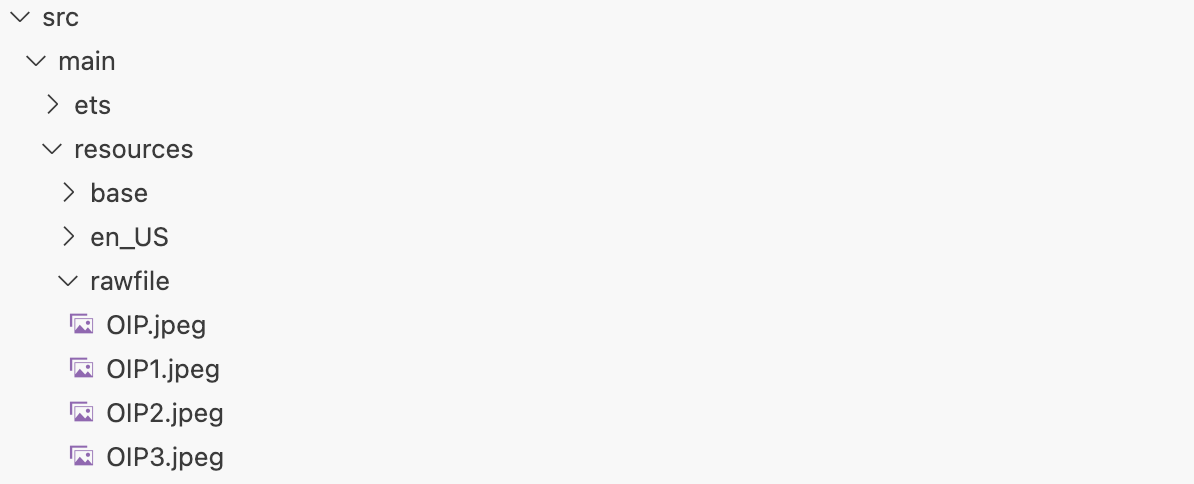
HarmonyOS项目创建完之后,就是进行页面设计,因为现在移动应用对用户体验是非常在意的事情。为了提升用户体验,我们可以先对项目进行UI设计。我们可以先在项目的资源目录中,添加几张图片资源,并命名为OIP...,然后在Index.ets文件中定义UI元素和自定义弹窗,在完成设计后,我们就可以使用预览功能查看界面效果,具体如下所示:
核心页面
然后再来做一个关于获取地理位置的页面,用来显示示例效果,这里我直接打开Index.ets文件,然后删除build()中原有的所有代码块,接着增加新的页面功能和弹窗,具体的示例代码如下所示:
@Entry
@Component
struct Index {

  title:string = '地理位置信息展示'

  @State Geo_Info:string = ''

    //存储用户是否授权的状态
  @State ifAccessible:boolean = false

   //新建两个弹窗控制器
  private dialogController_Accessible : CustomDialogController = new CustomDialogController({
    builder:dialog({
      message:'已获取权限'
    })
  })

  private dialogController_Inaccessible : CustomDialogController = new CustomDialogController({
    builder:dialog({
      message:'获取权限失败 | 缺少相关权限'
    })
  })


  build() {
    Column({space:10}) {
      Text(this.title)
        .fontSize(22)
        .fontWeight(600)
        .margin({
          top:20,
          bottom:20
        })
        .fontColor('#444')

      Row(){
        if(this.ifAccessible == true){
          Image($rawfile('img2.png'))
            .objectFit(ImageFit.Contain)
            .layoutWeight(1)
        }else{
          Image($rawfile('img1.png'))
            .objectFit(ImageFit.Contain)
            .layoutWeight(1)
        }

        Column(){
          Button('获取相关权限')
            .width('90%')
            .fontSize(16)
            .backgroundColor(Color.Blue)

          Button('获取地理位置')
            .width('90%')
            .fontSize(16)
            .backgroundColor(Color.Blue)
            .margin({
              top:14
            })

        }
        .height('100%')
        .layoutWeight(4)
        .backgroundColor(Color.White)

      }
      .height('10%')
      .width('90%')

      TextArea({
        text:this.Geo_Info
      })
        .width('96%')
        .height('50%')
        .fontSize(16)
        .backgroundColor('#000000')
        .margin({
          top:15
        })
    }
    .width('100%')
  }

}

//自定义弹窗
@CustomDialog
struct dialog{
  controller:CustomDialogController
  @State message:string = ''
  build(){
    Column() {
      Text(this.message)
        .fontSize(18)
        .height(60)
        .fontColor(Color.White)
    }
    .width('100%')
    .backgroundColor(Color.Green)
  }
}
功能集成
然后接着就是进行功能集成,在集成地理位置功能之前,需要确保用户已经授权相关权限,所以我们需要在Service目录下创建两个TypeScript文件:Applicant.ts和Detector.ts,用来处理动态权限申请。
1、权限配置
直接在项目配置文件module.json5中,添加定位权限和获取大致位置权限,添加之后应用就能获取到米级精度的设备位置信息,具体如下所示:
{
  "module": {
    "name": "entry",
    "type": "entry",
    "description": "$string:module_desc",
    "mainElement": "EntryAbility",
    "deviceTypes": [
      "phone"
    ],
    "deliveryWithInstall": true,
    "installationFree": false,
    "pages": "$profile:main_pages",

    "requestPermissions": [
      {
        "name": "ohos.permission.APPROXIMATELY_LOCATION",
        "usedScene": {
          "abilities": [
            "EntryAbility"
          ],
          "when": "inuse"
        }
      },
      {
        "name": "ohos.permission.LOCATION",
        "usedScene": {
          "abilities": [
            "EntryAbility"
          ],
          "when": "inuse"
        }
      },
    ],

  }
}
2、具体调用
接着就是具体调用,直接在Index.ets中对引入的定位权限和获取大致位置权限进行调用,具体如下所示:
import common from '@ohos.app.ability.common'
import Request_Permission_From_Users from 'ets/Service/Applicant'

@Entry
@Component
struct Index {
  private context = getContext(this) as common.UIAbilityContext
  async apply(){
    let res = await Request_Permission_From_Users(this.context)
    this.ifAccessible = res
    if(res){
      this.dialogController_Accessible.open()
    }else{
      this.dialogController_Inaccessible.open()
    }
  }
  build() {
    Column({space:10}) {
        Column(){
          Button('获取相关权限')
            .width('90%')
            .fontSize(16)
            .backgroundColor(Color.Blue)
            .onClick(()=>{
              this.apply()
            })
        }
        .height('100%')
        .layoutWeight(4)
        .backgroundColor(Color.White)
      }
      .height('10%')
      .width('90%')
  }
}
3、获取地理位置信息
还有就是,为了获取设备的地理位置信息,我们在Service目录下创建一个名为Geo.ts的TypeScript文件,在这个文件中,我们需要编写逻辑代码来获取设备的经度、纬度、海拔高度、城市名以及设备速度。需要注意避免回调地狱问题,我们可以使用Promise或async/await来优化异步操作。在Geo.ts中,定义两个异步函数:一个用于获取地理位置坐标,另一个用于将坐标转换为地理描述信息,这两个函数将按顺序执行,确保数据的正确传递和处理。
需要操作的就是,打开目录Geo.ts,然后加入以下代码来集成获取设备地理信息的功能,具体代码如下所示:
import geoLocationManager from '@ohos.geoLocationManager';
import Check_Access from 'ets/Service/Detector'

const TAG0 = '------[Geo0] '
const TAG1 = '------[Geo1] '
const TAG2 = '------[Geo2] '

/*
 *获取用户设备当前所处位置的经度和纬度数据
 */
async function Node1_Get_Geographical_Position(){
  let output = {
    'position_x':null,
    'position_y':null,
    'position_z':null,
    'cityName':' unknown',
    'speed':null,
    'isFinished':false,
    'error':'no'
  }
  //检查定位功能是否可用
  if(!geoLocationManager.isLocationEnabled()){
    console.info(TAG1+'Location module loads fail')
    output.error = 'The positioning function is not available, please check the device'
    return
  }

  let requestInfo = {'priority': 0x203, 'scenario': 0x300,'maxAccuracy': 0}

  await geoLocationManager.getCurrentLocation(requestInfo).then((result) => {
    //获取的地理信息
    output.position_x = result.latitude
    output.position_y = result.longitude
    output.position_z = result.altitude

    output.speed = result.speed
    output.isFinished = true
  }).catch((error) => {
    output.error = 'Geographic location acquisition failed'
  });

  return output
}

/*
 *获取用户设备当前所处的城市名称
 */
async function Node2_Get_City_Name(input){
  let output = {
    'cityName': ' unknown',
    'position_x':input.position_x,
    'position_y':input.position_y,
    'position_z':input.position_z,
    'speed':input.speed,
    'isFinished': false,
    'error':'no'
  }
  //判断逆地理编码转换服务是否可用
  if(!geoLocationManager.isGeocoderAvailable()){
    console.error(TAG2+'Geocoder module loads fail')
    output.error = 'The geocoding conversion function is not available. Please check your device'
    return output
  }
  //定义需要输入的请求参数
  let reverseGeocodeRequest = {'locale':'zh',"latitude": input.position_x, "longitude": input.position_y, "maxItems": 1};
  await geoLocationManager.getAddressesFromLocation(reverseGeocodeRequest).then((result) => {
    //获取的城市名
    let cityName = result[0].locality
    if(cityName.charAt(cityName.length-1) == '市') cityName.replace('市','')
    output.cityName = cityName
    output.isFinished = true
  }).catch((error) => {
    output.error = 'Reverse geocoding conversion failed'
  });

  return output
}
//导出可供调用的接口
export async function Get_Geo_Data(){
  if(!Check_Access()){
    console.error(TAG0+'Insufficient required permissions')
    return {
      'position_x':null,
      'position_y':null,
      'position_z':null,
      'cityName':' unknown',
      'speed':null,
      'isFinished':false,
      'error':'The device has not obtained the relevant permissions'
    }
  }

  let output = await Node1_Get_Geographical_Position()
  if (!output.isFinished) return output

  return await Node2_Get_City_Name(output)
}
在完成上面的功能集成工作之后,我们就可以在Index.ets中调用该模块内容来,具体示例如下所示:
import { Get_Geo_Data } from 'ets/Service/Geo'
@Entry
@Component
struct Index {
  async update_geo_data(){
    if(!this.ifAccessible){
      this.dialogController_Inaccessible.open()
      return
    }
    let info = await Get_Geo_Data()
    this.Geo_Info =  '\n当前所在城市:' + info.cityName + '\n纬度: ' + info.position_x + '\n经度: ' + info.position_y + '\n海拔: ' + info.position_z + '\n速度: ' + info.speed + ' m/s\n'
    if(!info.isFinished) this.Geo_Info += '\n错误信息: ' + info.error
  }
  build() {
    Column({space:10}) {
        Column(){
          Button('获取地理位置')
            .width('90%')
            .fontSize(16)
            .backgroundColor(Color.Green)
            .margin({
              top:15
            })
            .onClick(()=>{
              this.update_geo_data()
            })
        }
        .height('100%')
        .layoutWeight(5)
        .backgroundColor(Color.White)

      }
      .height('10%')
      .width('90%')
  }
}
功能调用与测试
在完成功能集成后,以及我们在Index.ets中调用此模块,就可以进行真机和模拟器的测试来,虽然模拟器中的逆地理编码转换服务可能不可用,但真机测试将能够全面验证功能的正确性,这里就不再赘述,大家感兴趣可以新建一个项目把上面代码复用之后查看最终的效果即可。
结束语
通过本文内容的分享,尤其是详细介绍了如何在HarmonyOS应用中实现设备地理位置的获取功能,想必大家都更近一步的了解了吧。通过上面从项目创建到功能集成和测试,每一步都旨在帮助大家能够顺利实现这一核心功能,从而让我们的应用为用户提供更加精准和个性化的服务。作为移动端开发,关于设备获取地理位置的功能是非常常见且重要的,我们一定要学会且熟练使用掌握,所以说在HarmonyOS应用开发中,我们需要多关注该知识点的使用。

讨论HarmonyOS开发技术,专注于API与组件、DevEco Studio、测试、元服务和应用上架分发等。
更多推荐

 1
1 0
0- 0



 已为社区贡献4条内容

所有评论(0)