鸿蒙界面开发
·
界面开发
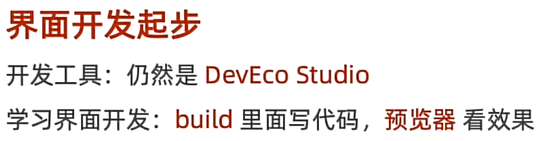
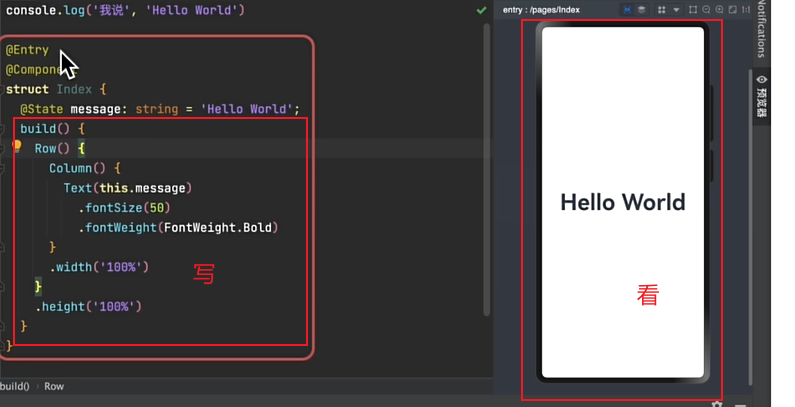
//构建 → 界面
build() {
  //行
  Row(){
    //列
    Column(){
      //文本 函数名(参数)  对象.方法名(参数) 枚举名.变量名
      Text(this.message)
        .fontSize(40)//设置文本大小
        .fontWeight(FontWeight.Bold)//设置文本粗细
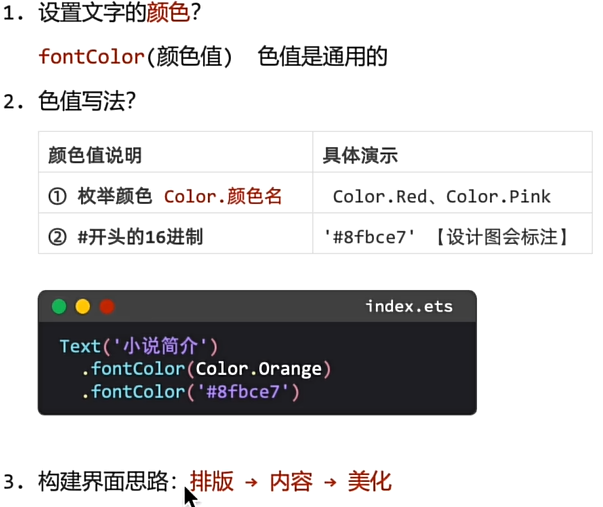
        .fontColor('#ff2152')//设置文本颜色
    }.width('100%')
  }.height('100%')
}
界面开发-布局思路
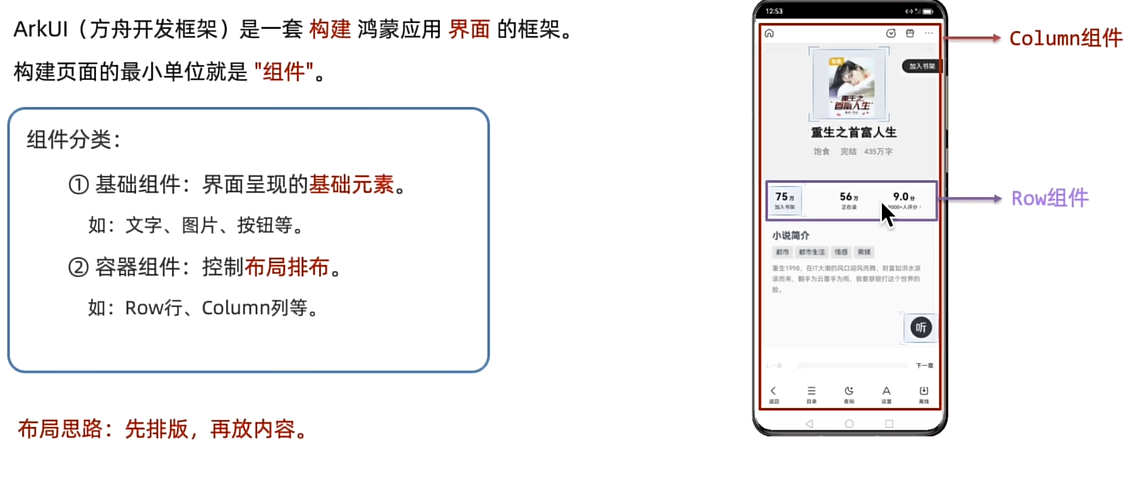
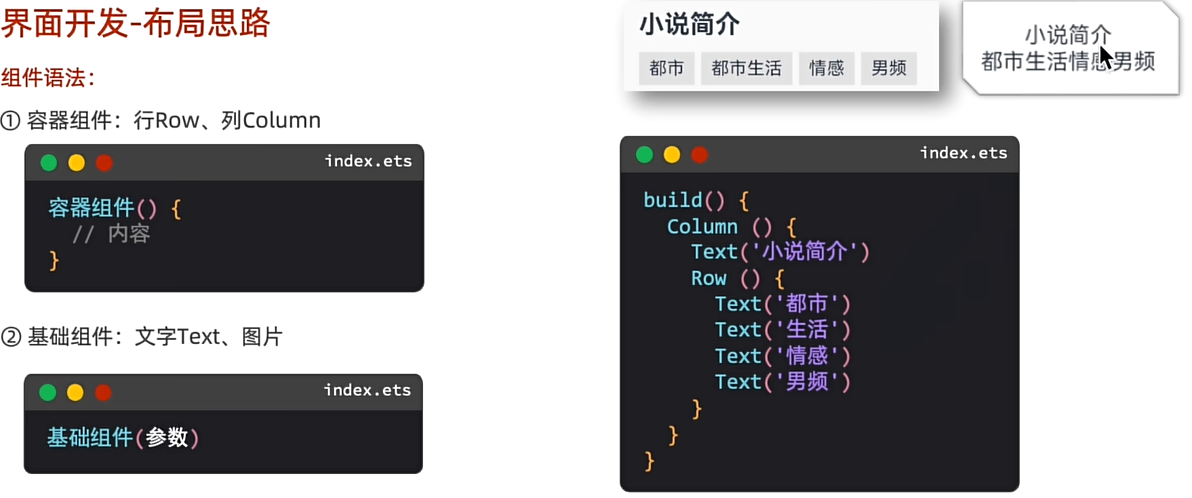
//构建 → 界面
build() {
  //布局思路:先布局在排版
  Column(){
    //内容
    Text('小说简介')
    Row(){
      Text('都市')
      Text('生活')
      Text('情感')
      Text('男频')
    }
  }//最外面只能有一层容器组件,需要编写要在容器内编写
}
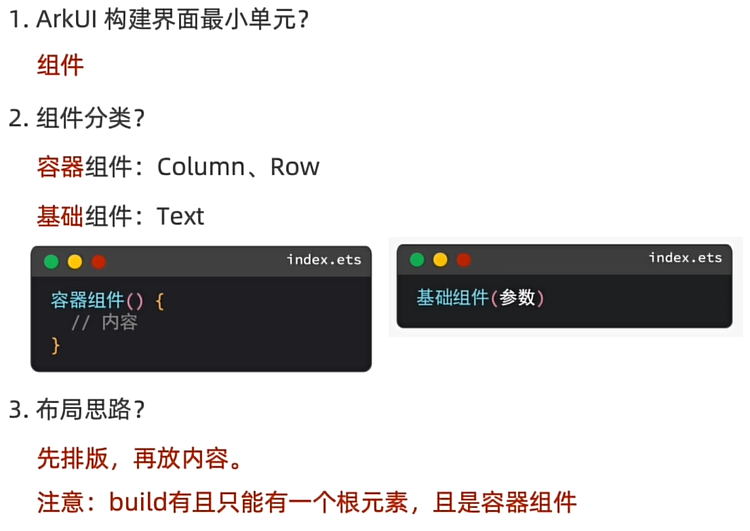
属性方法
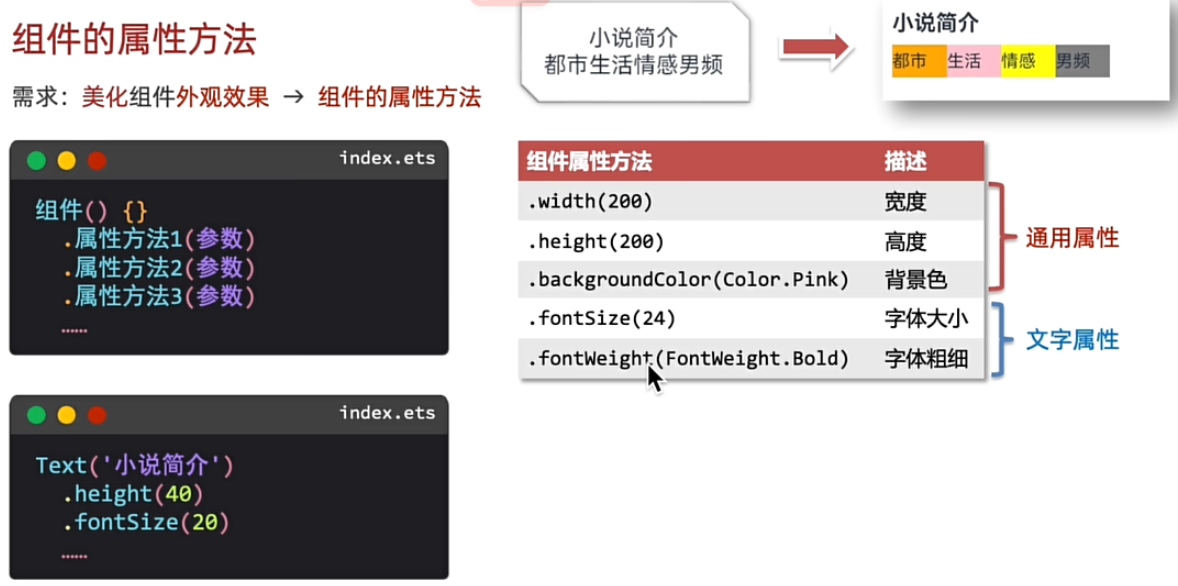
//构建 → 界面
build() {
  //布局思路:先布局在排版
  Column(){
    //内容
    Text('小说简介')
      .width('100%')
      .fontSize(25)
      .fontWeight(FontWeight.Bolder)
      .height(50)
    Row(){
      Text('都市')
        .fontColor(Color.Blue)
        .backgroundColor(Color.Brown)
        .width(50)
        .height(40)
      Text('生活')
        .fontColor(Color.Brown)
        .backgroundColor(Color.Green)
        .width(50)
        .height(40)
      Text('情感')
        .backgroundColor(Color.Pink)
        .width(50)
        .height(40)
      Text('男频')
        .backgroundColor(Color.Orange)
        .width(50)
        .height(40)
    }.width('100%')
  }//最外面只能有一层容器组件,需要编写要在容器内编写
}
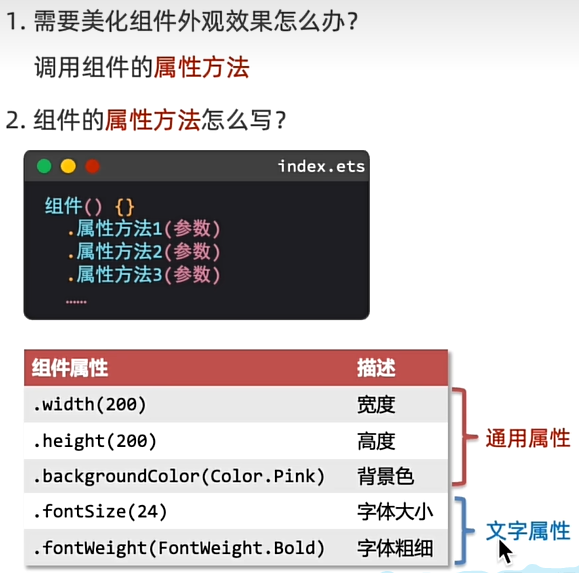
字体颜色
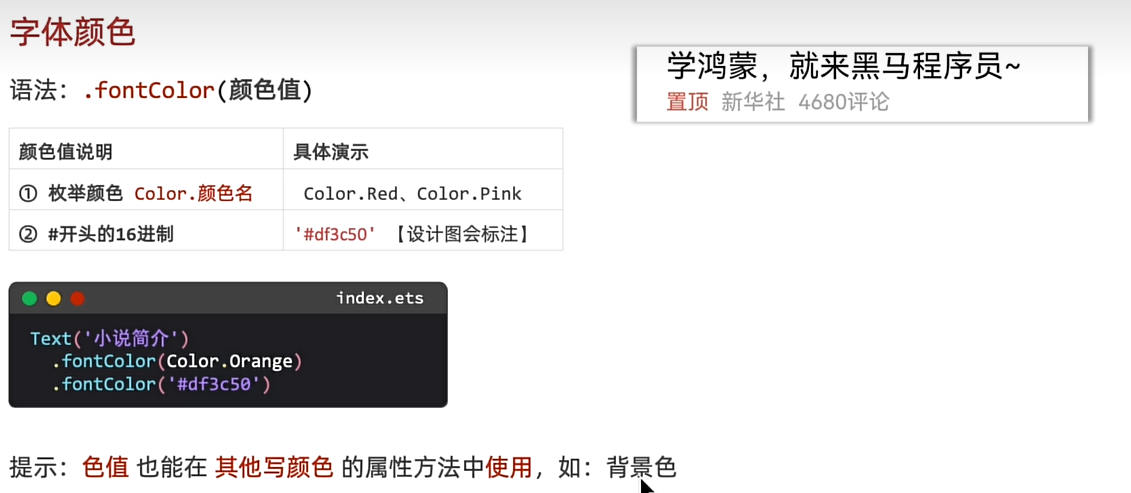
//2、综合练习:今日头条置顶新闻
Column(){
  Text('学鸿蒙,就来陈哈哈~')
    .fontSize(15)
    .width('100%')
    .fontWeight(FontWeight.Bold)
    .height(25)
  Row(){
    Text('置顶')
      .fontColor(Color.Red)
      .fontSize(10)
      .width(30)
    Text('新华社')
      .fontSize(10)
      .fontColor('#888')
      .width(40)
    Text('4680评论')
      .fontSize(10)
      .fontColor('#888')
      .width(50)
  }.width('100%')
}.width('100%')
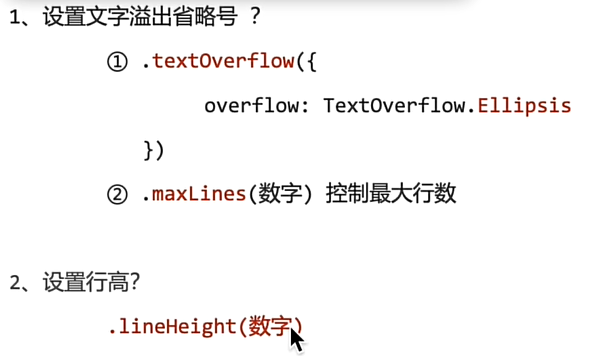
文字溢出省略号、行高
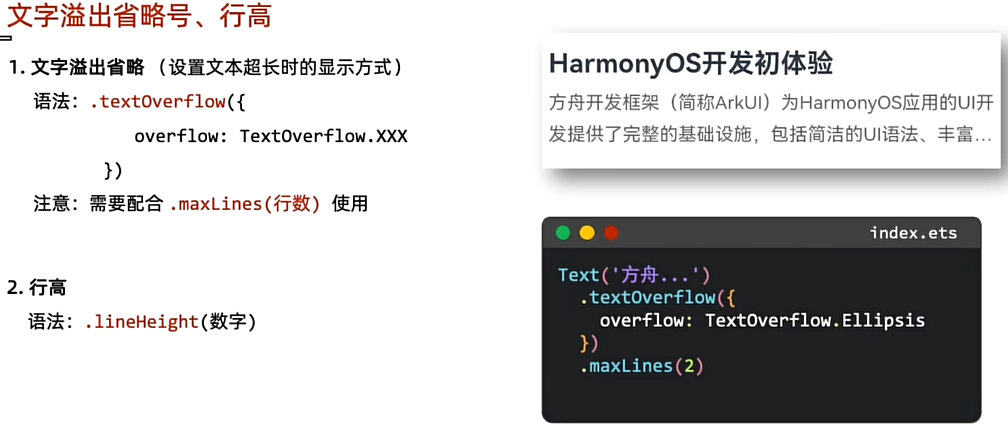
Column(){
  Text('HarmonyOS开发初体验')
    .width('100%')
    .fontWeight(FontWeight.Bold)
    .lineHeight(50)
    .fontSize(24)
  Text('方舟开发框架(简称ArkUI)为HarmonyOS应用的UI开发提供了完整的基础设施,包括简洁的UI语法、丰富的UI功能(组件、布局、动画以及交互事件),以及实时界面预览工具等,可以支持开发者进行可视化界面开发。')
    .width('100%')
    .lineHeight(24)
    .fontColor('#888')
    //重点记忆溢出省略号
    .textOverflow({
      overflow:TextOverflow.Ellipsis
    }).maxLines(2)//配合使用能见度两行
}
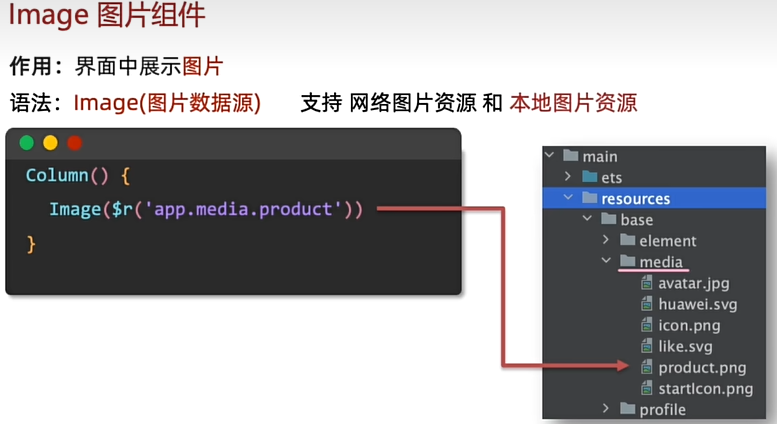
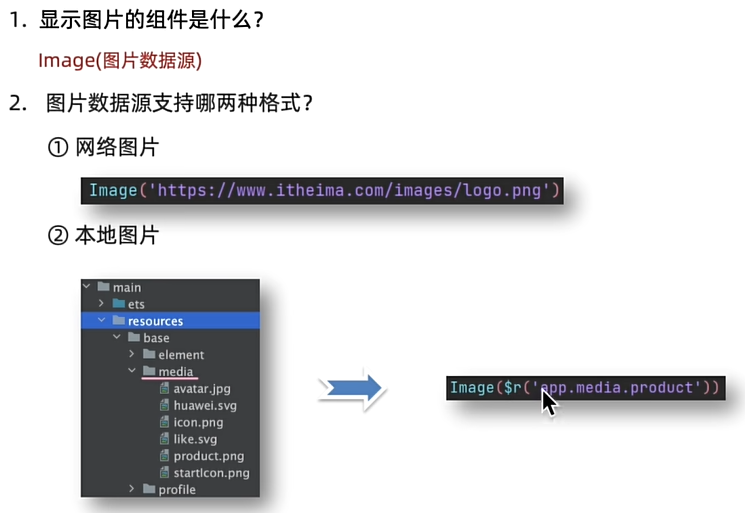
Image图片组件
//构建 → 界面
build() {
  //1、网络图片加载 image('网图地址')
  // Column(){
  //   Image('https://www.itheima.com/images/logo.png')
  //     .width(200)
  // }
  //2、本地图片加载 image($r('app.media.文件名'))
  Column(){
    Image($r('app.media.startIcon'))
      .width(200)
    Text('耐克龙年限定款!!!')
      .fontSize(20)
      .width(200)
    Row(){
      Image($r('app.media.startIcon'))
        .width(20)
      Text('  令人脱发的代码')
    }.width(200)
  }
输入框与按钮
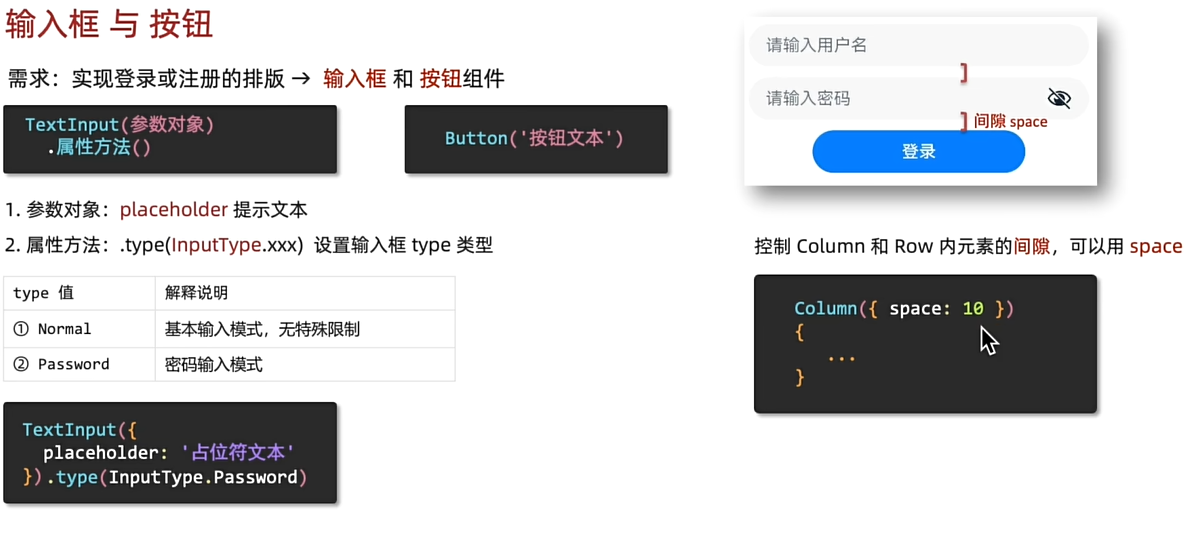
build() {
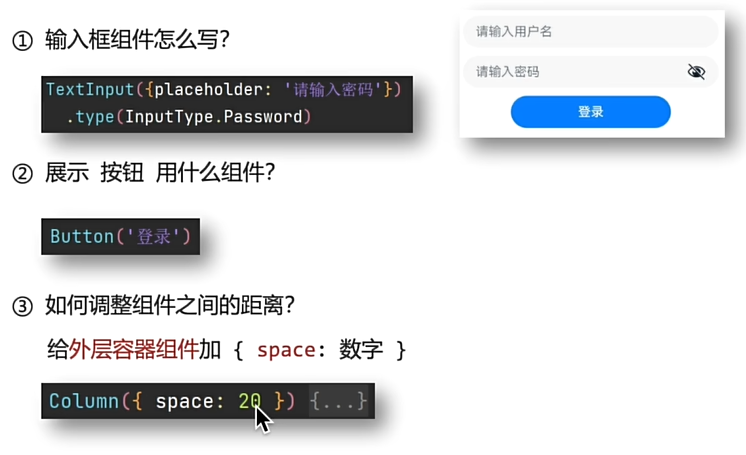
  //控制组件间的距离,可以给Column设置{space:间隙大小}
  Column({space:10}){
    TextInput({
      placeholder:'请输入用户名'
    }).type(InputType.Normal)

    TextInput({
      placeholder:'请输入密码'
    }).type(InputType.Password)

    Button('登录')
      .backgroundColor('#3575ED')
      .width(200)
  }
}
综合实训
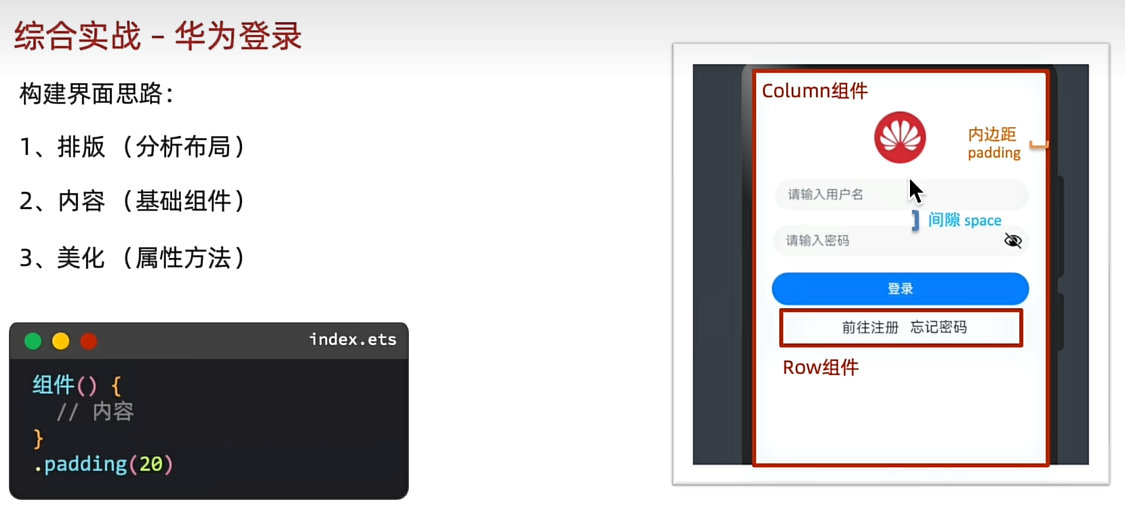
build() {
  //构建界面核心思路:
  //1.排版(思考布局)
  //2,内容(基础组件)
  //3.美化(属性方法)
  Column({space:10}){
    Image($r('app.media.startIcon'))
      .width(50)
    TextInput({
      placeholder:'输入用户名'
    })
    TextInput({
      placeholder:'请输入密码'
    }).type(InputType.Password)
    Button('登录')
      .width('100%')
    Row({space:15}){
      Text('前往注册')
      Text('忘记密码')
    }

  }.width('100%')
  .padding(20)
}
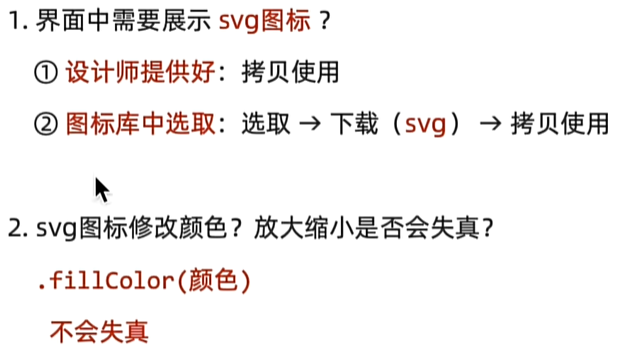
设计资源-svg图标
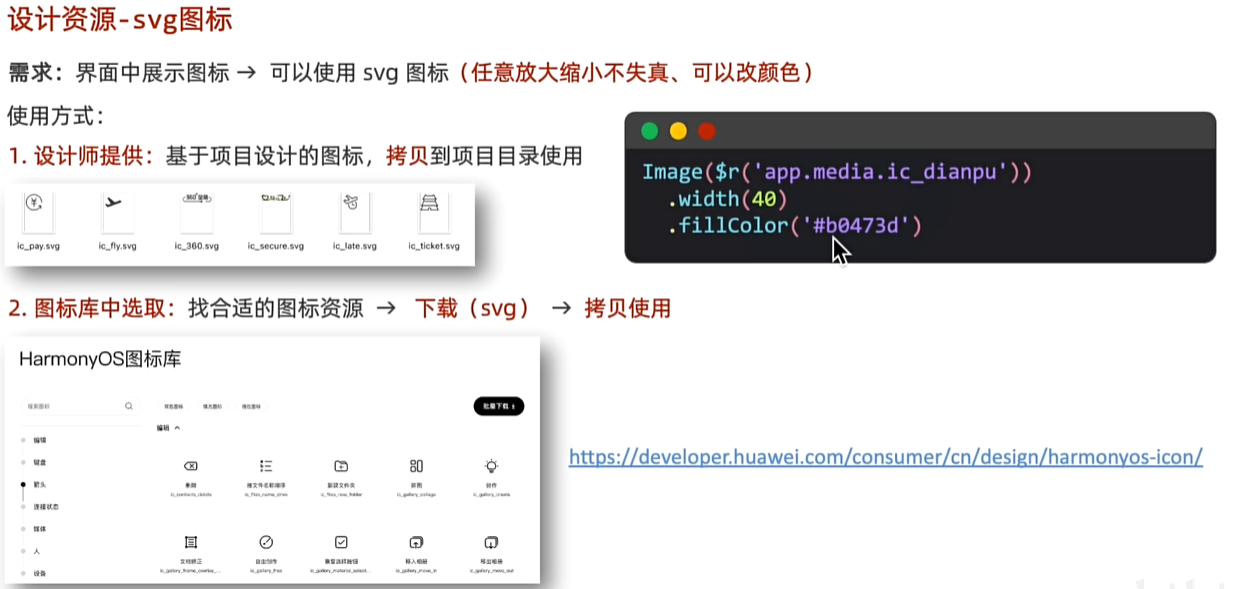
鸿蒙图标库:
https://developer.huawei.com/consumer/cn/design/harmonyos-icon/
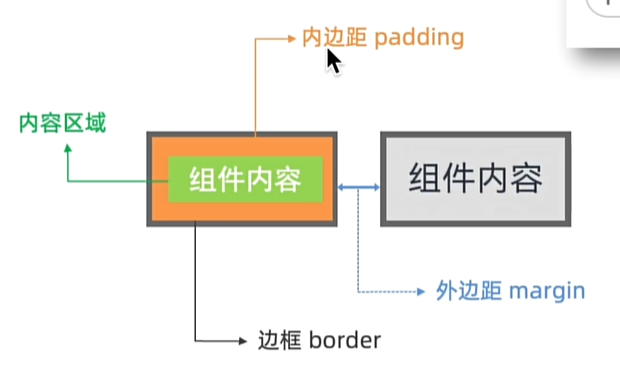
布局元素的组成
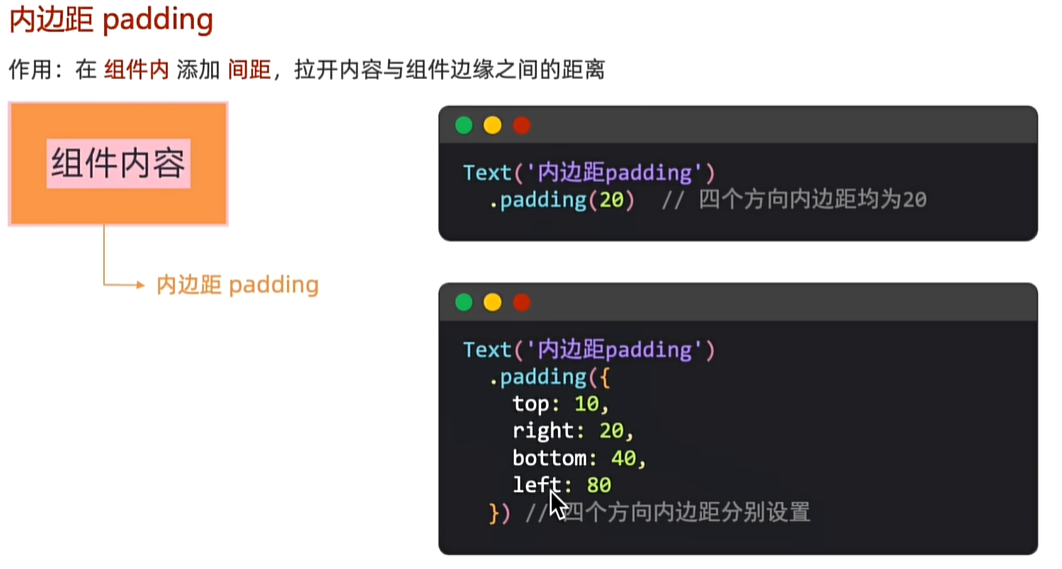
内边距padding
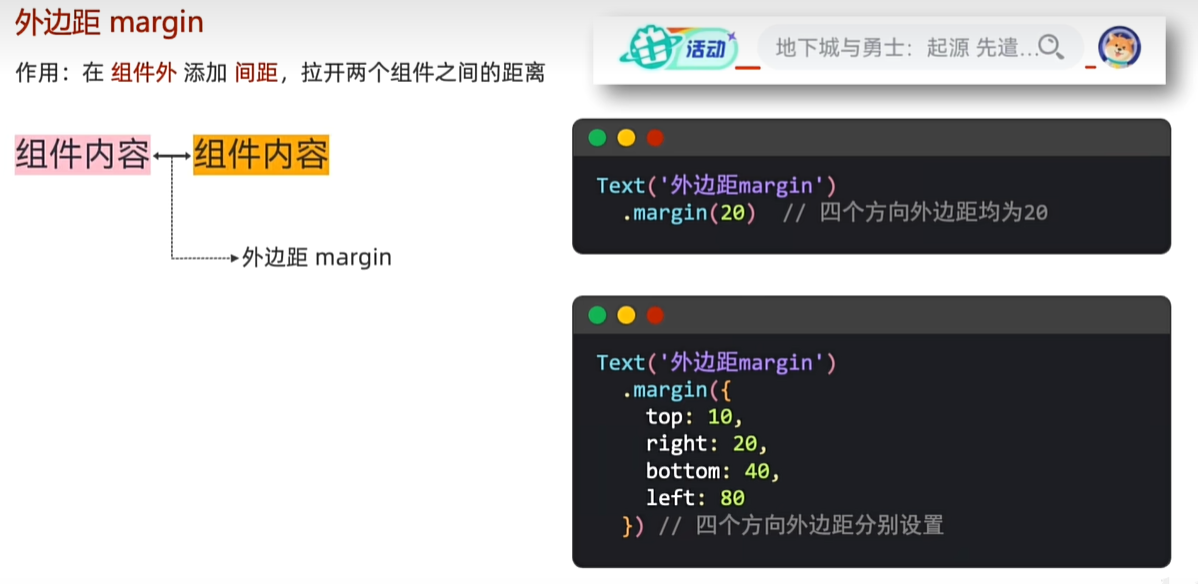
外边距margin
练习:
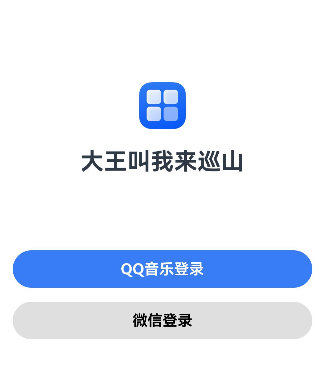
//构建 → 界面
build() {
  Column(){
    Image($r('app.media.startIcon'))
      .width(50)
      .margin({
        top:120
      })
    Text('大王叫我来巡山')
      .fontSize(25)
      .fontWeight(FontWeight.Bold)
      .margin({
        top:20,
      })
    Button('QQ音乐登录')
      .fontColor(Color.White)
      .fontWeight(FontWeight.Bold)
      .backgroundColor('#387DF6')
      .width('100%')
      .margin({
        top:80
      })
    Button('微信登录')
      .fontColor(Color.Black)
      .fontWeight(FontWeight.Bold)
      .backgroundColor('#DFDFDF')
      .width('100%')
      .margin({
        top:15
      })

  }.width('100%')
  .padding(20)

}
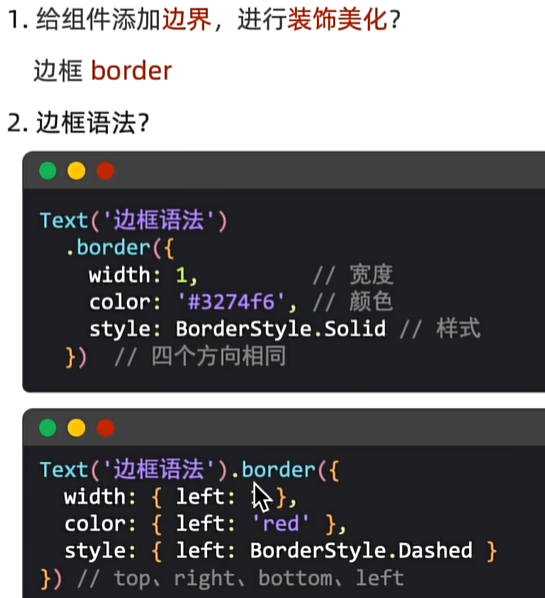
边框
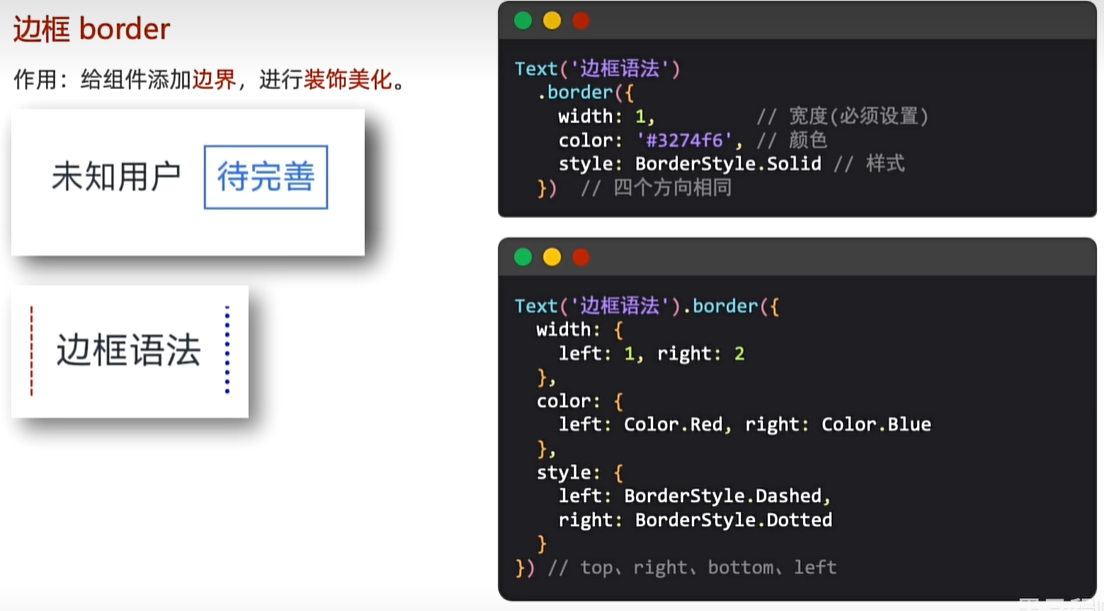
//构建 → 界面
build() {
  Column(){
   Text('四条边')
     .fontColor(Color.Red)
     .padding(5)
     .border({
       width:1,//宽度
       color:Color.Red,//颜色
       style:BorderStyle.Dotted//央视(实线 虚线 点线)
     }).margin({
     bottom:20
   })
    Text('单边框')
      .fontColor(Color.Red)
      .padding(5)
      //单边框,可以通过left right top bottom配置四个方向边框
      .border({
        width:{
          left:1,
          right:3
        },
        color:{
          left:Color.Yellow,
          right:'#ff68'
        },
        style:{
          left:BorderStyle.Solid,
          right:BorderStyle.Dotted
        }
      })


  }.width('100%')
  .padding(20)
}
设置组件圆角
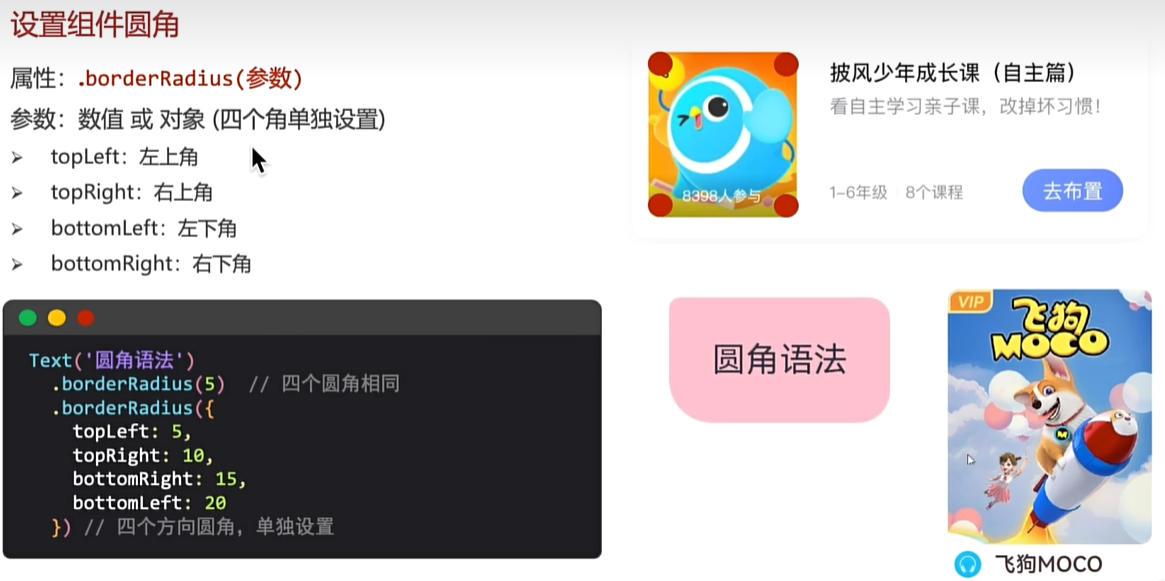
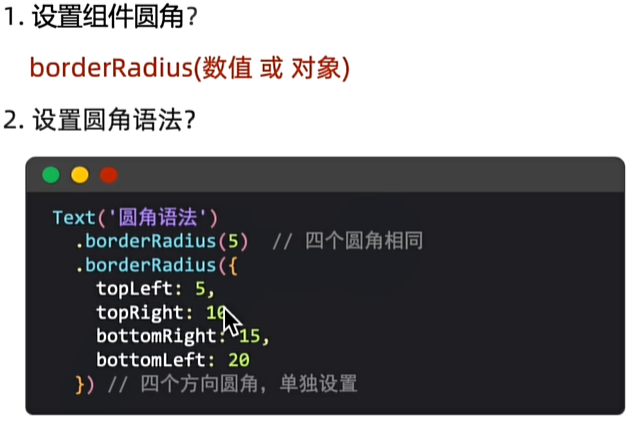
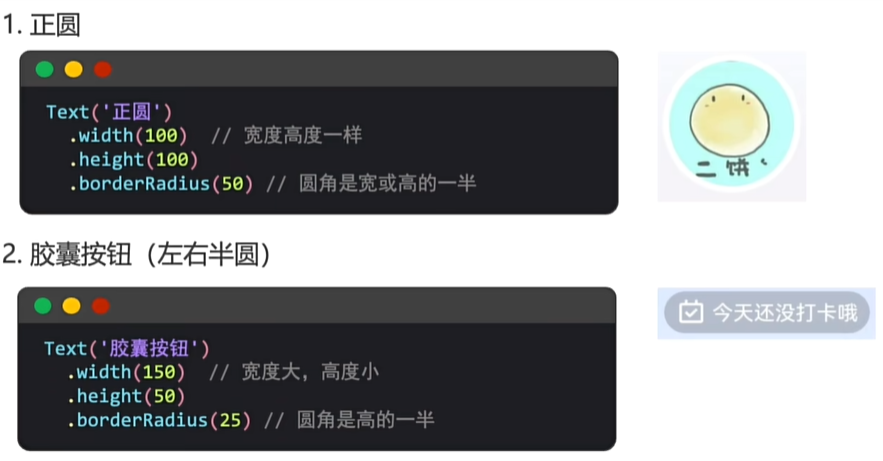
特殊形状圆角设置
//构建 → 界面
build() {
  Column(){
   Text('四条边')
     .fontColor(Color.Red)
     .padding(5)
     .border({
       width:1,//宽度
       color:Color.Red,//颜色
       style:BorderStyle.Dotted//央视(实线 虚线 点线)
     }).margin({
     bottom:20
   })
    Text('单边框')
      .fontColor(Color.Red)
      .padding(5)
      //单边框,可以通过left right top bottom配置四个方向边框
      .border({
        width:{
          left:1,
          right:3
        },
        color:{
          left:Color.Yellow,
          right:'#ff68'
        },
        style:{
          left:BorderStyle.Solid,
          right:BorderStyle.Dotted
        }
      })

    //倒角
    Text('倒角')
      .backgroundColor(Color.Pink)
      .margin(30)
      .padding(10)
      .borderRadius({
        topLeft:10,
        bottomRight:10
      })

    //图片
    Image($r('app.media.startIcon'))
      .width(100)
      .height(100)
      .borderRadius(50)

    //正圆
    Text('正圆')
      .backgroundColor(Color.Pink)
      .margin(30)
      .padding(10)
      .width(50)//宽高一样
      .height(50)
      .borderRadius(25)//圆角是宽或者高的一半

    //胶囊
    Text('胶囊')
      .backgroundColor(Color.Green)
      .padding(20)
      .width(150)//宽比高大
      .height(50)
      .borderRadius(25)//圆角是高的一半


  }.width('100%')
  .padding(20)
}
背景图-banckgroundImage
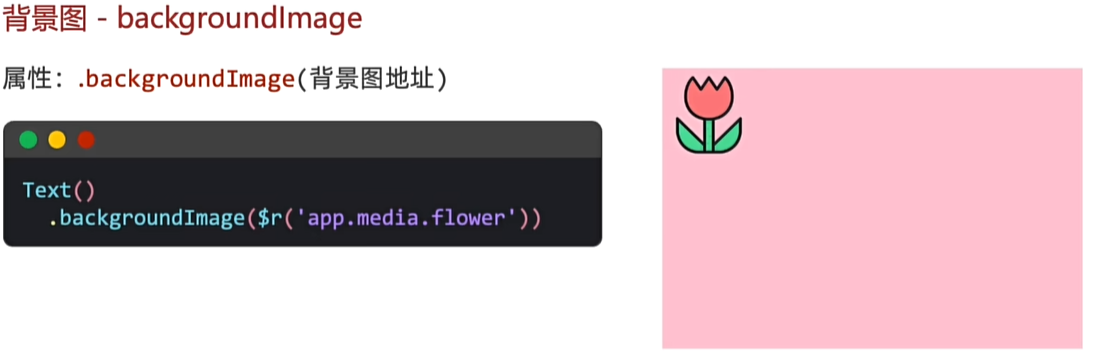
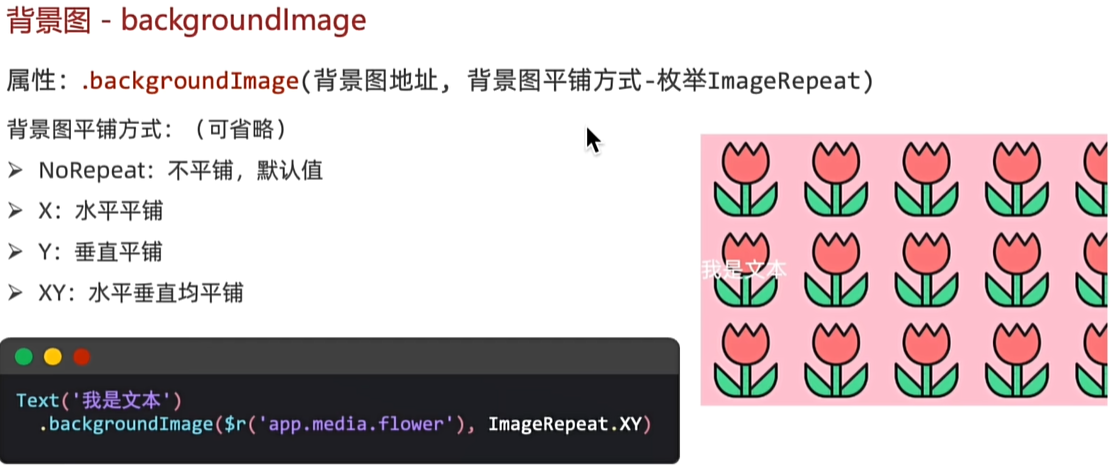
Text('tupian')
  .padding(20)
  .backgroundColor(Color.Orange)
  .margin(20)
  .width(400)
  .height(400)
  .backgroundImage($r('app.media.app_icon'),ImageRepeat.XY)//图片重复,x横轴,y纵轴,xy铺满
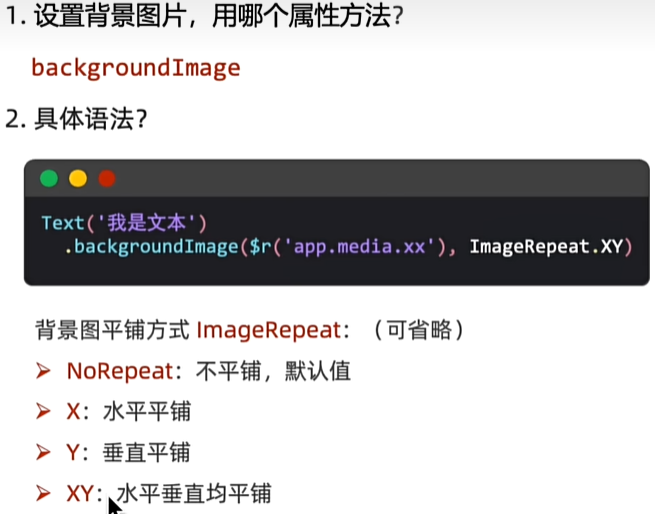
背景属性
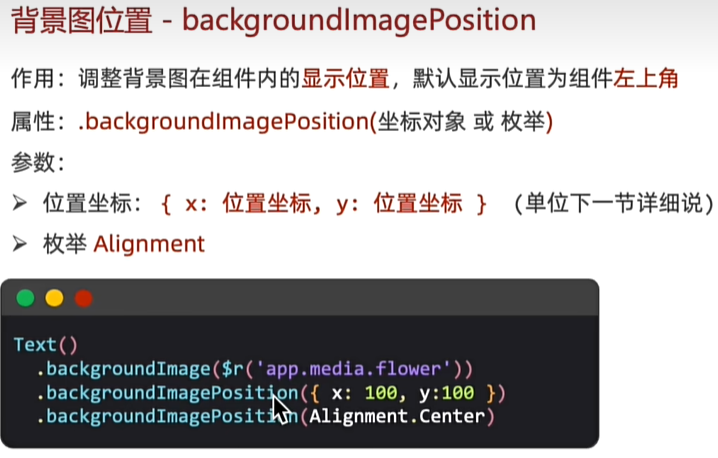
//构建 → 界面
build() {
  //backgroundImagePosition
  //1,传入对象,设置位置坐标,背景图片的左顶点
  //{x:坐标值,Y:坐标值}
  //注意:坐标值的单位,和宽高的默认单位不同的,显示出来大小会不同

  //2,Alignment枚举,设置一些特殊的位置(中央、左顶点..)
  //Center TopStart左J顶点TopEnd右顶点BottomEnd右下...
 Column(){
   Text()
     .width(300)
     .height(200)
     .backgroundColor(Color.Pink)
     .backgroundImage($r('app.media.startIcon'))
     .backgroundImagePosition({
       x:100,
       y:100
     })
     .backgroundImagePosition(Alignment.Center)
 }.width('100%')
  .padding(20)
}
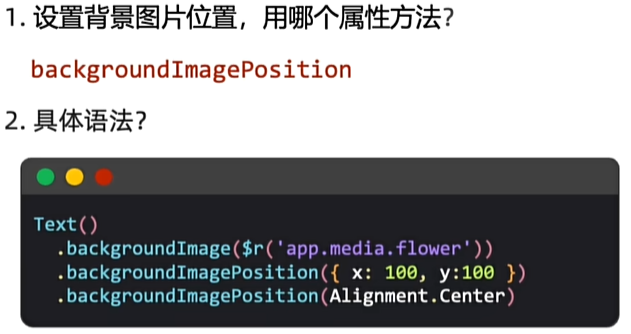
单位问题
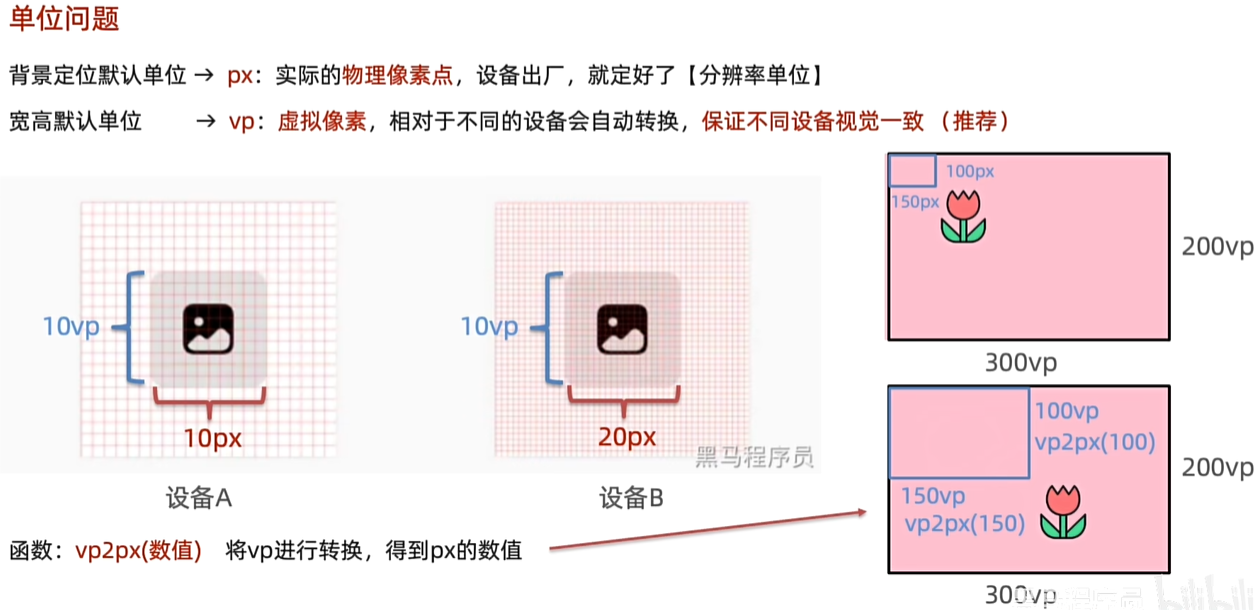
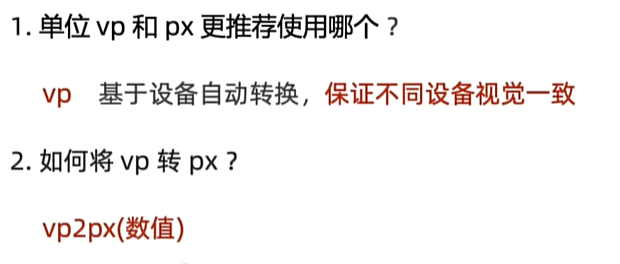
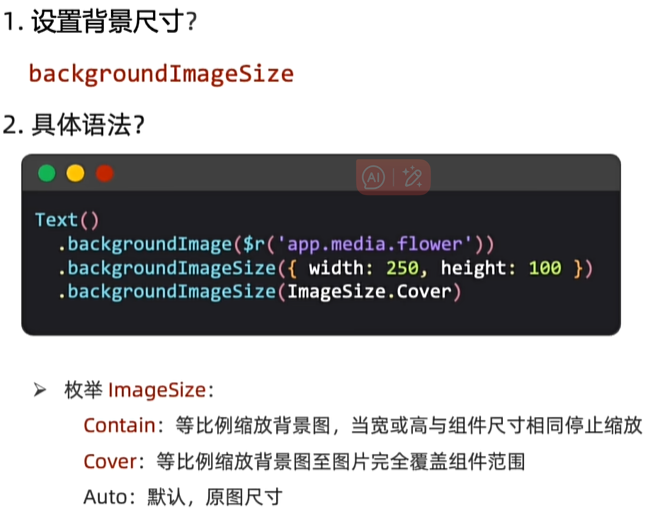
背景属性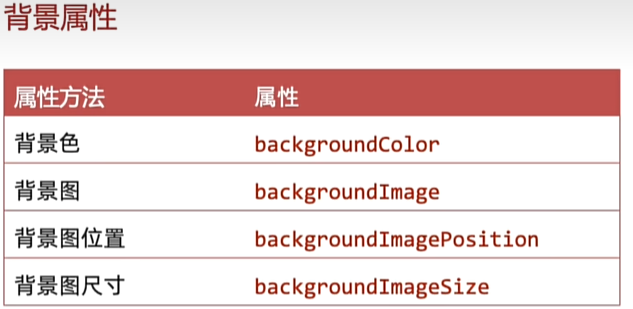
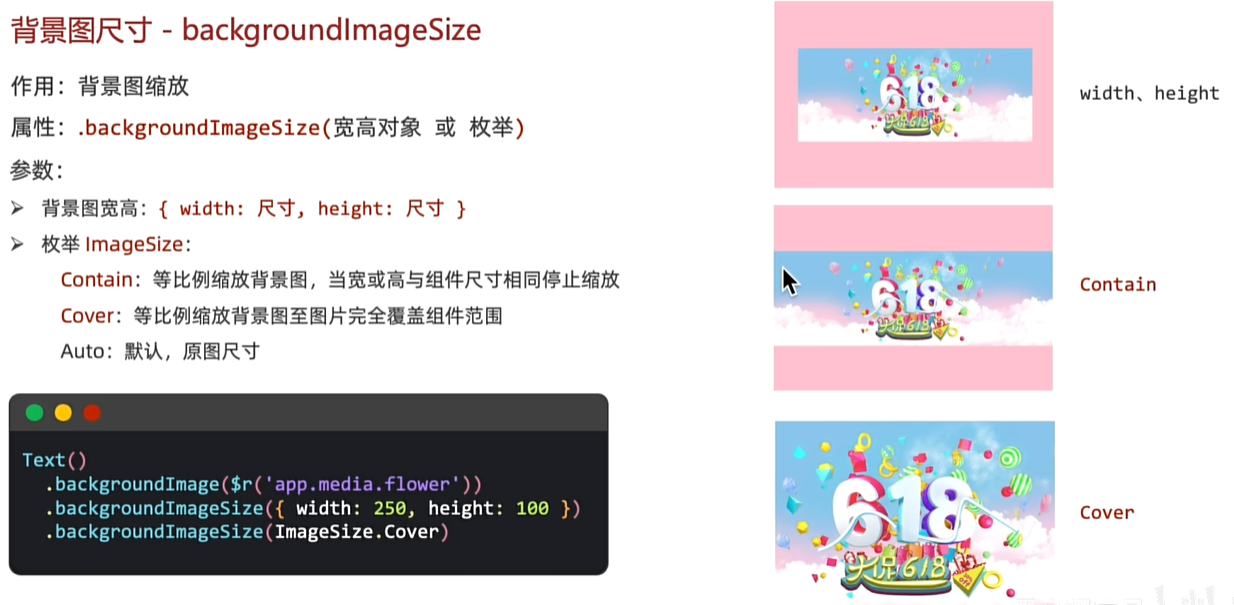
Text()
  .height(200)
  .width(300)
  .backgroundImage($r('app.media.huawei'))
  .backgroundImageSize(ImageSize.Cover)
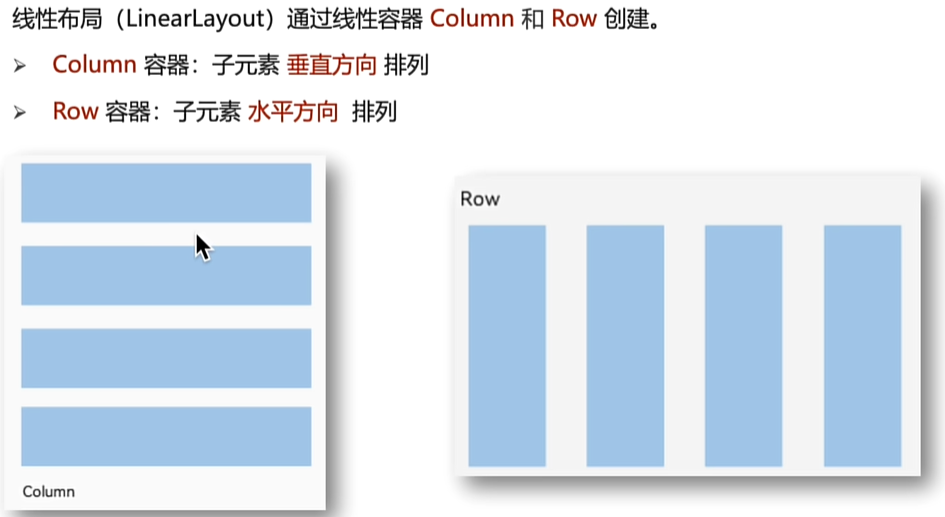
线性布局
//纵向布局
.build() {
  Column(){
    Text()
      .width(200).height(100)
      .backgroundColor(Color.Pink)
      .borderWidth(1)
    Text()
      .width(200).height(100)
      .backgroundColor(Color.Pink)
      .borderWidth(1)
    Text()
      .width(200).height(100)
      .backgroundColor(Color.Pink)
      .borderWidth(1)

  }.width('100%').height('100%')
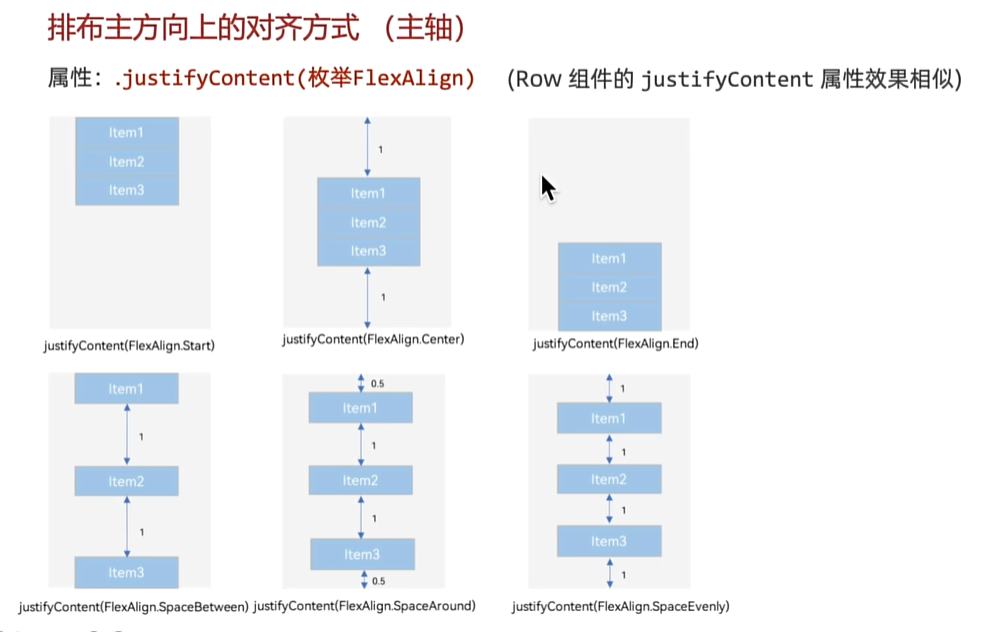
  //设置排布主方向的对齐方式(主轴)
    //1.Start(排布主方向)主轴起始位置对齐
    //2.Center主轴居中对齐
    //3.End主轴结束位置对齐
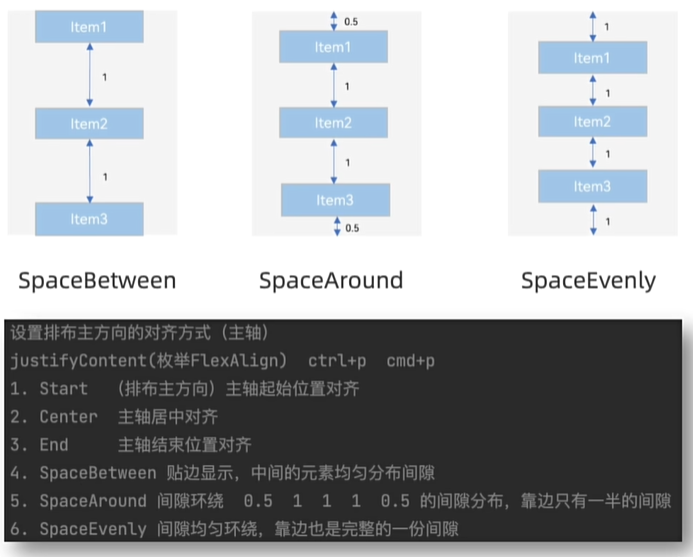
    //4.SpaceBetween贴边显示,中间的元素均匀分布间隙
    //5.Space正ound间隙环绕0.5 1 1 1 0.5的间隙分布,靠边只有一半的间隙
    //6,SpaceEvenly间隙均匀环绕,靠边也是完整的一份间隙
    //justifyContent(枚举FlexAlign)ctrL+p cmd+p
    //.justifyContent(FLexAlign.Center)
    //.justifyContent(FLexAlign.SpaceBetween)
    //justifyContent(FLexAlign.SpaceAround)
  .justifyContent(FlexAlign.Center)
//横向布局
build() {
  Row(){
    Text()
      .width(50).height(200)
      .backgroundColor(Color.Pink)
      .borderWidth(1)
    Text()
      .width(50).height(200)
      .backgroundColor(Color.Pink)
      .borderWidth(1)
    Text()
      .width(50).height(200)
      .backgroundColor(Color.Pink)
      .borderWidth(1)

  }.width('100%').height('100%')
  //设置排布主方向的对齐方式(主轴)
    //1.Start(排布主方向)主轴起始位置对齐
    //2.Center主轴居中对齐
    //3.End主轴结束位置对齐
    //4.SpaceBetween贴边显示,中间的元素均匀分布间隙
    //5.Space正ound间隙环绕0.5 1 1 1 0.5的间隙分布,靠边只有一半的间隙
    //6,SpaceEvenly间隙均匀环绕,靠边也是完整的一份间隙
    //justifyContent(枚举FlexAlign)ctrL+p cmd+p
    //.justifyContent(FLexAlign.Center)
    //.justifyContent(FLexAlign.SpaceBetween)
    //justifyContent(FLexAlign.SpaceAround)
  .justifyContent(FlexAlign.SpaceEvenly)

}
个人中心-顶部导航栏
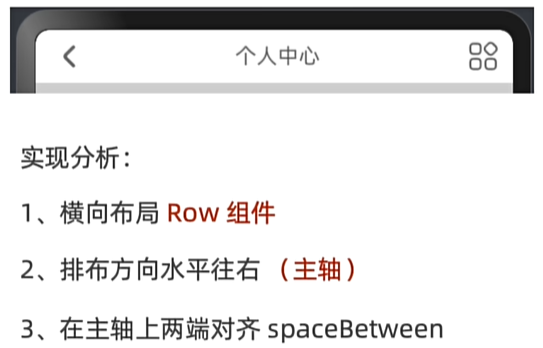
//构建 → 界面
build() {
  Column(){
    Row(){
      Image($r('app.media.ic_public_arrow_left_filled'))
        .width(30)


      Text('个人中心')
        .fontSize(24)

      Image($r('app.media.ic_gallery_photoedit_more'))
        .width(30)

    }.width('100%').height(40)
    .justifyContent(FlexAlign.SpaceBetween)
    .padding({left:10,right:10})
    .backgroundColor(Color.White)

  }.width('100%').height('100%')
  .backgroundColor(Color.Pink )
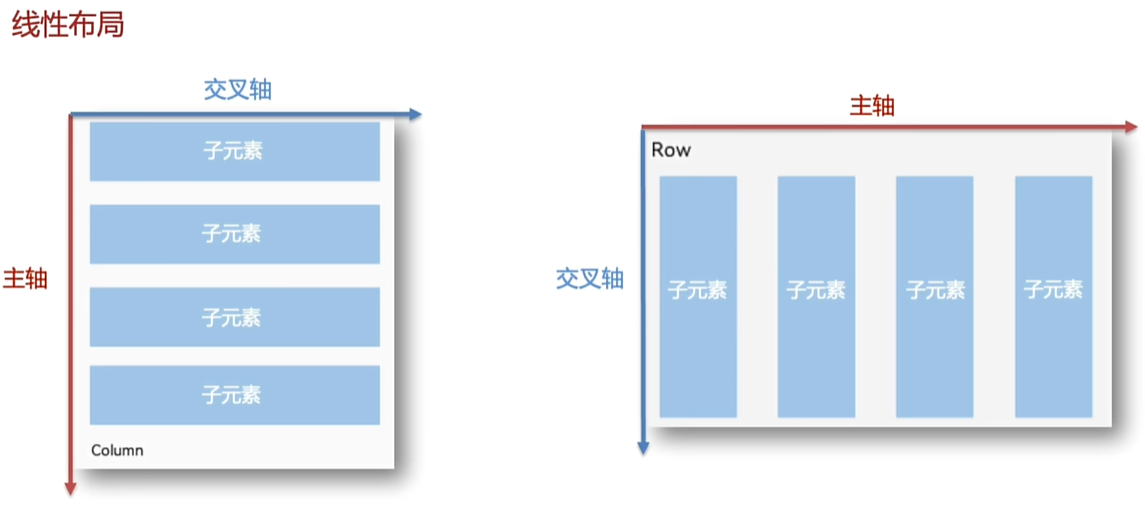
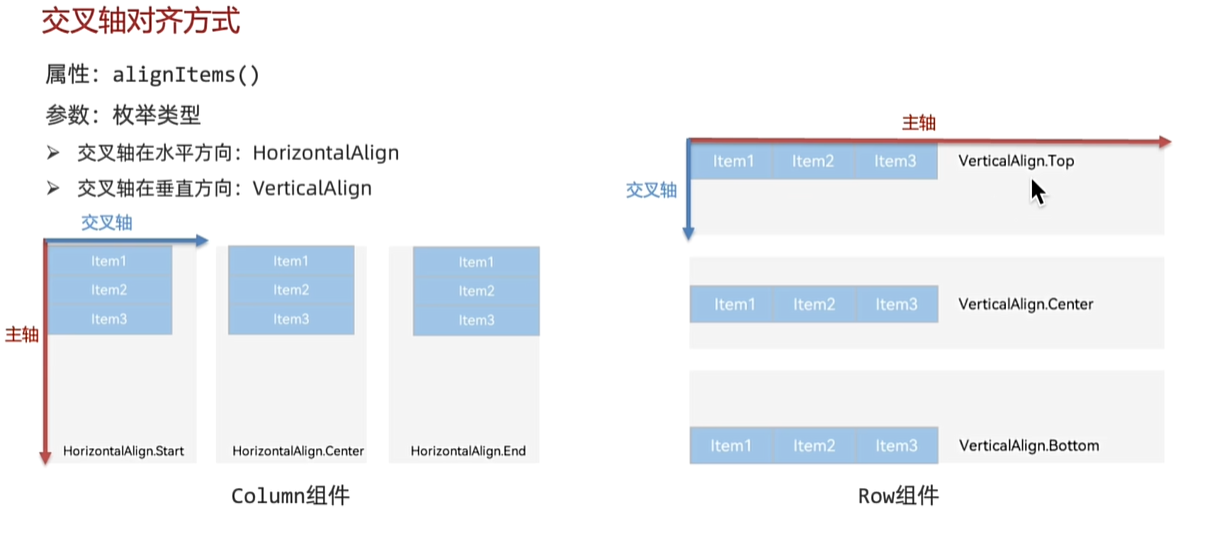
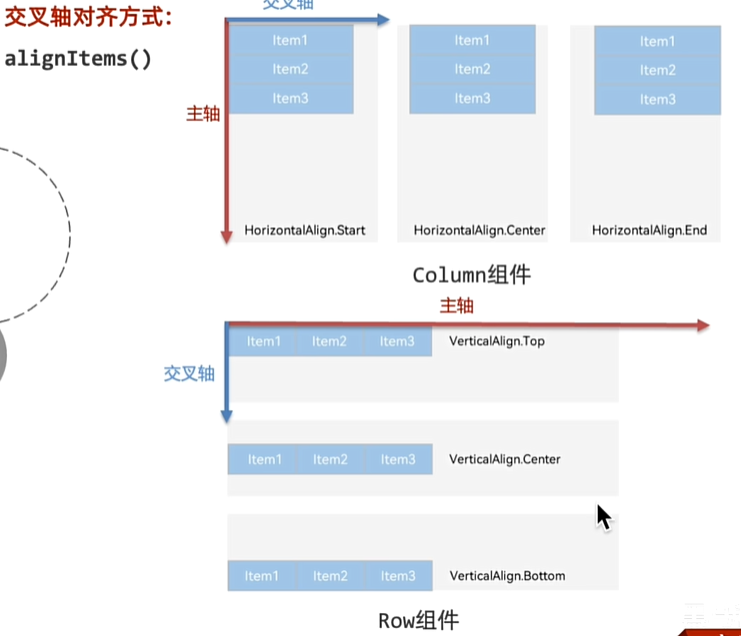
//Row的交叉轴的对齐方式(垂直向下的交叉轴)
Row(){内容……}.alignItems(VerticalAlign.Top)

//Column的交叉轴的对齐方式(垂直向右的交叉轴)
Column(){内容……}.alignItems(VerticalAlign.Top)
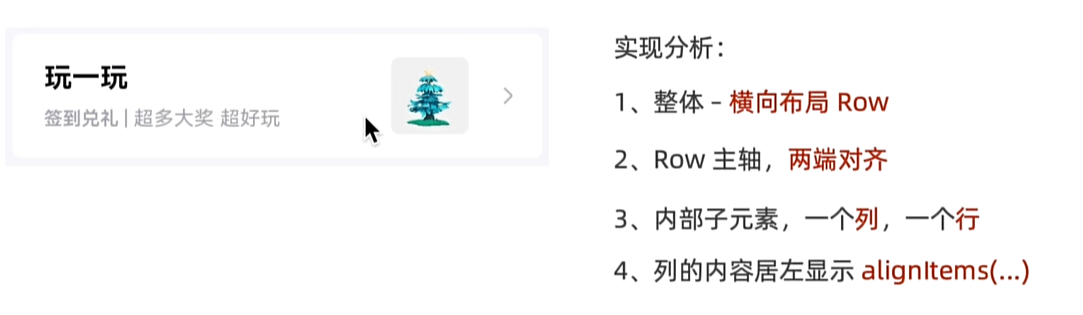
得物-列表项
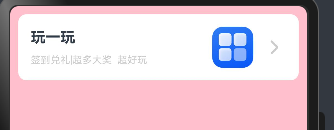
//构建 → 界面
build() {
  Column(){
    //左侧列
    Row(){
      Column({space:10}){
        Text('玩一玩')
          .fontWeight(FontWeight.Bold)
          .fontSize(18)
        Row(){
          Text('签到兑礼')
            .fontColor('#ccc')
            .fontSize(12)
          Text('|超多大奖')
            .fontColor('#ccc')
            .fontSize(12)
          Text('  超好玩')
            .fontColor('#ccc')
            .fontSize(12)
        }
      }.alignItems(HorizontalAlign.Start)
      //右侧行
      Row(){
        Image($r('app.media.startIcon'))
          .width(50)
          .margin({
            right:10
          })
        Image($r('app.media.ic_public_arrow_right_filled'))
          .width(30)
          .fillColor('#ccc')
      }.justifyContent(FlexAlign.SpaceBetween)
    }
    .justifyContent(FlexAlign.SpaceBetween)
    .backgroundColor(Color.White)
    .width('100%')
    .height(80)
    .borderRadius(10)
    .padding({
      left:15,
      right:15
    })

  }.width('100%').height('100%')
  .padding(10)
  .backgroundColor(Color.Pink)

}
自适应伸缩
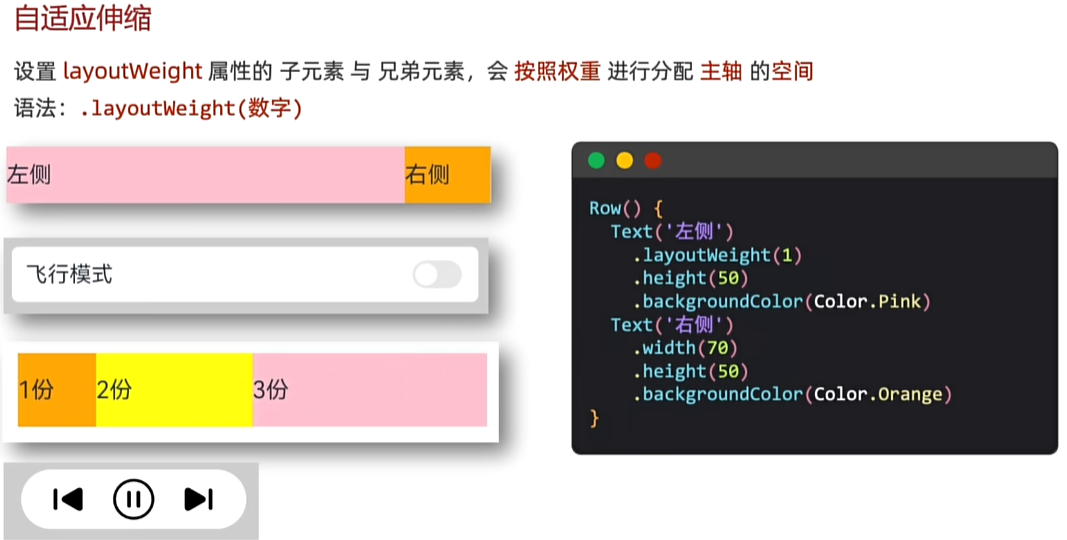
//自适应:固定的优先,剩余的分配给自适应
Column(){
  Row(){
    Text('老大')
      .height(40)
      .backgroundColor(Color.Pink)
      .layoutWeight(1)//自适应
    Text('老二')
      .height(40)
      .backgroundColor(Color.Orange)
      .width(60)
  }.height(40).width('100%')

    Row(){
      Text('老大')
        .height(40)
        .backgroundColor(Color.Pink)
        .layoutWeight(1)//自适应
      Text('老二')
        .height(40)
        .backgroundColor(Color.Orange)
        .width(60)
      Text('老大')
        .height(40)
        .backgroundColor(Color.Pink)
        .layoutWeight(1)//自适应
    }.height(40).width('100%').margin(20)


}.width('100%')
.height('100%')
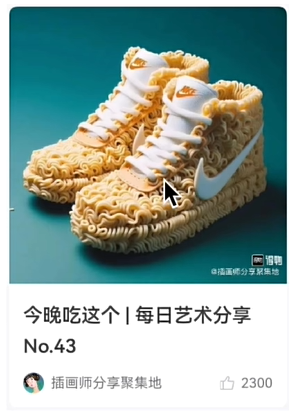
得物卡片
Column(){
  Column(){
    Image($r('app.media.huawei')).borderRadius({topLeft:10,topRight:10})
      .height(200).backgroundImageSize(ImageSize.Auto)
    Column(){
      Text('今晚吃这个|每日艺术分享')
        .fontSize(18)
        .fontWeight(FontWeight.Bold)
        .margin({bottom:8})
      Text('NO.43').fontSize(18).fontWeight(FontWeight.Bold)
      Row(){
        Row({space:5}){
          Image($r('app.media.app_icon')).width(15)
          Text('插画师分享聚集地').fontSize(13).fontColor('#999')
        }
        Row({space:5}){
          Image($r('app.media.app_icon')).width(15)
          Text('2300').fontSize(13).fontColor('#999')
        }

      }.width('100%').justifyContent(FlexAlign.SpaceBetween)
      .margin({top:20})

    }
    .backgroundColor(Color.White)
    .alignItems(HorizontalAlign.Start)
    .borderRadius({bottomLeft:10,bottomRight:10})
    .padding(15)
    .layoutWeight(1)


  }.width(250).height(320)
}.width('100%').height('100%').backgroundColor('#9999')
京东登录
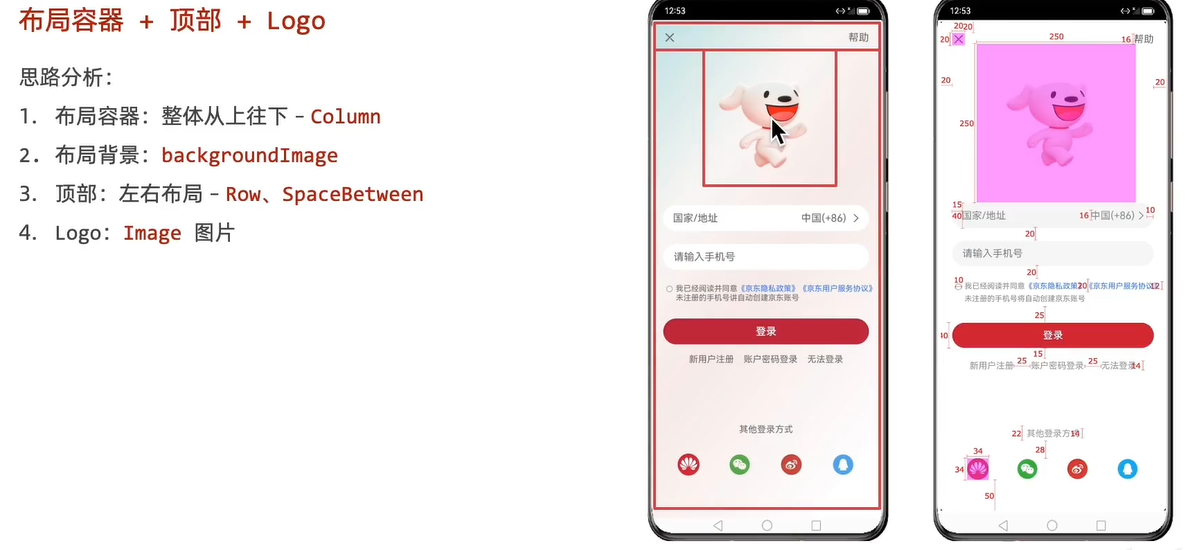
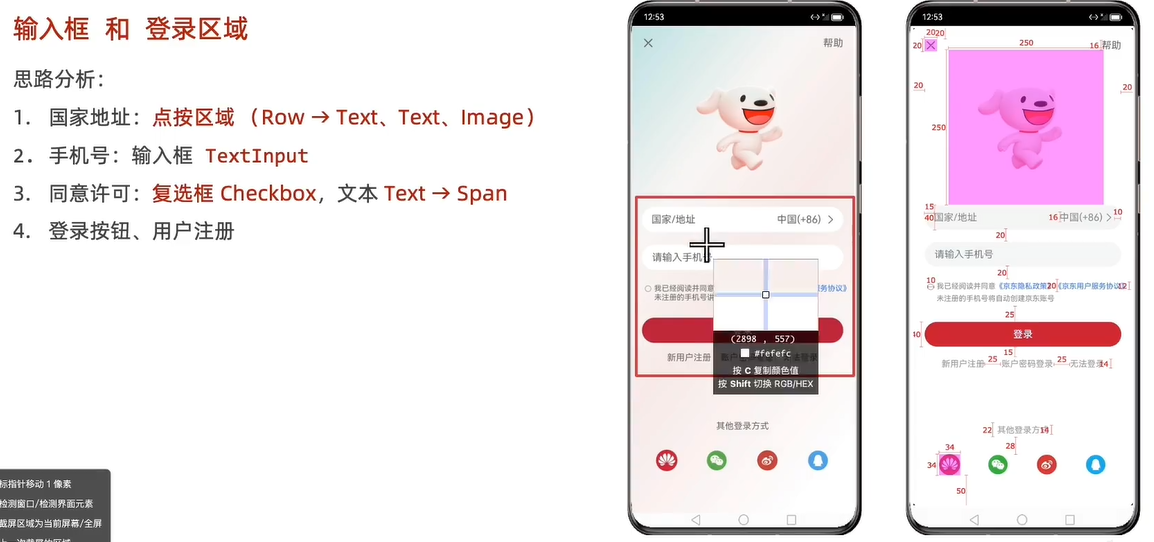
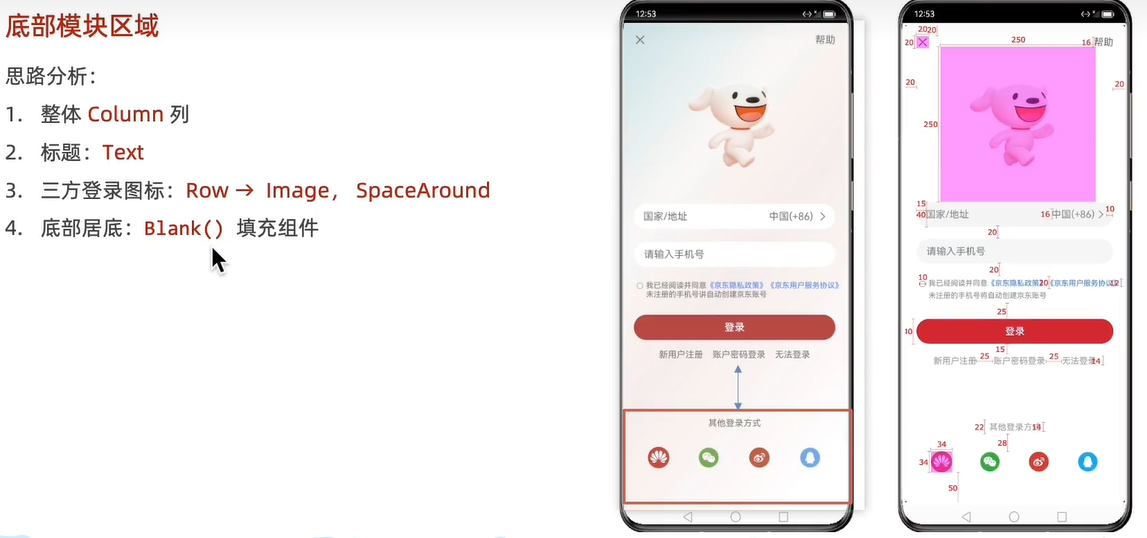
Column(){
  //头部
  Row() {
    Image($r('app.media.app_icon')).width(20)
    Text('帮助')
      .fontSize(16)
  }.justifyContent(FlexAlign.SpaceBetween)
  .width('100%')

  //logo
  Image($r('app.media.app_icon'))
    .width(250)
    .height(250)


  //输入框
  Row(){
    Text('国家/地址').fontSize(16).fontColor('#999')
    Row({space:5}){
      Text('中国(+86)').fontColor('#999')
        .fontSize(16)
      Image($r('app.media.startIcon')).width(10)
    }
  }.width('100%')
  .justifyContent(FlexAlign.SpaceBetween)
  .height(40)
  .padding({left:10,right:10})
  .backgroundColor(Color.White)
  .borderRadius(20)
  .margin({top:20})

  TextInput({
    text:'请输入手机号'
  }).fontSize(16)
    .fontColor('#999')
    .type(InputType.Normal)
    .backgroundColor(Color.White)
    .margin({top:20})

  //文字
  Row(){
    Checkbox().width(10)
    Text(){
      Span('我已阅读并同意')
      Span('《隐私政策》').fontColor('#1665F6')
      Span('《京东用户协议》').fontColor('#1665F6')
      Span('我已阅读并同意')
    }.fontSize(16)
  }.alignItems(VerticalAlign.Top)
  .width('100%')
  .margin({top:20})

  Button('登录')
    .backgroundColor('#B74842')
    .width('100%')
    .margin({top:25})

  Row({space:25}){
    Text('新用户注册')
      .fontSize(14)
      .fontColor('#999')
    Text('账户密码登录')
      .fontSize(14)
      .fontColor('#999')
    Text('无法登录')
      .fontSize(14)
      .fontColor('#999')
  }.margin({top:15})

  //占位,像弹簧一样
  Blank()

  Text('其他登陆方式')
    .fontSize(14)
    .fontColor('#999')
  Row(){
    Image($r('app.media.startIcon')).width(34).borderRadius(17)
    Image($r('app.media.startIcon')).width(34).borderRadius(17)
    Image($r('app.media.startIcon')).width(34).borderRadius(17)
    Image($r('app.media.startIcon')).width(34).borderRadius(17)
  }.justifyContent(FlexAlign.SpaceAround).width('100%')
  .margin({top:28,bottom:30})


}.width('100%').height('100%').backgroundColor('#F8EFEF')
.padding(20)
弹性布局
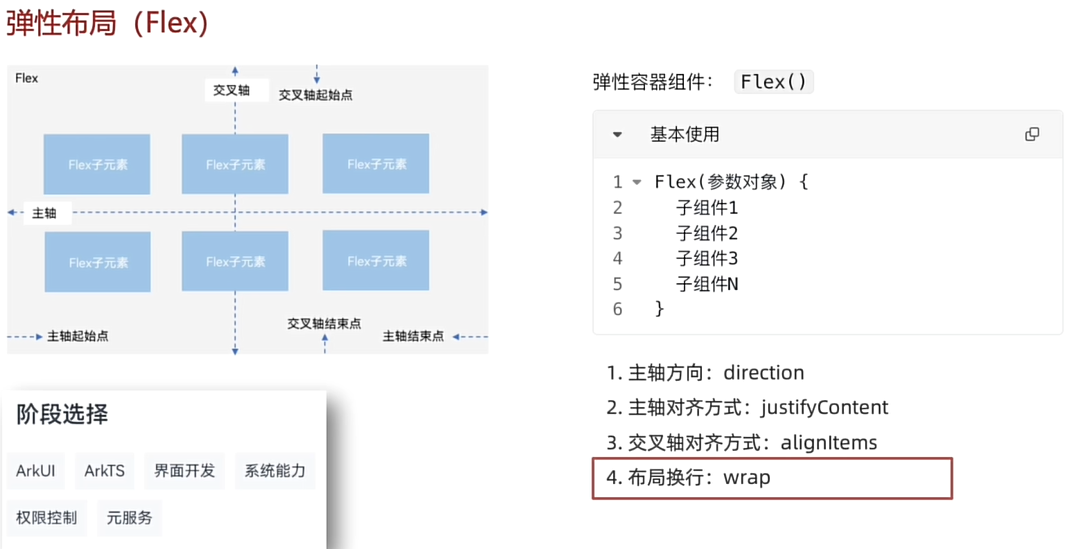
//FLex默认主轴水平往右,交叉轴垂直往下→Row
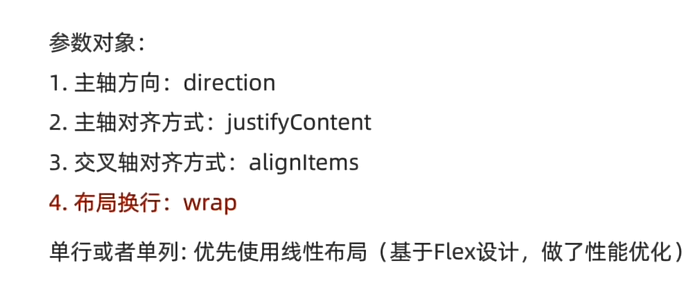
//1.主轴方向
//direction:FLexDirection.Row Column
//2.主轴对齐方式
//justifyContent:FLexAlign.SpaceAround
//3.交叉轴对齐方式
//alignItems:ItemAlign.Stretch
//单行或者单列的情况,优先还是使用线性布局(本质基于flex设计的,且还做了性能优化)

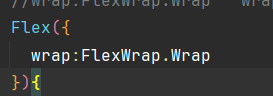
//4.换行
    //wrap:FlexWrap.Wrap   wrap换行  nowrap不换行
Flex({
  direction:FlexDirection.Row,
 justifyContent:FlexAlign.SpaceAround,
  alignItems:ItemAlign.Stretch
}){
  Text()
    .width(80)
    .height(80)
    .backgroundColor(Color.Pink)
    .border({width:1})

  Text()
    .width(80)
    .height(80)
    .backgroundColor(Color.Pink)
    .border({width:1})

  Text()
    .width(80)
    .height(80)
    .backgroundColor(Color.Pink)
    .border({width:1})
}.width('100%').height('80%')
案例
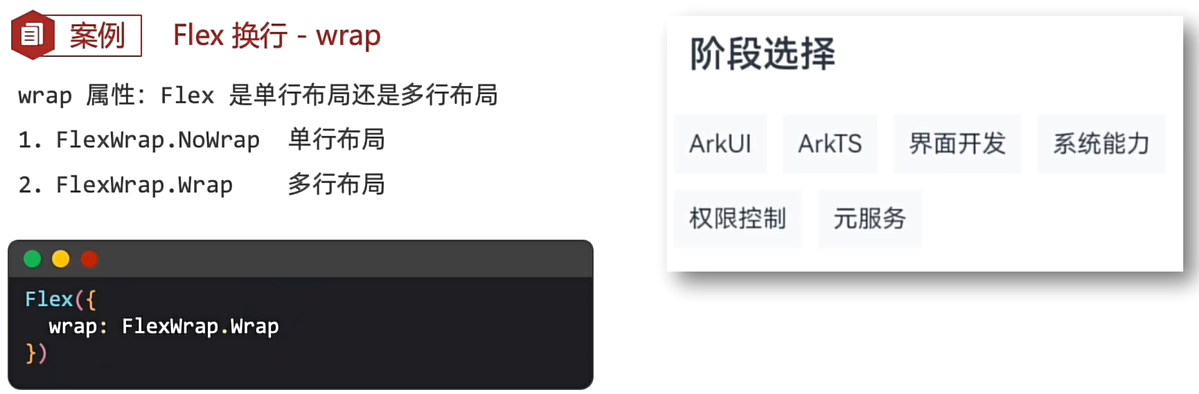
Column(){
  Text('阶段选择').fontSize(20)
    .fontWeight(FontWeight.Bold)
    .width('100%')
    .margin({bottom:20})
  Flex({
    wrap:FlexWrap.Wrap,
  }){
    Text('arkUI').fontSize(14).backgroundColor('#F9FBFC').padding(10).margin(5)
    Text('arkTS').fontSize(14).backgroundColor('#F9FBFC').padding(10).margin(5)
    Text('界面开发').fontSize(14).backgroundColor('#F9FBFC').padding(10).margin(5)
    Text('系统能力').fontSize(14).backgroundColor('#F9FBFC').padding(10).margin(5)
    Text('权限控制').fontSize(14).backgroundColor('#F9FBFC').padding(10).margin(5)
    Text('元服务').fontSize(14).backgroundColor('#F9FBFC').padding(10).margin(5)
  }
}.width('100%').height('100%').padding(20).backgroundColor(Color.Pink)
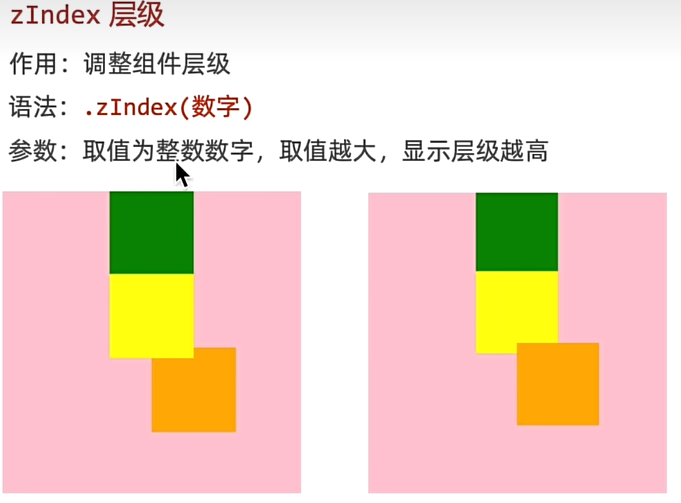
绝对定位
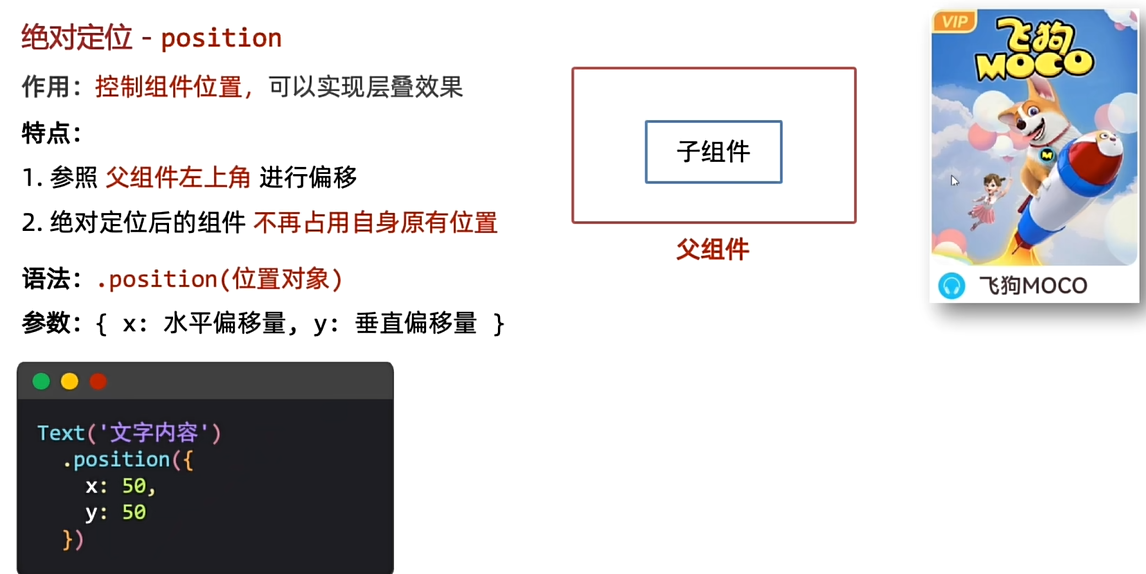
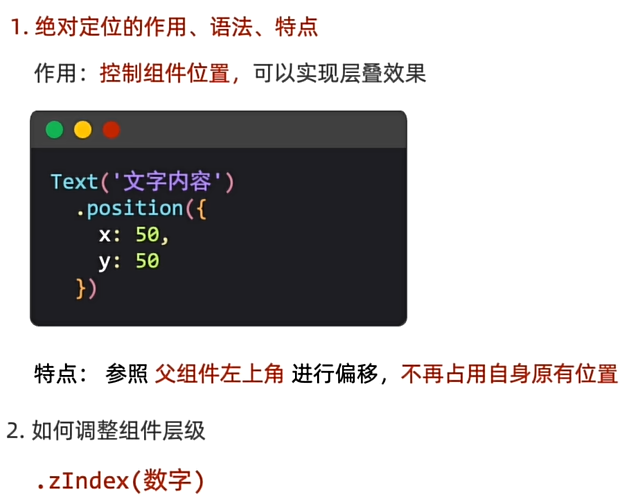
//position绝对定位:可以控制组件位置,可以实现层叠效果
  //语法
  // .position({
  //   x:100,
  //   y:0
  // })

//特点:
//1.
// 相对于父组件左顶点进行偏移(调整位置)
// 原本的位置不占了,且可以任意调整位置,不影响其他元素
// 后面的组件明显层次更高大
// 会盖住前面的组件
//需求:不动结构的情况下,
//调整组件的层级,zIndex(数字)
  Column(){

      Text('arkUI').fontSize(14).backgroundColor('#F9FCDC').padding(10).margin(5)
        .position({
          x:100,
          y:0
        })
        .zIndex(1)
      Text('arkTS').fontSize(14).backgroundColor('#F9FBFC').padding(10).margin(5)
      Text('界面开发').fontSize(14).backgroundColor('#F9FBFC').padding(10).margin(5)
      Text('系统能力').fontSize(14).backgroundColor('#F9FBFC').padding(10).margin(5)
      Text('权限控制').fontSize(14).backgroundColor('#F9FBFC').padding(10).margin(5)
      Text('元服务').fontSize(14).backgroundColor('#F9FBFC').padding(10).margin(5)

  }.width('100%').height('100%').padding(20).backgroundColor(Color.Pink)
案例
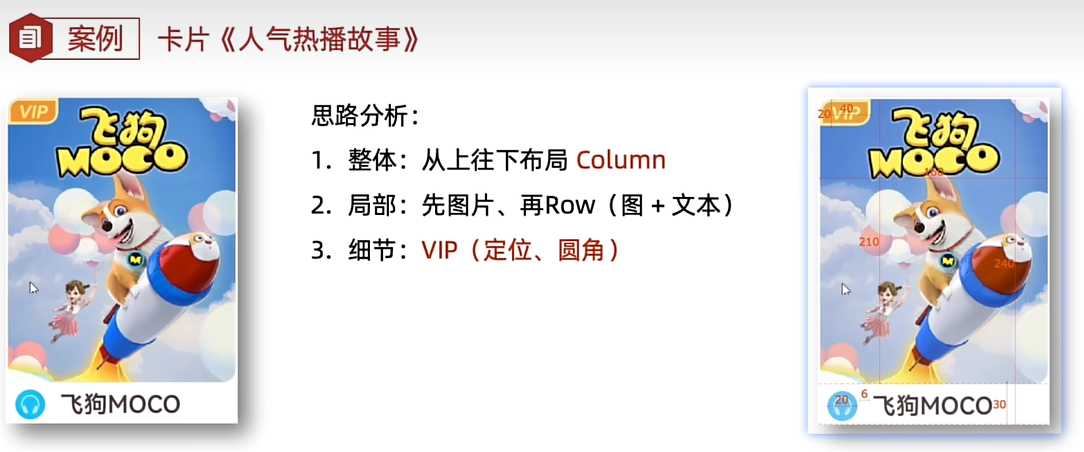
Column(){

    Column(){
      Image($r('app.media.huawei'))
        .borderRadius(10)
        .layoutWeight(1)
      Text('VIP').fontSize(13)
        .fontColor('#FFEC93')
        .fontWeight(FontWeight.Bold)
        .fontStyle(FontStyle.Italic)
        .position({
          x:0,y:0
        })
        .backgroundColor('#E6A23C')
        .width(40)
        .height(20)
        .border({
          width:2,
          color:'#E8DAB2',
        })
        .borderRadius({
          topLeft:10,
          bottomRight:10
        })
        .padding({
          left:6,
          top:1
        })
      //文本居中
      //   .textAlign(TextAlign.Center)
      Row({space:6}){
        Image($r('app.media.startIcon'))
          .width(20).borderRadius(10)
        Text('飞狗MOCO').fontSize(20).fontWeight(FontWeight.Bold)
      }.height(30).width('100%').backgroundColor(Color.White).padding({left:5})

    }.width(200).height(300)

}.width('100%').height('100%').padding(20).backgroundColor(Color.Pink)
层叠布局
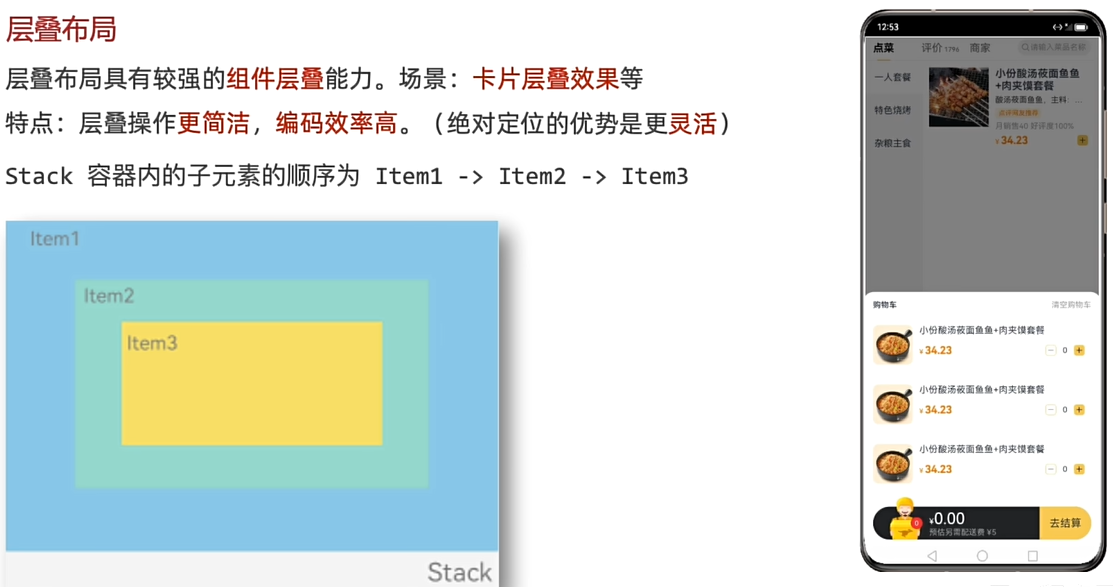
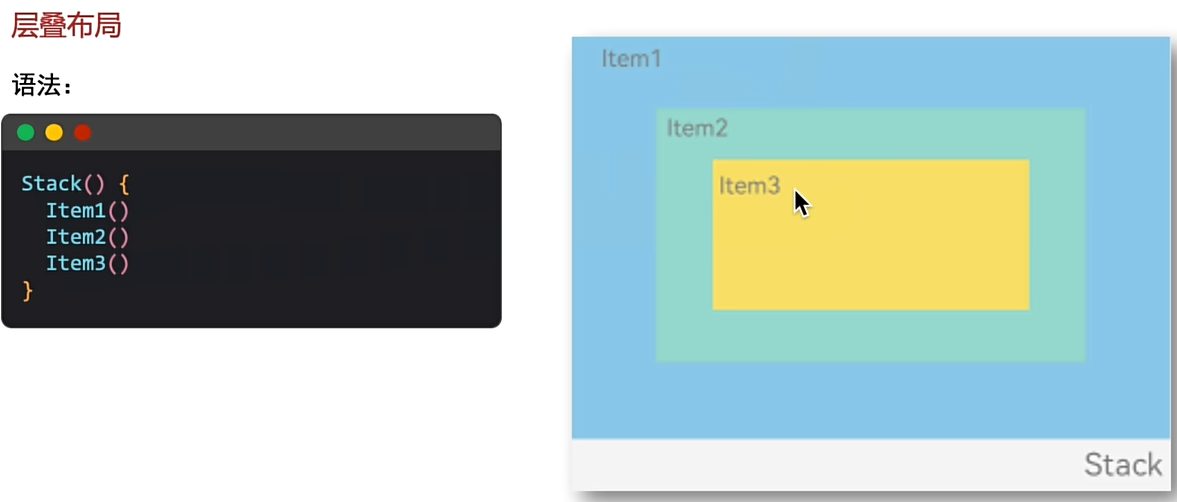
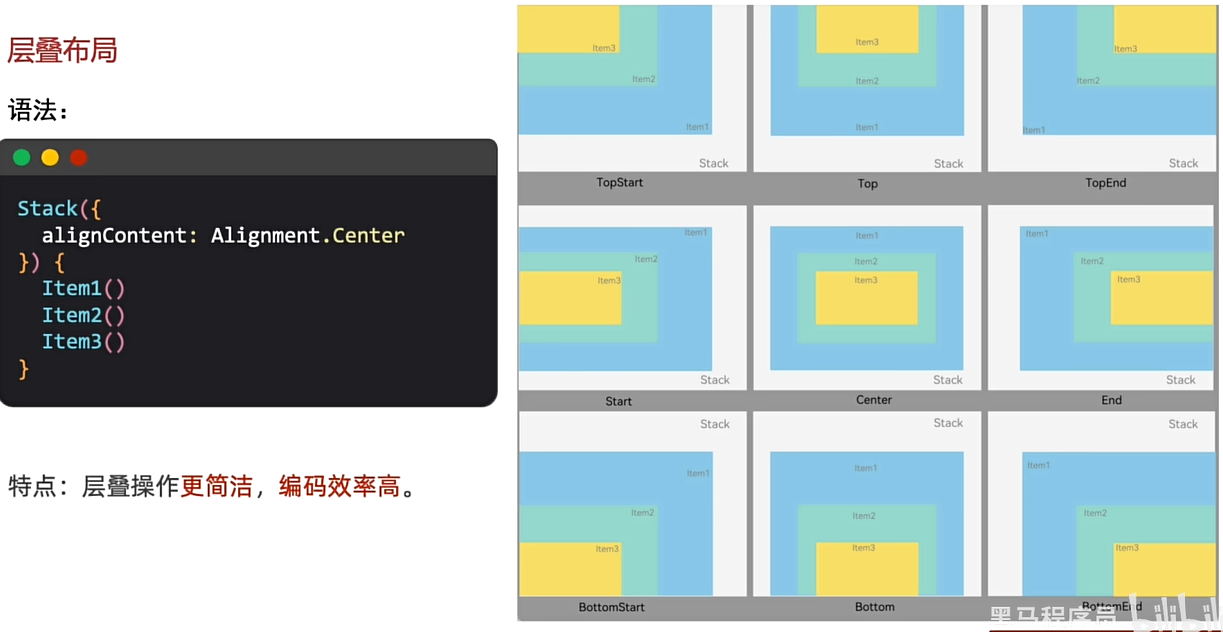
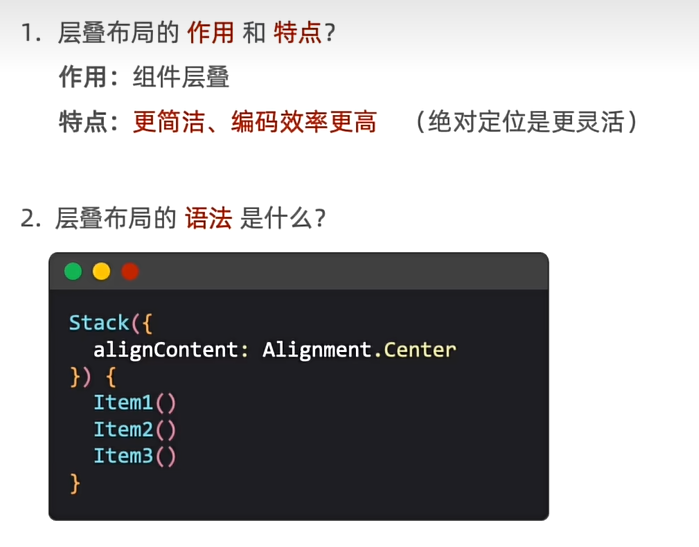
Column(){
  Stack({
    alignContent:Alignment.Bottom
  }){
    Text('老大').width(250).height(250).backgroundColor(Color.Brown)
    Text('老二').width(150).height(150).backgroundColor(Color.Blue)
    Text('老三').width(50).height(50).backgroundColor(Color.White)
  }

}.width('100%').height('100%').padding(20).backgroundColor(Color.Pink)
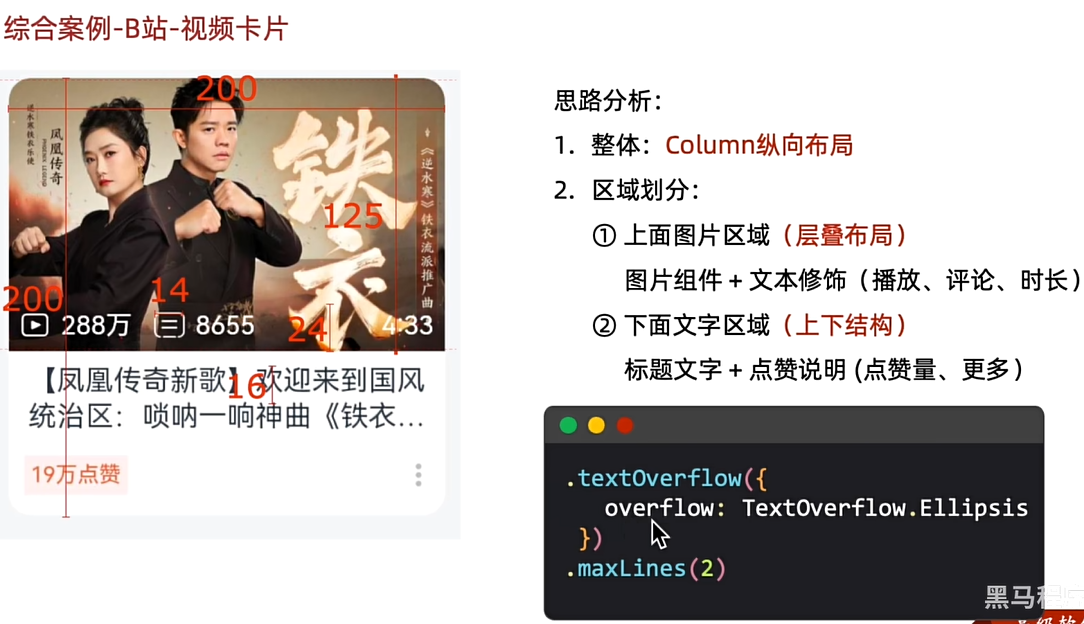
案例
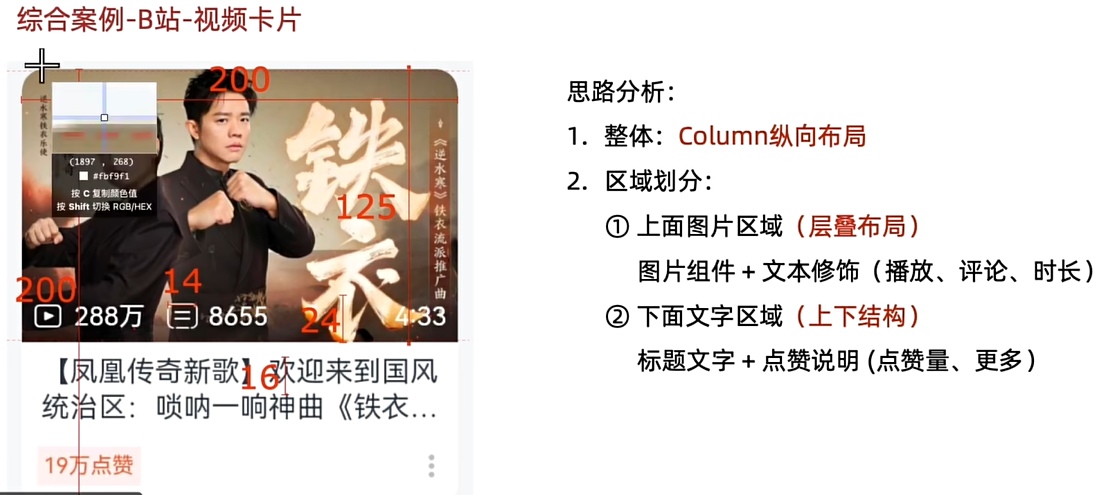
Column(){
  Column(){
    Stack({alignContent:Alignment.Bottom}){
      Image($r('app.media.huawei')).width('100%')
        .height(125)
        .borderRadius({topLeft:10,topRight:10})
      Row(){
        Row({space:5}){
          Image($r('app.media.startIcon')).width(15)
          Text('288万').fontSize(12).fontColor(Color.White)
            .margin({right:5})

          Image($r('app.media.startIcon')).width(15)
          Text('8655').fontSize(12).fontColor(Color.White)
        }

        Blank()
        Text('4:33').fontSize(12).fontColor(Color.White)

      }.width('100%')
      .padding({left:5,right:5})
      .height(24)
    }
    Text('[凤凰传奇]奥里拉克是阿克苏独立房间啊:上了大家《分厘卡》阿斯顿洛克菲勒')
      .fontSize(12)
      .lineHeight(16)
      .textOverflow({
      overflow:TextOverflow.Ellipsis
    }).maxLines(2)
      .padding({left:8,right:8,top:8})
    Row(){
      Text('19万点赞').fontColor(Color.Orange).fontSize(10)
        .backgroundColor('#FFF4EF')
        .padding(3)
        .borderRadius(2)

      Image($r('app.media.startIcon')).width(12)
    }.justifyContent(FlexAlign.SpaceBetween).width('100%')
    .padding(8)

  }.width(200).height(200).backgroundColor(Color.White)
   .borderRadius(10)


}.width('100%').height('100%').padding(20).backgroundColor(Color.Pink)
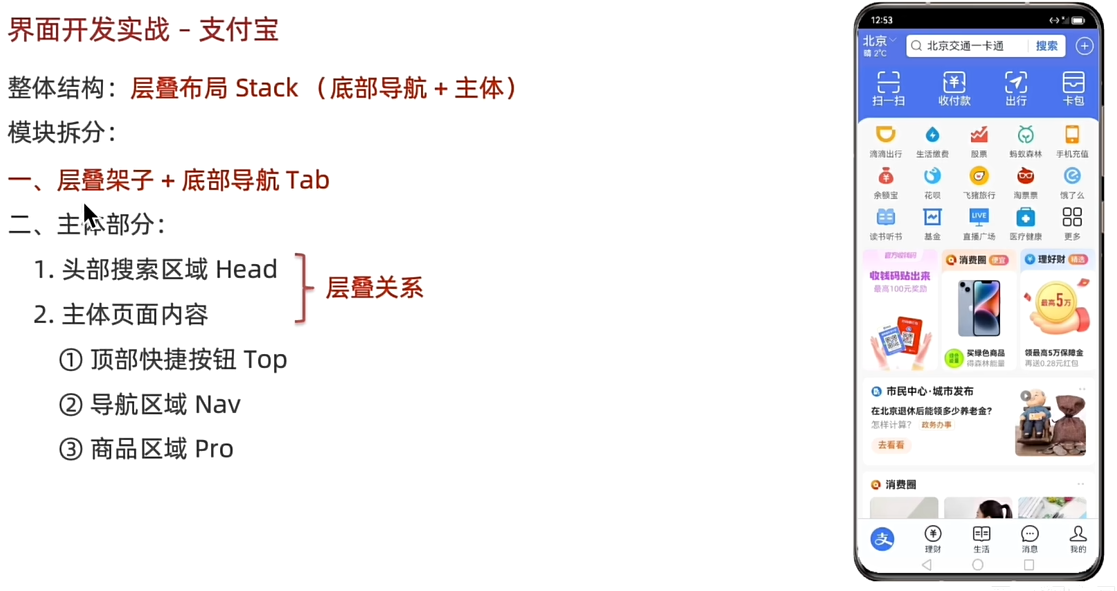
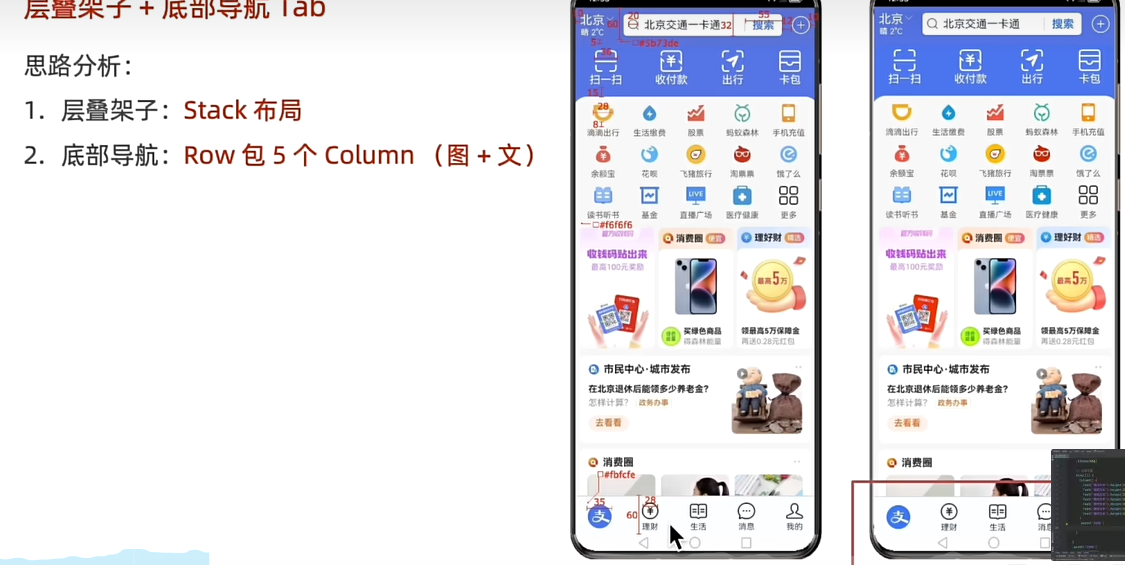
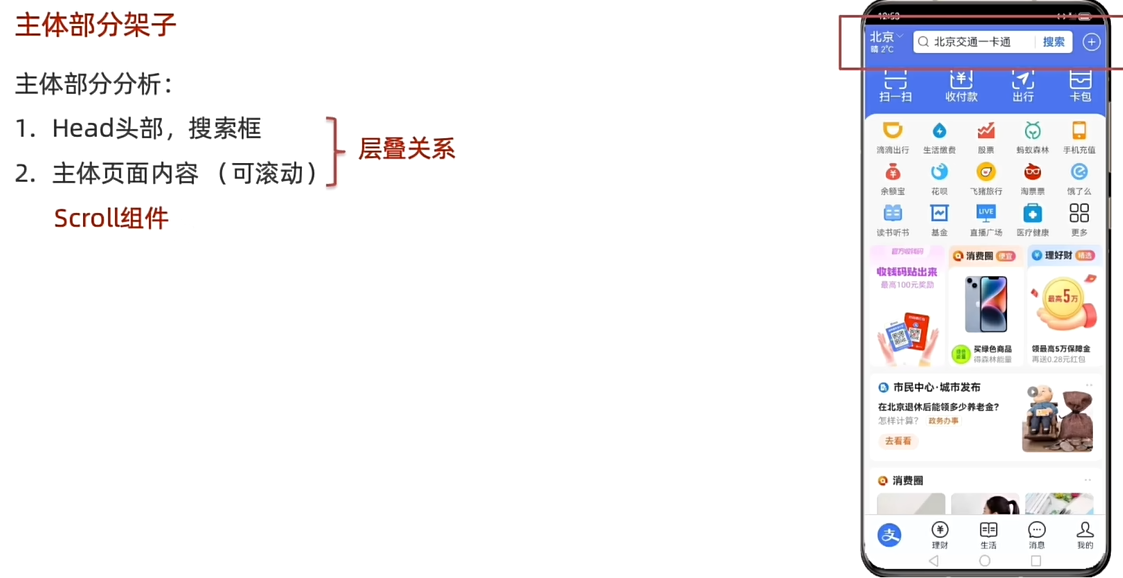
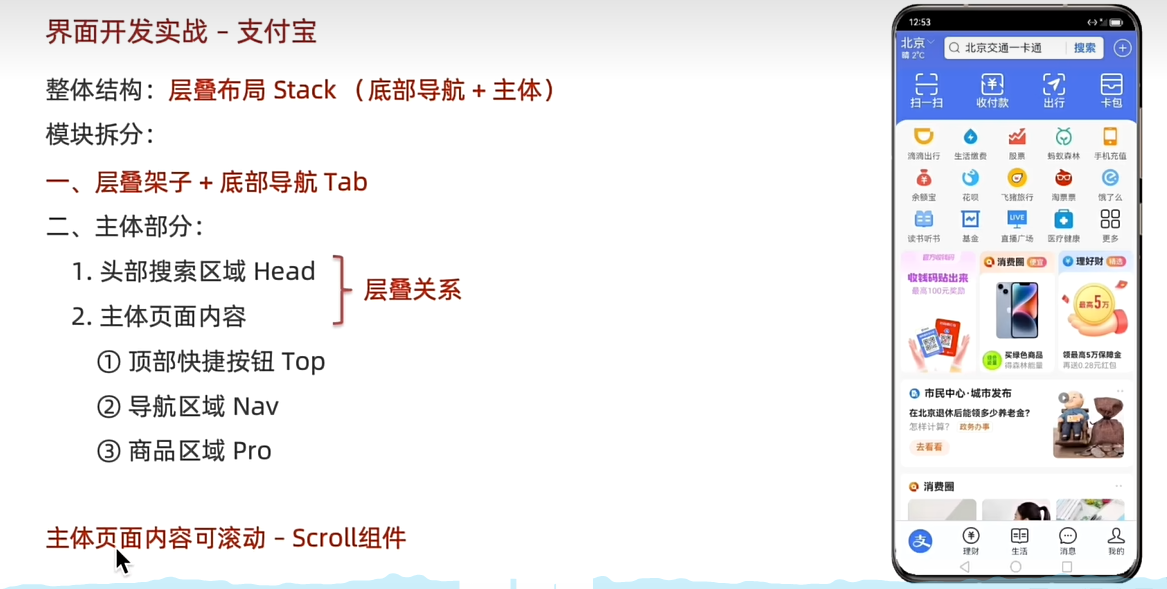
界面开发实战
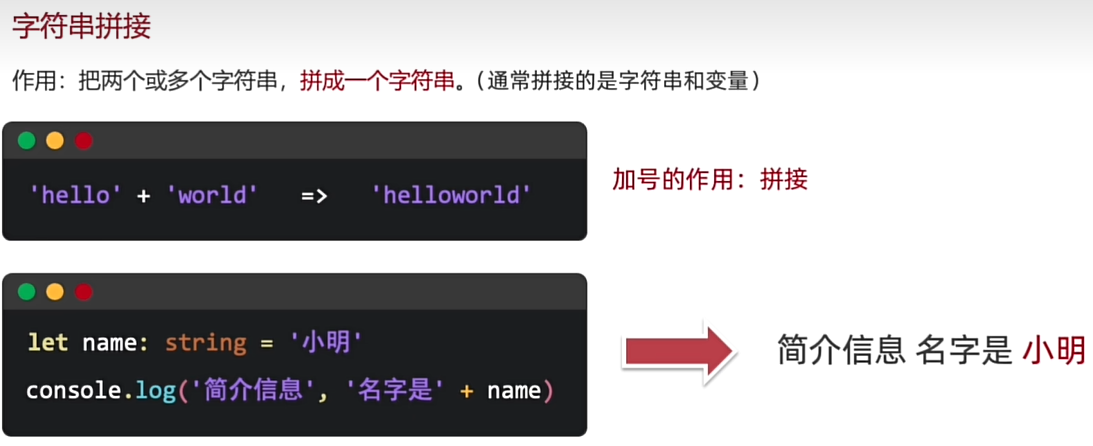
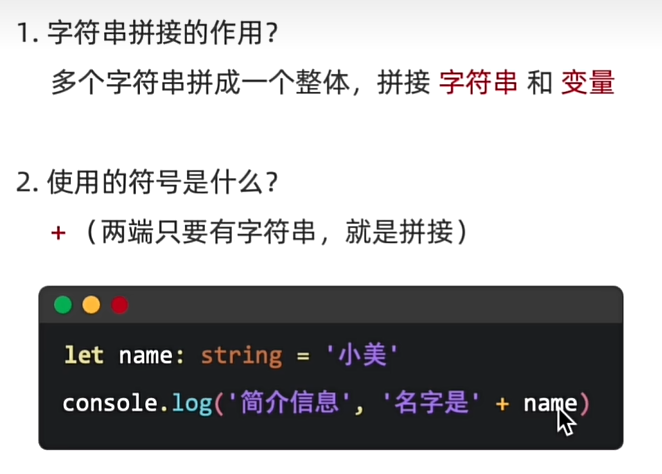
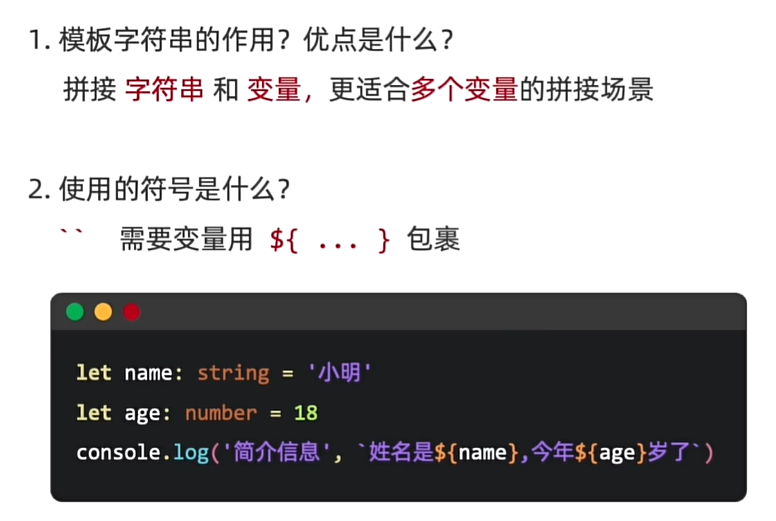
字符串拼接
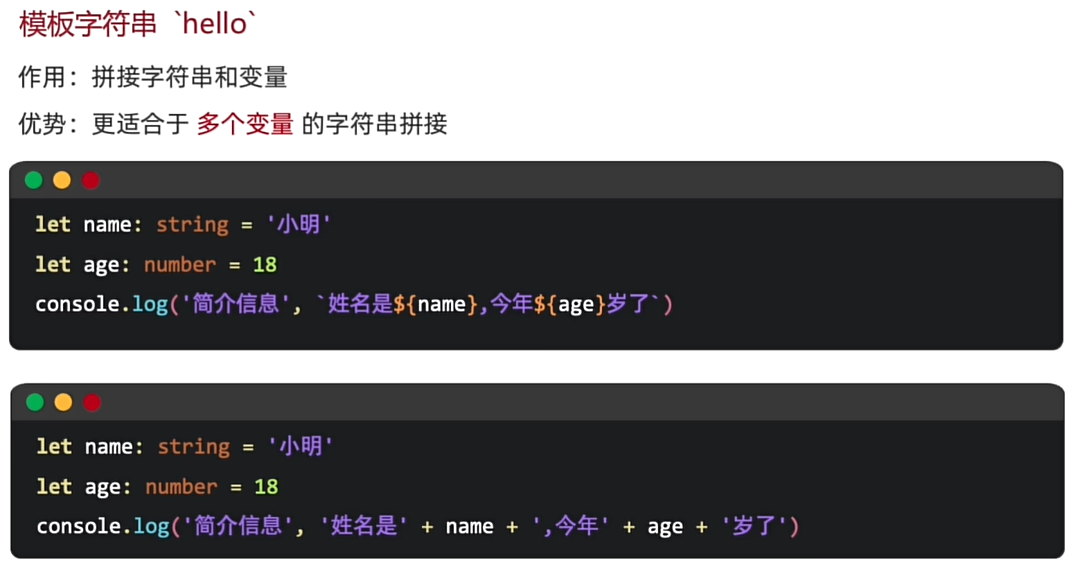
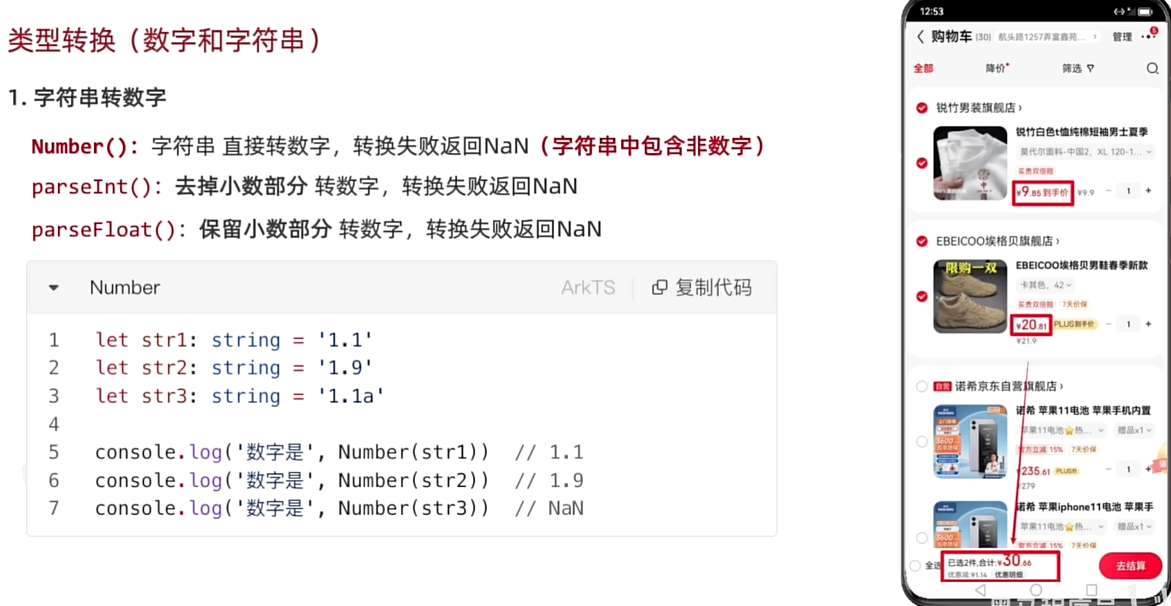
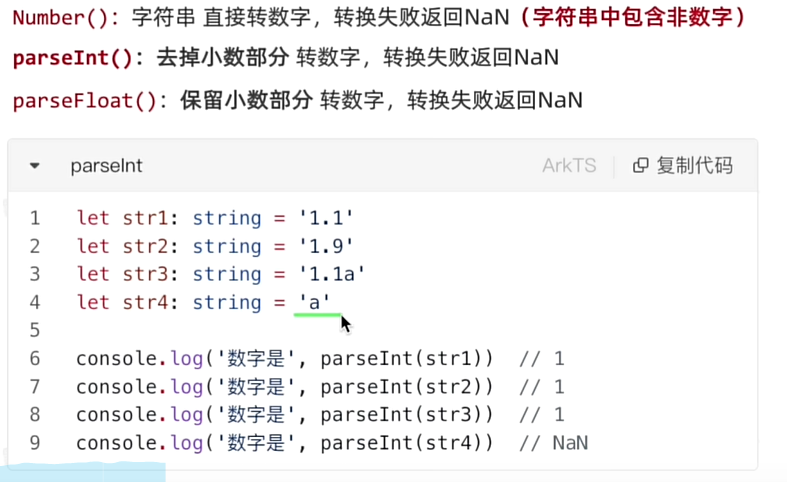
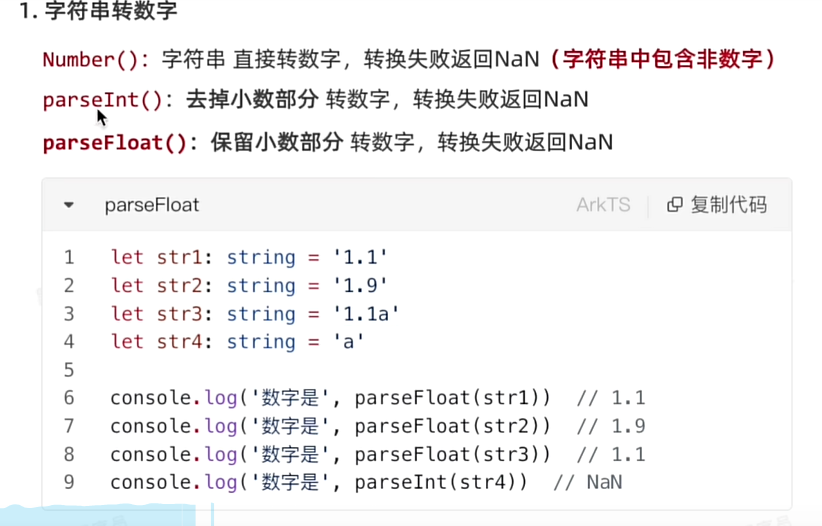
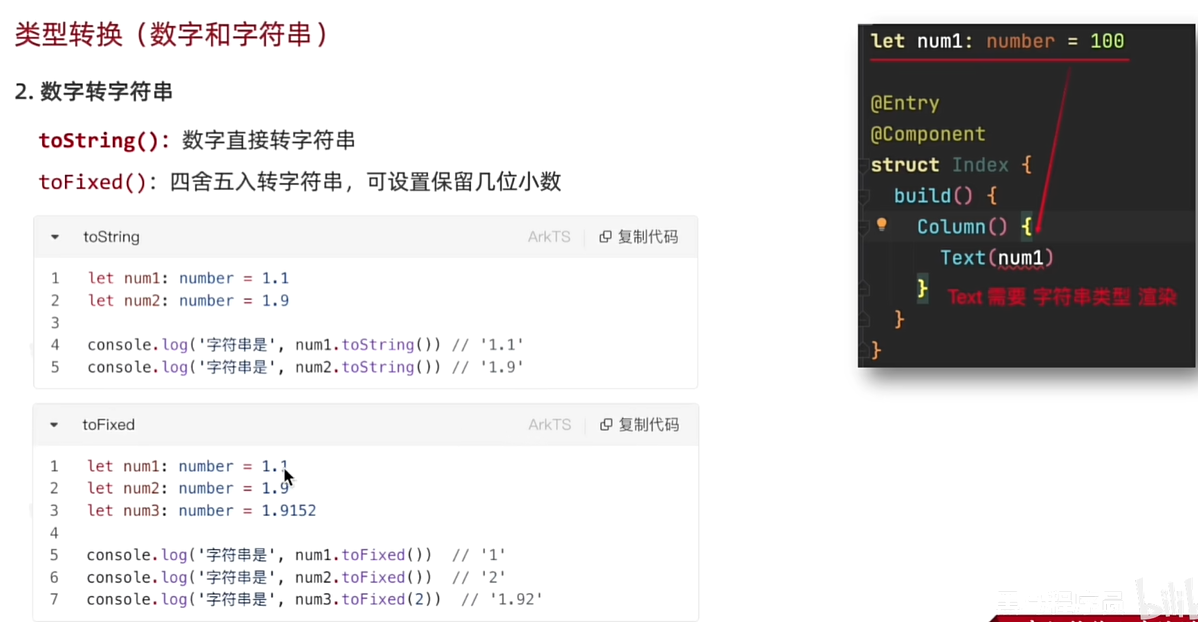
类型转换(数字和字符串)
点击事件
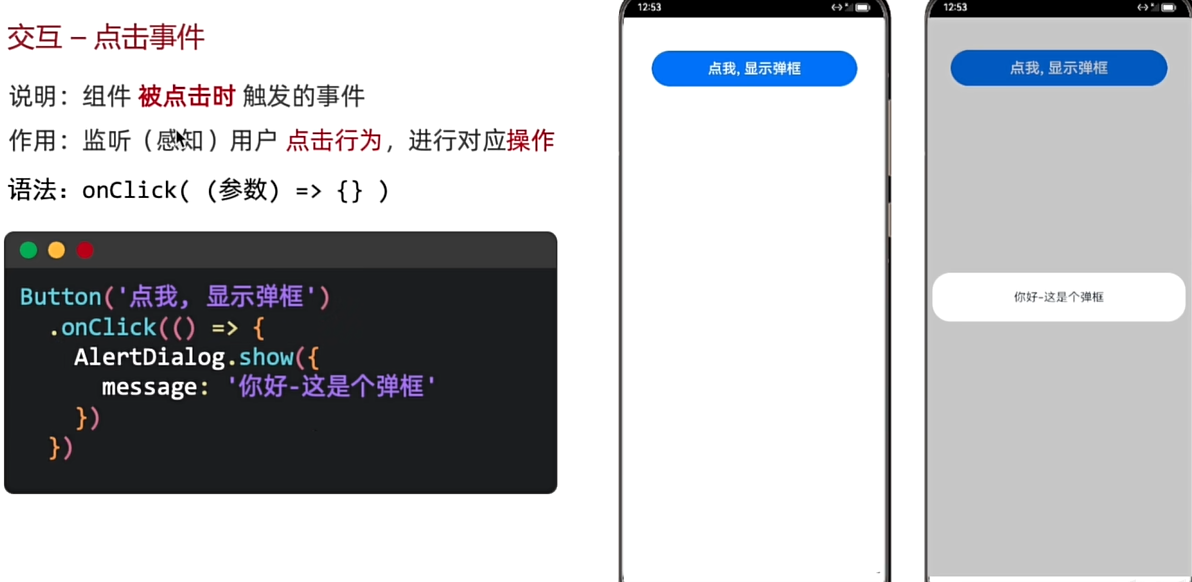
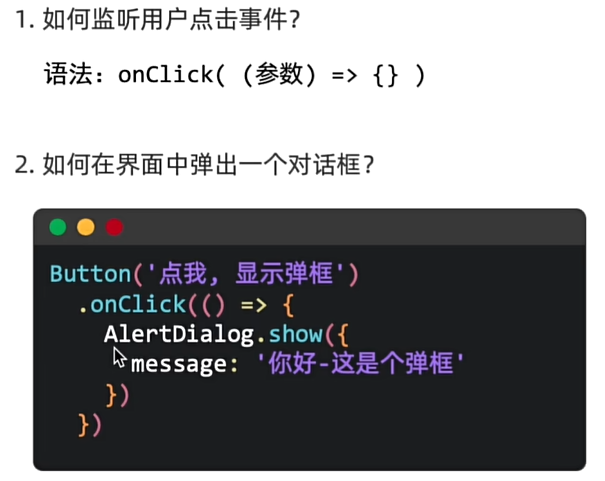
Column(){
  Button('我是按钮').onClick(()=>{
    //弹个框
    AlertDialog.show({
      message:'我是按钮'
    })

  })

  Text('我是文本').onClick(()=>{
    //弹框
    AlertDialog.show({
      message:'我是文本'
    })
  }).fontSize(18)
}.height('100%').width('100%')
状态管理
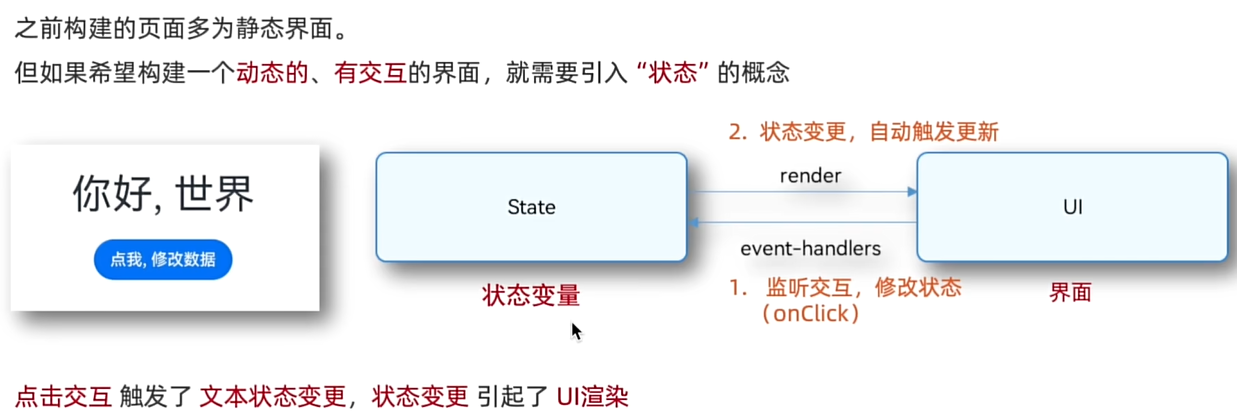
Column(){
    Button('我是按钮').onClick(()=>{
      //弹个框
      AlertDialog.show({
        message:'我是按钮'
      })

    })

    Text('我是文本').onClick(()=>{
      //弹框
      AlertDialog.show({
        message:'我是文本'
      })
    }).fontSize(18)
  }.height('100%').width('100%')
}
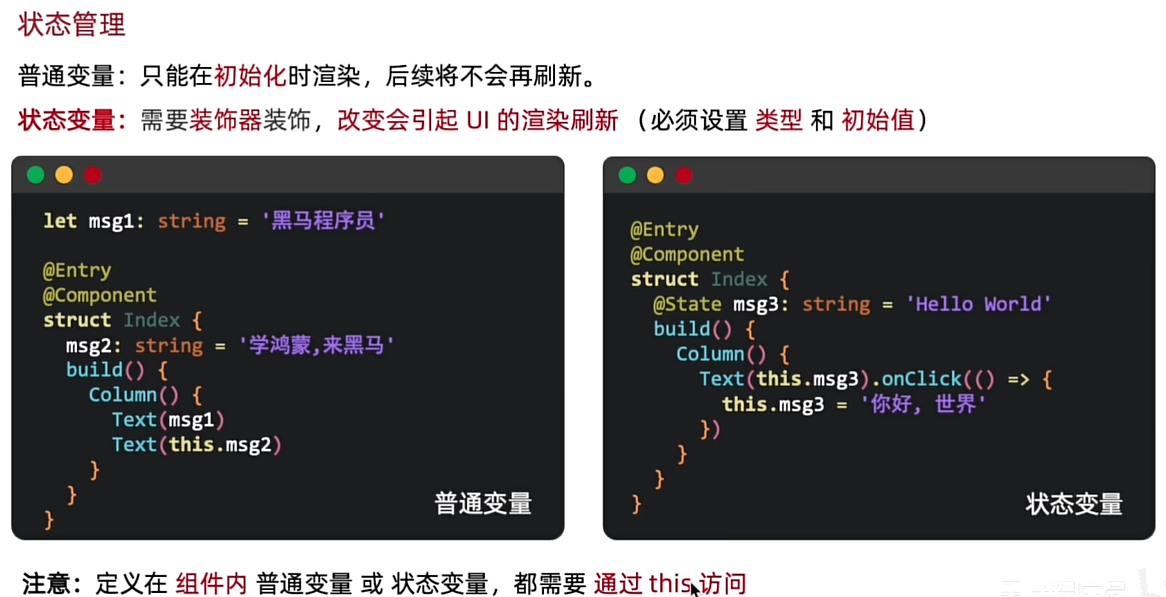
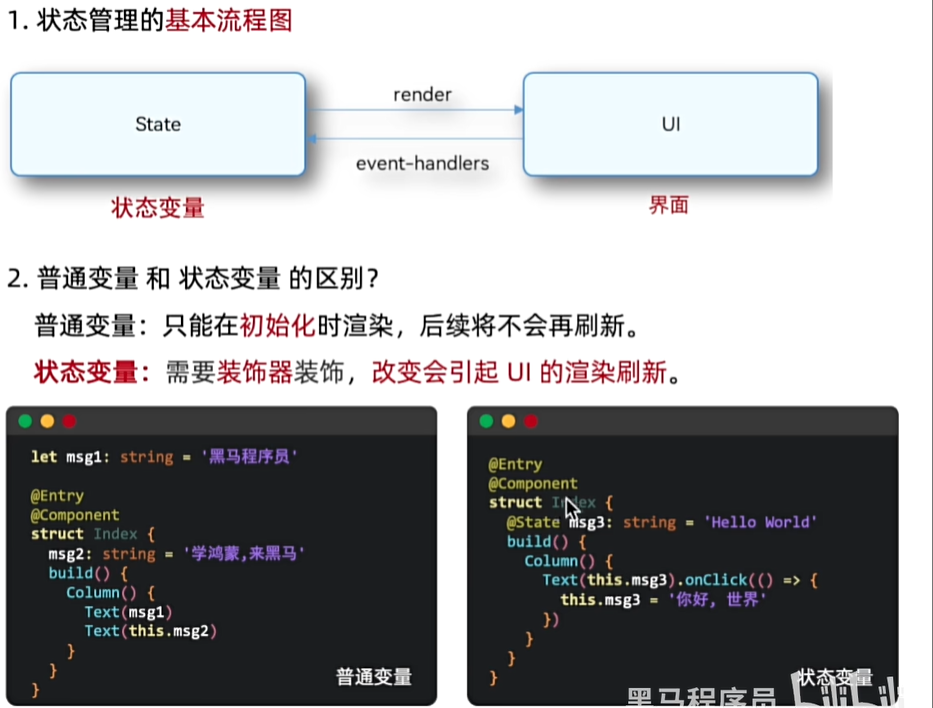
案例
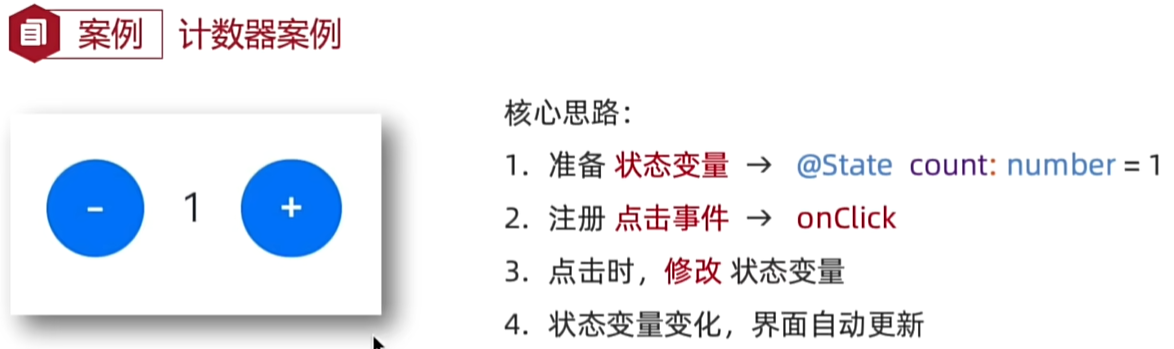
Column(){
  Row(){
    //按钮-
    Button('-')
        .onClick(()=>{
      this.message=this.message-1
    })
    Text(this.message.toString())
      .padding(15)
    //按钮+
    Button('+')
      .onClick(()=>{
        this.message=this.message+1
      })
  }


}.height('100%').width('100%')
运算符
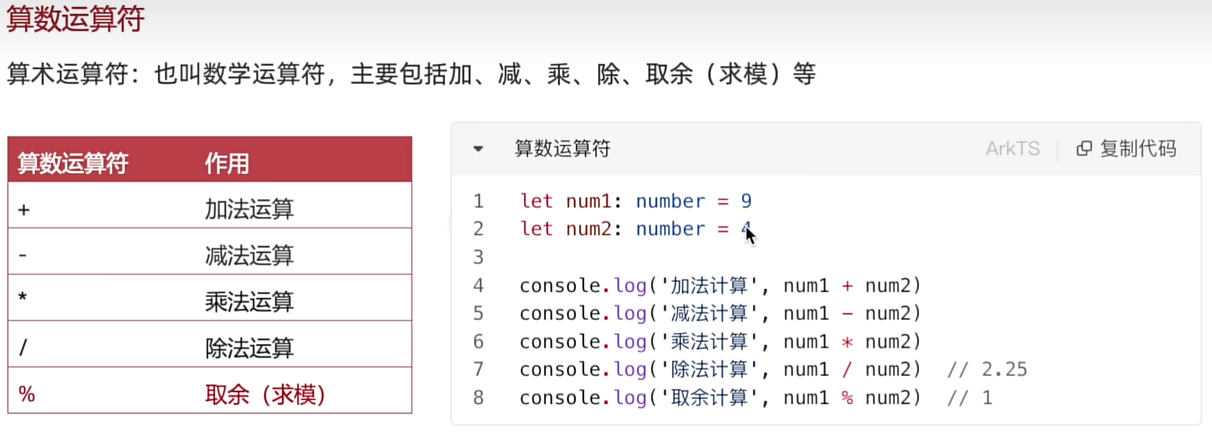
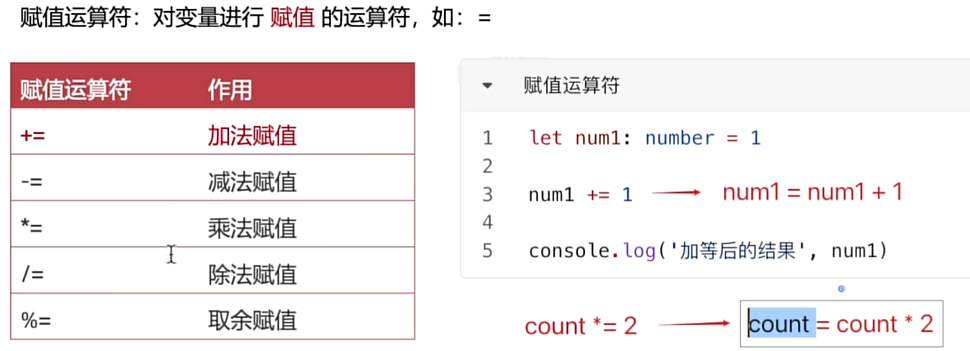
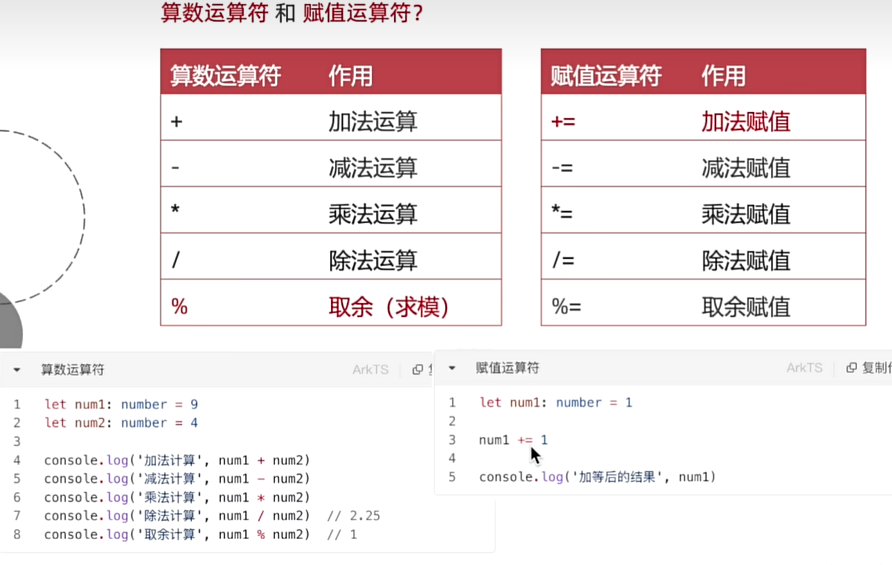
案例
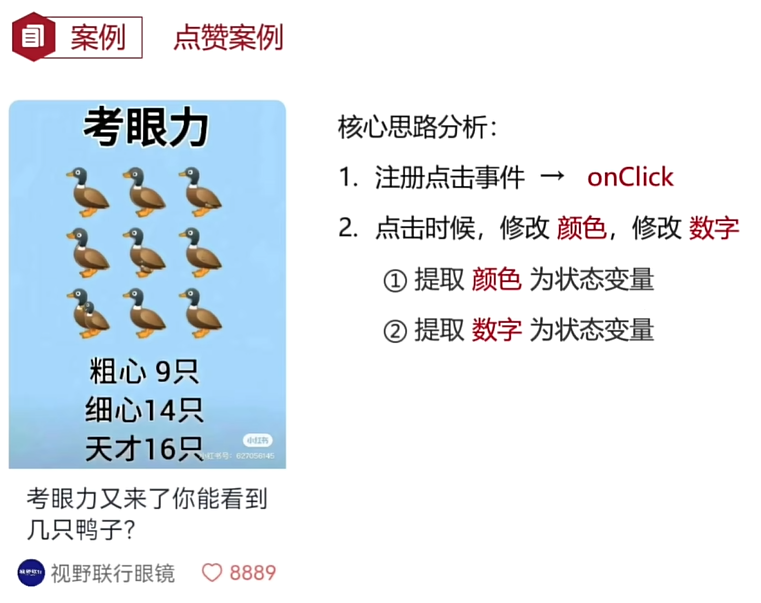
//在build()外面
@State color:string='#CCCC'
 @State count:number=8888


Row({space:5}){
  Image($r('app.media.zan')).width(12).fillColor(this.color)
  Text(this.count.toString()).fontColor(this.color).fontSize(8)
}.onClick(()=>{
  this.color='#C75450'
  this.count+=1
})
一元运算符
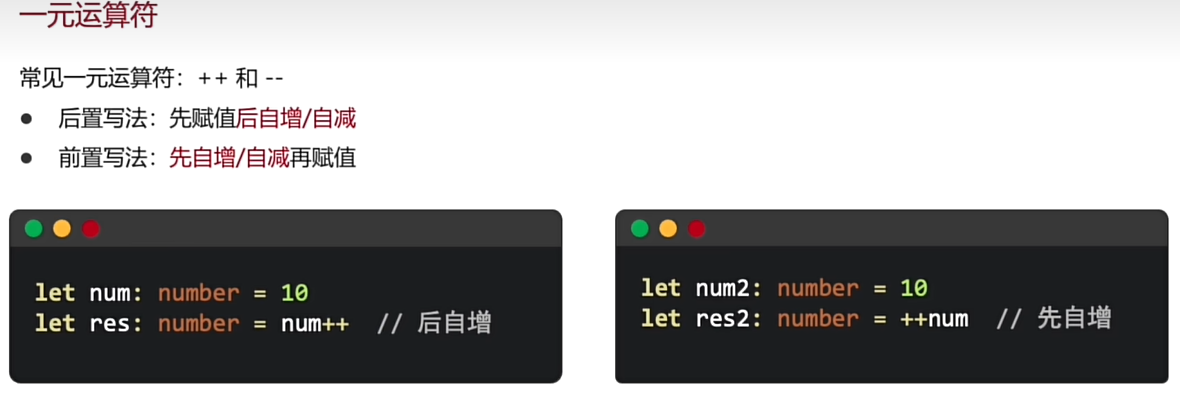
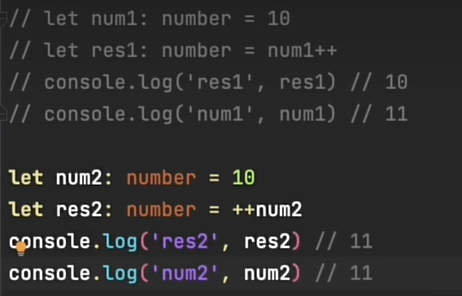
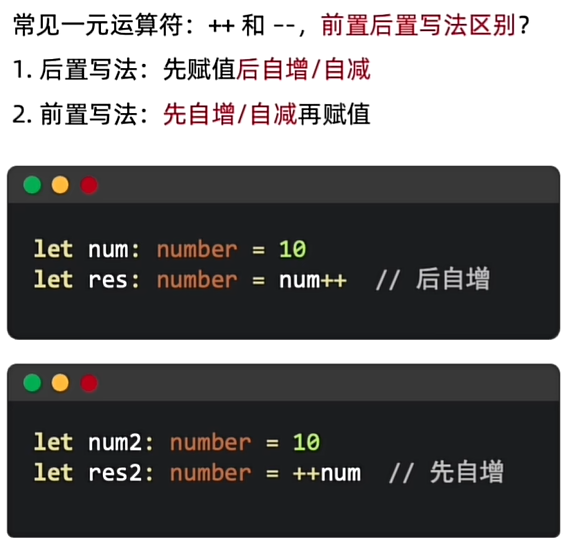
比较运算符
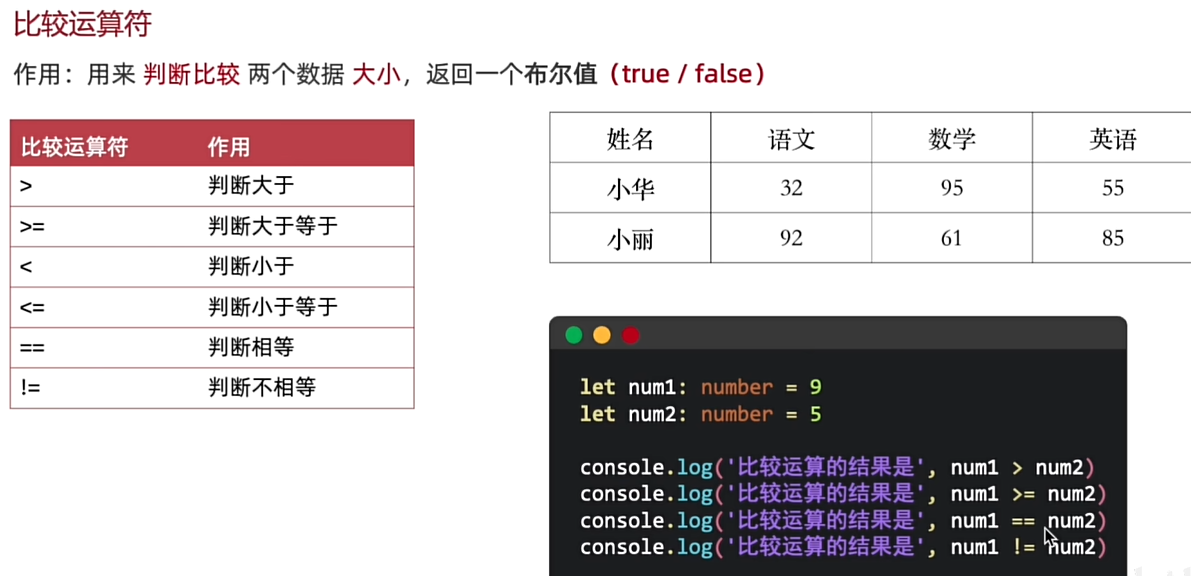
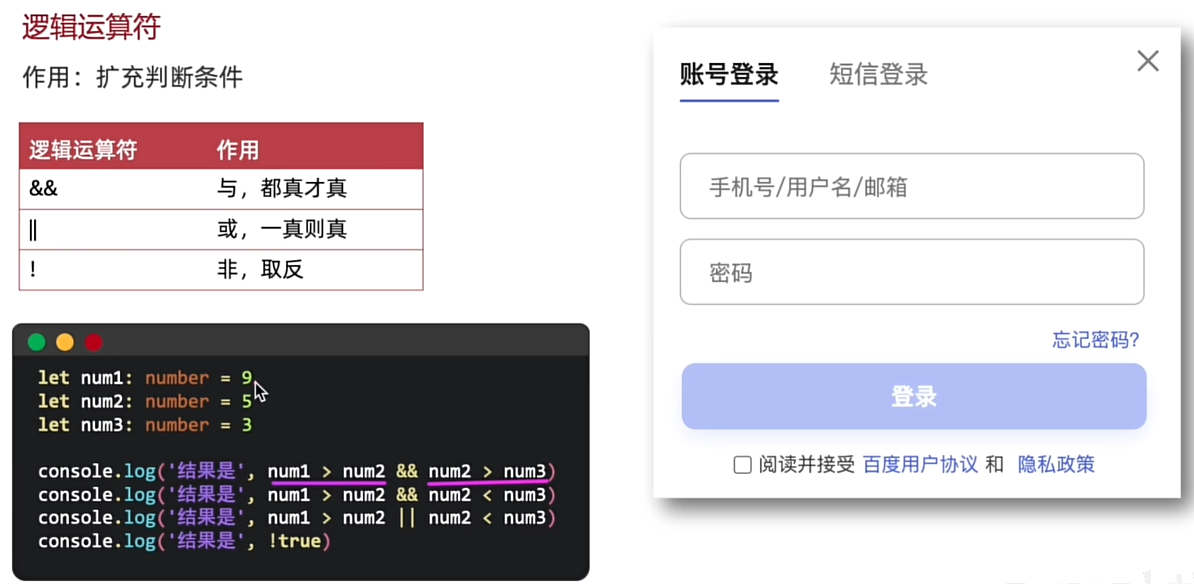
逻辑运算符
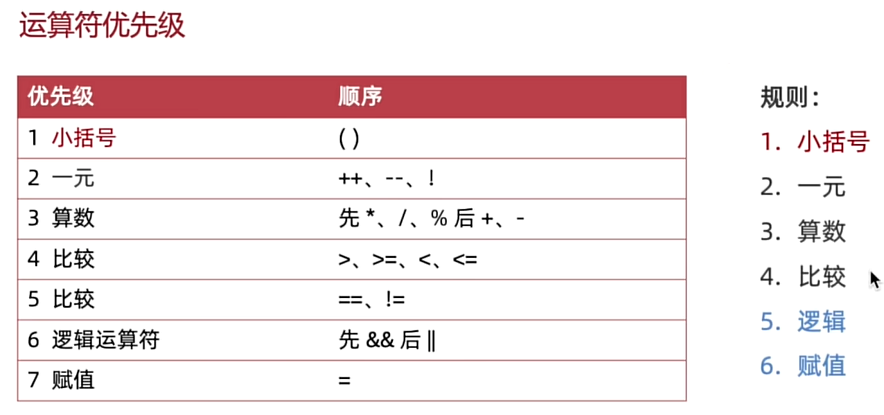
运算符的优先级
案例

讨论HarmonyOS开发技术,专注于API与组件、DevEco Studio、测试、元服务和应用上架分发等。
更多推荐
 48
48 0
0- 0


 已为社区贡献5条内容

所有评论(0)