ArkTS的构建布局
在初始化列表时,如需在列表项之间添加间距,可以使用space参数。// ...Swiper支持通过设置自定义切换动画,可以在回调中对视窗内所有页面逐帧设置透明度、缩放比例、位移、渲染层级等属性实现自定义切换动画。@Entry@Componenti++) {build() {Column() {Swiper() {})// 同组页面完全滑出视窗外时,重置属性值} else {// 同组页面未滑出视窗
构建布局可以分为以下几部分:
1、线性布局
2、层叠布局
3、弹性布局
4、相对布局
5、栅格布局
6、媒体查询
7、创建列表
8、创建网格
9、创建轮播
10、选项卡
1、线性布局(Row/Column)
基本概念:
线性布局(LinearLayout)是开发中最常用的布局,通过线性容器Row和Column构建。
线性布局是其他布局的基础,其子元素在线性方向上(水平方向和垂直方向)依次排列。
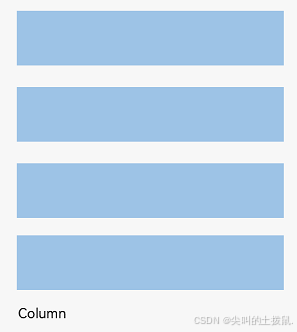
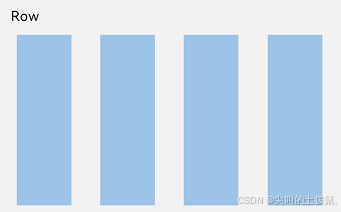
线性布局的排列方向由所选容器组件决定,Column容器内子元素按照垂直方向排列,Row容器内子元素按照水平方向排列
Column容器内子元素排列示意图:
Row容器内子元素排列示意图:
基本概念
-
布局容器:具有布局能力的容器组件,可以承载其他元素作为其子元素,布局容器会对其子元素进行尺寸计算和布局排列。
-
布局子元素:布局容器内部的元素。
-
主轴:线性布局容器在布局方向上的轴线,子元素默认沿主轴排列。Row容器主轴为水平方向,Column容器主轴为垂直方向。
-
交叉轴:垂直于主轴方向的轴线。Row容器交叉轴为垂直方向,Column容器交叉轴为水平方向。
-
间距:布局子元素的间距。
布局子元素在排列方向上的间距
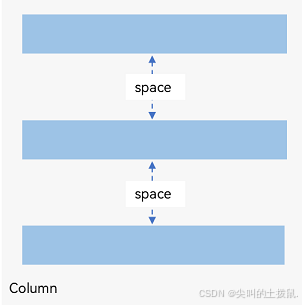
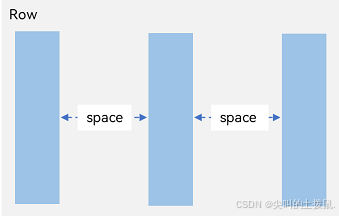
在布局容器内,可以通过space属性设置排列方向上子元素的间距,使各子元素在排列方向上有等间距效果
Column容器内排列方向上的间距
Row容器内排列方向上的间距
布局子元素在交叉轴上的对齐方式
在布局容器内,可以通过alignItems属性设置子元素在交叉轴(排列方向的垂直方向)上的对齐方式。且在各类尺寸屏幕中,表现一致。
其中,交叉轴为垂直方向时,取值为VerticalAlign类型,水平方向取值为HorizontalAlign类型。
alignSelf属性用于控制单个子元素在容器交叉轴上的对齐方式,其优先级高于alignItems属性,如果设置了alignSelf属性,则在单个子元素上会覆盖alignItems属性
Column容器内子元素在水平方向上的排列
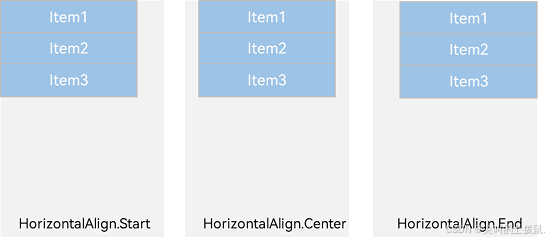
HorizontalAlign.Start:子元素在水平方向左对齐
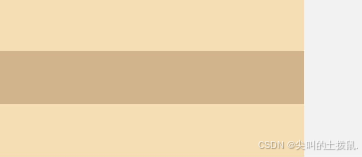
HorizontalAlign.Center:子元素在水平方向居中对齐。
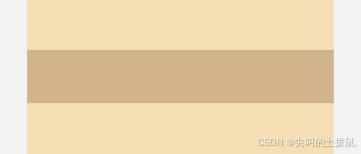
HorizontalAlign.End:子元素在水平方向右对齐。
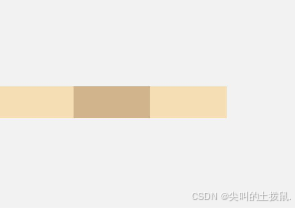
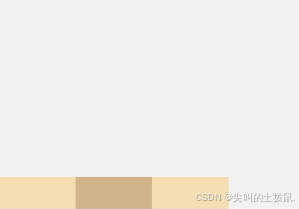
Row容器内子元素在垂直方向上的排列
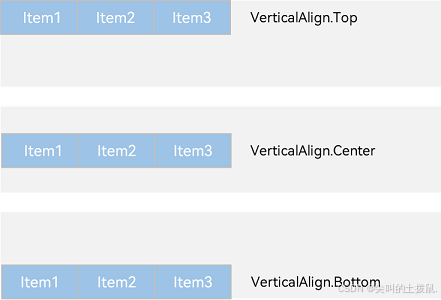
VerticalAlign.Top:子元素在垂直方向顶部对齐。
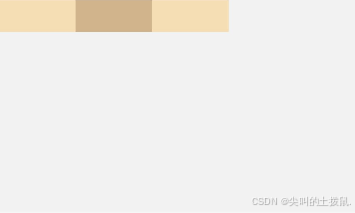
VerticalAlign.Center:子元素在垂直方向居中对齐。
VerticalAlign.Bottom:子元素在垂直方向底部对齐
布局子元素在主轴上的排列方式
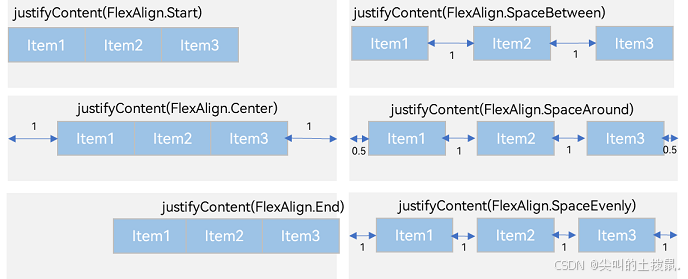
在布局容器内,可以通过justifyContent属性设置子元素在容器主轴上的排列方式。可以从主轴起始位置开始排布,也可以从主轴结束位置开始排布,或者均匀分割主轴的空间。
Column容器内子元素在垂直方向上的排列
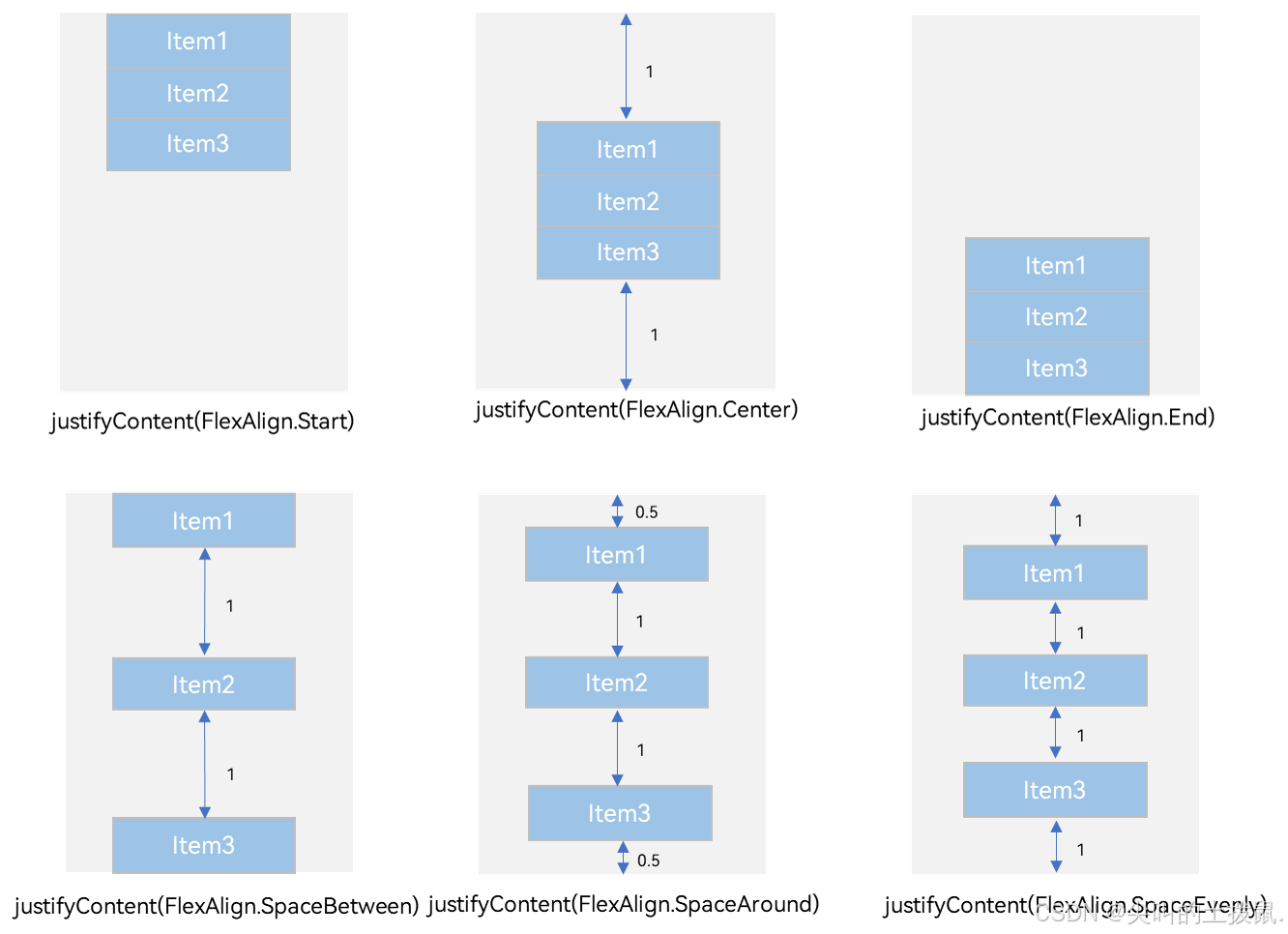
justifyContent(FlexAlign.Start):元素在垂直方向首端对齐,第一个元素与行首对齐,同时后续的元素与前一个对齐。
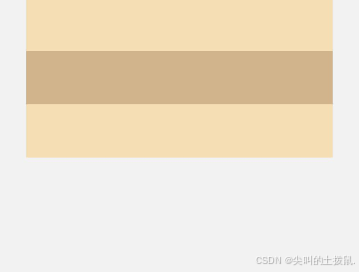
justifyContent(FlexAlign.Center):元素在垂直方向中心对齐,第一个元素与行首的距离与最后一个元素与行尾距离相同。
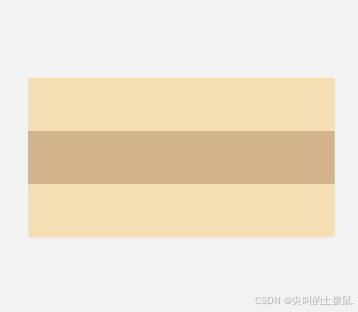
justifyContent(FlexAlign.End):元素在垂直方向尾部对齐,最后一个元素与行尾对齐,其他元素与后一个对齐。
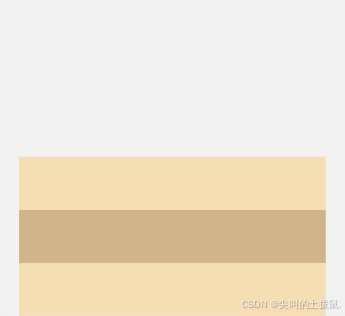
justifyContent(FlexAlign.SpaceBetween):垂直方向均匀分配元素,相邻元素之间距离相同。第一个元素与行首对齐,最后一个元素与行尾对齐。
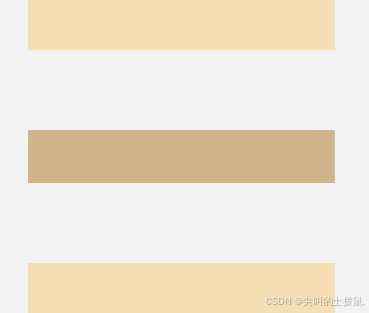
justifyContent(FlexAlign.SpaceAround):垂直方向均匀分配元素,相邻元素之间距离相同。第一个元素到行首的距离和最后一个元素到行尾的距离是相邻元素之间距离的一半。
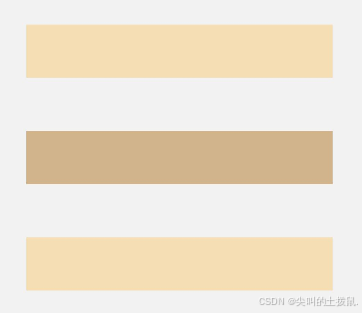
justifyContent(FlexAlign.SpaceEvenly):垂直方向均匀分配元素,相邻元素之间的距离、第一个元素与行首的间距、最后一个元素到行尾的间距都完全一样
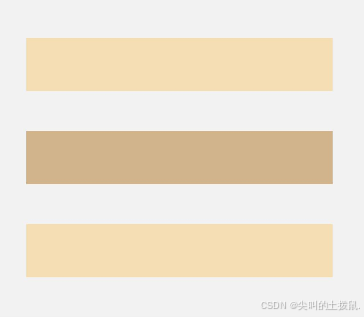
Row容器内子元素在水平方向上的排列
justifyContent(FlexAlign.Start):元素在水平方向首端对齐,第一个元素与行首对齐,同时后续的元素与前一个对齐。
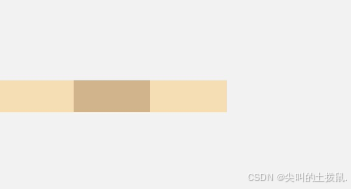
justifyContent(FlexAlign.Center):元素在水平方向中心对齐,第一个元素与行首的距离与最后一个元素与行尾距离相同
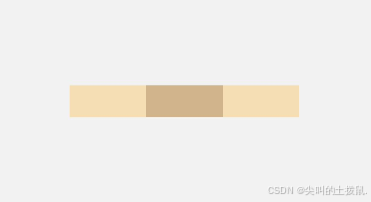
justifyContent(FlexAlign.End):元素在水平方向尾部对齐,最后一个元素与行尾对齐,其他元素与后一个对齐。
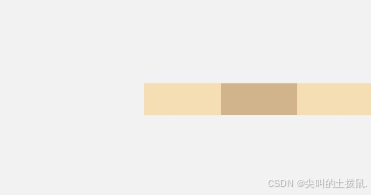
justifyContent(FlexAlign.SpaceBetween):水平方向均匀分配元素,相邻元素之间距离相同。第一个元素与行首对齐,最后一个元素与行尾对齐。
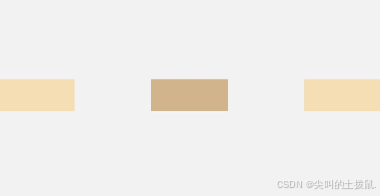
justifyContent(FlexAlign.SpaceAround):水平方向均匀分配元素,相邻元素之间距离相同。第一个元素到行首的距离和最后一个元素到行尾的距离是相邻元素之间距离的一半。
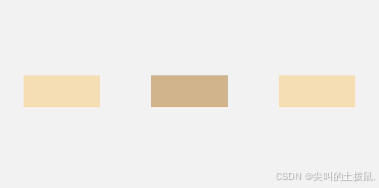
justifyContent(FlexAlign.SpaceEvenly):水平方向均匀分配元素,相邻元素之间的距离、第一个元素与行首的间距、最后一个元素到行尾的间距都完全一样。
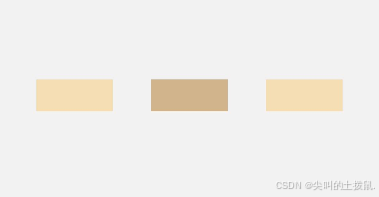
自适应拉伸
在线性布局下,常用空白填充组件Blank,在容器主轴方向自动填充空白空间,达到自适应拉伸效果。Row和Column作为容器,只需要添加宽高为百分比,当屏幕宽高发生变化时,会产生自适应效果

自适应缩放
自适应缩放是指子元素随容器尺寸的变化而按照预设的比例自动调整尺寸,适应各种不同大小的设备。在线性布局中,可以使用以下两种方法实现自适应缩放。
-
父容器尺寸确定时,使用layoutWeight属性设置子元素和兄弟元素在主轴上的权重,忽略元素本身尺寸设置,使它们在任意尺寸的设备下自适应占满剩余空间。
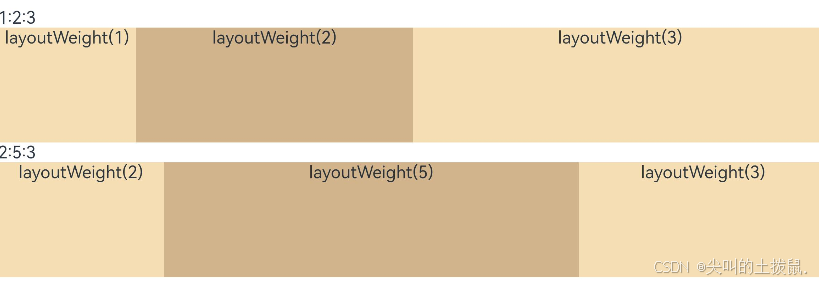
父容器尺寸确定时,使用百分比设置子元素和兄弟元素的宽度,使他们在任意尺寸的设备下保持固定的自适应占比。

自适应延伸
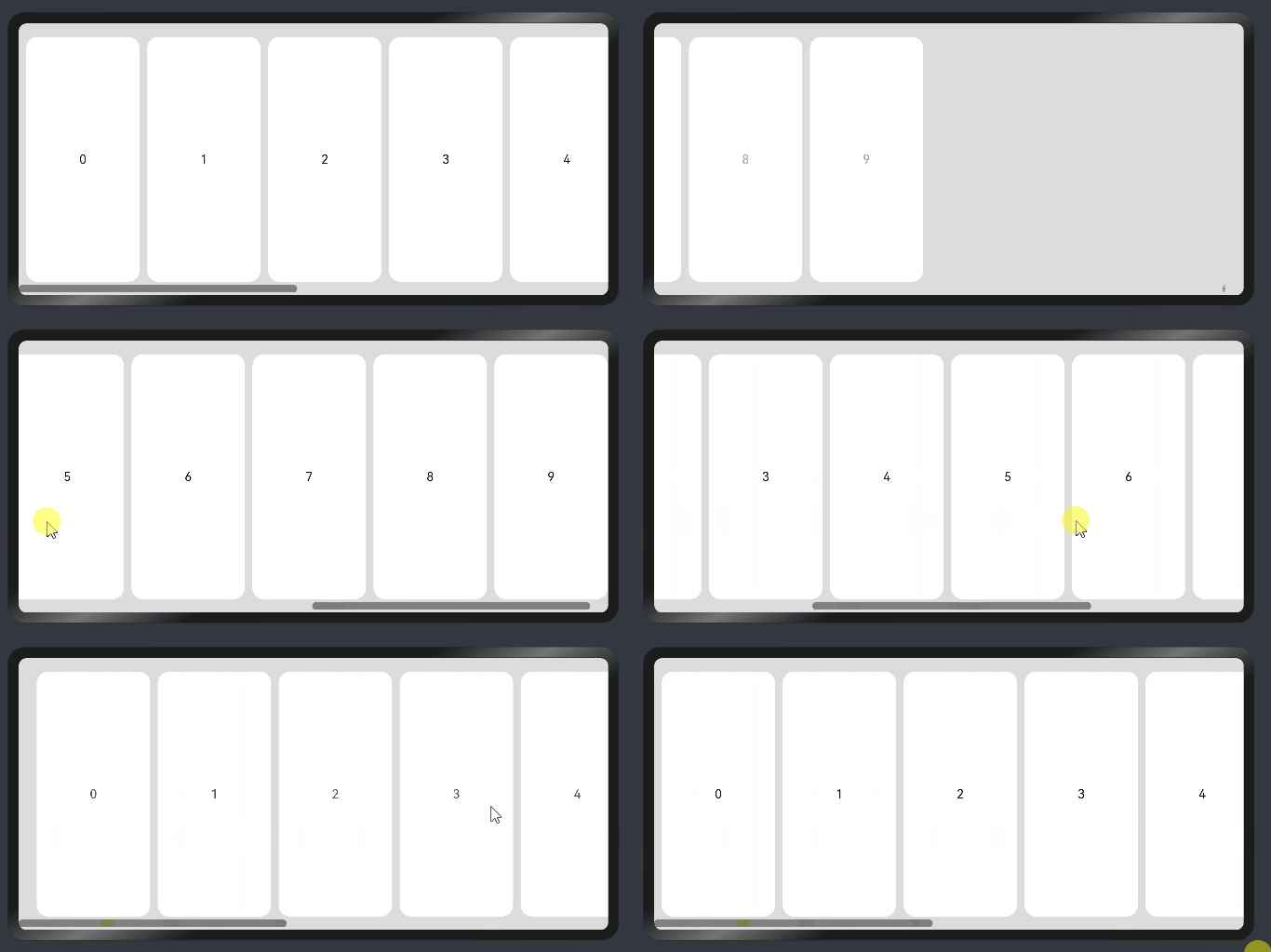
自适应延伸是指在不同尺寸设备下,当页面的内容超出屏幕大小而无法完全显示时,可以通过滚动条进行拖动展示。这种方法适用于线性布局中内容无法一屏展示的场景。通常有以下两种实现方式。
-
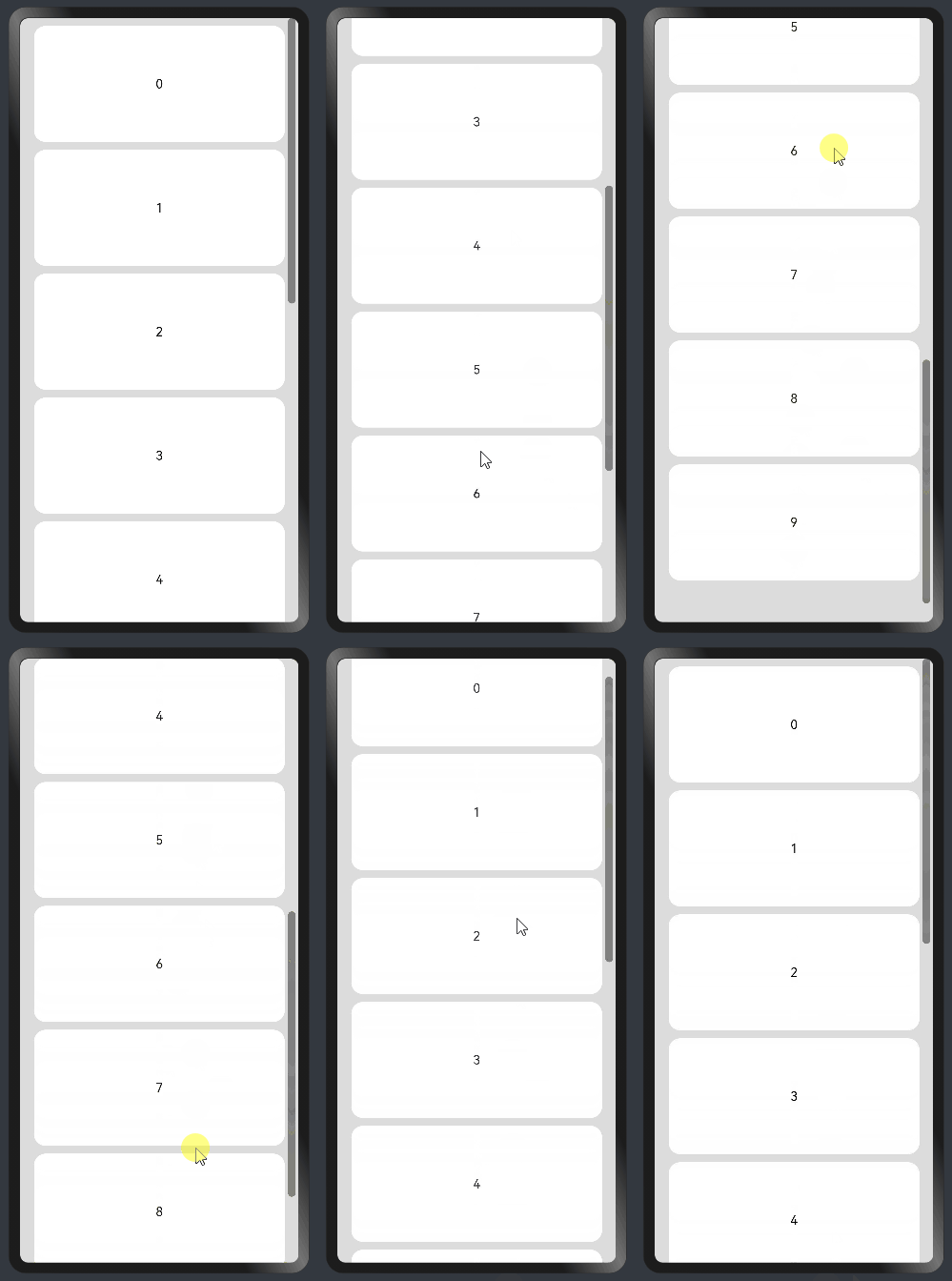
在List中添加滚动条:当List子项过多一屏放不下时,可以将每一项子元素放置在不同的组件中,通过滚动条进行拖动展示。可以通过scrollBar属性设置滚动条的常驻状态,edgeEffect属性设置拖动到内容最末端的回弹效果。
-
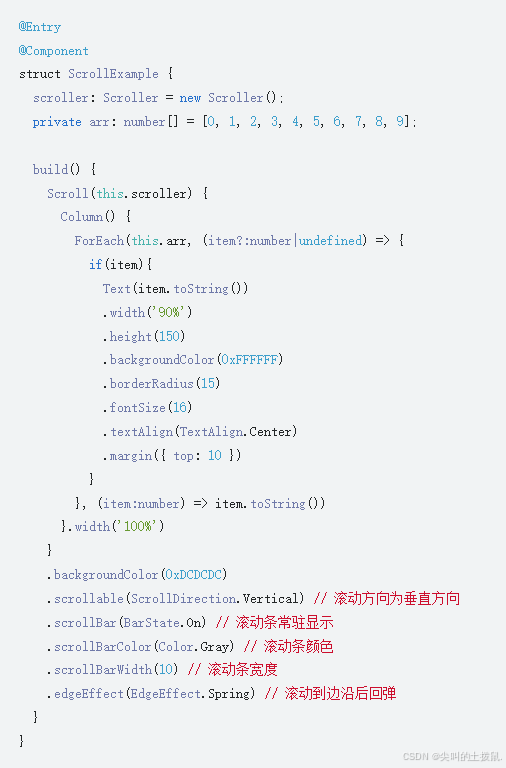
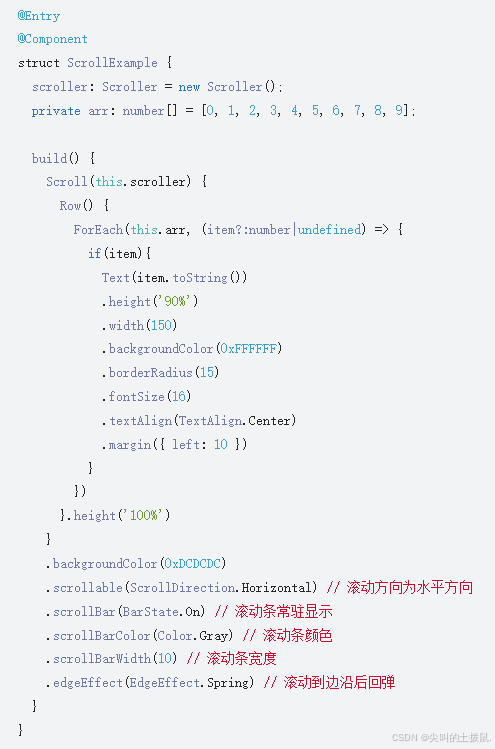
使用Scroll组件:在线性布局中,开发者可以进行垂直方向或者水平方向的布局。当一屏无法完全显示时,可以在Column或Row组件的外层包裹一个可滚动的容器组件Scroll来实现可滑动的线性布局。
垂直方向布局中使用Scroll组件:
水平方向布局中使用Scroll组件:
2、层叠布局 (Stack)
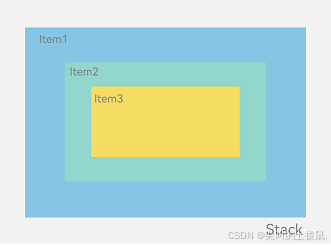
层叠布局(StackLayout)用于在屏幕上预留一块区域来显示组件中的元素,提供元素可以重叠的布局。
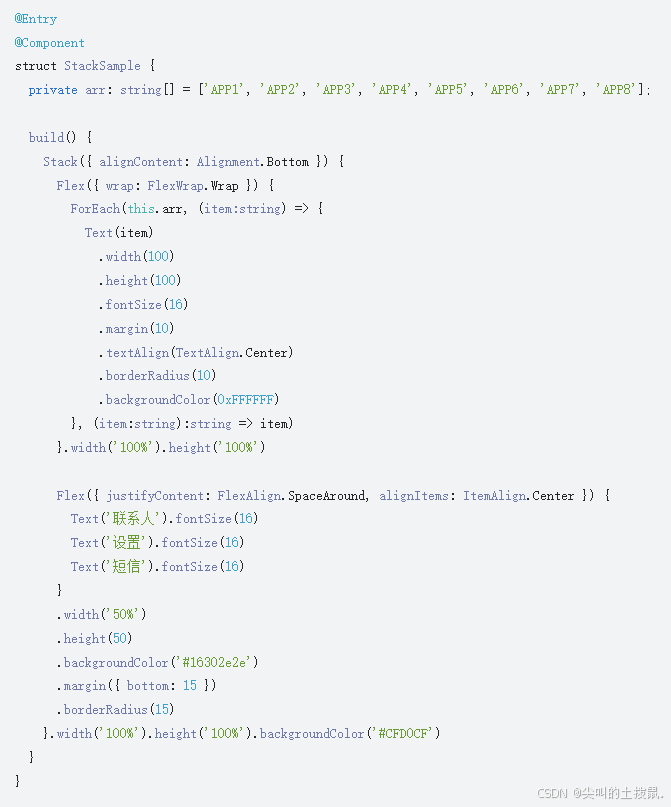
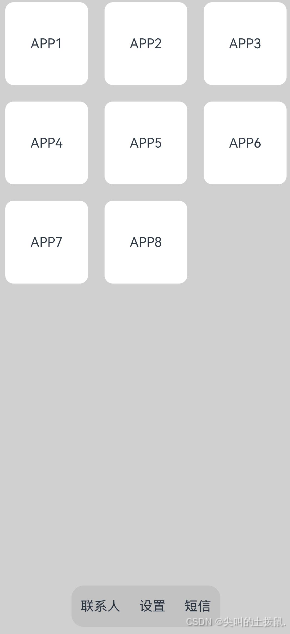
层叠布局通过Stack容器组件实现位置的固定定位与层叠,容器中的子元素依次入栈,后一个子元素覆盖前一个子元素,子元素可以叠加,也可以设置位置。
层叠布局具有较强的页面层叠、位置定位能力,其使用场景有广告、卡片层叠效果等。
开发布局
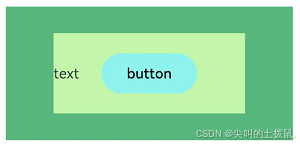
Stack组件为容器组件,容器内可包含各种子元素。其中子元素默认进行居中堆叠。子元素被约束在Stack下,进行自己的样式定义以及排列
对齐方式
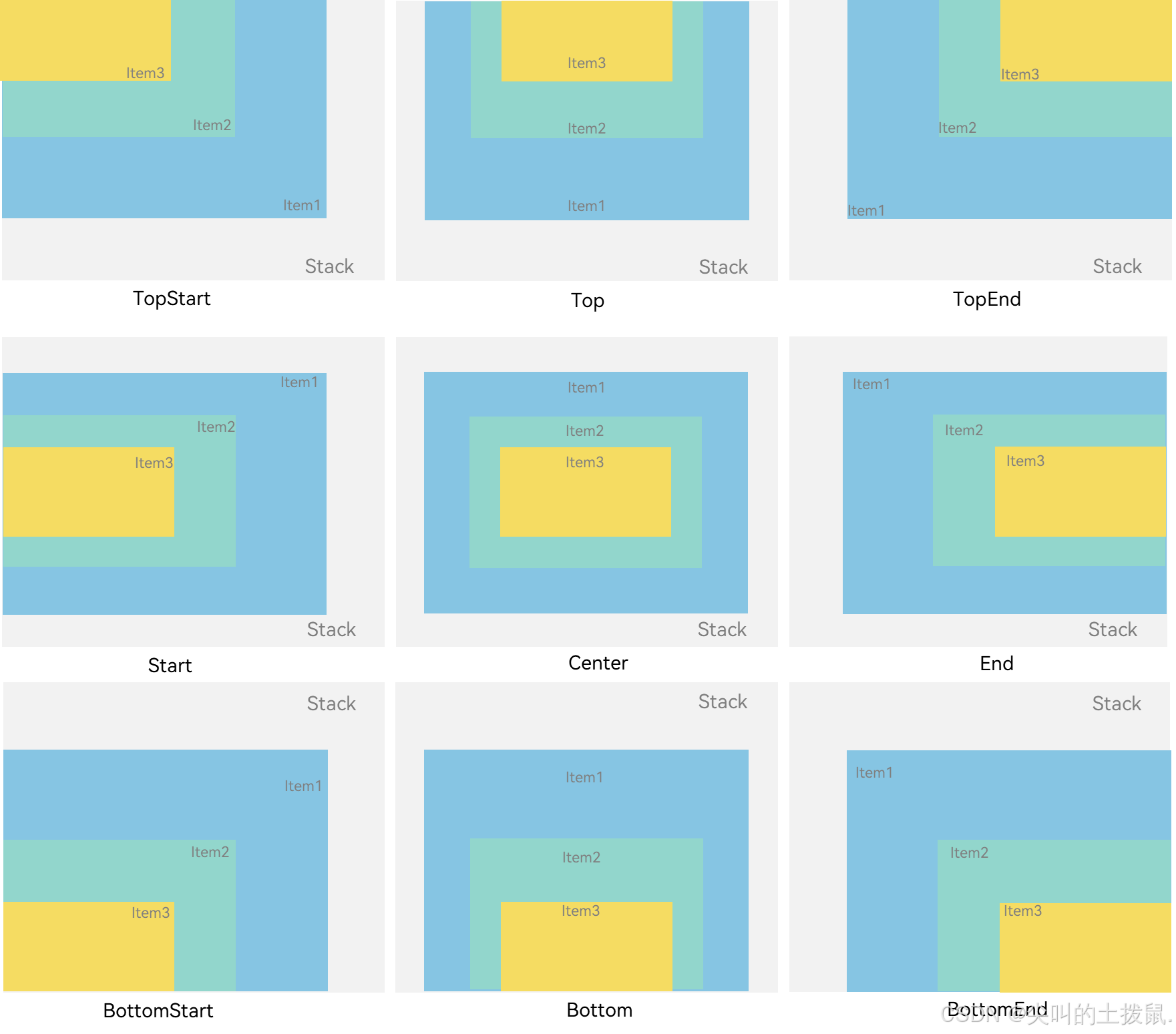
Stack组件通过alignContent参数实现位置的相对移动。如图2所示,支持九种对齐方式。
Z序控制
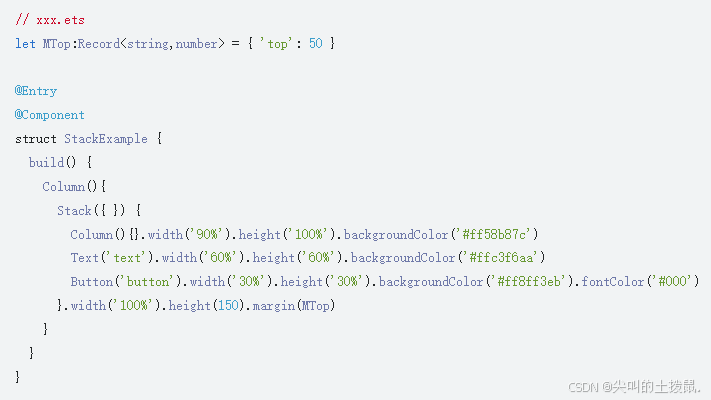
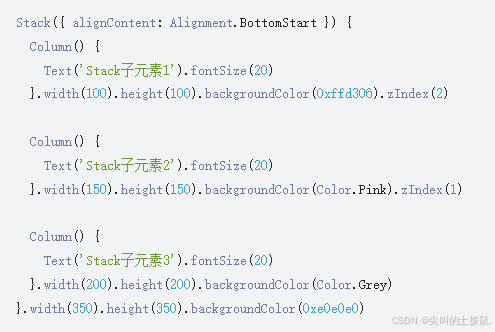
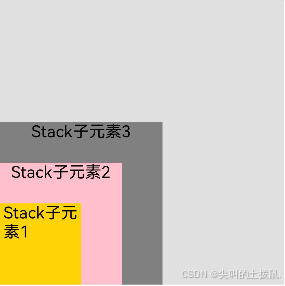
Stack容器中兄弟组件显示层级关系可以通过Z序控制的zIndex属性改变。zIndex值越大,显示层级越高,即zIndex值大的组件会覆盖在zIndex值小的组件上方。
在层叠布局中,如果后面子元素尺寸大于前面子元素尺寸,则前面子元素完全隐藏。
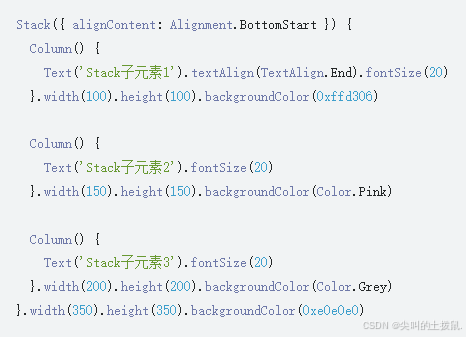
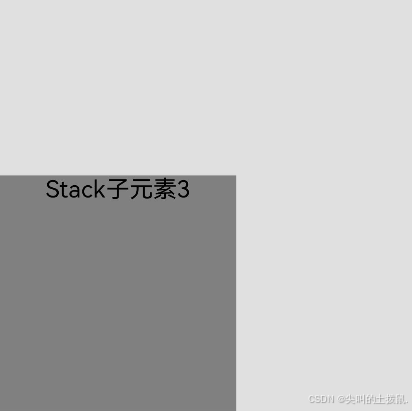
最后的子元素3的尺寸大于前面的所有子元素,所以,前面两个元素完全隐藏。改变子元素1,子元素2的zIndex属性后,可以将元素展示出来。
场景示例
3、弹性布局 (Flex)
弹性布局(Flex)提供更加有效的方式对容器中的子元素进行排列、对齐和分配剩余空间。常用于页面头部导航栏的均匀分布、页面框架的搭建、多行数据的排列等。
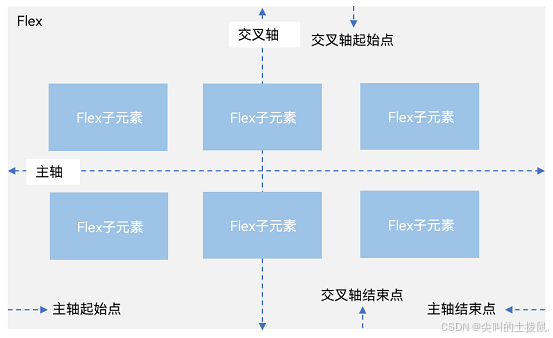
容器默认存在主轴与交叉轴,子元素默认沿主轴排列,子元素在主轴方向的尺寸称为主轴尺寸,在交叉轴方向的尺寸称为交叉轴尺寸。
主轴为水平方向的Flex容器示意图:
基本概念
-
主轴:Flex组件布局方向的轴线,子元素默认沿着主轴排列。主轴开始的位置称为主轴起始点,结束位置称为主轴结束点。
-
交叉轴:垂直于主轴方向的轴线。交叉轴开始的位置称为交叉轴起始点,结束位置称为交叉轴结束点。
布局方向
在弹性布局中,容器的子元素可以按照任意方向排列。通过设置参数direction,可以决定主轴的方向,从而控制子元素的排列方向
弹性布局方向图
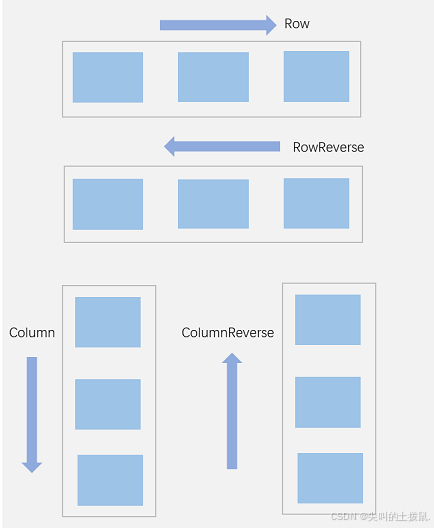
FlexDirection.Row(默认值):主轴为水平方向,子元素从起始端沿着水平方向开始排布。
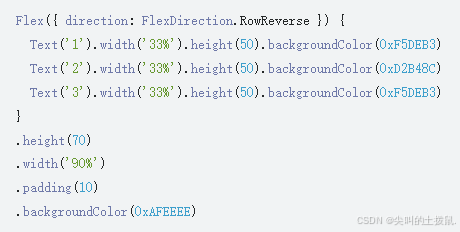
FlexDirection.RowReverse:主轴为水平方向,子元素从终点端沿着FlexDirection. Row相反的方向开始排布。
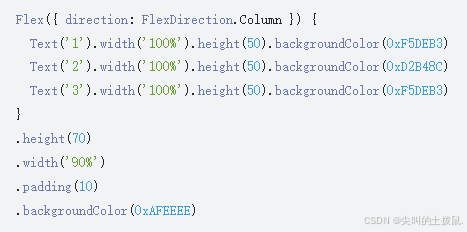
FlexDirection.Column:主轴为垂直方向,子元素从起始端沿着垂直方向开始排布
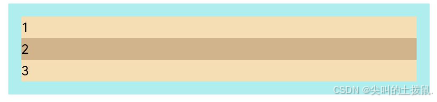
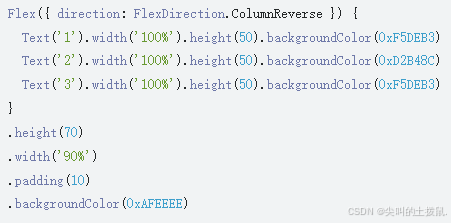
FlexDirection.ColumnReverse:主轴为垂直方向,子元素从终点端沿着FlexDirection. Column相反的方向开始排布。
布局换行
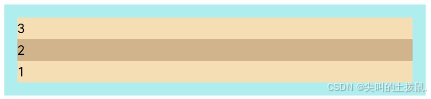
弹性布局分为单行布局和多行布局。默认情况下,Flex容器中的子元素都排在一条线(又称“轴线”)上。wrap属性控制当子元素主轴尺寸之和大于容器主轴尺寸时,Flex是单行布局还是多行布局。在多行布局时,通过交叉轴方向,确认新行排列方向。
FlexWrap. NoWrap(默认值):不换行。如果子元素的宽度总和大于父元素的宽度,则子元素会被压缩宽度。
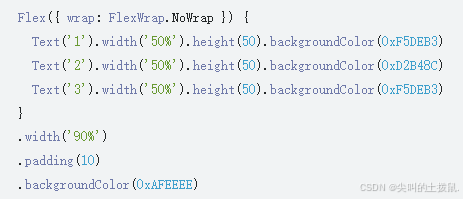
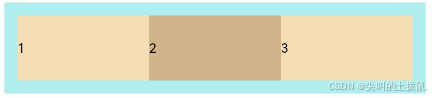
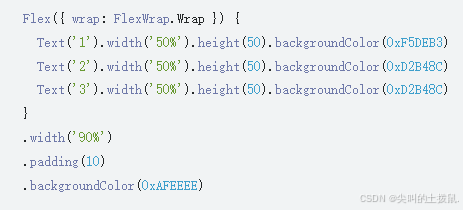
FlexWrap. Wrap:换行,每一行子元素按照主轴方向排列。
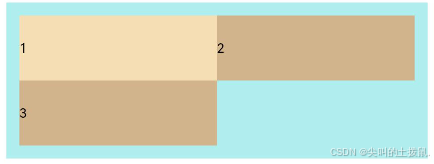
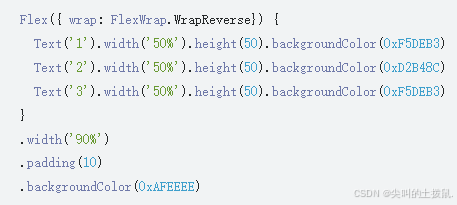
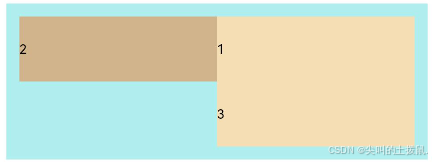
FlexWrap. WrapReverse:换行,每一行子元素按照主轴反方向排列。
主轴对齐方式
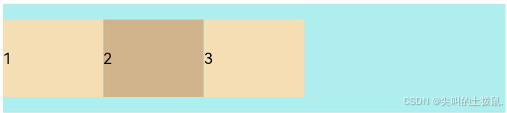
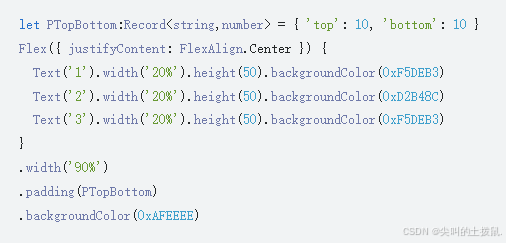
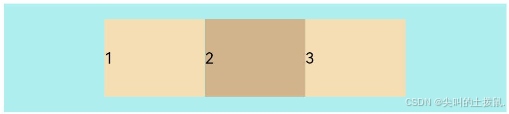
通过justifyContent参数设置子元素在主轴方向的对齐方式。
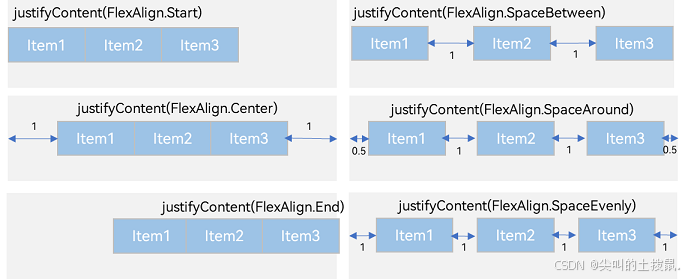
FlexAlign.Start(默认值):子元素在主轴方向起始端对齐, 第一个子元素与父元素边沿对齐,其他元素与前一个元素对齐。
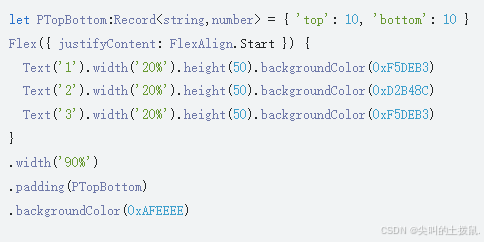
FlexAlign.Center:子元素在主轴方向居中对齐。
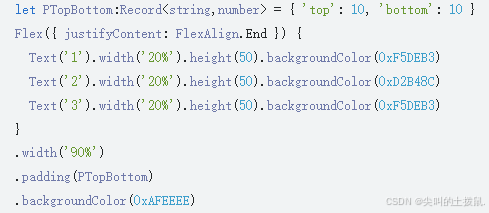
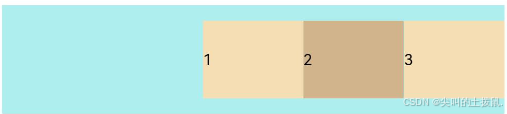
FlexAlign.End:子元素在主轴方向终点端对齐, 最后一个子元素与父元素边沿对齐,其他元素与后一个元素对齐。
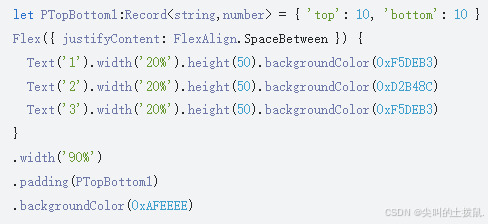
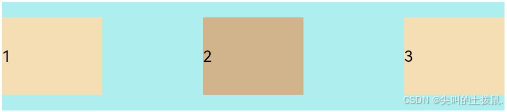
FlexAlign.SpaceBetween:Flex主轴方向均匀分配弹性元素,相邻子元素之间距离相同。第一个子元素和最后一个子元素与父元素边沿对齐。
FlexAlign.SpaceAround:Flex主轴方向均匀分配弹性元素,相邻子元素之间距离相同。第一个子元素到主轴起始端的距离和最后一个子元素到主轴终点端的距离是相邻元素之间距离的一半。
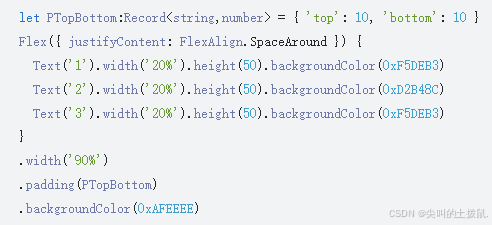
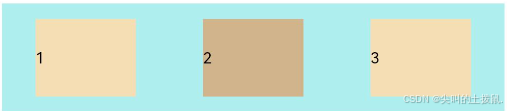
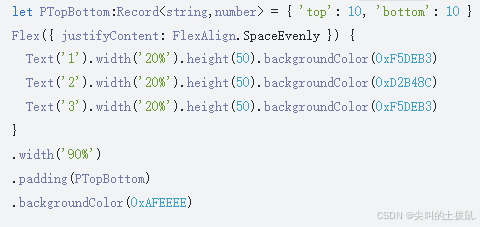
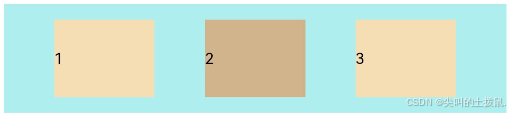
FlexAlign.SpaceEvenly:Flex主轴方向元素等间距布局,相邻子元素之间的间距、第一个子元素与主轴起始端的间距、最后一个子元素到主轴终点端的间距均相等。
交叉轴对齐方式
容器和子元素都可以设置交叉轴对齐方式,且子元素设置的对齐方式优先级较高。
容器组件设置交叉轴对齐
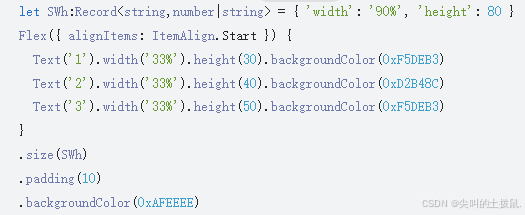
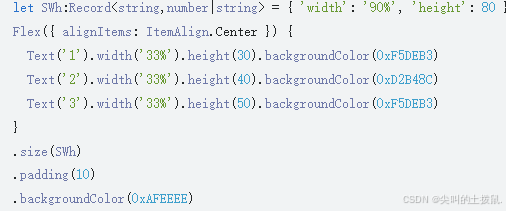
可以通过Flex组件的alignItems参数设置子元素在交叉轴的对齐方式
ItemAlign.Auto:使用Flex容器中默认配置。
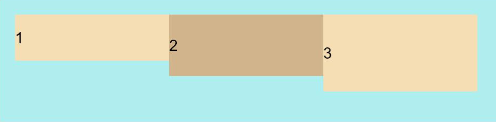
ItemAlign.Start:交叉轴方向首部对齐。
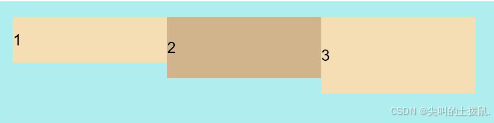
ItemAlign.Center:交叉轴方向居中对齐。
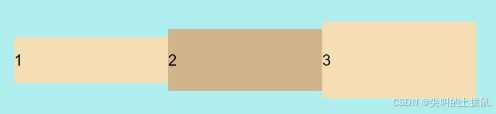
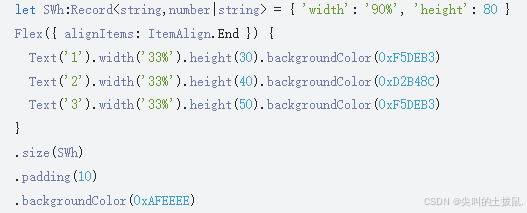
ItemAlign.End:交叉轴方向底部对齐。
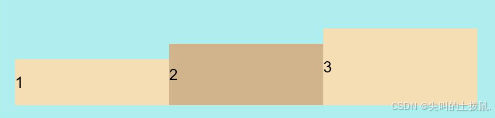
ItemAlign.Stretch:交叉轴方向拉伸填充,在未设置尺寸时,拉伸到容器尺寸。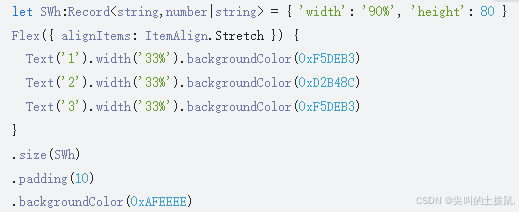
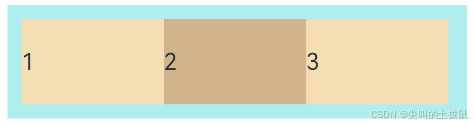
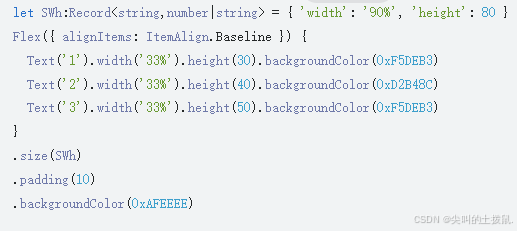
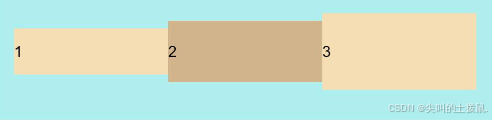
ItemAlign. Baseline:交叉轴方向文本基线对齐。
子元素设置交叉轴对齐
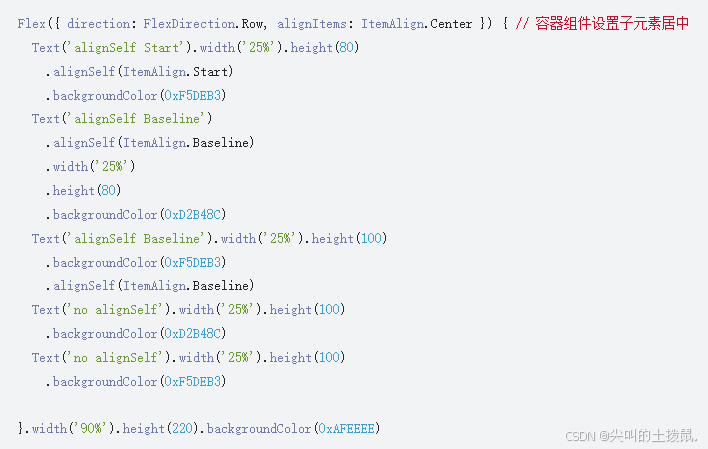
子元素的alignSelf属性也可以设置子元素在父容器交叉轴的对齐格式,且会覆盖Flex布局容器中alignItems配置。
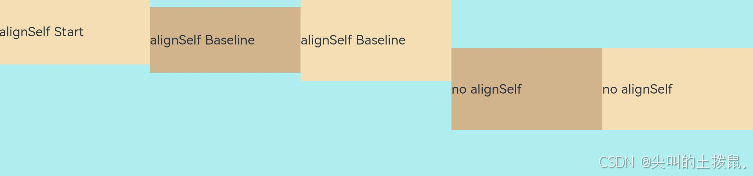
内容对齐
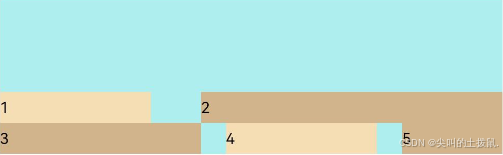
可以通过alignContent参数设置子元素各行在交叉轴剩余空间内的对齐方式,只在多行的Flex布局中生效,可选值有:
FlexAlign.Start:子元素各行与交叉轴起点对齐。
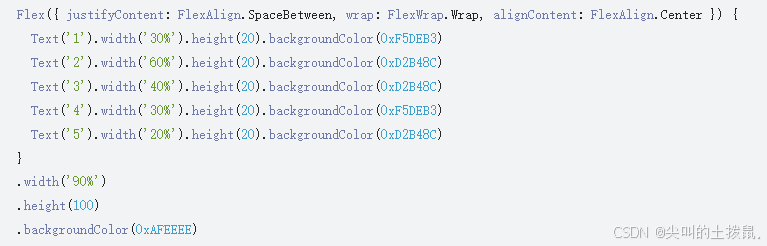
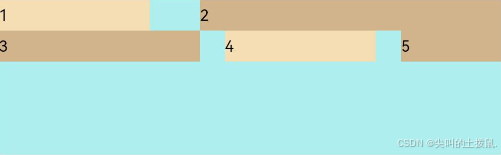
FlexAlign.Center:子元素各行在交叉轴方向居中对齐。
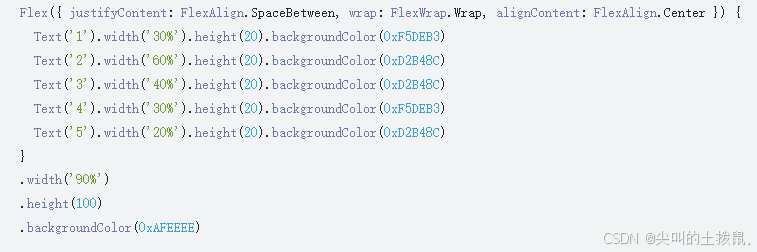
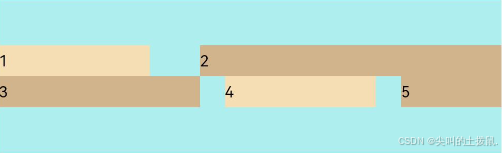
FlexAlign.End:子元素各行与交叉轴终点对齐。
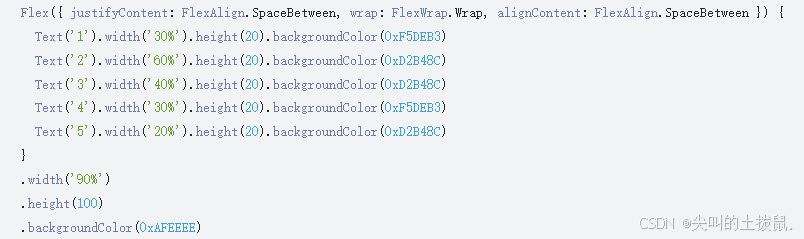
FlexAlign.SpaceBetween:子元素各行与交叉轴两端对齐,各行间垂直间距平均分布。
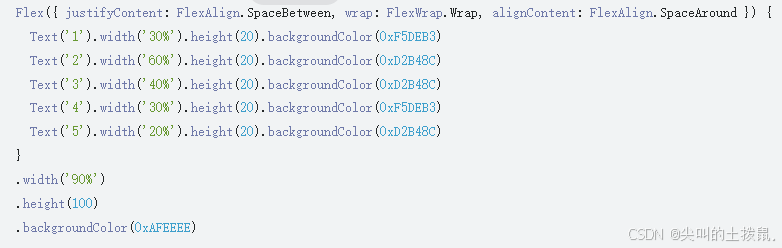
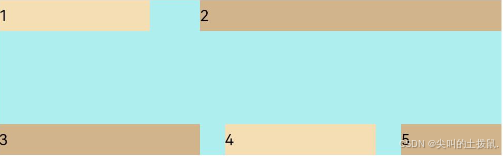
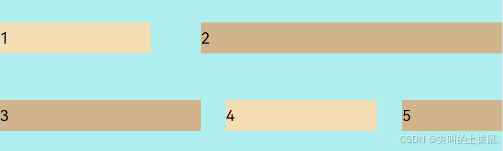
FlexAlign.SpaceAround:子元素各行间距相等,是元素首尾行与交叉轴两端距离的两倍
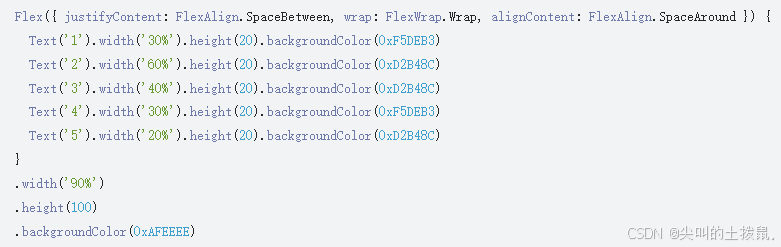
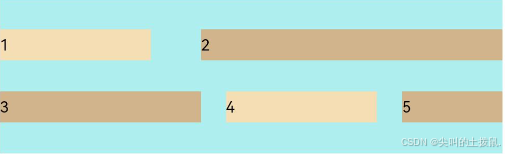
FlexAlign.SpaceEvenly: 子元素各行间距,子元素首尾行与交叉轴两端距离都相等。
自适应拉伸
在弹性布局父组件尺寸过小时,通过子元素的以下属性设置其在父容器的占比,达到自适应布局。
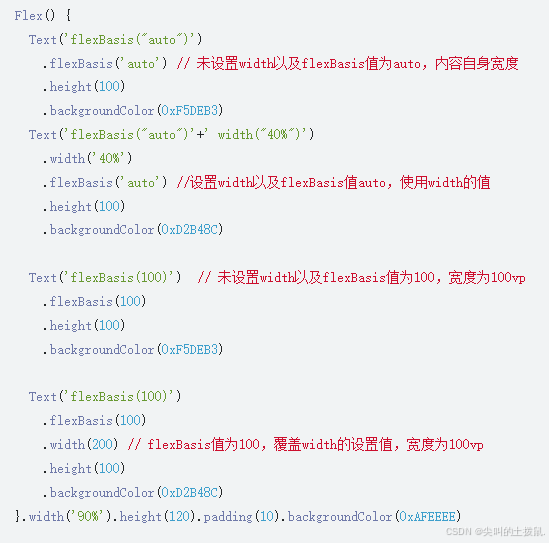
flexBasis:设置子元素在父容器主轴方向上的基准尺寸。如果设置了该属性,则子项占用的空间为该属性所设置的值;如果没设置该属性,那子项的空间为width/height的值。

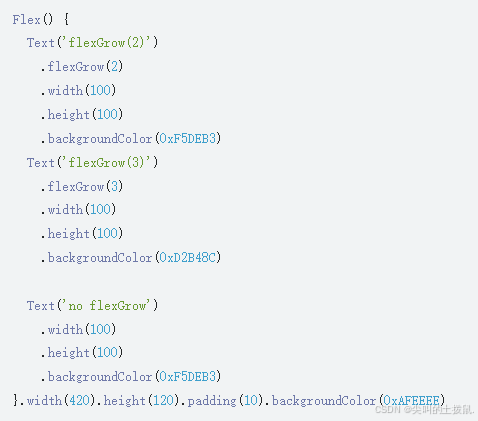
flexGrow:设置父容器的剩余空间分配给此属性所在组件的比例。用于分配父组件的剩余空间。

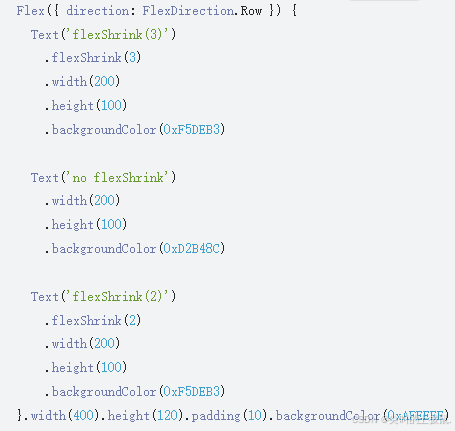
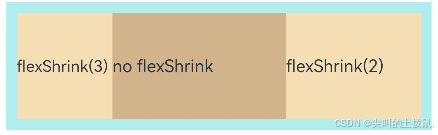
flexShrink: 当父容器空间不足时,子元素的压缩比例。
场景示例
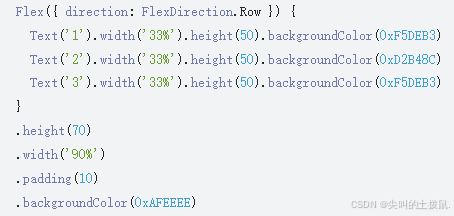
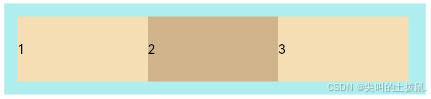
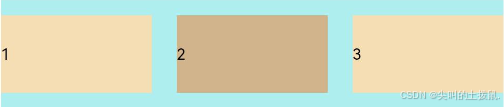
使用弹性布局,可以实现子元素沿水平方向排列,两端对齐,子元素间距平分,垂直方向上子元素居中的效果。
@Entry
@Component
struct FlexExample {
  build() {
    Column() {
      Column({ space: 5 }) {
        Flex({ direction: FlexDirection.Row, wrap: FlexWrap.NoWrap, justifyContent: FlexAlign.SpaceBetween, alignItems: ItemAlign.Center }) {
          Text('1').width('30%').height(50).backgroundColor(0xF5DEB3)
          Text('2').width('30%').height(50).backgroundColor(0xD2B48C)
          Text('3').width('30%').height(50).backgroundColor(0xF5DEB3)
        }
        .height(70)
        .width('90%')
        .backgroundColor(0xAFEEEE)
      }.width('100%').margin({ top: 5 })
    }.width('100%')
 }
}
4、相对布局 (RelativeContainer)
RelativeContainer为采用相对布局的容器,支持容器内部的子元素设置相对位置关系,适用于界面复杂场景的情况,对多个子组件进行对齐和排列。子元素支持指定兄弟元素作为锚点,也支持指定父容器作为锚点,基于锚点做相对位置布局。
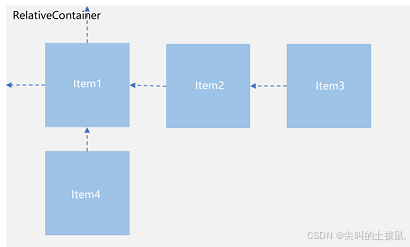
基本概念
-
锚点:通过锚点设置当前元素基于哪个元素确定位置。
-
对齐方式:通过对齐方式,设置当前元素是基于锚点的上中下对齐,还是基于锚点的左中右对齐
设置依赖关系
锚点设置
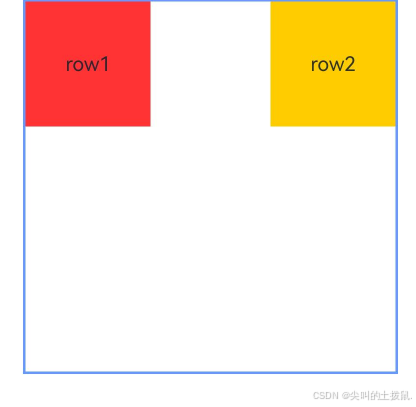
锚点设置是指设置子元素相对于父元素或兄弟元素的位置依赖关系。在水平方向上,可以设置left、middle、right的锚点。在竖直方向上,可以设置top、center、bottom的锚点。
let AlignRus:Record<string,Record<string,string|VerticalAlign|HorizontalAlign>> = {
  'top': { 'anchor': '__container__', 'align': VerticalAlign.Top },
  'left': { 'anchor': '__container__', 'align': HorizontalAlign.Start }
}
let AlignRue:Record<string,Record<string,string|VerticalAlign|HorizontalAlign>> = {
  'top': { 'anchor': '__container__', 'align': VerticalAlign.Top },
  'right': { 'anchor': '__container__', 'align': HorizontalAlign.End }
}
let Mleft:Record<string,number> = { 'left': 20 }
let BWC:Record<string,number|string> = { 'width': 2, 'color': '#6699FF' }

@Entry
@Component
struct Index {
  build() {
    RelativeContainer() {
      Row(){Text('row1')}.justifyContent(FlexAlign.Center).width(100).height(100)
      .backgroundColor("#FF3333")
      .alignRules(AlignRus)
      .id("row1")

      Row(){Text('row2')}.justifyContent(FlexAlign.Center).width(100).height(100)
      .backgroundColor("#FFCC00")
      .alignRules(AlignRue)
      .id("row2")
    }.width(300).height(300)
    .margin(Mleft)
    .border(BWC)
  }
}
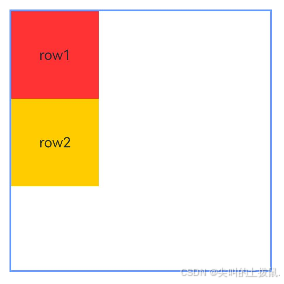
以兄弟元素为锚点。
let AlignRus:Record<string,Record<string,string|VerticalAlign|HorizontalAlign>> = {
  'top': { 'anchor': '__container__', 'align': VerticalAlign.Top },
  'left': { 'anchor': '__container__', 'align': HorizontalAlign.Start }
}
let RelConB:Record<string,Record<string,string|VerticalAlign|HorizontalAlign>> = {
  'top': { 'anchor': 'row1', 'align': VerticalAlign.Bottom },
  'left' : { 'anchor': 'row1', 'align': HorizontalAlign.Start }
}
let Mleft:Record<string,number> = { 'left': 20 }
let BWC:Record<string,number|string> = { 'width': 2, 'color': '#6699FF' }

@Entry
@Component
struct Index {
  build() {
    RelativeContainer() {
      Row(){Text('row1')}.justifyContent(FlexAlign.Center).width(100).height(100)
      .backgroundColor("#FF3333")
      .alignRules(AlignRus)
      .id("row1")

      Row(){Text('row2')}.justifyContent(FlexAlign.Center).width(100).height(100)
      .backgroundColor("#FFCC00")
      .alignRules(RelConB)
      .id("row2")
    }.width(300).height(300)
    .margin(Mleft)
    .border(BWC)
  }
}
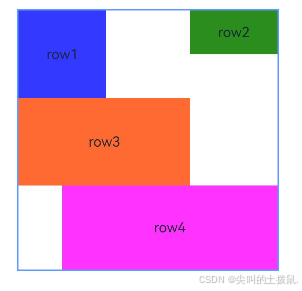
子组件锚点可以任意选择,但需注意不要相互依赖。
@Entry
@Component
struct Index {
  build() {
    Row() {
      RelativeContainer() {
        Row(){Text('row1')}.justifyContent(FlexAlign.Center).width(100).height(100)
          .backgroundColor('#ff3339ff')
          .alignRules({
            top: {anchor: "__container__", align: VerticalAlign.Top},
            left: {anchor: "__container__", align: HorizontalAlign.Start}
          })
          .id("row1")

        Row(){Text('row2')}.justifyContent(FlexAlign.Center).width(100)
          .backgroundColor('#ff298e1e')
          .alignRules({
            top: {anchor: "__container__", align: VerticalAlign.Top},
            right: {anchor: "__container__", align: HorizontalAlign.End},
            bottom: {anchor: "row1", align: VerticalAlign.Center},
          })
          .id("row2")

        Row(){Text('row3')}.justifyContent(FlexAlign.Center).height(100)
          .backgroundColor('#ffff6a33')
          .alignRules({
            top: {anchor: "row1", align: VerticalAlign.Bottom},
            left: {anchor: "row1", align: HorizontalAlign.Start},
            right: {anchor: "row2", align: HorizontalAlign.Start}
          })
          .id("row3")

        Row(){Text('row4')}.justifyContent(FlexAlign.Center)
          .backgroundColor('#ffff33fd')
          .alignRules({
            top: {anchor: "row3", align: VerticalAlign.Bottom},
            left: {anchor: "row1", align: HorizontalAlign.Center},
            right: {anchor: "row2", align: HorizontalAlign.End},
            bottom: {anchor: "__container__", align: VerticalAlign.Bottom}
          })
          .id("row4")
      }
      .width(300).height(300)
      .margin({left: 50})
      .border({width:2, color: "#6699FF"})
    }
    .height('100%')
  }
}
设置相对于锚点的对齐位置
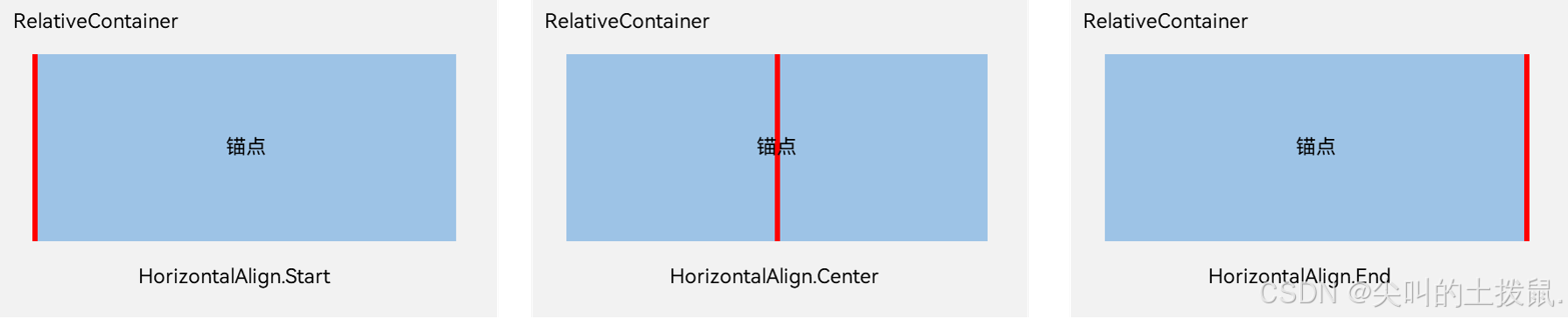
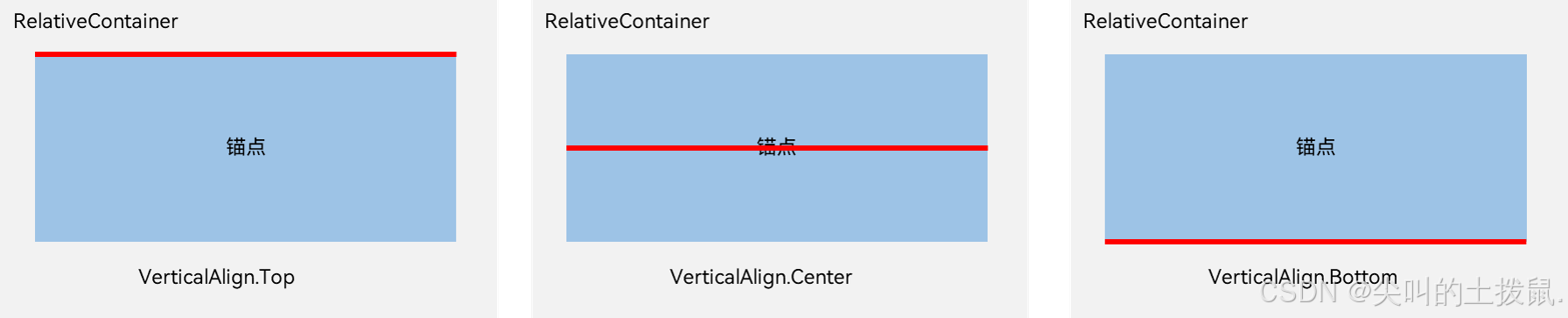
设置了锚点之后,可以通过align设置相对于锚点的对齐位置。
在水平方向上,对齐位置可以设置为HorizontalAlign.Start、HorizontalAlign.Center、HorizontalAlign.End。
在竖直方向上,对齐位置可以设置为VerticalAlign.Top、VerticalAlign.Center、VerticalAlign.Bottom。
子组件位置偏移
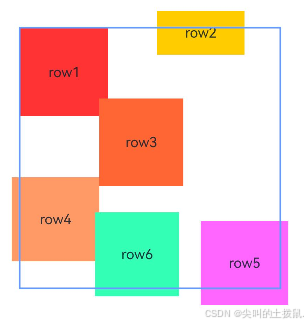
子组件经过相对位置对齐后,位置可能还不是目标位置,开发者可根据需要进行额外偏移设置offset。
@Entry
@Component
struct Index {
  build() {
    Row() {
      RelativeContainer() {
        Row(){Text('row1')}.justifyContent(FlexAlign.Center).width(100).height(100)
          .backgroundColor("#FF3333")
          .alignRules({
            top: {anchor: "__container__", align: VerticalAlign.Top},
            left: {anchor: "__container__", align: HorizontalAlign.Start}
          })
          .id("row1")

        Row(){Text('row2')}.justifyContent(FlexAlign.Center).width(100)
          .backgroundColor("#FFCC00")
          .alignRules({
            top: {anchor: "__container__", align: VerticalAlign.Top},
            right: {anchor: "__container__", align: HorizontalAlign.End},
            bottom: {anchor: "row1", align: VerticalAlign.Center},
          })
          .offset({
            x:-40,
            y:-20
          })
          .id("row2")

        Row(){Text('row3')}.justifyContent(FlexAlign.Center).height(100)
          .backgroundColor("#FF6633")
          .alignRules({
            top: {anchor: "row1", align: VerticalAlign.Bottom},
            left: {anchor: "row1", align: HorizontalAlign.End},
            right: {anchor: "row2", align: HorizontalAlign.Start}
          })
          .offset({
            x:-10,
            y:-20
          })
          .id("row3")

        Row(){Text('row4')}.justifyContent(FlexAlign.Center)
          .backgroundColor("#FF9966")
          .alignRules({
            top: {anchor: "row3", align: VerticalAlign.Bottom},
            bottom: {anchor: "__container__", align: VerticalAlign.Bottom},
            left: {anchor: "__container__", align: HorizontalAlign.Start},
            right: {anchor: "row1", align: HorizontalAlign.End}
          })
          .offset({
            x:-10,
            y:-30
          })
          .id("row4")

        Row(){Text('row5')}.justifyContent(FlexAlign.Center)
          .backgroundColor("#FF66FF")
          .alignRules({
            top: {anchor: "row3", align: VerticalAlign.Bottom},
            bottom: {anchor: "__container__", align: VerticalAlign.Bottom},
            left: {anchor: "row2", align: HorizontalAlign.Start},
            right: {anchor: "row2", align: HorizontalAlign.End}
          })
          .offset({
            x:10,
            y:20
          })
          .id("row5")

        Row(){Text('row6')}.justifyContent(FlexAlign.Center)
          .backgroundColor('#ff33ffb5')
          .alignRules({
            top: {anchor: "row3", align: VerticalAlign.Bottom},
            bottom: {anchor: "row4", align: VerticalAlign.Bottom},
            left: {anchor: "row3", align: HorizontalAlign.Start},
            right: {anchor: "row3", align: HorizontalAlign.End}
          })
          .offset({
            x:-15,
            y:10
          })
          .backgroundImagePosition(Alignment.Bottom)
          .backgroundImageSize(ImageSize.Cover)
          .id("row6")
      }
      .width(300).height(300)
      .margin({left: 50})
      .border({width:2, color: "#6699FF"})
    }
    .height('100%')
  }
}
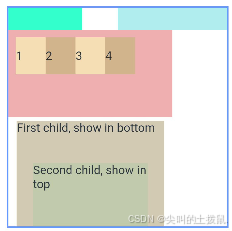
多种组件的对齐布局
Row、Column、Flex、Stack等多种布局组件,可按照RelativeContainer组件规则进行对其排布。
@Entry
@Component
struct Index {
  @State value: number = 0
  build() {
    Row() {

      RelativeContainer() {
        Row().width(100).height(100)
          .backgroundColor('#ff33ffcc')
          .alignRules({
            top: {anchor: "__container__", align: VerticalAlign.Top},
            left: {anchor: "__container__", align: HorizontalAlign.Start}
          })
          .id("row1")

        Column().width('50%').height(30).backgroundColor(0xAFEEEE)
          .alignRules({
            top: {anchor: "__container__", align: VerticalAlign.Top},
            left: {anchor: "__container__", align: HorizontalAlign.Center}
          }).id("row2")

        Flex({ direction: FlexDirection.Row }) {
          Text('1').width('20%').height(50).backgroundColor(0xF5DEB3)
          Text('2').width('20%').height(50).backgroundColor(0xD2B48C)
          Text('3').width('20%').height(50).backgroundColor(0xF5DEB3)
          Text('4').width('20%').height(50).backgroundColor(0xD2B48C)
        }
        .padding(10)
        .backgroundColor('#ffedafaf')
        .alignRules({
          top: {anchor: "row2", align: VerticalAlign.Bottom},
          left: {anchor: "__container__", align: HorizontalAlign.Start},
          bottom: {anchor: "__container__", align: VerticalAlign.Center},
          right: {anchor: "row2", align: HorizontalAlign.Center}
        })
        .id("row3")

        Stack({ alignContent: Alignment.Bottom }) {
          Text('First child, show in bottom').width('90%').height('100%').backgroundColor(0xd2cab3).align(Alignment.Top)
          Text('Second child, show in top').width('70%').height('60%').backgroundColor(0xc1cbac).align(Alignment.Top)
        }
        .margin({ top: 5 })
        .alignRules({
          top: {anchor: "row3", align: VerticalAlign.Bottom},
          left: {anchor: "__container__", align: HorizontalAlign.Start},
          bottom: {anchor: "__container__", align: VerticalAlign.Bottom},
          right: {anchor: "row3", align: HorizontalAlign.End}
        })
        .id("row4")

      }
      .width(300).height(300)
      .margin({left: 50})
      .border({width:2, color: "#6699FF"})
    }
    .height('100%')
  }
}
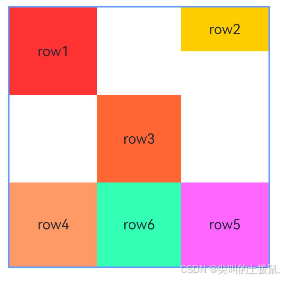
组件尺寸
子组件尺寸大小不会受到相对布局规则的影响。若子组件某个方向上设置两个或以上alignRules时最好不设置此方向尺寸大小,否则对齐规则确定的组件尺寸与开发者设置的尺寸可能产生冲突。
@Entry
@Component
struct Index {
  build() {
    Row() {
      RelativeContainer() {
        Row(){Text('row1')}.justifyContent(FlexAlign.Center)
          .width(100).height(100)
          .backgroundColor("#FF3333")
          .alignRules({
            top: {anchor: "__container__", align: VerticalAlign.Top},
            left: {anchor: "__container__", align: HorizontalAlign.Start}
          })
          .id("row1")

        Row(){Text('row2')}.justifyContent(FlexAlign.Center).width(100)
          .backgroundColor("#FFCC00")
          .alignRules({
            top: {anchor: "__container__", align: VerticalAlign.Top},
            right: {anchor: "__container__", align: HorizontalAlign.End},
            bottom: {anchor: "row1", align: VerticalAlign.Center},
          })
          .id("row2")

        Row(){Text('row3')}.justifyContent(FlexAlign.Center).height(100)
          .backgroundColor("#FF6633")
          .alignRules({
            top: {anchor: "row1", align: VerticalAlign.Bottom},
            left: {anchor: "row1", align: HorizontalAlign.End},
            right: {anchor: "row2", align: HorizontalAlign.Start}
          })
          .id("row3")

        Row(){Text('row4')}.justifyContent(FlexAlign.Center)
          .backgroundColor("#FF9966")
          .alignRules({
            top: {anchor: "row3", align: VerticalAlign.Bottom},
            bottom: {anchor: "__container__", align: VerticalAlign.Bottom},
            left: {anchor: "__container__", align: HorizontalAlign.Start},
            right: {anchor: "row1", align: HorizontalAlign.End}
          })
          .id("row4")

        Row(){Text('row5')}.justifyContent(FlexAlign.Center)
          .backgroundColor("#FF66FF")
          .alignRules({
            top: {anchor: "row3", align: VerticalAlign.Bottom},
            bottom: {anchor: "__container__", align: VerticalAlign.Bottom},
            left: {anchor: "row2", align: HorizontalAlign.Start},
            right: {anchor: "row2", align: HorizontalAlign.End}
          })
          .id("row5")

        Row(){Text('row6')}.justifyContent(FlexAlign.Center)
          .backgroundColor('#ff33ffb5')
          .alignRules({
            top: {anchor: "row3", align: VerticalAlign.Bottom},
            bottom: {anchor: "row4", align: VerticalAlign.Bottom},
            left: {anchor: "row3", align: HorizontalAlign.Start},
            right: {anchor: "row3", align: HorizontalAlign.End}
          })
          .id("row6")
          .backgroundImagePosition(Alignment.Bottom)
          .backgroundImageSize(ImageSize.Cover)
      }
      .width(300).height(300)
      .margin({left: 50})
      .border({width:2, color: "#6699FF"})
    }
    .height('100%')
  }
}
5、栅格布局 (GridRow/GridCol)
栅格布局是一种通用的辅助定位工具,对移动设备的界面设计有较好的借鉴作用。主要优势包括:
-
提供可循的规律:栅格布局可以为布局提供规律性的结构,解决多尺寸多设备的动态布局问题。通过将页面划分为等宽的列数和行数,可以方便地对页面元素进行定位和排版。
-
统一的定位标注:栅格布局可以为系统提供一种统一的定位标注,保证不同设备上各个模块的布局一致性。这可以减少设计和开发的复杂度,提高工作效率。
-
灵活的间距调整方法:栅格布局可以提供一种灵活的间距调整方法,满足特殊场景布局调整的需求。通过调整列与列之间和行与行之间的间距,可以控制整个页面的排版效果。
-
自动换行和自适应:栅格布局可以完成一对多布局的自动换行和自适应。当页面元素的数量超出了一行或一列的容量时,他们会自动换到下一行或下一列,并且在不同的设备上自适应排版,使得页面布局更加灵活和适应性强。
GridRow为栅格容器组件,需与栅格子组件GridCol在栅格布局场景中联合使用。
栅格容器GridRow
栅格系统断点
栅格系统以设备的水平宽度(屏幕密度像素值,单位vp)作为断点依据,定义设备的宽度类型,形成了一套断点规则。开发者可根据需求在不同的断点区间实现不同的页面布局效果。
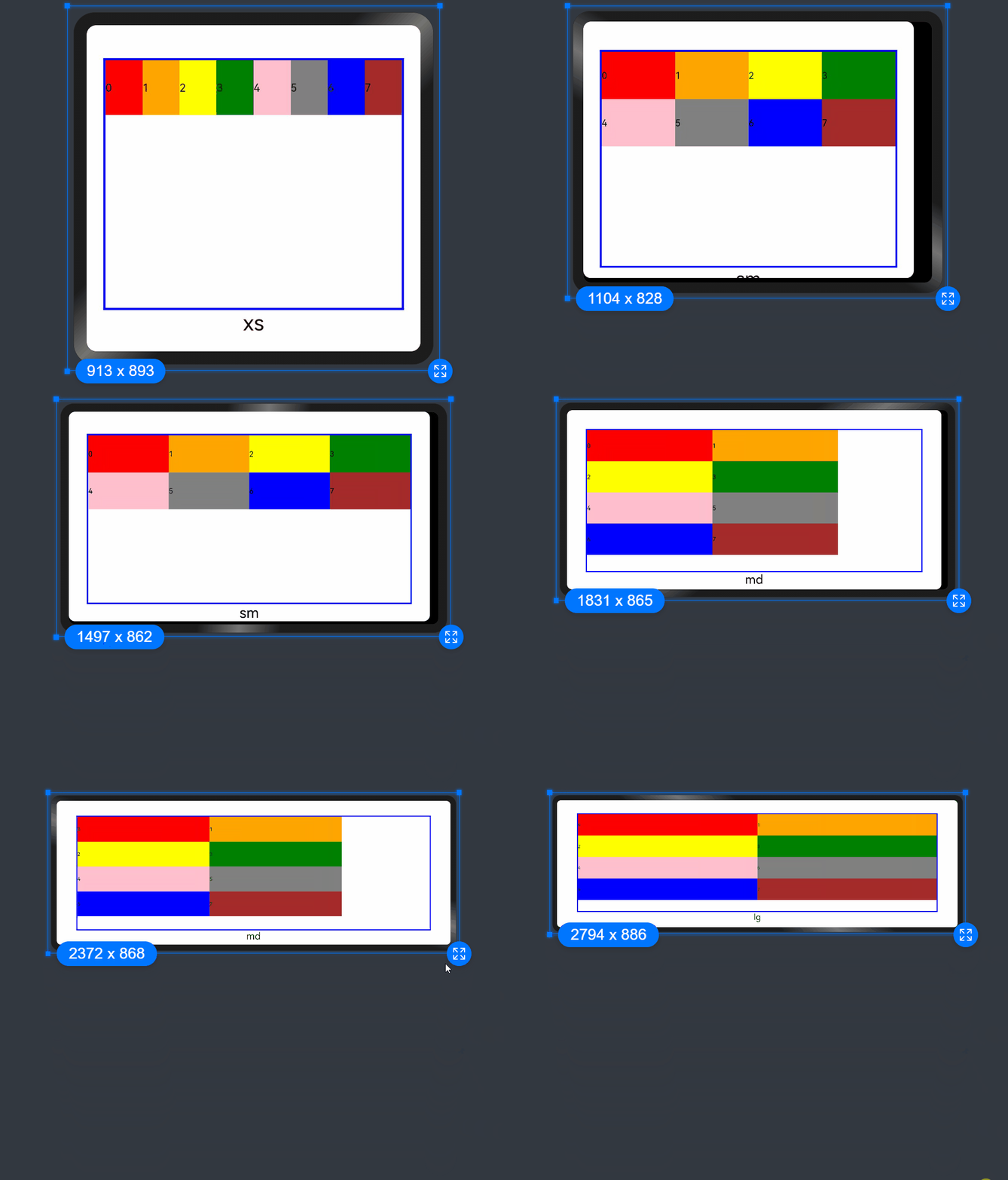
栅格系统默认断点将设备宽度分为xs、sm、md、lg四类,尺寸范围如下:
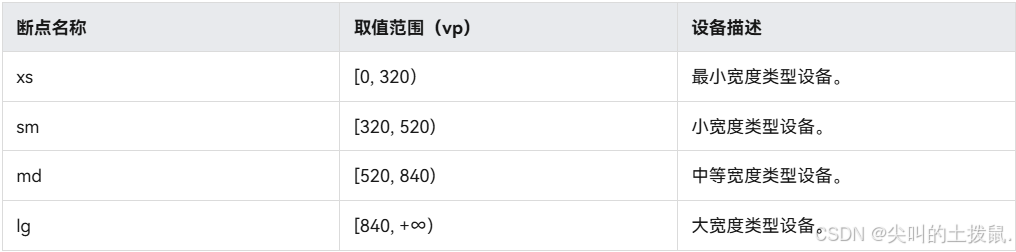
在GridRow栅格组件中,允许开发者使用breakpoints自定义修改断点的取值范围,最多支持6个断点,除了默认的四个断点外,还可以启用xl,xxl两个断点,支持六种不同尺寸(xs, sm, md, lg, xl, xxl)设备的布局设置。
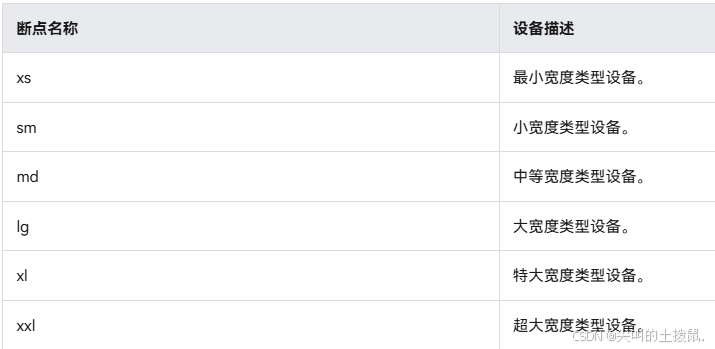
针对断点位置,开发者根据实际使用场景,通过一个单调递增数组设置。
由于breakpoints最多支持六个断点,单调递增数组长度最大为5。
breakpoints: {value: ['100vp', '200vp']}表示启用xs、sm、md共3个断点,小于100vp为xs,100vp-200vp为sm,大于200vp为md。
breakpoints: {value: ['320vp', '520vp', '840vp', '1080vp']}表示启用xs、sm、md、lg、xl共5个断点,小于320vp为xs,320vp-520vp为sm,520vp-840vp为md,840vp-1080vp为lg,大于1080vp为xl。
-
栅格系统通过监听窗口或容器的尺寸变化进行断点,通过reference设置断点切换参考物。 考虑到应用可能以非全屏窗口的形式显示,以应用窗口宽度为参照物更为通用。
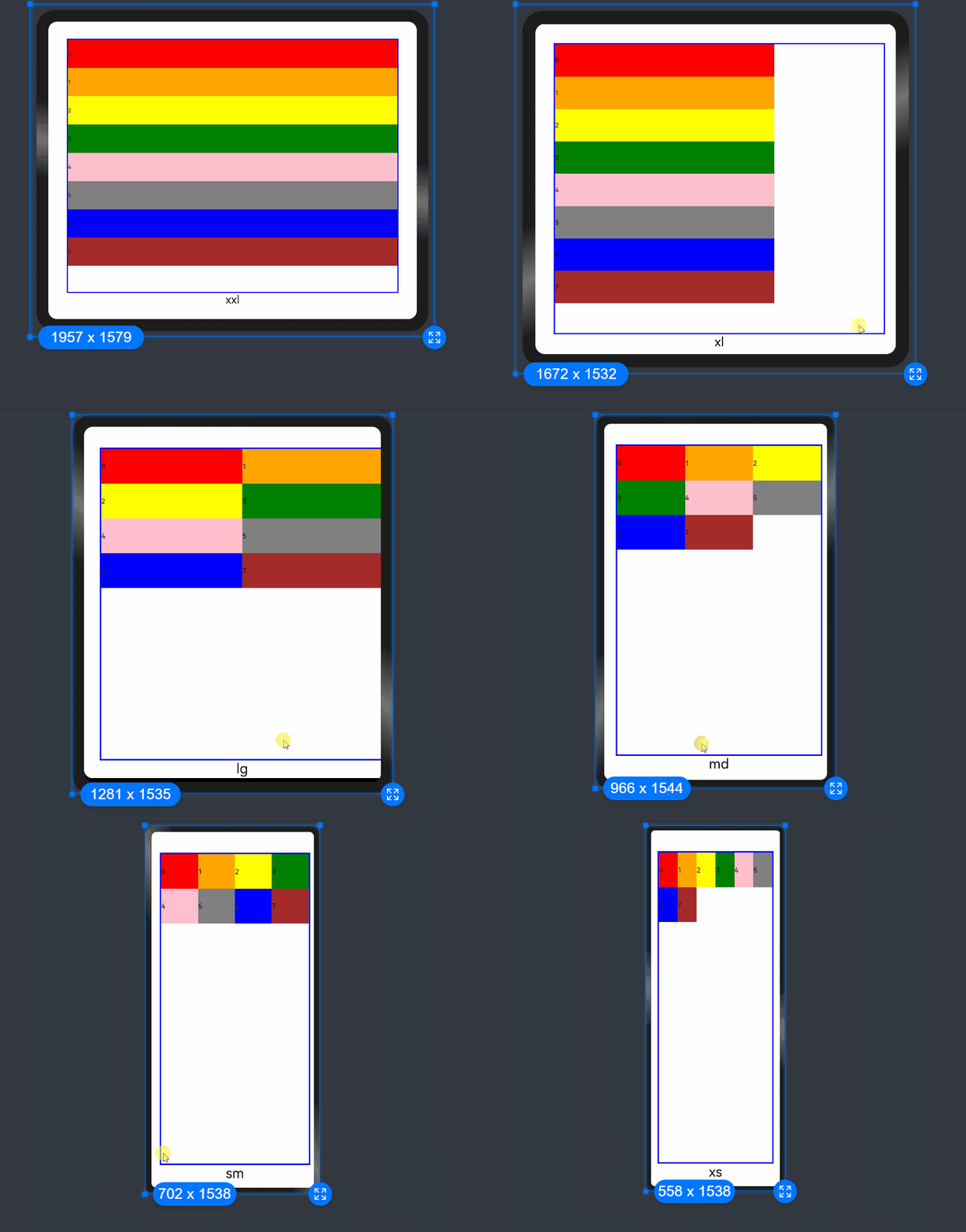
例如,使用栅格的默认列数12列,通过断点设置将应用宽度分成六个区间,在各区间中,每个栅格子元素占用的列数均不同。
@State bgColors: Color[] = [Color.Red, Color.Orange, Color.Yellow, Color.Green, Color.Pink, Color.Grey, Color.Blue, Color.Brown];
...
GridRow({
  breakpoints: {
    value: ['200vp', '300vp', '400vp', '500vp', '600vp'],
    reference: BreakpointsReference.WindowSize
  }
}) {
   ForEach(this.bgColors, (color:Color, index?:number|undefined) => {
     GridCol({
       span: {
         xs: 2, // 在最小宽度类型设备上,栅格子组件占据的栅格容器2列。
         sm: 3, // 在小宽度类型设备上,栅格子组件占据的栅格容器3列。
         md: 4, // 在中等宽度类型设备上,栅格子组件占据的栅格容器4列。
         lg: 6, // 在大宽度类型设备上,栅格子组件占据的栅格容器6列。
         xl: 8, // 在特大宽度类型设备上,栅格子组件占据的栅格容器8列。
         xxl: 12 // 在超大宽度类型设备上,栅格子组件占据的栅格容器12列。
       }
     }) {
       Row() {
         Text(`${index}`)
       }.width("100%").height('50vp')
     }.backgroundColor(color)
   })
} 
布局的总列数
GridRow中通过columns设置栅格布局的总列数。
-
columns默认值为12,即在未设置columns时,任何断点下,栅格布局被分成12列。
@State bgColors: Color[] = [Color.Red, Color.Orange, Color.Yellow, Color.Green, Color.Pink, Color.Grey, Color.Blue, Color.Brown,Color.Red, Color.Orange, Color.Yellow, Color.Green];
...
GridRow() {
  ForEach(this.bgColors, (item:Color, index?:number|undefined) => {
    GridCol() {
      Row() {
          Text(`${index}`)
      }.width('100%').height('50')
    }.backgroundColor(item)
  })
} -

-
当columns为自定义值,栅格布局在任何尺寸设备下都被分为columns列。下面分别设置栅格布局列数为4和8,子元素默认占一列,效果如下:
class CurrTmp{
  currentBp: string = 'unknown';
  set(val:string){
    this.currentBp = val
  }
}
let BorderWH:Record<string,Color|number> = { 'color': Color.Blue, 'width': 2 }
@State bgColors: Color[] = [Color.Red, Color.Orange, Color.Yellow, Color.Green, Color.Pink, Color.Grey, Color.Blue, Color.Brown];
@State currentBp: string = 'unknown';
...
Row() {
  GridRow({ columns: 4 }) {
    ForEach(this.bgColors, (item:Color, index?:number|undefined) => {
      GridCol() {
        Row() {
          Text(`${index}`)
        }.width('100%').height('50')
      }.backgroundColor(item)
    })
  }
  .width('100%').height('100%')
  .onBreakpointChange((breakpoint:string) => {
    let CurrSet:CurrTmp = new CurrTmp()
    CurrSet.set(breakpoint)
  })
}
.height(160)
.border(BorderWH)
.width('90%')

Row() {
  GridRow({ columns: 8 }) {
    ForEach(this.bgColors, (item:Color, index?:number|undefined) => {
        GridCol() {
          Row() {
            Text(`${index}`)
          }.width('100%').height('50')
        }.backgroundColor(item)
    })
  }
  .width('100%').height('100%')
  .onBreakpointChange((breakpoint:string) => {
    let CurrSet:CurrTmp = new CurrTmp()
    CurrSet.set(breakpoint)
  })
}
.height(160)
.border(BorderWH)
.width('90%')-
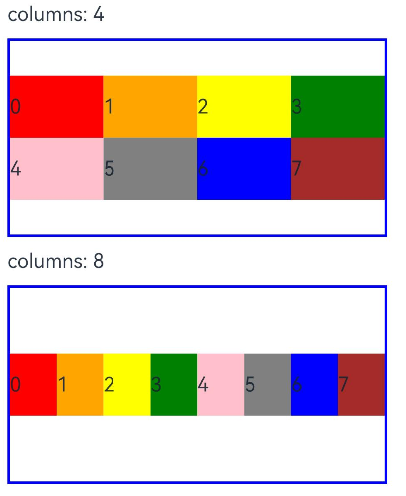
-
当columns类型为GridRowColumnOption时,支持下面六种不同尺寸(xs, sm, md, lg, xl, xxl)设备的总列数设置,各个尺寸下数值可不同。
@State bgColors: Color[] = [Color.Red, Color.Orange, Color.Yellow, Color.Green, Color.Pink, Color.Grey, Color.Blue, Color.Brown]
GridRow({ columns: { sm: 4, md: 8 }, breakpoints: { value: ['200vp', '300vp', '400vp', '500vp', '600vp'] } }) {
  ForEach(this.bgColors, (item:Color, index?:number|undefined) => {
    GridCol() {
      Row() {
        Text(`${index}`)
      }.width('100%').height('50')
    }.backgroundColor(item)
  })
}
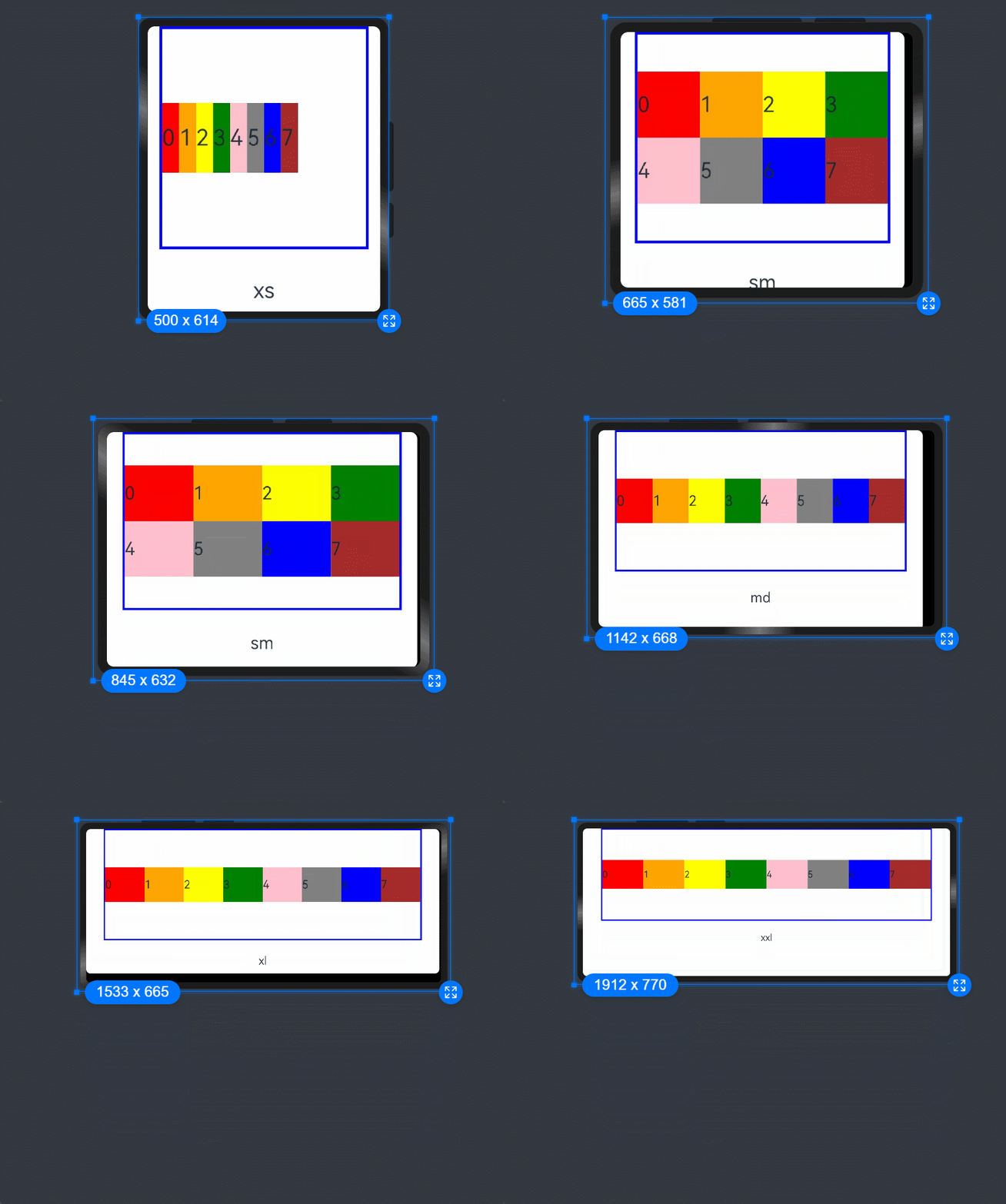
若只设置sm, md的栅格总列数,则较小的尺寸使用默认columns值12,较大的尺寸使用前一个尺寸的columns。这里只设置sm:4, md:8,则较小尺寸的xs:12,较大尺寸的参照md的设置,lg:8, xl:8, xxl:8
排列方向
栅格布局中,可以通过设置GridRow的direction属性来指定栅格子组件在栅格容器中的排列方向。该属性可以设置为GridRowDirection.Row(从左往右排列)或GridRowDirection.RowReverse(从右往左排列),以满足不同的布局需求。通过合理的direction属性设置,可以使得页面布局更加灵活和符合设计要求。
-
子组件默认从左往右排列。
GridRow({ direction: GridRowDirection.Row }){}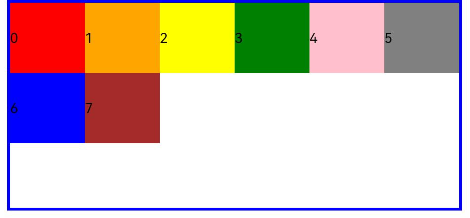
-
子组件从右往左排列。
GridRow({ direction: GridRowDirection.RowReverse }){}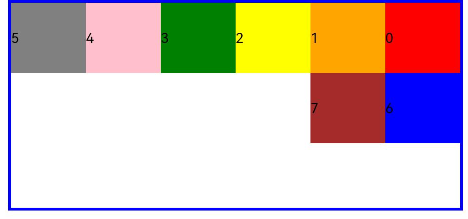
子组件间距
GridRow中通过gutter属性设置子元素在水平和垂直方向的间距。
-
当gutter类型为number时,同时设置栅格子组件间水平和垂直方向边距且相等。下例中,设置子组件水平与垂直方向距离相邻元素的间距为10。
GridRow({ gutter: 10 }){}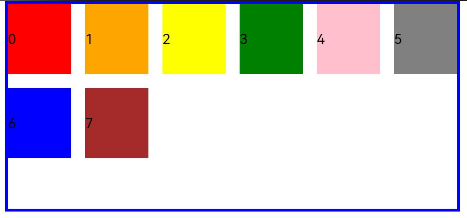
-
当gutter类型为GutterOption时,单独设置栅格子组件水平垂直边距,x属性为水平方向间距,y为垂直方向间距。
GridRow({ gutter: { x: 20, y: 50 } }){}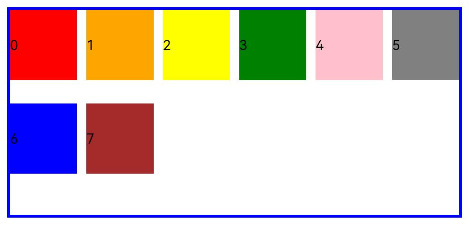
子组件GridCol
GridCol组件作为GridRow组件的子组件,通过给GridCol传参或者设置属性两种方式,设置span(占用列数),offset(偏移列数),order(元素序号)的值。
-
设置span。
let Gspan:Record<string,number> = { 'xs': 1, 'sm': 2, 'md': 3, 'lg': 4 } GridCol({ span: 2 }){} GridCol({ span: { xs: 1, sm: 2, md: 3, lg: 4 } }){} GridCol(){}.span(2) GridCol(){}.span(Gspan) -
设置offset。
let Goffset:Record<string,number> = { 'xs': 1, 'sm': 2, 'md': 3, 'lg': 4 }
GridCol({ offset: 2 }){}
GridCol({ offset: { xs: 2, sm: 2, md: 2, lg: 2 } }){}
GridCol(){}.offset(Goffset) -
设置order。
let Gorder:Record<string,number> = { 'xs': 1, 'sm': 2, 'md': 3, 'lg': 4 }
GridCol({ order: 2 }){}
GridCol({ order: { xs: 1, sm: 2, md: 3, lg: 4 } }){}
GridCol(){}.order(2)
GridCol(){}.order(Gorder)
span
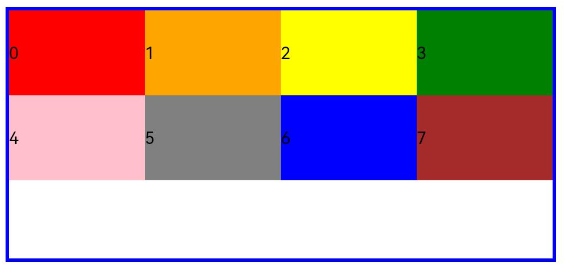
子组件占栅格布局的列数,决定了子组件的宽度,默认为1。
-
当类型为number时,子组件在所有尺寸设备下占用的列数相同。
@State bgColors: Color[] = [Color.Red, Color.Orange, Color.Yellow, Color.Green, Color.Pink, Color.Grey, Color.Blue, Color.Brown];
...
GridRow({ columns: 8 }) {
  ForEach(this.bgColors, (color:Color, index?:number|undefined) => {
    GridCol({ span: 2 }) {
      Row() {
        Text(`${index}`)
      }.width('100%').height('50vp')
    }
    .backgroundColor(color)
  })
} -
-
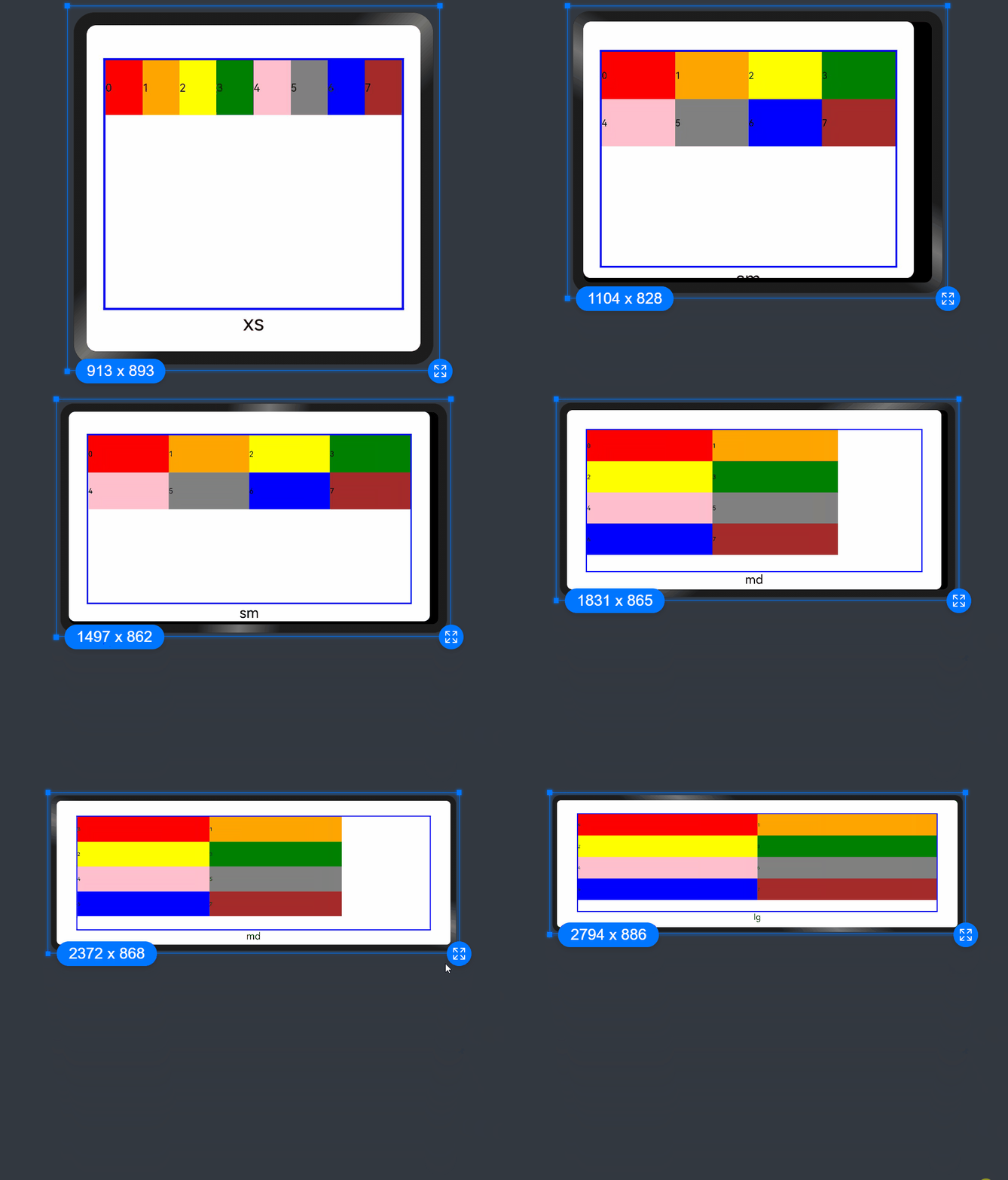
当类型为GridColColumnOption时,支持六种不同尺寸(xs, sm, md, lg, xl, xxl)设备中子组件所占列数设置,各个尺寸下数值可不同。
@State bgColors: Color[] = [Color.Red, Color.Orange, Color.Yellow, Color.Green, Color.Pink, Color.Grey, Color.Blue, Color.Brown];
...
GridRow({ columns: 8 }) {
  ForEach(this.bgColors, (color:Color, index?:number|undefined) => {
    GridCol({ span: { xs: 1, sm: 2, md: 3, lg: 4 } }) {
      Row() {
        Text(`${index}`)
      }.width('100%').height('50vp')
    }
    .backgroundColor(color)
  })
} 
offset
栅格子组件相对于前一个子组件的偏移列数,默认为0。
-
当类型为number时,子组件偏移相同列数。
-
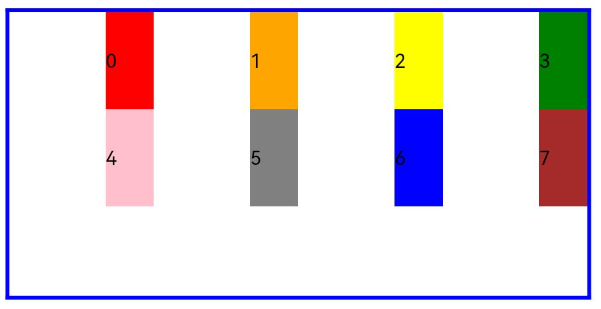
栅格默认分成12列,每一个子组件默认占1列,偏移2列,每个子组件及间距共占3列,一行放四个子组件。
-
当类型为GridColColumnOption时,支持六种不同尺寸(xs, sm, md, lg, xl, xxl)设备中子组件所占列数设置,各个尺寸下数值可不同。
-
@State bgColors: Color[] = [Color.Red, Color.Orange, Color.Yellow, Color.Green, Color.Pink, Color.Grey, Color.Blue, Color.Brown];
...
GridRow() {
  ForEach(this.bgColors, (color:Color, index?:number|undefined) => {
    GridCol({ offset: 2 }) {
      Row() {
        Text('' + index)
      }.width('100%').height('50vp')
    }
    .backgroundColor(color)
  })
}
-
offset
栅格子组件相对于前一个子组件的偏移列数,默认为0。
-
当类型为number时,子组件偏移相同列数。
@State bgColors: Color[] = [Color.Red, Color.Orange, Color.Yellow, Color.Green, Color.Pink, Color.Grey, Color.Blue, Color.Brown];
...
GridRow() {
  ForEach(this.bgColors, (color:Color, index?:number|undefined) => {
    GridCol({ offset: 2 }) {
      Row() {
        Text('' + index)
      }.width('100%').height('50vp')
    }
    .backgroundColor(color)
  })
}
栅格默认分成12列,每一个子组件默认占1列,偏移2列,每个子组件及间距共占3列,一行放四个子组件。
-
当类型为GridColColumnOption时,支持六种不同尺寸(xs, sm, md, lg, xl, xxl)设备中子组件所占列数设置,各个尺寸下数值可不同。
@State bgColors: Color[] = [Color.Red, Color.Orange, Color.Yellow, Color.Green, Color.Pink, Color.Grey, Color.Blue, Color.Brown];
...

GridRow() {
  ForEach(this.bgColors, (color:Color, index?:number|undefined) => {
    GridCol({ offset: { xs: 1, sm: 2, md: 3, lg: 4 } }) {
      Row() {
        Text('' + index)
      }.width('100%').height('50vp')
    }
    .backgroundColor(color)
  })
}
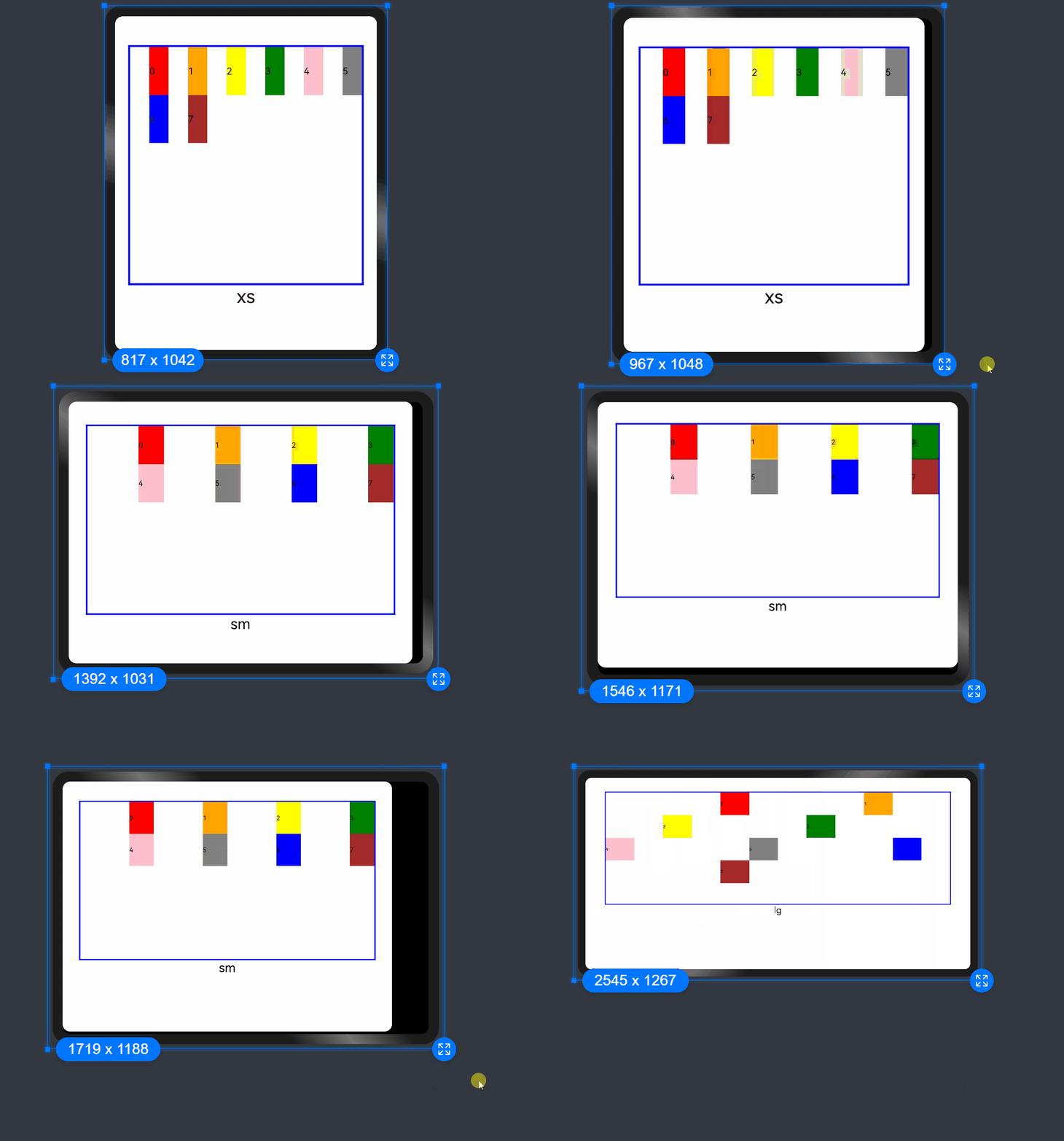
order
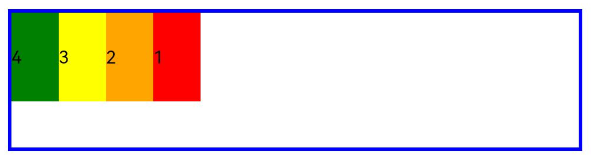
栅格子组件的序号,决定子组件排列次序。当子组件不设置order或者设置相同的order, 子组件按照代码顺序展示。当子组件设置不同的order时,order较小的组件在前,较大的在后。
当子组件部分设置order,部分不设置order时,未设置order的子组件依次排序靠前,设置了order的子组件按照数值从小到大排列。
-
当类型为number时,子组件在任何尺寸下排序次序一致。
GridRow() {
  GridCol({ order: 4 }) {
    Row() {
      Text('1')
    }.width('100%').height('50vp')
  }.backgroundColor(Color.Red)
  GridCol({ order: 3 }) {
    Row() {
      Text('2')
    }.width('100%').height('50vp')
  }.backgroundColor(Color.Orange)
  GridCol({ order: 2 }) {
    Row() {
      Text('3')
    }.width('100%').height('50vp')
  }.backgroundColor(Color.Yellow)
  GridCol({ order: 1 }) {
    Row() {
      Text('4')
    }.width('100%').height('50vp')
  }.backgroundColor(Color.Green)
}
-
当类型为GridColColumnOption时,支持六种不同尺寸(xs, sm, md, lg, xl, xxl)设备中子组件排序次序设置。在xs设备中,子组件排列顺序为1234;sm为2341,md为3412,lg为2431。
GridRow() {
  GridCol({ order: { xs:1, sm:5, md:3, lg:7}}) {
    Row() {
      Text('1')
    }.width('100%').height('50vp')
  }.backgroundColor(Color.Red)
  GridCol({ order: { xs:2, sm:2, md:6, lg:1} }) {
    Row() {
      Text('2')
    }.width('100%').height('50vp')
  }.backgroundColor(Color.Orange)
  GridCol({ order: { xs:3, sm:3, md:1, lg:6} }) {
    Row() {
      Text('3')
    }.width('100%').height('50vp')
  }.backgroundColor(Color.Yellow)
  GridCol({ order: { xs:4, sm:4, md:2, lg:5} }) {
    Row() {
      Text('4')
    }.width('100%').height('50vp')
  }.backgroundColor(Color.Green)
}
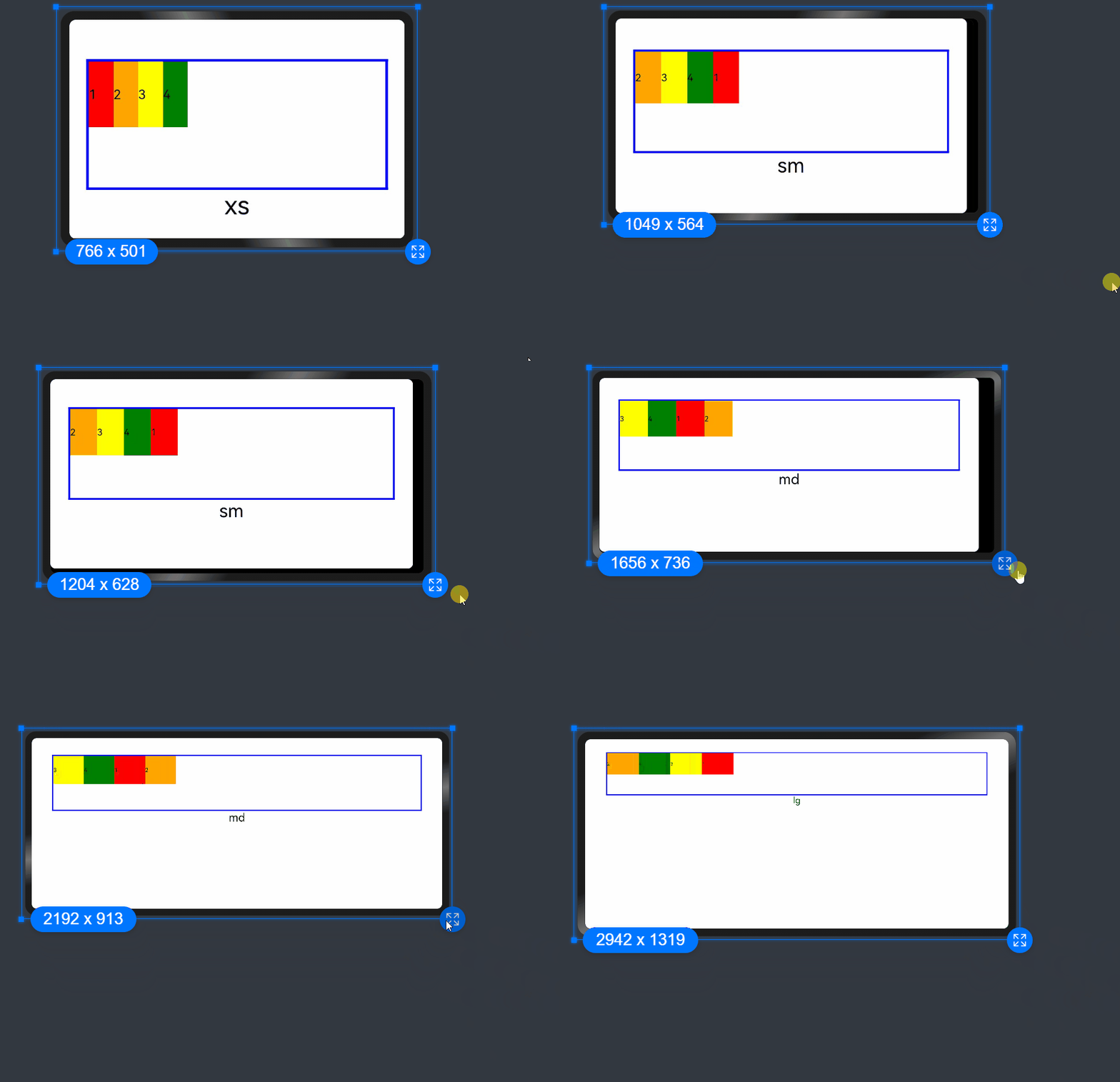
栅格组件的嵌套使用
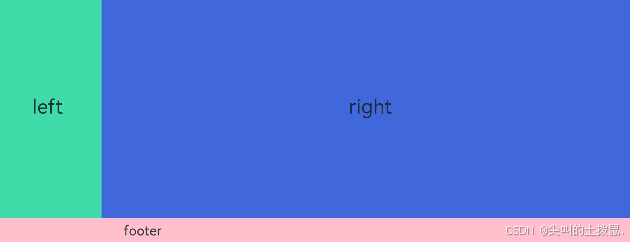
栅格组件也可以嵌套使用,完成一些复杂的布局
@Entry
@Component
struct GridRowExample {
  build() {
    GridRow() {
      GridCol({ span: { sm: 12 } }) {
        GridRow() {
          GridCol({ span: { sm: 2 } }) {
            Row() {
              Text('left').fontSize(24)
            }
            .justifyContent(FlexAlign.Center)
            .height('90%')
          }.backgroundColor('#ff41dbaa')

          GridCol({ span: { sm: 10 } }) {
            Row() {
              Text('right').fontSize(24)
            }
            .justifyContent(FlexAlign.Center)
            .height('90%')
          }.backgroundColor('#ff4168db')
        }
        .backgroundColor('#19000000')
      }

      GridCol({ span: { sm: 12 } }) {
        Row() {
          Text('footer').width('100%').textAlign(TextAlign.Center)
        }.width('100%').height('10%').backgroundColor(Color.Pink)
      }
    }.width('100%').height(300)
  }
}
6、媒体查询 (@ohos.mediaquery)
媒体查询作为响应式设计的核心,在移动设备上应用十分广泛。媒体查询可根据不同设备类型或同设备不同状态修改应用的样式。媒体查询常用于下面两种场景:
-
针对设备和应用的属性信息(比如显示区域、深浅色、分辨率),设计出相匹配的布局。
-
当屏幕发生动态改变时(比如分屏、横竖屏切换),同步更新应用的页面布局。
引入与使用流程
媒体查询通过mediaquery模块接口,设置查询条件并绑定回调函数,任一媒体特征改变时,均会触发回调函数,返回匹配结果,根据返回值更改页面布局或者实现业务逻辑,实现页面的响应式设计。具体步骤如下:
首先导入媒体查询模块:
import { mediaquery } from '@kit.ArkUI';通过matchMediaSync接口设置媒体查询条件,保存返回的条件监听句柄listener。例如监听横屏事件:
let listener: mediaquery.MediaQueryListener = mediaquery.matchMediaSync('(orientation: landscape)');给条件监听句柄listener绑定回调函数onPortrait,当listener检测设备状态变化时执行回调函数。在回调函数内,根据不同设备状态更改页面布局或者实现业务逻辑。
onPortrait(mediaQueryResult: mediaquery.MediaQueryResult) {
  if (mediaQueryResult.matches as boolean) {
    // do something here
  } else {
    // do something here
  }
}

listener.on('change', onPortrait);
媒体查询条件
媒体查询条件由媒体类型、逻辑操作符、媒体特征组成,其中媒体类型可省略,逻辑操作符用于连接不同媒体类型与媒体特征,其中,媒体特征要使用“()”包裹且可以有多个。
语法规则
语法规则包括媒体类型(media-type)、媒体逻辑操作(media-logic-operations)和媒体特征(media-feature)。
[media-type] [media-logic-operations] [(media-feature)]例如:
-
screen and (round-screen: true) :表示当设备屏幕是圆形时条件成立。
-
(max-height: 800px) :表示当高度小于等于800px时条件成立。
-
(height <= 800px) :表示当高度小于等于800px时条件成立。
-
screen and (device-type: tv) or (resolution < 2) :表示包含多个媒体特征的多条件复杂语句查询,当设备类型为tv或设备分辨率小于2时条件成立。
-
(dark-mode: true) :表示当系统为深色模式时成立
媒体类型(media-type)
查询条件未写媒体类型时,默认为screen。媒体类型必须写在查询条件开头。

媒体逻辑操作(media-logic-operations)
媒体逻辑操作符:and、or、not、only用于构成复杂媒体查询,也可以通过comma(, )将其组合起来,详细解释说明如下表。
媒体逻辑操作符
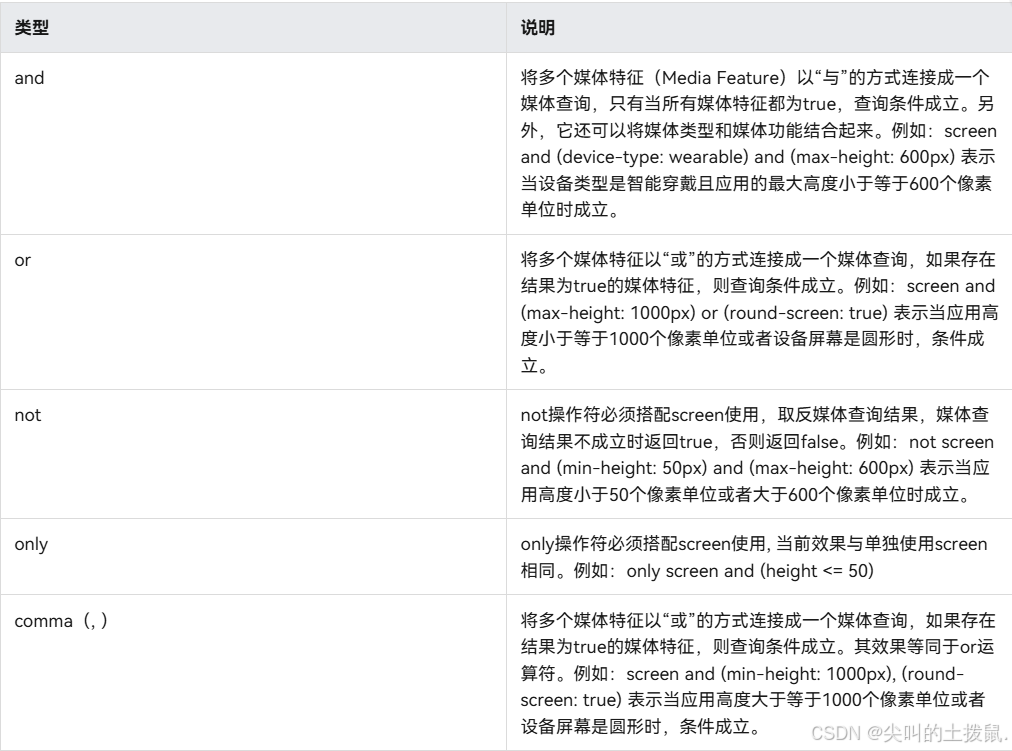
媒体范围操作符包括<=,>=,<,>
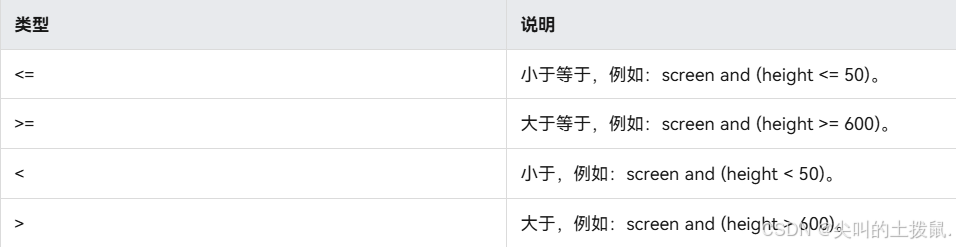
媒体特征(media-feature)
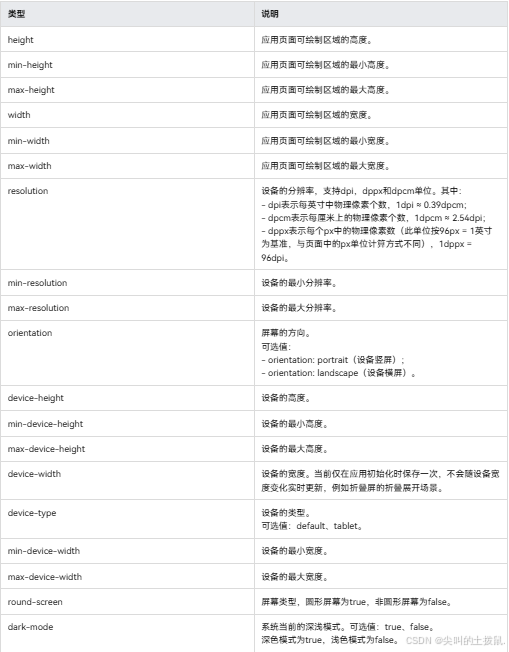
媒体特征包括应用显示区域的宽高、设备分辨率以及设备的宽高等属性。
媒体特征说明表
比较height、width等宽高尺寸时,支持vp和px单位,无单位默认为px。
场景示例
import { mediaquery, window } from '@kit.ArkUI';
import { common } from '@kit.AbilityKit';

@Entry
@Component
struct MediaQueryExample {
  @State color: string = '#DB7093';
  @State text: string = 'Portrait';
  // 当设备横屏时条件成立
  listener:mediaquery.MediaQueryListener = this.getUIContext().getMediaQuery().matchMediaSync('(orientation: landscape)');

  // 当满足媒体查询条件时,触发回调
  onPortrait(mediaQueryResult:mediaquery.MediaQueryResult) {
    if (mediaQueryResult.matches as boolean) { // 若设备为横屏状态,更改相应的页面布局
      this.color = '#FFD700';
      this.text = 'Landscape';
    } else {
      this.color = '#DB7093';
      this.text = 'Portrait';
    }
  }

  aboutToAppear() {
    // 绑定当前应用实例
    // 绑定回调函数
    this.listener.on('change', (mediaQueryResult: mediaquery.MediaQueryResult) => {
      this.onPortrait(mediaQueryResult)
    });
  }

  aboutToDisappear() {
    // 解绑listener中注册的回调函数
    this.listener.off('change');
  }

  // 改变设备横竖屏状态函数
  private changeOrientation(isLandscape: boolean) {
    // 获取UIAbility实例的上下文信息
    let context:common.UIAbilityContext = this.getUIContext().getHostContext() as common.UIAbilityContext;
    // 调用该接口手动改变设备横竖屏状态
    window.getLastWindow(context).then((lastWindow) => {
      lastWindow.setPreferredOrientation(isLandscape ? window.Orientation.LANDSCAPE : window.Orientation.PORTRAIT)
    });
  }

  build() {
    Column({ space: 50 }) {
      Text(this.text).fontSize(50).fontColor(this.color)
      Text('Landscape').fontSize(50).fontColor(this.color).backgroundColor(Color.Orange)
        .onClick(() => {
          this.changeOrientation(true);
        })
      Text('Portrait').fontSize(50).fontColor(this.color).backgroundColor(Color.Orange)
        .onClick(() => {
          this.changeOrientation(false);
        })
    }
    .width('100%').height('100%')
  }
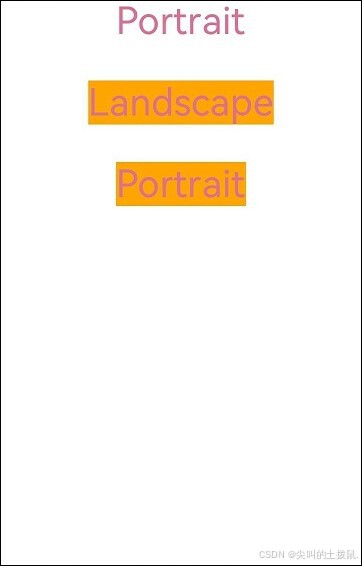
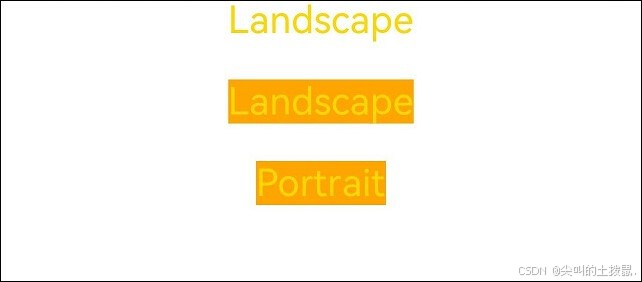
}
7、创建列表 (List)
列表是一种复杂的容器,当列表项达到一定数量,内容超过屏幕大小时,可以自动提供滚动功能。它适合用于呈现同类数据类型或数据类型集,例如图片和文本。在列表中显示数据集合是许多应用程序中的常见要求(如通讯录、音乐列表、购物清单等)。
使用列表可以轻松高效地显示结构化、可滚动的信息。通过在List组件中按垂直或者水平方向线性排列子组件ListItemGroup或ListItem,为列表中的行或列提供单个视图,或使用循环渲染迭代一组行或列,或混合任意数量的单个视图和ForEach结构,构建一个列表。List组件支持使用条件渲染、循环渲染、懒加载等渲染控制方式生成子组件。
布局与约束
列表作为一种容器,会自动按其滚动方向排列子组件,向列表中添加组件或从列表中移除组件会重新排列子组件。
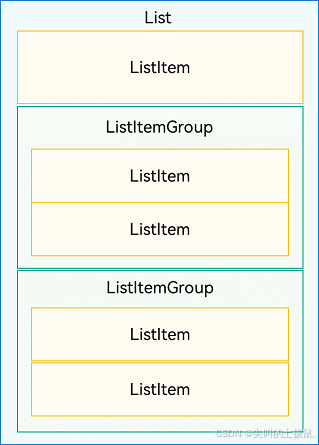
如下图所示,在垂直列表中,List按垂直方向自动排列ListItemGroup或ListItem。
ListItemGroup用于列表数据的分组展示,其子组件也是ListItem。ListItem表示单个列表项,可以包含单个子组件。
List、ListItemGroup和ListItem组件关系:
布局
List除了提供垂直和水平布局能力、超出屏幕时可以滚动的自适应延伸能力之外,还提供了自适应交叉轴方向上排列个数的布局能力。
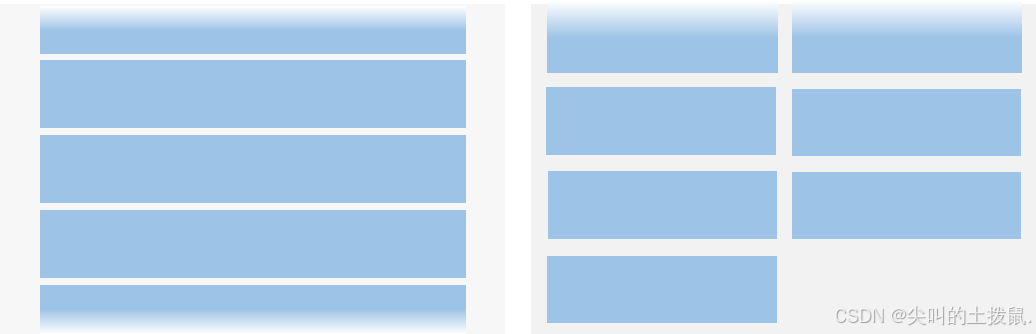
利用垂直布局能力可以构建单列或者多列垂直滚动列表,如下图所示。
垂直滚动列表(左:单列;右:多列)
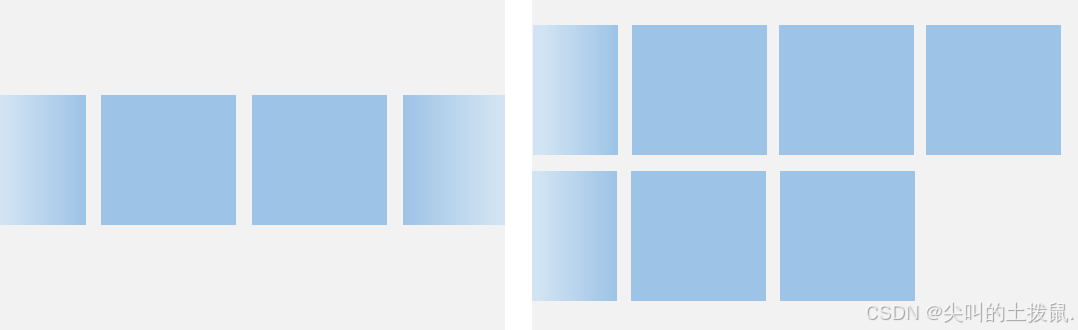
利用水平布局能力可以是构建单行或多行水平滚动列表,如下图所示。
水平滚动列表(左:单行;右:多行)
Grid和WaterFlow也可以实现单列、多列布局,如果布局每列等宽,且不需要跨行跨列布局,相比Gird和WaterFlow,则更推荐使用List。
约束
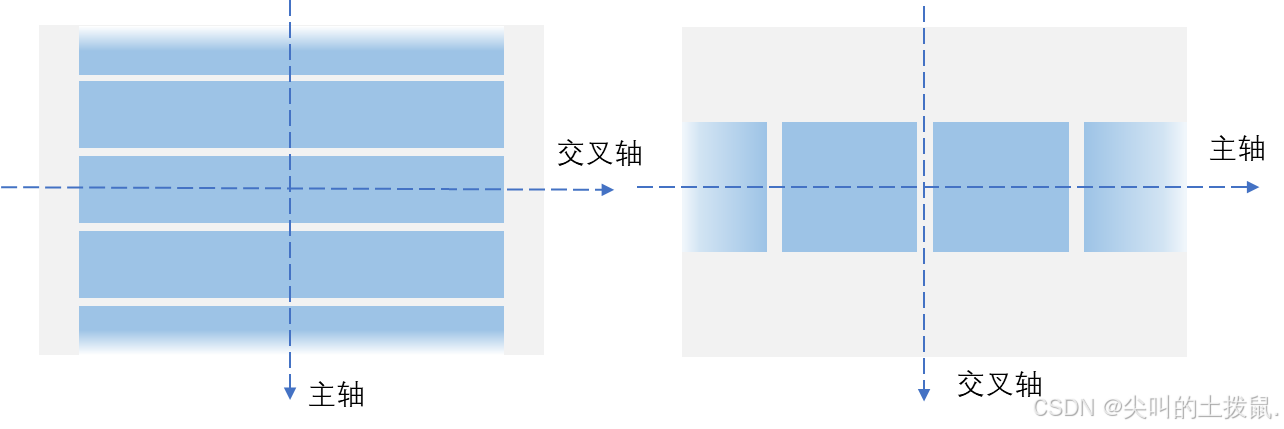
列表的主轴方向是指子组件列的排列方向,也是列表的滚动方向。垂直于主轴的轴称为交叉轴,其方向与主轴方向相互垂直。
如下图所示,垂直列表的主轴是垂直方向,交叉轴是水平方向;水平列表的主轴是水平方向,交叉轴是垂直方向。
列表的主轴与交叉轴:
如果List组件主轴或交叉轴方向设置了尺寸,则其对应方向上的尺寸为设置值。
如果List组件主轴方向没有设置尺寸,当List子组件主轴方向总尺寸小于List的父组件尺寸时,List主轴方向尺寸自动适应子组件的总尺寸。
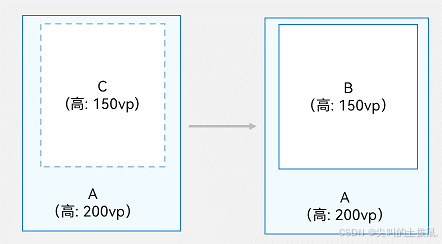
一个垂直列表B没有设置高度时,其父组件A高度为200vp,若其所有子组件C的高度总和为150vp,则此时列表B的高度为150vp。
列表主轴高度约束示例1(A: List的父组件; B: List组件; C: List的所有子组件):
如果子组件主轴方向总尺寸超过List父组件尺寸时,List主轴方向尺寸适应List的父组件尺寸。
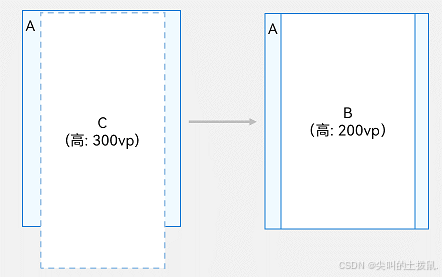
如下图所示,同样是没有设置高度的垂直列表B,其父组件A高度为200vp,若其所有子组件C的高度总和为300vp,则此时列表B的高度为200vp。
列表主轴高度约束示例2(A: List的父组件; B: List组件; C: List的所有子组件):
List组件交叉轴方向在没有设置尺寸时,其尺寸默认自适应父组件尺寸。
开发布局
设置主轴方向
List组件主轴默认是垂直方向,即默认情况下不需要手动设置List方向,就可以构建一个垂直滚动列表。
若是水平滚动列表场景,将List的listDirection属性设置为Axis.Horizontal即可实现。listDirection默认为Axis.Vertical,即主轴默认是垂直方向。
List() {
  // ...
}
.listDirection(Axis.Horizontal)
设置交叉轴布局
List组件的交叉轴布局可以通过lanes和alignListItem属性进行设置,lanes属性用于确定交叉轴排列的列表项数量,alignListItem用于设置子组件在交叉轴方向的对齐方式。
List组件的lanes属性通常用于在不同尺寸的设备自适应构建不同行数或列数的列表,即一次开发、多端部署的场景,例如歌单列表。
lanes属性的取值类型是"number | LengthConstrain",即整数或者LengthConstrain类型。
以垂直列表为例,如果将lanes属性设为2,表示构建的是一个两列的垂直列表,如图2中右图所示。lanes的默认值为1,即默认情况下,垂直列表的列数是1
List() {
  // ...
}
.lanes(2)
当其取值为LengthConstrain类型时,表示会根据LengthConstrain与List组件的尺寸自适应决定行或列数。
@Entry
@Component
struct EgLanes {
  @State egLanes: LengthConstrain = { minLength: 200, maxLength: 300 }
  build() {
    List() {
      // ...
    }
    .lanes(this.egLanes)
  }
}
例如,假设在垂直列表中设置了lanes的值为{ minLength: 200, maxLength: 300 }。此时,
-
当List组件宽度为300vp时,由于minLength为200vp,此时列表为一列。
-
当List组件宽度变化至400vp时,符合两倍的minLength,则此时列表自适应为两列
同样以垂直列表为例,当alignListItem属性设置为ListItemAlign.Center表示列表项在水平方向上居中对齐。alignListItem的默认值是ListItemAlign.Start,即列表项在列表交叉轴方向上默认按首部对齐
List() {
  // ...
}
.alignListItem(ListItemAlign.Center)
在列表中显示数据
列表视图垂直或水平显示项目集合,在行或列超出屏幕时提供滚动功能,使其适合显示大型数据集合。在最简单的列表形式中,List静态地创建其列表项ListItem的内容。
城市列表

@Entry
@Component
struct CityList {
  build() {
    List() {
      ListItem() {
        Text('北京').fontSize(24)
      }

      ListItem() {
        Text('杭州').fontSize(24)
      }

      ListItem() {
        Text('上海').fontSize(24)
      }
    }
    .backgroundColor('#FFF1F3F5')
    .alignListItem(ListItemAlign.Center)
  }
}
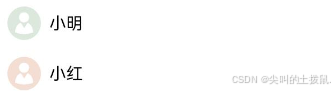
联系人列表的列表项中,每个联系人都有头像和名称。此时,需要将Image和Text封装到一个Row容器内。
List() {
  ListItem() {
    Row() {
      Image($r('app.media.iconE'))
        .width(40)
        .height(40)
        .margin(10)

      Text('小明')
        .fontSize(20)
    }
  }

  ListItem() {
    Row() {
      Image($r('app.media.iconF'))
        .width(40)
        .height(40)
        .margin(10)

      Text('小红')
        .fontSize(20)
    }
  }
}
迭代列表内容
通常,应用通过数据集合动态地创建列表。使用循环渲染可从数据源中迭代获取数据,并在每次迭代过程中创建相应的组件,降低代码复杂度。
ArkTS通过ForEach提供了组件的循环渲染能力。以简单形式的联系人列表为例,将联系人名称和头像数据以Contact类结构存储到contacts数组,使用ForEach中嵌套ListItem的形式来代替多个平铺的、内容相似的ListItem,从而减少重复代码。
import { util } from '@kit.ArkTS'

class Contact {
  key: string = util.generateRandomUUID(true);
  name: string;
  icon: Resource;

  constructor(name: string, icon: Resource) {
    this.name = name;
    this.icon = icon;
  }
}

@Entry
@Component
struct SimpleContacts {
  private contacts: Array<object> = [
    new Contact('小明', $r("app.media.iconA")),
    new Contact('小红', $r("app.media.iconB")),
  ]

  build() {
    List() {
      ForEach(this.contacts, (item: Contact) => {
        ListItem() {
          Row() {
            Image(item.icon)
              .width(40)
              .height(40)
              .margin(10)
            Text(item.name).fontSize(20)
          }
          .width('100%')
          .justifyContent(FlexAlign.Start)
        }
      }, (item: Contact) => JSON.stringify(item))
    }
    .width('100%')
  }
}
在List组件中,ForEach除了可以用来循环渲染ListItem,也可以用来循环渲染ListItemGroup。
自定义列表样式
设置内容间距
在初始化列表时,如需在列表项之间添加间距,可以使用space参数。例如,在每个列表项之间沿主轴方向添加10vp的间距:
List({ space: 10 }) {
  // ...
}
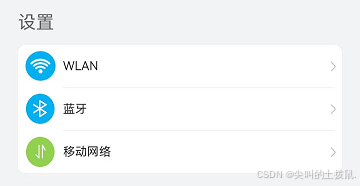
添加分隔线
分隔线用来将界面元素隔开,使单个元素更加容易识别。
8、创建网格 (Grid/GridItem)
网格布局是由“行”和“列”分割的单元格所组成,通过指定“项目”所在的单元格做出各种各样的布局。网格布局具有较强的页面均分能力,子组件占比控制能力,是一种重要自适应布局,其使用场景有九宫格图片展示、日历、计算器等。
ArkUI提供了Grid容器组件和子组件GridItem,用于构建网格布局。Grid用于设置网格布局相关参数,GridItem定义子组件相关特征。Grid组件支持使用条件渲染、循环渲染、懒加载等方式生成子组件
布局与约束
Grid组件为网格容器,其中容器内各条目对应一个GridItem组件,如下图所示。
Grid与GridItem组件关系
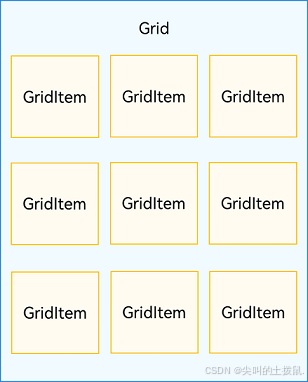
网格布局
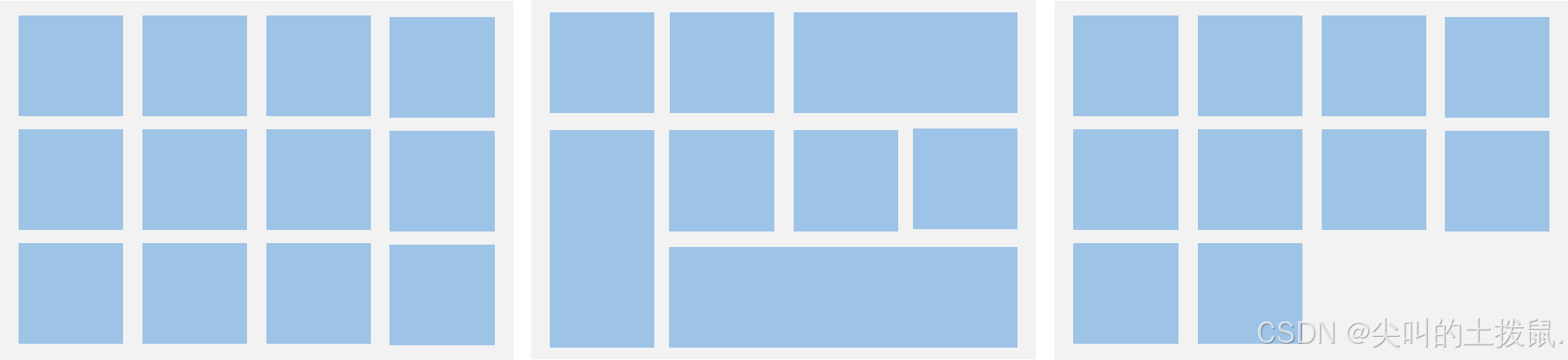
如果Grid组件设置了宽高属性,则其尺寸为设置值。如果没有设置宽高属性,Grid组件的尺寸默认适应其父组件的尺寸。
Grid组件根据行列数量与占比属性的设置,可以分为三种布局情况:
-
行、列数量与占比同时设置:Grid只展示固定行列数的元素,其余元素不展示,且Grid不可滚动。(推荐使用该种布局方式)
-
只设置行、列数量与占比中的一个:元素按照设置的方向进行排布,超出的元素可通过滚动的方式展示。
-
行列数量与占比都不设置:元素在布局方向上排布,其行列数由布局方向、单个网格的宽高等多个属性共同决定。超出行列容纳范围的元素不展示,且Grid不可滚动。
设置排列方式
设置行列数量与占比
通过设置行列数量与尺寸占比可以确定网格布局的整体排列方式。Grid组件提供了rowsTemplate和columnsTemplate属性用于设置网格布局行列数量与尺寸占比。
rowsTemplate和columnsTemplate属性值是一个由多个空格和'数字+fr'间隔拼接的字符串,fr的个数即网格布局的行或列数,fr前面的数值大小,用于计算该行或列在网格布局宽度上的占比,最终决定该行或列宽度。
行列数量占比示例:
Grid() {
  ...
}
.rowsTemplate('1fr 1fr 1fr')
.columnsTemplate('1fr 2fr 1fr')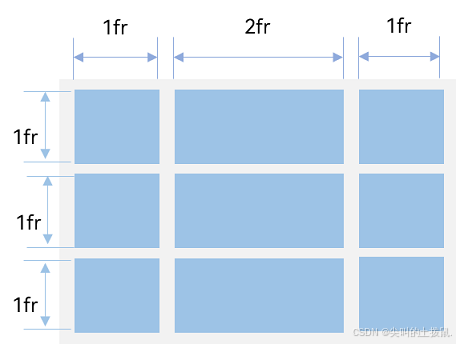
设置子组件所占行列数
在Grid组件中,可以通过创建Grid时传入合适的GridLayoutOptions实现如图所示的单个网格横跨多行或多列的场景,其中,irregularIndexes和onGetIrregularSizeByIndex可对仅设置rowsTemplate或columnsTemplate的Grid使用;onGetRectByIndex可对同时设置rowsTemplate和columnsTemplate的Grid使用。
不均匀网格布局:
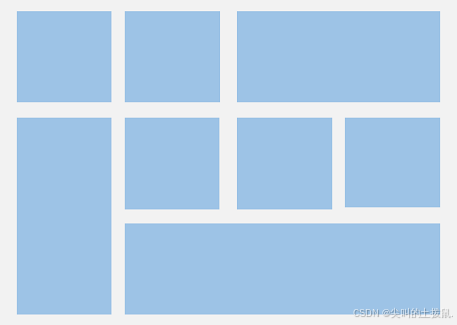
例如计算器的按键布局就是常见的不均匀网格布局场景。如下图,计算器中的按键“0”和“=”,按键“0”横跨第一、二两列,按键“=”横跨第五、六两行。使用Grid构建的网格布局,其行列标号从0开始,依次编号。
layoutOptions: GridLayoutOptions = {
  regularSize: [1, 1],
  onGetRectByIndex: (index: number) => {
    if (index == key1) { // key1是“0”按键对应的index
      return [5, 0, 1, 2]
    } else if (index == key2) { // key2是“=”按键对应的index
      return [4, 3, 2, 1]
    }
    // ...
    // 这里需要根据具体布局返回其他item的位置
  }
}

Grid(undefined, this.layoutOptions) {
  // ...
}
.columnsTemplate('1fr 1fr 1fr 1fr')
.rowsTemplate('2fr 1fr 1fr 1fr 1fr 1fr')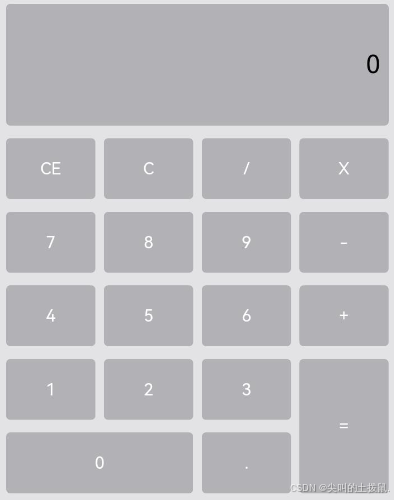
设置主轴方向
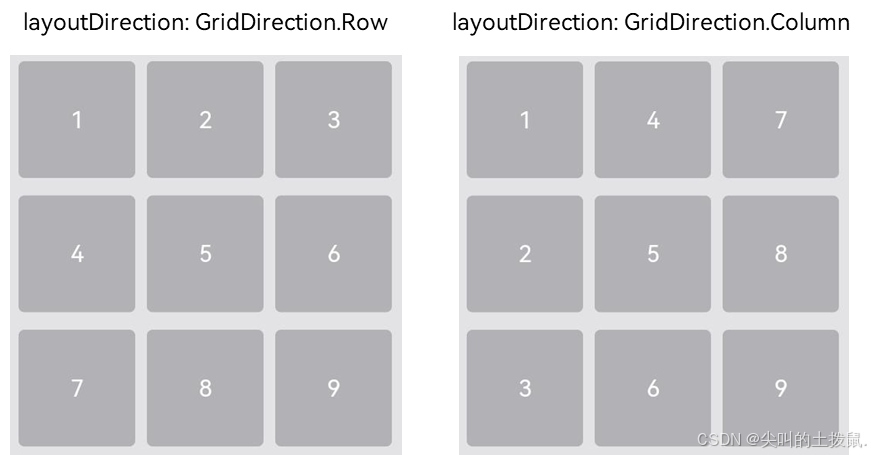
使用Grid构建网格布局时,若没有设置行列数量与占比,可以通过layoutDirection设置网格布局的主轴方向,决定子组件的排列方式。此时可以结合minCount和maxCount属性来约束主轴方向上的网格数量。
主轴方向示意图:
设置行列间距
在两个网格单元之间的网格横向间距称为行间距,网格纵向间距称为列间距,如下图所示。
网格的行列间距:
Grid() {
  ...
}
.columnsGap(10)
.rowsGap(15)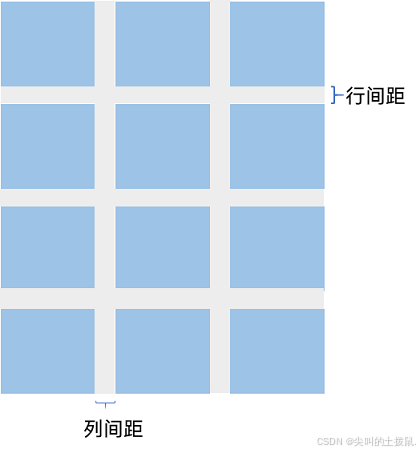
控制滚动位置
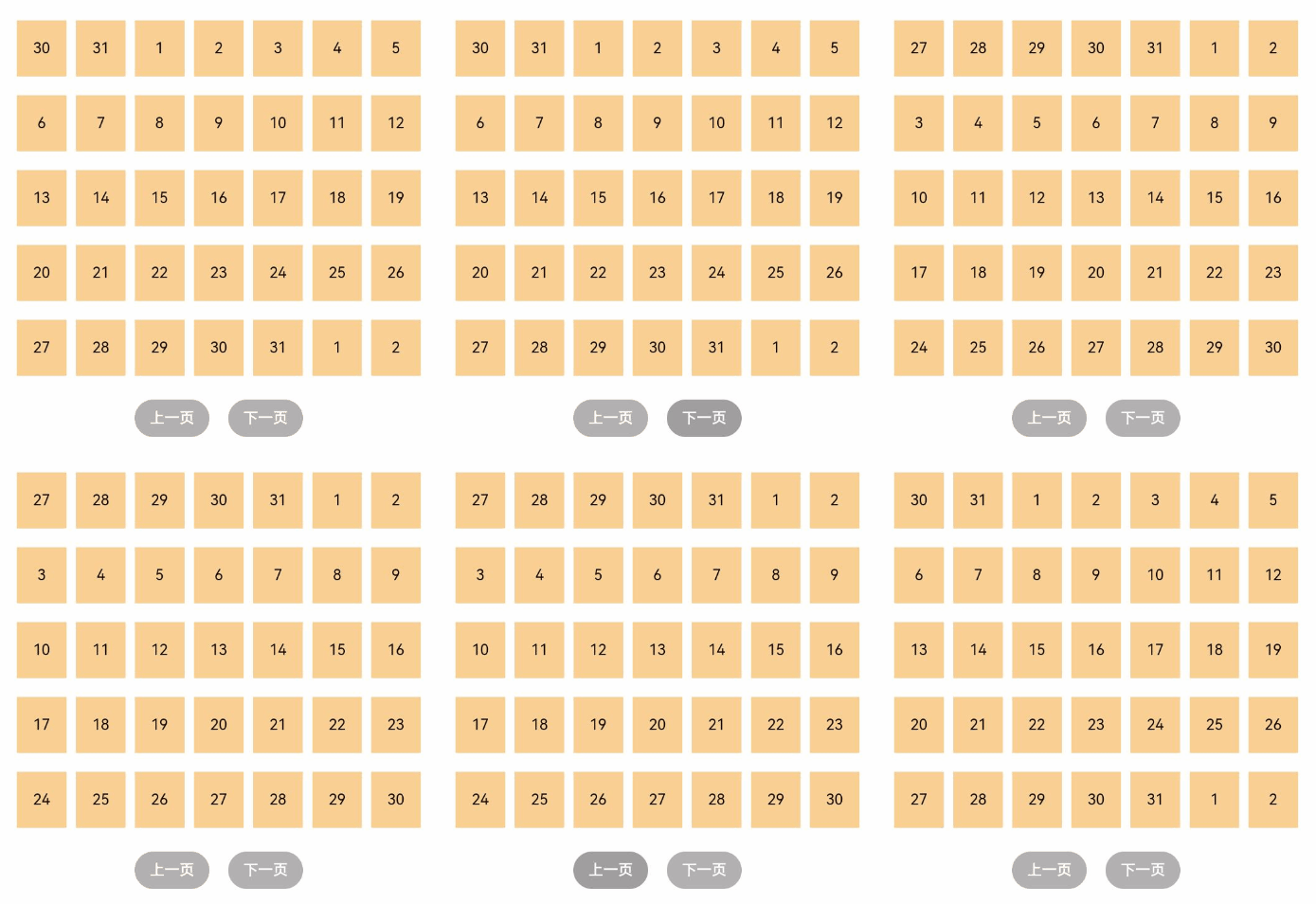
与新闻列表的返回顶部场景类似,控制滚动位置功能在网格布局中也很常用,例如下图所示日历的翻页功能。
在日历页面中,用户在点击“下一页”按钮时,应用响应点击事件,通过指定scrollPage方法的参数next为true,滚动到下一页。
Column({ space: 5 }) {
  Grid(this.scroller) {
  }
  .columnsTemplate('1fr 1fr 1fr 1fr 1fr 1fr 1fr')

  Row({space: 20}) {
    Button('上一页')
      .onClick(() => {
        this.scroller.scrollPage({
          next: false
        })
      })

    Button('下一页')
      .onClick(() => {
        this.scroller.scrollPage({
          next: true
        })
      })
  }
}
日历翻页
9、创建轮播 (Swiper)
Swiper组件提供滑动轮播显示的能力。Swiper本身是一个容器组件,当设置了多个子组件后,可以对这些子组件进行轮播显示。通常,在一些应用首页显示推荐的内容时,需要用到轮播显示的能力。
针对复杂页面场景,可以使用 Swiper 组件的预加载机制,利用主线程的空闲时间来提前构建和布局绘制组件,优化滑动体验。
布局与约束
Swiper作为一个容器组件,如果设置了自身尺寸属性,则在轮播显示过程中均以该尺寸生效。如果自身尺寸属性未被设置,则分两种情况:如果设置了prevMargin或者nextMargin属性,则Swiper自身尺寸会跟随其父组件;如果未设置prevMargin或者nextMargin属性,则会自动根据子组件的大小设置自身的尺寸。
循环播放
通过loop属性控制是否循环播放,该属性默认值为true。
当loop为true时,在显示第一页或最后一页时,可以继续往前切换到前一页或者往后切换到后一页。如果loop为false,则在第一页或最后一页时,无法继续向前或者向后切换页面。
- loop为true
Swiper() {
  Text('0')
    .width('90%')
    .height('100%')
    .backgroundColor(Color.Gray)
    .textAlign(TextAlign.Center)
    .fontSize(30)

  Text('1')
    .width('90%')
    .height('100%')
    .backgroundColor(Color.Green)
    .textAlign(TextAlign.Center)
    .fontSize(30)

  Text('2')
    .width('90%')
    .height('100%')
    .backgroundColor(Color.Pink)
    .textAlign(TextAlign.Center)
    .fontSize(30)
}
.loop(true)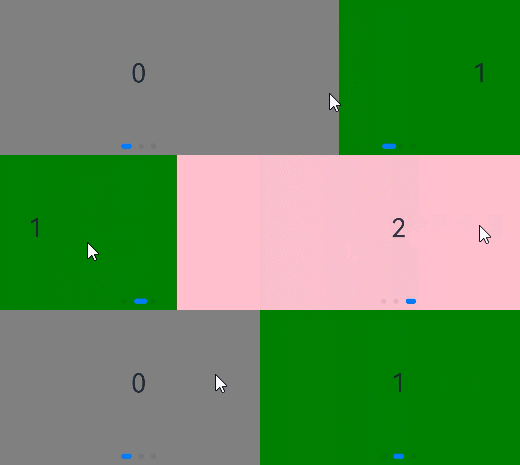
- loop为false
Swiper() {
  // ...
}
.loop(false)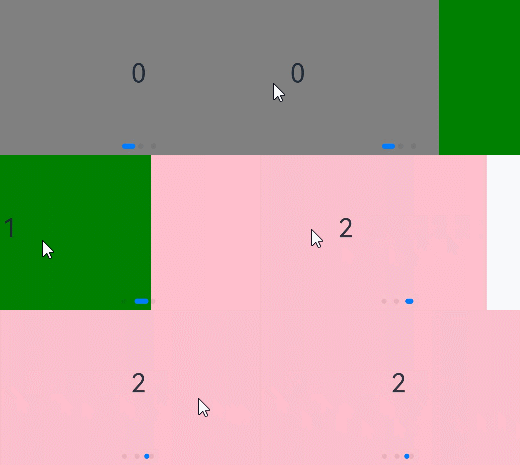
自动轮播
Swiper通过设置autoPlay属性,控制是否自动轮播子组件。该属性默认值为false。
autoPlay为true时,会自动切换播放子组件,子组件与子组件之间的播放间隔通过interval属性设置。interval属性默认值为3000,单位毫秒。
Swiper() {
  // ...
}
.loop(true)
.autoPlay(true)
.interval(1000)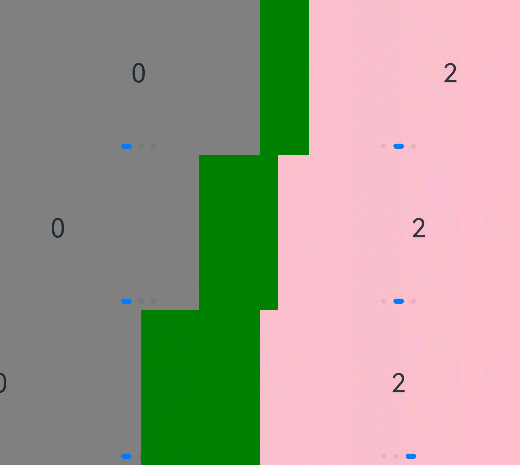
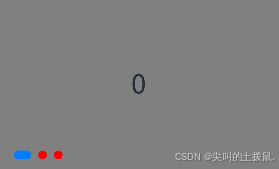
导航点样式
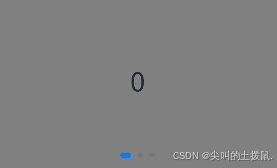
Swiper提供了默认的导航点样式和导航点箭头样式,导航点默认显示在Swiper下方居中位置,开发者也可以通过indicator属性自定义导航点的位置和样式,导航点箭头默认不显示。
通过indicator属性,开发者可以设置导航点相对于Swiper组件上下左右四个方位的位置,同时也可以设置每个导航点的尺寸、颜色、蒙层和被选中导航点的颜色。
- 导航点使用默认样式
Swiper() {
  Text('0')
    .width('90%')
    .height('100%')
    .backgroundColor(Color.Gray)
    .textAlign(TextAlign.Center)
    .fontSize(30)

  Text('1')
    .width('90%')
    .height('100%')
    .backgroundColor(Color.Green)
    .textAlign(TextAlign.Center)
    .fontSize(30)

  Text('2')
    .width('90%')
    .height('100%')
    .backgroundColor(Color.Pink)
    .textAlign(TextAlign.Center)
    .fontSize(30)
}
- 自定义导航点样式
Swiper() {
  // ...
}
.indicator(
  Indicator.dot()
    .left(0)
    .itemWidth(15)
    .itemHeight(15)
    .selectedItemWidth(30)
    .selectedItemHeight(15)
    .color(Color.Red)
    .selectedColor(Color.Blue)
)
Swiper通过设置displayArrow属性,可以控制导航点箭头的大小、位置、颜色,底板的大小及颜色,以及鼠标悬停时是否显示箭头。
- 箭头使用默认样式
Swiper() {
  // ...
}
.displayArrow(true, false)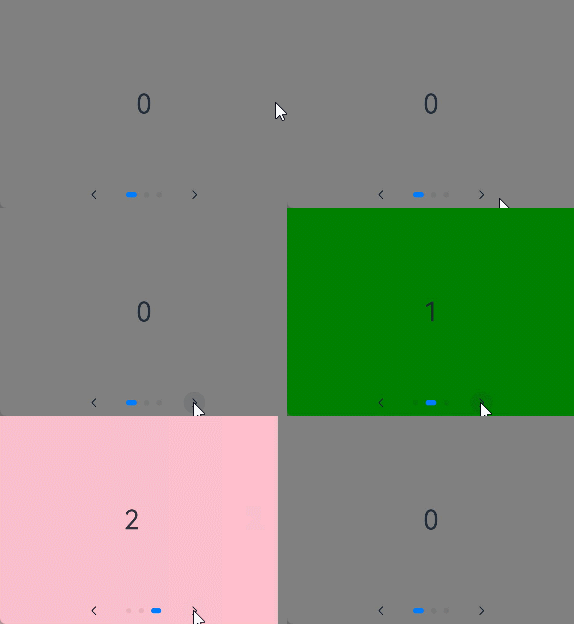
- 自定义箭头样式
Swiper() {
  // ...
}
.displayArrow({
  showBackground: true,
  isSidebarMiddle: true,
  backgroundSize: 24,
  backgroundColor: Color.White,
  arrowSize: 18,
  arrowColor: Color.Blue
  }, false)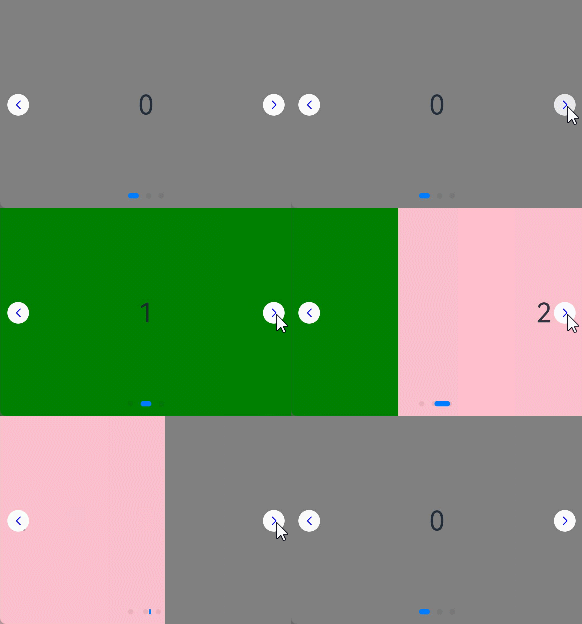
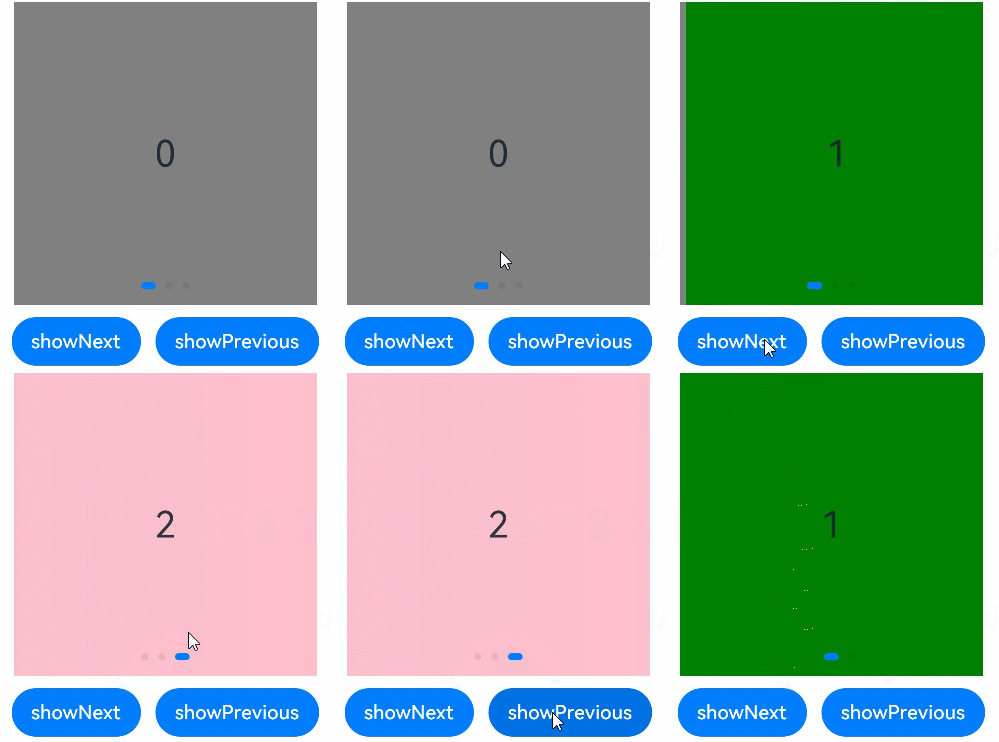
页面切换方式
Swiper支持手指滑动、点击导航点和通过控制器三种方式切换页面,以下示例展示通过控制器切换页面的方法。
@Entry
@Component
struct SwiperDemo {
  private swiperController: SwiperController = new SwiperController();

  build() {
    Column({ space: 5 }) {
      Swiper(this.swiperController) {
        Text('0')
          .width(250)
          .height(250)
          .backgroundColor(Color.Gray)
          .textAlign(TextAlign.Center)
          .fontSize(30)
        Text('1')
          .width(250)
          .height(250)
          .backgroundColor(Color.Green)
          .textAlign(TextAlign.Center)
          .fontSize(30)
        Text('2')
          .width(250)
          .height(250)
          .backgroundColor(Color.Pink)
          .textAlign(TextAlign.Center)
          .fontSize(30)
      }
      .indicator(true)

      Row({ space: 12 }) {
        Button('showNext')
          .onClick(() => {
            this.swiperController.showNext(); // 通过controller切换到后一页
          })
        Button('showPrevious')
          .onClick(() => {
            this.swiperController.showPrevious(); // 通过controller切换到前一页
          })
      }.margin(5)
    }.width('100%')
    .margin({ top: 5 })
  }
}
轮播方向
Swiper支持水平和垂直方向上进行轮播,主要通过vertical属性控制。
当vertical为true时,表示在垂直方向上进行轮播;为false时,表示在水平方向上进行轮播。vertical默认值为false。
- 设置水平方向上轮播。
Swiper() {
  // ...
}
.indicator(true)
.vertical(false)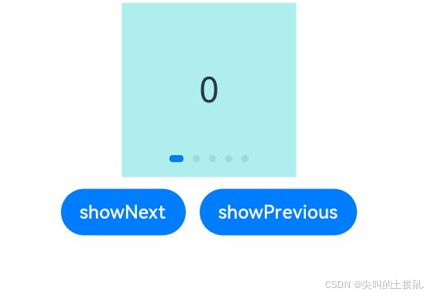
- 设置垂直方向轮播。
Swiper() {
  // ...
}
.indicator(true)
.vertical(true)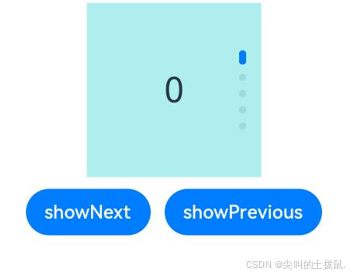
每页显示多个子页面
Swiper支持在一个页面内同时显示多个子组件,通过displayCount属性设置
Swiper() {
  Text('0')
    .width(250)
    .height(250)
    .backgroundColor(Color.Gray)
    .textAlign(TextAlign.Center)
    .fontSize(30)
  Text('1')
    .width(250)
    .height(250)
    .backgroundColor(Color.Green)
    .textAlign(TextAlign.Center)
    .fontSize(30)
  Text('2')
    .width(250)
    .height(250)
    .backgroundColor(Color.Pink)
    .textAlign(TextAlign.Center)
    .fontSize(30)
  Text('3')
    .width(250)
    .height(250)
    .backgroundColor(Color.Blue)
    .textAlign(TextAlign.Center)
    .fontSize(30)
}
.indicator(true)
.displayCount(2)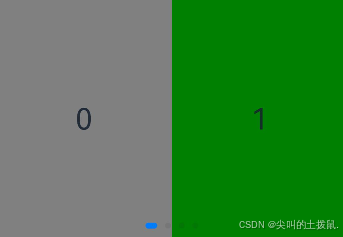
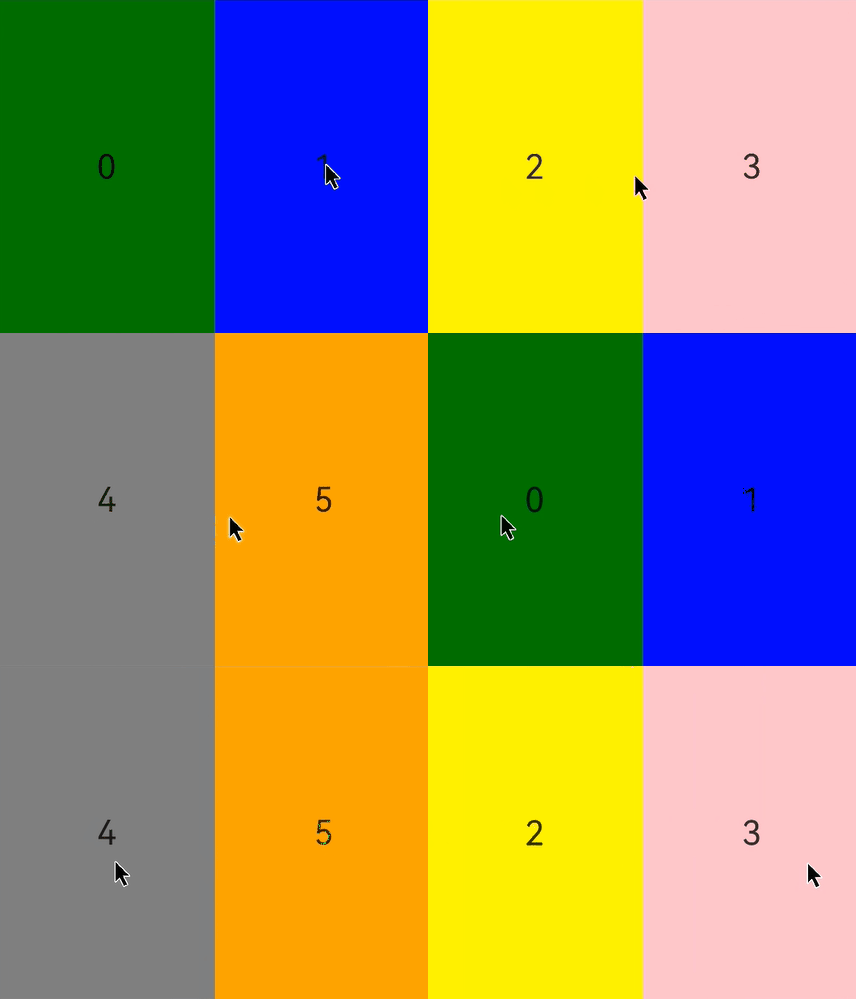
自定义切换动画
Swiper支持通过customContentTransition设置自定义切换动画,可以在回调中对视窗内所有页面逐帧设置透明度、缩放比例、位移、渲染层级等属性实现自定义切换动画。
@Entry
@Component
struct SwiperCustomAnimationExample {
  private DISPLAY_COUNT: number = 2
  private MIN_SCALE: number = 0.75

  @State backgroundColors: Color[] = [Color.Green, Color.Blue, Color.Yellow, Color.Pink, Color.Gray, Color.Orange]
  @State opacityList: number[] = []
  @State scaleList: number[] = []
  @State translateList: number[] = []
  @State zIndexList: number[] = []

  aboutToAppear(): void {
    for (let i = 0; i < this.backgroundColors.length; i++) {
      this.opacityList.push(1.0)
      this.scaleList.push(1.0)
      this.translateList.push(0.0)
      this.zIndexList.push(0)
    }
  }

  build() {
    Column() {
      Swiper() {
        ForEach(this.backgroundColors, (backgroundColor: Color, index: number) => {
          Text(index.toString()).width('100%').height('100%').fontSize(50).textAlign(TextAlign.Center)
            .backgroundColor(backgroundColor)
            .opacity(this.opacityList[index])
            .scale({ x: this.scaleList[index], y: this.scaleList[index] })
            .translate({ x: this.translateList[index] })
            .zIndex(this.zIndexList[index])
        })
      }
      .height(300)
      .indicator(false)
      .displayCount(this.DISPLAY_COUNT, true)
      .customContentTransition({
        timeout: 1000,
        transition: (proxy: SwiperContentTransitionProxy) => {
          if (proxy.position <= proxy.index % this.DISPLAY_COUNT || proxy.position >= this.DISPLAY_COUNT + proxy.index % this.DISPLAY_COUNT) {
            // 同组页面完全滑出视窗外时,重置属性值
            this.opacityList[proxy.index] = 1.0
            this.scaleList[proxy.index] = 1.0
            this.translateList[proxy.index] = 0.0
            this.zIndexList[proxy.index] = 0
          } else {
            // 同组页面未滑出视窗外时,对同组中左右两个页面,逐帧根据position修改属性值
            if (proxy.index % this.DISPLAY_COUNT === 0) {
              this.opacityList[proxy.index] = 1 - proxy.position / this.DISPLAY_COUNT
              this.scaleList[proxy.index] = this.MIN_SCALE + (1 - this.MIN_SCALE) * (1 - proxy.position / this.DISPLAY_COUNT)
              this.translateList[proxy.index] = - proxy.position * proxy.mainAxisLength + (1 - this.scaleList[proxy.index]) * proxy.mainAxisLength / 2.0
            } else {
              this.opacityList[proxy.index] = 1 - (proxy.position - 1) / this.DISPLAY_COUNT
              this.scaleList[proxy.index] = this.MIN_SCALE + (1 - this.MIN_SCALE) * (1 - (proxy.position - 1) / this.DISPLAY_COUNT)
              this.translateList[proxy.index] = - (proxy.position - 1) * proxy.mainAxisLength - (1 - this.scaleList[proxy.index]) * proxy.mainAxisLength / 2.0
            }
            this.zIndexList[proxy.index] = -1
          }
        }
      })
    }.width('100%')
  }
}
10、选项卡 (Tabs)
基本布局
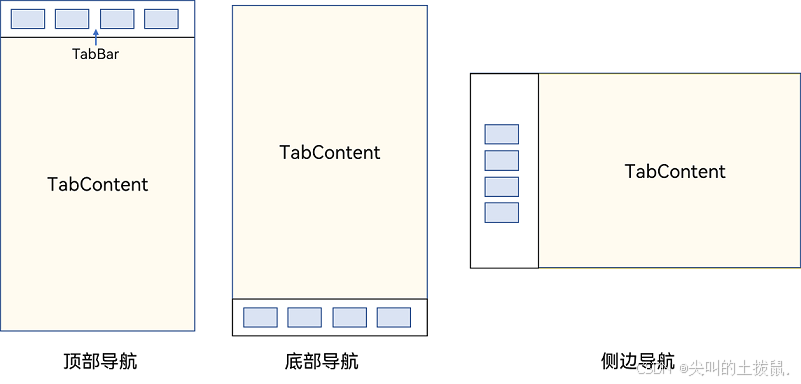
Tabs组件的页面组成包含两个部分,分别是TabContent和TabBar。TabContent是内容页,TabBar是导航页签栏,页面结构如下图所示,根据不同的导航类型,布局会有区别,可以分为底部导航、顶部导航、侧边导航,其导航栏分别位于底部、顶部和侧边。
Tabs组件布局示意图
说明
-
TabContent组件不支持设置通用宽度属性,其宽度默认撑满Tabs父组件。
-
TabContent组件不支持设置通用高度属性,其高度由Tabs父组件高度与TabBar组件高度决定。
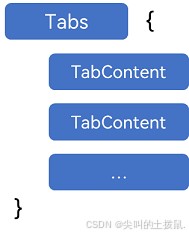
Tabs使用花括号包裹TabContent
Tabs与TabContent使用:
每一个TabContent对应的内容需要有一个页签,可以通过TabContent的tabBar属性进行配置。在如下TabContent组件上设置tabBar属性,可以设置其对应页签中的内容,tabBar作为内容的页签。
 TabContent() {
   Text('首页的内容').fontSize(30)
 }
.tabBar('首页')
设置多个内容时,需在Tabs内按照顺序放置。
Tabs() {
  TabContent() {
    Text('首页的内容').fontSize(30)
  }
  .tabBar('首页')

  TabContent() {
    Text('推荐的内容').fontSize(30)
  }
  .tabBar('推荐')

  TabContent() {
    Text('发现的内容').fontSize(30)
  }
  .tabBar('发现')

  TabContent() {
    Text('我的内容').fontSize(30)
  }
  .tabBar("我的")
}
底部导航
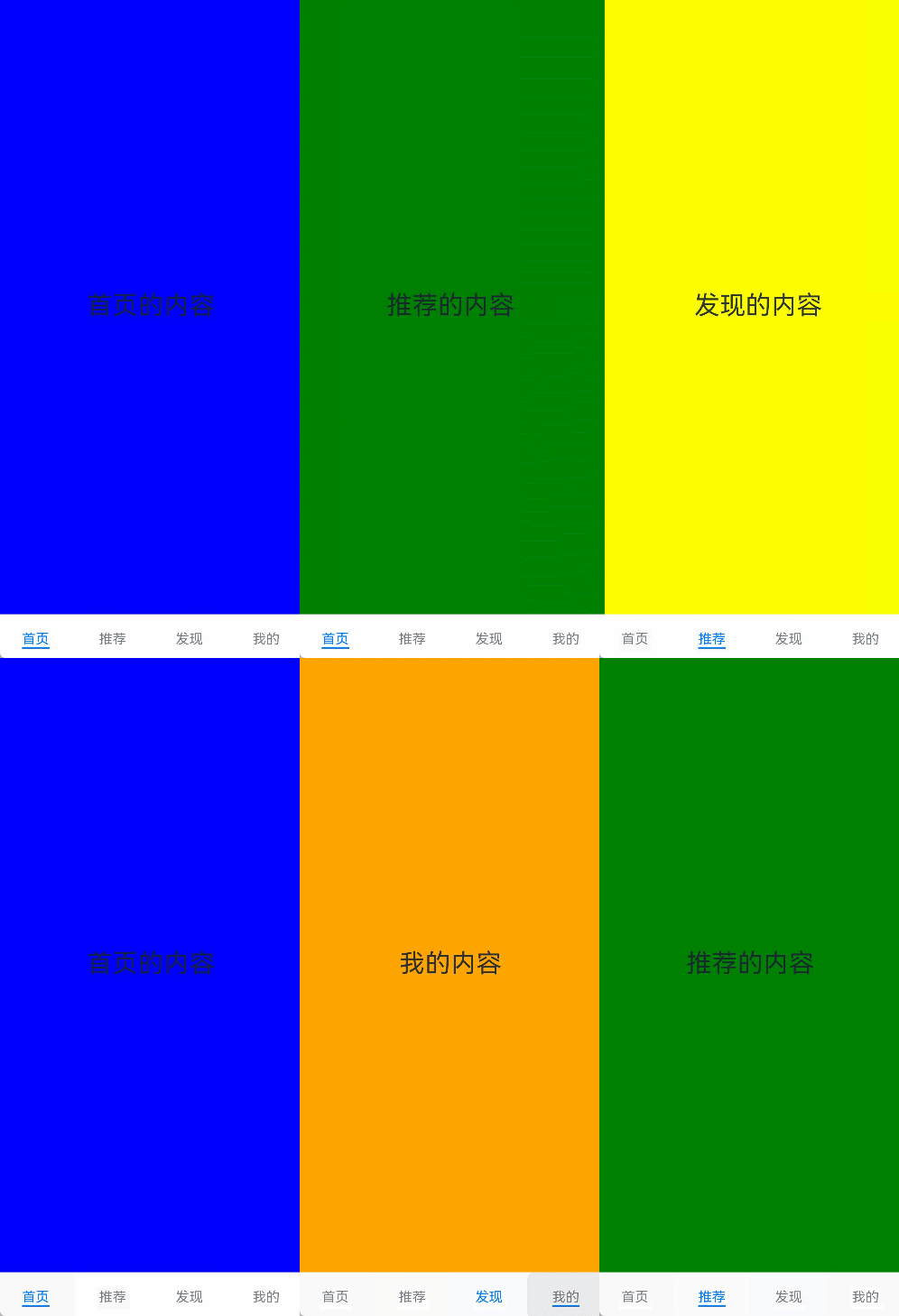
底部导航是应用中最常见的一种导航方式。底部导航位于应用一级页面的底部,用户打开应用,能够分清整个应用的功能分类,以及页签对应的内容,并且其位于底部更加方便用户单手操作。底部导航一般作为应用的主导航形式存在,其作用是将用户关心的内容按照功能进行分类,迎合用户使用习惯,方便在不同模块间的内容切换。
底部导航栏:
Tabs({ barPosition: BarPosition.End }) {
  // TabContent的内容:首页、发现、推荐、我的
  ...
}
顶部导航
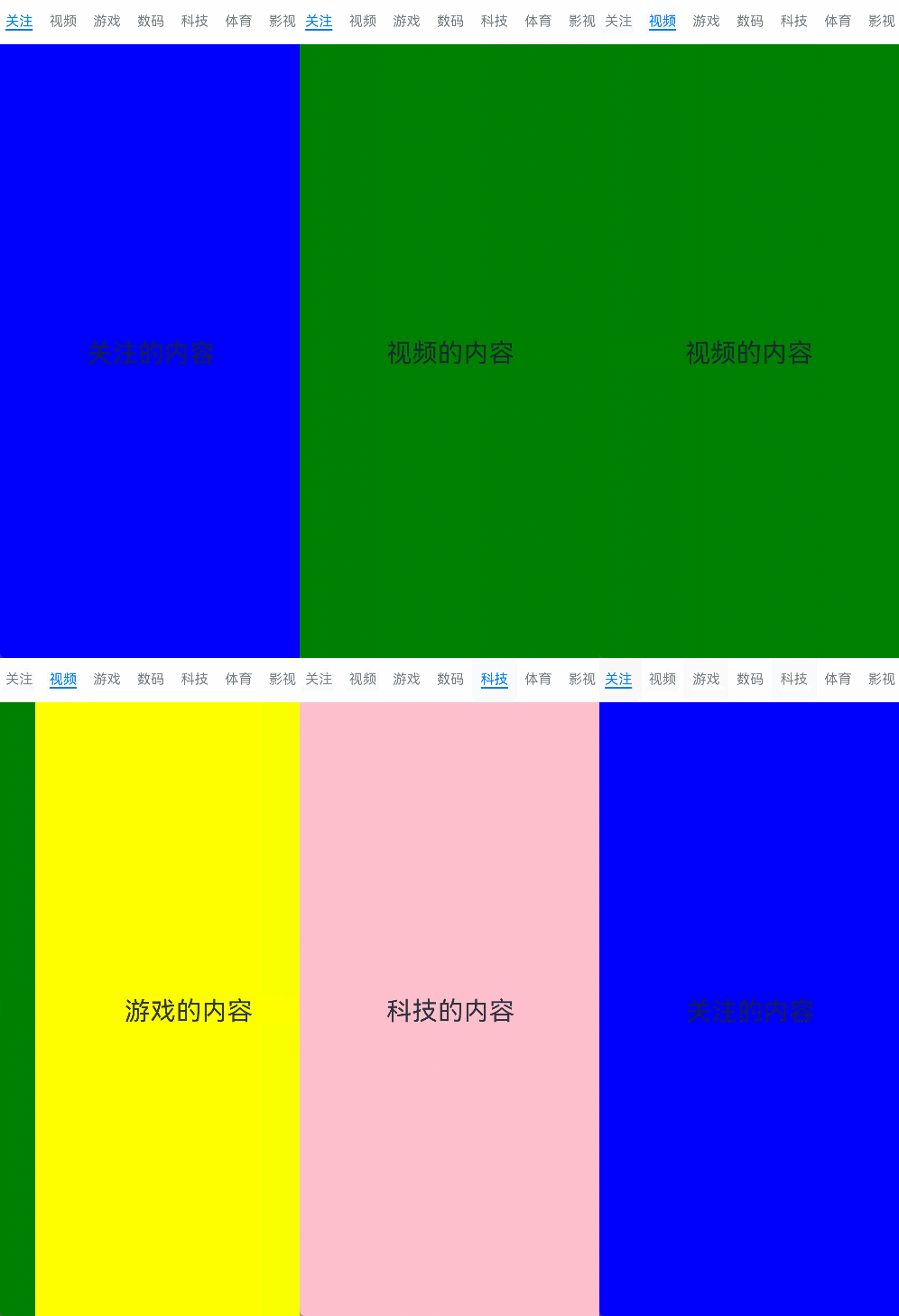
当内容分类较多,用户对不同内容的浏览概率相差不大,需要经常快速切换时,一般采用顶部导航模式进行设计,作为对底部导航内容的进一步划分,常见一些资讯类应用对内容的分类为关注、视频、数码,或者主题应用中对主题进行进一步划分为图片、视频、字体等
顶部导航栏:
Tabs({ barPosition: BarPosition.Start }) {
  // TabContent的内容:关注、视频、游戏、数码、科技、体育、影视
  ...
}
侧边导航
侧边导航是应用较为少见的一种导航模式,更多适用于横屏界面,用于对应用进行导航操作,由于用户的视觉习惯是从左到右,侧边导航栏默认为左侧侧边栏。
实现侧边导航栏需要将Tabs的vertical属性设置为true,vertical默认值为false,表明内容页和导航栏垂直方向排列
侧边导航栏:
Tabs({ barPosition: BarPosition.Start }) {
  // TabContent的内容:首页、发现、推荐、我的
  ...
}
.vertical(true)
.barWidth(100)
.barHeight(200)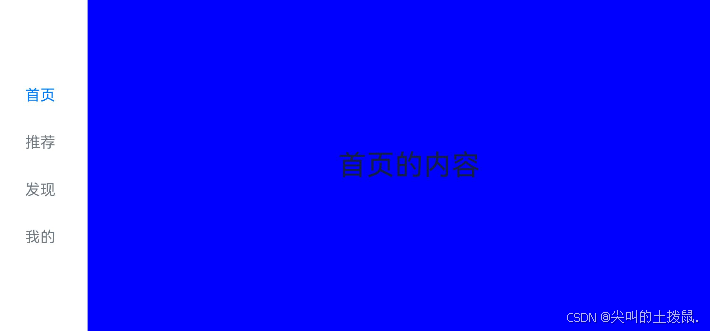
限制导航栏的滑动切换
默认情况下,导航栏都支持滑动切换,在一些内容信息量需要进行多级分类的页面,如支持底部导航+顶部导航组合的情况下,底部导航栏的滑动效果与顶部导航出现冲突,此时需要限制底部导航的滑动,避免引起不好的用户体验。
控制滑动切换的属性为scrollable,默认值为true,表示可以滑动,若要限制滑动切换页签则需要设置为false。
限制底部导航栏滑动:
Tabs({ barPosition: BarPosition.End }) {
  TabContent(){
    Column(){
      Tabs(){
        // 顶部导航栏内容
        ...
      }
    }
    .backgroundColor('#ff08a8f1')
    .width('100%')
  }
  .tabBar('首页')

  // 其他TabContent内容:发现、推荐、我的
  ...
}
.scrollable(false)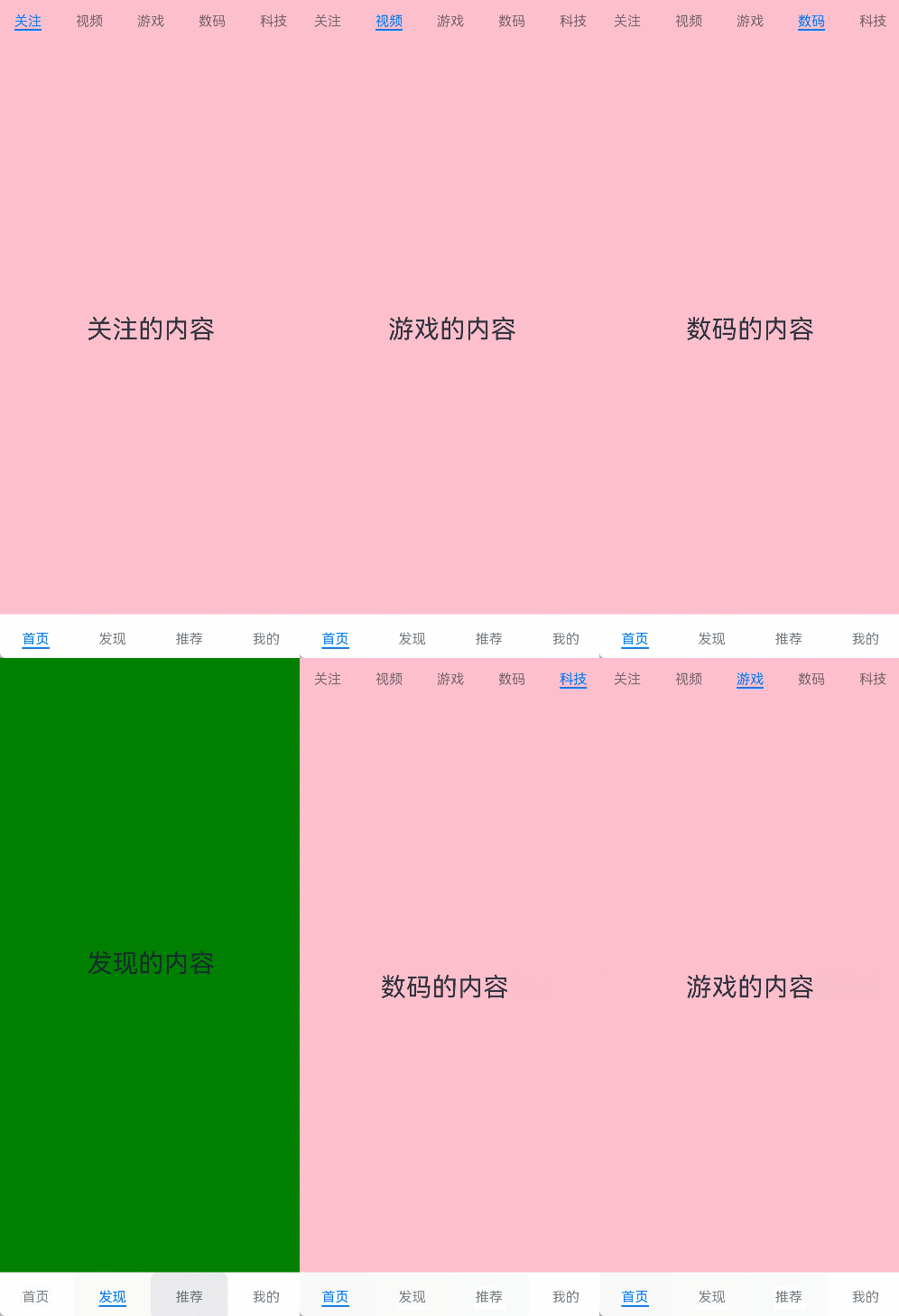
固定导航栏
当内容分类较为固定且不具有拓展性时,例如底部导航内容分类一般固定,分类数量一般在3-5个,此时使用固定导航栏。固定导航栏不可滚动,无法被拖拽滚动,内容均分tabBar的宽度。
Tabs的barMode属性用于控制导航栏是否可以滚动,默认值为BarMode.Fixed。
固定导航栏:
Tabs({ barPosition: BarPosition.End }) {
  TabContent(){
    Column(){
      Tabs(){
        // 顶部导航栏内容
        ...
      }
    }
    .backgroundColor('#ff08a8f1')
    .width('100%')
  }
  .tabBar('首页')

  // 其他TabContent内容:发现、推荐、我的
  ...
}
.scrollable(false)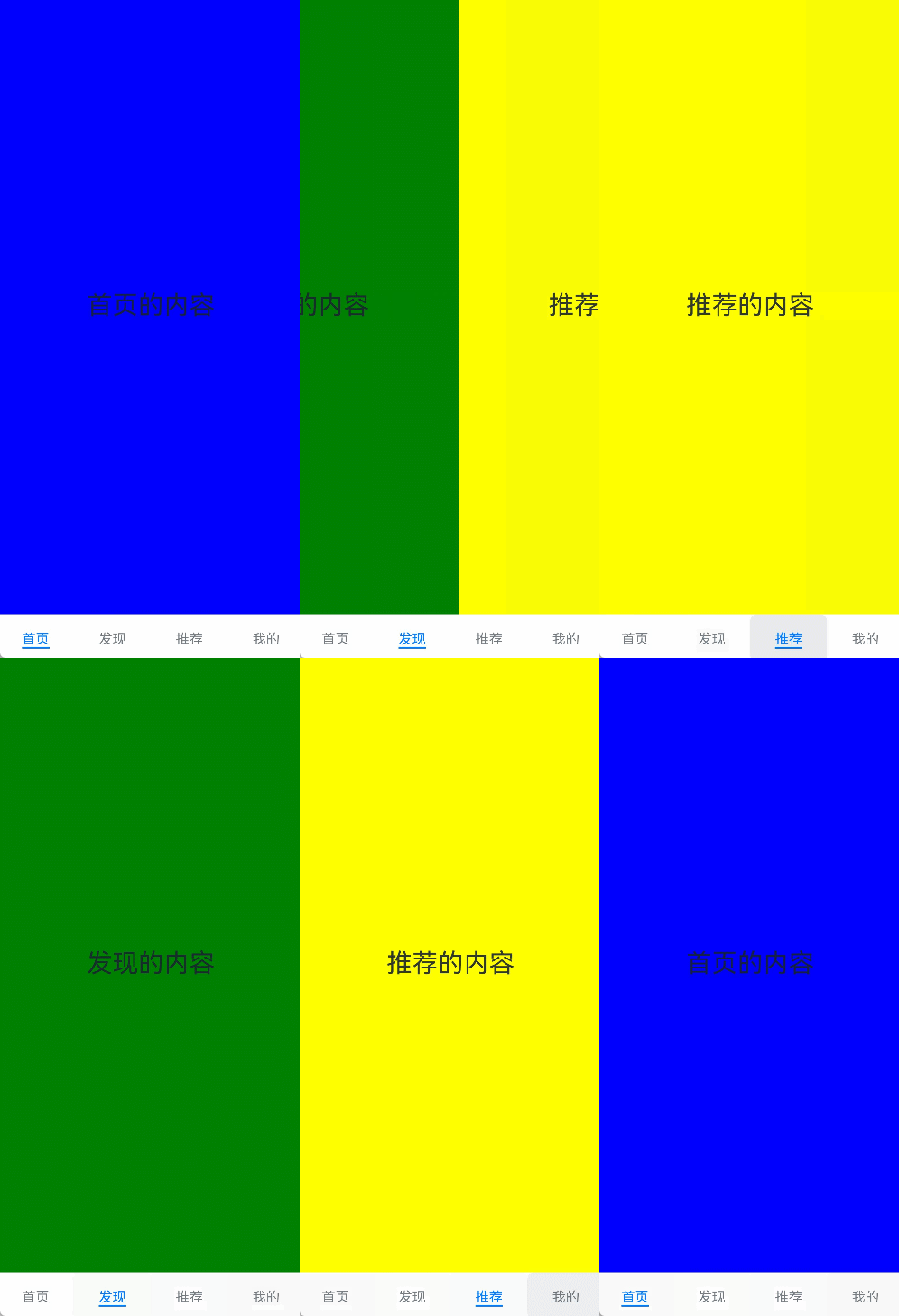
滚动导航栏
滚动导航栏可以用于顶部导航栏或者侧边导航栏的设置,内容分类较多,屏幕宽度无法容纳所有分类页签的情况下,需要使用可滚动的导航栏,支持用户点击和滑动来加载隐藏的页签内容。
滚动导航栏需要设置Tabs组件的barMode属性,默认值为BarMode.Fixed表示为固定导航栏,BarMode.Scrollable表示可滚动导航栏。
可滚动导航栏:
Tabs({ barPosition: BarPosition.Start }) {
  // TabContent的内容:关注、视频、游戏、数码、科技、体育、影视、人文、艺术、自然、军事
  ...
}
.barMode(BarMode.Scrollable)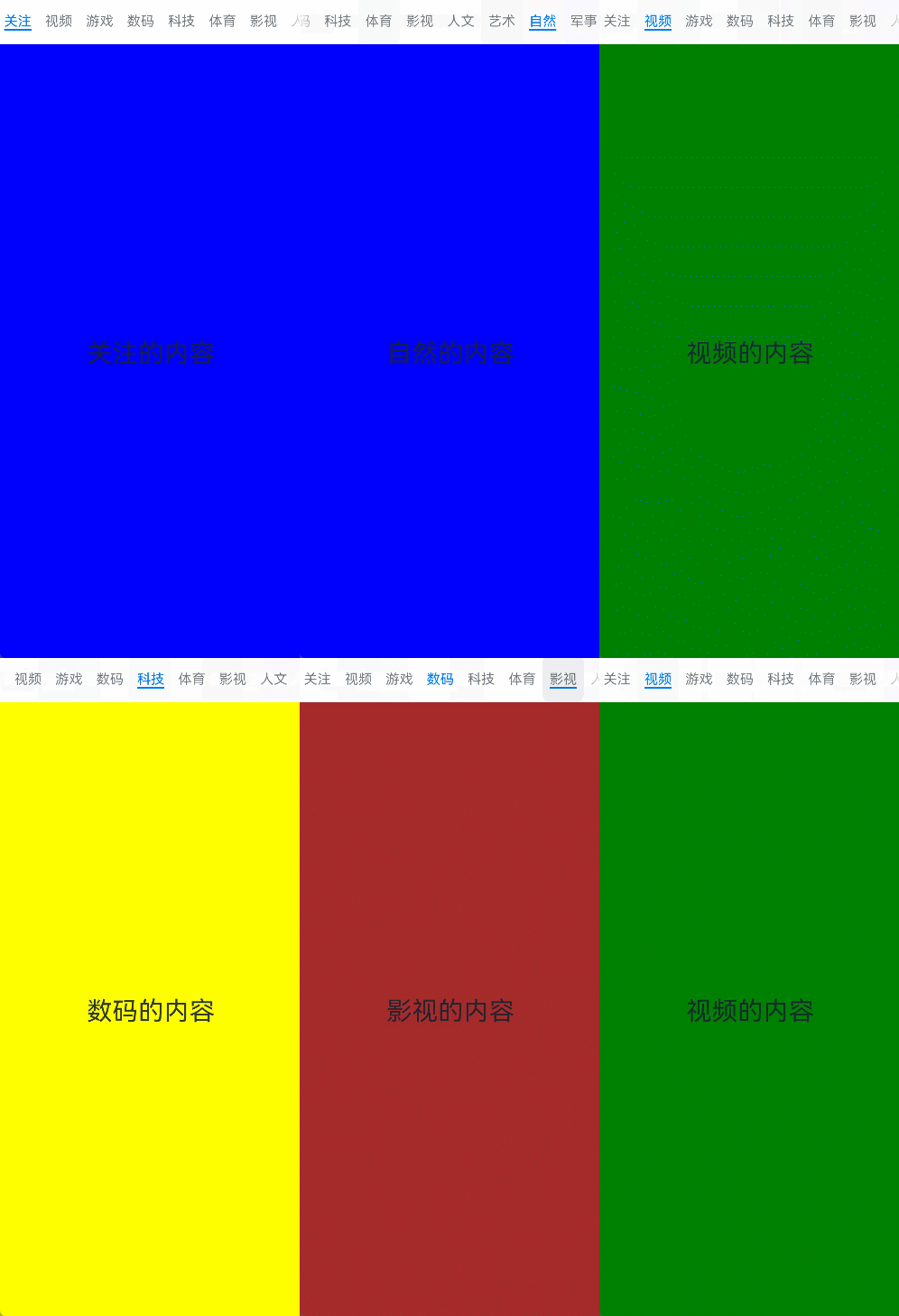
自定义导航栏
对于底部导航栏,一般作为应用主页面功能区分,为了更好的用户体验,会组合文字以及对应语义图标表示页签内容,这种情况下,需要自定义导航页签的样式。
设置自定义导航栏需要使用tabBar的参数,以其支持的CustomBuilder的方式传入自定义的函数组件样式
自定义导航栏:
@Builder tabBuilder(title: string, targetIndex: number, selectedImg: Resource, normalImg: Resource) {
  Column() {
    Image(this.currentIndex === targetIndex ? selectedImg : normalImg)
      .size({ width: 25, height: 25 })
    Text(title)
      .fontColor(this.currentIndex === targetIndex ? '#1698CE' : '#6B6B6B')
  }
  .width('100%')
  .height(50)
  .justifyContent(FlexAlign.Center)
}
在TabContent对应tabBar属性中传入自定义函数组件,并传递相应的参数。
TabContent() {
  Column(){
    Text('我的内容')
  }
  .width('100%')
  .height('100%')
  .backgroundColor('#007DFF')
}
.tabBar(this.tabBuilder('我的', 0, $r('app.media.mine_selected'), $r('app.media.mine_normal')))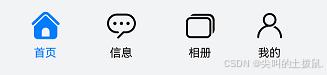
切换至指定页签
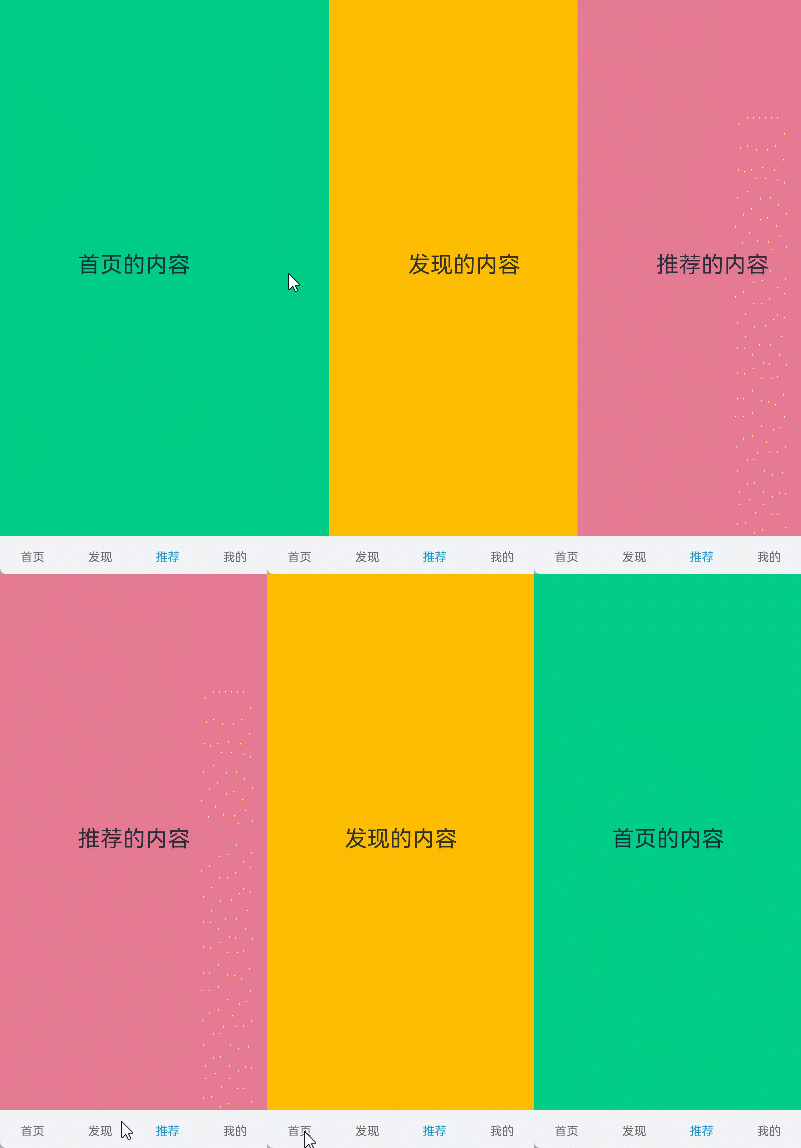
在不使用自定义导航栏时,默认的Tabs会实现切换逻辑。在使用了自定义导航栏后,默认的Tabs仅实现滑动内容页和点击页签时内容页的切换逻辑,页签切换逻辑需要自行实现。即用户滑动内容页和点击页签时,页签栏需要同步切换至内容页对应的页签。
内容页和页签不联动:
此时需要使用Tabs提供的onChange事件方法,监听索引index的变化,并将当前活跃的index值传递给currentIndex,实现页签的切换。
@Entry
@Component
struct TabsExample1 {
  @State currentIndex: number = 2

  @Builder tabBuilder(title: string, targetIndex: number) {
    Column() {
      Text(title)
        .fontColor(this.currentIndex === targetIndex ? '#1698CE' : '#6B6B6B')
    }
  }

  build() {
    Column() {
      Tabs({ barPosition: BarPosition.End }) {
        TabContent() {
          ...
        }.tabBar(this.tabBuilder('首页', 0))

        TabContent() {
          ...
        }.tabBar(this.tabBuilder('发现', 1))

        TabContent() {
          ...
        }.tabBar(this.tabBuilder('推荐', 2))

        TabContent() {
          ...
        }.tabBar(this.tabBuilder('我的', 3))
      }
      .animationDuration(0)
      .backgroundColor('#F1F3F5')
      .onChange((index: number) => {
        this.currentIndex = index
      })
    }.width('100%')
  }
}
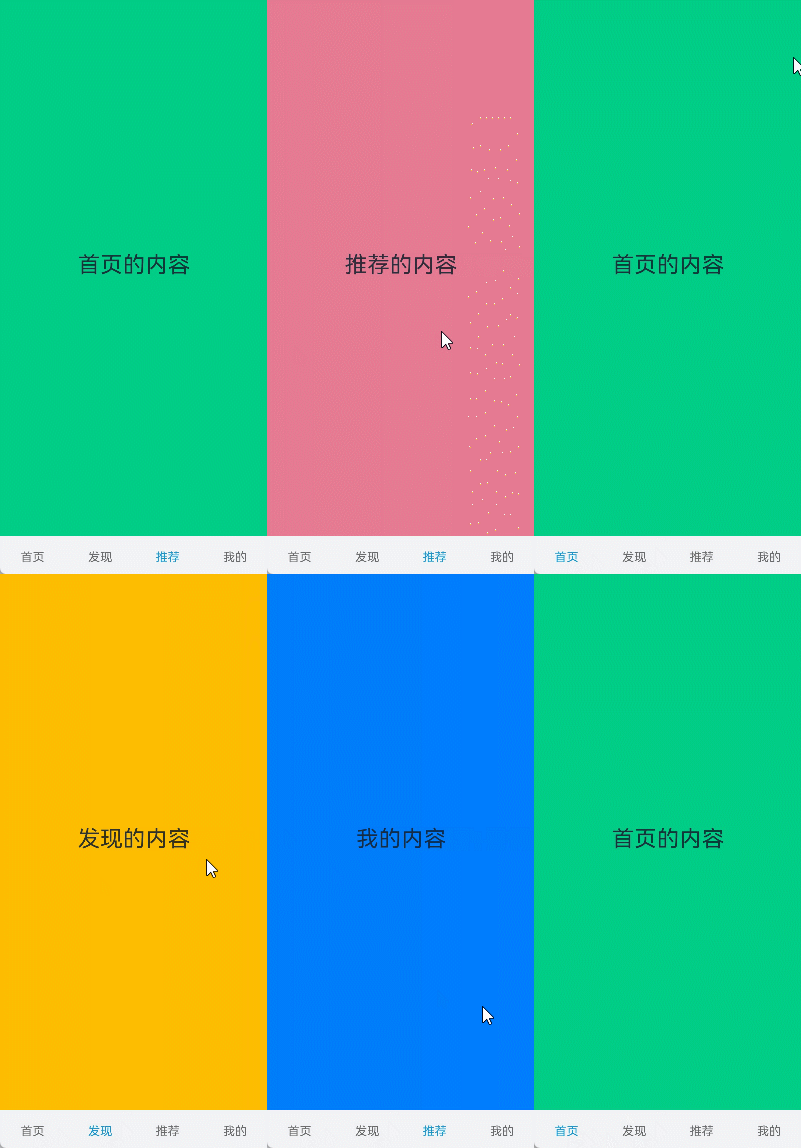
内容页和页签联动:
@State currentIndex: number = 2
private controller: TabsController = new TabsController()

Tabs({ barPosition: BarPosition.End, index: this.currentIndex, controller: this.controller }) {
  ...
}
.height(600)
.onChange((index: number) => {
   this.currentIndex = index
})

Button('动态修改index').width('50%').margin({ top: 20 })
  .onClick(()=>{
    this.currentIndex = (this.currentIndex + 1) % 4
})

Button('changeIndex').width('50%').margin({ top: 20 })
  .onClick(()=>{
    let index = (this.currentIndex + 1) % 4
    this.controller.changeIndex(index)
})
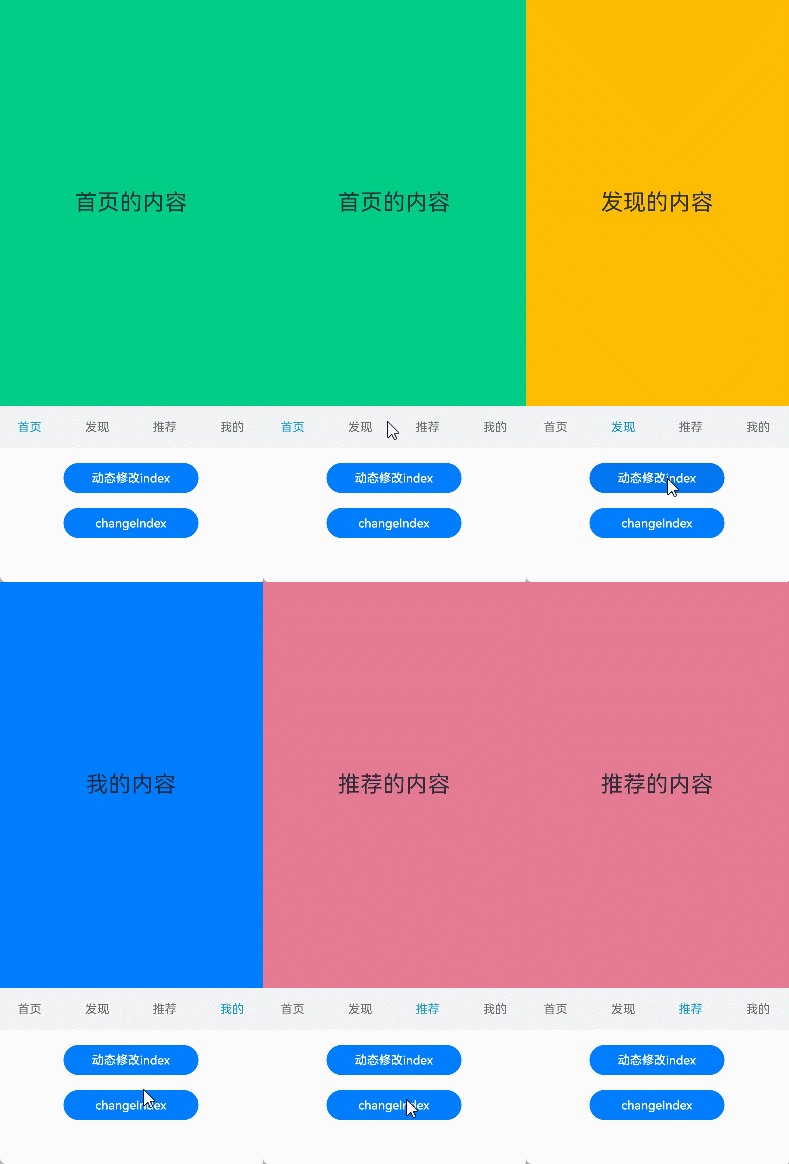
切换指定页签:
Tabs({ barPosition: BarPosition.End, controller: this.controller, index: this.currentIndex }) {...}
.onContentWillChange((currentIndex, comingIndex) => {
  if (comingIndex == 2) {
    return false
  }
  return true
})

讨论HarmonyOS开发技术,专注于API与组件、DevEco Studio、测试、元服务和应用上架分发等。
更多推荐


 25
25 0
0- 0


 已为社区贡献4条内容

所有评论(0)