HarmonyOS Next->鸿蒙修仙传之我要录音 -> AvRecorder
2. 麦克风权限是用户级权限,需要向用户申请,可以用上篇封装的请求权限工具发起申请。循环30个柱子,高度参差不齐,随着振幅变。绑定对应的事件分别调用录音和结束录音。
·
效果图:
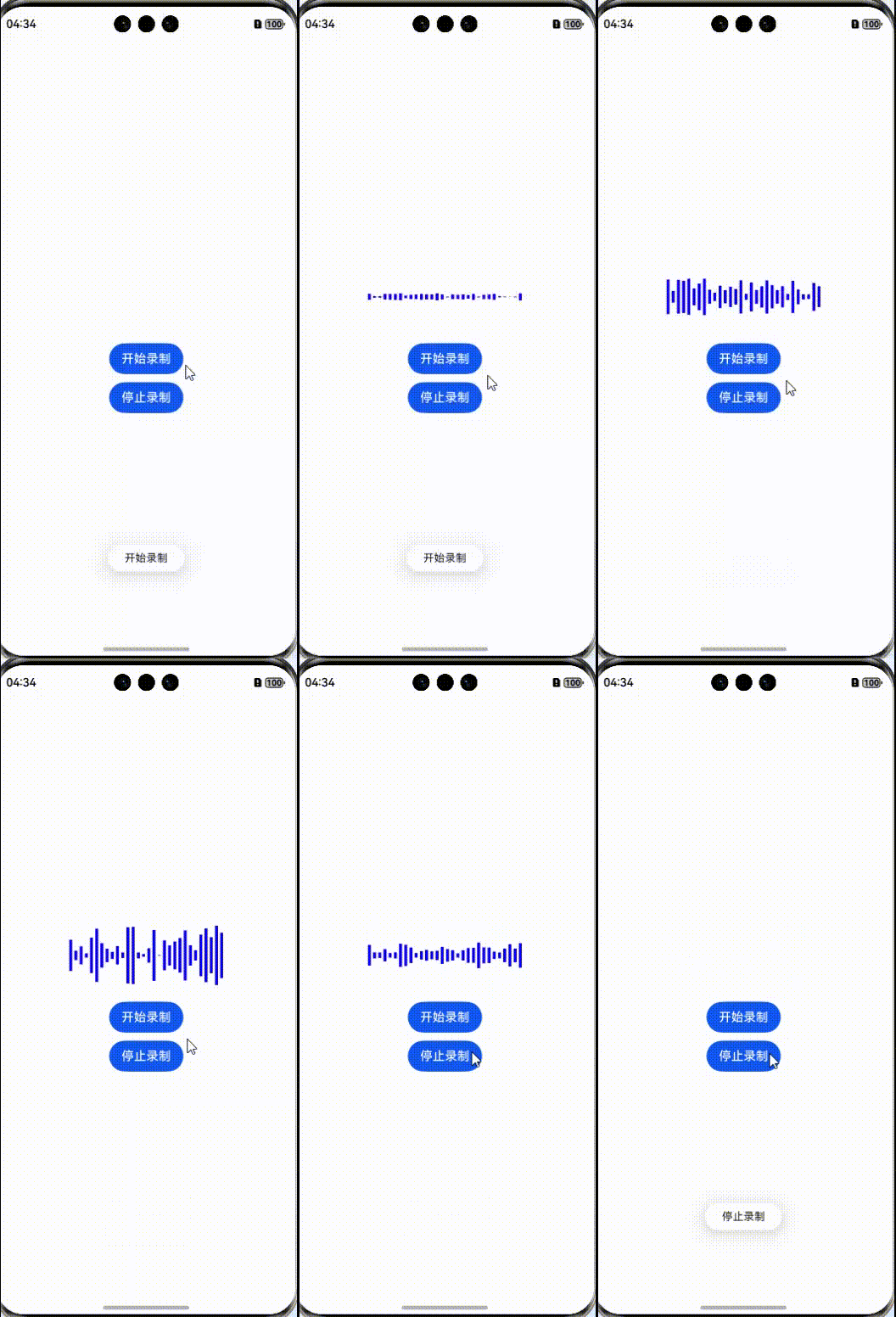
要想录音,得开启录音权限副本:
1. 在module.json5里配置麦克风权限:
"requestPermissions": [
      {
        "name": "ohos.permission.MICROPHONE",
        "usedScene": {},
        "reason": "$string:MICROPHONE_use_reason"
      }
]
2. 麦克风权限是用户级权限,需要向用户申请,可以用上篇封装的请求权限工具发起申请。
开启/关闭录音要借助音频工具:AVRecorder
/**
  * 开始录音
 */
async startRecord() {
    // 创建音频接收对象
    const avRecorder = await media.createAVRecorder()
    const ctx = getContext(this) // 获取上下文
    const filePath = ctx.filesDir + '/' + Date.now() + '.m4a' // 创建文件路径
    const file = fileIo.openSync(filePath, fileIo.OpenMode.CREATE | fileIo.OpenMode.READ_WRITE) // 打开或创建文件
    this.fd = file.fd // 存到全局
    // 创建音频配置
    const avConfig: media.AVRecorderConfig = {
      audioSourceType: media.AudioSourceType.AUDIO_SOURCE_TYPE_MIC, // 音频输入源设置为麦克风
      profile: {
        audioBitrate: 100000, // 音频比特率
        audioChannels: 2, // 音频声道数
        audioCodec: media.CodecMimeType.AUDIO_AAC, // 音频编码格式,当前支持ACC,MP3,G711MU
        audioSampleRate: 48000, // 音频采样率
        fileFormat: media.ContainerFormatType.CFT_MPEG_4A, // 封装格式,当前支持MP4,M4A,MP3,WAV
      },
      url: `fd://${file.fd}`, // 参考应用文件访问与管理中的开发示例获取创建的音频文件fd填入此处
    }
    // 准备录音
    await avRecorder.prepare(avConfig)
    // 开始录音
    await avRecorder.start()
    // 把音频对象存到全局存到全局
    this.avRecorder = avRecorder

    // 持续监听声音的振幅
    this.timerId = setInterval(async () => {
      const res = await avRecorder.getAudioCapturerMaxAmplitude() // 获取声音振幅>数字
      this.maxAmplitude = res // 赋值到全局
    }, 100)
  }
/**
  * 结束录音
 */
async stopRecord() {
    if (this.avRecorder) {
      await this.avRecorder.stop() // 停止录音
      await this.avRecorder.release() // 释放资源
      fileIo.closeSync(this.fd) // 关闭文件
      clearInterval(this.timerId) // 清除定时器
      this.maxAmplitude = 0 // 重置振幅
    }
}
绑定对应的事件分别调用录音和结束录音
振幅拿到了,现在要给它动态展示出来:
循环30个柱子,高度参差不齐,随着振幅变 -> 监听振幅,计算高度
// AudioBoComp组件

@Component
export struct AudioBoComp {
  @Prop @Watch('onChange') maxAmplitude: number // 振幅
  @State per: number = 0 // 高
  onChange() {
    // 过渡
    animateTo({ duration: 100 }, () => {
      if (this.maxAmplitude < 500) { // 500以下高度为零
        this.per = 0
      } else if (this.maxAmplitude > 30000) { // 30000以上高度为1
        this.per = 1
      } else { // 高度为振幅比最大高
        this.per = this.maxAmplitude / 30000
      }
    })
  }

  build() {
    Row({ space: 5 }) {
      // 循环30个柱子
      ForEach(Array.from({ length: 30 }), () => {
        Column()
          .layoutWeight(1)
          .height(this.per * 100 * Math.random()) // 高度按振幅 随机 这样才参差不齐
          .backgroundColor('#ff08a9be')
      })
    }
    .width('100%')
    .height(100)
  }
}
我们把它封装成一个组件吧,以后还能直接用
AudioBoComp({maxAmplitude: this.maxAmplitude})把振幅穿过去
整体代码:
录音页:
import { Permissions } from '@kit.AbilityKit';
import { permission } from '../utils'; // 上篇封装的权限工具
import { promptAction, router } from '@kit.ArkUI';
import { media } from '@kit.MediaKit';
import { fileIo } from '@kit.CoreFileKit';
import { AudioBoComp } from '../components'; // 波动组件

@Entry
@Component
struct AudioPage {
  // 1. 权限列表
  permissions: Permissions[] = ['ohos.permission.MICROPHONE']
  confirmConfig:  promptAction.ShowDialogOptions = {
    title: "温馨提示",
    message: "未授权使用麦克风将无法使用该面试录音功能,是否前往设置进行授权?",
    buttons: [
      { text: '离开', color: '#ccc' },
      { text: '去授权', color: $r('app.color.black') }
    ]
  } // 弹窗配置

  // 2. 音频接收对象
  avRecorder?: media.AVRecorder
  // 3. 写入的文件fd
  fd?: number
  // 4. 记录声音的振幅
  @State maxAmplitude: number = 0
  timerId = 0 // 定时器id

  async aboutToAppear() {
    // 进入改页面时,获取权限
    this.getPermission()
  }

  /**
   * 获取麦克风权限
   */
  async getPermission(){
    try {
      // 1. 第一次拉起授权
      const isOk1 = await permission.requestPermission(this.permissions)
      if(isOk1) return
      // 2. 弹窗再次确认
      const res = await promptAction.showDialog(this.confirmConfig)
      if(res.index === 1){
        // 3. 二次授权
        const isOk2 = await permission.permissionSetting(this.permissions)
        if(isOk2) return
      }
      // 授权都不通过,退出该页面
      router.back()
    } catch (e) {
      promptAction.showToast({message: '用户授权出现问题'})
      router.back()
    }
  }

  /**
   * 开始录音
   */
  async startRecord(){
    // 创建音频接收对象
    const avRecorder = await media.createAVRecorder()
    const ctx = getContext(this) // 获取上下文
    const filePath = ctx.filesDir + '/' + Date.now() + '.m4a' // 创建文件路径
    const file = fileIo.openSync(filePath, fileIo.OpenMode.CREATE | fileIo.OpenMode.READ_WRITE) // 打开或创建文件
    this.fd = file.fd // 存到全局
    // 创建音频配置
    const avConfig: media.AVRecorderConfig = {
      audioSourceType: media.AudioSourceType.AUDIO_SOURCE_TYPE_MIC, // 音频输入源设置为麦克风
      profile: {
        audioBitrate: 100000, // 音频比特率
        audioChannels: 2, // 音频声道数
        audioCodec: media.CodecMimeType.AUDIO_AAC, // 音频编码格式,当前支持ACC,MP3,G711MU
        audioSampleRate: 48000, // 音频采样率
        fileFormat: media.ContainerFormatType.CFT_MPEG_4A, // 封装格式,当前支持MP4,M4A,MP3,WAV
      },
      url: `fd://${file.fd}`, // 参考应用文件访问与管理中的开发示例获取创建的音频文件fd填入此处
    }
    // 准备录音
    await avRecorder.prepare(avConfig)
    // 开始录音
    await avRecorder.start()
    // 把音频对象存到全局存到全局
    this.avRecorder = avRecorder

    // 持续监听声音的振幅
    this.timerId = setInterval(async ()=>{
      const res = await avRecorder.getAudioCapturerMaxAmplitude() // 获取声音振幅
      this.maxAmplitude = res // 赋值到全局
    }, 100)
  }
  /**
   * 结束录音
   */
  async stopRecord(){
    if (this.avRecorder) {
      await this.avRecorder.stop() // 停止录音
      await this.avRecorder.release() // 释放资源
      fileIo.closeSync(this.fd) // 关闭文件
      clearInterval(this.timerId) // 清除定时器
      this.maxAmplitude = 0 // 重置振幅
    }
  }

  build() {
    Column({space: 5}){
      AudioBoComp({maxAmplitude: this.maxAmplitude})
      Button('开始录音')
        .onClick(()=>{
          this.startRecord()
        })
      Button('结束录音')
        .onClick(()=>{
          this.stopRecord()
        })
    }
    .justifyContent(FlexAlign.Center)
    .height('100%')
    .width('100%')
  }
}
振幅组件:
@Component
export struct AudioBoComp {
  @Prop @Watch('onChange') maxAmplitude: number // 振幅
  @State per: number = 0 // 高
  onChange() {
    // 过渡
    animateTo({ duration: 100 }, () => {
      if (this.maxAmplitude < 500) { // 500以下高度为零
        this.per = 0
      } else if (this.maxAmplitude > 30000) { // 30000以上高度为1
        this.per = 1
      } else { // 高度为振幅比最大高
        this.per = this.maxAmplitude / 30000
      }
    })
  }

  build() {
    Row({ space: 5 }) {
      // 循环30个柱子
      ForEach(Array.from({ length: 30 }), () => {
        Column()
          .layoutWeight(1)
          .height(this.per * 100 * Math.random()) // 高度按振幅 随机 这样才参差不齐
          .backgroundColor('#ff08a9be')
      })
    }
    .width('100%')
    .height(100)
  }
}
权限工具:
import { abilityAccessCtrl, Permissions } from '@kit.AbilityKit'

class Permission {
  // 申请权限
  async requestPermission(permissions: Permissions[]) {
    // 1. 创建权限管理对象
    const atManager = abilityAccessCtrl.createAtManager()
    // 2. 弹窗授权窗口
    const ctx = AppStorage.get<Context>('context')
    if (ctx) {
      const res =  await atManager.requestPermissionsFromUser(ctx, permissions)
      // 3. 判断用户是否授权
      const flag = res.authResults.every(item => item === abilityAccessCtrl.GrantStatus.PERMISSION_GRANTED )
      return flag
    } else {
      return false
    }
  }

  // 二次申请
  async permissionSetting(permissions: Permissions[]) {
    const atManager = abilityAccessCtrl.createAtManager()
    const ctx = AppStorage.get<Context>('context')
    if (ctx) {
      const res = await atManager.requestPermissionOnSetting(ctx, permissions)
      const flag = res.every(item => item === abilityAccessCtrl.GrantStatus.PERMISSION_GRANTED)
      return flag
    }
    return false
  }
}

export const permission = new Permission()
天选之人


讨论HarmonyOS开发技术,专注于API与组件、DevEco Studio、测试、元服务和应用上架分发等。
更多推荐

 47
47 0
0- 0


 已为社区贡献3条内容

所有评论(0)