【鸿蒙版-钓鱼云助手】第二章:使用ArkUI首页大布局
窗外,秋雨淅淅沥沥。我的咖啡杯冒着热气,屏幕上,是那张再熟悉不过的“钓鱼云助手”的首页。但这一次,它即将在一个全新的世界——鸿蒙里,获得生命。
在上一篇文章中,我们成功创建了第一个鸿蒙项目,看到了那个经典的Hello World。今天,我们要让这个简单的起点,蜕变成钓鱼云助手的第一个界面。
技术选型:为什么选择ArkUI?
在开始编码前,我需要理解鸿蒙的UI框架。ArkUI提供了两种开发范式:
先让我们一起看一下官方的介绍:
基本概念
- UI: 即用户界面。开发者可以将应用的用户界面设计为多个功能页面NavDestination,页面通过栈结构管理,并通过导航容器Navigation完成页面间的调度管理如跳转、回退等操作,以实现应用内的功能解耦。
- 组件: UI构建与显示的最小单位,如列表、网格、按钮、单选框、进度条、文本等。开发者通过多种组件的组合,构建出满足自身应用诉求的完整界面。
两种开发范式
针对不同的应用场景及技术背景,方舟UI框架提供了两种开发范式,分别是基于ArkTS的声明式开发范式(简称“声明式开发范式”)和兼容JS的类Web开发范式(简称“类Web开发范式”)。
- 声明式开发范式:采用基于TypeScript声明式UI语法扩展而来的ArkTS语言,从组件、动画和状态管理三个维度提供UI绘制能力。
- 类Web开发范式:采用经典的HML、CSS、JavaScript三段式开发方式,即使用HML标签文件搭建布局、使用CSS文件描述样式、使用JavaScript文件处理逻辑。该范式更符合于Web前端开发者的使用习惯,便于快速将已有的Web应用改造成方舟UI框架应用。
在开发一款新应用时,推荐采用声明式开发范式来构建UI,主要基于以下几点考虑:
-
开发效率: 声明式开发范式更接近自然语义的编程方式,开发者可以直观地描述UI,无需关心如何实现UI绘制和渲染,开发高效简洁。
-
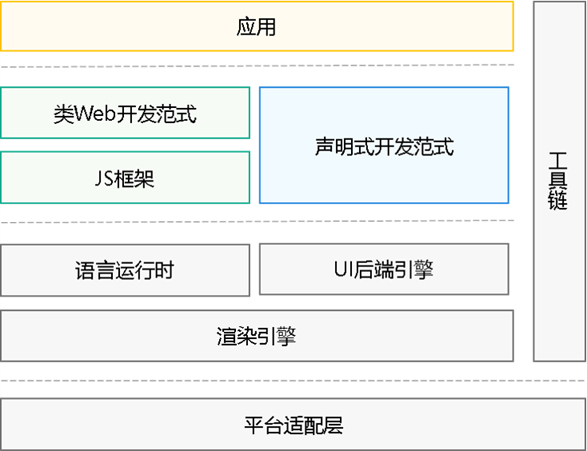
应用性能: 如下图所示,两种开发范式的UI后端引擎和语言运行时是共用的,但是相比类Web开发范式,声明式开发范式无需JS框架进行页面DOM管理,渲染更新链路更为精简,占用内存更少,应用性能更佳。
-
发展趋势:声明式开发范式后续会作为主推的开发范式持续演进,为开发者提供更丰富、更强大的能力。
图为方舟UI框架示意图
我选择了声明式开发范式,因为它更符合现代前端开发趋势,类型安全,性能更好。
实战开始:搭建首页框架
首先看下我们首页的效果图:

主要分为以下几块:
- 当前位置和搜索
- 轮播图区域
- 金刚区-功能菜单
- 活动运营区域
- 钓点信息流
在fishing/src/main/ets/pages/Index.ets中,我们开始构建完整的首页。
- 首先我们先定义一下Mock的数据
@Entry
@Component
struct Index {
  @State location: string = '杭州市';
  @State searchText: string = '';
  @State carousels: Array<Carousel> = [
    { id: 1, title: '钓鱼云助手', subTitle: '钓鱼人的好帮手', image: 'https://image.xiaoxiaofeng.site/blog/image/2025/10/09/xxf-20251009230434.png?xiaoxiaofeng', link: '' },
    { id: 1, title: '发现身边绝佳钓位', subTitle: '全网钓友实时分享', image: 'https://image.xiaoxiaofeng.site/blog/image/2025/10/09/xxf-20251009223419.png?xiaoxiaofeng', link: '' }
  ]
  // 金刚区-功能菜单
  @State menuItems: Array<MenuItem> = [
    { id: 1, title: '钓点地图', icon: $r('app.media.diaodian') },
    { id: 2, title: '鱼情预测', icon: $r('app.media.yuqing') },
    { id: 3, title: '活动报名', icon: $r('app.media.huodong') },
    { id: 4, title: '我的发布', icon: $r('app.media.fabu') },
    { id: 5, title: '高手秘籍', icon: $r('app.media.zhinan') }
  ]
  // 热门钓点信息流
  @State frequentlyPlaces: Array<FishingSpot> = [
    {
      id: '1',
      name: '太湖钓鱼场',
      distance: '2.5km',
      status: '最近一小时有人上鱼',
      imageUrl: 'https://image.xiaoxiaofeng.site/blog/image/2025/10/09/xxf-20251009223419.png?xiaoxiaofeng'
    },
    {
      id: '2',
      name: '西湖垂钓区',
      distance: '5.8km',
      status: '环境优美,设施完善',
      imageUrl: 'https://image.xiaoxiaofeng.site/blog/image/2025/10/09/xxf-20251009223419.png?xiaoxiaofeng'
    }
  ];
}
其中使用了3个对象类型,我们也需要定义下:
interface Carousel {
  id: number;
  title: string;
  subTitle: string;
  image: string;
  link: string;
}

interface FishingSpot {
  id: string
  name: string;
  distance: string;
  status: string;
  imageUrl: string;
}

interface MenuItem {
  id: number;
  title: string;
  icon: Resource;
}
- 然后我们创建页面布局,这里主要包括:定位和搜索框、轮播图区域、金刚区-功能菜单、钓点列表、底部导航栏6个组件。
build() {
    Column() {
      // 可滚动内容区域
      Scroll() {
        Column() {
          // 定位和搜索框
          LocationAndSearch({
            location: this.location,
            searchText: this.searchText
          })

          // 轮播图
          PromotionSection({
            carousels: this.carousels
          })

          // 功能入口
          FeaturesSection({
            menuItems: this.menuItems
          })

          // 活动横幅
          ActivityBanner()

          // 常去钓点列表
          FishingSpotList({
            frequentlyPlaces: this.frequentlyPlaces
          })
        }
      }
      .flexGrow(1)
      .width('100%')

      // 底部导航栏,固定在底部
      BottomNavigation()
    }
    .height('100%')
    .backgroundColor('#f9f9f9')
    .direction(Direction.Auto)
  }
核心组件详解:逐个击破
1. 搜索框组件
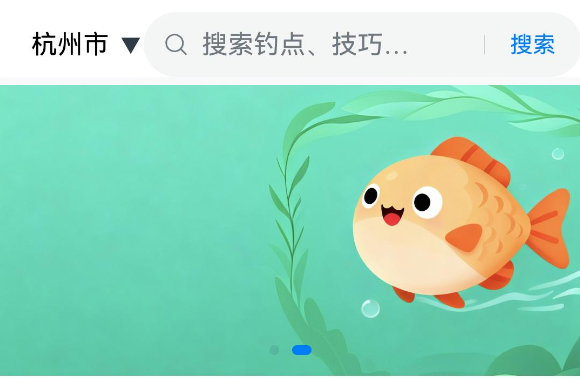
这里我必须吐槽一下自己开始的“傻乎乎”行为,开始无脑的自己一阵手敲,敲了一堆屎山,但是搜索框的样式是越调越丑,整个人都快崩溃。后来一拍脑袋,为啥不用ArkUI的样式,于是乎,官网社区一顿搜,直接使用Search组件,复制粘贴,瞬间代码简洁,页面清爽。
使用前(我的屎山样式):

使用后(官方Search组件):

// 定位和搜索框组件
@Component
struct LocationAndSearch {
  private location: string = '当前位置';
  private searchText: string = '';

  build() {
    Column() {
      Row() {
        // 位置信息区域(左)
        Row() {
          Text(this.location)
            .fontSize(16)
            .fontColor('#000')
          Text('▼')
            .width(16)
            .height(16)
            .margin({ left: 5 })
        }
        .margin({ left: 20 })
        .flexShrink(0)

        // 搜索区域(右)
        Row() {
          Search({ placeholder: '搜索钓点、技巧、钓友...' })
            .searchButton('搜索')
            .width('100%')
        }
        .layoutWeight(1)
      }
      .width('100%')
      .height(40)
      .margin({top: 5, bottom: 5})
      .alignItems(VerticalAlign.Center)
      .justifyContent(FlexAlign.SpaceBetween) // 关键布局属性
      .backgroundColor('#fff')
    }
  }
}
教训:不要重复造轮子! 先看看鸿蒙给我们提供了什么好用的“现成轮子”。
2. 轮播图区域
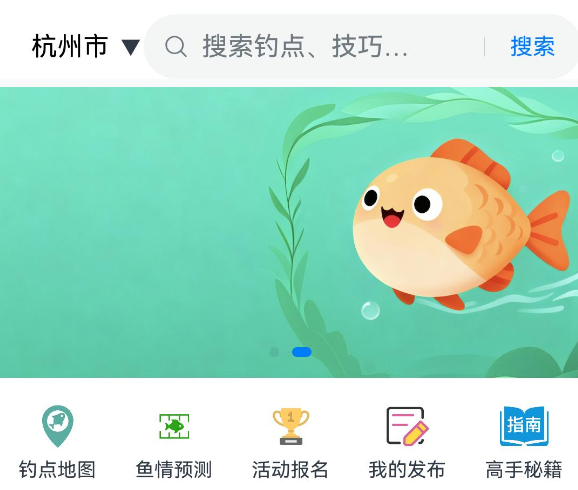
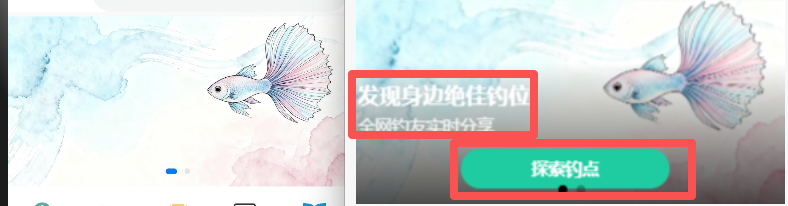
轮播图这次学乖了,直接使用Swiper组件。这里只是简单的实现了轮播图的占位功能,如何在轮播图上展示文字,展示按钮等功能,后续会在轮播图细节调整一文中详细讲解。
Swiper 组件自带手势滑动和自动轮播效果,我们几乎没写什么代码,一个漂亮的轮播图就完成了。这就是框架的魅力!
// 轮播图组件
@Component
struct PromotionSection {
  @Prop carousels: Carousel[];
  build() {
    Column() {
      Swiper() {
        ForEach(this.carousels, (item: Carousel) => {
          Image(item.image)
        })
      }
      .indicator(true)
      .width('100%')
    }
  }
}
3. 功能菜单(金刚区)- 平均分配的网格
这里我们用 Row 配合 FlexAlign.SpaceAround 来实现五个图标的等间距分布。
// 功能入口组件
@Component
struct FeaturesSection {
  @Prop menuItems: MenuItem[];
  build() {
    Column() {
      Row() {
        ForEach(this.menuItems, (item: MenuItem) => {
          FeatureItem({
            icon: item.icon,
            title: item.title
          })
        }, (item: FishingSpot) => item.id)
      }
      .width('100%')
      .justifyContent(FlexAlign.SpaceAround)
      .padding({ top: 15, bottom: 10 })
      .backgroundColor('#fff')
    }
  }
}

// 每个功能小图标的组件
@Component
struct FeatureItem {
  @Prop icon: Resource;
  @Prop title: string ;

  constructor(icon: any, title: string) {
    super();
    this.icon = icon;
    this.title = title;
  }

  build() {
    Column() {
      Stack() {
        Image(this.icon)
          .width(30)
          .height(30)
      }

      Text(this.title)
        .fontSize(12)
        .margin({ top: 5 })
    }
    .alignItems(HorizontalAlign.Center)
  }
}
4. 运营区域组件
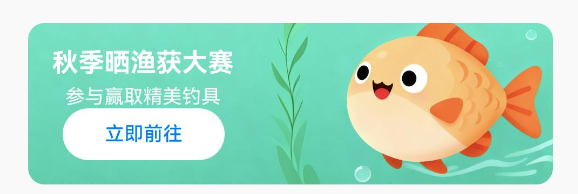
这个组件通过 Row、Column、Text、Image 的组合来呈现信息。关键在于布局和样式的调整。
使用了 backgroundImage 设置背景图,让视觉更突出。
(这是之前的样式,图片没有展示完整)
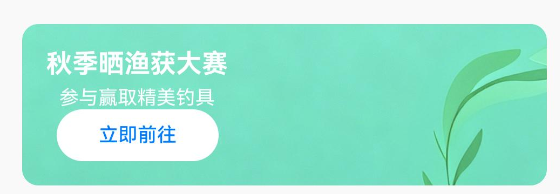
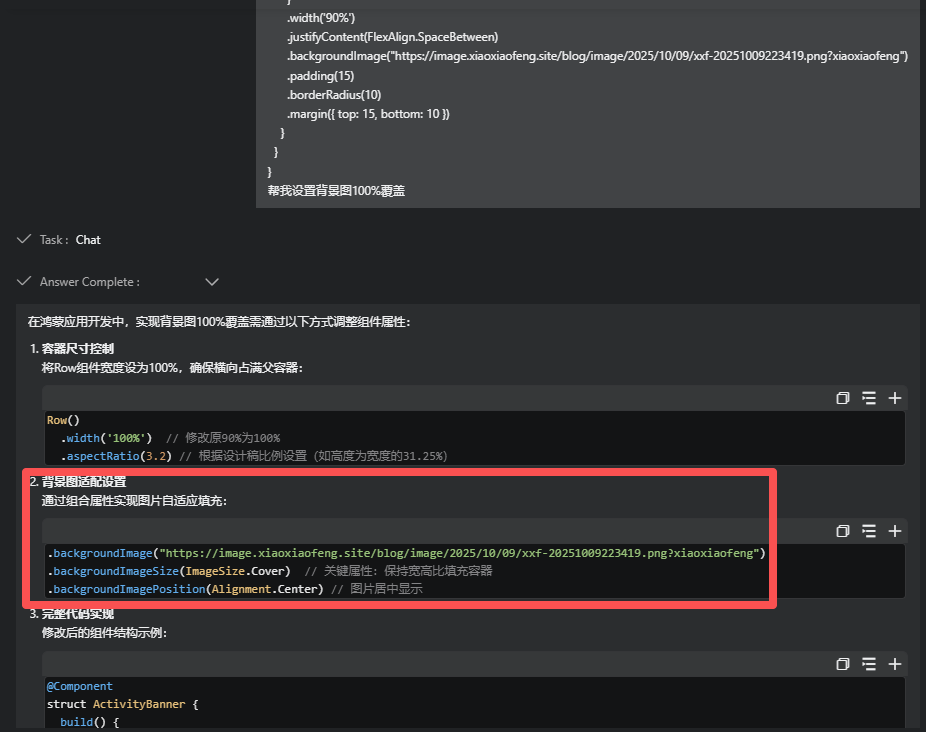
然后,我求助了CodeGenie。它给我的核心的修改代码,如下图所示:
(这是调整后的样式,满意度拉满)
// 运营区域组件
@Component
struct ActivityBanner {
  build() {
    Column() {
      Row() {
        Column() {
          Text('秋季晒渔获大赛')
            .fontSize(16)
            .fontWeight(FontWeight.Bold)
            .fontColor('#fff')
          Text('参与赢取精美钓具')
            .fontSize(12)
            .fontColor('#fff')
            .margin({ top: 5 })
          Button('立即前往', { type: ButtonType.Capsule })
            .width(100)
            .height(32)
            .fontSize(12)
            .fontColor('#007dff')
            .backgroundColor('#fff')
        }
      }
      .width('90%')
      .justifyContent(FlexAlign.SpaceBetween)
      .backgroundImage("https://image.xiaoxiaofeng.site/blog/image/2025/10/09/xxf-20251009223419.png?xiaoxiaofeng")
      .padding(15)
      .borderRadius(10)
      .margin({ top: 15, bottom: 10 })
    }
  }
}
5. 钓点列表组件
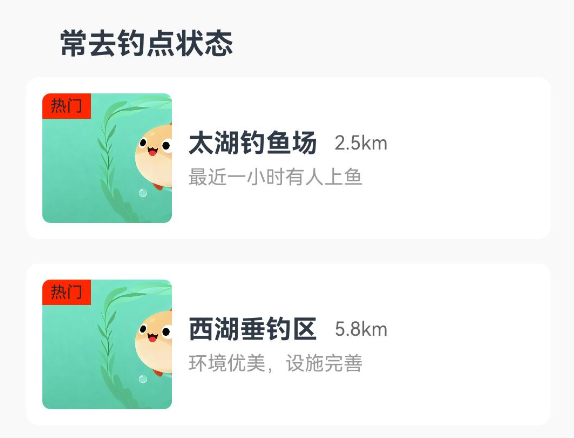
使用了 List 和 ListItem 组件,这是鸿蒙中呈现长列表的推荐方式,性能更好。每个 FishingSpotItem 里还用了 Stack 布局,实现了在图片左上角叠加“热门”标签的效果。
ps: 样式后续文章调整细节统一处理吧
// 钓点列表
@Component
struct FishingSpotList {
  @Prop frequentlyPlaces: FishingSpot[];

  build() {
    Column() {
      Text('常去钓点状态')
        .fontSize(18)
        .fontWeight(FontWeight.Bold)
        .padding({ top: 20, bottom: 10, left: 20 })
        .alignSelf(ItemAlign.Start)
      List({
        space: 15
      }) {
        ForEach(this.frequentlyPlaces, (item: FishingSpot) => {
          ListItem() {
            FishingSpotItem({
              name: item.name,
              distance: item.distance,
              status: item.status,
              imageUrl: item.imageUrl
            })
          }
        }, (item: FishingSpot) => item.id)
      }
      .width('90%')
      .height(250)
    }
  }
}

// 钓鱼点项组件
@Component
struct FishingSpotItem {
  private name: string = '';
  private distance: string = '';
  private status: string = '';
  private imageUrl: string = '';

  build() {
    Row() {
      Stack() {
        Image(this.imageUrl)
          .width(80)
          .height(80)
          .borderRadius(5)
        Row() {
          Text('热门')
            .fontSize(10)
        }
        .position({ x: 0, y: 0 })
        .backgroundColor('#ff4500')
        .padding({
          left: 5,
          right: 5,
          top: 2,
          bottom: 2
        })
        .borderRadius({ topLeft: 5 })
      }

      Column() {
        Row() {
          Text(this.name)
            .fontSize(16)
            .fontWeight(FontWeight.Bold)
          Text(this.distance)
            .fontSize(12)
            .fontColor('#666')
            .margin({ left: 10 })
        }

        Text(this.status)
          .fontSize(12)
          .fontColor('#999')
          .margin({ top: 5 })
      }
      .margin({ left: 10 })
      .alignItems(HorizontalAlign.Start)
    }
    .width('100%')
    .padding(10)
    .backgroundColor('#fff')
    .borderRadius(8)
    .shadow({ radius: 2, color: '#0000001A' })
  }
}
6. 底部导航栏组件
目前,底部导航栏还有个bug,就是文字没有展示出来,好像是高度不够,暂时没有找到什么原因。后面看看把底部导航抽成通用的功能,使用tab组件试试是否可以解决,暂时留坑。
// 底部导航栏组件
@Component
struct BottomNavigation {
  build() {
    Row() {
      NavItem({
        icon: $r('app.media.tab1'),
        title: '首页',
        isActive: true
      })
      NavItem({
        icon: $r('app.media.tab2'),
        title: '钓点',
        isActive: false
      })
      NavItem({
        icon: $r('app.media.tab3'),
        title: '渔获',
        isActive: false
      })
      NavItem({
        icon: $r('app.media.tab4'),
        title: '我的',
        isActive: false
      })
    }
    .width('100%')
    .height(20)
    .backgroundColor('#fff')
    .justifyContent(FlexAlign.SpaceAround)
    .shadow({ radius: 5, color: '#0000001A', offsetY: -2 })
  }
}

// 导航项组件
@Component
struct NavItem {
  private icon: Resource = $r('app.media.tab1');
  private title: string = '';
  private isActive: boolean = false;

  build() {
    Column() {
      Image(this.icon)
        .width(24)
        .height(24)
      Text(this.title)
        .fontSize(12)
        .fontColor(this.isActive ? '#00bfff' : '#666')
        .margin({ top: 5 })
    }
    .alignItems(HorizontalAlign.Center)
    .justifyContent(FlexAlign.Center)
    .height('100%')
  }
}
效果一览
最后让我们一起看一下现在的效果图吧。

整体的布局已定,但是各块的样式还待优化。后续文章我会针对各个组件进行优化调整。
例如,轮播图组件有哪几种模式供我们选择,怎么在图片上添加文字和按钮。
点击金刚区的按钮怎么跳转到对应的页面。
钓点信息流的样式布局优化等等。

讨论HarmonyOS开发技术,专注于API与组件、DevEco Studio、测试、元服务和应用上架分发等。
更多推荐

 23
23 24
24- 0


 已为社区贡献5条内容

所有评论(0)