[IOS]从相册获取图片和视频进行上传
[IOS]从相册获取图片和视频进行上传Demo地址:http://download.csdn.net/detail/u012881779/8821955从相册拿到图片和视频的地址,大概是这个样子,assets-library://asset/asset.MOV?id=02AEC5A4-E20B-4FAA-9B4E-A188DE467CD4&ext=MOV这个地址无法直接用于上传,需
·
[IOS]从相册获取图片和视频进行上传
Demo地址:http://download.csdn.net/detail/u012881779/8821955
从相册拿到图片和视频的地址,大概是这个样子,assets-library://asset/asset.MOV?id=02AEC5A4-E20B-4FAA-9B4E-A188DE467CD4&ext=MOV
这个地址无法直接用于上传,需要先将相册里的图片、视频copy到沙盒里,再使用这个新路径完成上传操作,上传完成后再清空数据即可。
图片比较好处理,可以直接在代理里面获取到数据直接转存,而视频就无法避免前面这个copy操作了。
下面的代码不全仅供参考
先导入框架:AssetsLibrary.framework
#import <AssetsLibrary/AssetsLibrary.h>
#import <AVFoundation/AVFoundation.h>
#import <CoreMedia/CoreMedia.h>
#import <MediaPlayer/MediaPlayer.h>
#import <CommonCrypto/CommonDigest.h>
#import "GMWorkSignTableViewCell.h"
#import "ZYQAssetPickerController.h"

//照片存储路径
#define KOriginalPhotoImagePath   \
[[NSSearchPathForDirectoriesInDomains(NSCachesDirectory, NSUserDomainMask, YES) objectAtIndex:0] stringByAppendingPathComponent:@"PhotoImages"]

//视频存储路径
#define KVideoUrlPath   \
[[NSSearchPathForDirectoriesInDomains(NSCachesDirectory, NSUserDomainMask, YES) objectAtIndex:0] stringByAppendingPathComponent:@"VideoURL"]


@interface GMWorkSignUpViewController : UIViewController<UITableViewDataSource,UITableViewDelegate,UINavigationControllerDelegate,ZYQAssetPickerControllerDelegate,UIScrollViewDelegate,UITextFieldDelegate>

@property (strong, nonatomic)NSDictionary    *valueDict;
@property (weak, nonatomic) IBOutlet UITableView *tableView;
@property (weak, nonatomic) IBOutlet UIScrollView*scrollview;
@property (weak, nonatomic) IBOutlet UIView      *downTableView;
@property (strong, nonatomic) NSMutableArray     *infoDataArr;      //需要填写哪些资料
@property (strong, nonatomic) NSMutableArray     *leftDataArr;      //列表
@property (strong, nonatomic) NSMutableArray     *textFiledMarr;    //存储textfiled
@property (nonatomic) NSInteger uploadPicVideo;

@end

@implementation GMWorkSignUpViewController
//上传图片
- (IBAction)uploadPictureAction:(id)sender {
    _uploadPicVideo = 1;
    ZYQAssetPickerController *picker = [[ZYQAssetPickerController alloc] init];
    picker.maximumNumberOfSelection = 5;
    picker.assetsFilter = [ALAssetsFilter allPhotos];
    picker.showEmptyGroups=NO;
    picker.delegate=self;

    picker.selectionFilter = [NSPredicate predicateWithBlock:^BOOL(id evaluatedObject, NSDictionary *bindings) {
        if ([[(ALAsset*)evaluatedObject valueForProperty:ALAssetPropertyType] isEqual:ALAssetTypeVideo]) {
            NSTimeInterval duration = [[(ALAsset*)evaluatedObject valueForProperty:ALAssetPropertyDuration] doubleValue];
            return duration >= 5;
        } else {
            return YES;
        }
    }];

    [self presentViewController:picker animated:YES completion:NULL];
}

//上传视频
- (IBAction)uploadVideoAction:(id)sender {
    _uploadPicVideo = 2;
    ZYQAssetPickerController *picker = [[ZYQAssetPickerController alloc] init];
    picker.maximumNumberOfSelection = 1;
    picker.assetsFilter = [ALAssetsFilter allVideos];
    picker.showEmptyGroups=NO;
    picker.delegate=self;

    picker.selectionFilter = [NSPredicate predicateWithBlock:^BOOL(id evaluatedObject, NSDictionary *bindings) {
        if ([[(ALAsset*)evaluatedObject valueForProperty:ALAssetPropertyType] isEqual:ALAssetTypeVideo]) {
            NSTimeInterval duration = [[(ALAsset*)evaluatedObject valueForProperty:ALAssetPropertyDuration] doubleValue];
            return duration >= 5;
        } else {
            return YES;
        }
    }];

    [self presentViewController:picker animated:YES completion:NULL];
}
#pragma mark - ZYQAssetPickerController Delegate
-(void)assetPickerController:(ZYQAssetPickerController *)picker didFinishPickingAssets:(NSArray *)assets{
    if(!_leftDataArr){
        _leftDataArr = [[NSMutableArray alloc] init];
    }

    for (int i=0; i<assets.count; i++) {
        ALAsset *asset=assets[i];
        ALAssetRepresentation * representation = asset.defaultRepresentation;

        //图片
        if(_uploadPicVideo == 1){
            UIImage *tempImg=[UIImage imageWithCGImage:representation.fullScreenImage];
            NSString *typeStr = @"图片";
            NSData *data;
            ////不能选择到图片的情况
            if(tempImg == nil){
                tempImg=[UIImage imageWithCGImage:asset.aspectRatioThumbnail];
                if(tempImg==nil){
                    tempImg=[UIImage imageWithCGImage:asset.thumbnail];
                }
                data = UIImageJPEGRepresentation(tempImg, 1);
                NSString* picPath = [NSString stringWithFormat:@"%@/%@",KOriginalPhotoImagePath,representation.filename];
                NSMutableDictionary *objDict = [[NSMutableDictionary alloc] init];
                if(data){
                    [objDict setObject:data forKey:@"header"];
                }
                [objDict setObject:picPath  forKey:@"path"];
                [objDict setObject:typeStr forKey:@"type"];
                [objDict setObject:representation.filename  forKey:@"name"];
                [_leftDataArr addObject:objDict];

                NSFileManager * fileManager = [NSFileManager defaultManager];
                if (![fileManager fileExistsAtPath:KOriginalPhotoImagePath]) {
                    [fileManager createDirectoryAtPath:KOriginalPhotoImagePath withIntermediateDirectories:YES attributes:nil error:nil];
                }
                dispatch_async(dispatch_get_global_queue(DISPATCH_QUEUE_PRIORITY_DEFAULT, 0), ^{
                    NSString * imagePath = [KOriginalPhotoImagePath stringByAppendingPathComponent:representation.filename];
                    [data writeToFile:imagePath atomically:YES];
                    //UI的更新记得放在主线程,要不然等子线程排队过来都不知道什么年代了,会很慢的
                    dispatch_async(dispatch_get_main_queue(), ^{
                        [_tableView reloadData];
                    });
                });
                ////
            }else{
                data = UIImageJPEGRepresentation(tempImg, 1);
                [self imageWithUrl:representation.url withFileName:representation.filename];
                NSString* picPath = [NSString stringWithFormat:@"%@/%@",KOriginalPhotoImagePath,representation.filename];
                NSMutableDictionary *objDict = [[NSMutableDictionary alloc] init];
                if(data){
                    [objDict setObject:data forKey:@"header"];
                }
                [objDict setObject:picPath  forKey:@"path"];
                [objDict setObject:typeStr forKey:@"type"];
                [objDict setObject:representation.filename  forKey:@"name"];
                [_leftDataArr addObject:objDict];
            }

        //视频
        }else if (_uploadPicVideo == 2){
            UIImage *tempImg = [UIImage imageWithCGImage:asset.thumbnail];
            NSString *typeStr = @"视频";
            NSData *data = UIImageJPEGRepresentation(tempImg, 1);
            [self videoWithUrl:representation.url withFileName:representation.filename];

            NSString* picPath = [NSString stringWithFormat:@"%@/%@",KVideoUrlPath,representation.filename];
            NSMutableDictionary *objDict = [[NSMutableDictionary alloc] init];
            if(data){
                [objDict setObject:data forKey:@"header"];
            }
            [objDict setObject:picPath  forKey:@"path"];
            [objDict setObject:typeStr forKey:@"type"];
            [objDict setObject:representation.filename  forKey:@"name"];
            [_leftDataArr addObject:objDict];
        }
    }

    //视频tableview高度
    CGRect downRect = _downTableView.frame;
    downRect.size.height = 37+_leftDataArr.count*91;
    [_downTableView setFrame:downRect];
    [self adapterScrollViewAcion];
}

// 将原始图片的URL转化为NSData数据,写入沙盒
- (void)imageWithUrl:(NSURL *)url withFileName:(NSString *)fileName
{
    // 进这个方法的时候也应该加判断,如果已经转化了的就不要调用这个方法了
    // 如何判断已经转化了,通过是否存在文件路径
    ALAssetsLibrary *assetLibrary = [[ALAssetsLibrary alloc] init];
    // 创建存放原始图的文件夹--->PhotoImages
    NSFileManager * fileManager = [NSFileManager defaultManager];
    if (![fileManager fileExistsAtPath:KOriginalPhotoImagePath]) {
        [fileManager createDirectoryAtPath:KOriginalPhotoImagePath withIntermediateDirectories:YES attributes:nil error:nil];
    }
    dispatch_async(dispatch_get_global_queue(DISPATCH_QUEUE_PRIORITY_DEFAULT, 0), ^{
        if (url) {
            // 主要方法
            [assetLibrary assetForURL:url resultBlock:^(ALAsset *asset) {
                ALAssetRepresentation *rep = [asset defaultRepresentation];
                Byte *buffer = (Byte*)malloc((unsigned long)rep.size);
                NSUInteger buffered = [rep getBytes:buffer fromOffset:0.0 length:((unsigned long)rep.size) error:nil];
                NSData *data = [NSData dataWithBytesNoCopy:buffer length:buffered freeWhenDone:YES];
                NSString * imagePath = [KOriginalPhotoImagePath stringByAppendingPathComponent:fileName];
                [data writeToFile:imagePath atomically:YES];

                // UI的更新记得放在主线程,要不然等子线程排队过来都不知道什么年代了,会很慢的
                dispatch_async(dispatch_get_main_queue(), ^{
                    [_tableView reloadData];
                });
            } failureBlock:nil];
        }
    });
}

// 将原始视频的URL转化为NSData数据,写入沙盒
- (void)videoWithUrl:(NSURL *)url withFileName:(NSString *)fileName
{
    // 解析一下,为什么视频不像图片一样一次性开辟本身大小的内存写入?
    // 想想,如果1个视频有1G多,难道直接开辟1G多的空间大小来写?
    // 创建存放原始图的文件夹--->VideoURL
    NSFileManager * fileManager = [NSFileManager defaultManager];
    if (![fileManager fileExistsAtPath:KVideoUrlPath]) {
        [fileManager createDirectoryAtPath:KVideoUrlPath withIntermediateDirectories:YES attributes:nil error:nil];
    }
    ALAssetsLibrary *assetLibrary = [[ALAssetsLibrary alloc] init];
    dispatch_async(dispatch_get_global_queue(DISPATCH_QUEUE_PRIORITY_DEFAULT, 0), ^{
        if (url) {
            [assetLibrary assetForURL:url resultBlock:^(ALAsset *asset) {
                ALAssetRepresentation *rep = [asset defaultRepresentation];
                NSString * videoPath = [KVideoUrlPath stringByAppendingPathComponent:fileName];
                const char *cvideoPath = [videoPath UTF8String];
                FILE *file = fopen(cvideoPath, "a+");
                if (file) {
                    const int bufferSize = 11024 * 1024;
                    // 初始化一个1M的buffer
                    Byte *buffer = (Byte*)malloc(bufferSize);
                    NSUInteger read = 0, offset = 0, written = 0;
                    NSError* err = nil;
                    if (rep.size != 0)
                    {
                        do {
                            read = [rep getBytes:buffer fromOffset:offset length:bufferSize error:&err];
                            written = fwrite(buffer, sizeof(char), read, file);
                            offset += read;
                        } while (read != 0 && !err);//没到结尾,没出错,ok继续
                    }
                    // 释放缓冲区,关闭文件
                    free(buffer);
                    buffer = NULL;
                    fclose(file);
                    file = NULL;

                    // UI的更新记得放在主线程,要不然等子线程排队过来都不知道什么年代了,会很慢的
                    dispatch_async(dispatch_get_main_queue(), ^{
                        [_tableView reloadData];
                    });
                }
            } failureBlock:nil];
        }
    });
}

@end
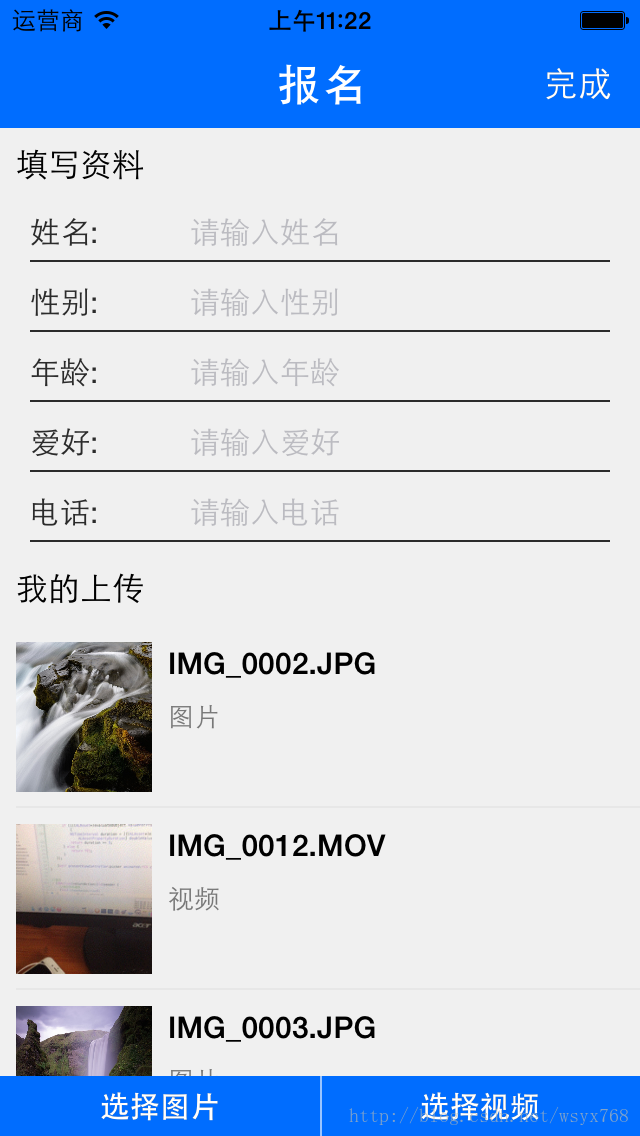
示意图:

讨论HarmonyOS开发技术,专注于API与组件、DevEco Studio、测试、元服务和应用上架分发等。
更多推荐


 0
0 0
0- 0


 已为社区贡献2条内容

所有评论(0)