鸿蒙5.0实战案例:横竖屏切换开发实践
在旋转过程绘制中,由于生成文字缓存非常耗时图形所以会把文字转成图片,但是如果该页面上的文字使用了零宽字符,会导致每个字符被转成图片,会带来额外的绘制负载。具体的实现逻辑在windowUtil中,在调用屏幕旋转方向时,可以通过windowStage拿到对应的window实例,并设置旋转setPreferredOrientation。如果当前旋转页面存在一些图片,未经合理的裁剪,图片过大,可以对图片设
往期推文全新看点(文中附带全新鸿蒙5.0全栈学习笔录)
✏️ 鸿蒙(HarmonyOS)北向开发知识点记录~
✏️ 鸿蒙(OpenHarmony)南向开发保姆级知识点汇总~
✏️ 鸿蒙应用开发与鸿蒙系统开发哪个更有前景?
✏️ 嵌入式开发适不适合做鸿蒙南向开发?看完这篇你就了解了~
✏️ 对于大前端开发来说,转鸿蒙开发究竟是福还是祸?
✏️ 鸿蒙岗位需求突增!移动端、PC端、IoT到底该怎么选?
✏️ 记录一场鸿蒙开发岗位面试经历~
✏️ 持续更新中……
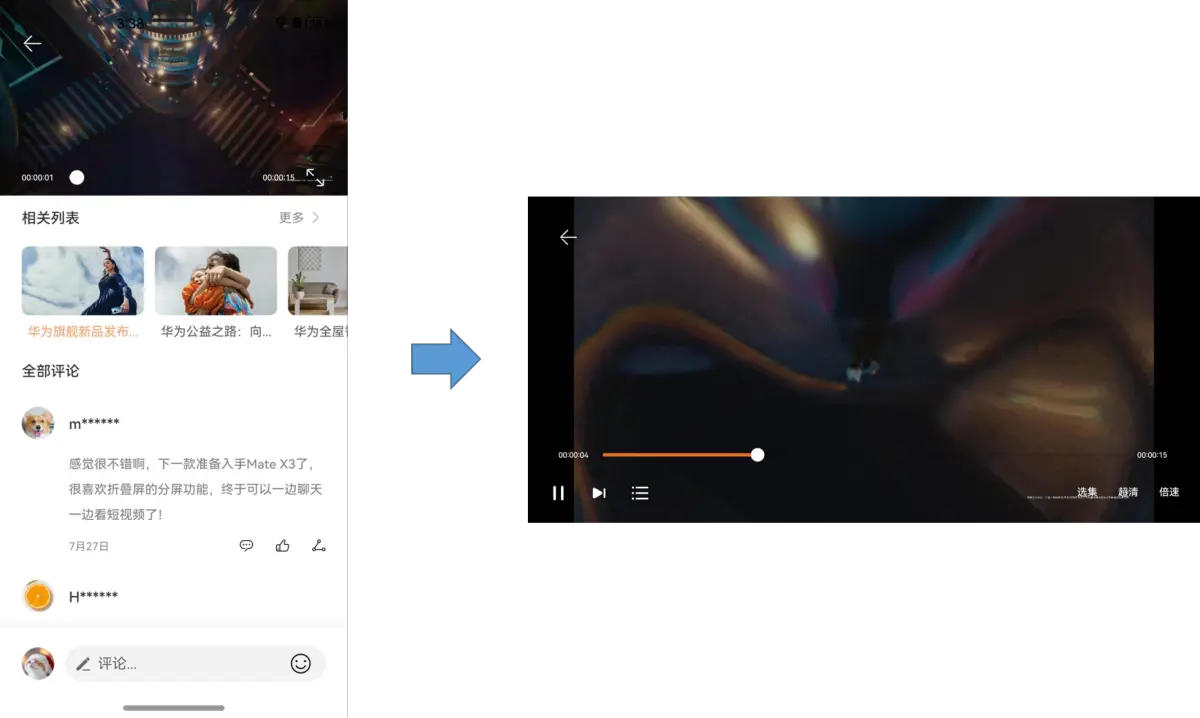
实现视频播窗页面的横竖屏转换,用户可以切换到全屏播放场景。
Figure1横竖屏切换示意
整体开发基本流程
以进入全屏为例,开发过程需要有以下关注点:
1、如果有模态框,需要关闭模态框
2、页面实现窗口旋转和全屏逻辑
3、隐藏播控相关按钮内容
图1进入横屏基本流程
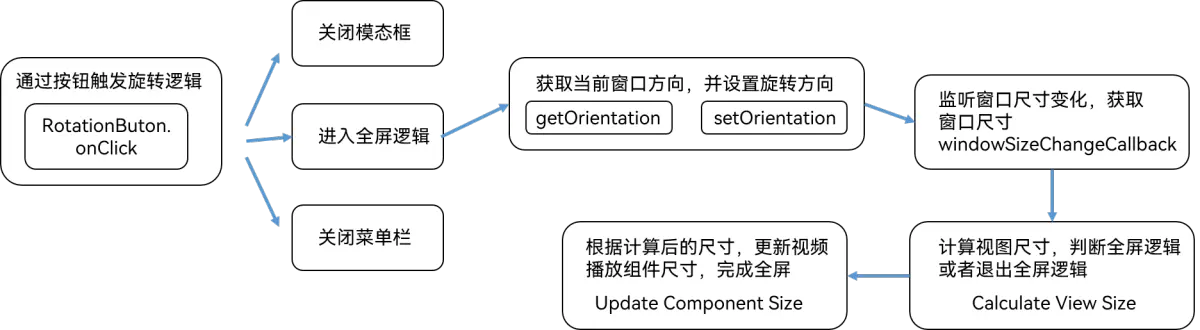
在触发旋转的按钮上,触发对应事件,并可以采用EventHub.emit发送对应事件触发相应事件。这里主要介绍进入全屏的逻辑。
@Builder
RotationButton() {
  Column() {
    Image($r('app.media.ic_rotate'))
      .width(22).height(22)
  }
  ...
  .onClick(() => {
    this.context.eventHub.emit(DATA_EVENT_LIST.CLOSE_BIND_SHEET);
    this.context.eventHub.emit(PLAY_EVENT_LIST.ENTRY_FULL);
    this.closeMenu();
  })
}
进入全屏逻辑
1、实现窗口旋转
主要逻辑包括:(1)获取当前的方向属性值 (2)调用窗口管理的接口设置想要的旋转方向 (3)隐藏状态栏
执行进入全屏时首先需要通过display获取当前的显示方向,并根据当前显示方向,执行对应的屏幕旋转逻辑。
import { display , window } from '@kit.ArkUI';

// 通过display的接口获取方向属性值,display中的方向与window中的方向相同名称,值相差1
const orientation = display.getDefaultDisplaySync().orientation + 1;
// 以直板机为例设置旋转方向
if (orientation === window.Orientation.PORTRAIT) {
  // 竖屏模式切全屏需要转屏,横屏模式切换全屏不需要转屏
  this.setOrientation(window.Orientation.LANDSCAPE_INVERTED)
} else if (orientation === window.Orientation.PORTRAIT_INVERTED) {
  this.setOrientation(window.Orientation.LANDSCAPE)
}
// 设置屏幕旋转方向
setOrientation(orientation: number) {
  Log.info(TAG, `[setOrientation]orientation: ${orientation}`);
  WindowAbility.setWindowOrientation(WindowAbility.getWindowStage(), this.context, orientation)
}
// 隐藏状态栏等业务处理……
hideSystemBar() {
  WindowUtil.hideSystemBar(WindowUtil.getWindowStage())
}
具体的实现逻辑在windowUtil中,在调用屏幕旋转方向时,可以通过windowStage拿到对应的window实例,并设置旋转setPreferredOrientation。
import { window } from '@kit.ArkUI';

export class WindowUtil {
  private static windowStage: window.WindowStage;

  static getWindowStage() {
    return WindowUtil.windowStage
  }

  static setWindowStage(windowStage: window.WindowStage): void {
    WindowUtil.windowStage = windowStage;
  }

  /*
    * 设置横竖屏
    * @Params orientation: 旋转方向
    */
  static setWindowOrientation(windowStage: window.WindowStage, orientation: number): void {
    windowStage.getMainWindow((error, win: window.Window) => {
      win.setPreferredOrientation(orientation).then((data) => {
        // do some log
      }).catch((err: Error) => {
      });
    })
  }

  /**
   * 设置隐藏状态栏
   * @param windowStage
   */
  static hideSystemBar (windowStage: window.WindowStage) {
    windowStage.getMainWindow((error, win: window.Window) => {
      win.setWindowSystemBarEnable([])
    })
  }
}
对于如果需要跟随系统传感器一起旋转可以进行如下设置:
window.getLastWindow(getContext(this)).then((win) => {
  win.setPreferredOrientation(window.Orientation.AUTO_ROTATION_RESTRICTED)
})
2、监听窗口尺寸变化
界面中根据调用窗口实例的.on方法,监听窗口尺寸的变化,在尺寸变化触发回调函数中,执行相应的尺寸修改逻辑:
-
window.Size拿到的尺寸是px,需要转换为vp。
-
isEntryFull作为标志位,根据标志位执行进入全屏和退出全屏的逻辑。
-
以进入全屏为例,需要拿到当前窗口的尺寸,并保留改值到viewHeight和viewWidth,对应视频播放组件的宽高。
const aspect = 9 / 16; // 播窗长宽比16:9
const aspectWindow = 2 / 3; // 横屏页面布局2:1
// 拿到窗口实例并执行监听窗口尺寸变化事件
WindowAbility.getWindowStage().getMainWindowSync().on('windowSizeChange', (size: window.Size) => {
  this.screenChange(size);
});
screenChange(size:window.Size) {
  let viewWidth = px2vp((Number(size.width)));
  let viewHeight = px2vp((Number(size.height)));
  if (this.isEntryFull) { // 全屏时,宽高为窗口的宽高
    this.isFull = true;
    this.viewWidth = viewWidth;
    this.viewHeight = viewHeight;
  } else {
    this.isFull = false;
    if (viewWidth < limitWidth) { // 非全屏且小于840时,高度为宽度的9/16
      this.viewHeight = viewWidth * aspect;
      this.viewWidth = viewWidth;
    } else { // 12栅格下(例如pad),窗口高度去掉状态栏高度
      this.viewHeight = viewHeight - px2vp(this.topRectHeight);
      this.viewWidth = viewWidth * aspectWindow;
    }
  }
}
3、通过状态变量触发视频组件更新
根据之前拿到的viewHeight和viewWidth,在页面上作为状态变量在组件上使用。即可完成视频播放组件的窗口全屏功能开发。
这里需要注意由于页面进入全屏时是进入了沉浸式,播窗的高度需要考虑状态栏高度。
// 获取状态栏高度
let type = window.AvoidAreaType.TYPE_SYSTEM;
let avoidArea = windowClass.getWindowAvoidArea(type);
let topRectHeight= avoidArea.topRect.height;
在组件上使用计算后的高度和宽度。
// 由于页面是沉浸式,播窗容器高度需要考虑信号栏高度
getContentHeight() {
  return this.isFull ? this.viewHeight : (this.viewHeight) + px2vp(this.topRectHeight)
}

build() {
  Stack({ alignContent: Alignment.TopStart }) {
    OnlinePlayer({
      isFull: this.isFull,
      viewWidth: this.viewWidth, // 传入OnlinePlayer,对播窗内容xcomponent设置宽高
      viewHeight: this.viewHeight,
    })
  }
  .width(this.viewWidth) // 设置播窗容器的宽高
  .height(this.getContentHeight())
}
性能优化操作
1. 冻结其他不相关页面
如果在旋转的页面以外存在其他页面没有被销毁,并且监听了窗口变化等事件,会接收到事件并触发状态变量的更新和组件刷新。此时需要使用ArkUI的冻结能力,将页面配置冻结属性,使其在不可见页面的时候不会触发它及子组件状态变量的更新。

2. 减少零宽字符
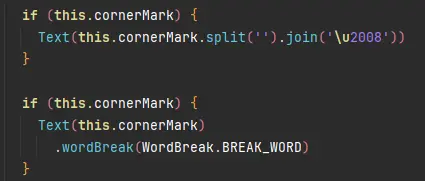
在旋转过程绘制中,由于生成文字缓存非常耗时图形所以会把文字转成图片,但是如果该页面上的文字使用了零宽字符,会导致每个字符被转成图片,会带来额外的绘制负载。该场景可以使用word-break属性替代。
3. 对图片使用AutoResize属性
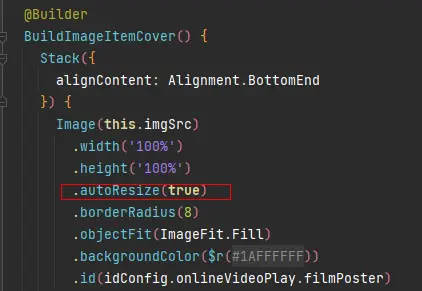
如果当前旋转页面存在一些图片,未经合理的裁剪,图片过大,可以对图片设置AutoResize属性,使图片裁剪到合适的大小进行绘制。
4. 检查一些耗时操作
排查当前页面是否存在一些冗余的OnAreaChange事件、模糊或者一些线性变化linearGradient的属性,这些都比较耗时,如果存在看是否可以进行优化。
简化后的示例代码
以下是简化后的示例代码,可直接运行参考使用
import { window } from '@kit.ArkUI';

@Entry
@Component
struct Index {
  @State show:boolean = true;
  // XComponent的控制器
  private mXComponentController: XComponentController = new XComponentController();
  // XComponent宽度
  @State xComponentWidth:number|string = 0;
  // XComponent高度
  @State xComponentHeight:number|string = 0;
  @State isFull:boolean = false;// 默认非全屏
  // 设置窗口方向
  setR(orientation:number){
    window.getLastWindow(getContext(this)).then((win) => {
      win.setPreferredOrientation(orientation).then((data) => {
        console.log('setWindowOrientation: '+orientation+' Succeeded. Data: ' + JSON.stringify(data));
      }).catch((err:string) => {
        console.log('setWindowOrientation: Failed. Cause: ' + JSON.stringify(err));
      });
    }).catch((err:string) => {
      console.log( 'setWindowOrientation: Failed to obtain the top window. Cause: ' + JSON.stringify(err));
    });
  }

  aboutToAppear(){
    this.xComponentWidth = '100%';
    this.xComponentHeight = '40%';
    window.getLastWindow(getContext(this)).then((win) => {
      // 监听屏幕尺寸变化,变化后修改XComponent的宽高
      win.on('windowSizeChange', (size) => {
        console.log('windowSizeChange:'+JSON.stringify(size));
        // 全屏时宽高占满屏幕
        if(this.isFull){
          this.xComponentWidth = px2vp(size.width);
          this.xComponentHeight = px2vp(size.height);
        }else{
          // 非全屏时宽度100%,高度40%
          this.xComponentWidth = px2vp(size.width);
          this.xComponentHeight = '40%';
        }
      })
    })
  }

  playVideo(){
  }

  build() {
    Stack({ alignContent: Alignment.TopStart }){
      Row() {
        XComponent({
          id: 'componentId',
          type: 'surface',
          controller: this.mXComponentController
        })
          .width(this.xComponentWidth)
          .height(this.xComponentHeight)
          .backgroundColor(Color.Black)
          .onLoad(() => {
            this.playVideo();
          })
      }
      Button('横竖屏切换').onClick(()=>{
        // 全屏时,横变竖
        if(this.isFull){
          this.setR(1);
          this.isFull = false;
        }else{// 非全屏时,竖变横
          this.isFull = true;
          this.setR(4);
        }
      }).position({x:0,y:0}).backgroundColor(Color.Green)
    }.width('100%').height('100%').backgroundColor(Color.Red)
  }
}

讨论HarmonyOS开发技术,专注于API与组件、DevEco Studio、测试、元服务和应用上架分发等。
更多推荐
 24
24 0
0- 0


 已为社区贡献21条内容

所有评论(0)