HarmonyOS Next之深入解析Grid网格布局列表的交互与状态管理
·
一、Grid 组件简介
- 网格容器,由“行”和“列”分割的单元格所组成,通过指定“项目”所在的单元格做出各种各样的布局。网格布局具有较强的页面均分能力,子组件占比控制能力,是一种重要自适应布局,其使用场景有九宫格图片展示、日历、计算器等。
- ArkUI 提供了 Grid 容器组件和子组件 GridItem,用于构建网格布局。Grid 用于设置网格布局相关参数,GridItem 定义子组件相关特征。Grid 组件支持使用条件渲染、循环渲染、懒加载等渲染控制方式生成子组件。
- 在 HarmonyOS NEXT 的 ArkUI 框架中,Grid 组件是一种强大的网格容器,它与 GridItem 子组件一起使用,可以创建灵活的网格布局。网格布局是由"行"和"列"分割的单元格组成,通过指定"项目"所在的单元格,可以实现各种各样的布局效果。
① Grid 与 GridItem 的关系
- Grid:网格容器组件,用于设置网格布局相关参数;
- GridItem:网格子项组件,定义子组件相关特征;
- Grid 的子组件必须是 GridItem 组件。
③ Grid 组件的主要特性
| 特性 | 描述 |
|---|---|
| 自定义行列数 | 可以通过 rowsTemplate 和 columnsTemplate 属性设置网格的行数和列数 |
| 尺寸占比控制 | 可以控制每行每列的尺寸占比 |
| 子组件跨行列 | 可以设置子组件横跨几行或几列 |
| 布局方向 | 可以设置子组件横跨几行或几列 |
| 间距控制 | 可以设置行间距和列间距 |
| 滚动能力 | 支持构建可滚动的网格布局 |
④ Grid 组件的高级属性
| 属性 | 描述 | 用途 |
|---|---|---|
| maxCount | 设置每行/列最大子组件数量 | 控制网格布局的密度 |
| minCount | 设置每行/列最小子组件数量 | 确保布局的最小密度 |
| cellLength | 设置网格布局中单元格的长度 | 精确控制单元格尺寸 |
| multiSelectable | 是否支持多选 | 实现商品多选功能 |
| cachedCount | 设置预加载的网格项数量 | 优化长列表性能 |
二、Grid 设置排列方式
- 通过设置行列数量与尺寸占比可以确定网格布局的整体排列方式。Grid 组件提供了 rowsTemplate 和 columnsTemplate 属性用于设置网格布局行列数量与尺寸占比。rowsTemplate 和 columnsTemplate 属性值是一个由多个空格和’数字+fr’间隔拼接的字符串,fr 的个数即网格布局的行或列数,fr 前面的数值大小,用于计算该行或列在网格布局宽度上的占比,最终决定该行或列的宽度。
- 通过设置行列数量与尺寸占比可以确定网格布局的整体排列方式,Grid 组件提供了 rowsTemplate 和 columnsTemplate 属性用于设置网格布局行列数量与尺寸占比。rowsTemplate 和 columnsTemplate 属性值是一个由多个空格和’数字+fr’间隔拼接的字符串,fr 的个数即网格布局的行或列数,fr 前面的数值大小,用于计算该行或列在网格布局宽度上的占比,最终决定该行或列的宽度。
- 使用 Grid 构建网格布局时,若没有设置行列数量与占比,可以通过 layoutDirection 可以设置网格布局的主轴方向,决定子组件的排列方式。此时可以结合 minCount 和 maxCount 属性来约束主轴方向上的网格数量。
- 通过 Grid 的 rowsGap 和 columnsGap 可以设置网格布局的行列间距。
Grid() {
    ...
}
.columnsGap(10)
.rowsGap(15)
- 构建可滚动的网格布局:可滚动的网格布局常用在文件管理、购物或视频列表等页面中。在设置 Grid 的行列数量与占比时,如果仅设置行、列数量与占比中的一个,即仅设置 rowsTemplate 或仅设置 columnsTemplate 属性,网格单元按照设置的方向排列,超出 Grid 显示区域后,Grid 拥有可滚动能力。如下图所示:
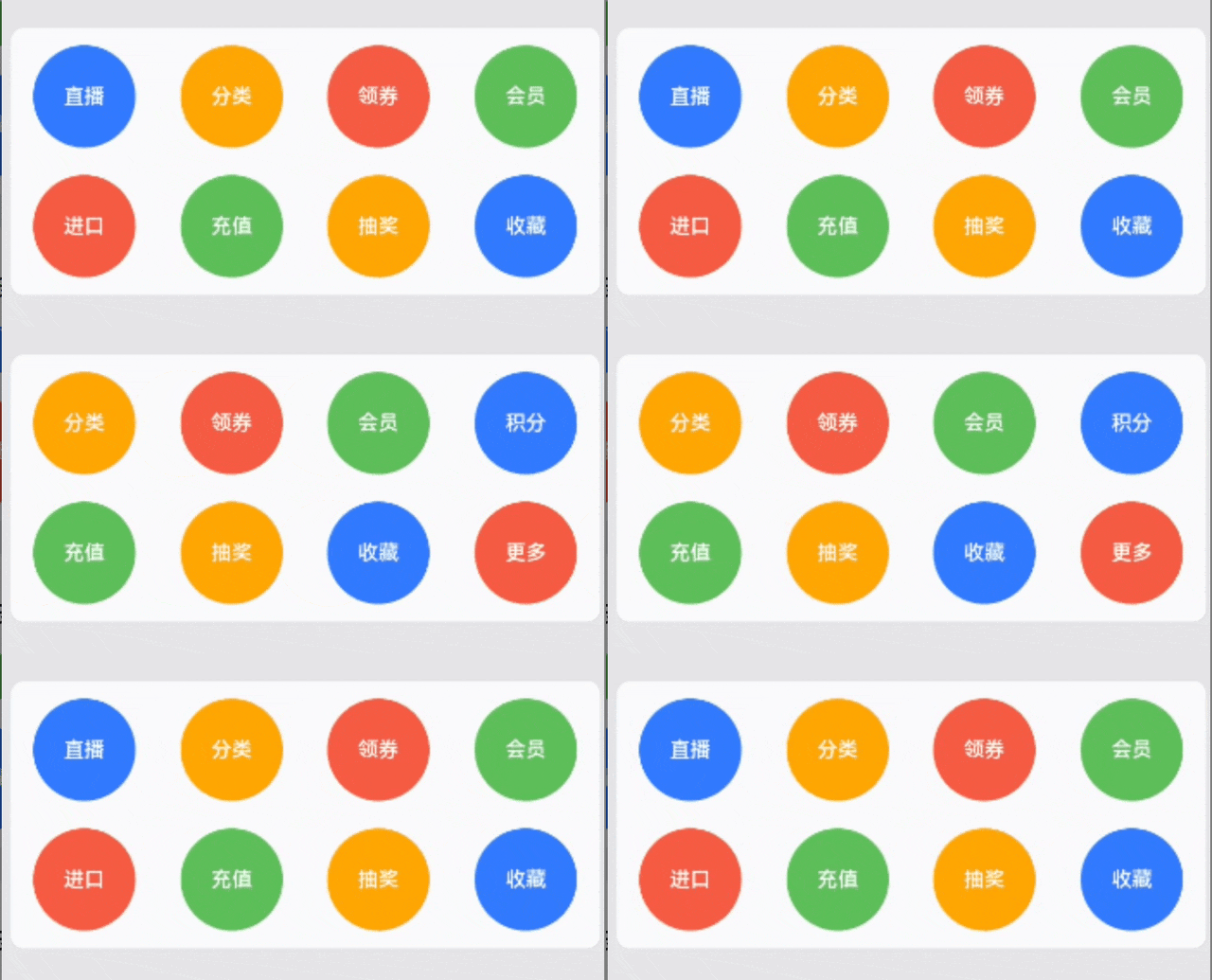
- 如果设置的是 columnsTemplate,Grid 的滚动方向为垂直方向;如果设置的是 rowsTemplate,Grid 的滚动方向为水平方向。如上图所示的横向可滚动网格布局,只要设置 rowsTemplate 属性的值且不设置 columnsTemplate 属性,当内容超出 Grid 组件宽度时,Grid 可横向滚动进行内容展示:
@Componentstruct Shopping {
    @State services: Array<string> = ['直播', '进口', ...]  ...
  build() {
      Column({ space: 5 }) {
          Grid() {
              ForEach(this.services, (service: string, index) => {          GridItem() {
                  .}
                  .width('25%')
                  }, service => service)
               }
              .rowsTemplate('1fr 1fr') // 只设置rowsTemplate属性,当内容超出Grid区域时,可水平滚动
              .rowsGap(15)
          }
    }
}
三、控制滚动位置
- 与新闻列表的返回顶部场景类似,控制滚动位置功能在网格布局中也很常用,例如下图所示日历的翻页功能:
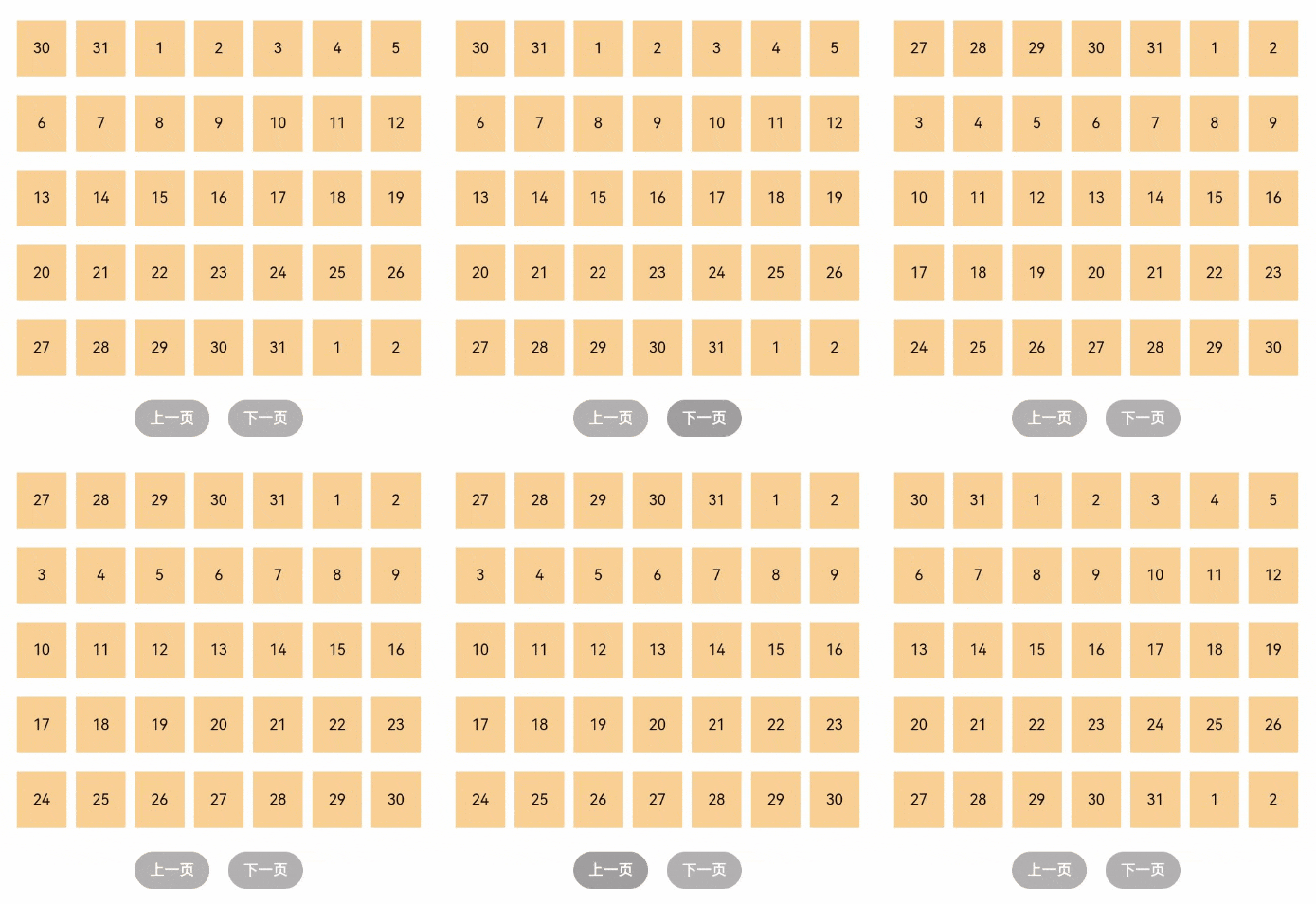
- Grid 组件初始化时,可以绑定一个 Scroller 对象,用于进行滚动控制,例如通过 Scroller 对象的 scrollPage 方法进行翻页。 在日历页面中,用户在点击“下一页”按钮时,应用响应点击事件,通过指定 scrollPage 方法的参数 next 为 true,滚动到下一页。
Column({ space: 5 }) {
    Grid(this.scroller) {
        ...  }
        .columnsTemplate('1fr 1fr 1fr 1fr 1fr 1fr 1fr')  ...  Row({space: 20}) {
            Button('上一页')
            .onClick(() => {
                this.scroller.scrollPage({
                    next: false

                })

            })
   Button('下一页')
   .onClick(() => {
       this.scroller.scrollPage({
           next: true
        })
   })
}
}
...
四、实战演练
① 基础网格布局
- 定义数据模型:
export interface ProductData {
  id: number,
  name: string,
  price: number,
  image: string,
  discount?: number
}
- 创建数据数组:
@State productsArray : ProductData[] = [{id: 1, name: 'iPhone 17 Pro', price: 8999.00, image: 'iPhone17Pro', discount: 10.0},
                                          							{id: 2, name: 'Macbook Pro', price: 16999.00, image: 'MacbookPro', discount: 12.0},
                                          						    {id: 3, name: 'Mate 70 Pro', price: 5999.00, image: 'Mate70Pro', discount: 30.0},
                                          							{id: 4, name: 'Airpods Pro', price: 1999.00, image: 'AirpodsPro', discount: 0.0},
                                          							{id: 5, name: 'Apple Pencil', price: 699.00, image: 'ApplePencil', discount: 0.0},
                                          							{id: 6, name: 'iPhone Pocket', price: 1299.00, image: 'iPhonePocket', discount: 10.0}]
- 分类标签实现:
Row() {
        Text('热门商品')
          .fontSize(18)
          .fontWeight(FontWeight.Medium)
          .fontColor('#1D1D1F')

        Blank()

        Text('查看全部')
          .fontSize(14)
          .fontColor('#007AFF')
      }
      .width('100%')
      .padding({ left: 20, right: 20, top: 10, bottom: 10 })
      .backgroundColor('#F2F2F7')
- Grid 网格布局实现:
	  Grid() {

      }
      .columnsTemplate('1fr 1fr') // 两列布局
      .columnsGap(16)                 // 列间距
      .rowsGap(16)                      // 行间距
      .width('100%')
      .layoutWeight(1)
      .padding({ left: 20, right: 20, bottom: 20 })
      .backgroundColor('#F2F2F7')
- 说明:
-
- columnsTemplate(‘1fr 1fr’):设置两列布局,每列占比相等;
-
- columnsGap(16):设置列间距为 16vp;
-
- rowsGap(16):设置行间距为 16vp。
- 再使用 ForEach 循环遍历商品数据,创建一个 GridItem:
        ForEach(this.productsArray, (product:ProductData) => {
          GridItem() {
            Column() {
              // 商品图片容器
              Stack({ alignContent: Alignment.TopEnd }) {
                Image($r('app.media.' + product.image))
                  .width('100%')
                  .height(120)
                  .objectFit(ImageFit.Contain)
                  .backgroundColor(Color.White)
                  .borderRadius(12)

                // 折扣标签
                if (product.discount) {
                  Text(`-${product.discount}%`)
                    .fontSize(12)
                    .fontColor('#FFFFFF')
                    .backgroundColor('#FF3B30')
                    .padding({ left: 8, right: 8, top: 4, bottom: 4 })
                    .borderRadius(8)
                    .margin({ top: 8, right: 8 })
                }
              }
              .width('100%')
              .height(120)

              // 商品信息
              Column() {
                Text(product.name)
                  .fontSize(14)
                  .fontWeight(FontWeight.Medium)
                  .fontColor('#1D1D1F')
                  .maxLines(2)
                  .textOverflow({ overflow: TextOverflow.Ellipsis })
                  .margin({ top: 12 })

                Row() {
                  if (product.discount) {
                    Text(`¥${(product.price * (100 - product.discount) / 100).toFixed(0)}`)
                      .fontSize(16)
                      .fontWeight(FontWeight.Bold)
                      .fontColor('#FF3B30')

                    Text(`¥${product.price}`)
                      .fontSize(12)
                      .fontColor('#8E8E93')
                      .decoration({ type: TextDecorationType.LineThrough })
                      .margin({ left: 4 })
                  } else {
                    Text(`¥${product.price}`)
                      .fontSize(16)
                      .fontWeight(FontWeight.Bold)
                      .fontColor('#1D1D1F')
                  }

                  Blank()

                  Button() {
                    Image($r('app.media.add'))
                      .width(18)
                      .height(18)
                      .fillColor('#FFFFFF')
                  }
                  .width(30)
                  .height(30)
                  .borderRadius(14)
                  .backgroundColor(Color.White)
                }
                .width('100%')
                .margin({ top: 8 })
              }
              .alignItems(HorizontalAlign.Start)
              .width('100%')
            }
            .width('100%')
            .padding(12)
            .backgroundColor('#FFFFFF')
            .borderRadius(16)
            .shadow({
              radius: 8,
              color: 'rgba(0, 0, 0, 0.1)',
              offsetX: 0,
              offsetY: 2
            })
          }
          .onClick(() => {
            console.log(`点击商品: ${product.name}`)
          })
        })
- 效果展示:
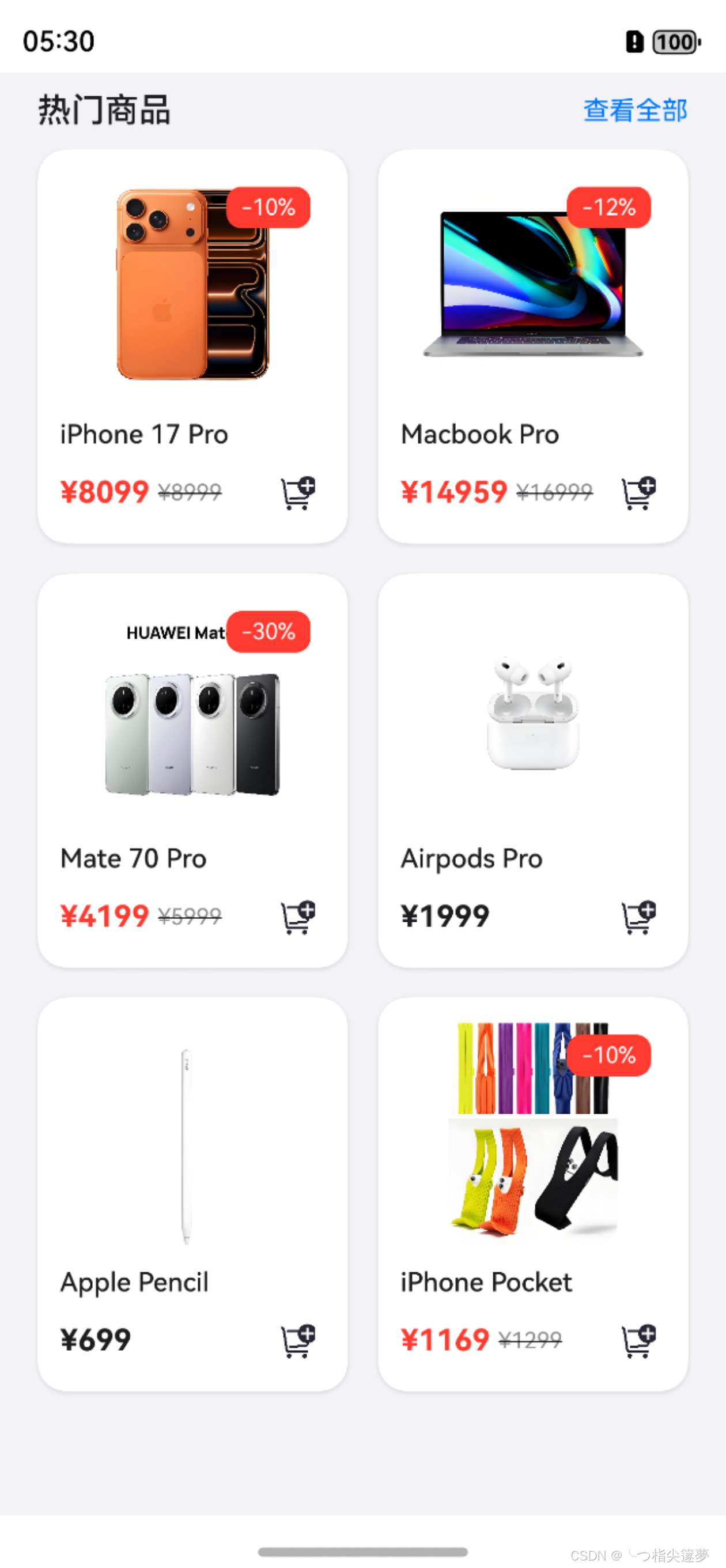
- 每个 GridItem 包含:
-
- 商品图片:使用 Stack 布局,支持在右上角显示折扣标签;
-
- 商品名称:支持最多显示两行,超出部分使用省略号;
-
- 价格信息:显示原价和折扣价(如果有折扣);
-
- 添加按钮:用于将商品添加到购物车。
- 行列设置:
-
- columnsTemplate:设置网格布局的列数和每列的尺寸占比,‘1fr 2fr’,两列布局,第二列是第一列的两倍宽;
-
- rowsTemplate:设置网格布局的行数和每行的尺寸占比 ‘1fr 1fr 1fr’,三行布局,每行高度相等;
-
- columnsGap:设置列间距 columnsGap(16);
-
- rowsGap:设置行间距 rowsGap(16)。
- GridItem 定位属性:
-
- rowStart:设置起始行号 rowStart(1);
-
- rowEnd:设置结束行号 rowEnd(3);
-
- columnStart:设置起始列号 columnStart(2);
-
- columnEnd:设置结束列号 columnEnd(4)。
② Grid 组件进阶特性
- GridItem 的高级属性:
| 属性 | 描述 | 用途 |
|---|---|---|
| selectable | 是否可选中 | 控制单个商品是否可选 |
| selected | 是否被选中 | 控制商品的选中状态 |
- 状态变量定义:
// 商品数据状态
@State products: Product[] = [...]

// 购物车状态
@State cartItems: Map<number, number> = new Map<number, number>()

// 筛选状态
@State filterOptions: {
    priceRange: [number, number],
    hasDiscount: boolean,
    sortBy: 'price' | 'popularity' | 'newest'
} = {
    priceRange: [0, 50000],
    hasDiscount: false,
    sortBy: 'popularity'
}

// 布局状态
@State gridColumns: string = '1fr 1fr'
@State isListView: boolean = false
- 扩展数据模型,添加更多属性以支持进阶功能:
interface ProductData {
    id: number,
    name: string,
    price: number,
    image: Resource,
    discount?: number,
    // 新增属性
    category: string,
    rating: number,
    stock: number,
    dateAdded: Date,
    popularity: number
}
- 商品筛选:
// 筛选面板组件
@Component
struct FilterPanel {
    @Link filterOptions: {
        priceRange: [number, number],
        hasDiscount: boolean,
        sortBy: 'price' | 'popularity' | 'newest'
    }
    @Consume('closeFilter') closeFilter: () => void

    build() {
        Column() {
            // 价格范围选择
            Text('价格范围')
                .fontSize(16)
                .fontWeight(FontWeight.Medium)
                .margin({ top: 16, bottom: 8 })

            Row() {
                Slider({
                    value: this.filterOptions.priceRange[0],
                    min: 0,
                    max: 50000,
                    step: 100,
                    onChange: (value: number) => {
                        this.filterOptions.priceRange[0] = value
                    }
                })
                .width('80%')

                Text(`¥${this.filterOptions.priceRange[0]}`)
                    .fontSize(14)
                    .margin({ left: 8 })
            }
            .width('100%')

            Row() {
                Slider({
                    value: this.filterOptions.priceRange[1],
                    min: 0,
                    max: 50000,
                    step: 100,
                    onChange: (value: number) => {
                        this.filterOptions.priceRange[1] = value
                    }
                })
                .width('80%')

                Text(`¥${this.filterOptions.priceRange[1]}`)
                    .fontSize(14)
                    .margin({ left: 8 })
            }
            .width('100%')

            // 折扣商品筛选
            Row() {
                Text('只看折扣商品')
                    .fontSize(16)
                    .fontWeight(FontWeight.Medium)

                Toggle({ type: ToggleType.Checkbox, isOn: this.filterOptions.hasDiscount })
                    .onChange((isOn: boolean) => {
                        this.filterOptions.hasDiscount = isOn
                    })
            }
            .width('100%')
            .justifyContent(FlexAlign.SpaceBetween)
            .margin({ top: 16, bottom: 16 })

            // 排序方式
            Text('排序方式')
                .fontSize(16)
                .fontWeight(FontWeight.Medium)
                .margin({ bottom: 8 })

            Column() {
                Radio({ value: 'price', group: 'sortBy' })
                    .checked(this.filterOptions.sortBy === 'price')
                    .onChange((isChecked: boolean) => {
                        if (isChecked) {
                            this.filterOptions.sortBy = 'price'
                        }
                    })
                Text('按价格')
                    .fontSize(14)
            }
            .width('100%')
            .alignItems(HorizontalAlign.Start)

            Column() {
                Radio({ value: 'popularity', group: 'sortBy' })
                    .checked(this.filterOptions.sortBy === 'popularity')
                    .onChange((isChecked: boolean) => {
                        if (isChecked) {
                            this.filterOptions.sortBy = 'popularity'
                        }
                    })
                Text('按热度')
                    .fontSize(14)
            }
            .width('100%')
            .alignItems(HorizontalAlign.Start)
            .margin({ top: 8 })

            Column() {
                Radio({ value: 'newest', group: 'sortBy' })
                    .checked(this.filterOptions.sortBy === 'newest')
                    .onChange((isChecked: boolean) => {
                        if (isChecked) {
                            this.filterOptions.sortBy = 'newest'
                        }
                    })
                Text('按最新')
                    .fontSize(14)
            }
            .width('100%')
            .alignItems(HorizontalAlign.Start)
            .margin({ top: 8 })

            // 应用按钮
            Button('应用筛选')
                .width('100%')
                .height(40)
                .margin({ top: 24 })
                .onClick(() => {
                    this.closeFilter()
                })
        }
        .width('100%')
        .padding(16)
    }
}
- 商品排序:
// 根据筛选条件对商品进行排序和过滤
private getFilteredProducts(): Product[] {
    // 首先过滤价格范围
    let filtered = this.products.filter(product => {
        const discountedPrice = product.discount ?
            product.price * (100 - product.discount) / 100 :
            product.price;

        return discountedPrice >= this.filterOptions.priceRange[0] &&
               discountedPrice <= this.filterOptions.priceRange[1];
    });

    // 如果只看折扣商品
    if (this.filterOptions.hasDiscount) {
        filtered = filtered.filter(product => product.discount !== undefined);
    }

    // 根据排序方式排序
    switch (this.filterOptions.sortBy) {
        case 'price':
            filtered.sort((a, b) => {
                const priceA = a.discount ? a.price * (100 - a.discount) / 100 : a.price;
                const priceB = b.discount ? b.price * (100 - b.discount) / 100 : b.price;
                return priceA - priceB;
            });
            break;
        case 'popularity':
            filtered.sort((a, b) => b.popularity - a.popularity);
            break;
        case 'newest':
            filtered.sort((a, b) => b.dateAdded.getTime() - a.dateAdded.getTime());
            break;
    }

    return filtered;
}
- 添加购物车:
// 添加商品到购物车
private addToCart(productId: number): void {
    if (this.cartItems.has(productId)) {
        // 如果已在购物车中,数量+1
        this.cartItems.set(productId, this.cartItems.get(productId) + 1);
    } else {
        // 否则添加到购物车,数量为1
        this.cartItems.set(productId, 1);
    }

    // 更新购物车图标上的数字
    this.updateCartBadge();
}

// 从购物车移除商品
private removeFromCart(productId: number): void {
    if (this.cartItems.has(productId)) {
        const currentCount = this.cartItems.get(productId);
        if (currentCount > 1) {
            // 如果数量大于1,数量-1
            this.cartItems.set(productId, currentCount - 1);
        } else {
            // 否则从购物车中移除
            this.cartItems.delete(productId);
        }

        // 更新购物车图标上的数字
        this.updateCartBadge();
    }
}

// 更新购物车图标上的数字
private updateCartBadge(): void {
    let totalItems = 0;
    this.cartItems.forEach(count => {
        totalItems += count;
    });

    // 更新UI上的购物车数量
    this.cartItemCount = totalItems;
}
- 为了适应不同屏幕尺寸,可以实现更加智能的响应式布局:
// 在组件初始化时设置响应式布局
aboutToAppear() {
    // 获取屏幕信息
    const displayInfo = display.getDefaultDisplaySync();
    const screenWidth = px2vp(displayInfo.width);

    // 根据屏幕宽度设置网格列数
    if (screenWidth < 360) {
        // 小屏手机
        this.gridColumns = '1fr';
    } else if (screenWidth < 600) {
        // 普通手机
        this.gridColumns = '1fr 1fr';
    } else if (screenWidth < 840) {
        // 大屏手机/小平板
        this.gridColumns = '1fr 1fr 1fr';
    } else {
        // 平板/桌面
        this.gridColumns = '1fr 1fr 1fr 1fr';
    }
}

// 监听屏幕旋转
onPageShow() {
    display.on('change', this.updateLayout.bind(this));
}

onPageHide() {
    display.off('change', this.updateLayout.bind(this));
}

// 更新布局
private updateLayout() {
    const displayInfo = display.getDefaultDisplaySync();
    const screenWidth = px2vp(displayInfo.width);

    // 如果是列表视图,保持单列
    if (this.isListView) {
        this.gridColumns = '1fr';
        return;
    }

    // 根据屏幕宽度更新网格列数
    if (screenWidth < 360) {
        this.gridColumns = '1fr';
    } else if (screenWidth < 600) {
        this.gridColumns = '1fr 1fr';
    } else if (screenWidth < 840) {
        this.gridColumns = '1fr 1fr 1fr';
    } else {
        this.gridColumns = '1fr 1fr 1fr 1fr';
    }
}

讨论HarmonyOS开发技术,专注于API与组件、DevEco Studio、测试、元服务和应用上架分发等。
更多推荐
 24
24 0
0- 0


 已为社区贡献30条内容

所有评论(0)