鸿蒙5.0开发【手机上下分屏开发实践】业务场景与解决方案
概述
手机上下分屏用途广泛,主要应用于办公应用中工作学习和邮件的多任务处理、购物应用中浏览不同商品比较价格或查看评论、在浏览视频的同时通过社交媒体与朋友聊天等,在智能手机中日益成为提升多任务处理效率的重要工具。因此应用需要针对手机上下分屏等小窗口场景进行适配,提升用户体验。
分屏功能允许用户将手机屏幕分为上下两个独立的操作区域,从而允许同时运行和操作两个应用程序的功能。同时,用户可以根据需求调整屏幕的分割比例,拖动中间的分割线来灵活更改每个应用所占的屏幕空间,可调节上下分屏比例为1:1、1:2、2:1。效果图如下:
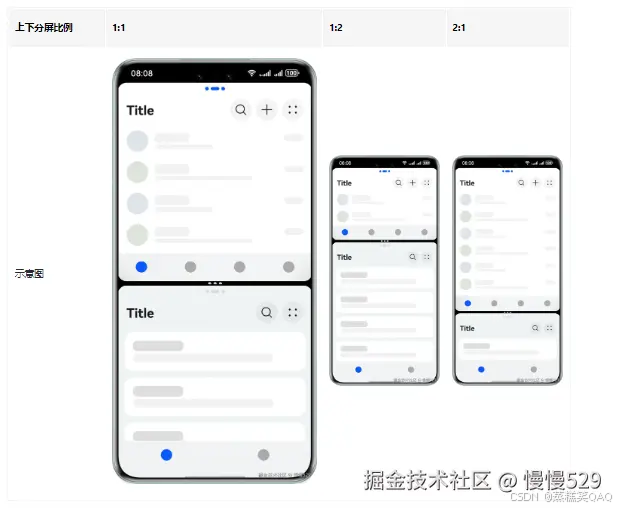
在手机上下分屏时,应用窗口的高度默认减小至约全屏高度的一半。下文将从布局设计的维度,针对手机上下分屏常见的四种开发场景,给出推荐的设计方案与开发指导。
小窗口下的典型布局:
- 实现手机上下分屏场景下独特的页面布局。
- 页面支持滑动、完整显示。
- 短视频播放页面完整显示,侧边控件支持滑动。
- 自定义弹窗适配小窗口。
增值体验:
- 滑动沉浸式浏览。
布局设计
本章节将介绍手机上下分屏中推荐的设计方案,保证页面布局能够完整显示,避免出现截断、挤压、堆叠等现象,并充分利用屏幕空间,提供最佳的用户体验。
独特的小窗口布局
应用通常针对类方屏的小窗口页面会设计不同的布局,因此需要在代码中实现响应式布局。一多场景中所有的响应式布局都基于断点来开发,手机上下分屏场景的区分需要在项目中添加横纵断点。
实现原理
-
在手机上下分屏1:1时,横向断点为sm,纵向断点为md,推荐使用独特的小窗口布局。在手机上下分屏1:2时,比例为1对应窗口的横向断点为sm,纵向断点为sm,推荐使用独特的小窗口布局;比例为2对应窗口的横向断点为sm,纵向断点为lg,推荐使用与手机全屏相同的布局。
以设置图片的高度为例,在小窗口布局中高度为24vp,手机全屏时高度为48vp。使用横纵向断点判断,设置具体的属性值。
Image($r('app.media.arrow_right'))
  .height(this.currentWidthBreakpoint === 'sm' && (this.currentHeightBreakpoint === 'sm' ||
    this.currentHeightBreakpoint === 'md') ? 24 : 48)
  .aspectRatio(1)
- 应用中有小窗口布局中显示,手机全屏时隐藏的内容,使用visibility或if…else…结合横纵断点判断是否显示。
// 方案一
Column() {
  // 小窗口布局显示的内容
}
.visibility(this.currentWidthBreakpoint === 'sm' && (this.currentHeightBreakpoint === 'sm' ||
  this.currentHeightBreakpoint === 'md') ? Visibility.Visible : Visibility.None)

// 方案二
if (this.currentWidthBreakpoint === 'sm' && (this.currentHeightBreakpoint === 'sm' ||
  this.currentHeightBreakpoint === 'md')) {
  Column() {
    // 小窗口布局显示的内容
  }
}
页面支持滑动
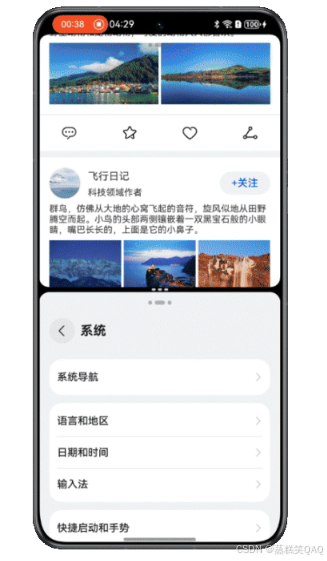
手机上下分屏时,窗口高度会减小至约手机的1/2,可能导致全屏完整显示的内容在上下分屏时显示不全。推荐使用[Scroll组件]实现页面支持滑动。
实现原理
设置Scroll组件的scrollBar属性为BarState.Off,控制滚动条不显示。当窗口高度足够显示页面全部内容时,Scroll组件自动失效,页面不可滑动;当窗口高度不足以显示页面全部内容时,Scroll组件自动生效,页面可以滑动。
Scroll() {
  Column() {
    // ...
  }
  .width('100%')
}
.scrollBar(BarState.Off)
.height('100%')
.width('100%')
短视频播放页面
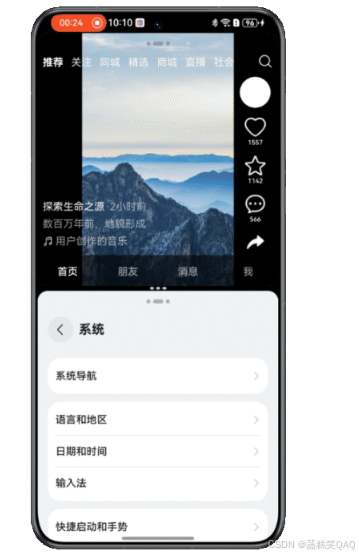
短视频播放页面进入手机上下分屏时,要求背景图片(视频)进行等比例缩放,并进行上下沉浸,上方沉浸至顶部标题栏,下方沉浸至底部页签栏。侧边控件可滑动,完整显示页面内容。
实现原理
使用Stack组件控制页面内容显示层级,控制背景图片上下沉浸,且互相不影响交互事件。Z层级由下到上分别是背景图片(视频)区、底部页签区、短视频描述区、侧边控件区、顶部页签区。顶部和底部页签设置内边距padding为topAvoidHeight或bottomAvoidHeight避让系统规避区。侧边控件区使用Scroll组件自动控制滑动是否生效,使用[Blank组件]+[displayPriority属性]控制侧边控件区上下两侧的留白,容器高度足够时上下留白,容器高度不足时自动隐藏。
Stack({ alignContent: Alignment.BottomEnd }) {
  // 背景图片(视频)
  Row() {
    Image($r('app.media.background_image'))
      .height('100%')
      .objectFit(ImageFit.Cover)
      .aspectRatio(0.6)
  }
  .height('100%')
  .width('100%')
  .justifyContent(FlexAlign.Center)

  // 底部页签
  List() {
    // ...
  }
  .backgroundColor('#99000000')
  .listDirection(Axis.Horizontal)
  .height(this.bottomBarHeight)
  .padding({ bottom: this.bottomAvoidHeight })
  // ...

  // 短视频描述
  Column() {
    // ...
  }
  .alignItems(HorizontalAlign.Start)
  .margin({
    right: '56vp',
    bottom: this.bottomBarHeight
  })
  // ...

  // 侧边控件
  Scroll() {
    Column() {
      Blank()
        .layoutWeight(3)
        .displayPriority(1)
      // ...
      Blank()
        .layoutWeight(1)
        .displayPriority(1)
    }
    // ...
  }
  .scrollBar(BarState.Off)
  .layoutWeight(1)
  .width('56vp')
  .edgeEffect(EdgeEffect.None)
  .align(Alignment.Bottom)
  .margin({
    top: this.topAvoidHeight + 24,
    bottom: this.bottomBarHeight,
    right: '8vp'
  })

  // 顶部页签栏
  Row() {
    // ...
}
.height('100%')
.width('100%')
.backgroundColor(Color.Black)
自定义弹窗适配小窗口
手机上下分屏时,窗口高度无法完整显示自定义弹窗时,可能出现弹窗内容截断,需要进行自定义弹窗适配小窗口。效果图如下: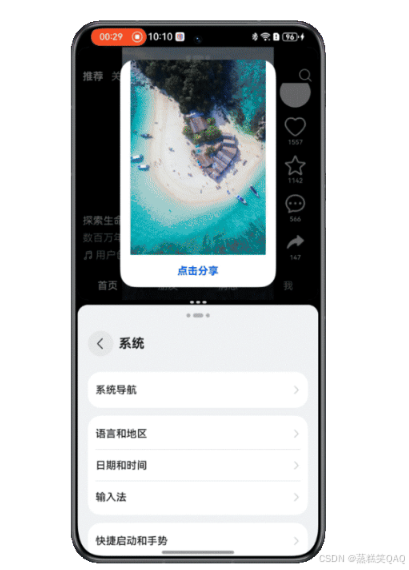
实现原理
使用constraintSize设置约束尺寸,自定义弹窗的最大高度不超过父组件高度的90%。同时最外层使用Scroll组件自动支持滚动。
Scroll() {
  Column() {
    // ...
  }
}
.scrollBar(BarState.Off)
.constraintSize({
  minHeight: 0,
  maxHeight: '90%'
})
滑动沉浸式浏览
在手机上下分屏1:1、1:2中的小窗口,或其他类方屏小窗口场景下,用户可以通过滑动屏幕临时隐藏掉标题栏、页签栏等界面元素,达到全屏浏览内容的效果,同时一旦停止滑动,在2秒延时后标题栏和页签栏通过动画逐渐显示,从而可以更专注于应用展示的内容。效果图如下: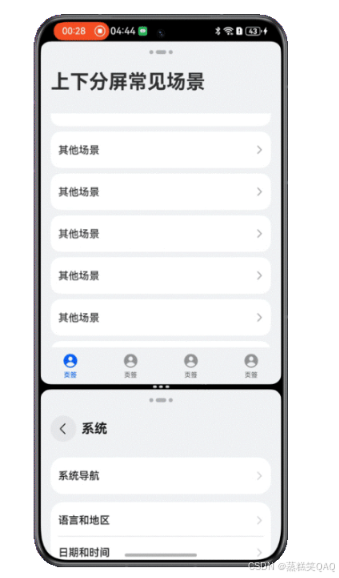
实现原理
通过滚动时动态调整页面组件高度和透明度,达到视觉上逐渐显示和隐藏的效果。
开发步骤
- 使用状态变量控制顶部标题栏、底部页签栏的高度和透明度。标题栏高度为topBarHeight,页签栏高度为bottomBarHeight,标题栏和页签栏的透明度为barOpacity。
@StorageLink('topBarHeight') topBarHeight: number = CommonConstants.UTIL_HEIGHTS[1] + this.topAvoidHeight;
@State bottomBarHeight: number = CommonConstants.UTIL_HEIGHTS[0] + this.bottomAvoidHeight;
@State barOpacity: number = 1;
- 在沉浸式布局下,标题栏高度在应用上下分屏时由固定值78vp+顶部系统规避区的高度topAvoidHeight组成,标题栏的顶部内边距padding为topAvoidHeight;页签栏高度由固定值56vp+底部系统规避区的高度bottomAvoidHeight组成,页签栏的底部内边距padding为bottomAvoidHeight。
@StorageLink('topAvoidHeight') @Watch('topBarHeightChange') topAvoidHeight: number = 0;
@StorageLink('bottomAvoidHeight') @Watch('bottomBarHeightChange') bottomAvoidHeight: number = 0;
// ...
topBarHeightChange(): void {
  if (this.currentWidthBreakpoint === 'sm' && (this.currentHeightBreakpoint === 'md') ||
    this.currentHeightBreakpoint === 'sm') {
    this.topBarHeight = 78 + this.topAvoidHeight;
  } else {
    this.topBarHeight = 134 + this.topAvoidHeight;
  }
};

bottomBarHeightChange(): void {
  this.bottomBarHeight = 56 + this.bottomAvoidHeight;
};
- 顶部和底部系统规避区高度会随应用窗口变化而变化,需要在窗口生命周期创建时调用window.getAvoidArea()获取初始的系统避让区高度,并使用window.on(‘avoidAreaChange’)监听系统避让区
export default class EntryAbility extends UIAbility {
  private windowUtil?: WindowUtil = WindowUtil.getInstance();
  private onAvoidAreaChange: (avoidArea: window.AvoidAreaOptions) => void = (avoidArea: window.AvoidAreaOptions) => {
    if (avoidArea.type === window.AvoidAreaType.TYPE_SYSTEM) {
      AppStorage.setOrCreate('topAvoidHeight', px2vp(avoidArea.area.topRect.height));
    } else if (avoidArea.type === window.AvoidAreaType.TYPE_NAVIGATION_INDICATOR) {
      AppStorage.setOrCreate('bottomAvoidHeight', px2vp(avoidArea.area.bottomRect.height));
    }
  };
  // ...
  onWindowStageCreate(windowStage: window.WindowStage): void {
    // Main window is created, set main page for this ability
    hilog.info(0x0000, 'testTag', '%{public}s', 'Ability onWindowStageCreate');
    this.windowUtil?.setWindowStage(windowStage);

    windowStage.getMainWindow((err: BusinessError, data: window.Window) => {
      if (err.code) {
        hilog.error(0x0000, 'testTag', 'Failed to get the main window. Cause: %{public}s', JSON.stringify(err) ?? '');
        return;
      }
      this.windowUtil!.setFullScreen();
      // ...
      let topAvoidHeight: window.AvoidArea = data.getWindowAvoidArea(window.AvoidAreaType.TYPE_SYSTEM);
      AppStorage.setOrCreate('topAvoidHeight', px2vp(topAvoidHeight.topRect.height));
      let bottomAvoidHeight: window.AvoidArea = data.getWindowAvoidArea(window.AvoidAreaType.TYPE_NAVIGATION_INDICATOR);
      AppStorage.setOrCreate('bottomAvoidHeight', px2vp(bottomAvoidHeight.bottomRect.height));
      data.on('avoidAreaChange', this.onAvoidAreaChange);
      if (AppStorage.get('currentWidthBreakpoint') === 'sm' && (AppStorage.get('currentHeightBreakpoint') === 'md' ||
        AppStorage.get('currentHeightBreakpoint') === 'sm')) {
        // 设置应用上下分屏时的标题栏高度
        AppStorage.setOrCreate('topBarHeight', CommonConstants.UTIL_HEIGHTS[1] + px2vp(topAvoidHeight.topRect.height));
      } else {
        // 设置应用全屏时的标题栏高度
        AppStorage.setOrCreate('topBarHeight', CommonConstants.UTIL_HEIGHTS[2] + px2vp(topAvoidHeight.topRect.height));
      }
    })
    // ...
  }
  // ...
}
- 列表内容在Stack组件内顶部外边距设置为topBarHeight,并设置高度为100%,确保滑动沉浸式浏览时列表占满剩余高度。
Stack({ alignContent: Alignment.Top }) {
  Row() {
    // ...
  }
  // ...
  .height(this.topBarHeight)
  .opacity(this.barOpacity)
  .width(CommonConstants.HUNDRED_PERCENT)
  .padding({
    top: this.topAvoidHeight,
    // ...
  })

  List({
    space: 8,
    scroller: this.listScroller
  }) {
    // ...
  }
  // ...
  .backgroundColor($r('app.color.grey_background'))
  .scrollBar(BarState.Off)
  .onScrollFrameBegin((offset: number, state: ScrollState) => {
    if (this.currentWidthBreakpoint !== 'sm' || (this.currentHeightBreakpoint !== 'md' &&
      this.currentHeightBreakpoint !== 'sm') || (!this.animationDone && this.hideDone)) {
      return { offsetRemain: offset };
    }
    this.currentYOffset += Math.abs(offset);
    if (this.currentYOffset <= 50) {
      this.topBarHeight = (78 + this.topAvoidHeight) * (1 - this.currentYOffset / 50);
      this.bottomBarHeight = (56 + this.bottomAvoidHeight) * (1 - this.currentYOffset / 50);
      this.barOpacity = 1 - this.currentYOffset / 50;
    } else {
      this.topBarHeight = 0;
      this.bottomBarHeight = 0;
      this.barOpacity = 0;
      this.hideDone = true;
    }
    return { offsetRemain: offset };
  })
  .onScrollStart(() => {
    clearTimeout(this.timeoutId);
    if (this.currentWidthBreakpoint !== 'sm' || (this.currentHeightBreakpoint !== 'md' &&
      this.currentHeightBreakpoint !== 'sm')) {
      return;
    }
    if (this.animationDone) {
      this.currentYOffset = 0;
    }
  })
  .onScrollStop(() => {
    if (this.currentWidthBreakpoint !== 'sm' || (this.currentHeightBreakpoint !== 'md' &&
      this.currentHeightBreakpoint !== 'sm')) {
      return;
    }
    this.animationDone = false;
    this.timeoutId = setTimeout(() => {
      this.getUIContext().animateTo({
        duration: 300
      }, () => {
        this.topBarHeight = 78 + this.topAvoidHeight;
        this.bottomBarHeight = 56 + this.bottomAvoidHeight;
        this.barOpacity = 1;
        if (this.isReachingEnd) {
          this.listScroller.scrollEdge(Edge.Bottom);
        }
        this.animationDone = true;
        this.hideDone = false;
      })
    }, 2000);
  })
  .onScrollIndex((start: number, end: number) => {
    if (this.currentWidthBreakpoint !== 'sm' || (this.currentHeightBreakpoint !== 'md' &&
      this.currentHeightBreakpoint !== 'sm')) {
      return;
    }
    if (end === this.listArray.length - 1) {
      this.isReachingEnd = true;
    } else if (end === this.listArray.length - 2) {
      this.isReachingEnd = false;
    }
  })
}
.height('100%')
.width('100%')
- 当横向断点为sm,纵向断点为sm或md,应用窗口处于上下分屏1:1或1:2中的小窗口时,滑动时隐藏顶部标题栏和底部页签栏(下文中条件相同)。在onScrollFrameBegin()中累加即将发生的滑动量offset计算出Y轴实际偏移量currentYOffset,根据Y轴实际偏移量逐渐减小标题栏、页签栏的高度和透明度,实现滑动时逐渐隐藏的效果。滑动开始时,重置Y轴实际偏移量为0。
.onScrollFrameBegin((offset: number, state: ScrollState) => {
  if (this.currentWidthBreakpoint !== 'sm' || (this.currentHeightBreakpoint !== 'md' &&
    this.currentHeightBreakpoint !== 'sm') || (!this.animationDone && this.hideDone)) {
    return { offsetRemain: offset };
  }
  this.currentYOffset += Math.abs(offset);
  if (this.currentYOffset <= 50) {
    this.topBarHeight = (78 + this.topAvoidHeight) * (1 - this.currentYOffset / 50);
    this.bottomBarHeight = (56 + this.bottomAvoidHeight) * (1 - this.currentYOffset / 50);
    this.barOpacity = 1 - this.currentYOffset / 50;
  } else {
    this.topBarHeight = 0;
    this.bottomBarHeight = 0;
    this.barOpacity = 0;
    this.hideDone = true;
  }
  return { offsetRemain: offset };
})
.onScrollStart(() => {
  clearTimeout(this.timeoutId);
  if (this.currentWidthBreakpoint !== 'sm' || (this.currentHeightBreakpoint !== 'md' &&
    this.currentHeightBreakpoint !== 'sm')) {
    return;
  }
  if (this.animationDone) {
    this.currentYOffset = 0;
  }
})
- 滑动停止时,在onScrollStop()中控制2s延时后通过动画逐渐恢复标题栏和页签栏的初始高度和透明度。需要注意在底部页签栏复原时会遮挡住列表下方的部分内容,如果列表在滑动停止前滑动至底部,需要调用listScroller.scrollEdge(Edge.bottom)接口将列表滚动到底部边缘,确保列表内容完整显示。在onScrollIndex中判断列表是否滑动至底部。
.onScrollStop(() => {
  if (this.currentWidthBreakpoint !== 'sm' || (this.currentHeightBreakpoint !== 'md' &&
    this.currentHeightBreakpoint !== 'sm')) {
    return;
  }
  this.animationDone = false;
  this.timeoutId = setTimeout(() => {
    this.getUIContext().animateTo({
      duration: 300
    }, () => {
      this.topBarHeight = 78 + this.topAvoidHeight;
      this.bottomBarHeight = 56 + this.bottomAvoidHeight;
      this.barOpacity = 1;
      if (this.isReachingEnd) {
        this.listScroller.scrollEdge(Edge.Bottom);
      }
      this.animationDone = true;
      this.hideDone = false;
    })
  }, 2000);
})
.onScrollIndex((start: number, end: number) => {
  if (this.currentWidthBreakpoint !== 'sm' || (this.currentHeightBreakpoint !== 'md' &&
    this.currentHeightBreakpoint !== 'sm')) {
    return;
  }
  if (end === this.listArray.length - 1) {
    this.isReachingEnd = true;
  } else if (end === this.listArray.length - 2) {
    this.isReachingEnd = false;
  }
})

讨论HarmonyOS开发技术,专注于API与组件、DevEco Studio、测试、元服务和应用上架分发等。
更多推荐



 12
12 0
0- 0


 已为社区贡献557条内容

所有评论(0)