鸿蒙学习实战之路-Core Vision Kit多目标识别实现指南
Core Vision Kit 可应用于各种场景,提升用户体验和应用效率。
鸿蒙学习实战之路-Core Vision Kit多目标识别实现指南
Core Vision Kit(基础视觉服务)提供了机器视觉相关的基础能力,例如通用文字识别(即 OCR,Optical Character Recognition,也称为光学字符识别)、人脸检测、人脸比对以及主体分割等能力。开发者可以结合 Vision Kit 的 UI 控件能力(例如:人脸活体检测),提升应用的智能化、便捷化交互体验。
场景介绍
Core Vision Kit 可应用于各种场景,提升用户体验和应用效率。以下是一些典型的应用场景:
- 通用文字识别:可用于扫描和识别文档、名片、票据等印刷品中的文字内容,方便用户快速录入和存储信息。
- 人脸检测:应用于相册管理、照片美化等功能中,也可以用于自动检测和定位照片中的人脸。
- 人脸比对:常用于人脸认证、考勤打卡、门禁系统等需要验证用户身份的场景。
- 主体分割:可以检测出图片中区别于背景的前景物体或区域(即"显著主体"),并将其从背景中分离出来,适用于需要识别和提取图像主要信息的场景,广泛使用于前景目标检测和前景主体分离的场景。
- 多目标识别:帮助开发者从图片中识别常见的目标对象(动物、植物、建筑物、人、人脸、文本、表格等)并给出位置信息。通常用于端到端业务场景的前置检测功能,根据检测结果完成后续功能业务的入口提示,比如视觉搜索,文本检测。
- 骨骼点检测:人体骨骼关键点检测,主要检测人体的一些关键点,通过关键点描述人体骨骼信息。具体应用主要集中在智能视频监控,病人监护系统,人机交互,虚拟现实,人体动画,智能家居,智能安防,运动员辅助训练等等。
害,说到多目标识别,我得先讲个事儿。上次我拿自己拍的猫咪照片做测试,本来以为能识别出"猫"来,结果它给我检测出了"动物"“哺乳动物”"宠物"三个标签,把我整不会了!后来研究了一下才发现,多目标识别就是这么个工作方式——它会从不同维度把画面里的东西都标出来。咱们今天就来看看这个能力怎么用!
今天这篇,我就手把手带你用 Core Vision Kit 实现多目标识别,全程不超过 10 分钟~
适用场景
多目标识别技术可以同时检测图片中的多种物体,并返回它们的位置信息。这个能力在很多场景下都特别有用:
- 图像内容分析与理解:让应用"看懂"图片里有什么,自动给照片打标签、做分类
- 智能相册管理:按内容自动归类照片,比如把所有包含"狗"的照片放进"萌宠相册"
- 场景感知与物体计数:数一数画面里有几个苹果、几个人,超市盘点都能用
- 辅助视觉导航:帮机器人或自动驾驶识别路上的车辆、行人、红绿灯
效果示例:
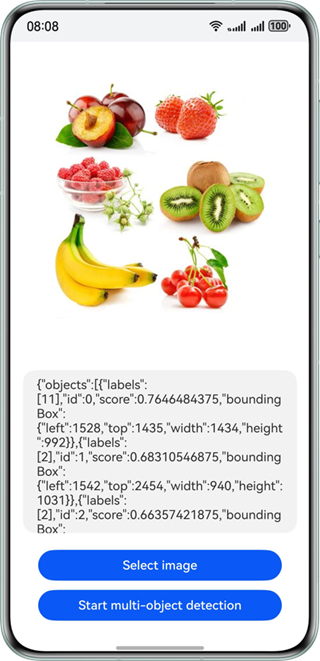
从图中可以看到,系统一次识别出了多个人、多把椅子,甚至还有窗户和绿植。这就是多目标识别的魅力——一张图能给你扫出七八个目标来。
约束与限制
开始写代码之前,有些限制条件咱们得先搞清楚,省得做到一半发现不支持:
| 约束项 | 具体说明 |
|---|---|
| 设备支持 | 不支持模拟器 |
| 图像质量 | 建议 720p 以上,100px < 高度 < 10000px,100px < 宽度 < 10000px |
| 高宽比例 | 建议 5:1 以下(高度小于宽度的 5 倍) |
| 物体占比 | 图片中的物体占比需要大于 0.1% |
| 检测范围 | 支持风景、动物、植物、建筑、人脸、表格、文本等多种物体类型 |
🥦 西兰花警告:
和多目标识别打交道,你得注意两件事:第一,图片里的物体太小不行,得占原图的千分之一以上;第二,不支持模拟器调试!这意味着你必须在真机上测试,没得商量。
开发步骤
好,铺垫完了咱们开始上代码!整体流程和之前的主体分割、人脸比对差不多:导入依赖 → 设计页面 → 选择图片 → 创建检测器 → 执行识别 → 处理结果。
1. 导入依赖
首先把要用到的模块 import 进来:
import { image } from "@kit.ImageKit";
import { hilog } from "@kit.PerformanceAnalysisKit";
import { BusinessError } from "@kit.BasicServicesKit";
import { fileIo } from "@kit.CoreFileKit";
import { objectDetection, visionBase } from "@kit.CoreVisionKit";
import { photoAccessHelper } from "@kit.MediaLibraryKit";
多目标识别需要导入的模块比主体分割多一些,objectDetection 是核心,visionBase 是基础类型定义。
2. 页面布局设计
页面结构比主体分割简单一些,不需要显示分割结果图,只需要显示原始图片和识别结果文字:
Column() {
  // 显示待识别图片
  Image(this.chooseImage)
    .objectFit(ImageFit.Fill)
    .height('60%')

  // 显示识别结果
  Text(this.dataValues)
    .copyOption(CopyOptions.LocalDevice)
    .height('15%')
    .margin(10)
    .width('60%')

  // 选择图片按钮
  Button('选择图片')
    .type(ButtonType.Capsule)
    .fontColor(Color.White)
    .alignSelf(ItemAlign.Center)
    .width('80%')
    .margin(10)
    .onClick(() => this.selectImage())

  // 开始识别按钮
  Button('开始多目标识别')
    .type(ButtonType.Capsule)
    .fontColor(Color.White)
    .alignSelf(ItemAlign.Center)
    .width('80%')
    .margin(10)
    .onClick(() => this.startDetection())
}
.width('100%')
.height('100%')
.justifyContent(FlexAlign.Center)
布局很直观:上面六成高度显示原始图片,中间显示识别结果,下面两个按钮分管选择图片和开始识别。
3. 图片选择与加载
图片选择和加载的代码和之前的章节差不多:
// 选择图片
private async selectImage() {
  try {
    const uri = await this.openPhoto();
    if (uri) {
      this.loadImage(uri);
    } else {
      hilog.error(0x0000, TAG, "未获取到图片URI");
      this.dataValues = "未获取到图片,请重试";
    }
  } catch (err) {
    const error = err as BusinessError;
    hilog.error(0x0000, TAG, `选择图片失败: ${error.code} - ${error.message}`);
    this.dataValues = `选择图片失败: ${error.message}`;
  }
}

// 打开图库选择图片
private openPhoto(): Promise<string> {
  return new Promise<string>((resolve, reject) => {
    const photoPicker = new photoAccessHelper.PhotoViewPicker();
    photoPicker.select({
      MIMEType: photoAccessHelper.PhotoViewMIMETypes.IMAGE_TYPE,
      maxSelectNumber: 1 // 选择1张图片
    }).then(res => {
      resolve(res.photoUris[0]);
    }).catch((err: BusinessError) => {
      hilog.error(0x0000, TAG, `获取图片失败: ${err.code} - ${err.message}`);
      reject(err);
    });
  });
}

// 加载图片并转换为PixelMap
private loadImage(uri: string) {
  setTimeout(async () => {
    try {
      const fileSource = await fileIo.open(uri, fileIo.OpenMode.READ_ONLY);
      const imageSource = image.createImageSource(fileSource.fd);
      this.chooseImage = await imageSource.createPixelMap();
      await fileIo.close(fileSource);
      this.dataValues = "图片加载完成,请点击开始多目标识别";
    } catch (error) {
      hilog.error(0x0000, TAG, `图片加载失败: ${error}`);
      this.dataValues = "图片加载失败,请重试";
    }
  }, 100);
}
这里 maxSelectNumber = 1,因为一次只处理一张图片,和主体分割的选择逻辑一致。
4. 执行多目标识别
多目标识别的核心在于创建检测器实例,然后调用 process 方法执行识别:
private async startDetection() {
  if (!this.chooseImage) {
    this.dataValues = "请先选择图片";
    return;
  }

  try {
    // 创建检测器实例
    const detector = await objectDetection.ObjectDetector.create();

    // 配置检测请求参数
    const request: visionBase.Request = {
      inputData: { pixelMap: this.chooseImage }
    };

    // 执行多目标识别
    const result: objectDetection.ObjectDetectionResponse = await detector.process(request);

    // 处理识别结果
    this.processDetectionResult(result);

  } catch (error) {
    const err = error as BusinessError;
    hilog.error(0x0000, TAG, `识别失败: ${err.code} - ${err.message}`);
    this.dataValues = `识别失败: ${err.message}`;
  }
}

// 处理识别结果
private processDetectionResult(result: objectDetection.ObjectDetectionResponse) {
  if (!result || !result.objects || result.objects.length === 0) {
    this.dataValues = "未检测到任何物体";
    return;
  }

  // 格式化输出识别结果
  let output = `检测到 ${result.objects.length} 个物体:\n\n`;
  result.objects.forEach((obj, index) => {
    output += `物体 ${index + 1}:\n`;
    output += `类型: ${obj.type || '未知'}\n`;
    output += `置信度: ${obj.confidence?.toFixed(2) || '未知'}\n`;
    output += `位置: x:${obj.boundingBox.left.toFixed(2)}, y:${obj.boundingBox.top.toFixed(2)}, `;
    output += `宽:${obj.boundingBox.width.toFixed(2)}, 高:${obj.boundingBox.height.toFixed(2)}\n\n`;
  });

  this.dataValues = output;
}
解释一下这段代码在干嘛:
startDetection():创建ObjectDetector实例,构建请求参数,调用process执行识别processDetectionResult():遍历识别结果,把每个物体的类型、置信度、位置坐标格式化输出
🥦 西兰花小贴士:confidence 是置信度,范围 0 到 1。数值越高说明模型越"确信"这个识别结果是对的。如果你想过滤掉不准的识别,可以只显示置信度大于 0.7 的结果。
完整代码示例
上面拆开讲了一遍,现在把完整的可运行代码给大家,直接复制到 DevEco Studio 里就能跑:
import { image } from '@kit.ImageKit';
import { hilog } from '@kit.PerformanceAnalysisKit';
import { BusinessError } from '@kit.BasicServicesKit';
import { fileIo } from '@kit.CoreFileKit';
import { objectDetection, visionBase } from '@kit.CoreVisionKit';
import { photoAccessHelper } from '@kit.MediaLibraryKit';
import { Button, ButtonType, Column, Image, ImageFit, ItemAlign, Text } from '@kit.ArkUI';

const TAG: string = 'ObjectDetectionSample';

@Entry
@Component
struct ObjectDetectionPage {
  private imageSource: image.ImageSource | undefined = undefined;
  @State chooseImage: PixelMap | undefined = undefined;
  @State dataValues: string = '';

  build() {
    Column() {
      Image(this.chooseImage)
        .objectFit(ImageFit.Fill)
        .height('60%')

      Text(this.dataValues)
        .copyOption(CopyOptions.LocalDevice)
        .height('15%')
        .margin(10)
        .width('60%')

      Button('选择图片')
        .type(ButtonType.Capsule)
        .fontColor(Color.White)
        .alignSelf(ItemAlign.Center)
        .width('80%')
        .margin(10)
        .onClick(() => this.selectImage())

      Button('开始多目标识别')
        .type(ButtonType.Capsule)
        .fontColor(Color.White)
        .alignSelf(ItemAlign.Center)
        .width('80%')
        .margin(10)
        .onClick(() => this.startDetection())
    }
    .width('100%')
    .height('100%')
    .justifyContent(FlexAlign.Center)
  }

  private async selectImage() {
    try {
      const uri = await this.openPhoto();
      if (uri) {
        this.loadImage(uri);
      } else {
        hilog.error(0x0000, TAG, "未获取到图片URI");
        this.dataValues = "未获取到图片,请重试";
      }
    } catch (err) {
      const error = err as BusinessError;
      hilog.error(0x0000, TAG, `选择图片失败: ${error.code} - ${error.message}`);
      this.dataValues = `选择图片失败: ${error.message}`;
    }
  }

  private openPhoto(): Promise<string> {
    return new Promise<string>((resolve, reject) => {
      const photoPicker = new photoAccessHelper.PhotoViewPicker();
      photoPicker.select({
        MIMEType: photoAccessHelper.PhotoViewMIMETypes.IMAGE_TYPE,
        maxSelectNumber: 1
      }).then(res => {
        resolve(res.photoUris[0]);
      }).catch((err: BusinessError) => {
        hilog.error(0x0000, TAG, `获取图片失败: ${err.code} - ${err.message}`);
        reject(err);
      });
    });
  }

  private loadImage(uri: string) {
    setTimeout(async () => {
      try {
        const fileSource = await fileIo.open(uri, fileIo.OpenMode.READ_ONLY);
        this.imageSource = image.createImageSource(fileSource.fd);
        this.chooseImage = await this.imageSource.createPixelMap();
        await fileIo.close(fileSource);
        this.dataValues = "图片加载完成,请点击开始多目标识别";
      } catch (error) {
        hilog.error(0x0000, TAG, `图片加载失败: ${error}`);
        this.dataValues = "图片加载失败,请重试";
      }
    }, 100);
  }

  private async startDetection() {
    if (!this.chooseImage) {
      this.dataValues = "请先选择图片";
      return;
    }

    try {
      const detector = await objectDetection.ObjectDetector.create();

      const request: visionBase.Request = {
        inputData: { pixelMap: this.chooseImage }
      };

      const result: objectDetection.ObjectDetectionResponse = await detector.process(request);

      this.processDetectionResult(result);

    } catch (error) {
      const err = error as BusinessError;
      hilog.error(0x0000, TAG, `识别失败: ${err.code} - ${err.message}`);
      this.dataValues = `识别失败: ${err.message}`;
    }
  }

  private processDetectionResult(result: objectDetection.ObjectDetectionResponse) {
    if (!result || !result.objects || result.objects.length === 0) {
      this.dataValues = "未检测到任何物体";
      return;
    }

    let output = `检测到 ${result.objects.length} 个物体:\n\n`;
    result.objects.forEach((obj, index) => {
      output += `物体 ${index + 1}:\n`;
      output += `类型: ${obj.type || '未知'}\n`;
      output += `置信度: ${obj.confidence?.toFixed(2) || '未知'}\n`;
      output += `位置: x:${obj.boundingBox.left.toFixed(2)}, y:${obj.boundingBox.top.toFixed(2)}, `;
      output += `宽:${obj.boundingBox.width.toFixed(2)}, 高:${obj.boundingBox.height.toFixed(2)}\n\n`;
    });

    this.dataValues = output;
  }
}
这段代码把前面的功能整合到了一起,可以直接运行看效果。
识别结果说明
多目标识别完成后,返回的 ObjectDetectionResponse 对象包含以下关键信息:
| 属性 | 类型 | 描述 |
|---|---|---|
objects |
DetectedObject[] |
检测到的物体列表 |
version |
string |
算法版本号 |
DetectedObject 对象结构:
| 属性 | 类型 | 描述 |
|---|---|---|
type |
string |
物体类型(如"person"“car”"dog"等) |
confidence |
number |
识别置信度(0-1 之间) |
boundingBox |
Rect |
物体边界框坐标(left, top, width, height) |
trackingId |
number |
跟踪 ID(用于视频序列中的物体跟踪) |
🥦 西兰花小贴士:trackingId 这个字段在处理视频时特别有用,它可以帮你追踪同一物体在不同帧之间的移动轨迹。如果你做的是实时视频分析,这个字段一定要利用起来!
下一步
多目标识别做完了,Core Vision Kit 的视觉能力咱们已经聊了五个:通用文字识别、人脸检测、人脸比对、主体分割、多目标识别。还剩最后一个值得捣鼓:
- 骨骼点检测:检测人体关键骨骼点,做动作识别、体态分析、智能安防
骨骼点检测的应用场景可广了——智能监控检测异常行为、健身 app 纠正你的深蹲姿势、虚拟试衣间追踪身体动作……下篇咱们就聊聊这个!
推荐资料
📚 官方文档是个好东西!说三遍!
- 官方多目标识别文档:Core Vision Kit 多目标识别
- API 参考手册:ObjectDetector API
- 相关能力文档:主体分割、骨骼点检测
我是盐焗西兰花,
不教理论,只给你能跑的代码和避坑指南。
下期见!🥦

讨论HarmonyOS开发技术,专注于API与组件、DevEco Studio、测试、元服务和应用上架分发等。
更多推荐


 8
8 0
0- 0


 已为社区贡献57条内容

所有评论(0)