鸿蒙如何实现简单手写板效果,提供实现方案思路和源码
创建一个可交互的组件,用户在屏幕上触摸并移动手指时,会根据触摸的位置动态生成路径,并使用黑色描边绘制在屏幕上。当用户移动手指时,不断记录移动点的坐标,通过线段连接起来形成路径。1、鸿蒙Path组件官方文档:https://developer.huawei.com/consumer/cn/doc/harmonyos-references/ts-drawing-components-path。onTo
·
鸿蒙如何实现简单手写板效果,提供实现方案思路和源码
一、结论
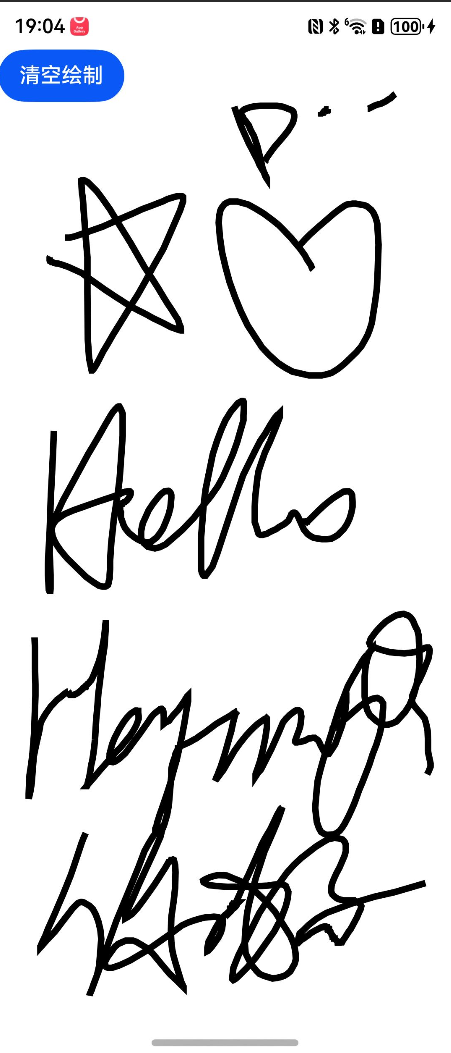
实现一个手写板功能,基本思路如下:
创建一个可交互的组件,用户在屏幕上触摸并移动手指时,会根据触摸的位置动态生成路径,并使用黑色描边绘制在屏幕上。当用户按下屏幕时,记录按下点的坐标作为路径的起点。当用户移动手指时,不断记录移动点的坐标,通过线段连接起来形成路径。
系统提供了非常便捷的画线组件Path。该组件将画布和画线功能合二为一。提供了简洁的画线组件。
二、代码实现和详细解释
注意:
因为path不能作为build的根节点,所以用容器组件row进行了包裹。
onTouch得到的坐标xy单位为vp,而svg描述符的单位为vp,所以数值要做单位转化。否则会造成能画出东西, 但是坐标跟下笔的位置都缩小了。
需要给path组件设置宽高,否则会不显示。
@Entry
@Component
struct PathTestPage {

  @State pathCommands: string = "";

  private setPathCommands(str: string, event: TouchEvent){
    let x = event.touches[0].x;
    let y = event.touches[0].y;
    this.pathCommands += str + vp2px(x) + ' ' + vp2px(y);
    console.log("georgeDebug", " this.pathCommands: " + this.pathCommands);
  }

  onTouchEvent(event: TouchEvent){
    // event xy 单位:vp
    switch (event.type){
      case TouchType.Down:
        this.setPathCommands('M', event);
        break;

      case TouchType.Move:
        this.setPathCommands('L', event);
        break;
        default:
          break;
    }
  }

  build() {
    Stack({
      alignContent: Alignment.TopStart
    }){
      Path()
        .commands(this.pathCommands) // 设置SVG路径描述字符串
        .strokeWidth(5) // 设置路径的描边宽度为 5
        .fill("none") // 设置路径的填充颜色为无
        .stroke(Color.Black) // 设置路径的描边颜色为黑色
        .height('100%')
        .width('100%')
        .onTouch((event: TouchEvent)=>{
          this.onTouchEvent(event);
        })

      Button("清空绘制")
        .onClick(()=>{
          this.pathCommands = "";
        })
    }
    .height('100%')
    .width('100%')

  }
}
关键参数/方法说明
三、引用资料地址
1、鸿蒙Path组件官方文档:https://developer.huawei.com/consumer/cn/doc/harmonyos-references/ts-drawing-components-path

讨论HarmonyOS开发技术,专注于API与组件、DevEco Studio、测试、元服务和应用上架分发等。
更多推荐

 11
11 0
0- 0


 已为社区贡献135条内容

所有评论(0)