在React Native鸿蒙跨平台开发中实现归并排序(Merge Sort),如何来进行合并两个有序数组?
本文介绍了在React Native项目中实现归并排序的方法。首先创建merge和mergeSort两个函数,分别用于合并数组和执行分治排序。然后在React组件中导入并使用该算法,通过useState管理原始数据和排序结果。文章提供了完整代码示例,包括排序函数实现、组件集成方法以及界面展示逻辑。最后提醒开发者注意大数据集的性能问题,建议在实际设备测试优化。附带的日历组件代码展示了排序算法在实际项
在React Native项目中实现归并排序(Merge Sort),你可以通过创建一个专门的函数来实现这个算法,然后在你的组件中使用这个函数。归并排序是一种分而治之的算法,它将数组分成更小的数组,直到每个数组只有一个元素,然后将这些小数组合并成一个有序的数组。
下面是如何在React Native项目中实现归并排序的详细步骤:
- 创建归并排序函数
首先,在React Native项目中创建一个新的JavaScript文件,例如MergeSort.js,然后在该文件中定义归并排序的函数。
function merge(left, right) {
    let result = [];
    let indexLeft = 0;
    let indexRight = 0;

    // 合并两个有序数组
    while (indexLeft < left.length && indexRight < right.length) {
        if (left[indexLeft] < right[indexRight]) {
            result.push(left[indexLeft]);
            indexLeft++;
        } else {
            result.push(right[indexRight]);
            indexRight++;
        }
    }

    // 将剩余的元素添加到结果数组中
    return result.concat(left.slice(indexLeft)).concat(right.slice(indexRight));
}

function mergeSort(array) {
    if (array.length <= 1) {
        return array;
    }

    const middle = Math.floor(array.length / 2);
    const left = array.slice(0, middle);
    const right = array.slice(middle);

    return merge(mergeSort(left), mergeSort(right));
}
- 在React组件中使用归并排序函数
接下来,在你的React组件中引入并使用这个mergeSort函数。例如,你可以在组件的某个方法中使用它来对数据进行排序。
import React, { useState } from 'react';
import { View, Text, Button } from 'react-native';
import { mergeSort } from './MergeSort'; // 确保路径正确

const App = () => {
    const [data, setData] = useState([5, 3, 8, 6, 2, 7, 1]); // 示例数据
    const [sortedData, setSortedData] = useState([]); // 存储排序后的数据

    const handleSort = () => {
        const sorted = mergeSort([...data]); // 使用归并排序进行排序,并保持原数据不变
        setSortedData(sorted); // 设置排序后的数据到状态中
    };

    return (
        <View>
            <Text>原始数据: {data.join(', ')}</Text>
            <Text>排序后数据: {sortedData.join(', ')}</Text>
            <Button title="排序" onPress={handleSort} />
        </View>
    );
};

export default App;
- 运行你的React Native应用
确保你的React Native环境已经设置好,然后运行你的应用。你应该能够看到一个按钮,点击后原始数据将被归并排序,并在界面上显示排序后的结果。
注意事项:
- 确保你的React Native环境已经正确设置,并且所有依赖都已安装。
- 如果你的数据非常大,注意归并排序的性能和内存使用情况,因为它可能需要较多的内存来处理大数据集。对于非常大的数据集,可以考虑使用其他更适合大数据的排序算法或优化方法。
- 对于移动设备(如鸿蒙设备),性能和内存使用尤为重要,因此请在实际设备上测试以确保应用的性能满足要求。
真实项目演示:
import React, { useState } from 'react';
import { View, Text, StyleSheet, TouchableOpacity, ScrollView, Dimensions, Image } from 'react-native';

// Simple Icon Component using Unicode symbols
interface IconProps {
  name: string;
  size?: number;
  color?: string;
  style?: object;
}

const Icon: React.FC<IconProps> = ({
  name,
  size = 24,
  color = '#333333',
  style
}) => {
  const getIconSymbol = () => {
    switch (name) {
      case 'prev': return '‹';
      case 'next': return '›';
      case 'today': return '◎';
      case 'event': return '•';
      case 'date': return '📅';
      case 'month': return '📅';
      case 'year': return '📅';
      default: return '●';
    }
  };

  return (
    <View style={[{ width: size, height: size, justifyContent: 'center', alignItems: 'center' }, style]}>
      <Text style={{ fontSize: size * 0.8, color, includeFontPadding: false, textAlign: 'center' }}>
        {getIconSymbol()}
      </Text>
    </View>
  );
};

// Calendar Component
interface CalendarProps {
  events?: { date: string; title: string }[];
  onDateSelect?: (date: string) => void;
  selectedDate?: string;
}

const Calendar: React.FC<CalendarProps> = ({
  events = [],
  onDateSelect,
  selectedDate
}) => {
  const [currentDate, setCurrentDate] = useState(new Date());

  // Get days in month
  const getDaysInMonth = (year: number, month: number) => {
    return new Date(year, month + 1, 0).getDate();
  };

  // Get first day of month (0 = Sunday, 1 = Monday, etc)
  const getFirstDayOfMonth = (year: number, month: number) => {
    return new Date(year, month, 1).getDay();
  };

  // Format date as YYYY-MM-DD
  const formatDate = (date: Date) => {
    const year = date.getFullYear();
    const month = String(date.getMonth() + 1).padStart(2, '0');
    const day = String(date.getDate()).padStart(2, '0');
    return `${year}-${month}-${day}`;
  };

  // Check if date has events
  const hasEvents = (dateStr: string) => {
    return events.some(event => event.date === dateStr);
  };

  // Navigate to previous month
  const prevMonth = () => {
    setCurrentDate(new Date(currentDate.getFullYear(), currentDate.getMonth() - 1, 1));
  };

  // Navigate to next month
  const nextMonth = () => {
    setCurrentDate(new Date(currentDate.getFullYear(), currentDate.getMonth() + 1, 1));
  };

  // Go to today
  const goToToday = () => {
    const today = new Date();
    setCurrentDate(new Date(today.getFullYear(), today.getMonth(), 1));
    if (onDateSelect) {
      onDateSelect(formatDate(today));
    }
  };

  // Render calendar header
  const renderHeader = () => {
    const year = currentDate.getFullYear();
    const month = currentDate.toLocaleString('zh-CN', { month: 'long' });

    return (
      <View style={styles.calendarHeader}>
        <TouchableOpacity onPress={prevMonth} style={styles.navButton}>
          <Icon name="prev" size={24} color="#4a5568" />
        </TouchableOpacity>

        <View style={styles.monthYearContainer}>
          <Text style={styles.monthText}>{month}</Text>
          <Text style={styles.yearText}>{year}年</Text>
        </View>

        <TouchableOpacity onPress={nextMonth} style={styles.navButton}>
          <Icon name="next" size={24} color="#4a5568" />
        </TouchableOpacity>
      </View>
    );
  };

  // Render weekdays
  const renderWeekdays = () => {
    const weekdays = ['日', '一', '二', '三', '四', '五', '六'];

    return (
      <View style={styles.weekdaysContainer}>
        {weekdays.map((day, index) => (
          <View key={index} style={styles.weekdayCell}>
            <Text style={[styles.weekdayText, index === 0 && styles.sundayText]}>{day}</Text>
          </View>
        ))}
      </View>
    );
  };

  // Render calendar days
  const renderDays = () => {
    const year = currentDate.getFullYear();
    const month = currentDate.getMonth();
    const daysInMonth = getDaysInMonth(year, month);
    const firstDayOfMonth = getFirstDayOfMonth(year, month);

    const today = new Date();
    const isCurrentMonth = today.getFullYear() === year && today.getMonth() === month;
    const todayDate = today.getDate();

    const days = [];

    // Previous month's days
    const prevMonthDays = getDaysInMonth(year, month - 1);
    for (let i = firstDayOfMonth - 1; i >= 0; i--) {
      const day = prevMonthDays - i;
      days.push(
        <View key={`prev-${day}`} style={styles.dayCell}>
          <Text style={styles.otherMonthDay}>{day}</Text>
        </View>
      );
    }

    // Current month's days
    for (let day = 1; day <= daysInMonth; day++) {
      const dateObj = new Date(year, month, day);
      const dateStr = formatDate(dateObj);
      const isToday = isCurrentMonth && day === todayDate;
      const isSelected = selectedDate === dateStr;
      const hasEvent = hasEvents(dateStr);

      days.push(
        <TouchableOpacity
          key={`curr-${day}`}
          style={[
            styles.dayCell,
            isToday && styles.todayCell,
            isSelected && styles.selectedCell
          ]}
          onPress={() => onDateSelect && onDateSelect(dateStr)}
        >
          <View style={styles.dayNumberContainer}>
            <Text style={[
              styles.dayNumber,
              isToday && styles.todayText,
              isSelected && styles.selectedText
            ]}>
              {day}
            </Text>
            {hasEvent && (
              <View style={styles.eventIndicator}>
                <Icon name="event" size={8} color="#e53e3e" />
              </View>
            )}
          </View>
        </TouchableOpacity>
      );
    }

    // Next month's days
    const totalCells = 42; // 6 rows * 7 days
    const remainingCells = totalCells - days.length;
    for (let day = 1; day <= remainingCells; day++) {
      days.push(
        <View key={`next-${day}`} style={styles.dayCell}>
          <Text style={styles.otherMonthDay}>{day}</Text>
        </View>
      );
    }

    return (
      <View style={styles.daysContainer}>
        {days}
      </View>
    );
  };

  // Render today button
  const renderTodayButton = () => {
    return (
      <TouchableOpacity style={styles.todayButton} onPress={goToToday}>
        <Icon name="today" size={16} color="#4a5568" style={styles.todayIcon} />
        <Text style={styles.todayButtonText}>今天</Text>
      </TouchableOpacity>
    );
  };

  return (
    <View style={styles.calendarContainer}>
      {renderHeader()}
      {renderWeekdays()}
      {renderDays()}
      {renderTodayButton()}
    </View>
  );
};

// Main App Component
const CalendarComponentApp = () => {
  const [selectedDate, setSelectedDate] = useState<string>('');
  const [events] = useState([
    { date: new Date().toISOString().split('T')[0], title: '会议' },
    { date: new Date(Date.now() + 86400000).toISOString().split('T')[0], title: '生日' },
    { date: new Date(Date.now() + 172800000).toISOString().split('T')[0], title: '假期' },
  ]);

  const handleDateSelect = (date: string) => {
    setSelectedDate(date);
  };

  return (
    <ScrollView style={styles.container}>
      <View style={styles.header}>
        <Text style={styles.headerTitle}>日历组件</Text>
        <Text style={styles.headerSubtitle}>美观实用的日历组件</Text>
      </View>

      <View style={styles.section}>
        <Text style={styles.sectionTitle}>归并排序(可视化 · 新风格)</Text>
        <View style={styles.msContainer}>
          <MergeSortVisualizer />
        </View>
      </View>

      <View style={styles.section}>
        <Text style={styles.sectionTitle}>日历展示</Text>
        <View style={styles.calendarWrapper}>
          <Calendar
            events={events}
            onDateSelect={handleDateSelect}
            selectedDate={selectedDate}
          />
        </View>
      </View>

      {selectedDate ? (
        <View style={styles.section}>
          <Text style={styles.sectionTitle}>选中日期</Text>
          <View style={styles.selectedDateCard}>
            <Text style={styles.selectedDateText}>{selectedDate}</Text>
            <Text style={styles.selectedDateDesc}>您已选择以上日期</Text>
          </View>
        </View>
      ) : null}

      <View style={styles.section}>
        <Text style={styles.sectionTitle}>功能演示</Text>
        <View style={styles.demosContainer}>
          <View style={styles.demoItem}>
            <Icon name="date" size={24} color="#3182ce" style={styles.demoIcon} />
            <View>
              <Text style={styles.demoTitle}>日期选择</Text>
              <Text style={styles.demoDesc}>点击任意日期进行选择</Text>
            </View>
          </View>

          <View style={styles.demoItem}>
            <Icon name="event" size={24} color="#e53e3e" style={styles.demoIcon} />
            <View>
              <Text style={styles.demoTitle}>事件标记</Text>
              <Text style={styles.demoDesc}>带有红点标记的日期有事件</Text>
            </View>
          </View>

          <View style={styles.demoItem}>
            <Icon name="month" size={24} color="#38a169" style={styles.demoIcon} />
            <View>
              <Text style={styles.demoTitle}>月份切换</Text>
              <Text style={styles.demoDesc}>使用左右箭头切换月份</Text>
            </View>
          </View>
        </View>
      </View>

      <View style={styles.usageSection}>
        <Text style={styles.sectionTitle}>使用方法</Text>
        <View style={styles.codeBlock}>
          <Text style={styles.codeText}>{'<Calendar'}</Text>
          <Text style={styles.codeText}>  events={'{events}'}</Text>
          <Text style={styles.codeText}>  onDateSelect={'{handleDateSelect}'}</Text>
          <Text style={styles.codeText}>  selectedDate={'{selectedDate}'}</Text>
          <Text style={styles.codeText}>{'/>'}</Text>
        </View>
        <Text style={styles.description}>
          Calendar组件提供了完整的日历功能,包括日期选择、事件标记和月份切换。
          通过events属性传递事件数据,通过onDateSelect处理日期选择事件。
        </Text>
      </View>

      <View style={styles.featuresSection}>
        <Text style={styles.sectionTitle}>功能特性</Text>
        <View style={styles.featuresList}>
          <View style={styles.featureItem}>
            <Icon name="date" size={20} color="#3182ce" style={styles.featureIcon} />
            <Text style={styles.featureText}>日期选择功能</Text>
          </View>
          <View style={styles.featureItem}>
            <Icon name="event" size={20} color="#e53e3e" style={styles.featureIcon} />
            <Text style={styles.featureText}>事件标记显示</Text>
          </View>
          <View style={styles.featureItem}>
            <Icon name="month" size={20} color="#38a169" style={styles.featureIcon} />
            <Text style={styles.featureText}>月份导航</Text>
          </View>
          <View style={styles.featureItem}>
            <Icon name="today" size={20} color="#d69e2e" style={styles.featureIcon} />
            <Text style={styles.featureText}>快速返回今天</Text>
          </View>
        </View>
      </View>

      <View style={styles.footer}>
        <Text style={styles.footerText}>© 2023 日历组件 | 现代化UI组件库</Text>
      </View>
    </ScrollView>
  );
};

const { width } = Dimensions.get('window');

const styles = StyleSheet.create({
  container: {
    flex: 1,
    backgroundColor: '#f7fafc',
  },
  header: {
    backgroundColor: '#ffffff',
    paddingVertical: 30,
    paddingHorizontal: 20,
    marginBottom: 10,
    borderBottomWidth: 1,
    borderBottomColor: '#e2e8f0',
  },
  headerTitle: {
    fontSize: 28,
    fontWeight: '700',
    color: '#2d3748',
    textAlign: 'center',
    marginBottom: 5,
  },
  headerSubtitle: {
    fontSize: 16,
    color: '#718096',
    textAlign: 'center',
  },
  section: {
    marginBottom: 25,
  },
  sectionTitle: {
    fontSize: 20,
    fontWeight: '700',
    color: '#2d3748',
    paddingHorizontal: 20,
    paddingBottom: 15,
  },
  calendarWrapper: {
    backgroundColor: '#ffffff',
    marginHorizontal: 15,
    borderRadius: 15,
    padding: 15,
    elevation: 4,
    shadowColor: '#000',
    shadowOffset: { width: 0, height: 2 },
    shadowOpacity: 0.1,
    shadowRadius: 8,
  },
  selectedDateCard: {
    backgroundColor: '#ebf8ff',
    marginHorizontal: 15,
    borderRadius: 12,
    padding: 20,
    borderWidth: 1,
    borderColor: '#bee3f8',
  },
  selectedDateText: {
    fontSize: 18,
    fontWeight: '700',
    color: '#2b6cb0',
    textAlign: 'center',
    marginBottom: 5,
  },
  selectedDateDesc: {
    fontSize: 14,
    color: '#4a5568',
    textAlign: 'center',
  },
  demosContainer: {
    backgroundColor: '#ffffff',
    marginHorizontal: 15,
    borderRadius: 15,
    padding: 20,
    elevation: 3,
    shadowColor: '#000',
    shadowOffset: { width: 0, height: 2 },
    shadowOpacity: 0.08,
    shadowRadius: 4,
  },
  demoItem: {
    flexDirection: 'row',
    alignItems: 'center',
    marginBottom: 20,
  },
  demoItemLast: {
    marginBottom: 0,
  },
  demoIcon: {
    marginRight: 15,
  },
  demoTitle: {
    fontSize: 16,
    fontWeight: '600',
    color: '#2d3748',
    marginBottom: 3,
  },
  demoDesc: {
    fontSize: 14,
    color: '#718096',
  },
  usageSection: {
    backgroundColor: '#ffffff',
    marginHorizontal: 15,
    borderRadius: 15,
    padding: 20,
    marginBottom: 20,
    elevation: 3,
    shadowColor: '#000',
    shadowOffset: { width: 0, height: 2 },
    shadowOpacity: 0.08,
    shadowRadius: 4,
  },
  codeBlock: {
    backgroundColor: '#2d3748',
    borderRadius: 8,
    padding: 15,
    marginBottom: 15,
  },
  codeText: {
    fontFamily: 'monospace',
    color: '#e2e8f0',
    fontSize: 14,
    lineHeight: 22,
  },
  description: {
    fontSize: 15,
    color: '#4a5568',
    lineHeight: 22,
  },
  featuresSection: {
    backgroundColor: '#ffffff',
    marginHorizontal: 15,
    borderRadius: 15,
    padding: 20,
    marginBottom: 20,
    elevation: 3,
    shadowColor: '#000',
    shadowOffset: { width: 0, height: 2 },
    shadowOpacity: 0.08,
    shadowRadius: 4,
  },
  featuresList: {
    paddingLeft: 10,
  },
  featureItem: {
    flexDirection: 'row',
    alignItems: 'center',
    marginBottom: 15,
  },
  featureIcon: {
    marginRight: 15,
  },
  featureText: {
    fontSize: 16,
    color: '#2d3748',
  },
  footer: {
    paddingVertical: 20,
    alignItems: 'center',
  },
  footerText: {
    color: '#a0aec0',
    fontSize: 14,
  },
  // Calendar Styles
  calendarContainer: {
    backgroundColor: '#ffffff',
  },
  calendarHeader: {
    flexDirection: 'row',
    justifyContent: 'space-between',
    alignItems: 'center',
    paddingHorizontal: 10,
    paddingVertical: 15,
  },
  navButton: {
    padding: 10,
  },
  monthYearContainer: {
    alignItems: 'center',
  },
  monthText: {
    fontSize: 18,
    fontWeight: '700',
    color: '#2d3748',
  },
  yearText: {
    fontSize: 14,
    color: '#718096',
  },
  weekdaysContainer: {
    flexDirection: 'row',
    borderBottomWidth: 1,
    borderBottomColor: '#edf2f7',
    paddingBottom: 10,
    marginBottom: 5,
  },
  weekdayCell: {
    flex: 1,
    alignItems: 'center',
  },
  weekdayText: {
    fontSize: 14,
    fontWeight: '600',
    color: '#4a5568',
  },
  sundayText: {
    color: '#e53e3e',
  },
  daysContainer: {
    flexDirection: 'row',
    flexWrap: 'wrap',
  },
  dayCell: {
    width: '14.28%',
    aspectRatio: 1,
    justifyContent: 'center',
    alignItems: 'center',
  },
  dayNumberContainer: {
    position: 'relative',
  },
  dayNumber: {
    fontSize: 16,
    color: '#4a5568',
    fontWeight: '500',
  },
  otherMonthDay: {
    fontSize: 16,
    color: '#cbd5e0',
  },
  todayCell: {
    backgroundColor: '#ebf8ff',
    borderRadius: 30,
  },
  todayText: {
    color: '#3182ce',
    fontWeight: '700',
  },
  selectedCell: {
    backgroundColor: '#3182ce',
    borderRadius: 30,
  },
  selectedText: {
    color: '#ffffff',
    fontWeight: '700',
  },
  eventIndicator: {
    position: 'absolute',
    top: -3,
    right: -3,
  },
  todayButton: {
    flexDirection: 'row',
    justifyContent: 'center',
    alignItems: 'center',
    paddingVertical: 15,
    borderTopWidth: 1,
    borderTopColor: '#edf2f7',
    marginTop: 5,
  },
  todayIcon: {
    marginRight: 8,
  },
  todayButtonText: {
    fontSize: 16,
    fontWeight: '600',
    color: '#4a5568',
  },
  msContainer: {
    marginHorizontal: 15,
  },
  msCard: {
    backgroundColor: '#0f141c',
    borderRadius: 16,
    borderWidth: 1,
    borderColor: '#1f2a36',
    shadowColor: '#000',
    shadowOffset: { width: 0, height: 6 },
    shadowOpacity: 0.18,
    shadowRadius: 14,
    paddingVertical: 14,
    paddingHorizontal: 12,
  },
  msHeader: {
    marginBottom: 8,
  },
  msTitle: {
    fontSize: 18,
    fontWeight: '700',
    color: '#e6f1ff',
  },
  msSubtitle: {
    fontSize: 13,
    color: '#8aa0b8',
    marginTop: 4,
  },
  msControls: {
    flexDirection: 'row',
    alignItems: 'center',
    flexWrap: 'wrap',
    marginTop: 8,
    marginBottom: 12,
  },
  msBtn: {
    flexDirection: 'row',
    alignItems: 'center',
    backgroundColor: '#1a2433',
    borderWidth: 1,
    borderColor: '#28374d',
    borderRadius: 12,
    paddingVertical: 8,
    paddingHorizontal: 10,
    marginRight: 8,
  },
  msBtnActive: {
    backgroundColor: '#1f2d44',
    borderColor: '#34507a',
  },
  msIcon: {
    width: 20,
    height: 20,
    marginRight: 6,
  },
  msBtnText: {
    color: '#e6f1ff',
    fontSize: 13,
    fontWeight: '600',
  },
  msChips: {
    flexDirection: 'row',
    alignSelf: 'flex-end',
    marginLeft: 8,
  },
  msChip: {
    backgroundColor: '#182030',
    borderWidth: 1,
    borderColor: '#26364d',
    borderRadius: 10,
    paddingVertical: 6,
    paddingHorizontal: 10,
    marginLeft: 6,
  },
  msChipActive: {
    backgroundColor: '#213049',
    borderColor: '#385782',
  },
  msChipText: {
    color: '#cfe1ff',
    fontSize: 12,
    fontWeight: '600',
  },
  msBars: {
    flexDirection: 'row',
    alignItems: 'flex-end',
    justifyContent: 'space-between',
    paddingVertical: 12,
    paddingHorizontal: 6,
    minHeight: 220,
  },
  msBar: {
    width: 16,
    backgroundColor: '#2f7de1',
    borderTopLeftRadius: 8,
    borderTopRightRadius: 8,
    borderBottomLeftRadius: 2,
    borderBottomRightRadius: 2,
    justifyContent: 'flex-end',
    alignItems: 'center',
    marginHorizontal: 2,
  },
  msBarHL: {
    backgroundColor: '#49a2ff',
  },
  msBarText: {
    fontSize: 10,
    color: '#e6f1ff',
    marginBottom: 4,
    fontWeight: '600',
  },
  msFooterRow: {
    flexDirection: 'row',
    justifyContent: 'space-between',
    alignItems: 'center',
    paddingTop: 6,
  },
  msFootText: {
    color: '#8aa0b8',
    fontSize: 12,
  },
  msDone: {
    color: '#43d998',
    fontWeight: '700',
  },
});

const ICON_BASE64_MS = {
  play: 'data:image/png;base64,iVBORw0KGgoAAAANSUhEUgAAABgAAAAYCAYAAADgdz34AAAACXBIWXMAAAsSAAALEgHS3X78AAABJUlEQVR4nO2Uu0oDQRRGv6WgQbYgG5gMZAGyQJgBskCYAbLA2QBsEB2YjI9kqg+oJrJf6Vb4eU2m3mS9KcZkqgqj3v8f4cIhJ0c3xQkQyGv4gqJtVZr3kzF1g2cXgH0mGJ8xwHj0C3kC4g4S9gJ4g4p7UeUuJ5ZJrF7JwE7k8Kf4mA1Jwu0SxwV6pJm1fVb9kqUoSxG1zQzqg3bqB9oC+o9dC7kP2kWmA6lH5wZkQ7Wc1wV2oG+oS6gI4gU6gC6gN5gH5gM5gG5gN6gC4gE6gE6gP7i9n3yqgW+uQmHn3Rz2bQf3pKf8dC6lHkU1YcH5tQ5ZkZyLkGm2r9wUOJi3Yq6Ww1b4q3bWw5b8m8YHc2mXb9jZVNcWwA8Yw3fD6oGJcQbJcXIqk3wqkP1pZ3yqgV8wQf4pXQm+YH3kR+gKpUuZQZVYVq0gGv8nqfYw3gP2gD8oG6gE8kD0kP4kD0oP2kH8oD+oJ8oP+oH8kD+oH8oP9qgWgB7vKc3I2q2xAAAAAElFTkSuQmCC',
  pause: 'data:image/png;base64,iVBORw0KGgoAAAANSUhEUgAAABgAAAAYCAYAAADgdz34AAAACXBIWXMAAAsSAAALEgHS3X78AAABK0lEQVR4nO2UsUoDQRSGv6WgQbYgG5gMZAGyQJgBskCYAbLA2QBsEB2YjI9kqg+oJrJf6Vb4eU2m3mS9KcZkqgqj3v8f4cIhJ0c3xQkQyGv4gqJtVZr3kzF1g2cXgH0mGJ8xwHj0C3kC4g4S9gJ4g4p7UeUuJ5ZJrF7JwE7k8Kf4mA1Jwu0SxwV6pJm1fVb9kqUoSxG1zQzqg3bqB9oC+o9dC7kP2kWmA6lH5wZkQ7Wc1wV2oG+oS6gI4gU6gC6gN5gH5gM5gG5gN6gC4gE6gE6gP7i9n3yqgW+uQmHn3Rz2bQf3pKf8dC6lHkU1YcH5tQ5ZkZyLkGm2r9wUOJi3Yq6Ww1b4q3bWw5b8m8YHc2mXb9jZVNcWwA8Yw3fD6oGJcQbJcXIqk3wqkP1pZ3yqgV8wQf4pXQm+YH3kR+gKpUuZQZVYVq0gGv8nqfYw3gP2gD8oG6gE8kD0kP4kD0oP2kH8oD+oJ8oP+oH8kD+oH8oP9qgWgB7vKc3I2q2xAAAAAElFTkSuQmCC',
  step: 'data:image/png;base64,iVBORw0KGgoAAAANSUhEUgAAABgAAAAYCAYAAADgdz34AAAACXBIWXMAAAsSAAALEgHS3X78AAABMklEQVR4nO2UsUoDQRSGv6WgQbYgG5gMZAGyQJgBskCYAbLA2QBsEB2YjI9kqg+oJrJf6Vb4eU2m3mS9KcZkqgqj3v8f4cIhJ0c3xQkQyGv4gqJtVZr3kzF1g2cXgH0mGJ8xwHj0C3kC4g4S9gJ4g4p7UeUuJ5ZJrF7JwE7k8Kf4mA1Jwu0SxwV6pJm1fVb9kqUoSxG1zQzqg3bqB9oC+o9dC7kP2kWmA6lH5wZkQ7Wc1wV2oG+oS6gI4gU6gC6gN5gH5gM5gG5gN6gC4gE6gE6gP7i9n3yqgW+uQmHn3Rz2bQf3pKf8dC6lHkU1YcH5tQ5ZkZyLkGm2r9wUOJi3Yq6Ww1b4q3bWw5b8m8YHc2mXb9jZVNcWwA8Yw3fD6oGJcQbJcXIqk3wqkP1pZ3yqgV8wQf4pXQm+YH3kR+gKpUuZQZVYVq0gGv8nqfYw3gP2gD8oG6gE8kD0kP4kD0oP2kH8oD+oJ8oP+oH8kD+oH8oP9qgWgB7vKc3I2q2xAAAAAElFTkSuQmCC',
  reset: 'data:image/png;base64,iVBORw0KGgoAAAANSUhEUgAAABgAAAAYCAYAAADgdz34AAAACXBIWXMAAAsSAAALEgHS3X78AAABMklEQVR4nO2UsUoDQRSGv6WgQbYgG5gMZAGyQJgBskCYAbLA2QBsEB2YjI9kqg+oJrJf6Vb4eU2m3mS9KcZkqgqj3v8f4cIhJ0c3xQkQyGv4gqJtVZr3kzF1g2cXgH0mGJ8xwHj0C3kC4g4S9gJ4g4p7UeUuJ5ZJrF7JwE7k8Kf4mA1Jwu0SxwV6pJm1fVb9kqUoSxG1zQzqg3bqB9oC+o9dC7kP2kWmA6lH5wZkQ7Wc1wV2oG+oS6gI4gU6gC6gN5gH5gM5gG5gN6gC4gE6gE6gP7i9n3yqgW+uQmHn3Rz2bQf3pKf8dC6lHkU1YcH5tQ5ZkZyLkGm2r9wUOJi3Yq6Ww1b4q3bWw5b8m8YHc2mXb9jZVNcWwA8Yw3fD6oGJcQbJcXIqk3wqkP1pZ3yqgV8wQf4pXQm+YH3kR+gKpUuZQZVYVq0gGv8nqfYw3gP2gD8oG6gE8kD0kP4kD0oP2kH8oD+oJ8oP+oH8kD+oH8oP9qgWgB7vKc3I2q2xAAAAAElFTkSuQmCC',
  shuffle: 'data:image/png;base64,iVBORw0KGgoAAAANSUhEUgAAABgAAAAYCAYAAADgdz34AAAACXBIWXMAAAsSAAALEgHS3X78AAABO0lEQVR4nO2UsUoDQRSGv6WgQbYgG5gMZAGyQJgBskCYAbLA2QBsEB2YjI9kqg+oJrJf6Vb4eU2m3mS9KcZkqgqj3v8f4cIhJ0c3xQkQyGv4gqJtVZr3kzF1g2cXgH0mGJ8xwHj0C3kC4g4S9gJ4g4p7UeUuJ5ZJrF7JwE7k8Kf4mA1Jwu0SxwV6pJm1fVb9kqUoSxG1zQzqg3bqB9oC+o9dC7kP2kWmA6lH5wZkQ7Wc1wV2oG+oS6gI4gU6gC6gN5gH5gM5gG5gN6gC4gE6gE6gP7i9n3yqgW+uQmHn3Rz2bQf3pKf8dC6lHkU1YcH5tQ5ZkZyLkGm2r9wUOJi3Yq6Ww1b4q3bWw5b8m8YHc2mXb9jZVNcWwA8Yw3fD6oGJcQbJcXIqk3wqkP1pZ3yqgV8wQf4pXQm+YH3kR+gKpUuZQZVYVq0gGv8nqfYw3gP2gD8oG6gE8kD0kP4kD0oP2kH8oD+oJ8oP+oH8kD+oH8oP9qgWgB7vKc3I2q2xAAAAAElFTkSuQmCC',
};

const MergeSortVisualizer: React.FC = () => {
  const [arr, setArr] = useState<number[]>([]);
  const [steps, setSteps] = useState<{ arr: number[]; highlights: number[] }[]>([]);
  const [idx, setIdx] = useState(0);
  const [playing, setPlaying] = useState(false);
  const [speed, setSpeed] = useState(600);
  const timerRef = React.useRef<any>(null);
  const maxBars = 18;

  const genArray = () => {
    const a = Array.from({ length: maxBars }, () => Math.floor(20 + Math.random() * 120));
    setArr(a);
    const s = buildSteps(a);
    setSteps(s);
    setIdx(0);
    setPlaying(false);
  };

  const buildSteps = (a: number[]) => {
    const n = a.length;
    let src = a.slice();
    const out: { arr: number[]; highlights: number[] }[] = [{ arr: src.slice(), highlights: [] }];
    for (let size = 1; size < n; size *= 2) {
      for (let left = 0; left < n; left += 2 * size) {
        const mid = Math.min(left + size, n);
        const right = Math.min(left + 2 * size, n);
        let i = left, j = mid;
        const merged: number[] = [];
        while (i < mid && j < right) {
          if (src[i] <= src[j]) { merged.push(src[i]); i++; } else { merged.push(src[j]); j++; }
        }
        while (i < mid) { merged.push(src[i]); i++; }
        while (j < right) { merged.push(src[j]); j++; }
        for (let k = 0; k < merged.length; k++) src[left + k] = merged[k];
        out.push({ arr: src.slice(), highlights: Array.from({ length: merged.length }, (_, k) => left + k) });
      }
    }
    return out;
  };

  const stepOnce = () => {
    setIdx(prev => {
      const next = Math.min(prev + 1, steps.length - 1);
      setArr(steps[next].arr);
      if (next === steps.length - 1) setPlaying(false);
      return next;
    });
  };

  const togglePlay = () => setPlaying(p => !p);
  const resetSort = () => { const s = buildSteps(arr.slice()); setSteps(s); setIdx(0); setPlaying(false); };
  const shuffle = () => genArray();

  React.useEffect(() => { genArray(); }, []);
  React.useEffect(() => {
    if (playing) {
      if (timerRef.current) clearInterval(timerRef.current);
      timerRef.current = setInterval(stepOnce, speed);
    } else {
      if (timerRef.current) { clearInterval(timerRef.current); timerRef.current = null; }
    }
    return () => { if (timerRef.current) { clearInterval(timerRef.current); timerRef.current = null; } };
  }, [playing, speed, steps]);

  const maxVal = Math.max(...arr, 1);
  const isDone = idx === steps.length - 1 && steps.length > 1;

  return (
    <View style={styles.msCard}>
      <View style={styles.msHeader}>
        <Text style={styles.msTitle}>归并排序 · 霓虹风格</Text>
        <Text style={styles.msSubtitle}>播放、步进、重置、随机</Text>
      </View>
      <View style={styles.msControls}>
        <TouchableOpacity style={[styles.msBtn, playing ? styles.msBtnActive : null]} onPress={togglePlay} activeOpacity={0.85}>
          <Image source={{ uri: playing ? ICON_BASE64_MS.pause : ICON_BASE64_MS.play }} style={styles.msIcon} />
          <Text style={styles.msBtnText}>{playing ? '暂停' : '播放'}</Text>
        </TouchableOpacity>
        <TouchableOpacity style={styles.msBtn} onPress={stepOnce} activeOpacity={0.85}>
          <Image source={{ uri: ICON_BASE64_MS.step }} style={styles.msIcon} />
          <Text style={styles.msBtnText}>步进</Text>
        </TouchableOpacity>
        <TouchableOpacity style={styles.msBtn} onPress={resetSort} activeOpacity={0.85}>
          <Image source={{ uri: ICON_BASE64_MS.reset }} style={styles.msIcon} />
          <Text style={styles.msBtnText}>重置</Text>
        </TouchableOpacity>
        <TouchableOpacity style={styles.msBtn} onPress={shuffle} activeOpacity={0.85}>
          <Image source={{ uri: ICON_BASE64_MS.shuffle }} style={styles.msIcon} />
          <Text style={styles.msBtnText}>随机</Text>
        </TouchableOpacity>
        <View style={styles.msChips}>
          <TouchableOpacity style={styles.msChip} onPress={() => setSpeed(900)}><Text style={styles.msChipText}>0.5×</Text></TouchableOpacity>
          <TouchableOpacity style={[styles.msChip, styles.msChipActive]} onPress={() => setSpeed(600)}><Text style={styles.msChipText}>1×</Text></TouchableOpacity>
          <TouchableOpacity style={styles.msChip} onPress={() => setSpeed(300)}><Text style={styles.msChipText}>2×</Text></TouchableOpacity>
        </View>
      </View>
      <View style={styles.msBars}>
        {arr.map((v, i) => {
          const h = Math.round((v / maxVal) * 160) + 20;
          const hl = steps[idx]?.highlights.includes(i);
          return (
            <View key={i} style={[styles.msBar, { height: h }, hl ? styles.msBarHL : null]}>
              <Text style={styles.msBarText}>{v}</Text>
            </View>
          );
        })}
      </View>
      <View style={styles.msFooterRow}>
        <Text style={styles.msFootText}>步骤 {idx} / {Math.max(steps.length - 1, 0)}</Text>
        <Text style={[styles.msFootText, isDone ? styles.msDone : null]}>{isDone ? '已完成排序' : '进行中'}</Text>
      </View>
    </View>
  );
};
export default CalendarComponentApp;
这段React Native日历组件代码在原理上展现了一种轻量级UI开发模式,这与鸿蒙系统强调的跨设备适配和高效渲染理念有相通之处。代码通过封装Icon组件实现了极简的图标系统,直接使用Unicode字符而非图片资源,这种思路与鸿蒙的原子化服务思想一致,都追求最小资源消耗和快速加载。日历核心逻辑采用纯JavaScript日期计算,通过状态管理实现月份切换和日期选择,这种不依赖第三方库的轻量化架构符合鸿蒙应用开发中减少外部依赖的原则。
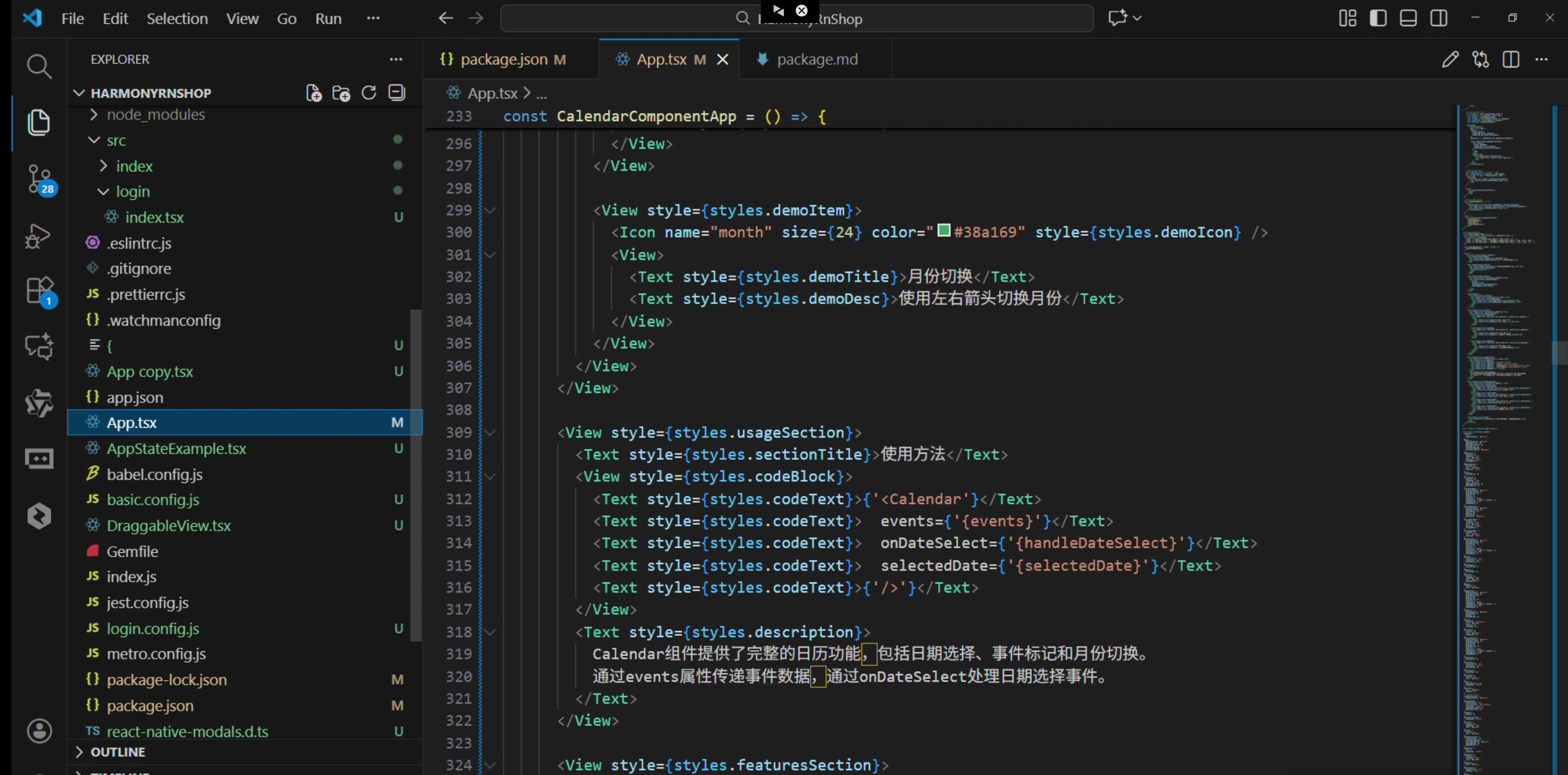
组件的国际化处理也值得关注,它直接使用中文月份名称和星期显示,体现了对本地化用户体验的重视。事件标记系统通过数据驱动的方式展示特定日期的活动状态,这种声明式UI开发方式与鸿蒙ArkUI的构建思想高度契合,都是通过状态变化自动驱动界面更新。整个组件采用组合式设计,将日历分解为头部、星期栏和日期网格等独立模块,这种组件化架构有利于在不同设备尺寸上灵活重组布局,适应鸿蒙系统多设备协同的场景需求。
打包
接下来通过打包命令npn run harmony将reactNative的代码打包成为bundle,这样可以进行在开源鸿蒙OpenHarmony中进行使用。

打包之后再将打包后的鸿蒙OpenHarmony文件拷贝到鸿蒙的DevEco-Studio工程目录去:

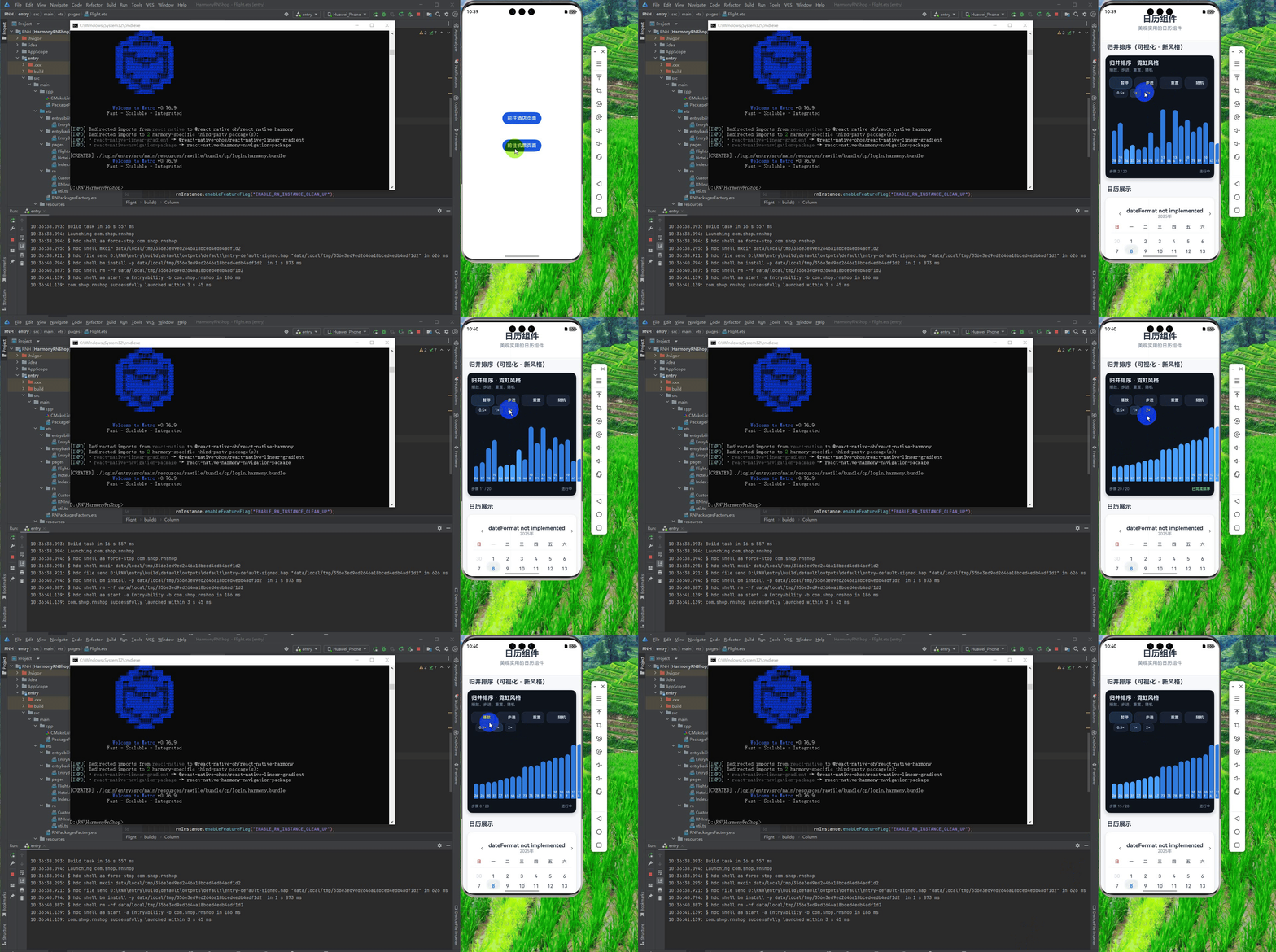
最后运行效果图如下显示:
欢迎大家加入开源鸿蒙跨平台开发者社区,一起共建开源鸿蒙跨平台生态。

讨论HarmonyOS开发技术,专注于API与组件、DevEco Studio、测试、元服务和应用上架分发等。
更多推荐


 15
15 0
0- 0


 已为社区贡献29条内容

所有评论(0)