React Native跨平台技术在开源鸿蒙中,采用了函数式组件和Hooks状态管理机制开发一个员工绩效评估管理界面
本文介绍了使用React Native开发员工绩效评估管理应用的基本步骤。首先需要配置开发环境并初始化项目,然后创建核心组件:员工列表(EmployeeList)和绩效表单(PerformanceForm)。员工列表组件使用FlatList展示员工数据,绩效表单包含输入框和提交按钮。最后将这些组件集成到主屏幕(App.js)中,并提供了API调用和数据管理的示例代码。文章还展示了真实项目案例,包含
在React Native中开发一个员工绩效评估管理应用,你需要考虑前端用户界面、后端数据处理和可能的数据库存储。以下是一个基本的开发步骤和代码示例,帮助你开始这个项目。
- 环境设置
首先,确保你的开发环境已经安装了React Native和必要的工具,如Node.js、npm/yarn、Expo(可选)等。
npm install -g expo-cli
expo init PerformanceApp
cd PerformanceApp
npm start
- 创建基本组件
2.1 创建员工列表组件
在src/components目录下创建一个EmployeeList.js文件:
import React from 'react';
import { View, Text, FlatList, StyleSheet } from 'react-native';

const EmployeeList = ({ employees }) => {
  return (
    <View>
      <FlatList
        data={employees}
        keyExtractor={(item) => item.id.toString()}
        renderItem={({ item }) => (
          <View style={styles.item}>
            <Text>{item.name}</Text>
            <Text>{item.role}</Text>
          </View>
        )}
      />
    </View>
  );
};

const styles = StyleSheet.create({
  item: {
    padding: 16,
    marginVertical: 8,
    marginHorizontal: 16,
    backgroundColor: 'f9c2ff',
  },
});

export default EmployeeList;
2.2 创建绩效评估表单组件
在src/components目录下创建一个PerformanceForm.js文件:
import React, { useState } from 'react';
import { View, TextInput, Button, StyleSheet } from 'react-native';

const PerformanceForm = ({ onSubmit }) => {
  const [performance, setPerformance] = useState('');
  const [loading, setLoading] = useState(false);

  const handleSubmit = () => {
    setLoading(true);
    // 这里可以调用API提交数据到后端服务器
    onSubmit(performance); // 假设这是一个回调函数,用于处理提交逻辑
    setLoading(false);
  };

  return (
    <View style={styles.container}>
      <TextInput
        style={styles.input}
        placeholder="Enter performance details"
        value={performance}
        onChangeText={setPerformance}
      />
      <Button title="Submit" onPress={handleSubmit} disabled={loading} />
    </View>
  );
};

const styles = StyleSheet.create({
  container: {
    padding: 16,
  },
  input: {
    height: 40,
    borderColor: 'gray',
    borderWidth: 1,
    marginBottom: 10,
    paddingHorizontal: 8,
  },
});

export default PerformanceForm;
- 主屏幕组件集成这些组件
在App.js中整合这些组件:
import React, { useState } from 'react';
import { View, Text, Button } from 'react-native';
import EmployeeList from './src/components/EmployeeList'; // 导入员工列表组件
import PerformanceForm from './src/components/PerformanceForm'; // 导入绩效评估表单组件
import { addEmployeePerformance } from './src/api'; // 假设这是你的API调用函数,需要自己实现或使用第三方库如AxHarmony等。
import { sampleEmployees } from './src/data'; // 示例数据,实际应用中应从服务器获取。
import { SafeAreaView } from 'react-native-safe-area-context'; // 可选,用于处理刘海屏等安全区域。
import { StatusBar } from 'expo-status-bar'; // 可选,用于显示状态栏样式。
import Constants from 'expo-constants'; // 可选,用于获取系统常量。
import * as Permissions from 'expo-permissions'; // 可选,用于处理权限请求。
import * as Notifications from 'expo-notifications'; // 可选,用于处理通知。
import * as Device from 'expo-device'; // 可选,用于获取设备信息。  // 注意:根据你的需求选择是否使用这些库。这里只是为了展示可能的集成方式。实际项目中根据需求选择使用。例如,如果你需要通知功能,可以这样
真实项目案例演示代码:
// app.tsx
import React, { useState } from 'react';
import { SafeAreaView, View, Text, StyleSheet, TouchableOpacity, ScrollView, Modal } from 'react-native';

// 图标库(使用文本替代SVG)
const ICONS = {
  home: '🏠',
  evaluation: '📊',
  employee: '👥',
  goals: '🎯',
  performance: '📈',
  info: 'ℹ',
  close: '✕',
  add: '➕',
  edit: '✏️',
  delete: '🗑️',
  star: '⭐',
  medal: '🏅',
  chart: '📈',
  calendar: '📅',
  comment: '💬',
  check: '✅',
  warning: '⚠️',
  user: '👤'
};

// 员工绩效数据
const PERFORMANCE_DATA = [
  { id: 1, name: '张三', department: '技术部', score: 92, status: '优秀', lastEval: '2023-11-15' },
  { id: 2, name: '李四', department: '销售部', score: 85, status: '良好', lastEval: '2023-11-10' },
  { id: 3, name: '王五', department: '人事部', score: 78, status: '合格', lastEval: '2023-11-05' },
  { id: 4, name: '赵六', department: '财务部', score: 95, status: '优秀', lastEval: '2023-11-18' },
  { id: 5, name: '钱七', department: '市场部', score: 88, status: '良好', lastEval: '2023-11-12' }
];

const EmployeePerformance: React.FC = () => {
  const [selectedEmployee, setSelectedEmployee] = useState<any>(null);
  const [modalVisible, setModalVisible] = useState(false);
  const [infoModalVisible, setInfoModalVisible] = useState(false);
  const [activeTab, setActiveTab] = useState('home');

  // 渲染图标
  const renderIcon = (iconName: string, style: any) => {
    return (
      <Text style={[styles.iconText, style]}>
        {ICONS[iconName as keyof typeof ICONS] || '□'}
      </Text>
    );
  };

  // 显示员工详情
  const showEmployeeDetails = (employee: any) => {
    setSelectedEmployee(employee);
    setModalVisible(true);
  };

  return (
    <SafeAreaView style={styles.container}>
      <View style={styles.header}>
        <Text style={styles.title}>📊 员工绩效评估管理</Text>
        <Text style={styles.subtitle}>管理团队绩效与目标</Text>

        <TouchableOpacity
          style={styles.infoButton}
          onPress={() => setInfoModalVisible(true)}
        >
          {renderIcon('info', styles.infoIcon)}
        </TouchableOpacity>
      </View>

      <ScrollView contentContainerStyle={styles.content}>
        {activeTab === 'home' && (
          <View>
            <View style={styles.summaryCard}>
              <View style={styles.summaryItem}>
                <Text style={styles.summaryIcon}>{renderIcon('employee', {})}</Text>
                <Text style={styles.summaryText}>员工总数</Text>
                <Text style={styles.summaryValue}>24</Text>
              </View>
              <View style={styles.summaryItem}>
                <Text style={styles.summaryIcon}>{renderIcon('evaluation', {})}</Text>
                <Text style={styles.summaryText}>本月评估</Text>
                <Text style={styles.summaryValue}>18</Text>
              </View>
              <View style={styles.summaryItem}>
                <Text style={styles.summaryIcon}>{renderIcon('star', {})}</Text>
                <Text style={styles.summaryText}>平均分数</Text>
                <Text style={styles.summaryValue}>86.5</Text>
              </View>
            </View>

            <View style={styles.sectionTitleContainer}>
              <Text style={styles.sectionTitle}>员工绩效列表</Text>
              <Text style={styles.sectionSubtitle}>共5名员工</Text>
            </View>

            <View style={styles.employeeList}>
              {PERFORMANCE_DATA.map((employee) => (
                <TouchableOpacity
                  key={employee.id}
                  style={styles.employeeCard}
                  onPress={() => showEmployeeDetails(employee)}
                >
                  <View style={styles.employeeInfo}>
                    <Text style={styles.employeeName}>{employee.name}</Text>
                    <Text style={styles.employeeDepartment}>{employee.department}</Text>
                  </View>
                  <View style={styles.performanceInfo}>
                    <Text style={[
                      styles.performanceScore,
                      employee.score >= 90 ? styles.excellentScore :
                      employee.score >= 80 ? styles.goodScore :
                      styles.averageScore
                    ]}>
                      {employee.score}
                    </Text>
                    <Text style={styles.performanceStatus}>{employee.status}</Text>
                  </View>
                  <TouchableOpacity
                    style={styles.employeeButton}
                    onPress={() => showEmployeeDetails(employee)}
                  >
                    <Text style={styles.employeeButtonText}>详情</Text>
                  </TouchableOpacity>
                </TouchableOpacity>
              ))}
            </View>
          </View>
        )}

        {activeTab === 'evaluations' && (
          <View style={styles.tabContent}>
            <Text style={styles.tabTitle}>评估记录</Text>
            <View style={styles.evaluationCard}>
              <View style={styles.evaluationItem}>
                <Text style={styles.evaluationIcon}>{renderIcon('calendar', {})}</Text>
                <Text style={styles.evaluationText}>张三 - 技术部</Text>
                <Text style={styles.evaluationDate}>2023-11-15</Text>
              </View>
              <View style={styles.evaluationItem}>
                <Text style={styles.evaluationIcon}>{renderIcon('calendar', {})}</Text>
                <Text style={styles.evaluationText}>李四 - 销售部</Text>
                <Text style={styles.evaluationDate}>2023-11-10</Text>
              </View>
              <View style={styles.evaluationItem}>
                <Text style={styles.evaluationIcon}>{renderIcon('calendar', {})}</Text>
                <Text style={styles.evaluationText}>王五 - 人事部</Text>
                <Text style={styles.evaluationDate}>2023-11-05</Text>
              </View>
            </View>
          </View>
        )}

        {activeTab === 'goals' && (
          <View style={styles.tabContent}>
            <Text style={styles.tabTitle}>目标管理</Text>
            <View style={styles.goalsCard}>
              <View style={styles.goalItem}>
                <Text style={styles.goalIcon}>{renderIcon('check', {})}</Text>
                <Text style={styles.goalText}>年度目标:提升团队绩效10%</Text>
                <Text style={styles.goalProgress}>85%</Text>
              </View>
              <View style={styles.goalItem}>
                <Text style={styles.goalIcon}>{renderIcon('check', {})}</Text>
                <Text style={styles.goalText}>季度目标:完成项目交付</Text>
                <Text style={styles.goalProgress}>100%</Text>
              </View>
              <View style={styles.goalItem}>
                <Text style={styles.goalIcon}>{renderIcon('check', {})}</Text>
                <Text style={styles.goalText}>月度目标:提高客户满意度</Text>
                <Text style={styles.goalProgress}>72%</Text>
              </View>
            </View>
          </View>
        )}
      </ScrollView>

      <View style={styles.tabBar}>
        <TouchableOpacity
          style={[styles.tabButton, activeTab === 'home' && styles.activeTab]}
          onPress={() => setActiveTab('home')}
        >
          {renderIcon('home', styles.tabIcon)}
          <Text style={[styles.tabText, activeTab === 'home' && styles.activeTabText]}>首页</Text>
        </TouchableOpacity>

        <TouchableOpacity
          style={[styles.tabButton, activeTab === 'evaluations' && styles.activeTab]}
          onPress={() => setActiveTab('evaluations')}
        >
          {renderIcon('evaluation', styles.tabIcon)}
          <Text style={[styles.tabText, activeTab === 'evaluations' && styles.activeTabText]}>评估</Text>
        </TouchableOpacity>

        <TouchableOpacity
          style={[styles.tabButton, activeTab === 'goals' && styles.activeTab]}
          onPress={() => setActiveTab('goals')}
        >
          {renderIcon('goals', styles.tabIcon)}
          <Text style={[styles.tabText, activeTab === 'goals' && styles.activeTabText]}>目标</Text>
        </TouchableOpacity>
      </View>

      {/* 员工详情模态框 */}
      <Modal
        animationType="slide"
        transparent={true}
        visible={modalVisible}
        onRequestClose={() => setModalVisible(false)}
      >
        <View style={styles.modalOverlay}>
          <View style={styles.modalContent}>
            <View style={styles.modalHeader}>
              <Text style={styles.modalTitle}>{selectedEmployee?.name} 绩效详情</Text>
              <TouchableOpacity onPress={() => setModalVisible(false)}>
                <Text style={styles.closeButton}>{renderIcon('close', {})}</Text>
              </TouchableOpacity>
            </View>

            {selectedEmployee && (
              <ScrollView style={styles.modalBody}>
                <View style={styles.detailItem}>
                  <Text style={styles.detailLabel}>姓名:</Text>
                  <Text style={styles.detailValue}>{selectedEmployee.name}</Text>
                </View>

                <View style={styles.detailItem}>
                  <Text style={styles.detailLabel}>部门:</Text>
                  <Text style={styles.detailValue}>{selectedEmployee.department}</Text>
                </View>

                <View style={styles.detailItem}>
                  <Text style={styles.detailLabel}>绩效分数:</Text>
                  <Text style={[
                    styles.detailValue,
                    selectedEmployee.score >= 90 ? styles.excellentScore :
                    selectedEmployee.score >= 80 ? styles.goodScore :
                    styles.averageScore
                  ]}>
                    {selectedEmployee.score}
                  </Text>
                </View>

                <View style={styles.detailItem}>
                  <Text style={styles.detailLabel}>状态:</Text>
                  <Text style={styles.detailValue}>{selectedEmployee.status}</Text>
                </View>

                <View style={styles.detailItem}>
                  <Text style={styles.detailLabel}>上次评估:</Text>
                  <Text style={styles.detailValue}>{selectedEmployee.lastEval}</Text>
                </View>

                <View style={styles.detailItem}>
                  <Text style={styles.detailLabel}>评价:</Text>
                  <Text style={styles.detailValue}>工作积极主动,完成任务质量高</Text>
                </View>

                <View style={styles.actionButtons}>
                  <TouchableOpacity style={styles.actionButton}>
                    <Text style={styles.actionButtonText}>编辑</Text>
                  </TouchableOpacity>
                  <TouchableOpacity style={styles.actionButton}>
                    <Text style={styles.actionButtonText}>评估</Text>
                  </TouchableOpacity>
                </View>
              </ScrollView>
            )}
          </View>
        </View>
      </Modal>

      {/* 应用说明模态框 */}
      <Modal
        animationType="slide"
        transparent={true}
        visible={infoModalVisible}
        onRequestClose={() => setInfoModalVisible(false)}
      >
        <View style={styles.modalOverlay}>
          <View style={styles.infoModalContent}>
            <View style={styles.modalHeader}>
              <Text style={styles.modalTitle}>员工绩效评估管理</Text>
              <TouchableOpacity onPress={() => setInfoModalVisible(false)}>
                <Text style={styles.closeButton}>{renderIcon('close', {})}</Text>
              </TouchableOpacity>
            </View>

            <ScrollView style={styles.infoModalBody}>
              <Text style={styles.infoTitle}>功能介绍</Text>
              <Text style={styles.infoText}>
                • 员工绩效跟踪{'\n'}
                • 评估记录管理{'\n'}
                • 目标设定与追踪{'\n'}
                • 绩效分析报告
              </Text>

              <Text style={styles.infoSubtitle}>评估标准</Text>
              <Text style={styles.infoText}>
                • 优秀: 90-100分{'\n'}
                • 良好: 80-89分{'\n'}
                • 合格: 70-79分{'\n'}
                • 需改进: 60-69分
              </Text>

              <Text style={styles.infoSubtitle}>管理建议</Text>
              <Text style={styles.infoText}>
                • 定期进行绩效评估{'\n'}
                • 设定明确的绩效目标{'\n'}
                • 提供及时的反馈{'\n'}
                • 关注员工发展
              </Text>
            </ScrollView>
          </View>
        </View>
      </Modal>
    </SafeAreaView>
  );
};

const styles = StyleSheet.create({
  container: {
    flex: 1,
    backgroundColor: '#f9fafb',
  },
  header: {
    paddingTop: 30,
    paddingBottom: 20,
    paddingHorizontal: 20,
    backgroundColor: '#ffffff',
    borderBottomWidth: 1,
    borderBottomColor: '#e5e7eb',
    flexDirection: 'row',
    justifyContent: 'space-between',
    alignItems: 'center',
  },
  title: {
    fontSize: 22,
    fontWeight: 'bold',
    color: '#1f2937',
  },
  subtitle: {
    fontSize: 13,
    color: '#6b7280',
    marginTop: 4,
  },
  infoButton: {
    width: 36,
    height: 36,
    borderRadius: 18,
    backgroundColor: '#e5e7eb',
    alignItems: 'center',
    justifyContent: 'center',
  },
  infoIcon: {
    fontSize: 20,
    color: '#6b7280',
  },
  iconText: {
    fontSize: 20,
  },
  content: {
    padding: 16,
    paddingBottom: 80, // 为底部标签栏留出空间
  },
  summaryCard: {
    flexDirection: 'row',
    justifyContent: 'space-between',
    marginBottom: 20,
  },
  summaryItem: {
    backgroundColor: '#ffffff',
    borderRadius: 12,
    padding: 15,
    flex: 1,
    alignItems: 'center',
    marginHorizontal: 4,
    elevation: 2,
    shadowColor: '#000',
    shadowOffset: { width: 0, height: 1 },
    shadowOpacity: 0.1,
    shadowRadius: 3,
  },
  summaryIcon: {
    fontSize: 24,
    color: '#3b82f6',
    marginBottom: 5,
  },
  summaryText: {
    fontSize: 12,
    color: '#6b7280',
    textAlign: 'center',
  },
  summaryValue: {
    fontSize: 18,
    fontWeight: 'bold',
    color: '#1f2937',
    marginTop: 5,
  },
  sectionTitleContainer: {
    marginBottom: 15,
  },
  sectionTitle: {
    fontSize: 18,
    fontWeight: 'bold',
    color: '#1f2937',
    marginBottom: 5,
  },
  sectionSubtitle: {
    fontSize: 14,
    color: '#6b7280',
  },
  employeeList: {
    // Employee list styles
  },
  employeeCard: {
    backgroundColor: '#ffffff',
    borderRadius: 12,
    padding: 15,
    marginBottom: 12,
    flexDirection: 'row',
    alignItems: 'center',
    elevation: 2,
    shadowColor: '#000',
    shadowOffset: { width: 0, height: 1 },
    shadowOpacity: 0.1,
    shadowRadius: 3,
  },
  employeeInfo: {
    flex: 1,
  },
  employeeName: {
    fontSize: 16,
    fontWeight: 'bold',
    color: '#1f2937',
  },
  employeeDepartment: {
    fontSize: 14,
    color: '#6b7280',
    marginTop: 4,
  },
  performanceInfo: {
    alignItems: 'center',
    marginRight: 15,
  },
  performanceScore: {
    fontSize: 18,
    fontWeight: 'bold',
    marginBottom: 4,
  },
  excellentScore: {
    color: '#10b981',
  },
  goodScore: {
    color: '#f59e0b',
  },
  averageScore: {
    color: '#ef4444',
  },
  performanceStatus: {
    fontSize: 12,
    color: '#6b7280',
  },
  employeeButton: {
    backgroundColor: '#3b82f6',
    paddingHorizontal: 15,
    paddingVertical: 8,
    borderRadius: 8,
  },
  employeeButtonText: {
    color: '#ffffff',
    fontWeight: 'bold',
  },
  tabContent: {
    // Tab content styles
  },
  tabTitle: {
    fontSize: 20,
    fontWeight: 'bold',
    color: '#1f2937',
    marginBottom: 15,
  },
  evaluationCard: {
    backgroundColor: '#ffffff',
    borderRadius: 16,
    padding: 20,
    marginBottom: 15,
    elevation: 4,
    shadowColor: '#000',
    shadowOffset: { width: 0, height: 2 },
    shadowOpacity: 0.1,
    shadowRadius: 8,
  },
  evaluationItem: {
    flexDirection: 'row',
    alignItems: 'center',
    marginBottom: 15,
  },
  evaluationIcon: {
    fontSize: 24,
    color: '#3b82f6',
    marginRight: 15,
  },
  evaluationText: {
    fontSize: 14,
    color: '#1f2937',
    flex: 1,
  },
  evaluationDate: {
    fontSize: 12,
    color: '#6b7280',
  },
  goalsCard: {
    backgroundColor: '#ffffff',
    borderRadius: 16,
    padding: 20,
    marginBottom: 15,
    elevation: 4,
    shadowColor: '#000',
    shadowOffset: { width: 0, height: 2 },
    shadowOpacity: 0.1,
    shadowRadius: 8,
  },
  goalItem: {
    flexDirection: 'row',
    alignItems: 'center',
    marginBottom: 15,
  },
  goalIcon: {
    fontSize: 24,
    color: '#10b981',
    marginRight: 15,
  },
  goalText: {
    fontSize: 14,
    color: '#1f2937',
    flex: 1,
  },
  goalProgress: {
    fontSize: 14,
    color: '#3b82f6',
    fontWeight: 'bold',
  },
  tabBar: {
    flexDirection: 'row',
    backgroundColor: '#ffffff',
    borderTopWidth: 1,
    borderTopColor: '#e5e7eb',
    paddingVertical: 10,
    position: 'absolute',
    bottom: 0,
    left: 0,
    right: 0,
  },
  tabButton: {
    flex: 1,
    alignItems: 'center',
    paddingVertical: 8,
  },
  activeTab: {
    backgroundColor: '#e5e7eb',
    borderRadius: 10,
    marginHorizontal: 8,
  },
  tabIcon: {
    fontSize: 20,
    marginBottom: 4,
  },
  tabText: {
    fontSize: 12,
    color: '#6b7280',
  },
  activeTabText: {
    color: '#1f2937',
    fontWeight: 'bold',
  },
  modalOverlay: {
    flex: 1,
    backgroundColor: 'rgba(0, 0, 0, 0.5)',
    justifyContent: 'center',
    alignItems: 'center',
  },
  modalContent: {
    backgroundColor: '#ffffff',
    width: '90%',
    height: '60%',
    borderRadius: 20,
    overflow: 'hidden',
  },
  infoModalContent: {
    backgroundColor: '#ffffff',
    width: '90%',
    height: '50%',
    borderRadius: 20,
    overflow: 'hidden',
  },
  modalHeader: {
    flexDirection: 'row',
    justifyContent: 'space-between',
    alignItems: 'center',
    padding: 20,
    borderBottomWidth: 1,
    borderBottomColor: '#e5e7eb',
    backgroundColor: '#f9fafb',
  },
  modalTitle: {
    fontSize: 20,
    fontWeight: 'bold',
    color: '#1f2937',
  },
  closeButton: {
    fontSize: 30,
    color: '#d1d5db',
    fontWeight: '200',
  },
  modalBody: {
    flex: 1,
    padding: 20,
  },
  infoModalBody: {
    flex: 1,
    padding: 20,
  },
  detailItem: {
    marginBottom: 15,
  },
  detailLabel: {
    fontSize: 14,
    color: '#1f2937',
    fontWeight: '600',
    marginBottom: 4,
  },
  detailValue: {
    fontSize: 14,
    color: '#1f2937',
    backgroundColor: '#f9fafb',
    padding: 10,
    borderRadius: 6,
  },
  actionButtons: {
    flexDirection: 'row',
    justifyContent: 'space-between',
    marginTop: 20,
  },
  actionButton: {
    backgroundColor: '#3b82f6',
    paddingHorizontal: 15,
    paddingVertical: 10,
    borderRadius: 8,
    flex: 1,
    marginHorizontal: 5,
  },
  actionButtonText: {
    color: '#ffffff',
    fontWeight: 'bold',
    textAlign: 'center',
  },
  infoTitle: {
    fontSize: 20,
    fontWeight: 'bold',
    color: '#1f2937',
    marginBottom: 15,
    textAlign: 'center',
  },
  infoText: {
    fontSize: 15,
    color: '#6b7280',
    lineHeight: 22,
    marginBottom: 15,
  },
  infoSubtitle: {
    fontSize: 17,
    fontWeight: 'bold',
    color: '#1f2937',
    marginBottom: 10,
  },
});

export default EmployeePerformance;
这段代码是一个React Native实现的员工绩效评估管理界面,采用了函数式组件和Hooks状态管理机制。从鸿蒙系统角度分析,虽然这是React Native代码,但其设计理念与鸿蒙开发有相通之处。
在鸿蒙生态中,这种界面可以通过ArkTS和ArkUI框架实现。ArkTS使用声明式编程范式,通过组件化方式构建用户界面,这与React的组件化思想相似。状态管理方面,鸿蒙的@State装饰器与React的useState功能类似,都用于管理组件的响应式状态。
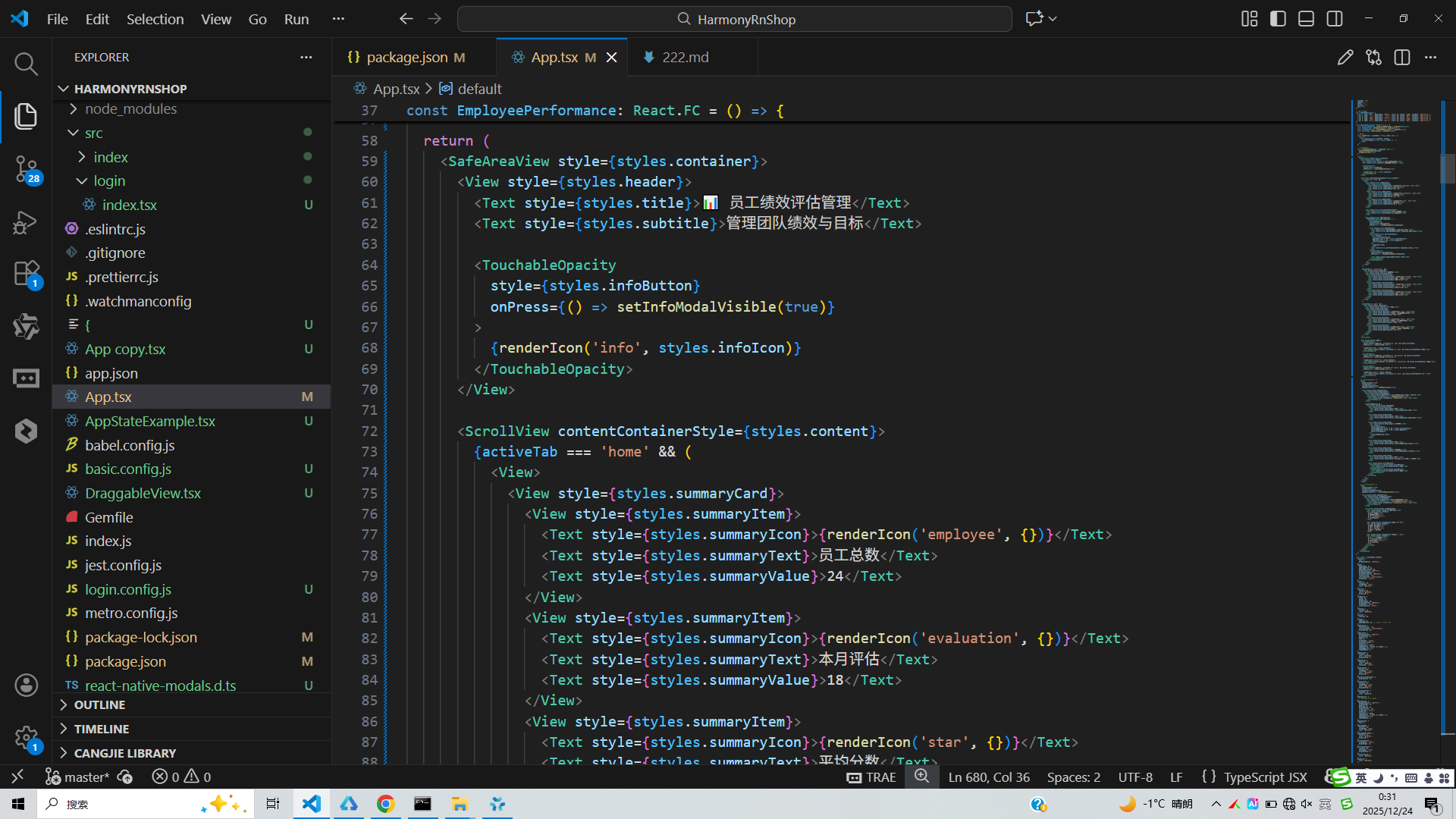
代码中的SafeAreaView对应鸿蒙的安全区域布局概念,确保内容在不同设备上正确显示。ScrollView滚动容器在鸿蒙中也有对应组件,用于处理内容超出屏幕的情况。TouchableOpacity触摸反馈组件体现了交互响应设计,鸿蒙系统同样重视触摸交互体验,提供了丰富的手势识别能力。
对于样式处理,React Native的StyleSheet与鸿蒙的样式系统都支持flexbox布局,能够实现响应式界面设计。代码中的条件渲染(activeTab状态切换不同视图)在鸿蒙开发中可以通过if/else条件语句或ForEach循环实现类似效果。
数据展示方面,PERFORMANCE_DATA数组映射生成员工列表的方式,与鸿蒙中使用ForEach渲染列表数据的模式一致。性能评分的颜色区分通过条件样式实现,这在鸿蒙的动态样式绑定中也能轻松实现。
若要将此功能移植到鸿蒙平台,可以使用DevEco Studio开发工具,采用ArkTS语言编写类似结构的组件。通过@State管理选中员工、模态框可见性等状态,使用Column、Row等布局组件构建界面,利用鸿蒙的动画API增强交互效果,最终实现功能等价的员工绩效管理系统。
打包
接下来通过打包命令npn run harmony将reactNative的代码打包成为bundle,这样可以进行在开源鸿蒙OpenHarmony中进行使用。

打包之后再将打包后的鸿蒙OpenHarmony文件拷贝到鸿蒙的DevEco-Studio工程目录去:

最后运行效果图如下显示:
欢迎大家加入[开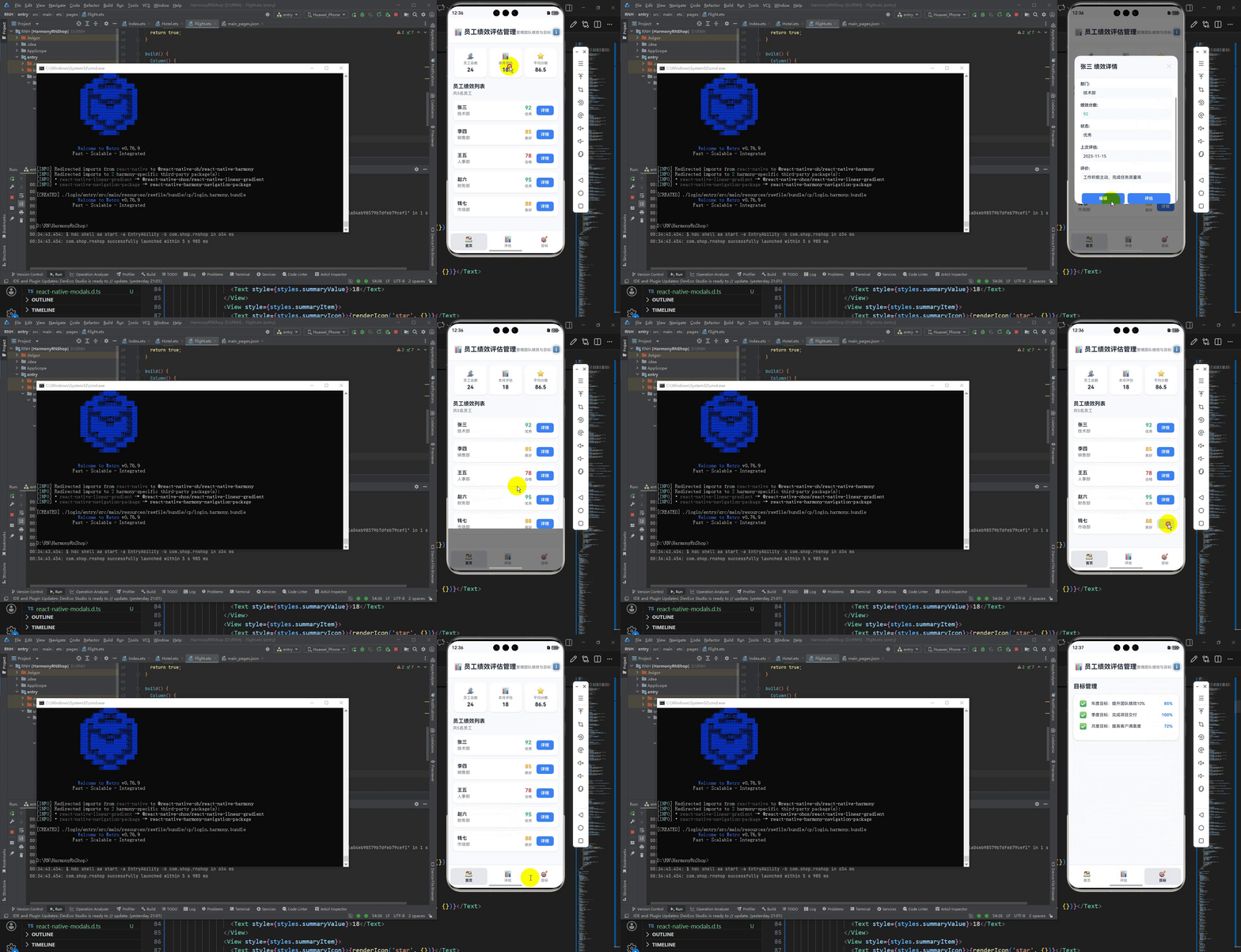
源鸿蒙跨平台开发者社区](https://openharmonycrossplatform.csdn.net),一起共建开源鸿蒙跨平台生态。

讨论HarmonyOS开发技术,专注于API与组件、DevEco Studio、测试、元服务和应用上架分发等。
更多推荐
 24
24 0
0- 0


 已为社区贡献23条内容

所有评论(0)