鸿蒙系列 (01) OpenHarmony代码下载
本文详细介绍了在Windows系统下下载OpenHarmony代码的完整步骤:首先安装Python、Git和TortoiseGit;然后注册GitCode账号并生成RSA SSH密钥;接着配置Git全局设置和Repo工具;最后提供了两种下载方式(HTTPS和SSH)。文章还包含了代码目录结构说明,并提到后续将分析鸿蒙代码框架及各组件架构。整个过程涵盖了从环境搭建到代码获取的全部关键环节,为开发者提
以下为Windows下下载OpenHarmony代码步骤
1. 安装python
在网址下载:https://www.python.org/downloads/, 下载python3,后面repo命令会用到python。
2. 安装git
在网址下载git for Windows:https://gitforwindows.org/ ,我这边下载的版本是:Git-2.52.0-64-bit.exe。
3. 安装TortoiseGit
在网址下载:https://tortoisegit.org/download/下载对应32bit或64bit版本(根据自己的Windows来下载),我这边使用的是:TortoiseGit-2.18.0.1-64bit.msi
安装完成后,鼠标右键是下面的界面:
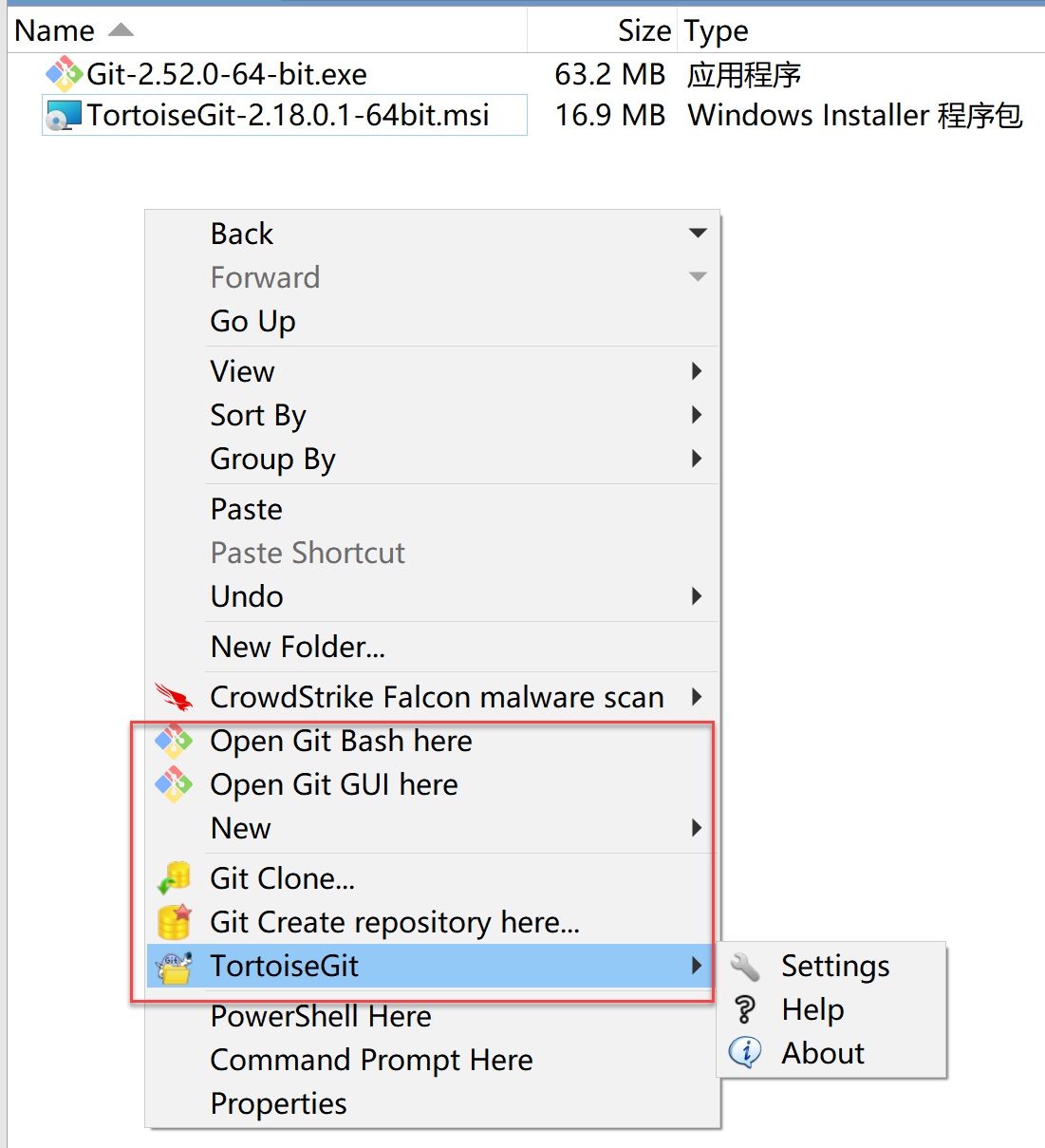
图1 安装git和TortoiseGit右键界面
4. 注册gitcode账号
在网址: https://gitcode.com/注册自己的账号。
5. 生成RSA SSH密钥
如图1,点击“Open Git Bash here”打开git
以下为生成 RSA SSH 密钥的过程,按照要求操作:
5.1输入生成密钥的命令
运行以下命令,将 your_email@example.com 替换为您的邮箱地址:
ssh-keygen -t rsa -b 4096 -C "your_email@example.com"
- -t rsa:指定密钥类型为 RSA。
- -b 4096:指定密钥长度为 4096 位(推荐)。
- -C "your_email@example.com":添加注释,通常使用您的邮箱地址,便于识别密钥。
5.2 选择密钥保存位置
命令执行后,您将看到以下提示:
Generating public/private rsa key pair.
Enter file in which to save the key (/home/user/.ssh/id_rsa):
- 按 回车键接受默认位置(~/.ssh/id_rsa)
- 如果需要自定义保存路径,可以输入新的路径,例如~/.ssh/myKey
5.3 设置密钥密码(可选但推荐)
接下来,系统会提示您设置密码:
Enter passphrase (empty for no passphrase):
Enter same passphrase again:
- 输入一个安全的密码以保护您的私钥
- 如果不需要密码,直接按 回车 键跳过
5.4 确认密钥生成成功
如果操作成功,您将看到类似以下的输出:
Your identification has been saved in /Users/.ssh/id_rsa
Your public key has been saved in /Users/.ssh/id_rsa.pub
The key fingerprint is:
SHA256:XXXXXXX your_email@example.com
The key's randomart image is:
+---[RSA 4096]----+
| ....o==B|
| ..o.o.*O=|
| .= o.E+*+|
| o.+ ... o|
| S. .. |
| o* o . |
| *o*o+ |
| . oo=.. |
| .*+. |
+----[SHA256]-----+
- 私钥:~/.ssh/id_rsa(不要泄露)。
- 公钥:~/.ssh/id_rsa.pub。
5.5 查看生成的密钥待用
您可以通过以下命令查看生成的公钥内容:
cat ~/.ssh/id_rsa.pub
输出示例:
ssh-rsa AAAAB3NzaC1yc2EAAAADAQAxxxx... your_email@example.com
6. 在gitcode配置密钥
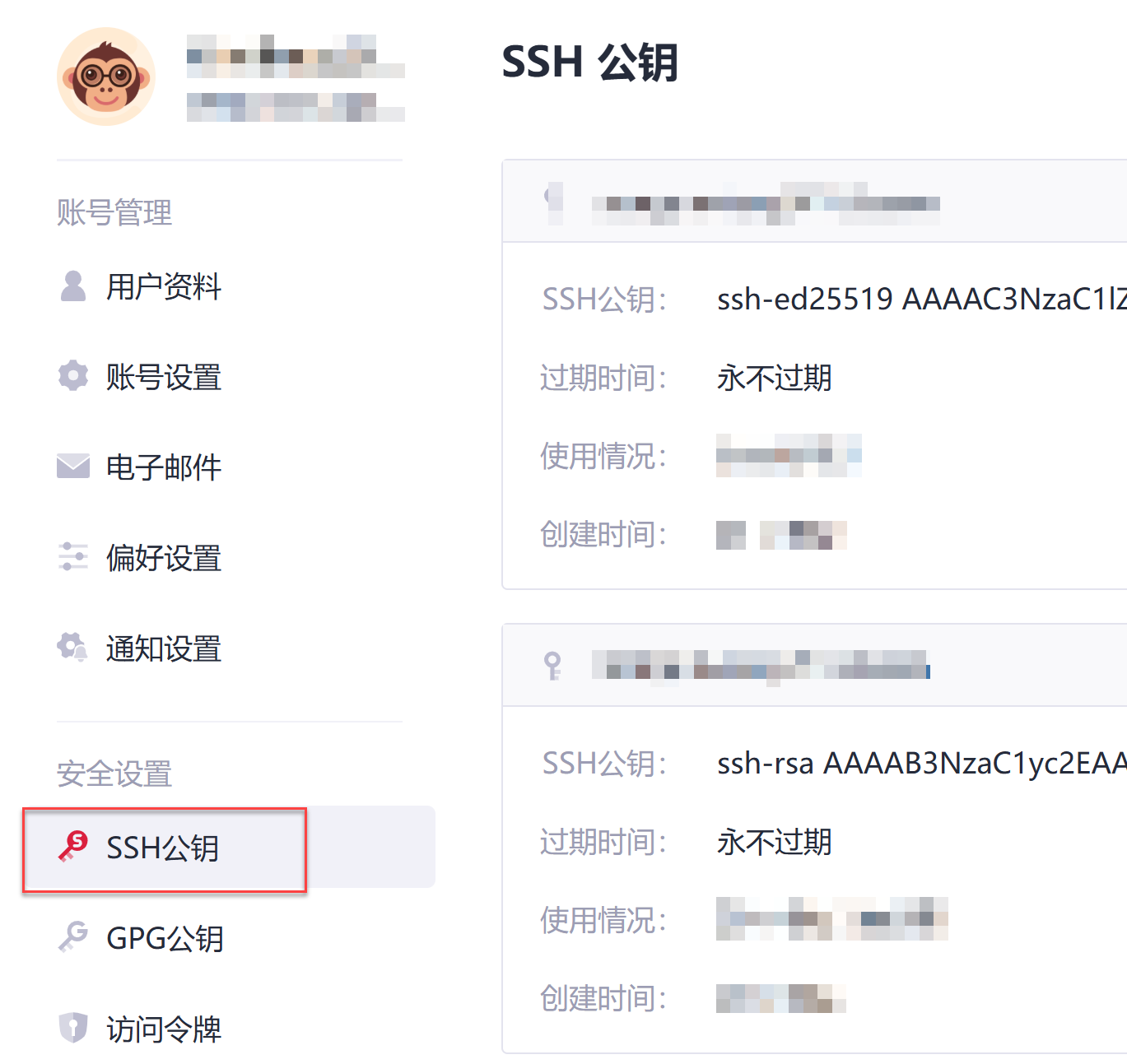
图2 gitcode设置公钥的地方
登录gitcode,在“个人设置”里,将~/.ssh/id_rsa.pub里公钥内容复制,添加到 GitCode上面,如图2位置。
7. 配置git config
7.1 git config --global user.name "yourname"
7.2 git config --global user.email "your-email-address"
7.3 git config --global credential.helper store
7.4 执行如下命令安装gitcode的repo工具。
1)下述命令中的安装路径以"~/bin"为例,请用户自行创建所需目录。
- mkdir ~/bin
- curl https://raw.gitcode.com/gitcode-dev/repo/raw/main/repo-py3 -o ~/bin/repo
- chmod a+x ~/bin/repo
2)将repo添加到环境变量。
- vim ~/.bashrc # 编辑环境变量
- export PATH=~/bin:$PATH # 在环境变量的最后添加一行repo路径信息
- source ~/.bashrc # 应用环境变量
8. Repo下载代码
选择一种方式下载代码即可
8.1 方式一:通过repo + https下载。
- repo init -u https://gitcode.com/openharmony/manifest.git -b master --no-repo-verify
- repo sync -c
- repo forall -c 'git lfs pull'
8.2 方式二(推荐):通过repo + ssh下载
- repo init -u git@gitcode.com:openharmony/manifest.git -b master --no-repo-verify
- repo sync -c
- repo forall -c 'git lfs pull'
9.代码目录:
以下为OpenHarmony的代码目录:
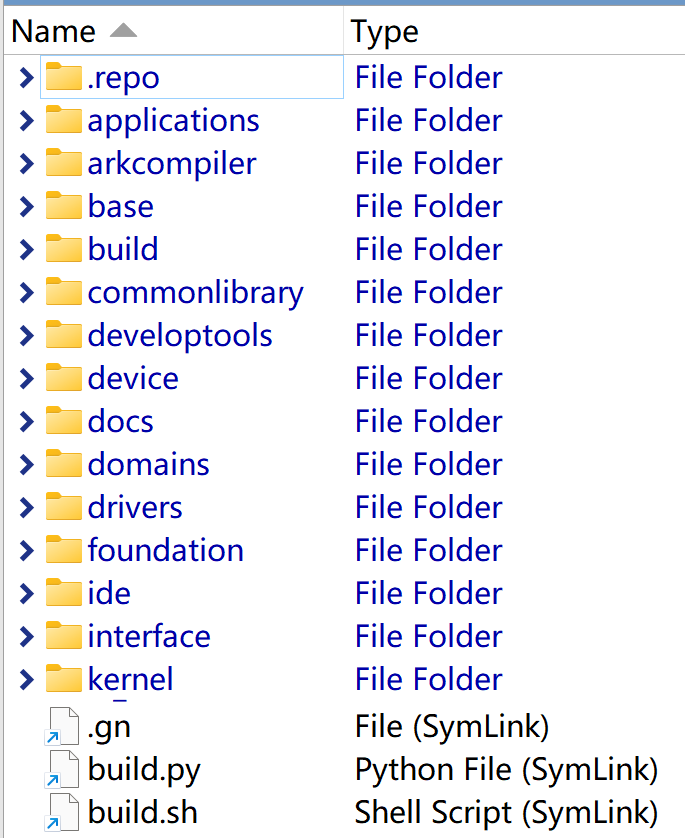
图3 OpenHarmony代码目录
后面继续分析鸿蒙代码框架,以及各组件的架构,待分解。

讨论HarmonyOS开发技术,专注于API与组件、DevEco Studio、测试、元服务和应用上架分发等。
更多推荐


 6
6 0
0- 0


 已为社区贡献1条内容

所有评论(0)