鸿蒙5.0&next开发【录像实现方案(ArkTS)】相机开发实战
双路预览,即应用可同时使用两路预览流,一路用于在屏幕上显示,一路用于图像处理等其他操作,提升处理效率。
双路预览(ArkTS)
双路预览,即应用可同时使用两路预览流,一路用于在屏幕上显示,一路用于图像处理等其他操作,提升处理效率。
相机应用通过控制相机,实现图像显示(预览)、照片保存(拍照)、视频录制(录像)等基础操作。相机开发模型为Surface模型,即应用通过Surface进行数据传递,通过ImageReceiver的surface获取拍照流的数据、通过XComponent的surface获取预览流的数据。
如果要实现双路预览,即将拍照流改为预览流,将拍照流中的surface改为预览流的surface,通过ImageReceiver的surface创建previewOutput,其余流程与拍照流和预览流一致。
约束与限制
- 暂不支持动态添加流,即不能在没有调用[session.stop]的情况下,调用[addOutput]添加流。
- 对ImageReceiver组件获取到的图像数据处理后,需要将对应的图像Buffer释放,确保Surface的BufferQueue正常轮转。
调用流程
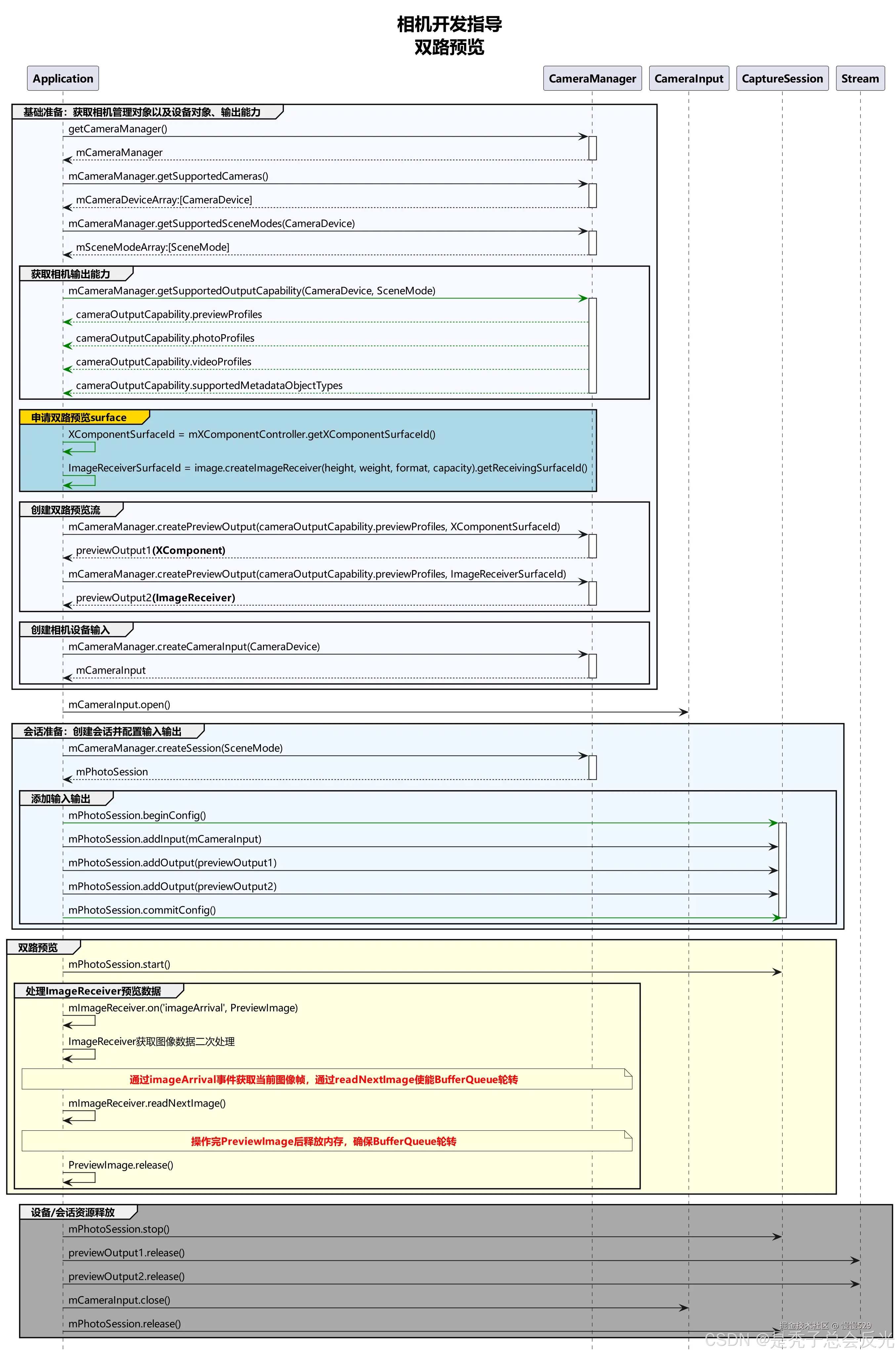
双路方案调用流程图建议如下:
开发步骤
- 用于处理图像的第一路预览流:创建ImageReceiver对象,获取SurfaceId创建第一路预览流,注册图像监听,按需处理预览流每帧图像。
- 用于显示画面的第二路预览流:创建XComponent组件,获取SurfaceId创建第二路预览流,预览流画面直接在组件内渲染。
- 创建预览流获取数据:创建上述两路预览流,配置进相机会话,启动会话后,两路预览流同时获取数据。
用于处理图像的第一路预览流
-
获取第一路预览流SurfaceId:创建ImageReceiver对象,通过ImageReceiver对象可获取其SurfaceId。
import { image } from '@kit.ImageKit'; imageWidth: number = 1920; // 请使用设备支持profile的size的宽 imageHeight: number = 1080; // 请使用设备支持profile的size的高 async function initImageReceiver():Promise<void>{ // 创建ImageReceiver对象 let size: image.Size = { width: this.imageWidth, height: this.imageHeight }; let imageReceiver = image.createImageReceiver(size, image.ImageFormat.JPEG, 8); // 获取取第一路流SurfaceId let imageReceiverSurfaceId = await imageReceiver.getReceivingSurfaceId(); console.info(`initImageReceiver imageReceiverSurfaceId:${imageReceiverSurfaceId}`); } ts -
注册监听处理预览流每帧图像数据:通过ImageReceiver组件中imageArrival事件监听获取底层返回的图像数据
import { BusinessError } from '@kit.BasicServicesKit';
import { image } from '@kit.ImageKit';

function onImageArrival(receiver: image.ImageReceiver): void {
  // 注册imageArrival监听
  receiver.on('imageArrival', () => {
    // 获取图像
    receiver.readNextImage((err: BusinessError, nextImage: image.Image) => {
      if (err || nextImage === undefined) {
        console.error('readNextImage failed');
        return;
      }
      // 解析图像内容
      nextImage.getComponent(image.ComponentType.JPEG, async (err: BusinessError, imgComponent: image.Component) => {
        if (err || imgComponent === undefined) {
          console.error('getComponent failed');
        }
        if (imgComponent.byteBuffer) {
          // 详情见下方解析图片buffer数据参考,本示例以方式一为例
          let width = nextImage.size.width; // 获取图片的宽
          let height = nextImage.size.height; // 获取图片的高
          let stride = imgComponent.rowStride; // 获取图片的stride
          console.debug(`getComponent with width:${width} height:${height} stride:${stride}`);
          // stride与width一致
          if (stride == width) {
            let pixelMap = await image.createPixelMap(imgComponent.byteBuffer, {
              size: { height: height, width: width },
              srcPixelFormat: 8,
            })
          } else {
            // stride与width不一致
            const dstBufferSize = width * height * 1.5
            const dstArr = new Uint8Array(dstBufferSize)
            for (let j = 0; j < height * 1.5; j++) {
              const srcBuf = new Uint8Array(imgComponent.byteBuffer, j * stride, width)
              dstArr.set(srcBuf, j * width)
            }
            let pixelMap = await image.createPixelMap(dstArr.buffer, {
              size: { height: height, width: width },
              srcPixelFormat: 8,
            })
          }
        } else {
          console.error('byteBuffer is null');
        }
        // 确保当前buffer没有在使用的情况下,可进行资源释放
        // 如果对buffer进行异步操作,需要在异步操作结束后再释放该资源(nextImage.release())
        nextImage.release();
      })
    })
  })
}
ts
通过 [image.Component]解析图片buffer数据参考:
注意: 需要确认图像的宽width是否与行距rowStride一致,如果不一致可参考以下方式处理:
方式一:去除imgComponent.byteBuffer中stride数据,拷贝得到新的buffer,调用不支持stride的接口处理buffer。
// 以NV21为例(YUV_420_SP格式的图片)YUV_420_SP内存计算公式:长x宽+(长x宽)/2
const dstBufferSize = width * height * 1.5;
const dstArr = new Uint8Array(dstBufferSize);
// 逐行读取buffer数据
for (let j = 0; j < height * 1.5; j++) {
  // imgComponent.byteBuffer的每行数据拷贝前width个字节到dstArr中
  const srcBuf = new Uint8Array(imgComponent.byteBuffer, j * stride, width);
  dstArr.set(srcBuf, j * width);
}
let pixelMap = await image.createPixelMap(dstArr.buffer, {
  size: { height: height, width: width }, srcPixelFormat: 8
});
ts
方式二:根据stride*height创建pixelMap,然后调用pixelMap的cropSync方法裁剪掉多余的像素。
// 创建pixelMap,width宽传行距stride的值
let pixelMap = await image.createPixelMap(imgComponent.byteBuffer, {
  size:{height: height, width: stride}, srcPixelFormat: 8});
// 裁剪多余的像素
pixelMap.cropSync({size:{width:width, height:height}, x:0, y:0});
ts
方式三:将原始imgComponent.byteBuffer和stride信息一起传给支持stride的接口处理。
用于显示画面的第二路预览流
获取第二路预览流SurfaceId:创建XComponent组件用于预览流显示,获取surfaceId请参考XComponent组件提供的[getXcomponentSurfaceId]方法,而XComponent的能力由UI提供
@Component
struct example {
  xComponentCtl: XComponentController = new XComponentController();
  surfaceId:string = '';
  imageWidth: number = 1920;
  imageHeight: number = 1080;

  build() {
    XComponent({
      id: 'componentId',
      type: 'surface',
      controller: this.xComponentCtl
    })
      .onLoad(async () => {
        console.info('onLoad is called');
        this.surfaceId = this.xComponentCtl.getXComponentSurfaceId(); // 获取组件surfaceId
        // 使用surfaceId创建预览流,开启相机,组件实时渲染每帧预览流数据
      })
      .width(px2vp(this.imageHeight))
      .height(px2vp(this.imageWidth))
  }
}
ts
创建预览流获取数据
通过两个SurfaceId分别创建两路预览流输出,加入相机会话,启动相机会话,获取预览流数据。
function createDualPreviewOutput(cameraManager: camera.CameraManager, previewProfile: camera.Profile,
session: camera.Session,
imageReceiverSurfaceId: string, xComponentSurfaceId: string): void {
    // 使用imageReceiverSurfaceId创建第一路预览
    let previewOutput1 = cameraManager.createPreviewOutput(previewProfile, imageReceiverSurfaceId);
    if (!previewOutput1) {
    console.error('createPreviewOutput1 error');
    }
    // 使用xComponentSurfaceId创建第二路预览
    let previewOutput2 = cameraManager.createPreviewOutput(previewProfile, xComponentSurfaceId);
    if (!previewOutput2) {
    console.error('createPreviewOutput2 error');
    }
    // 添加第一路预览流输出
    session.addOutput(previewOutput1);
    // 添加第二路预览流输出
    session.addOutput(previewOutput2);
}
ts
完整示例
import { camera } from '@kit.CameraKit';
import { image } from '@kit.ImageKit';
import { BusinessError } from '@kit.BasicServicesKit';

@Entry
@Component
struct Index {
  private imageReceiver: image.ImageReceiver | undefined = undefined;
  private imageReceiverSurfaceId: string = '';
  private xComponentCtl: XComponentController = new XComponentController();
  private xComponentSurfaceId: string = '';
  @State imageWidth: number = 1920;
  @State imageHeight: number = 1080;
  private cameraManager: camera.CameraManager | undefined = undefined;
  private cameras: Array<camera.CameraDevice> | Array<camera.CameraDevice> = [];
  private cameraInput: camera.CameraInput | undefined = undefined;
  private previewOutput1: camera.PreviewOutput | undefined = undefined;
  private previewOutput2: camera.PreviewOutput | undefined = undefined;
  private session: camera.VideoSession | undefined = undefined;

  onPageShow(): void {
    console.info('onPageShow');
    this.initImageReceiver();
    if (this.xComponentSurfaceId !== '') {
      this.initCamera();
    }
  }

  onPageHide(): void {
    console.info('onPageHide');
    this.releaseCamera();
  }

  /**
   * 获取ImageReceiver的SurfaceId
   * @param receiver
   * @returns
   */
  async initImageReceiver(): Promise<void> {
    if (!this.imageReceiver) {
      // 创建ImageReceiver
      let size: image.Size = { width: this.imageWidth, height: this.imageHeight };
      this.imageReceiver = image.createImageReceiver(size, image.ImageFormat.JPEG, 8);
      // 获取取第一路流SurfaceId
      this.imageReceiverSurfaceId = await this.imageReceiver.getReceivingSurfaceId();
      console.info(`initImageReceiver imageReceiverSurfaceId:${this.imageReceiverSurfaceId}`);
      // 注册监听处理预览流每帧图像数据
      this.onImageArrival(this.imageReceiver);
    }
  }

  /**
   * 注册ImageReceiver图像监听
   * @param receiver
   */
  onImageArrival(receiver: image.ImageReceiver): void {
    // 注册imageArrival监听
    receiver.on('imageArrival', () => {
      console.info('image arrival');
      // 获取图像
      receiver.readNextImage((err: BusinessError, nextImage: image.Image) => {
        if (err || nextImage === undefined) {
          console.error('readNextImage failed');
          return;
        }
        // 解析图像内容
        nextImage.getComponent(image.ComponentType.JPEG, async (err: BusinessError, imgComponent: image.Component) => {
          if (err || imgComponent === undefined) {
            console.error('getComponent failed');
          }
          if (imgComponent.byteBuffer) {
            // 请参考步骤7解析buffer数据,本示例以方式一为例
            let width = nextImage.size.width; // 获取图片的宽
            let height = nextImage.size.height; // 获取图片的高
            let stride = imgComponent.rowStride; // 获取图片的stride
            console.debug(`getComponent with width:${width} height:${height} stride:${stride}`);
            // stride与width一致
            if (stride == width) {
              let pixelMap = await image.createPixelMap(imgComponent.byteBuffer, {
                size: { height: height, width: width },
                srcPixelFormat: 8,
              })
            } else {
              // stride与width不一致
              const dstBufferSize = width * height * 1.5 // 以NV21为例(YUV_420_SP格式的图片)YUV_420_SP内存计算公式:长x宽+(长x宽)/2
              const dstArr = new Uint8Array(dstBufferSize)
              for (let j = 0; j < height * 1.5; j++) {
                const srcBuf = new Uint8Array(imgComponent.byteBuffer, j * stride, width)
                dstArr.set(srcBuf, j * width)
              }
              let pixelMap = await image.createPixelMap(dstArr.buffer, {
                size: { height: height, width: width },
                srcPixelFormat: 8,
              })
            }
          } else {
            console.error('byteBuffer is null');
          }
          // 确保当前buffer没有在使用的情况下,可进行资源释放
          // 如果对buffer进行异步操作,需要在异步操作结束后再释放该资源(nextImage.release())
          nextImage.release();
          console.info('image process done');
        })
      })
    })
  }

  build() {
    Column() {
      XComponent({
        id: 'componentId',
        type: 'surface',
        controller: this.xComponentCtl
      })
        .onLoad(async () => {
          console.info('onLoad is called');
          this.xComponentSurfaceId = this.xComponentCtl.getXComponentSurfaceId(); // 获取组件surfaceId
          // 初始化相机,组件实时渲染每帧预览流数据
          this.initCamera()
        })
        .width(px2vp(this.imageHeight))
        .height(px2vp(this.imageWidth))
    }.justifyContent(FlexAlign.Center)
    .height('100%')
    .width('100%')
  }

  // 初始化相机
  async initCamera(): Promise<void> {
    console.info(`initCamera imageReceiverSurfaceId:${this.imageReceiverSurfaceId} xComponentSurfaceId:${this.xComponentSurfaceId}`);
    try {
      // 获取相机管理器实例
      this.cameraManager = camera.getCameraManager(getContext(this));
      if (!this.cameraManager) {
        console.error('initCamera getCameraManager');
      }
      // 获取当前设备支持的相机device列表
      this.cameras = this.cameraManager.getSupportedCameras();
      if (!this.cameras) {
        console.error('initCamera getSupportedCameras');
      }
      // 选择一个相机device,创建cameraInput输出对象
      this.cameraInput = this.cameraManager.createCameraInput(this.cameras[0]);
      if (!this.cameraInput) {
        console.error('initCamera createCameraInput');
      }
      // 打开相机
      await this.cameraInput.open().catch((err: BusinessError) => {
        console.error(`initCamera open fail: ${JSON.stringify(err)}`);
      })
      // 获取相机device支持的profile
      let capability: camera.CameraOutputCapability =
        this.cameraManager.getSupportedOutputCapability(this.cameras[0], camera.SceneMode.NORMAL_VIDEO);
      if (!capability) {
        console.error('initCamera getSupportedOutputCapability');
      }
      // 根据业务需求选择一个支持的预览流profile
      let previewProfile: camera.Profile = capability.previewProfiles[0];
      this.imageWidth = previewProfile.size.width; // 更新xComponent组件的宽
      this.imageHeight = previewProfile.size.height; // 更新xComponent组件的高
      console.info(`initCamera imageWidth:${this.imageWidth} imageHeight:${this.imageHeight}`);
      // 使用imageReceiverSurfaceId创建第一路预览
      this.previewOutput1 = this.cameraManager.createPreviewOutput(previewProfile, this.imageReceiverSurfaceId);
      if (!this.previewOutput1) {
        console.error('initCamera createPreviewOutput1');
      }
      // 使用xComponentSurfaceId创建第二路预览
      this.previewOutput2 = this.cameraManager.createPreviewOutput(previewProfile, this.xComponentSurfaceId);
      if (!this.previewOutput2) {
        console.error('initCamera createPreviewOutput2');
      }
      // 创建录像模式相机会话
      this.session = this.cameraManager.createSession(camera.SceneMode.NORMAL_VIDEO) as camera.VideoSession;
      if (!this.session) {
        console.error('initCamera createSession');
      }
      // 开始配置会话
      this.session.beginConfig();
      // 添加相机设备输入
      this.session.addInput(this.cameraInput);
      // 添加第一路预览流输出
      this.session.addOutput(this.previewOutput1);
      // 添加第二路预览流输出
      this.session.addOutput(this.previewOutput2);
      // 提交会话配置
      await this.session.commitConfig();
      // 开始启动已配置的输入输出流
      await this.session.start();
    } catch (error) {
      console.error(`initCamera fail: ${JSON.stringify(error)}`);
    }
  }

  // 释放相机
  async releaseCamera(): Promise<void> {
    console.info('releaseCamera E');
    try {
      // 停止当前会话
      await this.session?.stop();
      // 释放相机输入流
      await this.cameraInput?.close();
      // 释放预览输出流
      await this.previewOutput1?.release();
      // 释放拍照输出流
      await this.previewOutput2?.release();
      // 释放会话
      await this.session?.release();
    } catch (error) {
      console.error(`initCamera fail: ${JSON.stringify(error)}`);
    }
  }
}

讨论HarmonyOS开发技术,专注于API与组件、DevEco Studio、测试、元服务和应用上架分发等。
更多推荐

 13
13 0
0- 0


 已为社区贡献227条内容

所有评论(0)