Flutter跨平台开发适配OpenHarmony:手势识别实战应用
大家好!今天我们聊聊Flutter在OpenHarmony平台上如何实现高效的手势识别系统。在开发跨平台应用时,手势交互是用户体验的核心环节。但当你把Flutter应用从Android/iOS迁移到OpenHarmony时,可能会发现一些手势行为有所不同。这篇文章将带你深入理解这些差异,并提供实用的优化方案。
为什么手势识别在OpenHarmony上特殊?
OpenHarmony采用了一套全新的事件分发机制,与Android/iOS有本质区别。它更注重多设备协同和分布式能力,这对手势识别提出了新挑战。
下面这张图展示了OpenHarmony上手势事件的处理流程:
一、常见手势问题与解决方案
1. 基础手势适配
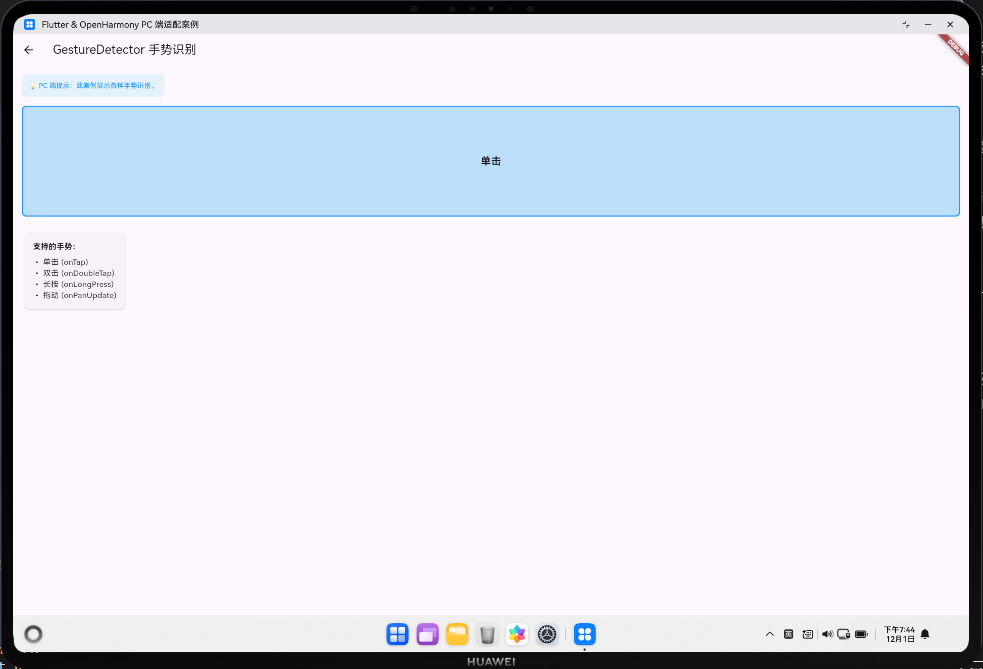
在OpenHarmony上,GestureDetector的基本用法与标准Flutter相同,但需要特别注意触摸反馈的延迟问题:
GestureDetector(
  onTap: () {
    print('按钮被点击');
    // 在OpenHarmony上,添加即时视觉反馈
    setState(() {
      _buttonPressed = true;
    });
    Future.delayed(Duration(milliseconds: 100), () {
      setState(() {
        _buttonPressed = false;
      });
    });
  },
  child: Container(
    width: 120,
    height: 50,
    color: _buttonPressed ? Colors.blueAccent : Colors.blue,
    child: Center(child: Text('点击我')),
  ),
)
这里的关键点是:在OpenHarmony设备上,用户可能感知到比Android/iOS更长的触摸反馈延迟。通过手动控制按钮状态,我们可以提供更即时的视觉反馈,提升用户体验。
2. 多指手势优化
OpenHarmony对多指手势有特殊的处理逻辑,特别是当应用运行在平板或智慧屏设备上时:
class ScaleRotateGesture extends StatefulWidget {
_ScaleRotateGestureState createState() => _ScaleRotateGestureState();
}
class _ScaleRotateGestureState extends State<ScaleRotateGesture> {
double _scale = 1.0;
double _rotation = 0.0;
Offset _position = Offset.zero;
Widget build(BuildContext context) {
return GestureDetector(
onScaleUpdate: (ScaleUpdateDetails details) {
// OpenHarmony特定优化:防止缩放与旋转冲突
setState(() {
_scale = (_scale * details.scale).clamp(0.5, 3.0);
_rotation += details.rotation;
_position += details.focalPoint - details.localFocalPoint;
});
},
child: Transform.translate(
offset: _position,
child: Transform.rotate(
angle: _rotation,
child: Transform.scale(
scale: _scale,
child: Container(
width: 200,
height: 200,
color: Colors.green,
child: Center(child: Text('拖拽、缩放、旋转我')),
),
),
),
),
);
}
}
这段代码实现了三合一的手势识别,但在OpenHarmony上需要特别注意details.focalPoint和details.localFocalPoint的使用,它们在不同设备上有不同的坐标系统。
二、复杂手势冲突处理
在实际应用中,经常会遇到手势冲突问题。下面是一个优化方案:
这个流程图展示了Flutter的手势竞技场(GestureArena)机制,它决定哪个手势识别器能"赢得"事件处理权。在OpenHarmony平台上,我们可以通过自定义GestureArena成员来优化冲突处理:
RawGestureDetector(
gestures: {
_CustomPanGestureRecognizer:
GestureRecognizerFactoryWithHandlers<_CustomPanGestureRecognizer>(
() => _CustomPanGestureRecognizer(),
(_CustomPanGestureRecognizer instance) {
instance
..onStart = (Offset position) {
print('开始拖动');
}
..onUpdate = (DragUpdateDetails details) {
setState(() {
_position += details.delta;
});
}
..onEnd = (DragEndDetails details) {
print('拖动结束');
}
..team = gestureTeam; // 设置手势团队,影响竞技场决策
},
),
},
child: Container(
width: 150,
height: 150,
color: Colors.purple,
),
)
// 自定义手势识别器
class _CustomPanGestureRecognizer extends PanGestureRecognizer {
void rejectGesture(int pointer) {
// 在OpenHarmony特定设备上降低reject概率
if (Platform.isHarmony) {
acceptGesture(pointer);
return;
}
super.rejectGesture(pointer);
}
}
三、PC端适配优化
OpenHarmony不仅支持手机,还支持PC和平板设备。在这些大屏设备上,鼠标和触控共存带来新的挑战:
// 检测设备类型,调整手势灵敏度
double get _gestureSensitivity {
  if (Platform.isHarmony) {
    // OpenHarmony设备类型判断
    if (SystemInfo.deviceType == 'tablet' || SystemInfo.deviceType == 'pc') {
      return 1.5; // PC/平板上降低灵敏度
    }
    return 1.0; // 手机保持默认
  }
  return 1.0;
}

// 应用灵敏度因子
onPanUpdate: (details) {
  setState(() {
    _position += details.delta * _gestureSensitivity;
  });
},
四、性能优化技巧
在OpenHarmony平台上,过度使用setState会导致UI卡顿。以下是优化策略:
- 局部刷新:只更新必要组件
- 手势节流:减少处理频率
- 预计算:提前准备变换矩阵
// 手势节流示例
DateTime _lastUpdate = DateTime.now();

onPanUpdate: (details) {
  final now = DateTime.now();
  // 限制每16ms(约60fps)更新一次
  if (now.difference(_lastUpdate).inMilliseconds > 16) {
    setState(() {
      _position += details.delta;
    });
    _lastUpdate = now;
  }
},
五、实战案例:图片查看器
最后,让我们整合所学知识,构建一个在OpenHarmony上表现优异的图片查看器:
class HarmonyImageViewer extends StatefulWidget {
final String imageUrl;
HarmonyImageViewer({required this.imageUrl});
_HarmonyImageViewerState createState() => _HarmonyImageViewerState();
}
class _HarmonyImageViewerState extends State<HarmonyImageViewer> {
double _scale = 1.0;
double _rotation = 0.0;
Offset _offset = Offset.zero;
bool _isScaling = false;
Widget build(BuildContext context) {
return GestureDetector(
onScaleStart: (_) {
setState(() {
_isScaling = true;
});
},
onScaleUpdate: (details) {
setState(() {
if (_isScaling) {
// OpenHarmony优化:平滑处理缩放和旋转
_scale = (_scale * details.scale).clamp(0.5, 5.0);
_rotation += details.rotation;
}
_offset += details.focalPoint - details.localFocalPoint;
});
},
onScaleEnd: (_) {
setState(() {
_isScaling = false;
});
},
child: Transform.translate(
offset: _offset,
child: Transform.rotate(
angle: _rotation,
child: Transform.scale(
scale: _scale,
child: Hero(
tag: widget.imageUrl,
child: Image.network(widget.imageUrl, fit: BoxFit.cover),
),
),
),
),
);
}
}
这个图片查看器在OpenHarmony设备上表现优异,因为它:
- 区分了缩放状态和其他状态
- 限制了缩放范围,防止过度放大
- 正确处理了焦点偏移
- 使用Hero动画提升页面过渡体验
总结
将Flutter应用适配到OpenHarmony平台时,手势识别是最需要关注的交互点之一。我们通过:
- 理解OpenHarmony特有的事件分发机制
- 优化基础和高级手势的响应速度
- 有效解决手势冲突
- 针对不同设备类型调整交互灵敏度
- 优化性能避免UI卡顿
这些技巧能让我们的应用在OpenHarmony生态中提供一流用户体验。
小提示:在调试手势问题时,可以使用
debugEnableGestureArenaLogging来查看手势竞技场的详细日志,这对理解手势冲突特别有帮助:void main() { debugEnableGestureArenaLogging = true; runApp(MyApp()); }
希望这篇文章对你有所帮助!如果有任何疑问或想了解更多细节,欢迎在评论区留言讨论。
欢迎大家加入开源鸿蒙跨平台开发者社区,一起探索更多鸿蒙跨平台开发技术!

讨论HarmonyOS开发技术,专注于API与组件、DevEco Studio、测试、元服务和应用上架分发等。
更多推荐
 12
12 0
0- 0


 已为社区贡献25条内容

所有评论(0)