鸿蒙View截图:我比Android更会玩
在 Android 8.x 及之后的版本中,RecordingCanvas 被进一步完善和优化。它成为了 Android图形渲染系统中的一个重要组成部分,用于记录和重放绘制操作。在 Android 中,需对要截图的 View 执行onDraw操作,以此获取对应的 Bitmap;而在 Harmony 中,则可以直接GetDrawCmdList()(全局采用了 RecordingCanvas),直接于
在开发抖音鸿蒙分享的过程中,其中包含了 View 保存为图片然后分享给好友的功能,这使我对 View 保存为图片的方式产生了兴趣。本文将探讨在 Android 和 Harmony 中实现 View 截图的原理,涵盖将 View 转换为Bitmap 再进行图片分享以及保存不可见的 View 等操作。 关键要点如下:
- Android:经由测量和布局视图、创建 Bitmap、运用 Canvas 绘制视图等步骤来实现截图,并将图片保存至图库。
- Harmony:通过组件快照获取 View 像素图,利用 imagePackerApi 进行打包,而后保存到相册。
Android
原理:通过测量和布局View,创建一个与View尺寸相同的Bitmap;创建一个Canvas,并将View绘制到Bitmap上;将Bitmap保存到图库。
private fun saveView(view: View, isExist: Boolean) {
    // 根据是否已经存在视图来决定如何创建 Bitmap
    val bitmap = if (!isExist) {
        // 如果视图不存在,测量和布局视图
        view.measure(
            View.MeasureSpec.makeMeasureSpec(0, View.MeasureSpec.UNSPECIFIED),
            View.MeasureSpec.makeMeasureSpec(0, View.MeasureSpec.UNSPECIFIED)
        )
        view.layout(0, 0, view.measuredWidth, view.measuredHeight)
        // 创建一个与视图尺寸相同的 Bitmap
        Bitmap.createBitmap(view.measuredWidth, view.measuredHeight, Bitmap.Config.ARGB_8888)
    } else {
        // 如果视图已经存在,直接使用视图的宽度和高度创建 Bitmap
        Bitmap.createBitmap(view.width, view.height, Bitmap.Config.ARGB_8888)
    }
    // 创建一个 Canvas 并将视图绘制到 Bitmap 上
    val canvas = Canvas(bitmap)
    view.draw(canvas)
    // 将 Bitmap 保存到图库
    saveBitmapToGallery(bitmap)
}

private fun saveBitmapToGallery(bitmap: Bitmap) {
    // 生成文件名,使用当前时间戳作为文件名
    val fileName = "${System.currentTimeMillis()}.png"
    // 创建 ContentValues 对象,用于存储图片的元数据
    val contentValues = ContentValues().apply {
        put(MediaStore.Images.Media.DISPLAY_NAME, fileName)
        put(MediaStore.Images.Media.MIME_TYPE, "image/png")
        put(MediaStore.Images.Media.RELATIVE_PATH, Environment.DIRECTORY_PICTURES)
    }

    // 获取 ContentResolver 并插入图片到 MediaStore
    val resolver = contentResolver
    val uri = resolver.insert(MediaStore.Images.Media.EXTERNAL_CONTENT_URI, contentValues)

    // 如果插入成功,将 Bitmap 压缩并写入到输出流
    uri?.let {
        try {
            resolver.openOutputStream(it)?.use { outputStream ->
                bitmap.compress(Bitmap.CompressFormat.PNG, 100, outputStream)
            }
        } catch (e: IOException) {
            // 捕获并打印异常
            e.printStackTrace()
        }
    }
}
在上述代码中,核心在于view.draw(canvas),它会调用View的draw方法来绘制View的内容。在draw方法中,会按照一定的顺序执行多个绘制步骤,包括绘制背景、保存画布的图层、绘制View的内容、绘制子View、绘制渐变边缘和恢复图层、绘制装饰等。最后,将绘制好的Bitmap保存到图库中。
// 1
@CallSuper
public void draw(@NonNull Canvas canvas) {
    /*
     * Draw traversal performs several drawing steps which must be executed
     * in the appropriate order:
     *
     *      1. Draw the background
     *      2. If necessary, save the canvas' layers to prepare for fading
     *      3. Draw view's content
     *      4. Draw children
     *      5. If necessary, draw the fading edges and restore layers
     *      6. Draw decorations (scrollbars for instance)
     *      7. If necessary, draw the default focus highlight
     */

     ......
    // Step 3, draw the content
    onDraw(canvas);

    // Step 4, draw the children
    dispatchDraw(canvas);
    .......
}

// 2
// 以TextView的onDraw为例
@Override
protected void onDraw(Canvas canvas) {
    ......
    layout.draw(canvas, mHighlightPaths, mHighlightPaints, highlight, mHighlightPaint,
        cursorOffsetVertical);
}

public void draw(@NonNull Canvas canvas,
        @Nullable List<Path> highlightPaths,
        @Nullable List<Paint> highlightPaints,
        @Nullable Path selectionPath,
        @Nullable Paint selectionPaint,
        int cursorOffsetVertical) {
    final long lineRange = getLineRangeForDraw(canvas);
    int firstLine = TextUtils.unpackRangeStartFromLong(lineRange);
    int lastLine = TextUtils.unpackRangeEndFromLong(lineRange);
    if (lastLine < 0) return;

    // 绘制背景和高亮路径
    drawWithoutText(canvas, highlightPaths, highlightPaints, selectionPath, selectionPaint,
            cursorOffsetVertical, firstLine, lastLine);
    // 绘制文本
    drawText(canvas, firstLine, lastLine);
}

// Layout.java
@UnsupportedAppUsage(maxTargetSdk = Build.VERSION_CODES.R, trackingBug = 170729553)
public void drawText(Canvas canvas, int firstLine, int lastLine) {
        ......
        Directions directions = getLineDirections(lineNum);
        if (directions == DIRS_ALL_LEFT_TO_RIGHT && !mSpannedText && !hasTab && !justify) {
            // XXX: assumes there's nothing additional to be done
            canvas.drawText(buf, start, end, x, lbaseline, paint);
        } else {
            tl.set(paint, buf, start, end, dir, directions, hasTab, tabStops,
                    getEllipsisStart(lineNum),
                    getEllipsisStart(lineNum) + getEllipsisCount(lineNum),
                    isFallbackLineSpacingEnabled());
            if (justify) {
                tl.justify(right - left - indentWidth);
            }
            tl.draw(canvas, x, ltop, lbaseline, lbottom);
        }
    }
}

// 3
// Canvas.java
public void drawText(@NonNull CharSequence text, int start, int end, float x, float y,
        @NonNull Paint paint) {
    super.drawText(text, start, end, x, y, paint);
}

public void drawText(@NonNull CharSequence text, int start, int end, float x, float y,
        @NonNull Paint paint) {
    if (text instanceof String || text instanceof SpannedString ||
            text instanceof SpannableString) {
        nDrawText(mNativeCanvasWrapper, text.toString(), start, end, x, y,
                paint.mBidiFlags, paint.getNativeInstance());
    } else if (text instanceof GraphicsOperations) {
        ((GraphicsOperations) text).drawText(this, start, end, x, y,
                paint);
    } else {
        char[] buf = TemporaryBuffer.obtain(end - start);
        TextUtils.getChars(text, start, end, buf, 0);
        nDrawText(mNativeCanvasWrapper, buf, 0, end - start, x, y,
                paint.mBidiFlags, paint.getNativeInstance());
        TemporaryBuffer.recycle(buf);
    }
}

// 4
// android_graphics_Canvas.cpp
static void drawTextChars(JNIEnv* env, jobject, jlong canvasHandle, jcharArray charArray,
                          jint index, jint count, jfloat x, jfloat y, jint bidiFlags,
                          jlong paintHandle) {
    Paint* paint = reinterpret_cast<Paint*>(paintHandle);
    const Typeface* typeface = paint->getAndroidTypeface();
    ScopedCharArrayRO text(env, charArray);
    // drawTextString and drawTextChars doesn't use context info
    get_canvas(canvasHandle)->drawText(
            text.get() + index, count,  // text buffer
            0, count,  // draw range
            0, count,  // context range
            x, y,  // draw position
            static_cast<minikin::Bidi>(bidiFlags), *paint, typeface, nullptr /* measured text */);
}

// Canvas.cpp
void Canvas::drawText(const uint16_t* text, int textSize, int start, int count, int contextStart,
                      int contextCount, float x, float y, minikin::Bidi bidiFlags,
                      const Paint& origPaint, const Typeface* typeface, minikin::MeasuredText* mt) {
    // minikin may modify the original paint
    Paint paint(origPaint);

    // interpret 'linear metrics' flag as 'linear', forcing no-hinting when drawing
    if (paint.getSkFont().isLinearMetrics()) {
        paint.getSkFont().setHinting(SkFontHinting::kNone);
    }

    minikin::Layout layout = MinikinUtils::doLayout(&paint, bidiFlags, typeface, text, textSize,
                                                    start, count, contextStart, contextCount, mt);

    x += MinikinUtils::xOffsetForTextAlign(&paint, layout);

    // Set align to left for drawing, as we don't want individual
    // glyphs centered or right-aligned; the offset above takes
    // care of all alignment.
    paint.setTextAlign(Paint::kLeft_Align);

    DrawTextFunctor f(layout, this, paint, x, y, layout.getAdvance());
    MinikinUtils::forFontRun(layout, &paint, f);
}
Harmony
Harmony通过获取View的组件快照(Component Snapshot)来实现截图功能;组件快照是View在特定时刻的状态记录,包括其布局、绘制信息等;通过将组件快照转换为像素图(PixelMap),可以实现对View的截图操作。
@Entry
@Component
struct Index {
  @State message: string = 'Hello World';

  @Builder
  notExistView() {
    Text("Not Exist")
      .fontSize(50)
      .textAlign(TextAlign.Center)
      .width('100%')
      .fontColor(Color.Black)
      .backgroundColor(Color.White)
  }

  build() {
    RelativeContainer() {
      Text(this.message)
        .id('HelloWorld')
        .fontSize(50)
        .fontWeight(FontWeight.Bold)
        .alignRules({
          center: { anchor: '__container__', align: VerticalAlign.Center },
          middle: { anchor: '__container__', align: HorizontalAlign.Center }
        })
        .backgroundColor(Color.White)

      // 好处是不用单独申请存储权限
      SaveButton({ text: SaveDescription.SAVE_IMAGE })
        .onClick(() => {
          // id查找
          componentSnapshot.get('HelloWorld', { scale: 1, waitUntilRenderFinished: true }).then(pixelMap => {
            this.saveImage(getContext(), pixelMap)
          })
        })


      /*
      SaveButton({ text: SaveDescription.SAVE_IMAGE })
        .onClick(() => {
          componentSnapshot.createFromBuilder(() => {
            this.notExistView()
          }, 0, true, { scale: 1, waitUntilRenderFinished: true })
            .then(pixelMap => {
              this.saveImage(getContext(), pixelMap)
            })
        })*/
    }
    .height('100%')
    .width('100%')
  }

  // 保存图片到相册
  async saveImage(context: Context, pixmap: image.PixelMap): Promise<void> {
    return new Promise<void>(async (resolve, reject) => {
      const imagePackerApi = image.createImagePacker()
      let packOpts: image.PackingOption = { format: "image/jpeg", quality: 100 }
      let helper = photoAccessHelper.getPhotoAccessHelper(context)
      let uri = await helper.createAsset(photoAccessHelper.PhotoType.IMAGE, 'jpeg')
      let file = await fs.open(uri, fs.OpenMode.READ_WRITE | fs.OpenMode.CREATE)
      imagePackerApi.packing(pixmap, packOpts).then(async (data: ArrayBuffer) => {
        await fs.write(file.fd, data)
        await fs.close(file.fd)
        resolve()
      }).catch(async (error: BusinessError) => {
        await fs.close(file.fd)
        reject(error)
      })
    })
  }
}
总体来说,它和 Android 较为相似,有两种情况,如下图中源码的头文件所示。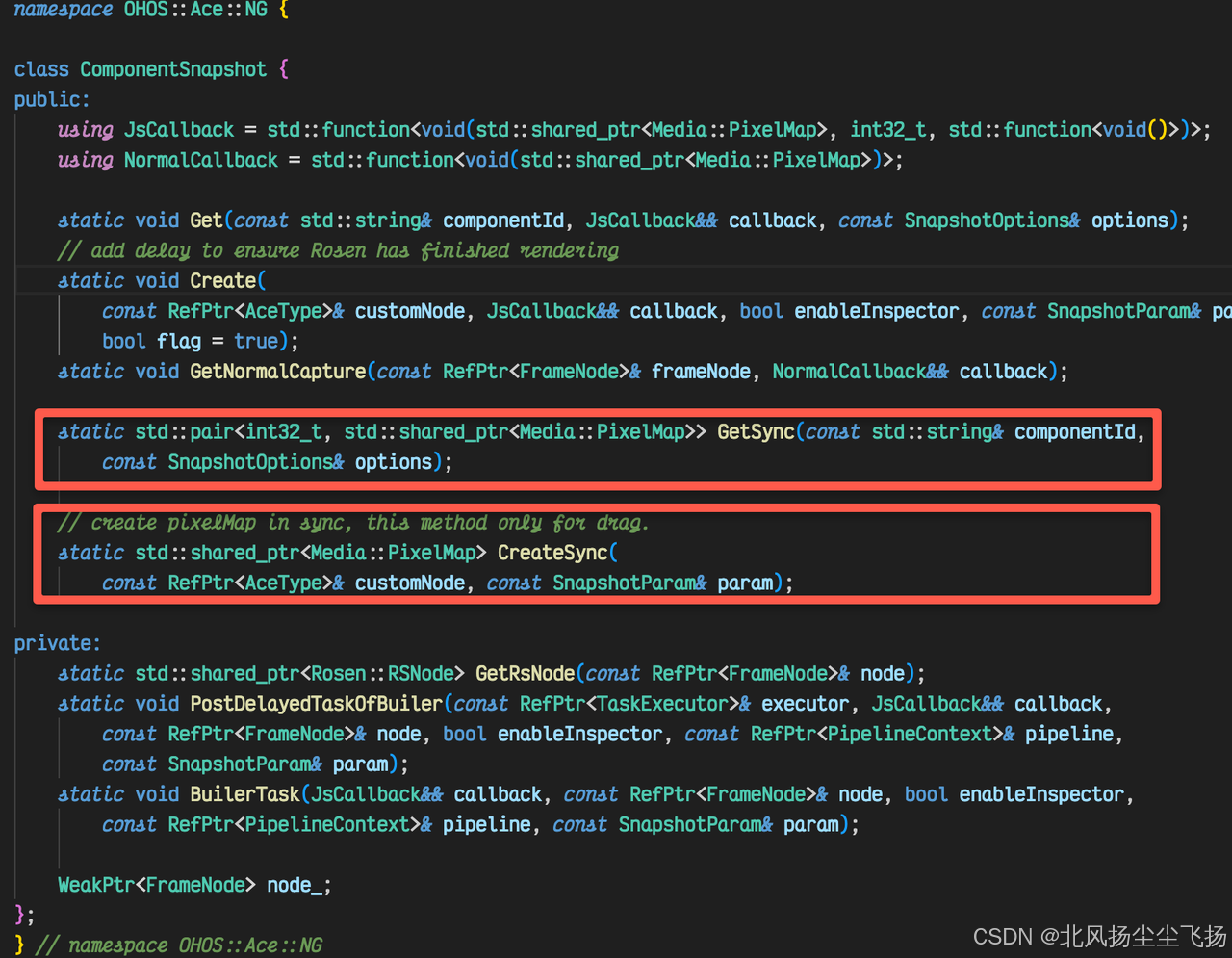
保存屏幕上已有Node
// 1
std::pair<int32_t, std::shared_ptr<Media::PixelMap>> ComponentSnapshot::GetSync(const std::string& componentId,
    const SnapshotOptions& options)
{
     ......
    // 通过组件ID获取对应的FrameNode
    auto node = Inspector::GetFrameNodeByKey(componentId);

    // 获取与FrameNode关联的RSNode
    auto rsNode = GetRsNode(node);

    // 如果FrameNode是一个布局节点
    if (node->GetIsLayoutNode()) {
        std::list<RefPtr<FrameNode>> children;
        // 获取FrameNode的第一层可见子节点
        node->GetOneDepthVisibleFrame(children);
        if (children.empty()) {
            // 如果没有可见子节点,返回默认结果
            return result;
        }
        // 使用第一个可见子节点作为新的FrameNode
        node = children.front();
        // 重新获取与新FrameNode关联的RSNode
        rsNode = GetRsNode(children.front());
    }

    ......
    // 获取Rosen接口实例
    auto& rsInterface = Rosen::RSInterfaces::GetInstance();

    // 创建一个同步回调对象
    auto syncCallback = std::make_shared<SyncCustomizedCallback>();

    // 调用Rosen接口进行SurfaceCapture,并传入回调对象和快照选项
    rsInterface.TakeSurfaceCaptureForUI(rsNode, syncCallback,
        options.scale, options.scale, options.waitUntilRenderFinished);

    // 返回回调对象中获取的PixelMap,超时时间为SNAPSHOT_TIMEOUT_DURATION
    return syncCallback->GetPixelMap(SNAPSHOT_TIMEOUT_DURATION);
}

// 2
class SyncCustomizedCallback : public Rosen::SurfaceCaptureCallback {
public:
    // 重写OnSurfaceCapture方法,当SurfaceCapture完成时调用
    void OnSurfaceCapture(std::shared_ptr<Media::PixelMap> pixelMap) override
    {
        ......
    }

    // 获取PixelMap的方法,带超时机制
    std::pair<int32_t, std::shared_ptr<Media::PixelMap>> GetPixelMap(std::chrono::duration<int, std::milli> timeout)
    {
        ......
        if (pixelMap_) {
            // 如果成功获取到PixelMap,返回成功错误码和PixelMap
            result = { ERROR_CODE_NO_ERROR, pixelMap_ };
        }
        return result;
    }
};

// 3
bool RSInterfaces::TakeSurfaceCaptureForUI(std::shared_ptr<RSNode> node,
    std::shared_ptr<SurfaceCaptureCallback> callback, float scaleX, float scaleY, bool isSync)
{
    ......
    // 如果启用了统一渲染(UniRender),则执行以下操作
    if (RSSystemProperties::GetUniRenderEnabled()) {
        // 如果是同步捕获,则设置节点的截图标志
        if (isSync) {
            node->SetTakeSurfaceForUIFlag();
        }
        // 调用渲染服务客户端进行表面捕获
        return renderServiceClient_->TakeSurfaceCapture(node->GetId(), callback, captureConfig);
    } else {
        // 如果没有启用统一渲染,则调用非统一渲染的界面截图函数
        return TakeSurfaceCaptureForUIWithoutUni(node->GetId(), callback, scaleX, scaleY);
    }
}

// 4
bool RSInterfaces::TakeSurfaceCaptureForUIWithoutUni(NodeId id,
    std::shared_ptr<SurfaceCaptureCallback> callback, float scaleX, float scaleY)
{
    // 定义一个离屏渲染任务,该任务将在离屏渲染线程中执行
    std::function<void()> offscreenRenderTask = [scaleX, scaleY, callback, id, this]() -> void {
        ......
        // 创建一个RSDividedUICapture对象,用于执行本地截图
        std::shared_ptr<RSDividedUICapture> rsDividedUICapture =
            std::make_shared<RSDividedUICapture>(id, scaleX, scaleY);
        // 执行本地截图并获取像素图
        std::shared_ptr<Media::PixelMap> pixelmap = rsDividedUICapture->TakeLocalCapture();

        callback->OnSurfaceCapture(pixelmap); // 1中的callback
    };
}


// 5
std::shared_ptr<Media::PixelMap> RSDividedUICapture::TakeLocalCapture()
{
    ......
    // 从渲染线程的上下文中获取指定ID的渲染节点
    auto node = RSRenderThread::Instance().GetContext().GetNodeMap().GetRenderNode<RSRenderNode>(nodeId_);

    // 创建一个RSDividedUICaptureVisitor对象,用于访问和处理渲染节点
    std::shared_ptr<RSDividedUICaptureVisitor> visitor =
        std::make_shared<RSDividedUICaptureVisitor>(nodeId_, scaleX_, scaleY_);

    // 创建一个ExtendRecordingCanvas对象,用于记录绘制命令
    auto recordingCanvas = std::make_shared<ExtendRecordingCanvas>(FAKE_WIDTH, FAKE_HEIGHT);

    // 将绘制任务提交到渲染线程中执行
    PostTaskToRTRecord(recordingCanvas, node, visitor);

    // 获取记录的绘制命令列表
    auto drawCallList = recordingCanvas->GetDrawCmdList();

    // 根据节点创建一个像素图对象
    std::shared_ptr<Media::PixelMap> pixelmap = CreatePixelMapByNode(node);

    // 创建一个Surface对象,用于绘制像素图
    auto drSurface = CreateSurface(pixelmap);

    // 创建一个RSPaintFilterCanvas对象,用于执行绘制命令
    auto canvas = std::make_shared<RSPaintFilterCanvas>(drSurface.get());
    drawCallList->Playback(*canvas);

    // 返回像素图
    return pixelmap;
}

// 6
void RSDividedUICapture::RSDividedUICaptureVisitor::ProcessCanvasRenderNode(RSCanvasRenderNode& node)
{
    ......
    // 处理节点的渲染内容
    node.ProcessRenderBeforeChildren(*canvas_);

    // 根据节点的类型处理不同的渲染内容
    if (node.GetType() == RSRenderNodeType::CANVAS_DRAWING_NODE) {
        auto canvasDrawingNode = node.ReinterpretCastTo<RSCanvasDrawingRenderNode>();
        if (!canvasDrawingNode->IsOnTheTree()) {
            canvasDrawingNode->ProcessRenderContents(*canvas_);
        } else {
            Drawing::Bitmap bitmap = canvasDrawingNode->GetBitmap();
            canvas_->DrawBitmap(bitmap, 0, 0);
        }
    } else {
        node.ProcessRenderContents(*canvas_);
    }

    // 处理节点的子节点
    ProcessChildren(node);

    // 处理节点的渲染后内容
    node.ProcessRenderAfterChildren(*canvas_);
}


void RSCanvasRenderNode::ProcessRenderContents(RSPaintFilterCanvas& canvas)
{
    DrawPropertyDrawable(RSPropertyDrawableSlot::CONTENT_STYLE, canvas);
}

void RSRenderContent::DrawPropertyDrawable(RSPropertyDrawableSlot slot, RSPaintFilterCanvas& canvas) const
{
    ......
    // 获取录制画布
    auto recordingCanvas = canvas.GetRecordingCanvas();
    if (recordingCanvas == nullptr || !canvas.GetRecordDrawable()) {
        // 非录制画布,直接绘制
        drawablePtr->Draw(*this, canvas);
        return;
    }

    // 录制画布处理
    auto castRecordingCanvas = static_cast<ExtendRecordingCanvas*>(canvas.GetRecordingCanvas());
    auto drawFunc = [sharedPtr = shared_from_this(), slot](Drawing::Canvas* canvas, const Drawing::Rect* rect) -> void {
        if (auto canvasPtr = static_cast<RSPaintFilterCanvas*>(canvas)) {
            sharedPtr->DrawPropertyDrawable(slot, *canvasPtr);
        }
    };
    // 录制画布,记录 lambda 函数
    castRecordingCanvas->DrawDrawFunc(std::move(drawFunc));
}


void ExtendRecordingCanvas::DrawDrawFunc(Drawing::RecordingCanvas::DrawFunc&& drawFunc)
{
    // 检查是否立即添加绘制操作
    if (!addDrawOpImmediate_) {
        // 非立即添加绘制操作,直接将 DrawFunc 封装成 DrawFuncOpItem 并添加到命令列表中
        cmdList_->AddDrawOp(std::make_shared<Drawing::DrawFuncOpItem>(std::move(drawFunc)));
        return;
    }

    // 立即添加绘制操作
    // 创建 RSExtendDrawFuncObj 对象,将 DrawFunc 移动到该对象中
    auto object = std::make_shared<RSExtendDrawFuncObj>(std::move(drawFunc));

    // 获取当前录制画布的命令列表
    auto drawCallList = Drawing::RecordingCanvas::GetDrawCmdList();

    // 将 RSExtendDrawFuncObj 对象添加到命令列表中,并返回对象句柄
    auto objectHandle = Drawing::CmdListHelper::AddDrawFuncObjToCmdList(*drawCallList, object);

    // 将 DrawFuncOpItem 对象添加到命令列表中,传入对象句柄
    cmdList_->AddOp<Drawing::DrawFuncOpItem::ConstructorHandle>(objectHandle);
}

// 7
// Calls the corresponding operations of all opitems in DrawCmdList to the canvas.
void Playback(Canvas& canvas, const Rect* rect = nullptr);
保存屏幕上没有的Node
// 1
std::shared_ptr<Media::PixelMap> ComponentSnapshot::CreateSync(
    const RefPtr<AceType>& customNode, const SnapshotParam& param)
{
    // 获取视图栈处理器实例
    auto* stack = ViewStackProcessor::GetInstance();

    // 获取一个新的节点ID
    auto nodeId = stack->ClaimNodeId();

    // 创建一个新的栈节点
    auto stackNode = FrameNode::CreateFrameNode(V2::STACK_ETS_TAG, nodeId, AceType::MakeRefPtr<StackPattern>());

    // 将自定义节点动态转换为FrameNode
    auto node = AceType::DynamicCast<FrameNode>(customNode);
    if (!node) {
        // 如果转换失败,将自定义节点作为UINode添加到栈节点中
        RefPtr<UINode> uiNode = AceType::DynamicCast<UINode>(customNode);
        stackNode->AddChild(uiNode);
        node = stackNode;
    }

    // 处理创建同步节点的逻辑
    std::string imageIds = "";
    HandleCreateSyncNode(node, pipeline, imageIds);

    // 检查图像是否成功加载
    int32_t imageCount = 0;
    bool checkImage = CheckImageSuccessfullyLoad(node, imageCount);
    if (!checkImage) {
        // 如果图像加载失败,返回空指针
        return nullptr;
    }

    // 同保存界面上已有的View的逻辑相同
    ......
}

// 2
void HandleCreateSyncNode(const RefPtr<FrameNode>& node, const RefPtr<PipelineContext>& pipeline, std::string& imageIds)
{
    // 处理离屏节点,确保节点在离屏渲染环境中正确初始化
    FrameNode::ProcessOffscreenNode(node);
    // 处理图像节点,收集所有图像节点的ID并标记为组件快照节点
    ProcessImageNode(node, imageIds);
    pipeline->FlushUITasks();
    pipeline->FlushModifier();
    pipeline->FlushMessages();
}

// 3
void FrameNode::ProcessOffscreenNode(const RefPtr<FrameNode>& node)
{
     ......
    auto predictLayoutNode = std::move(node->predictLayoutNode_);

    for (auto& node : predictLayoutNode) {
        auto frameNode = node.Upgrade();
        if (frameNode && pipeline) {
            pipeline->FlushUITaskWithSingleDirtyNode(frameNode);
        }
    }

    // 获取节点的绘制属性
    auto paintProperty = node->GetPaintProperty<PaintProperty>();

    // 创建绘制包装器
    auto wrapper = node->CreatePaintWrapper();

    // 如果绘制包装器存在,刷新渲染
    if (wrapper != nullptr) {
        wrapper->FlushRender();
    }
}

// 4
void PipelineContext::FlushUITaskWithSingleDirtyNode(const RefPtr<FrameNode>& node)
{
    // 获取节点的布局属性
    auto layoutProperty = node->GetLayoutProperty();

    // 获取节点的布局约束
    auto layoutConstraint = node->GetLayoutConstraint();

    // 记录当前是否正在进行布局的标志
    auto originLayoutingFlag = IsLayouting();
    // 设置当前正在进行布局的标志为true
    SetIsLayouting(true);

    // 如果节点的布局矩形存在,则执行以下操作
    if (layoutProperty->GetLayoutRect()) {
        // 设置节点为活动状态,并强制重新测量和布局
        node->SetActive(true, true);
        // 重新测量节点
        node->Measure(std::nullopt);
        // 重新布局节点
        node->Layout();
    } else {
        // 获取节点的祖先节点(如果有)
        auto ancestorNodeOfFrame = node->GetAncestorNodeOfFrame();
        // 重新测量节点
        node->Measure(layoutConstraint);
        // 重新布局节点
        node->Layout();
    }

    // 恢复之前的布局标志状态
    SetIsLayouting(originLayoutingFlag);
}


// 5
RefPtr<PaintWrapper> FrameNode::CreatePaintWrapper()
{
    ......
    // 获取节点的绘制方法
    auto paintMethod = pattern_->CreateNodePaintMethod();
    // 如果存在绘制方法、扩展处理器或节点具有可访问性焦点,则执行以下操作
    if (paintMethod || extensionHandler_ || renderContext_->GetAccessibilityFocus().value_or(false)) {
        // 如果绘制方法为空,则创建默认的绘制方法
        if (!paintMethod) {
            paintMethod = pattern_->CreateDefaultNodePaintMethod();
        }

        // 创建一个PaintWrapper对象,并传递渲染上下文、几何节点、绘制属性和扩展处理器
        auto paintWrapper = MakeRefPtr<PaintWrapper>(
            renderContext_, geometryNode_->Clone(), paintProperty_->Clone(), extensionHandler_);
        // 设置PaintWrapper的绘制方法
        paintWrapper->SetNodePaintMethod(paintMethod);
        // 返回创建的PaintWrapper对象
        return paintWrapper;
    }
    // 如果不满足上述条件,则返回空指针
    return nullptr;
}

// 6
// CreateNodePaintMethod() 在子组件中实现,以text_pattern.cpp为例
RefPtr<NodePaintMethod> TextPattern::CreateNodePaintMethod()
{
    // 创建修饰器
    CreateModifier();
    // 创建 TextPaintMethod 对象
    auto paintMethod = MakeRefPtr<TextPaintMethod>(WeakClaim(this), baselineOffset_, contentMod_, overlayMod_);
    // 获取宿主节点
    auto host = GetHost();
    // 获取渲染上下文
    auto context = host->GetRenderContext();
    // 获取几何节点
    auto geometryNode = host->GetGeometryNode();
    // 获取框架大小
    auto frameSize = geometryNode->GetFrameSize();

    // 判断是否需要剪裁
    auto clip = false;
    if (Container::LessThanAPITargetVersion(PlatformVersion::VERSION_TWELVE)) {
        clip = true;
    }
    .....
    // 返回 TextPaintMethod 对象
    return paintMethod;
}


// 7
void PaintWrapper::FlushRender()
{
    ......
    // 开始记录渲染操作
    renderContext->StartRecording();

    // 获取内容、前景和覆盖的绘制函数
    auto contentDraw = nodePaintImpl_ ? nodePaintImpl_->GetContentDrawFunction(this) : nullptr;
    auto foregroundDraw = nodePaintImpl_ ? nodePaintImpl_->GetForegroundDrawFunction(this) : nullptr;
    auto overlayDraw = nodePaintImpl_ ? nodePaintImpl_->GetOverlayDrawFunction(this) : nullptr;

    // 如果存在扩展处理器,则执行以下操作
    if (extensionHandler_) {
        // 获取几何节点的布局大小
        auto layoutSize = GetGeometryNode()->GetFrameSize();
        auto width = layoutSize.Width();
        auto height = layoutSize.Height();

        // 如果没有内容修改器,则设置内容绘制实现并刷新内容绘制函数
        if (!contentModifier) {
            if (contentDraw) {
                extensionHandler_->SetInnerDrawImpl([contentDraw = std::move(contentDraw)](
                                                        DrawingContext& context) { contentDraw(context.canvas); });
            }
            renderContext->FlushContentDrawFunction(
                [extensionHandler = RawPtr(extensionHandler_), width, height](RSCanvas& canvas) {
                    DrawingContext context = { canvas, width, height };
                    extensionHandler->Draw(context);
                });
        }

        // 如果没有前景修改器,则设置前景绘制实现并刷新前景绘制函数
        if (!foregroundModifier) {
            if (foregroundDraw) {
                extensionHandler_->SetInnerForegroundDrawImpl(
                    [foregroundDraw = std::move(foregroundDraw)](
                        DrawingContext& context) { foregroundDraw(context.canvas); });
            }
            renderContext->FlushForegroundDrawFunction(
                [extensionHandler = RawPtr(extensionHandler_), width, height](RSCanvas& canvas) {
                    DrawingContext context = { canvas, width, height };
                    extensionHandler->ForegroundDraw(context);
                });
        }

        // 如果没有覆盖修改器,则设置覆盖绘制实现并刷新覆盖绘制函数
        if (!overlayModifier) {
            if (overlayDraw) {
                extensionHandler_->SetInnerOverlayDrawImpl(
                    [overlayDraw = std::move(overlayDraw)](
                        DrawingContext& context) { overlayDraw(context.canvas); });
            }
            renderContext->FlushOverlayDrawFunction(
                [extensionHandler = RawPtr(extensionHandler_), width, height](RSCanvas& canvas) {
                    DrawingContext context = { canvas, width, height };
                    extensionHandler->OverlayDraw(context);
                });
        }
    } else {
        // 如果没有扩展处理器,则直接刷新内容、前景和覆盖的绘制函数
        if (contentDraw && !contentModifier) {
            renderContext->FlushContentDrawFunction(std::move(contentDraw));
        }
        if (foregroundDraw && !foregroundModifier) {
            renderContext->FlushForegroundDrawFunction(std::move(foregroundDraw));
        }
        if (overlayDraw && !overlayModifier) {
            renderContext->FlushOverlayDrawFunction(std::move(overlayDraw));
        }
    }
}
总结
在 Android 8.x 及之后的版本中,RecordingCanvas 被进一步完善和优化。它成为了 Android图形渲染系统中的一个重要组成部分,用于记录和重放绘制操作。
在 Android 中,需对要截图的 View 执行onDraw操作,以此获取对应的 Bitmap ;而在 Harmony 中,则可以直接GetDrawCmdList()(全局采用了 RecordingCanvas),直接于 Canvas 上执行相应的绘制命令,更类似于“快照”(snapshot) 。
“Harmony站在Android的肩膀上”。

讨论HarmonyOS开发技术,专注于API与组件、DevEco Studio、测试、元服务和应用上架分发等。
更多推荐
 22
22 0
0- 0


 已为社区贡献2条内容

所有评论(0)