【鸿蒙实战开发】图片选择和下载保存案例
本示例介绍图片相关场景的使用:包含访问手机相册图片、选择预览图片并显示选择的图片到当前页面,下载并保存网络图片到手机相册或到指定用户目录两个场景。2.通过photoViewPicker.select()接口,通过传入参数PhotoSaveOptions图库对象,获取返回的用户选择的图片信息。通过photoViewPicker.select()拉起图库界面,用户可以预览并选择一个或多个文件,即可实现
往期知识点整理
- 鸿蒙(HarmonyOS)北向开发知识点记录~
- 【鸿蒙实战开发】ArkTS多线程的多线程系列(一):ArkTS多线能力入门
- 【鸿蒙实战开发】ArkTS多线程的多线程系列(二):基于Sendable共享对象实现跨线程通信及UI状态刷新
- 【鸿蒙实战开发】ArkTS多线性的多线程系列(三):基于单例实现跨线程缓存
- 【鸿蒙实战开发】ArkTS多线程的多线程系列(四):基于生产者-消费者实现多线程协同
- 【鸿蒙实战开发】ArkTS多线程的多线程系列(五):通过子线程实现全局弹窗
- 【鸿蒙UI实战开发】基于List和Scroller由简单到复杂列表布局开发实践
- 【鸿蒙UI实战开发】基于原生能力的键盘控制
- 【鸿蒙UI实战开发】基于ArkUI现有能力实现自定义弹窗封装方案
- 【鸿蒙实战开发】Native保存图片到应用沙箱
- 【鸿蒙实战开发】基于加解密算法框架的常见规格问题
- 【鸿蒙实战开发】图片选择和下载保存案例
- 持续更新中……
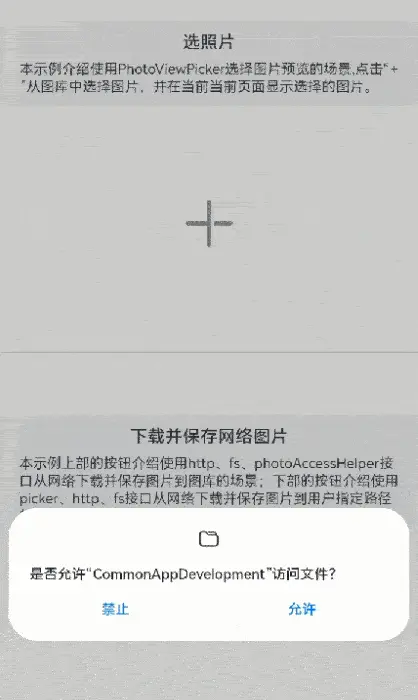
本示例介绍图片相关场景的使用:包含访问手机相册图片、选择预览图片并显示选择的图片到当前页面,下载并保存网络图片到手机相册或到指定用户目录两个场景。
效果图预览
使用说明
- 从主页通用场景集里选择图片选择和下载保存进入首页。
- 分两个场景
- 点击“+”进入”访问手机相册图片预览并选择”场景示例。
- 点击上部“下载”按钮进入”下载网络图片到手机相册”场景示例;点击下部“下载到指定路径”按钮进入”下载文件到指定用户目录”场景示例。
实现思路
场景1:访问手机相册图片预览并选择
通过photoViewPicker.select()拉起图库界面,用户可以预览并选择一个或多个文件,即可实现拉起手机相册并进行图片的预览与选择。
1.创建文件类型为图片的,并最大预览数量为2的图库实例。
async getFileAssetsFromType(){

    const photoSelectOptions = new picker.PhotoSelectOptions(); // 创建图库对象实例

    photoSelectOptions.MIMEType = picker.PhotoViewMIMETypes.IMAGE_TYPE; // 选择媒体文件类型为Image

    photoSelectOptions.maxSelectNumber = 2; // 选择媒体文件的最大数目

}
2.通过photoViewPicker.select()接口,通过传入参数PhotoSaveOptions图库对象,获取返回的用户选择的图片信息。
async getFileAssetsFromType(){

    photoViewPicker.select(photoSelectOptions)

        .then((photoSelectResult) => {

            this.uris = photoSelectResult.photoUris; // select返回的uri权限是只读权限,需要将uri写入全局变量@State中即可根据结果集中的uri进行读取文件数据操作。

        })

        .catch((err: BusinessError) => {

            console.log('Invoke photoViewPicker.select failed, code is ${err.code},message is ${err.message}');

        })

}
场景2:下载并保存网络图片
1.通过http中request方法获取在线图片数据。
http.createHttp()

    .request('https://gitee.com/openharmony/applications_app_samples/raw/master/code/Solutions/Shopping/OrangeShopping/feature/navigationHome/src/main/resources/base/media/product002.png',

        (error: BusinessError, data: http.HttpResponse) => {

            if (error) {

                promptAction.showToast({

                    message: $r('app.string.image_request_fail'),

                    duration: 2000

                })

                return

            }

            this.transcodePixelMap(data);

            if (data.result instanceof ArrayBuffer) {

                this.imageBuffer = data.result as ArrayBuffer;

            }

        })
2.使用createPixelMap方法将获取到的图片数据转换成pixelmap展示到页面中
// 将ArrayBuffer类型的图片装换为PixelMap类型

transcodePixelMap(data: http.HttpResponse) {

    let code: http.ResponseCode | number = data.responseCode;

    if (ResponseCode.ResponseCode.OK === code) {

        let imageData: ArrayBuffer = data.result as ArrayBuffer;

        let imageSource: image.ImageSource = image.createImageSource(imageData);

        class tmp {

            height: number = 100;

            width: number = 100;

        };

        let options: Record<string, number | boolean | tmp> = {

            'alphaType': 0, // 透明度

            'editable': false, // 是否可编辑

            'pixelFormat': 3, // 像素格式

            'scaleMode': 1, // 缩略值

            'size': { height: 100, width: 100 }

        }; // 创建图片大小

        imageSource.createPixelMap(options).then((pixelMap: PixelMap) => {

            this.image = pixelMap;

            this.isShow = true

        });

    }

}
3.将图片保存到图库或者用户选择的路径
- 使用getPhotoAccessHelper、createAsset、fs.open、fs.write等接口将数据存到本地图库中
async saveImage(buffer: ArrayBuffer | string): Promise<void> {

    let context = getContext(this) as common.UIAbilityContext;

    let helper = photoAccessHelper.getPhotoAccessHelper(context);

    let uri = await helper.createAsset(photoAccessHelper.PhotoType.IMAGE, 'jpg');

    let file = await fs.open(uri, fs.OpenMode.READ_WRITE | fs.OpenMode.CREATE);

    await fs.write(file.fd, buffer);

    await fs.close(file.fd);

}
- 使用photoViewPicker.save、fs.open、fs.write等接口将数据存到用户选择路径的数据库中
async pickerSave(buffer: ArrayBuffer | string): Promise<void> {

    const photoSaveOptions = new picker.PhotoSaveOptions(); // 创建文件管理器保存选项实例

    photoSaveOptions.newFileNames = ['PhotoViewPicker ' + new Date().getTime() + 'jpg'] // 保存文件名(可选)

    const photoViewPicker = new picker.PhotoViewPicker;

    photoViewPicker.save(photoSaveOptions)

    .then(async (photoSvaeResult) => {

    console.info('PhotoViewPicker.save successfully,photoSvaeResult uri:' + JSON.stringify(photoSvaeResult));

    let uri = photoSvaeResult[0];

    let file = await fs.open(uri, fs.OpenMode.READ_WRITE | fs.OpenMode.CREATE);

    await fs.write(file.fd, buffer);

    await fs.close(file.fd);

    promptAction.showToast({

                               message: $r('app.string.image_request_success'),

                               duration: 2000

                           })

})

}
工程结构&模块类型
picturemanage                                   // har类型

    |---src/main/ets/components

    |   |---SelectPictures.ets                      // 场景一:访问手机相册图片预览并选择

    |   |---SaveNetWorkPictures.ets                 // 场景二:下载网络图片并保存到手机相册或用户选择的文件夹

    |   |---PictureManage.ets                       // 视图层-主页面,三个场景入口
总是有很多小伙伴反馈说:鸿蒙开发不知道学习哪些技术?不知道需要重点掌握哪些鸿蒙开发知识点? 为了解决大家这些学习烦恼。在这准备了一份很实用的鸿蒙全栈开发学习路线与学习文档给大家用来跟着学习。
针对一些列因素,整理了一套纯血版鸿蒙(HarmonyOS Next)全栈开发技术的学习路线,包含了鸿蒙开发必掌握的核心知识要点,内容有(OpenHarmony多媒体技术、Napi组件、OpenHarmony内核、OpenHarmony驱动开发、系统定制移植……等)技术知识点。

《鸿蒙 (Harmony OS)开发学习手册》(共计892页):https://gitcode.com/HarmonyOS_MN/733GH/overview
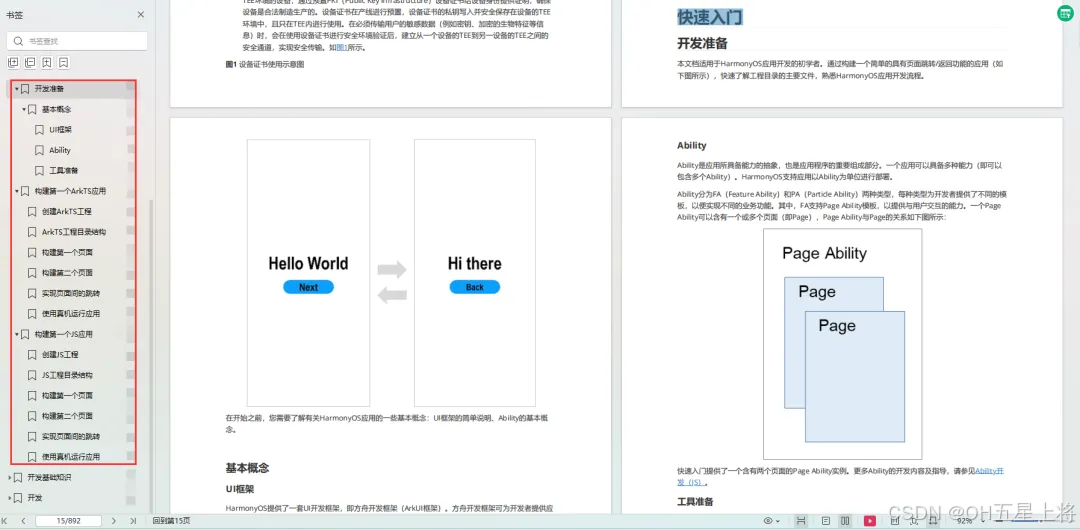
如何快速入门?
1.基本概念
2.构建第一个ArkTS应用
3.……
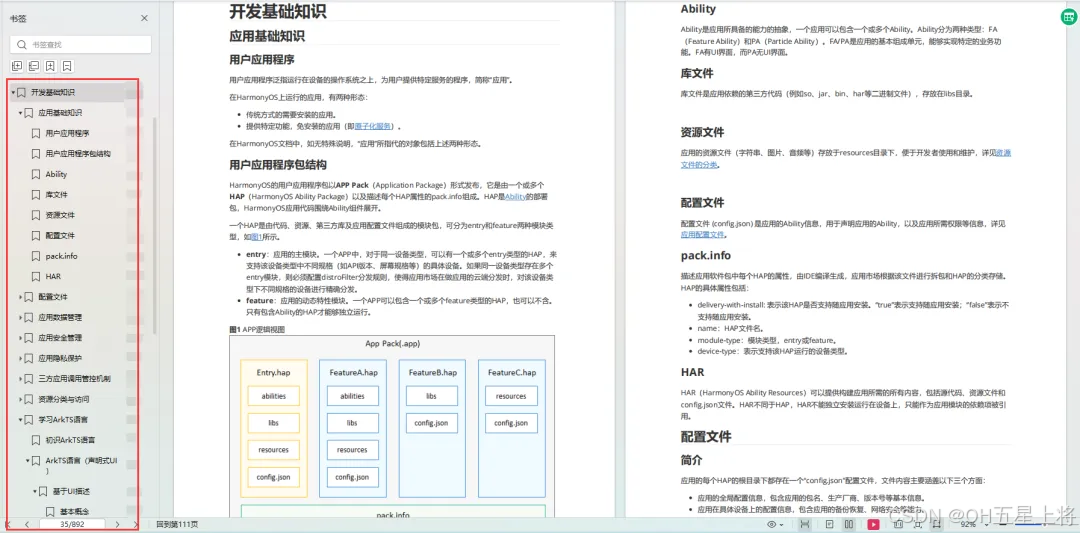
开发基础知识:
1.应用基础知识
2.配置文件
3.应用数据管理
4.应用安全管理
5.应用隐私保护
6.三方应用调用管控机制
7.资源分类与访问
8.学习ArkTS语言
9.……
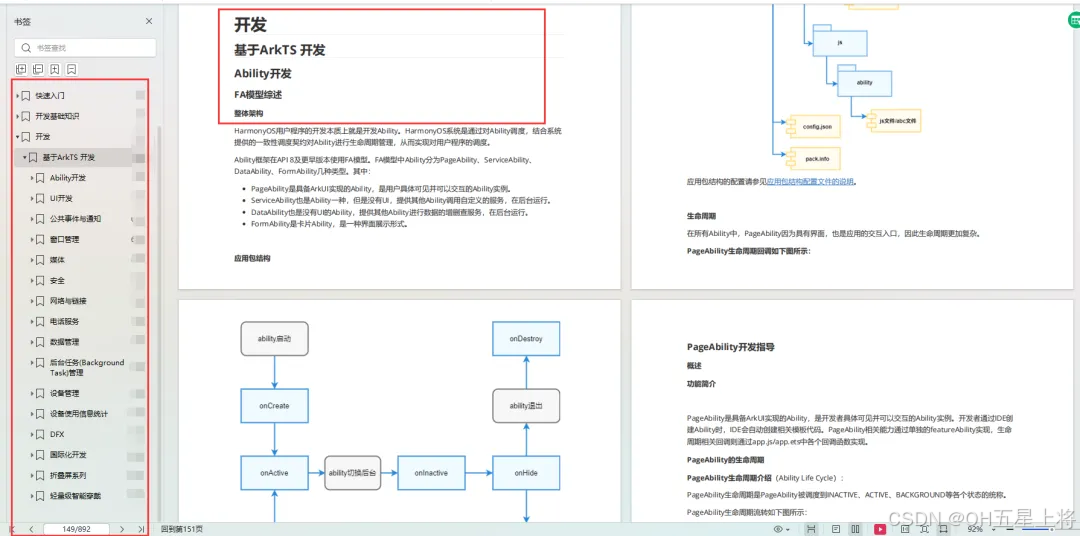
基于ArkTS 开发
1.Ability开发
2.UI开发
3.公共事件与通知
4.窗口管理
5.媒体
6.安全
7.网络与链接
8.电话服务
9.数据管理
10.后台任务(Background Task)管理
11.设备管理
12.设备使用信息统计
13.DFX
14.国际化开发
15.折叠屏系列
16.……
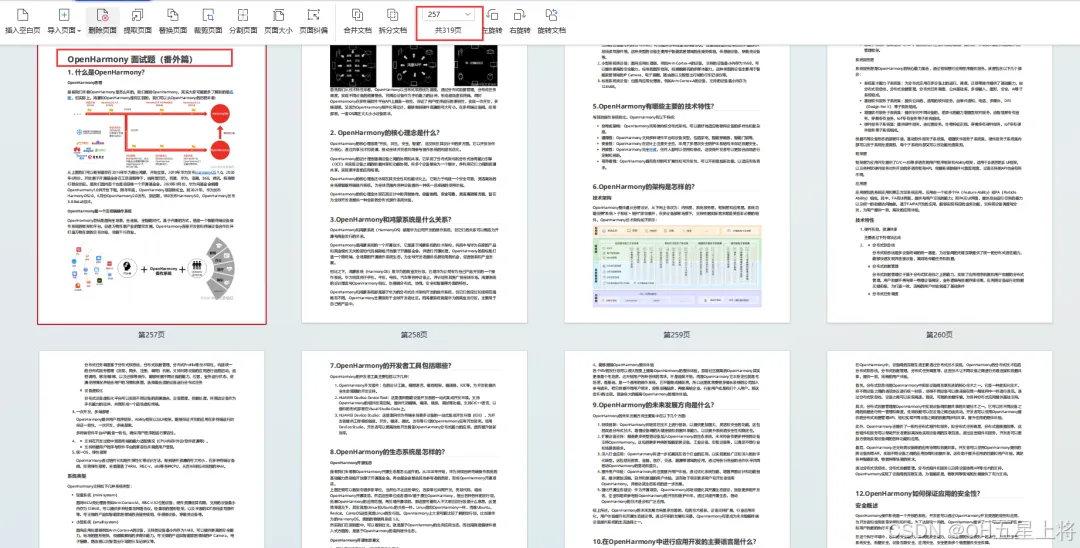
鸿蒙开发面试真题(含参考答案):https://gitcode.com/HarmonyOS_MN/733GH/overview
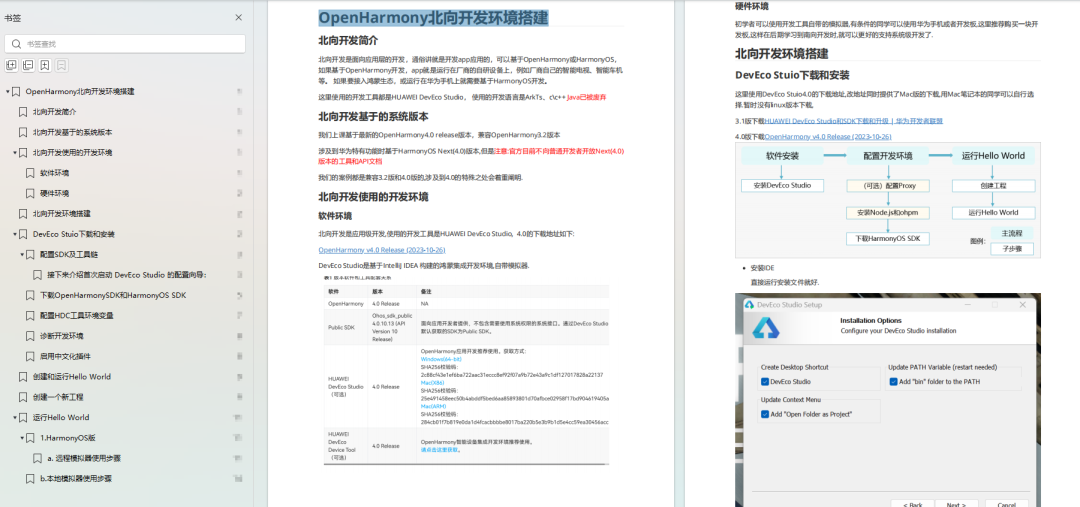
OpenHarmony 开发环境搭建
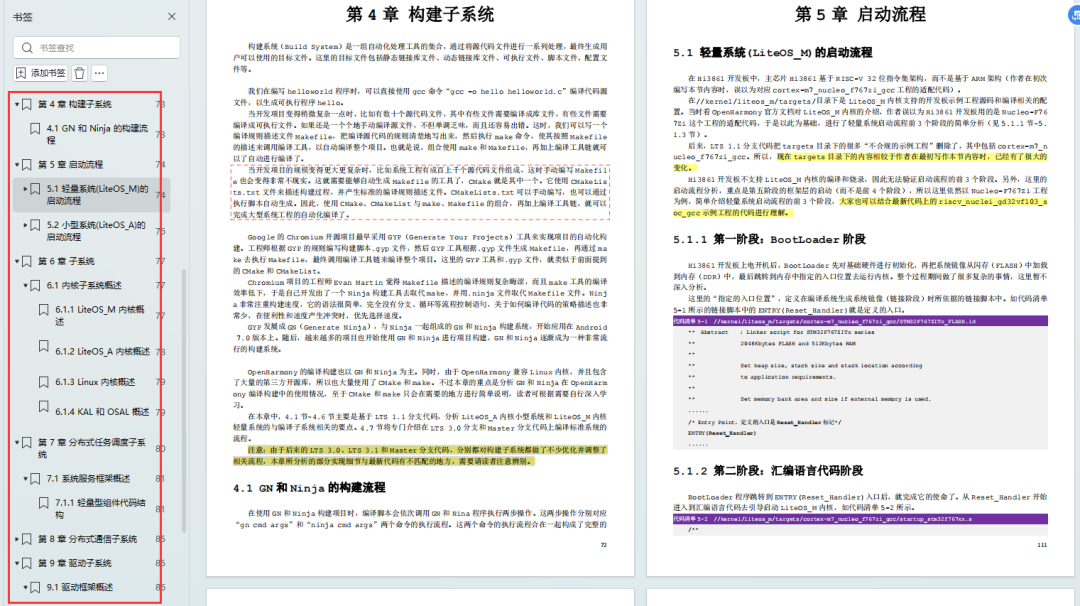
《OpenHarmony源码解析》:https://gitcode.com/HarmonyOS_MN/733GH/overview
- 搭建开发环境
- Windows 开发环境的搭建
- Ubuntu 开发环境搭建
- Linux 与 Windows 之间的文件共享
- ……
- 系统架构分析
- 构建子系统
- 启动流程
- 子系统
- 分布式任务调度子系统
- 分布式通信子系统
- 驱动子系统
- ……
OpenHarmony 设备开发学习手册:https://gitcode.com/HarmonyOS_MN/733GH/overview


讨论HarmonyOS开发技术,专注于API与组件、DevEco Studio、测试、元服务和应用上架分发等。
更多推荐


 21
21 0
0- 0


 已为社区贡献32条内容

所有评论(0)