Flutter 框架跨平台鸿蒙开发 —— Image Widget 图片处理:圆角、裁剪、阴影
在上一篇《Image Widget 基础:图片加载方式》中,我们学习了如何加载不同来源的图片。然而,在实际应用中,仅仅显示图片是远远不够的。现代 UI 设计要求图片具有各种视觉效果:圆角、阴影、裁剪等。使用 ClipRRect 实现圆角效果使用 ClipOval、ClipPath 实现各种裁剪效果使用 BoxShadow 添加阴影效果组合多种效果创建精美的 UI 组件这些技术不仅适用于图片,也适用
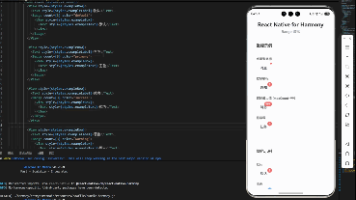
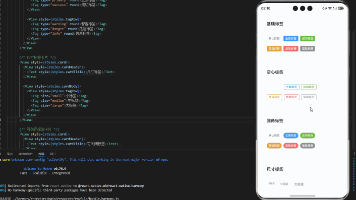
🚀 示例应用+效果图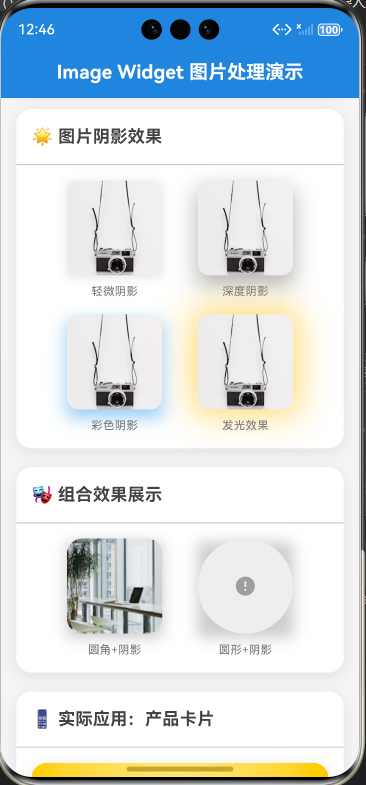
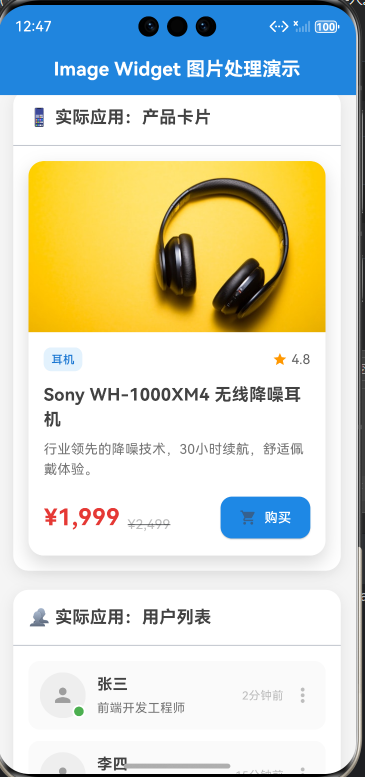

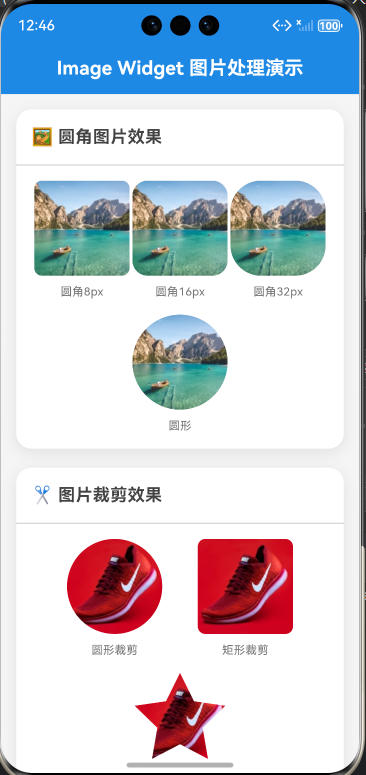
import 'dart:math';
import 'package:flutter/material.dart';
void main() => runApp(const ImageRadiusDemoApp());
/// Image Widget 图片处理演示应用
class ImageRadiusDemoApp extends StatelessWidget {
const ImageRadiusDemoApp({Key? key}) : super(key: key);
@override
Widget build(BuildContext context) {
return MaterialApp(
debugShowCheckedModeBanner: false,
title: 'Image Widget 图片处理演示',
theme: ThemeData(
primarySwatch: Colors.blue,
useMaterial3: true,
colorScheme: ColorScheme.fromSeed(
seedColor: Colors.blue,
brightness: Brightness.light,
),
),
home: const HomePage(),
);
}
}
/// 主页面
class HomePage extends StatelessWidget {
const HomePage({Key? key}) : super(key: key);
@override
Widget build(BuildContext context) {
return Scaffold(
backgroundColor: Colors.grey[100],
appBar: AppBar(
title: const Text(
'Image Widget 图片处理演示',
style: TextStyle(
fontSize: 20,
fontWeight: FontWeight.bold,
color: Colors.white,
),
),
centerTitle: true,
elevation: 0,
backgroundColor: Colors.blue[600],
),
body: const SingleChildScrollView(
padding: EdgeInsets.all(16),
child: Column(
crossAxisAlignment: CrossAxisAlignment.start,
children: [
RoundedImageCard(),
SizedBox(height: 20),
ImageClipCard(),
SizedBox(height: 20),
ShadowEffectCard(),
SizedBox(height: 20),
CombinedEffectCard(),
SizedBox(height: 20),
ProductCard(),
SizedBox(height: 20),
UserListCard(),
SizedBox(height: 20),
RealEstateCard(),
],
),
),
);
}
}
/// 圆角图片卡片
class RoundedImageCard extends StatelessWidget {
const RoundedImageCard({Key? key}) : super(key: key);
@override
Widget build(BuildContext context) {
return Container(
decoration: BoxDecoration(
color: Colors.white,
borderRadius: BorderRadius.circular(16),
boxShadow: [
BoxShadow(
color: Colors.black.withOpacity(0.08),
blurRadius: 12,
offset: const Offset(0, 4),
),
],
),
child: Column(
crossAxisAlignment: CrossAxisAlignment.start,
children: [
Padding(
padding: const EdgeInsets.all(16),
child: Text(
'🖼️ 圆角图片效果',
style: TextStyle(
fontSize: 18,
fontWeight: FontWeight.bold,
color: Colors.grey[800],
),
),
),
const Divider(height: 1),
Padding(
padding: const EdgeInsets.all(16),
child: Column(
children: [
Row(
mainAxisAlignment: MainAxisAlignment.spaceEvenly,
children: [
_buildRoundedImage(8, '圆角8px'),
_buildRoundedImage(16, '圆角16px'),
_buildRoundedImage(32, '圆角32px'),
],
),
const SizedBox(height: 16),
Row(
mainAxisAlignment: MainAxisAlignment.spaceEvenly,
children: [
_buildRoundedImage(100, '圆形'),
],
),
],
),
),
],
),
);
}
Widget _buildRoundedImage(double radius, String label) {
return Column(
children: [
ClipRRect(
borderRadius: BorderRadius.circular(radius),
child: Image.network(
'https://images.unsplash.com/photo-1501785888041-af3ef285b470?w=200',
width: 100,
height: 100,
fit: BoxFit.cover,
errorBuilder: (context, error, stackTrace) {
return Container(
width: 100,
height: 100,
color: Colors.grey[200],
child: const Icon(Icons.error, color: Colors.grey),
);
},
),
),
const SizedBox(height: 8),
Text(
label,
style: TextStyle(
fontSize: 12,
color: Colors.grey[600],
),
),
],
);
}
}
/// 图片裁剪展示
class ImageClipCard extends StatelessWidget {
const ImageClipCard({Key? key}) : super(key: key);
@override
Widget build(BuildContext context) {
return Container(
decoration: BoxDecoration(
color: Colors.white,
borderRadius: BorderRadius.circular(16),
boxShadow: [
BoxShadow(
color: Colors.black.withOpacity(0.08),
blurRadius: 12,
offset: const Offset(0, 4),
),
],
),
child: Column(
crossAxisAlignment: CrossAxisAlignment.start,
children: [
Padding(
padding: const EdgeInsets.all(16),
child: Text(
'✂️ 图片裁剪效果',
style: TextStyle(
fontSize: 18,
fontWeight: FontWeight.bold,
color: Colors.grey[800],
),
),
),
const Divider(height: 1),
Padding(
padding: const EdgeInsets.all(16),
child: Column(
children: [
Row(
mainAxisAlignment: MainAxisAlignment.spaceEvenly,
children: [
_buildClipImage('circle', '圆形裁剪'),
_buildClipImage('rect', '矩形裁剪'),
],
),
const SizedBox(height: 16),
_buildClipImage('custom', '自定义裁剪'),
],
),
),
],
),
);
}
Widget _buildClipImage(String type, String label) {
Widget image = Image.network(
'https://images.unsplash.com/photo-1542291026-7eec264c27ff?w=200',
width: 100,
height: 100,
fit: BoxFit.cover,
errorBuilder: (context, error, stackTrace) {
return Container(
width: 100,
height: 100,
color: Colors.grey[200],
child: const Icon(Icons.error, color: Colors.grey),
);
},
);
switch (type) {
case 'circle':
image = ClipOval(child: image);
break;
case 'rect':
image = ClipRRect(
borderRadius: BorderRadius.circular(8),
child: image,
);
break;
case 'custom':
image = ClipPath(
clipper: StarClipper(),
child: image,
);
break;
}
return Column(
children: [
image,
const SizedBox(height: 8),
Text(
label,
style: TextStyle(
fontSize: 12,
color: Colors.grey[600],
),
),
],
);
}
}
/// 星形裁剪路径
class StarClipper extends CustomClipper<Path> {
@override
Path getClip(Size size) {
final path = Path();
final center = Offset(size.width / 2, size.height / 2);
final radius = size.width / 2;
final points = 5;
final innerRadius = radius * 0.5;
for (int i = 0; i < points * 2; i++) {
final angle = (i * 3.1415926) / points - 3.1415926 / 2;
final r = i % 2 == 0 ? radius : innerRadius;
final x = center.dx + r * cos(angle);
final y = center.dy + r * sin(angle);
if (i == 0) {
path.moveTo(x, y);
} else {
path.lineTo(x, y);
}
}
path.close();
return path;
}
@override
bool shouldReclip(CustomClipper<Path> oldClipper) => false;
}
/// 图片阴影效果
class ShadowEffectCard extends StatelessWidget {
const ShadowEffectCard({Key? key}) : super(key: key);
@override
Widget build(BuildContext context) {
return Container(
decoration: BoxDecoration(
color: Colors.white,
borderRadius: BorderRadius.circular(16),
boxShadow: [
BoxShadow(
color: Colors.black.withOpacity(0.08),
blurRadius: 12,
offset: const Offset(0, 4),
),
],
),
child: Column(
crossAxisAlignment: CrossAxisAlignment.start,
children: [
Padding(
padding: const EdgeInsets.all(16),
child: Text(
'🌟 图片阴影效果',
style: TextStyle(
fontSize: 18,
fontWeight: FontWeight.bold,
color: Colors.grey[800],
),
),
),
const Divider(height: 1),
Padding(
padding: const EdgeInsets.all(16),
child: Column(
children: [
Row(
mainAxisAlignment: MainAxisAlignment.spaceEvenly,
children: [
_buildShadowImage('soft', '轻微阴影'),
_buildShadowImage('deep', '深度阴影'),
],
),
const SizedBox(height: 16),
Row(
mainAxisAlignment: MainAxisAlignment.spaceEvenly,
children: [
_buildShadowImage('color', '彩色阴影'),
_buildShadowImage('glow', '发光效果'),
],
),
],
),
),
],
),
);
}
Widget _buildShadowImage(String type, String label) {
BoxShadow shadow;
switch (type) {
case 'soft':
shadow = BoxShadow(
color: Colors.black.withOpacity(0.1),
blurRadius: 8,
offset: const Offset(0, 2),
);
break;
case 'deep':
shadow = BoxShadow(
color: Colors.black.withOpacity(0.3),
blurRadius: 20,
offset: const Offset(0, 10),
);
break;
case 'color':
shadow = BoxShadow(
color: Colors.blue.withOpacity(0.5),
blurRadius: 15,
offset: const Offset(0, 8),
);
break;
case 'glow':
shadow = BoxShadow(
color: Colors.amber.withOpacity(0.6),
blurRadius: 30,
offset: const Offset(0, 0),
spreadRadius: 5,
);
break;
default:
shadow = BoxShadow(
color: Colors.black.withOpacity(0.1),
blurRadius: 8,
offset: const Offset(0, 2),
);
}
return Column(
children: [
Container(
decoration: BoxDecoration(
boxShadow: [shadow],
),
child: ClipRRect(
borderRadius: BorderRadius.circular(12),
child: Image.network(
'https://images.unsplash.com/photo-1516961642265-531546e84af2?w=200',
width: 100,
height: 100,
fit: BoxFit.cover,
errorBuilder: (context, error, stackTrace) {
return Container(
width: 100,
height: 100,
color: Colors.grey[200],
child: const Icon(Icons.error, color: Colors.grey),
);
},
),
),
),
const SizedBox(height: 8),
Text(
label,
style: TextStyle(
fontSize: 12,
color: Colors.grey[600],
),
),
],
);
}
}
/// 组合效果展示
class CombinedEffectCard extends StatelessWidget {
const CombinedEffectCard({Key? key}) : super(key: key);
@override
Widget build(BuildContext context) {
return Container(
decoration: BoxDecoration(
color: Colors.white,
borderRadius: BorderRadius.circular(16),
boxShadow: [
BoxShadow(
color: Colors.black.withOpacity(0.08),
blurRadius: 12,
offset: const Offset(0, 4),
),
],
),
child: Column(
crossAxisAlignment: CrossAxisAlignment.start,
children: [
Padding(
padding: const EdgeInsets.all(16),
child: Text(
'🎭 组合效果展示',
style: TextStyle(
fontSize: 18,
fontWeight: FontWeight.bold,
color: Colors.grey[800],
),
),
),
const Divider(height: 1),
Padding(
padding: const EdgeInsets.all(16),
child: Row(
mainAxisAlignment: MainAxisAlignment.spaceEvenly,
children: [
_buildCombinedCard('rounded', '圆角+阴影'),
_buildCombinedCard('circle', '圆形+阴影'),
],
),
),
],
),
);
}
Widget _buildCombinedCard(String type, String label) {
Widget image = Image.network(
type == 'rounded'
? 'https://images.unsplash.com/photo-1497215728101-856f4ea42174?w=200'
: 'https://api.dicebear.com/7.x/avataaars/svg?seed=John',
width: 100,
height: 100,
fit: BoxFit.cover,
errorBuilder: (context, error, stackTrace) {
return Container(
width: 100,
height: 100,
color: Colors.grey[200],
child: const Icon(Icons.error, color: Colors.grey),
);
},
);
if (type == 'rounded') {
image = ClipRRect(
borderRadius: BorderRadius.circular(16),
child: image,
);
} else {
image = ClipOval(child: image);
}
return Column(
children: [
Container(
decoration: BoxDecoration(
boxShadow: [
BoxShadow(
color: Colors.black.withOpacity(0.2),
blurRadius: 12,
offset: const Offset(0, 4),
),
],
),
child: image,
),
const SizedBox(height: 8),
Text(
label,
style: TextStyle(
fontSize: 12,
color: Colors.grey[600],
),
),
],
);
}
}
/// 产品卡片
class ProductCard extends StatelessWidget {
const ProductCard({Key? key}) : super(key: key);
@override
Widget build(BuildContext context) {
return Container(
decoration: BoxDecoration(
color: Colors.white,
borderRadius: BorderRadius.circular(16),
boxShadow: [
BoxShadow(
color: Colors.black.withOpacity(0.08),
blurRadius: 12,
offset: const Offset(0, 4),
),
],
),
child: Column(
crossAxisAlignment: CrossAxisAlignment.start,
children: [
Padding(
padding: const EdgeInsets.all(16),
child: Text(
'📱 实际应用:产品卡片',
style: TextStyle(
fontSize: 18,
fontWeight: FontWeight.bold,
color: Colors.grey[800],
),
),
),
const Divider(height: 1),
Padding(
padding: const EdgeInsets.all(16),
child: Container(
decoration: BoxDecoration(
color: Colors.white,
borderRadius: BorderRadius.circular(16),
boxShadow: [
BoxShadow(
color: Colors.black.withOpacity(0.15),
blurRadius: 16,
offset: const Offset(0, 8),
),
],
),
child: Column(
crossAxisAlignment: CrossAxisAlignment.start,
children: [
// 产品图片
ClipRRect(
borderRadius: const BorderRadius.vertical(
top: Radius.circular(16),
),
child: Image.network(
'https://images.unsplash.com/photo-1505740420928-5e560c06d30e?w=600',
width: double.infinity,
height: 180,
fit: BoxFit.cover,
errorBuilder: (context, error, stackTrace) {
return Container(
width: double.infinity,
height: 180,
color: Colors.grey[200],
child: const Icon(Icons.error, color: Colors.grey),
);
},
),
),
// 产品信息
Padding(
padding: const EdgeInsets.all(16),
child: Column(
crossAxisAlignment: CrossAxisAlignment.start,
children: [
Row(
mainAxisAlignment: MainAxisAlignment.spaceBetween,
children: [
Container(
padding: const EdgeInsets.symmetric(
horizontal: 8,
vertical: 4,
),
decoration: BoxDecoration(
color: Colors.blue[50],
borderRadius: BorderRadius.circular(8),
),
child: Text(
'耳机',
style: TextStyle(
fontSize: 12,
color: Colors.blue[700],
fontWeight: FontWeight.w500,
),
),
),
Row(
children: [
const Icon(
Icons.star,
size: 16,
color: Colors.orange,
),
const SizedBox(width: 4),
Text(
'4.8',
style: TextStyle(
fontSize: 14,
color: Colors.grey[700],
),
),
],
),
],
),
const SizedBox(height: 12),
Text(
'Sony WH-1000XM4 无线降噪耳机',
style: TextStyle(
fontSize: 18,
fontWeight: FontWeight.bold,
color: Colors.grey[800],
),
),
const SizedBox(height: 8),
Text(
'行业领先的降噪技术,30小时续航,舒适佩戴体验。',
style: TextStyle(
fontSize: 14,
color: Colors.grey[600],
height: 1.5,
),
maxLines: 2,
overflow: TextOverflow.ellipsis,
),
const SizedBox(height: 16),
Row(
mainAxisAlignment: MainAxisAlignment.spaceBetween,
children: [
Column(
crossAxisAlignment: CrossAxisAlignment.start,
children: [
Row(
crossAxisAlignment: CrossAxisAlignment.end,
children: [
Text(
'¥1,999',
style: TextStyle(
fontSize: 24,
fontWeight: FontWeight.bold,
color: Colors.red[600],
),
),
const SizedBox(width: 8),
Text(
'¥2,499',
style: TextStyle(
fontSize: 14,
color: Colors.grey[400],
decoration: TextDecoration.lineThrough,
),
),
],
),
],
),
ElevatedButton.icon(
onPressed: () {},
icon: const Icon(Icons.shopping_cart, size: 18),
label: const Text('购买'),
style: ElevatedButton.styleFrom(
backgroundColor: Colors.blue[600],
foregroundColor: Colors.white,
padding: const EdgeInsets.symmetric(
horizontal: 20,
vertical: 12,
),
shape: RoundedRectangleBorder(
borderRadius: BorderRadius.circular(12),
),
),
),
],
),
],
),
),
],
),
),
),
],
),
);
}
}
/// 用户列表卡片
class UserListCard extends StatelessWidget {
const UserListCard({Key? key}) : super(key: key);
@override
Widget build(BuildContext context) {
return Container(
decoration: BoxDecoration(
color: Colors.white,
borderRadius: BorderRadius.circular(16),
boxShadow: [
BoxShadow(
color: Colors.black.withOpacity(0.08),
blurRadius: 12,
offset: const Offset(0, 4),
),
],
),
child: Column(
crossAxisAlignment: CrossAxisAlignment.start,
children: [
Padding(
padding: const EdgeInsets.all(16),
child: Text(
'👥 实际应用:用户列表',
style: TextStyle(
fontSize: 18,
fontWeight: FontWeight.bold,
color: Colors.grey[800],
),
),
),
const Divider(height: 1),
Padding(
padding: const EdgeInsets.all(16),
child: Column(
children: [
_buildUserItem(
'https://api.dicebear.com/7.x/avataaars/svg?seed=Alice',
'张三',
'前端开发工程师',
true,
'2分钟前',
),
const SizedBox(height: 12),
_buildUserItem(
'https://api.dicebear.com/7.x/avataaars/svg?seed=Bob',
'李四',
'UI设计师',
false,
'15分钟前',
),
const SizedBox(height: 12),
_buildUserItem(
'https://api.dicebear.com/7.x/avataaars/svg?seed=Carol',
'王五',
'产品经理',
true,
'1小时前',
),
],
),
),
],
),
);
}
Widget _buildUserItem(
String avatarUrl,
String name,
String role,
bool isOnline,
String time,
) {
return Container(
padding: const EdgeInsets.all(12),
decoration: BoxDecoration(
color: Colors.grey[50],
borderRadius: BorderRadius.circular(12),
),
child: Row(
children: [
// 头像
Stack(
children: [
ClipOval(
child: Image.network(
avatarUrl,
width: 48,
height: 48,
fit: BoxFit.cover,
errorBuilder: (context, error, stackTrace) {
return Container(
width: 48,
height: 48,
color: Colors.grey[200],
child: const Icon(Icons.person, color: Colors.grey),
);
},
),
),
// 在线状态指示器
Positioned(
right: 0,
bottom: 0,
child: Container(
width: 14,
height: 14,
decoration: BoxDecoration(
color: isOnline ? Colors.green : Colors.grey,
border: Border.all(color: Colors.white, width: 2),
shape: BoxShape.circle,
),
),
),
],
),
const SizedBox(width: 12),
// 用户信息
Expanded(
child: Column(
crossAxisAlignment: CrossAxisAlignment.start,
children: [
Text(
name,
style: TextStyle(
fontSize: 16,
fontWeight: FontWeight.bold,
color: Colors.grey[800],
),
),
const SizedBox(height: 4),
Text(
role,
style: TextStyle(
fontSize: 13,
color: Colors.grey[600],
),
),
],
),
),
// 时间
Text(
time,
style: TextStyle(
fontSize: 12,
color: Colors.grey[400],
),
),
const SizedBox(width: 8),
// 操作按钮
Icon(Icons.more_vert, color: Colors.grey[400]),
],
),
);
}
}
/// 房产展示卡片
class RealEstateCard extends StatelessWidget {
const RealEstateCard({Key? key}) : super(key: key);
@override
Widget build(BuildContext context) {
return Container(
decoration: BoxDecoration(
color: Colors.white,
borderRadius: BorderRadius.circular(16),
boxShadow: [
BoxShadow(
color: Colors.black.withOpacity(0.08),
blurRadius: 12,
offset: const Offset(0, 4),
),
],
),
child: Column(
crossAxisAlignment: CrossAxisAlignment.start,
children: [
Padding(
padding: const EdgeInsets.all(16),
child: Text(
'🏠 实际应用:房产展示',
style: TextStyle(
fontSize: 18,
fontWeight: FontWeight.bold,
color: Colors.grey[800],
),
),
),
const Divider(height: 1),
Padding(
padding: const EdgeInsets.all(16),
child: Container(
decoration: BoxDecoration(
color: Colors.white,
borderRadius: BorderRadius.circular(16),
boxShadow: [
BoxShadow(
color: Colors.black.withOpacity(0.15),
blurRadius: 16,
offset: const Offset(0, 8),
),
],
),
child: Column(
crossAxisAlignment: CrossAxisAlignment.start,
children: [
// 房产图片
Stack(
children: [
ClipRRect(
borderRadius: const BorderRadius.vertical(
top: Radius.circular(16),
),
child: Image.network(
'https://images.unsplash.com/photo-1512917774080-9991f1c4c750?w=800',
width: double.infinity,
height: 200,
fit: BoxFit.cover,
errorBuilder: (context, error, stackTrace) {
return Container(
width: double.infinity,
height: 200,
color: Colors.grey[200],
child: const Icon(Icons.error, color: Colors.grey),
);
},
),
),
// 价格标签
Positioned(
top: 16,
left: 16,
child: Container(
padding: const EdgeInsets.symmetric(
horizontal: 12,
vertical: 6,
),
decoration: BoxDecoration(
color: Colors.red[600],
borderRadius: BorderRadius.circular(20),
boxShadow: [
BoxShadow(
color: Colors.red.withOpacity(0.3),
blurRadius: 8,
offset: const Offset(0, 4),
),
],
),
child: Text(
'¥580万',
style: const TextStyle(
fontSize: 18,
fontWeight: FontWeight.bold,
color: Colors.white,
),
),
),
),
// 收藏按钮
Positioned(
top: 16,
right: 16,
child: Container(
decoration: BoxDecoration(
color: Colors.white.withOpacity(0.9),
shape: BoxShape.circle,
boxShadow: [
BoxShadow(
color: Colors.black.withOpacity(0.1),
blurRadius: 8,
offset: const Offset(0, 2),
),
],
),
child: const Padding(
padding: EdgeInsets.all(8),
child: Icon(
Icons.favorite_border,
color: Colors.grey,
size: 20,
),
),
),
),
],
),
// 房产信息
Padding(
padding: const EdgeInsets.all(16),
child: Column(
crossAxisAlignment: CrossAxisAlignment.start,
children: [
// 标题
Text(
'阳光花园 3室2厅 南北通透',
style: TextStyle(
fontSize: 18,
fontWeight: FontWeight.bold,
color: Colors.grey[800],
),
),
const SizedBox(height: 8),
// 地址
Row(
children: [
Icon(Icons.location_on,
size: 16, color: Colors.grey[400]),
const SizedBox(width: 4),
Text(
'北京市朝阳区建国路88号',
style: TextStyle(
fontSize: 14,
color: Colors.grey[600],
),
),
],
),
const SizedBox(height: 12),
// 标签
Wrap(
spacing: 8,
runSpacing: 8,
children: [
_buildTag('3室2厅', Colors.blue),
_buildTag('138㎡', Colors.green),
_buildTag('南北通透', Colors.orange),
_buildTag('精装修', Colors.purple),
],
),
const SizedBox(height: 16),
// 详细信息
Row(
mainAxisAlignment: MainAxisAlignment.spaceBetween,
children: [
_buildInfo('面积', '138㎡'),
_buildInfo('楼层', '12/26'),
_buildInfo('朝向', '南北'),
_buildInfo('年代', '2018年'),
],
),
const SizedBox(height: 16),
// 操作按钮
Row(
children: [
Expanded(
child: OutlinedButton.icon(
onPressed: () {},
icon: const Icon(Icons.phone, size: 18),
label: const Text('联系经纪人'),
style: OutlinedButton.styleFrom(
foregroundColor: Colors.blue[600],
side: BorderSide(color: Colors.blue[600]!),
padding: const EdgeInsets.symmetric(
vertical: 12,
),
shape: RoundedRectangleBorder(
borderRadius: BorderRadius.circular(12),
),
),
),
),
const SizedBox(width: 12),
Expanded(
child: ElevatedButton.icon(
onPressed: () {},
icon: const Icon(Icons.visibility, size: 18),
label: const Text('预约看房'),
style: ElevatedButton.styleFrom(
backgroundColor: Colors.blue[600],
foregroundColor: Colors.white,
padding: const EdgeInsets.symmetric(
vertical: 12,
),
shape: RoundedRectangleBorder(
borderRadius: BorderRadius.circular(12),
),
),
),
),
],
),
],
),
),
],
),
),
),
],
),
);
}
Widget _buildTag(String text, Color color) {
return Container(
padding: const EdgeInsets.symmetric(horizontal: 10, vertical: 4),
decoration: BoxDecoration(
color: color.withOpacity(0.1),
borderRadius: BorderRadius.circular(12),
),
child: Text(
text,
style: TextStyle(
fontSize: 12,
color: color,
fontWeight: FontWeight.w500,
),
),
);
}
Widget _buildInfo(String label, String value) {
return Column(
children: [
Text(
value,
style: TextStyle(
fontSize: 14,
fontWeight: FontWeight.bold,
color: Colors.grey[800],
),
),
const SizedBox(height: 4),
Text(
label,
style: TextStyle(
fontSize: 12,
color: Colors.grey[500],
),
),
],
);
}
}
运行步骤
# 进入示例项目目录
cd flutter_examples/image_radius_demo

# 运行应用(鸿蒙虚拟机)
flutter run -d 127.0.0.1:5555

# 或运行应用(其他设备)
flutter run
演示内容
运行应用后,您将看到以下7个演示组件:
- 🖼️ 圆角图片效果 - 展示不同圆角大小的图片
- ✂️ 图片裁剪效果 - 展示圆形、矩形、自定义裁剪
- 🌟 图片阴影效果 - 展示轻微、深度、彩色、发光阴影
- 🎭 组合效果展示 - 展示圆角+阴影、圆形+阴影组合
- 📱 实际应用:产品卡片 - 电商产品展示
- 👥 实际应用:用户列表 - 社交用户列表
- 🏠 实际应用:房产展示 - 房产信息卡片
每个组件都包含完整的代码实现,可以直接查看和学习。
一、 前言
在上一篇《Image Widget 基础:图片加载方式》中,我们学习了如何加载不同来源的图片。然而,在实际应用中,仅仅显示图片是远远不够的。现代 UI 设计要求图片具有各种视觉效果:圆角、阴影、裁剪等。
本篇文章将深入探讨 Flutter 中 Image Widget 的高级图片处理技术,包括:
- 使用 ClipRRect 实现圆角效果
- 使用 ClipOval、ClipPath 实现各种裁剪效果
- 使用 BoxShadow 添加阴影效果
- 组合多种效果创建精美的 UI 组件
这些技术不仅适用于图片,也适用于其他 Widget,是 Flutter UI 开发中的重要技能。
二、 图片处理技术架构
2.1 图片处理技术体系
2.2 核心组件对比
| 组件 | 主要用途 | 优势 | 适用场景 |
|---|---|---|---|
ClipRRect |
圆角裁剪 | 灵活控制圆角 | 卡片、按钮图片 |
ClipOval |
圆形裁剪 | 简单直接 | 头像、圆形图标 |
ClipRect |
矩形裁剪 | 性能最优 | 简单裁剪场景 |
ClipPath |
自定义裁剪 | 无限可能 | 特殊形状、创意设计 |
BoxShadow |
阴影效果 | 逼真立体 | 卡片、悬浮按钮 |
三、 圆角图片处理
3.1 ClipRRect 原理
ClipRRect(Clipped Rounded Rectangle)是 Flutter 中实现圆角效果的核心组件。它通过裁剪子组件的矩形区域,使其四个角呈现圆弧状。
3.2 基础用法
ClipRRect(
  borderRadius: BorderRadius.circular(16),  // 圆角半径
  child: Image.asset('assets/image.jpg'),
)
3.3.1 不同圆角效果对比
| 方法 | 效果 | 代码示例 |
|---|---|---|
circular(16) |
四角相同圆角 | BorderRadius.circular(16) |
only(topLeft: 16) |
仅左上角圆角 | BorderRadius.only(topLeft: Radius.circular(16)) |
vertical(top: 16) |
上下圆角 | BorderRadius.vertical(top: Radius.circular(16)) |
horizontal(left: 16) |
左右圆角 | BorderRadius.horizontal(left: Radius.circular(16)) |
3.3.2 实际代码示例
// 四角相同圆角
ClipRRect(
  borderRadius: BorderRadius.circular(16),
  child: Image.asset('assets/image.jpg'),
)

// 仅顶部圆角
ClipRRect(
  borderRadius: const BorderRadius.vertical(
    top: Radius.circular(16),
  ),
  child: Image.asset('assets/image.jpg'),
)

// 自定义每个角的圆角
ClipRRect(
  borderRadius: BorderRadius.only(
    topLeft: Radius.circular(20),
    topRight: Radius.circular(10),
    bottomLeft: Radius.circular(10),
    bottomRight: Radius.circular(20),
  ),
  child: Image.asset('assets/image.jpg'),
)
四、 图片裁剪技术
4.1 ClipOval 圆形裁剪
ClipOval 将子组件裁剪为椭圆形或圆形(当宽高相等时)。
// 圆形裁剪(头像)
ClipOval(
  child: Image.network(
    'https://api.dicebear.com/7.x/avataaars/svg?seed=John',
    width: 100,
    height: 100,
    fit: BoxFit.cover,
  ),
)

// 椭圆形裁剪
ClipOval(
  child: Image.network(
    'https://example.com/image.jpg',
    width: 200,
    height: 100,
    fit: BoxFit.cover,
  ),
)
4.2 ClipRect 矩形裁剪
ClipRect 将子组件裁剪为矩形,通常用于裁剪溢出内容。
ClipRect(
  child: Align(
    alignment: Alignment.center,
    heightFactor: 0.5,  // 只显示上半部分
    child: Image.asset('assets/image.jpg'),
  ),
)
4.3 ClipPath 自定义裁剪
ClipPath 允许使用自定义路径进行裁剪,实现任意形状。
4.3.1 自定义 Clipper
class StarClipper extends CustomClipper<Path> {
Path getClip(Size size) {
final path = Path();
final center = Offset(size.width / 2, size.height / 2);
final radius = size.width / 2;
final points = 5;
final innerRadius = radius * 0.5;
for (int i = 0; i < points * 2; i++) {
final angle = (i * 3.1415926) / points - 3.1415926 / 2;
final r = i % 2 == 0 ? radius : innerRadius;
final x = center.dx + r * cos(angle);
final y = center.dy + r * sin(angle);
if (i == 0) {
path.moveTo(x, y);
} else {
path.lineTo(x, y);
}
}
path.close();
return path;
}
bool shouldReclip(CustomClipper<Path> oldClipper) => false;
}
4.3.2 使用自定义 Clipper
ClipPath(
  clipper: StarClipper(),
  child: Image.asset('assets/image.jpg'),
)
4.4 裁剪效果对比
五、 图片阴影效果
5.1 BoxShadow 核心属性
5.2 BoxShadow 属性详解
| 属性 | 类型 | 作用 | 常用值 |
|---|---|---|---|
color |
Color | 阴影颜色 | Colors.black.withOpacity(0.2) |
blurRadius |
double | 模糊半径 | 8, 16, 24 |
offset |
Offset | 阴影偏移 | Offset(0, 4) |
spreadRadius |
double | 扩散半径 | 0, 2, 4 |
blurStyle |
BlurStyle | 模糊样式 | BlurStyle.normal |
5.3 不同阴影效果
5.3.1 轻微阴影
BoxShadow(
  color: Colors.black.withOpacity(0.1),
  blurRadius: 8,
  offset: const Offset(0, 2),
)
5.3.2 深度阴影
BoxShadow(
  color: Colors.black.withOpacity(0.3),
  blurRadius: 20,
  offset: const Offset(0, 10),
)
5.3.3 彩色阴影
BoxShadow(
  color: Colors.blue.withOpacity(0.5),
  blurRadius: 15,
  offset: const Offset(0, 8),
)
5.3.4 发光效果
BoxShadow(
  color: Colors.amber.withOpacity(0.6),
  blurRadius: 30,
  offset: const Offset(0, 0),
  spreadRadius: 5,
)
5.4 多层阴影叠加
Container(
  decoration: BoxDecoration(
    boxShadow: [
      // 第一层:轻微阴影
      BoxShadow(
        color: Colors.black.withOpacity(0.1),
        blurRadius: 8,
        offset: const Offset(0, 2),
      ),
      // 第二层:彩色阴影
      BoxShadow(
        color: Colors.blue.withOpacity(0.3),
        blurRadius: 16,
        offset: const Offset(0, 8),
      ),
    ],
  ),
  child: Image.asset('assets/image.jpg'),
)
六、 组合效果实战
6.1 圆角 + 阴影
Container(
  decoration: BoxDecoration(
    borderRadius: BorderRadius.circular(16),
    boxShadow: [
      BoxShadow(
        color: Colors.black.withOpacity(0.2),
        blurRadius: 12,
        offset: const Offset(0, 4),
      ),
    ],
  ),
  child: ClipRRect(
    borderRadius: BorderRadius.circular(16),
    child: Image.asset('assets/image.jpg'),
  ),
)
6.2 圆形 + 阴影(头像)
Container(
  decoration: BoxDecoration(
    shape: BoxShape.circle,
    boxShadow: [
      BoxShadow(
        color: Colors.black.withOpacity(0.2),
        blurRadius: 8,
        offset: const Offset(0, 4),
      ),
    ],
  ),
  child: ClipOval(
    child: Image.asset('assets/avatar.jpg'),
  ),
)
6.3 实际应用:产品卡片
Container(
  decoration: BoxDecoration(
    color: Colors.white,
    borderRadius: BorderRadius.circular(16),
    boxShadow: [
      BoxShadow(
        color: Colors.black.withOpacity(0.15),
        blurRadius: 16,
        offset: const Offset(0, 8),
      ),
    ],
  ),
  child: Column(
    crossAxisAlignment: CrossAxisAlignment.start,
    children: [
      ClipRRect(
        borderRadius: const BorderRadius.vertical(
          top: Radius.circular(16),
        ),
        child: Image.network(
          product.imageUrl,
          width: double.infinity,
          height: 200,
          fit: BoxFit.cover,
        ),
      ),
      Padding(
        padding: const EdgeInsets.all(16),
        child: Column(
          crossAxisAlignment: CrossAxisAlignment.start,
          children: [
            Text(
              product.name,
              style: const TextStyle(
                fontSize: 18,
                fontWeight: FontWeight.bold,
              ),
            ),
            const SizedBox(height: 8),
            Text(
              product.description,
              style: TextStyle(
                fontSize: 14,
                color: Colors.grey[600],
              ),
            ),
            const SizedBox(height: 16),
            Text(
              '¥${product.price}',
              style: TextStyle(
                fontSize: 24,
                fontWeight: FontWeight.bold,
                color: Colors.red[600],
              ),
            ),
          ],
        ),
      ),
    ],
  ),
)
七、 最佳实践
7.1 性能优化
| 优化点 | 说明 | 实现 |
|---|---|---|
| 避免过度裁剪 | 裁剪操作消耗性能 | 合理选择裁剪方式 |
| 使用 RepaintBoundary | 隔离重绘区域 | 在复杂组件外包裹 |
| 缓存图片 | 减少重复加载 | 使用 cacheWidth 和 cacheHeight |
| 减少阴影层数 | 多层阴影影响性能 | 控制在2-3层以内 |
// 使用 RepaintBoundary 优化
RepaintBoundary(
  child: Container(
    decoration: BoxDecoration(
      borderRadius: BorderRadius.circular(16),
      boxShadow: [
        BoxShadow(
          color: Colors.black.withOpacity(0.2),
          blurRadius: 12,
          offset: const Offset(0, 4),
        ),
      ],
    ),
    child: ClipRRect(
      borderRadius: BorderRadius.circular(16),
      child: Image.asset('assets/image.jpg'),
    ),
  ),
)
7.2 鸿蒙平台适配
// 鸿蒙平台特殊处理
import 'dart:io';

Widget build(BuildContext context) {
  final isHarmonyOS = Platform.isAndroid;

  return Container(
    decoration: BoxDecoration(
      borderRadius: BorderRadius.circular(16),
      // 鸿蒙平台可能需要调整阴影
      boxShadow: isHarmonyOS
          ? [
              BoxShadow(
                color: Colors.black.withOpacity(0.15),
                blurRadius: 10,
                offset: const Offset(0, 3),
              ),
            ]
          : [
              BoxShadow(
                color: Colors.black.withOpacity(0.2),
                blurRadius: 12,
                offset: const Offset(0, 4),
              ),
            ],
    ),
    child: ClipRRect(
      borderRadius: BorderRadius.circular(16),
      child: Image.asset('assets/image.jpg'),
    ),
  );
}
7.3 常见问题解决
| 问题 | 原因 | 解决方案 |
|---|---|---|
| 阴影显示不完整 | 裁剪范围不足 | 增加容器 padding |
| 圆角有锯齿 | 抗锯齿不足 | 增加图片分辨率 |
| 性能下降 | 过多阴影和裁剪 | 使用 RepaintBoundary |
| 阴影颜色不对 | 透明度设置错误 | 调整 color.withOpacity() |
八、 总结
Image Widget 的图片处理技术是 Flutter UI 开发中的重要技能。掌握这些技术,你将能够:
- 圆角效果:使用 ClipRRect 灵活控制圆角
- 裁剪技术:使用 ClipOval、ClipPath 实现各种形状
- 阴影效果:使用 BoxShadow 创建立体感
- 组合效果:将多种技术组合使用,创建精美 UI
- 性能优化:合理使用 RepaintBoundary 等技术
记住,好的 UI 设计不仅仅是显示图片,而是通过适当的视觉效果提升用户体验。当你能够熟练运用这些图片处理技术时,你就已经掌握了 Flutter UI 开发的重要一环。
欢迎加入开源鸿蒙跨平台社区: https://openharmonycrossplatform.csdn.net

讨论HarmonyOS开发技术,专注于API与组件、DevEco Studio、测试、元服务和应用上架分发等。
更多推荐
 20
20 0
0- 0


 已为社区贡献5条内容

所有评论(0)