Flutter跨平台三方库animations和flutter_animate在鸿蒙中的使用指南
本文介绍了在HarmonyOS平台上使用Flutter框架集成animations和flutter_animate动画库的开发实践。项目构建了一个动画画廊应用,展示了6种不同类型的动画效果,包括3D卡片翻转、粒子动画、弹性弹跳等。文档详细说明了从项目初始化、权限配置到核心功能实现的完整流程,重点介绍了页面切换动画的实现和flutter_animate库的简化动画方法。
📋 项目概述
本文档详细介绍如何在 HarmonyOS 平台上使用 Flutter 框架集成 animations 和 flutter_animate 动画库,实现多种动画效果。通过实际开发案例,展示从库配置到功能实现的完整流程,并记录开发过程中遇到的问题及解决方案。本项目构建了一个现代化的动画画廊应用,展示了6种不同类型的动画效果,包括3D卡片翻转、粒子动画、弹性弹跳、路径动画、渐变动画和旋转星系,提供了流畅的用户体验和丰富的交互功能。
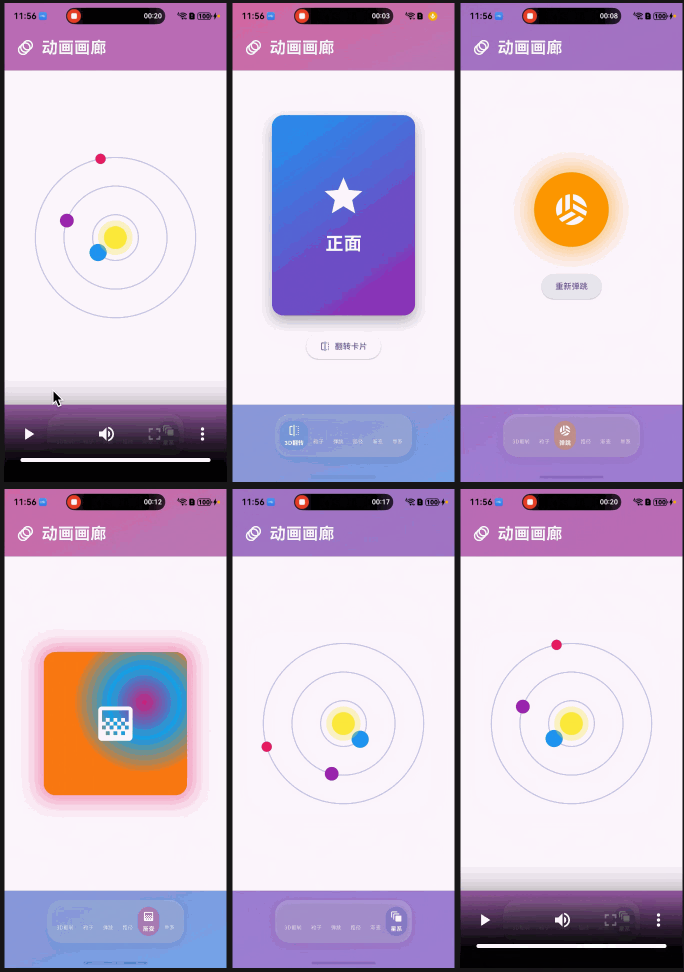
运行截图说明:本文档中的代码已在 HarmonyOS 设备上实际运行测试,功能正常运行。建议读者在阅读时结合实际操作,以获得更好的学习效果。
🎯 项目目标
- ✅ 在 HarmonyOS 平台上集成
animations和flutter_animate动画库 - ✅ 实现3D卡片翻转动画
- ✅ 实现粒子动画系统
- ✅ 实现弹性弹跳动画
- ✅ 实现路径动画
- ✅ 实现渐变动画
- ✅ 实现旋转星系动画
- ✅ 构建美观的 Material Design 3 风格UI
- ✅ 实现流畅的页面切换动画
- ✅ 处理平台兼容性和性能优化
🛠️ 技术栈
- 开发框架: Flutter 3.6.2+
- 三方库:
- animations ^2.0.11 (Flutter官方动画库)
- flutter_animate ^4.5.0 (动画扩展库)
- UI 框架: Material Design 3
- 目标平台: HarmonyOS (OpenHarmony)
- 开发工具: DevEco Studio / VS Code
📦 一、项目初始化
1.1 创建 Flutter 项目
flutter create --platforms=ohos animations_demo
cd animations_demo
1.2 配置依赖
在 pubspec.yaml 中添加动画库依赖:
dependencies:
  flutter:
    sdk: flutter
  cupertino_icons: ^1.0.8

  # Flutter官方动画库
  animations: ^2.0.11

  # 用于粒子动画和物理效果
  flutter_animate: ^4.5.0
重要说明:
animations是Flutter官方提供的动画库,支持多种页面切换动画flutter_animate是一个强大的动画扩展库,可以简化动画代码- 两个库都支持HarmonyOS平台,无需特殊适配
1.3 安装依赖
flutter pub get
🔐 二、权限配置
2.1 添加网络权限
在 ohos/entry/src/main/module.json5 中添加权限配置:
{
  "module": {
    "requestPermissions": [
      {
        "name": "ohos.permission.INTERNET",
        "reason": "$string:network_reason",
        "usedScene": {
          "abilities": ["EntryAbility"],
          "when": "inuse"
        }
      }
    ]
  }
}
注意:动画库本身不需要特殊权限,只需要网络权限用于下载依赖包。
💻 三、核心功能实现
3.1 应用入口和主题配置
import 'package:flutter/material.dart';
import 'package:animations/animations.dart';
import 'package:flutter_animate/flutter_animate.dart';
void main() {
runApp(const AnimationsGalleryApp());
}
class AnimationsGalleryApp extends StatelessWidget {
const AnimationsGalleryApp({super.key});
Widget build(BuildContext context) {
return MaterialApp(
title: '动画画廊',
debugShowCheckedModeBanner: false,
theme: ThemeData(
useMaterial3: true,
colorScheme: ColorScheme.fromSeed(
seedColor: Colors.deepPurple,
brightness: Brightness.light,
),
),
home: const AnimationsGalleryPage(),
);
}
}
3.2 主页面结构
主页面包含动态渐变背景、动画演示区域和底部导航栏:
class _AnimationsGalleryPageState extends State<AnimationsGalleryPage>
with TickerProviderStateMixin {
int _selectedIndex = 0;
late AnimationController _backgroundController;
void initState() {
super.initState();
// 创建背景动画控制器
_backgroundController = AnimationController(
vsync: this,
duration: const Duration(seconds: 20),
)..repeat();
}
Widget build(BuildContext context) {
return Scaffold(
body: AnimatedBuilder(
animation: _backgroundController,
builder: (context, child) {
return Container(
decoration: BoxDecoration(
gradient: LinearGradient(
begin: Alignment.topLeft,
end: Alignment.bottomRight,
colors: [
Color.lerp(
Colors.deepPurple.shade300,
Colors.pink.shade300,
(_backgroundController.value * 2) % 1,
)!,
Color.lerp(
Colors.blue.shade300,
Colors.purple.shade300,
(_backgroundController.value * 2 + 0.5) % 1,
)!,
],
),
),
child: child,
);
},
// ... 其他内容
),
);
}
}
关键点:
- 使用
TickerProviderStateMixin提供vsync,确保动画与屏幕刷新率同步 - 使用
AnimatedBuilder监听动画变化,更新UI - 使用
Color.lerp实现颜色渐变效果
3.3 页面切换动画
使用 PageTransitionSwitcher和 SharedAxisTransition实现流畅的页面切换:
Expanded(
  child: PageTransitionSwitcher(
    duration: const Duration(milliseconds: 500),
    transitionBuilder: (
      Widget child,
      Animation<double> animation,
      Animation<double> secondaryAnimation,
    ) {
      return SharedAxisTransition(
        animation: animation,
        secondaryAnimation: secondaryAnimation,
        transitionType: SharedAxisTransitionType.horizontal,
        child: child,
      );
    },
    child: _demos[_selectedIndex].widget,
  ),
)
SharedAxisTransition类型:
SharedAxisTransitionType.horizontal: 水平滑动切换SharedAxisTransitionType.vertical: 垂直滑动切换SharedAxisTransitionType.scaled: 缩放切换
3.4 使用flutter_animate简化动画
flutter_animate库提供了链式API,可以轻松创建复杂的动画:
Icon(Icons.animation, size: 32, color: Colors.white)
  .animate(onPlay: (controller) => controller.repeat())
  .shimmer(duration: 2000.ms, color: Colors.white70)
  .then()
  .shake(duration: 500.ms)
常用动画效果:
.fadeIn(): 淡入.fadeOut(): 淡出.slide(): 滑动.scale(): 缩放.rotate(): 旋转.shimmer(): 闪烁.shake(): 震动
🎨 四、动画效果详解
4.1 3D卡片翻转动画
使用 Transform和 Matrix4实现3D翻转效果:
class CardFlipDemo extends StatefulWidget {
const CardFlipDemo({super.key});
State<CardFlipDemo> createState() => _CardFlipDemoState();
}
class _CardFlipDemoState extends State<CardFlipDemo>
with SingleTickerProviderStateMixin {
late AnimationController _controller;
bool _isFront = true;
void initState() {
super.initState();
_controller = AnimationController(
vsync: this,
duration: const Duration(milliseconds: 600),
);
}
void _flip() {
if (_isFront) {
_controller.forward();
} else {
_controller.reverse();
}
setState(() {
_isFront = !_isFront;
});
}
Widget build(BuildContext context) {
return Center(
child: AnimatedBuilder(
animation: _controller,
builder: (context, child) {
final angle = _controller.value * math.pi;
return Transform(
alignment: Alignment.center,
transform: Matrix4.identity()
..setEntry(3, 2, 0.001) // 设置透视效果
..rotateY(angle),
child: _controller.value < 0.5
? _buildCardFront()
: Transform(
alignment: Alignment.center,
transform: Matrix4.identity()..rotateY(math.pi),
child: _buildCardBack(),
),
);
},
),
);
}
}
关键技术点:
- 透视效果:
setEntry(3, 2, 0.001)设置透视矩阵,让3D效果更真实 - Y轴旋转:
rotateY(angle)绕Y轴旋转,实现翻转效果 - 背面处理:当角度超过90度时,显示背面并翻转180度
4.2 粒子动画系统
使用 CustomPaint实现高性能的粒子动画:
class ParticleAnimationDemo extends StatefulWidget {
const ParticleAnimationDemo({super.key});
State<ParticleAnimationDemo> createState() => _ParticleAnimationDemoState();
}
class _ParticleAnimationDemoState extends State<ParticleAnimationDemo>
with SingleTickerProviderStateMixin {
late AnimationController _controller;
final List<Particle> _particles = [];
void initState() {
super.initState();
_controller = AnimationController(
vsync: this,
duration: const Duration(seconds: 3),
)..repeat();
// 创建50个粒子
for (int i = 0; i < 50; i++) {
_particles.add(Particle());
}
}
Widget build(BuildContext context) {
return Center(
child: AnimatedBuilder(
animation: _controller,
builder: (context, child) {
return CustomPaint(
size: Size.infinite,
painter: ParticlePainter(_particles, _controller.value),
);
},
),
);
}
}
class Particle {
double x = math.Random().nextDouble() * 400;
double y = math.Random().nextDouble() * 800;
double vx = (math.Random().nextDouble() - 0.5) * 2;
double vy = (math.Random().nextDouble() - 0.5) * 2;
Color color = Colors.primaries[math.Random().nextInt(Colors.primaries.length)];
double size = math.Random().nextDouble() * 4 + 2;
}
class ParticlePainter extends CustomPainter {
final List<Particle> particles;
final double progress;
ParticlePainter(this.particles, this.progress);
void paint(Canvas canvas, Size size) {
for (var particle in particles) {
final paint = Paint()
..color = particle.color.withOpacity(0.7)
..style = PaintingStyle.fill;
// 计算粒子新位置(循环边界)
final x = (particle.x + particle.vx * progress * 100) % size.width;
final y = (particle.y + particle.vy * progress * 100) % size.height;
canvas.drawCircle(Offset(x, y), particle.size, paint);
}
}
bool shouldRepaint(covariant CustomPainter oldDelegate) => true;
}
性能优化技巧:
- 粒子数量控制:建议控制在50-100个粒子,过多会影响性能
- 使用CustomPaint:直接绘制比使用Widget更高效
- 循环边界:使用模运算实现循环边界,避免粒子移出屏幕
4.3 弹性弹跳动画
使用 Curves.elasticOut实现弹性效果:
class BounceAnimationDemo extends StatefulWidget {
const BounceAnimationDemo({super.key});
State<BounceAnimationDemo> createState() => _BounceAnimationDemoState();
}
class _BounceAnimationDemoState extends State<BounceAnimationDemo>
with SingleTickerProviderStateMixin {
late AnimationController _controller;
late Animation<double> _bounceAnimation;
void initState() {
super.initState();
_controller = AnimationController(
vsync: this,
duration: const Duration(milliseconds: 1000),
);
_bounceAnimation = Tween<double>(begin: 0, end: 1).animate(
CurvedAnimation(
parent: _controller,
curve: Curves.elasticOut, // 弹性曲线
),
);
_controller.repeat(reverse: true);
}
Widget build(BuildContext context) {
return Center(
child: AnimatedBuilder(
animation: _bounceAnimation,
builder: (context, child) {
return Transform.scale(
scale: 0.5 + _bounceAnimation.value * 0.5,
child: Container(
width: 120,
height: 120,
decoration: BoxDecoration(
color: Colors.orange,
shape: BoxShape.circle,
boxShadow: [
BoxShadow(
color: Colors.orange.withOpacity(0.5),
blurRadius: 30,
spreadRadius: 10,
),
],
),
child: const Icon(
Icons.sports_volleyball,
size: 60,
color: Colors.white,
),
),
);
},
),
);
}
}
常用动画曲线:
Curves.linear: 线性Curves.easeIn: 缓入Curves.easeOut: 缓出Curves.easeInOut: 缓入缓出Curves.elasticOut: 弹性Curves.bounceOut: 弹跳Curves.decelerate: 减速
4.4 路径动画
使用 Path绘制路径,物体沿路径运动:
class PathAnimationDemo extends StatefulWidget {
const PathAnimationDemo({super.key});
State<PathAnimationDemo> createState() => _PathAnimationDemoState();
}
class _PathAnimationDemoState extends State<PathAnimationDemo>
with SingleTickerProviderStateMixin {
late AnimationController _controller;
void initState() {
super.initState();
_controller = AnimationController(
vsync: this,
duration: const Duration(seconds: 3),
)..repeat();
}
Widget build(BuildContext context) {
return Center(
child: SizedBox(
width: 300,
height: 300,
child: AnimatedBuilder(
animation: _controller,
builder: (context, child) {
return CustomPaint(
painter: PathPainter(_controller.value),
child: Center(
child: Transform.rotate(
angle: _controller.value * 2 * math.pi,
child: Container(
width: 40,
height: 40,
decoration: const BoxDecoration(
color: Colors.green,
shape: BoxShape.circle,
),
child: const Icon(Icons.navigation, color: Colors.white),
),
),
),
);
},
),
),
);
}
}
class PathPainter extends CustomPainter {
final double progress;
PathPainter(this.progress);
void paint(Canvas canvas, Size size) {
final paint = Paint()
..color = Colors.green.withOpacity(0.3)
..style = PaintingStyle.stroke
..strokeWidth = 3;
final path = Path();
final center = Offset(size.width / 2, size.height / 2);
final radius = size.width / 2 - 20;
// 绘制五角星路径
for (int i = 0; i < 5; i++) {
final angle = (i * 4 * math.pi / 5) - math.pi / 2;
final x = center.dx + radius * math.cos(angle);
final y = center.dy + radius * math.sin(angle);
if (i == 0) {
path.moveTo(x, y);
} else {
path.lineTo(x, y);
}
}
path.close();
canvas.drawPath(path, paint);
}
bool shouldRepaint(covariant CustomPainter oldDelegate) => true;
}
4.5 渐变动画
使用 RadialGradient创建动态渐变:
class GradientAnimationDemo extends StatefulWidget {
const GradientAnimationDemo({super.key});
State<GradientAnimationDemo> createState() => _GradientAnimationDemoState();
}
class _GradientAnimationDemoState extends State<GradientAnimationDemo>
with SingleTickerProviderStateMixin {
late AnimationController _controller;
void initState() {
super.initState();
_controller = AnimationController(
vsync: this,
duration: const Duration(seconds: 2),
)..repeat();
}
Widget build(BuildContext context) {
return Center(
child: AnimatedBuilder(
animation: _controller,
builder: (context, child) {
return Container(
width: 250,
height: 250,
decoration: BoxDecoration(
borderRadius: BorderRadius.circular(20),
gradient: RadialGradient(
center: Alignment(
math.sin(_controller.value * 2 * math.pi) * 0.5,
math.cos(_controller.value * 2 * math.pi) * 0.5,
),
colors: [
Color.lerp(Colors.pink, Colors.purple, _controller.value)!,
Color.lerp(Colors.blue, Colors.cyan, _controller.value)!,
Color.lerp(Colors.orange, Colors.red, _controller.value)!,
],
),
),
child: const Center(
child: Icon(
Icons.gradient,
size: 80,
color: Colors.white,
),
),
);
},
),
);
}
}
4.6 旋转星系动画
模拟行星围绕恒星旋转:
class GalaxyAnimationDemo extends StatefulWidget {
const GalaxyAnimationDemo({super.key});
State<GalaxyAnimationDemo> createState() => _GalaxyAnimationDemoState();
}
class _GalaxyAnimationDemoState extends State<GalaxyAnimationDemo>
with SingleTickerProviderStateMixin {
late AnimationController _controller;
void initState() {
super.initState();
_controller = AnimationController(
vsync: this,
duration: const Duration(seconds: 10),
)..repeat();
}
Widget build(BuildContext context) {
return Center(
child: SizedBox(
width: 300,
height: 300,
child: AnimatedBuilder(
animation: _controller,
builder: (context, child) {
return CustomPaint(
painter: GalaxyPainter(_controller.value),
);
},
),
),
);
}
}
class GalaxyPainter extends CustomPainter {
final double rotation;
GalaxyPainter(this.rotation);
void paint(Canvas canvas, Size size) {
final center = Offset(size.width / 2, size.height / 2);
// 绘制3个轨道和行星
for (int i = 0; i < 3; i++) {
final radius = 40.0 + i * 50.0;
final angle = rotation * 2 * math.pi + i * math.pi / 3;
final planetX = center.dx + radius * math.cos(angle);
final planetY = center.dy + radius * math.sin(angle);
// 绘制轨道
final orbitPaint = Paint()
..color = Colors.indigo.withOpacity(0.3)
..style = PaintingStyle.stroke
..strokeWidth = 2;
canvas.drawCircle(center, radius, orbitPaint);
// 绘制行星
final planetPaint = Paint()
..color = [Colors.blue, Colors.purple, Colors.pink][i]
..style = PaintingStyle.fill;
canvas.drawCircle(
Offset(planetX, planetY),
15 - i * 3,
planetPaint,
);
}
// 绘制中心恒星
final starPaint = Paint()
..color = Colors.yellow
..style = PaintingStyle.fill;
canvas.drawCircle(center, 20, starPaint);
// 绘制光晕
final haloPaint = Paint()
..color = Colors.yellow.withOpacity(0.3)
..style = PaintingStyle.fill;
canvas.drawCircle(center, 30, haloPaint);
}
bool shouldRepaint(covariant CustomPainter oldDelegate) => true;
}
🎯 五、性能优化建议
5.1 动画控制器管理
正确做法:
void dispose() {
_controller.dispose(); // 必须释放控制器
super.dispose();
}
错误做法:
// 忘记释放控制器会导致内存泄漏
5.2 使用RepaintBoundary隔离动画
对于复杂的动画,使用 RepaintBoundary可以避免不必要的重绘:
RepaintBoundary(
  child: CustomPaint(
    painter: ComplexPainter(),
  ),
)
5.3 粒子数量控制
粒子动画中,粒子数量直接影响性能:
// 推荐:50-100个粒子
for (int i = 0; i < 50; i++) {
  _particles.add(Particle());
}

// 不推荐:过多粒子
for (int i = 0; i < 1000; i++) {  // 性能问题
  _particles.add(Particle());
}
5.4 使用vsync同步刷新率
确保使用 TickerProviderStateMixin提供vsync:
class MyWidget extends StatefulWidget {
State<MyWidget> createState() => _MyWidgetState();
}
class _MyWidgetState extends State<MyWidget>
with SingleTickerProviderStateMixin { // 提供vsync
late AnimationController _controller;
void initState() {
super.initState();
_controller = AnimationController(
vsync: this, // 使用vsync同步刷新率
duration: Duration(seconds: 1),
);
}
}
⚠️ 六、常见问题与解决方案
6.1 动画不流畅
问题:动画卡顿,不流畅
解决方案:
- 确保使用
vsync参数创建AnimationController - 减少粒子数量或使用
RepaintBoundary - 检查是否有过多的Widget重建
6.2 内存泄漏
问题:应用运行一段时间后内存占用增加
解决方案:
- 确保在
dispose中释放所有AnimationController - 避免在动画回调中持有大量数据
- 使用
WeakReference或ValueListenable管理状态
6.3 动画不显示
问题:动画创建后不显示
解决方案:
- 检查AnimationController是否调用
forward()或repeat() - 确保使用
AnimatedBuilder或AnimatedWidget监听动画 - 检查动画值范围是否正确
6.4 页面切换动画不生效
问题:使用 PageTransitionSwitcher时动画不生效
解决方案:
- 确保
key属性唯一,Flutter需要key来识别Widget变化 - 检查
duration是否设置 - 确保
transitionBuilder返回正确的Widget
📝 七、最佳实践总结
7.1 动画设计原则
- 适度使用:不要过度使用动画,影响用户体验
- 性能优先:优先考虑性能,避免卡顿
- 一致性:保持动画风格一致
- 有意义:动画应该有明确的目的,不是装饰
7.2 代码组织
- 分离动画逻辑:将动画逻辑封装在独立的Widget中
- 复用动画:创建可复用的动画组件
- 文档注释:为复杂动画添加注释说明
7.3 测试建议
- 性能测试:在不同设备上测试性能
- 边界测试:测试动画的边界情况
- 用户体验测试:收集用户反馈
🔗 八、相关资源
🌐 社区支持
欢迎加入开源鸿蒙跨平台社区,与其他开发者交流学习,共同推进鸿蒙跨平台生态建设:
开源鸿蒙跨平台社区:https://openharmonycrossplatform.csdn.net
在这里你可以:
- 📚 获取最新的跨平台开发技术文档
- 💬 与其他开发者交流开发经验
- 🐛 反馈问题和建议
- 🎯 参与开源项目贡献
- 📖 学习更多跨平台开发最佳实践
享受你的动画开发之旅! 🎨✨

讨论HarmonyOS开发技术,专注于API与组件、DevEco Studio、测试、元服务和应用上架分发等。
更多推荐
 28
28 0
0- 0


 已为社区贡献38条内容

所有评论(0)