Flutter 框架跨平台鸿蒙开发 —— OutlinedButton 与 IconButton
OutlinedButton 和 IconButton 是 Flutter 中另外两种重要的按钮类型。OutlinedButton 带边框,适合次要但重要的操作;IconButton 只显示图标,适合空间有限的场景。本篇文章深入讲解这两种按钮的用法。),),child: Text('圆角边框'),// 胶囊形),child: Text('胶囊形'),Tooltip(message: '保存文件',
·
示例代码
import 'package:flutter/material.dart';
void main() => runApp(const OutlinedIconButtonApp());
class OutlinedIconButtonApp extends StatelessWidget {
const OutlinedIconButtonApp({Key? key}) : super(key: key);
Widget build(BuildContext context) {
return MaterialApp(
debugShowCheckedModeBanner: false,
home: Scaffold(
appBar: AppBar(title: const Text('OutlinedButton 与 IconButton')),
body: const SingleChildScrollView(
padding: EdgeInsets.all(16),
child: Column(
crossAxisAlignment: CrossAxisAlignment.start,
children: [
OutlinedButtonStylesExample(),
SizedBox(height: 20),
OutlinedButtonWithIconExample(),
SizedBox(height: 20),
IconButtonStylesExample(),
SizedBox(height: 20),
IconButtonWithTooltipExample(),
],
),
),
),
);
}
}
class OutlinedButtonStylesExample extends StatelessWidget {
const OutlinedButtonStylesExample({Key? key}) : super(key: key);
Widget build(BuildContext context) {
return Card(
child: Column(
crossAxisAlignment: CrossAxisAlignment.start,
children: [
Padding(
padding: const EdgeInsets.all(12),
child: Text(
'示例1:OutlinedButton 样式',
style: TextStyle(fontWeight: FontWeight.bold, fontSize: 16),
),
),
const Padding(
padding: EdgeInsets.all(16),
child: Column(
children: [
OutlinedButton(
onPressed: () {},
child: Text('默认样式'),
),
SizedBox(height: 12),
OutlinedButton(
onPressed: () {},
style: OutlinedButton.styleFrom(
foregroundColor: Colors.blue,
),
child: Text('蓝色边框'),
),
SizedBox(height: 12),
OutlinedButton(
onPressed: () {},
style: OutlinedButton.styleFrom(
foregroundColor: Colors.orange,
),
child: Text('橙色边框'),
),
],
),
),
const SizedBox(height: 12),
],
),
);
}
}
class OutlinedButtonWithIconExample extends StatelessWidget {
const OutlinedButtonWithIconExample({Key? key}) : super(key: key);
Widget build(BuildContext context) {
return Card(
child: Column(
crossAxisAlignment: CrossAxisAlignment.start,
children: [
Padding(
padding: const EdgeInsets.all(12),
child: Text(
'示例2:OutlinedButton 带图标',
style: TextStyle(fontWeight: FontWeight.bold, fontSize: 16),
),
),
const Padding(
padding: EdgeInsets.all(16),
child: Column(
children: [
OutlinedButton.icon(
onPressed: () {},
icon: Icon(Icons.edit),
label: Text('编辑'),
),
SizedBox(height: 12),
OutlinedButton.icon(
onPressed: () {},
icon: Icon(Icons.share),
label: Text('分享'),
style: OutlinedButton.styleFrom(
foregroundColor: Colors.green,
),
),
SizedBox(height: 12),
OutlinedButton.icon(
onPressed: () {},
icon: Icon(Icons.download),
label: Text('下载'),
style: OutlinedButton.styleFrom(
foregroundColor: Colors.purple,
),
),
],
),
),
const SizedBox(height: 12),
],
),
);
}
}
class IconButtonStylesExample extends StatelessWidget {
const IconButtonStylesExample({Key? key}) : super(key: key);
Widget build(BuildContext context) {
return Card(
child: Column(
crossAxisAlignment: CrossAxisAlignment.start,
children: [
Padding(
padding: const EdgeInsets.all(12),
child: Text(
'示例3:IconButton 样式',
style: TextStyle(fontWeight: FontWeight.bold, fontSize: 16),
),
),
const Padding(
padding: EdgeInsets.all(16),
child: Row(
mainAxisAlignment: MainAxisAlignment.spaceAround,
children: [
Column(
children: [
IconButton(
onPressed: () {},
icon: Icon(Icons.favorite),
),
SizedBox(height: 4),
Text('默认', style: TextStyle(fontSize: 12)),
],
),
Column(
children: [
IconButton(
onPressed: () {},
icon: Icon(Icons.favorite),
color: Colors.red,
),
SizedBox(height: 4),
Text('红色', style: TextStyle(fontSize: 12)),
],
),
Column(
children: [
IconButton(
onPressed: () {},
icon: Icon(Icons.favorite),
color: Colors.purple,
iconSize: 32,
),
SizedBox(height: 4),
Text('大号', style: TextStyle(fontSize: 12)),
],
),
],
),
),
const SizedBox(height: 12),
],
),
);
}
}
class IconButtonWithTooltipExample extends StatelessWidget {
const IconButtonWithTooltipExample({Key? key}) : super(key: key);
Widget build(BuildContext context) {
return Card(
child: Column(
crossAxisAlignment: CrossAxisAlignment.start,
children: [
Padding(
padding: const EdgeInsets.all(12),
child: Text(
'示例4:IconButton 带提示',
style: TextStyle(fontWeight: FontWeight.bold, fontSize: 16),
),
),
const Padding(
padding: EdgeInsets.all(16),
child: Row(
mainAxisAlignment: MainAxisAlignment.spaceAround,
children: [
Tooltip(
message: '保存',
child: IconButton(
onPressed: () {},
icon: Icon(Icons.save),
),
),
Tooltip(
message: '删除',
child: IconButton(
onPressed: () {},
icon: Icon(Icons.delete),
),
),
Tooltip(
message: '分享',
child: IconButton(
onPressed: () {},
icon: Icon(Icons.share),
),
),
Tooltip(
message: '更多',
child: IconButton(
onPressed: () {},
icon: Icon(Icons.more_vert),
),
),
],
),
),
const SizedBox(height: 12),
],
),
);
}
}
🚀 快速运行
示例应用
本篇文章的示例项目:flutter_examples/button_widget_demo_06
运行步骤
# 进入示例项目目录
cd flutter_examples/button_widget_demo_06

# 运行应用(鸿蒙虚拟机)
flutter run -d 127.0.0.1:5555

# 或运行应用(其他设备)
flutter run
演示内容
运行应用后,您将看到本篇文章的示例:
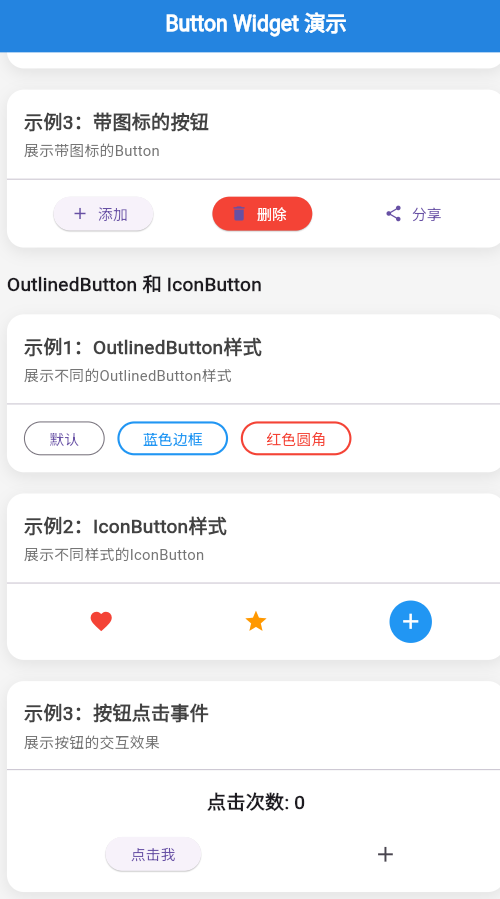
- 示例1:OutlinedButton 样式 - 展示不同颜色的 OutlinedButton
- 示例2:OutlinedButton 带图标 - 展示带图标的 OutlinedButton
- 示例3:IconButton 样式 - 展示不同颜色和尺寸的 IconButton
- 示例4:IconButton 带提示 - 展示带 Tooltip 的 IconButton
一、 前言
OutlinedButton 和 IconButton 是 Flutter 中另外两种重要的按钮类型。OutlinedButton 带边框,适合次要但重要的操作;IconButton 只显示图标,适合空间有限的场景。本篇文章深入讲解这两种按钮的用法。
二、 OutlinedButton 详解
2.1 OutlinedButton 构造函数
OutlinedButton({
  Key? key,
  required VoidCallback? onPressed,
  VoidCallback? onLongPress,
  ButtonStyle? style,
  FocusNode? focusNode,
  bool autofocus = false,
  Clip clipBehavior = Clip.none,
  required Widget child,
})
2.2 主要属性
| 属性 | 类型 | 说明 |
|---|---|---|
onPressed |
VoidCallback? | 点击回调,null 表示禁用 |
onLongPress |
VoidCallback? | 长按回调 |
style |
ButtonStyle? | 按钮样式 |
child |
Widget | 按钮内容 |
2.3 OutlinedButton.icon 构造函数
OutlinedButton.icon({
  Key? key,
  required VoidCallback? onPressed,
  VoidCallback? onLongPress,
  ButtonStyle? style,
  FocusNode? focusNode,
  bool autofocus = false,
  Clip clipBehavior = Clip.none,
  required Widget icon,
  required Widget label,
})
三、 OutlinedButton 样式定制
3.1 使用 styleFrom 方法
OutlinedButton(
  onPressed: () {},
  style: OutlinedButton.styleFrom(
    foregroundColor: Colors.green,    // 边框和文字颜色
    side: BorderSide(color: Colors.green, width: 2),
    padding: EdgeInsets.symmetric(horizontal: 24, vertical: 12),
  ),
  child: Text('自定义样式'),
)
3.2 设置边框
OutlinedButton(
  onPressed: () {},
  style: OutlinedButton.styleFrom(
    side: BorderSide(
      color: Colors.blue,
      width: 2,
    ),
  ),
  child: Text('加粗边框'),
)

// 虚线边框
OutlinedButton(
  onPressed: () {},
  style: OutlinedButton.styleFrom(
    side: BorderSide(
      color: Colors.red,
      width: 1,
      style: BorderStyle.solid,
    ),
  ),
  child: Text('虚线边框'),
)
3.3 设置背景色
OutlinedButton(
  onPressed: () {},
  style: OutlinedButton.styleFrom(
    backgroundColor: Colors.blue.shade50,
    foregroundColor: Colors.blue,
  ),
  child: Text('带背景色'),
)
3.4 自定义形状
OutlinedButton(
  onPressed: () {},
  style: OutlinedButton.styleFrom(
    shape: RoundedRectangleBorder(
      borderRadius: BorderRadius.circular(20),
    ),
  ),
  child: Text('圆角边框'),
)

// 胶囊形
OutlinedButton(
  onPressed: () {},
  style: OutlinedButton.styleFrom(
    shape: StadiumBorder(),
  ),
  child: Text('胶囊形'),
)
四、 IconButton 详解
4.1 IconButton 构造函数
IconButton({
  Key? key,
  required VoidCallback? onPressed,
  VoidCallback? onLongPress,
  ButtonStyle? style,
  FocusNode? focusNode,
  bool autofocus = false,
  String? tooltip,
  double? iconSize,
  Color? color,
  double splashRadius,
  Widget? icon,
})
4.2 主要属性
| 属性 | 类型 | 说明 | 默认值 |
|---|---|---|---|
onPressed |
VoidCallback? | 点击回调 | - |
onLongPress |
VoidCallback? | 长按回调 | - |
icon |
Widget | 图标 Widget | - |
iconSize |
double? | 图标大小 | 24.0 |
color |
Color? | 图标颜色 | 主题色 |
tooltip |
String? | 提示文本 | null |
splashRadius |
double | 涟漪半径 | - |
4.3 基本用法
// 最简单的用法
IconButton(
  onPressed: () {},
  icon: Icon(Icons.favorite),
)

// 设置颜色和大小
IconButton(
  onPressed: () {},
  icon: Icon(Icons.favorite),
  color: Colors.red,
  iconSize: 32,
)

// 添加提示
IconButton(
  onPressed: () {},
  icon: Icon(Icons.info),
  tooltip: '更多信息',
)
五、 IconButton 样式定制
5.1 使用 style
IconButton(
  onPressed: () {},
  icon: Icon(Icons.favorite),
  style: IconButton.styleFrom(
    backgroundColor: Colors.red.shade50,
    foregroundColor: Colors.red,
    padding: EdgeInsets.all(16),
  ),
)
5.2 不同状态的样式
IconButton(
  onPressed: () {},
  icon: Icon(Icons.favorite),
  style: ButtonStyle(
    backgroundColor: MaterialStateProperty.resolveWith((states) {
      if (states.contains(MaterialState.pressed)) {
        return Colors.red.shade200;
      }
      return Colors.red.shade50;
    }),
    foregroundColor: MaterialStateProperty.resolveWith((states) {
      if (states.contains(MaterialState.pressed)) {
        return Colors.red.shade900;
      }
      return Colors.red;
    }),
  ),
)
5.3 带背景的 IconButton
Container(
  decoration: BoxDecoration(
    color: Colors.blue.shade50,
    borderRadius: BorderRadius.circular(8),
  ),
  child: IconButton(
    onPressed: () {},
    icon: Icon(Icons.edit),
    color: Colors.blue,
  ),
)
六、 IconButton 提示
6.1 使用 Tooltip
IconButton(
  onPressed: () {},
  icon: Icon(Icons.save),
  tooltip: '保存文件',
)
6.2 自定义 Tooltip 样式
Tooltip(
  message: '保存文件',
  padding: EdgeInsets.symmetric(horizontal: 12, vertical: 8),
  decoration: BoxDecoration(
    color: Colors.black87,
    borderRadius: BorderRadius.circular(4),
  ),
  textStyle: TextStyle(color: Colors.white),
  child: IconButton(
    onPressed: () {},
    icon: Icon(Icons.save),
  ),
)
七、 实战示例
7.1 工具栏按钮
AppBar(
  title: Text('标题'),
  actions: [
    IconButton(
      onPressed: () {},
      icon: Icon(Icons.search),
      tooltip: '搜索',
    ),
    IconButton(
      onPressed: () {},
      icon: Icon(Icons.notifications),
      tooltip: '通知',
    ),
    IconButton(
      onPressed: () {},
      icon: Icon(Icons.more_vert),
      tooltip: '更多',
    ),
  ],
)
7.2 列表项操作
ListTile(
  title: Text('标题'),
  subtitle: Text('副标题'),
  trailing: Row(
    mainAxisSize: MainAxisSize.min,
    children: [
      IconButton(
        onPressed: () {},
        icon: Icon(Icons.favorite_border),
        tooltip: '收藏',
      ),
      IconButton(
        onPressed: () {},
        icon: Icon(Icons.share),
        tooltip: '分享',
      ),
      IconButton(
        onPressed: () {},
        icon: Icon(Icons.delete),
        tooltip: '删除',
        color: Colors.red,
      ),
    ],
  ),
)
7.3 卡片操作按钮
Card(
  child: Padding(
    padding: EdgeInsets.all(16),
    child: Column(
      crossAxisAlignment: CrossAxisAlignment.start,
      children: [
        Text('卡片标题', style: TextStyle(fontSize: 18)),
        SizedBox(height: 8),
        Text('卡片内容'),
        SizedBox(height: 16),
        Row(
          children: [
            OutlinedButton.icon(
              onPressed: () {},
              icon: Icon(Icons.edit),
              label: Text('编辑'),
            ),
            SizedBox(width: 8),
            OutlinedButton.icon(
              onPressed: () {},
              icon: Icon(Icons.delete),
              label: Text('删除'),
              style: OutlinedButton.styleFrom(
                foregroundColor: Colors.red,
              ),
            ),
          ],
        ),
      ],
    ),
  ),
)
7.4 浮动操作按钮组
Stack(
  children: [
    // 主要内容
    Center(child: Text('内容')),

    // 悬浮按钮
    Positioned(
      right: 16,
      bottom: 16,
      child: Column(
        mainAxisSize: MainAxisSize.min,
        children: [
          IconButton(
            onPressed: () {},
            icon: Icon(Icons.favorite),
            backgroundColor: Colors.white,
          ),
          SizedBox(height: 8),
          IconButton(
            onPressed: () {},
            icon: Icon(Icons.share),
            backgroundColor: Colors.white,
          ),
          SizedBox(height: 8),
          FloatingActionButton(
            onPressed: () {},
            child: Icon(Icons.add),
          ),
        ],
      ),
    ),
  ],
)
八、 最佳实践
8.1 OutlinedButton 使用场景
// ✅ 推荐:次要但重要的操作
OutlinedButton(
  onPressed: () {},
  child: Text('编辑'),
)

// ❌ 不推荐:主要操作(用 ElevatedButton)
OutlinedButton(
  onPressed: () {},
  child: Text('提交'),
)
8.2 IconButton 添加提示
// ✅ 推荐:添加 tooltip
IconButton(
  onPressed: () {},
  icon: Icon(Icons.save),
  tooltip: '保存',
)

// ❌ 不推荐:没有提示
IconButton(
  onPressed: () {},
  icon: Icon(Icons.save),
)
8.3 适当的图标大小
// ✅ 推荐:使用合适的大小
IconButton(
  onPressed: () {},
  icon: Icon(Icons.favorite),
  iconSize: 24,  // 默认大小
)

// ❌ 不推荐:过大或过小
IconButton(
  onPressed: () {},
  icon: Icon(Icons.favorite),
  iconSize: 64,  // 太大了
)
8.4 语义化颜色
// ✅ 推荐:使用语义化颜色
IconButton(
  onPressed: () {},
  icon: Icon(Icons.delete),
  color: Colors.red,
)

// ❌ 不推荐:颜色与含义不符
IconButton(
  onPressed: () {},
  icon: Icon(Icons.delete),
  color: Colors.green,
)
九、 总结
OutlinedButton 和 IconButton 是重要的按钮类型:
- OutlinedButton:次要重要操作,带边框,使用
styleFrom定制样式 - IconButton:图标操作,节省空间,适合工具栏和列表项
- 样式定制:支持颜色、大小、形状、边框等定制
- 提示:使用
tooltip为 IconButton 添加提示 - 最佳实践:使用语义化颜色、添加提示、选择合适的大小
记住,正确的按钮使用和样式定制可以提升用户体验。
欢迎加入开源鸿蒙跨平台社区:https://openharmonycrossplatform.csdn.net

讨论HarmonyOS开发技术,专注于API与组件、DevEco Studio、测试、元服务和应用上架分发等。
更多推荐
 16
16 0
0- 0


 已为社区贡献4条内容

所有评论(0)