Flutter 框架跨平台鸿蒙开发 - 实时蔬菜价格查询:智能掌握菜价动态
实时蔬菜价格查询是一款专为居民日常买菜打造的Flutter应用,提供多城市蔬菜价格实时查询、分类统计和价格趋势分析功能。通过智能搜索和数据可视化,让用户轻松掌握菜价动态,合理安排采购计划。运行效果图模型字段说明:计算属性:蔬菜分类与颜色映射:数据生成特点:批发市场列表:筛选条件:筛选流程:刷新逻辑:三个页面:IndexedStack使用:IndexedStack的优势:支持城市(15个):设计特点
Flutter实时蔬菜价格查询:智能掌握菜价动态
项目简介
实时蔬菜价格查询是一款专为居民日常买菜打造的Flutter应用,提供多城市蔬菜价格实时查询、分类统计和价格趋势分析功能。通过智能搜索和数据可视化,让用户轻松掌握菜价动态,合理安排采购计划。
运行效果图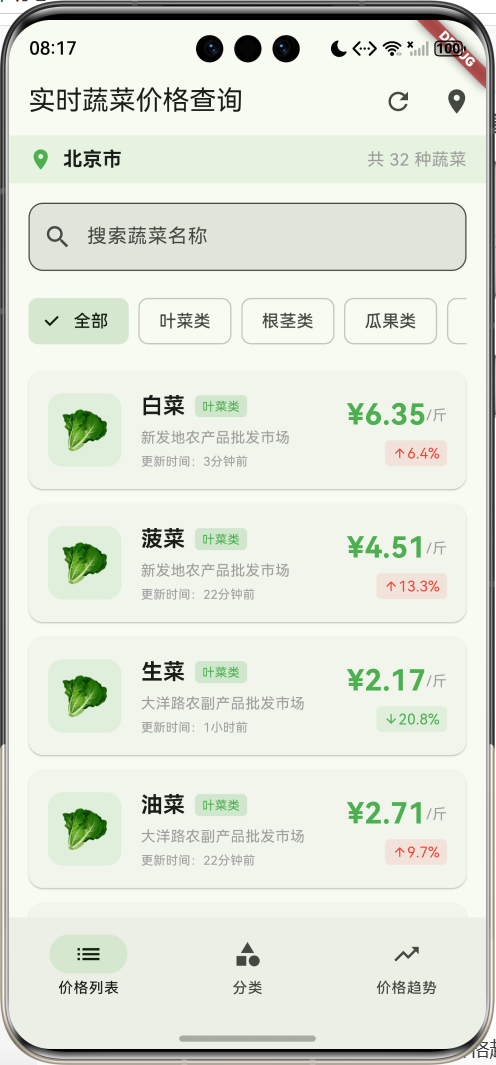
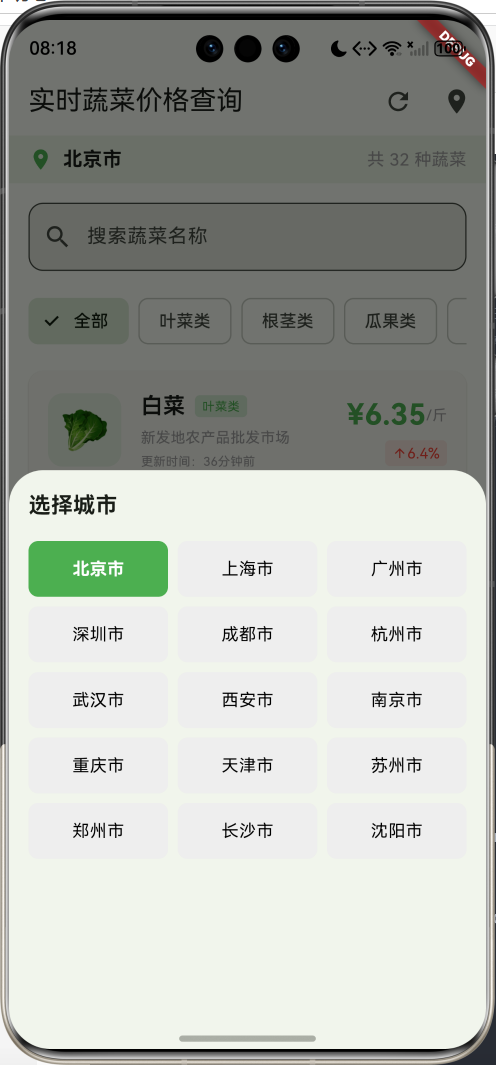
核心功能
- 多城市查询:支持15个主要城市价格查询
- 蔬菜品种:32种常见蔬菜,涵盖6大分类
- 实时价格:显示当前价格和昨日对比
- 价格变化:自动计算涨跌幅度和百分比
- 市场信息:显示批发市场来源
- 智能搜索:支持蔬菜名称快速搜索
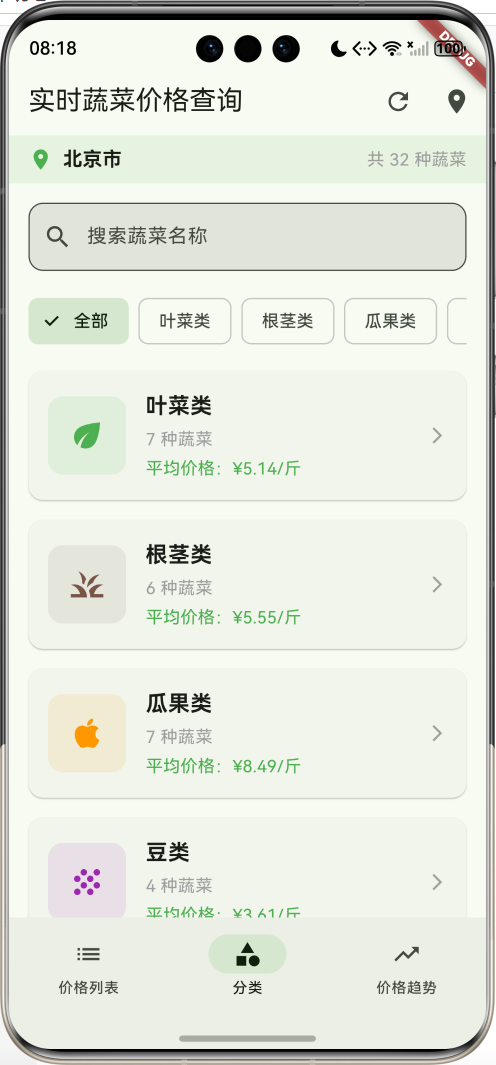
- 分类筛选:按叶菜类、根茎类等分类查看
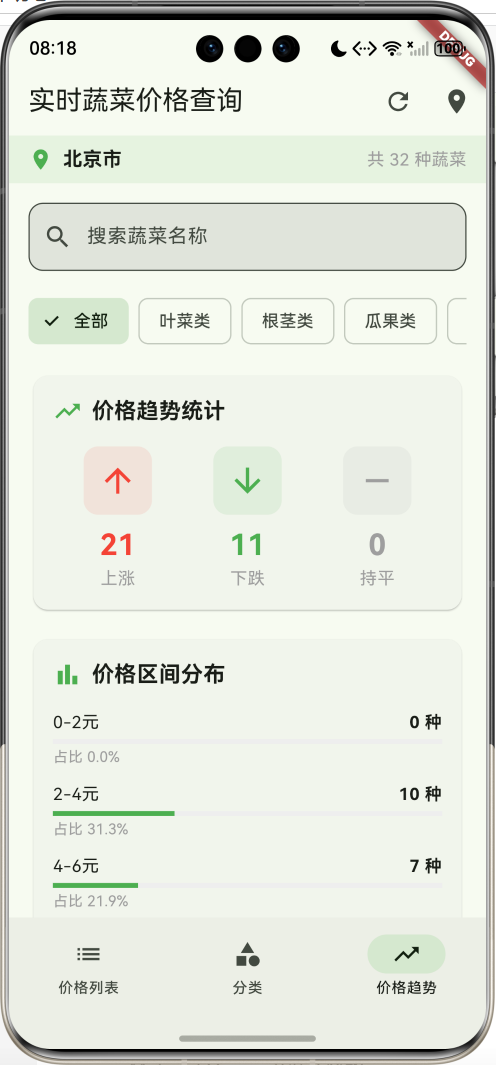
- 价格趋势:统计上涨、下跌、持平数量
- 区间分布:可视化展示价格区间分布
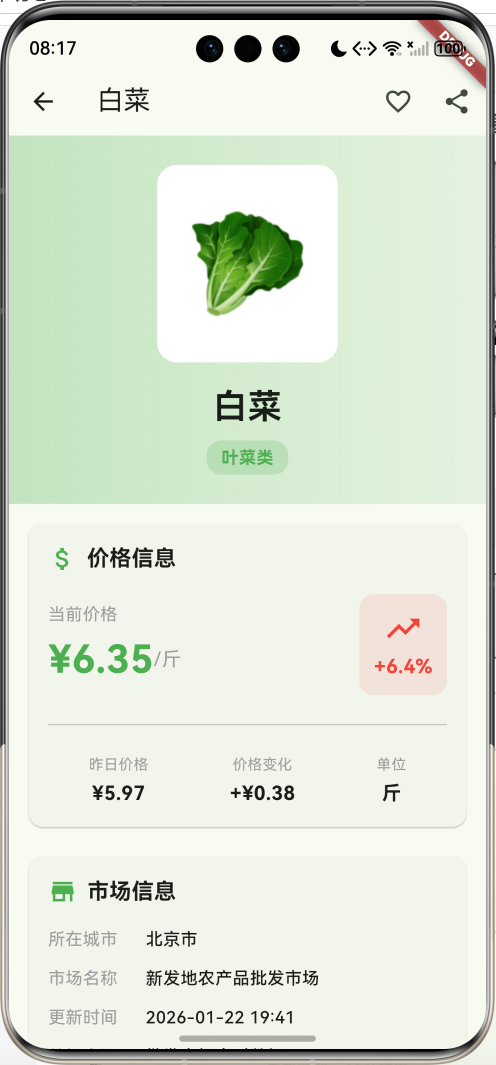
- 详情页面:7日价格走势图表和营养信息
- 数据刷新:一键更新最新价格数据
技术特点
- Material Design 3设计风格
- NavigationBar底部导航
- 三页面架构(价格列表、分类统计、价格趋势)
- CustomPainter自定义图表绘制
- 计算属性实现动态数据
- 响应式卡片布局
- 模拟数据生成
- 无需额外依赖包
核心代码实现
1. 蔬菜数据模型
class Vegetable {
  final String id;              // 蔬菜ID
  final String name;            // 蔬菜名称
  final String category;        // 分类
  final String unit;            // 单位
  final String image;           // 图标(Emoji)
  double price;                 // 当前价格
  double yesterdayPrice;        // 昨日价格
  String market;                // 市场名称
  DateTime updateTime;          // 更新时间

  Vegetable({
    required this.id,
    required this.name,
    required this.category,
    required this.unit,
    required this.image,
    required this.price,
    required this.yesterdayPrice,
    required this.market,
    required this.updateTime,
  });

  // 价格变化量
  double get priceChange => price - yesterdayPrice;

  // 价格变化百分比
  double get priceChangePercent => (priceChange / yesterdayPrice) * 100;

  // 是否涨价
  bool get isPriceUp => priceChange > 0;

  // 是否降价
  bool get isPriceDown => priceChange < 0;

  // 分类颜色
  Color get categoryColor {
    switch (category) {
      case '叶菜类': return Colors.green;
      case '根茎类': return Colors.brown;
      case '瓜果类': return Colors.orange;
      case '豆类': return Colors.purple;
      case '菌菇类': return Colors.grey;
      case '其他': return Colors.blue;
      default: return Colors.grey;
    }
  }

  // 分类图标
  IconData get categoryIcon {
    switch (category) {
      case '叶菜类': return Icons.eco;
      case '根茎类': return Icons.grass;
      case '瓜果类': return Icons.apple;
      case '豆类': return Icons.grain;
      case '菌菇类': return Icons.park;
      case '其他': return Icons.restaurant;
      default: return Icons.shopping_basket;
    }
  }
}
模型字段说明:
| 字段 | 类型 | 说明 |
|---|---|---|
| id | String | 唯一标识符 |
| name | String | 蔬菜名称 |
| category | String | 分类(6大类) |
| unit | String | 计量单位 |
| image | String | Emoji图标 |
| price | double | 当前价格(元) |
| yesterdayPrice | double | 昨日价格(元) |
| market | String | 批发市场名称 |
| updateTime | DateTime | 数据更新时间 |
计算属性:
priceChange:价格变化量(当前价格 - 昨日价格)priceChangePercent:价格变化百分比isPriceUp:是否涨价(价格变化量 > 0)isPriceDown:是否降价(价格变化量 < 0)categoryColor:根据分类返回对应颜色categoryIcon:根据分类返回对应图标
蔬菜分类与颜色映射:
| 分类 | 颜色 | 图标 | 说明 |
|---|---|---|---|
| 叶菜类 | 绿色 | eco | 白菜、菠菜、生菜等 |
| 根茎类 | 棕色 | grass | 土豆、萝卜、山药等 |
| 瓜果类 | 橙色 | apple | 番茄、黄瓜、茄子等 |
| 豆类 | 紫色 | grain | 豆角、豌豆、毛豆等 |
| 菌菇类 | 灰色 | park | 香菇、平菇、金针菇等 |
| 其他 | 蓝色 | restaurant | 大葱、洋葱、大蒜等 |
2. 数据生成逻辑
void _generateVegetableData() {
  final random = Random();

  // 32种蔬菜数据
  final vegetableList = [
    {'name': '白菜', 'category': '叶菜类', 'unit': '斤', 'image': '🥬'},
    {'name': '菠菜', 'category': '叶菜类', 'unit': '斤', 'image': '🥬'},
    {'name': '生菜', 'category': '叶菜类', 'unit': '斤', 'image': '🥬'},
    {'name': '油菜', 'category': '叶菜类', 'unit': '斤', 'image': '🥬'},
    {'name': '芹菜', 'category': '叶菜类', 'unit': '斤', 'image': '🥬'},
    {'name': '韭菜', 'category': '叶菜类', 'unit': '斤', 'image': '🥬'},
    {'name': '香菜', 'category': '叶菜类', 'unit': '斤', 'image': '🥬'},
    {'name': '土豆', 'category': '根茎类', 'unit': '斤', 'image': '🥔'},
    {'name': '红薯', 'category': '根茎类', 'unit': '斤', 'image': '🍠'},
    {'name': '萝卜', 'category': '根茎类', 'unit': '斤', 'image': '🥕'},
    {'name': '胡萝卜', 'category': '根茎类', 'unit': '斤', 'image': '🥕'},
    {'name': '山药', 'category': '根茎类', 'unit': '斤', 'image': '🥔'},
    {'name': '莲藕', 'category': '根茎类', 'unit': '斤', 'image': '🥔'},
    {'name': '番茄', 'category': '瓜果类', 'unit': '斤', 'image': '🍅'},
    {'name': '黄瓜', 'category': '瓜果类', 'unit': '斤', 'image': '🥒'},
    {'name': '茄子', 'category': '瓜果类', 'unit': '斤', 'image': '🍆'},
    {'name': '辣椒', 'category': '瓜果类', 'unit': '斤', 'image': '🌶️'},
    {'name': '青椒', 'category': '瓜果类', 'unit': '斤', 'image': '🫑'},
    {'name': '南瓜', 'category': '瓜果类', 'unit': '斤', 'image': '🎃'},
    {'name': '冬瓜', 'category': '瓜果类', 'unit': '斤', 'image': '🥒'},
    {'name': '豆角', 'category': '豆类', 'unit': '斤', 'image': '🫘'},
    {'name': '豌豆', 'category': '豆类', 'unit': '斤', 'image': '🫘'},
    {'name': '毛豆', 'category': '豆类', 'unit': '斤', 'image': '🫘'},
    {'name': '蚕豆', 'category': '豆类', 'unit': '斤', 'image': '🫘'},
    {'name': '香菇', 'category': '菌菇类', 'unit': '斤', 'image': '🍄'},
    {'name': '平菇', 'category': '菌菇类', 'unit': '斤', 'image': '🍄'},
    {'name': '金针菇', 'category': '菌菇类', 'unit': '斤', 'image': '🍄'},
    {'name': '木耳', 'category': '菌菇类', 'unit': '斤', 'image': '🍄'},
    {'name': '大葱', 'category': '其他', 'unit': '斤', 'image': '🧅'},
    {'name': '洋葱', 'category': '其他', 'unit': '斤', 'image': '🧅'},
    {'name': '大蒜', 'category': '其他', 'unit': '斤', 'image': '🧄'},
    {'name': '生姜', 'category': '其他', 'unit': '斤', 'image': '🫚'},
  ];

  // 生成蔬菜数据
  _allVegetables = vegetableList.map((veg) {
    final basePrice = 2.0 + random.nextDouble() * 8.0;  // 2-10元
    final yesterdayPrice = basePrice + (random.nextDouble() - 0.5) * 2.0;

    return Vegetable(
      id: 'veg_${vegetableList.indexOf(veg)}',
      name: veg['name'] as String,
      category: veg['category'] as String,
      unit: veg['unit'] as String,
      image: veg['image'] as String,
      price: double.parse(basePrice.toStringAsFixed(2)),
      yesterdayPrice: double.parse(yesterdayPrice.toStringAsFixed(2)),
      market: _markets[random.nextInt(_markets.length)],
      updateTime: DateTime.now().subtract(
        Duration(minutes: random.nextInt(120))  // 0-120分钟前
      ),
    );
  }).toList();

  _applyFilters();
}
数据生成特点:
- 32种常见蔬菜,涵盖6大分类
- 价格范围:2-10元/斤
- 昨日价格:当前价格±1元随机波动
- 随机分配5个批发市场
- 更新时间:0-120分钟前随机
- 价格保留2位小数
批发市场列表:
- 新发地农产品批发市场
- 岳各庄批发市场
- 八里桥批发市场
- 大洋路农副产品批发市场
- 锦绣大地批发市场
3. 搜索和筛选功能
void _applyFilters() {
  setState(() {
    _filteredVegetables = _allVegetables.where((veg) {
      // 搜索关键词筛选
      if (_searchQuery.isNotEmpty) {
        if (!veg.name.toLowerCase().contains(_searchQuery.toLowerCase())) {
          return false;
        }
      }

      // 分类筛选
      if (_selectedCategory != '全部' && veg.category != _selectedCategory) {
        return false;
      }

      return true;
    }).toList();
  });
}
筛选条件:
| 筛选项 | 说明 | 实现方式 |
|---|---|---|
| 搜索关键词 | 匹配蔬菜名称 | 不区分大小写的contains匹配 |
| 分类筛选 | 按6大分类筛选 | 精确匹配category字段 |
筛选流程:
- 检查搜索关键词是否匹配蔬菜名称
- 检查分类是否匹配("全部"跳过此检查)
- 更新筛选结果列表
- 触发UI重新渲染
4. 价格刷新功能
void _refreshPrices() {
  final random = Random();
  setState(() {
    for (var veg in _allVegetables) {
      veg.yesterdayPrice = veg.price;  // 当前价格变为昨日价格
      veg.price = double.parse(
        (veg.price + (random.nextDouble() - 0.5) * 1.0).toStringAsFixed(2)
      );
      if (veg.price < 0.5) veg.price = 0.5;  // 最低价格0.5元
      veg.updateTime = DateTime.now();  // 更新时间
    }
    _applyFilters();
  });
  ScaffoldMessenger.of(context).showSnackBar(
    const SnackBar(content: Text('价格已更新')),
  );
}
刷新逻辑:
- 将当前价格保存为昨日价格
- 在当前价格基础上±0.5元随机波动
- 确保价格不低于0.5元
- 更新时间戳为当前时间
- 重新应用筛选条件
- 显示刷新成功提示
5. NavigationBar底部导航
bottomNavigationBar: NavigationBar(
  selectedIndex: _selectedIndex,
  onDestinationSelected: (index) {
    setState(() => _selectedIndex = index);
  },
  destinations: const [
    NavigationDestination(icon: Icon(Icons.list), label: '价格列表'),
    NavigationDestination(icon: Icon(Icons.category), label: '分类'),
    NavigationDestination(icon: Icon(Icons.trending_up), label: '价格趋势'),
  ],
),
三个页面:
| 页面 | 图标 | 功能 |
|---|---|---|
| 价格列表 | list | 显示所有蔬菜价格卡片 |
| 分类 | category | 按分类统计蔬菜数量和平均价格 |
| 价格趋势 | trending_up | 显示价格涨跌统计和区间分布 |
IndexedStack使用:
Expanded(
  child: IndexedStack(
    index: _selectedIndex,
    children: [
      _buildPriceListPage(),
      _buildCategoryPage(),
      _buildTrendPage(),
    ],
  ),
),
IndexedStack的优势:
- 保持所有页面状态
- 切换时不重新构建
- 提升用户体验
6. 城市选择器
Widget _buildCitySelector() {
  return Container(
    padding: const EdgeInsets.all(16),
    child: Column(
      mainAxisSize: MainAxisSize.min,
      crossAxisAlignment: CrossAxisAlignment.start,
      children: [
        const Text('选择城市',
            style: TextStyle(fontSize: 18, fontWeight: FontWeight.bold)),
        const SizedBox(height: 16),
        Expanded(
          child: GridView.builder(
            gridDelegate: const SliverGridDelegateWithFixedCrossAxisCount(
              crossAxisCount: 3,        // 3列
              childAspectRatio: 2.5,    // 宽高比
              crossAxisSpacing: 8,      // 横向间距
              mainAxisSpacing: 8,       // 纵向间距
            ),
            itemCount: _cities.length,
            itemBuilder: (context, index) {
              final city = _cities[index];
              final isSelected = city == _selectedCity;
              return InkWell(
                onTap: () {
                  setState(() {
                    _selectedCity = city;
                    _generateVegetableData();
                  });
                  Navigator.pop(context);
                },
                child: Container(
                  decoration: BoxDecoration(
                    color: isSelected ? Colors.green : Colors.grey[200],
                    borderRadius: BorderRadius.circular(8),
                  ),
                  child: Center(
                    child: Text(
                      city,
                      style: TextStyle(
                        color: isSelected ? Colors.white : Colors.black,
                        fontWeight: isSelected ? FontWeight.bold : FontWeight.normal,
                      ),
                    ),
                  ),
                ),
              );
            },
          ),
        ),
      ],
    ),
  );
}
支持城市(15个):
- 北京市、上海市、广州市、深圳市
- 成都市、杭州市、武汉市、西安市
- 南京市、重庆市、天津市、苏州市
- 郑州市、长沙市、沈阳市
设计特点:
- 使用ModalBottomSheet展示
- GridView网格布局,3列显示
- 选中城市高亮显示(绿色背景)
- 点击后自动关闭并刷新数据
7. ChoiceChip分类筛选
Widget _buildCategoryTabs() {
  return Container(
    height: 50,
    padding: const EdgeInsets.symmetric(horizontal: 16),
    child: ListView.builder(
      scrollDirection: Axis.horizontal,
      itemCount: _categories.length,
      itemBuilder: (context, index) {
        final category = _categories[index];
        final isSelected = category == _selectedCategory;
        return Padding(
          padding: const EdgeInsets.only(right: 8),
          child: ChoiceChip(
            label: Text(category),
            selected: isSelected,
            onSelected: (selected) {
              setState(() {
                _selectedCategory = category;
                _applyFilters();
              });
            },
          ),
        );
      },
    ),
  );
}
ChoiceChip特点:
- Material Design 3组件
- 自动处理选中状态样式
- 支持单选和多选模式
- 适合标签筛选场景
分类列表:
- 全部、叶菜类、根茎类、瓜果类、豆类、菌菇类、其他
8. 蔬菜价格卡片
Widget _buildVegetableCard(Vegetable veg) {
  return Card(
    margin: const EdgeInsets.only(bottom: 12),
    child: InkWell(
      onTap: () {
        Navigator.push(
          context,
          MaterialPageRoute(
            builder: (_) => VegetableDetailPage(
              vegetable: veg,
              city: _selectedCity
            ),
          ),
        );
      },
      child: Padding(
        padding: const EdgeInsets.all(16),
        child: Row(
          children: [
            // 左侧:蔬菜图标
            Container(
              width: 60,
              height: 60,
              decoration: BoxDecoration(
                color: veg.categoryColor.withValues(alpha: 0.1),
                borderRadius: BorderRadius.circular(12),
              ),
              child: Center(
                child: Text(veg.image, style: const TextStyle(fontSize: 32)),
              ),
            ),
            const SizedBox(width: 16),
            // 中间:蔬菜信息
            Expanded(
              child: Column(
                crossAxisAlignment: CrossAxisAlignment.start,
                children: [
                  Row(
                    children: [
                      Text(veg.name, style: const TextStyle(
                        fontSize: 18, fontWeight: FontWeight.bold)),
                      const SizedBox(width: 8),
                      Container(
                        padding: const EdgeInsets.symmetric(
                          horizontal: 6, vertical: 2),
                        decoration: BoxDecoration(
                          color: veg.categoryColor.withValues(alpha: 0.2),
                          borderRadius: BorderRadius.circular(4),
                        ),
                        child: Text(veg.category,
                          style: TextStyle(fontSize: 10, color: veg.categoryColor)),
                      ),
                    ],
                  ),
                  const SizedBox(height: 4),
                  Text(veg.market,
                    style: const TextStyle(fontSize: 12, color: Colors.grey),
                    maxLines: 1, overflow: TextOverflow.ellipsis),
                  const SizedBox(height: 4),
                  Text('更新时间:${_formatTime(veg.updateTime)}',
                    style: const TextStyle(fontSize: 10, color: Colors.grey)),
                ],
              ),
            ),
            // 右侧:价格信息
            Column(
              crossAxisAlignment: CrossAxisAlignment.end,
              children: [
                Row(
                  children: [
                    Text('¥${veg.price.toStringAsFixed(2)}',
                      style: const TextStyle(fontSize: 24,
                        fontWeight: FontWeight.bold, color: Colors.green)),
                    Text('/${veg.unit}',
                      style: const TextStyle(fontSize: 12, color: Colors.grey)),
                  ],
                ),
                const SizedBox(height: 4),
                if (veg.priceChange != 0)
                  Container(
                    padding: const EdgeInsets.symmetric(
                      horizontal: 6, vertical: 2),
                    decoration: BoxDecoration(
                      color: veg.isPriceUp
                        ? Colors.red.withValues(alpha: 0.1)
                        : Colors.green.withValues(alpha: 0.1),
                      borderRadius: BorderRadius.circular(4),
                    ),
                    child: Row(
                      mainAxisSize: MainAxisSize.min,
                      children: [
                        Icon(veg.isPriceUp ? Icons.arrow_upward : Icons.arrow_downward,
                          size: 12, color: veg.isPriceUp ? Colors.red : Colors.green),
                        Text('${veg.priceChangePercent.abs().toStringAsFixed(1)}%',
                          style: TextStyle(fontSize: 12,
                            color: veg.isPriceUp ? Colors.red : Colors.green)),
                      ],
                    ),
                  ),
              ],
            ),
          ],
        ),
      ),
    ),
  );
}
卡片布局结构:
- 左侧:蔬菜Emoji图标(60x60,带分类颜色背景)
- 中间:蔬菜名称、分类标签、市场名称、更新时间
- 右侧:当前价格、涨跌幅度标签
价格变化显示:
- 涨价:红色背景,向上箭头,红色文字
- 降价:绿色背景,向下箭头,绿色文字
- 持平:不显示变化标签
9. 分类统计页面
Widget _buildCategoryPage() {
  final categoryStats = <String, Map<String, dynamic>>{};

  // 统计各分类数据
  for (var category in _categories.skip(1)) {  // 跳过"全部"
    final vegs = _allVegetables.where((v) => v.category == category).toList();
    if (vegs.isNotEmpty) {
      final avgPrice = vegs.map((v) => v.price).reduce((a, b) => a + b) / vegs.length;
      categoryStats[category] = {
        'count': vegs.length,
        'avgPrice': avgPrice,
        'vegs': vegs,
      };
    }
  }

  return ListView(
    padding: const EdgeInsets.all(16),
    children: categoryStats.entries.map((entry) {
      final category = entry.key;
      final stats = entry.value;
      final veg = (stats['vegs'] as List<Vegetable>).first;

      return Card(
        margin: const EdgeInsets.only(bottom: 16),
        child: InkWell(
          onTap: () {
            setState(() {
              _selectedIndex = 0;  // 切换到价格列表页
              _selectedCategory = category;
              _applyFilters();
            });
          },
          child: Padding(
            padding: const EdgeInsets.all(16),
            child: Row(
              children: [
                Container(
                  padding: const EdgeInsets.all(16),
                  decoration: BoxDecoration(
                    color: veg.categoryColor.withValues(alpha: 0.1),
                    borderRadius: BorderRadius.circular(12),
                  ),
                  child: Icon(veg.categoryIcon,
                    color: veg.categoryColor, size: 32),
                ),
                const SizedBox(width: 16),
                Expanded(
                  child: Column(
                    crossAxisAlignment: CrossAxisAlignment.start,
                    children: [
                      Text(category, style: const TextStyle(
                        fontSize: 18, fontWeight: FontWeight.bold)),
                      const SizedBox(height: 4),
                      Text('${stats['count']} 种蔬菜',
                        style: const TextStyle(fontSize: 14, color: Colors.grey)),
                      const SizedBox(height: 4),
                      Text('平均价格:¥${(stats['avgPrice'] as double).toStringAsFixed(2)}/斤',
                        style: const TextStyle(fontSize: 14, color: Colors.green)),
                    ],
                  ),
                ),
                const Icon(Icons.arrow_forward_ios, size: 16, color: Colors.grey),
              ],
            ),
          ),
        ),
      );
    }).toList(),
  );
}
统计逻辑:
- 遍历所有分类(跳过"全部")
- 筛选出每个分类的蔬菜列表
- 计算蔬菜数量
- 计算平均价格(总价格/数量)
- 存储统计数据
点击交互:
- 点击分类卡片
- 切换到价格列表页
- 自动应用该分类筛选
- 显示该分类的所有蔬菜
10. 价格趋势页面
Widget _buildTrendPage() {
  // 价格区间统计
  final priceRanges = {
    '0-2元': _allVegetables.where((v) => v.price < 2).length,
    '2-4元': _allVegetables.where((v) => v.price >= 2 && v.price < 4).length,
    '4-6元': _allVegetables.where((v) => v.price >= 4 && v.price < 6).length,
    '6-8元': _allVegetables.where((v) => v.price >= 6 && v.price < 8).length,
    '8元以上': _allVegetables.where((v) => v.price >= 8).length,
  };

  // 涨跌统计
  final priceUpCount = _allVegetables.where((v) => v.isPriceUp).length;
  final priceDownCount = _allVegetables.where((v) => v.isPriceDown).length;
  final priceStableCount = _allVegetables.length - priceUpCount - priceDownCount;

  return ListView(
    padding: const EdgeInsets.all(16),
    children: [
      // 价格趋势统计卡片
      Card(
        child: Padding(
          padding: const EdgeInsets.all(16),
          child: Column(
            crossAxisAlignment: CrossAxisAlignment.start,
            children: [
              const Row(
                children: [
                  Icon(Icons.trending_up, color: Colors.green),
                  SizedBox(width: 8),
                  Text('价格趋势统计',
                    style: TextStyle(fontSize: 18, fontWeight: FontWeight.bold)),
                ],
              ),
              const SizedBox(height: 16),
              Row(
                mainAxisAlignment: MainAxisAlignment.spaceAround,
                children: [
                  _buildTrendItem('上涨', priceUpCount, Colors.red, Icons.arrow_upward),
                  _buildTrendItem('下跌', priceDownCount, Colors.green, Icons.arrow_downward),
                  _buildTrendItem('持平', priceStableCount, Colors.grey, Icons.remove),
                ],
              ),
            ],
          ),
        ),
      ),
      const SizedBox(height: 16),
      // 价格区间分布卡片
      Card(
        child: Padding(
          padding: const EdgeInsets.all(16),
          child: Column(
            crossAxisAlignment: CrossAxisAlignment.start,
            children: [
              const Row(
                children: [
                  Icon(Icons.bar_chart, color: Colors.green),
                  SizedBox(width: 8),
                  Text('价格区间分布',
                    style: TextStyle(fontSize: 18, fontWeight: FontWeight.bold)),
                ],
              ),
              const SizedBox(height: 16),
              ...priceRanges.entries.map((entry) {
                final percentage = (entry.value / _allVegetables.length * 100);
                return Padding(
                  padding: const EdgeInsets.only(bottom: 12),
                  child: Column(
                    crossAxisAlignment: CrossAxisAlignment.start,
                    children: [
                      Row(
                        mainAxisAlignment: MainAxisAlignment.spaceBetween,
                        children: [
                          Text(entry.key, style: const TextStyle(fontSize: 14)),
                          Text('${entry.value} 种',
                            style: const TextStyle(fontSize: 14, fontWeight: FontWeight.bold)),
                        ],
                      ),
                      const SizedBox(height: 4),
                      LinearProgressIndicator(
                        value: percentage / 100,
                        backgroundColor: Colors.grey[200],
                        color: Colors.green,
                      ),
                      const SizedBox(height: 2),
                      Text('占比 ${percentage.toStringAsFixed(1)}%',
                        style: const TextStyle(fontSize: 12, color: Colors.grey)),
                    ],
                  ),
                );
              }),
            ],
          ),
        ),
      ),
    ],
  );
}

Widget _buildTrendItem(String label, int count, Color color, IconData icon) {
  return Column(
    children: [
      Container(
        padding: const EdgeInsets.all(12),
        decoration: BoxDecoration(
          color: color.withValues(alpha: 0.1),
          borderRadius: BorderRadius.circular(12),
        ),
        child: Icon(icon, color: color, size: 32),
      ),
      const SizedBox(height: 8),
      Text(count.toString(),
        style: TextStyle(fontSize: 24, fontWeight: FontWeight.bold, color: color)),
      Text(label, style: const TextStyle(fontSize: 14, color: Colors.grey)),
    ],
  );
}
趋势统计:
- 上涨:价格变化量 > 0,红色显示
- 下跌:价格变化量 < 0,绿色显示
- 持平:价格变化量 = 0,灰色显示
区间分布:
- 0-2元、2-4元、4-6元、6-8元、8元以上
- 使用LinearProgressIndicator可视化占比
- 显示具体数量和百分比
11. 蔬菜详情页
class VegetableDetailPage extends StatelessWidget {
final Vegetable vegetable;
final String city;
const VegetableDetailPage({
super.key,
required this.vegetable,
required this.city,
});
Widget build(BuildContext context) {
return Scaffold(
appBar: AppBar(
title: Text(vegetable.name),
actions: [
IconButton(
onPressed: () {
ScaffoldMessenger.of(context).showSnackBar(
const SnackBar(content: Text('已添加到收藏')),
);
},
icon: const Icon(Icons.favorite_border),
),
IconButton(
onPressed: () {
ScaffoldMessenger.of(context).showSnackBar(
const SnackBar(content: Text('分享功能')),
);
},
icon: const Icon(Icons.share),
),
],
),
body: SingleChildScrollView(
child: Column(
crossAxisAlignment: CrossAxisAlignment.start,
children: [
_buildHeader(), // 头部展示
_buildPriceInfo(), // 价格信息
_buildMarketInfo(), // 市场信息
_buildPriceHistory(), // 价格走势
_buildNutritionInfo(), // 营养价值
],
),
),
);
}
}
详情页结构:
- 头部:蔬菜图标、名称、分类标签
- 价格信息:当前价格、昨日价格、价格变化、涨跌幅度
- 市场信息:城市、市场名称、更新时间、数据来源
- 价格走势:近7日价格曲线图和数据列表
- 营养价值:蔬菜营养成分和健康功效
12. CustomPainter价格曲线
class PriceChartPainter extends CustomPainter {
final List<Map<String, dynamic>> history;
PriceChartPainter(this.history);
void paint(Canvas canvas, Size size) {
final paint = Paint()
..style = PaintingStyle.stroke
..strokeWidth = 2
..color = Colors.green;
// 获取价格范围
final prices = history.map((h) => h['price'] as double).toList();
final maxPrice = prices.reduce((a, b) => a > b ? a : b);
final minPrice = prices.reduce((a, b) => a < b ? a : b);
final priceRange = maxPrice - minPrice;
// 绘制价格曲线
final path = Path();
for (int i = 0; i < history.length; i++) {
final x = (size.width / (history.length - 1)) * i;
final price = prices[i];
final y = size.height - ((price - minPrice) / priceRange) * size.height;
if (i == 0) {
path.moveTo(x, y);
} else {
path.lineTo(x, y);
}
// 绘制数据点
canvas.drawCircle(Offset(x, y), 4, paint..style = PaintingStyle.fill);
paint.style = PaintingStyle.stroke;
}
canvas.drawPath(path, paint);
// 绘制网格线
final gridPaint = Paint()
..color = Colors.grey.withValues(alpha: 0.2)
..strokeWidth = 1;
for (int i = 0; i <= 4; i++) {
final y = (size.height / 4) * i;
canvas.drawLine(Offset(0, y), Offset(size.width, y), gridPaint);
}
}
bool shouldRepaint(covariant CustomPainter oldDelegate) => true;
}
绘制逻辑:
- 计算价格最大值和最小值
- 计算价格范围(maxPrice - minPrice)
- 将价格映射到画布坐标
- 使用Path连接各个数据点
- 绘制圆点标记数据点
- 绘制网格线辅助阅读
坐标转换公式:
x = (画布宽度 / (数据点数 - 1)) * 索引
y = 画布高度 - ((价格 - 最小价格) / 价格范围) * 画布高度
注意:Canvas的Y轴向下为正,需要用画布高度减去计算值实现翻转。
13. 时间格式化
String _formatTime(DateTime time) {
  final now = DateTime.now();
  final diff = now.difference(time);

  if (diff.inMinutes < 1) return '刚刚';
  if (diff.inMinutes < 60) return '${diff.inMinutes}分钟前';
  if (diff.inHours < 24) return '${diff.inHours}小时前';
  return '${diff.inDays}天前';
}

String _formatDateTime(DateTime time) {
  return '${time.year}-${time.month.toString().padLeft(2, '0')}-${time.day.toString().padLeft(2, '0')} '
      '${time.hour.toString().padLeft(2, '0')}:${time.minute.toString().padLeft(2, '0')}';
}
两种格式化方式:
| 方法 | 用途 | 示例 |
|---|---|---|
| _formatTime | 相对时间 | “刚刚”、“5分钟前”、“2小时前” |
| _formatDateTime | 绝对时间 | “2024-01-22 14:30” |
相对时间规则:
- 1分钟内:显示"刚刚"
- 1-60分钟:显示"X分钟前"
- 1-24小时:显示"X小时前"
- 超过24小时:显示"X天前"
技术要点详解
1. 计算属性的高级应用
计算属性(Getter)可以根据对象状态动态返回值,避免数据冗余。
示例:
class Vegetable {
  double price;
  double yesterdayPrice;

  // 计算属性:价格变化量
  double get priceChange => price - yesterdayPrice;

  // 计算属性:价格变化百分比
  double get priceChangePercent => (priceChange / yesterdayPrice) * 100;

  // 计算属性:是否涨价
  bool get isPriceUp => priceChange > 0;

  // 计算属性:是否降价
  bool get isPriceDown => priceChange < 0;
}
优势:
- 减少存储空间(不需要存储计算结果)
- 保持数据一致性(总是基于最新数据计算)
- 简化代码逻辑(使用时像访问属性一样)
- 便于维护和扩展
使用场景:
- 价格涨跌判断
- 颜色和图标映射
- 格式化显示
- 状态判断
2. NavigationBar与IndexedStack配合
NavigationBar是Material Design 3的底部导航组件,配合IndexedStack实现页面切换。
NavigationBar特点:
- Material Design 3风格
- 自动处理选中状态
- 支持图标和文字标签
- 流畅的切换动画
IndexedStack特点:
- 保持所有子组件状态
- 只显示指定索引的子组件
- 切换时不重新构建
- 提升用户体验
配合使用:
int _selectedIndex = 0;

// 底部导航
NavigationBar(
  selectedIndex: _selectedIndex,
  onDestinationSelected: (index) {
    setState(() => _selectedIndex = index);
  },
  destinations: [...],
)

// 页面内容
IndexedStack(
  index: _selectedIndex,
  children: [
    Page1(),
    Page2(),
    Page3(),
  ],
)
3. ChoiceChip筛选组件
ChoiceChip是Material Design中用于单选或多选的芯片组件。
基本用法:
ChoiceChip(
  label: Text('叶菜类'),
  selected: isSelected,
  onSelected: (selected) {
    setState(() {
      _selectedCategory = '叶菜类';
    });
  },
)
属性说明:
label:显示的文本或组件selected:是否选中onSelected:选中状态改变回调selectedColor:选中时的颜色backgroundColor:未选中时的背景色labelStyle:文本样式
使用场景:
- 分类筛选
- 标签选择
- 选项切换
- 过滤条件
与FilterChip的区别:
- ChoiceChip:单选模式,适合互斥选项
- FilterChip:多选模式,适合组合筛选
4. CustomPainter自定义绘制
CustomPainter是Flutter中用于自定义绘制的强大工具。
基本结构:
class MyPainter extends CustomPainter {
void paint(Canvas canvas, Size size) {
// 绘制逻辑
}
bool shouldRepaint(covariant CustomPainter oldDelegate) {
return true; // 是否需要重绘
}
}
// 使用
CustomPaint(
painter: MyPainter(),
size: Size(width, height),
child: Container(),
)
Canvas常用方法:
| 方法 | 说明 | 示例 |
|---|---|---|
| drawLine | 绘制直线 | canvas.drawLine(p1, p2, paint) |
| drawCircle | 绘制圆形 | canvas.drawCircle(center, radius, paint) |
| drawPath | 绘制路径 | canvas.drawPath(path, paint) |
| drawRect | 绘制矩形 | canvas.drawRect(rect, paint) |
| drawText | 绘制文本 | 需要TextPainter |
Paint属性:
| 属性 | 说明 | 值 |
|---|---|---|
| color | 颜色 | Colors.green |
| strokeWidth | 线宽 | 2.0 |
| style | 样式 | PaintingStyle.stroke / fill |
| strokeCap | 线帽 | StrokeCap.round / square / butt |
使用场景:
- 图表绘制(折线图、柱状图、饼图)
- 自定义形状
- 动画效果
- 数据可视化
5. Path路径绘制
Path用于创建复杂的绘制路径。
基本用法:
final path = Path();
path.moveTo(x1, y1);  // 移动到起点
path.lineTo(x2, y2);  // 画线到终点
path.lineTo(x3, y3);  // 继续画线
path.close();         // 闭合路径

canvas.drawPath(path, paint);
常用方法:
| 方法 | 说明 | 参数 |
|---|---|---|
| moveTo | 移动画笔 | (x, y) |
| lineTo | 画直线 | (x, y) |
| quadraticBezierTo | 二次贝塞尔曲线 | (cx, cy, x, y) |
| cubicTo | 三次贝塞尔曲线 | (cx1, cy1, cx2, cy2, x, y) |
| arcTo | 画圆弧 | (rect, startAngle, sweepAngle, forceMoveTo) |
| addRect | 添加矩形 | (rect) |
| addOval | 添加椭圆 | (rect) |
| close | 闭合路径 | 无 |
使用场景:
- 折线图
- 曲线图
- 自定义形状
- 路径动画
6. 坐标系统转换
在绘制图表时,需要将数据坐标转换为画布坐标。
Y轴翻转:
Canvas的Y轴向下为正,而数据的Y轴通常向上为正,需要翻转。
// 数据范围:minValue ~ maxValue
// 画布范围:0 ~ size.height

double dataToCanvasY(double value) {
  final range = maxValue - minValue;
  final ratio = (value - minValue) / range;
  return size.height - (ratio * size.height);
}
X轴均分:
将数据点均匀分布在画布宽度上。
double dataToCanvasX(int index, int total) {
  return (size.width / (total - 1)) * index;
}
完整示例:
for (int i = 0; i < dataPoints.length; i++) {
  final x = (size.width / (dataPoints.length - 1)) * i;
  final value = dataPoints[i];
  final y = size.height - ((value - minValue) / (maxValue - minValue)) * size.height;

  if (i == 0) {
    path.moveTo(x, y);
  } else {
    path.lineTo(x, y);
  }
}
7. List集合高级操作
Dart的List提供了丰富的函数式编程方法。
常用方法:
| 方法 | 说明 | 示例 |
|---|---|---|
| map | 映射转换 | list.map((e) => e * 2) |
| where | 条件筛选 | list.where((e) => e > 5) |
| reduce | 归约计算 | list.reduce((a, b) => a + b) |
| fold | 带初始值归约 | list.fold(0, (a, b) => a + b) |
| sort | 排序 | list.sort((a, b) => a.compareTo(b)) |
| skip | 跳过元素 | list.skip(2) |
| take | 取前N个 | list.take(5) |
| any | 是否存在 | list.any((e) => e > 10) |
| every | 是否全部满足 | list.every((e) => e > 0) |
链式操作:
final result = vegetables
    .where((v) => v.category == '叶菜类')  // 筛选叶菜类
    .map((v) => v.price)                   // 提取价格
    .reduce((a, b) => a + b);              // 求和
统计示例:
// 计算平均价格
final avgPrice = vegetables
    .map((v) => v.price)
    .reduce((a, b) => a + b) / vegetables.length;

// 查找最高价格
final maxPrice = vegetables
    .map((v) => v.price)
    .reduce((a, b) => a > b ? a : b);

// 查找最低价格
final minPrice = vegetables
    .map((v) => v.price)
    .reduce((a, b) => a < b ? a : b);

// 统计涨价数量
final upCount = vegetables
    .where((v) => v.isPriceUp)
    .length;
8. DateTime时间处理
Flutter中的DateTime类提供了丰富的时间处理功能。
创建时间:
// 当前时间
final now = DateTime.now();

// 指定时间
final date = DateTime(2024, 1, 22, 14, 30);

// UTC时间
final utc = DateTime.utc(2024, 1, 22);

// 解析字符串
final parsed = DateTime.parse('2024-01-22 14:30:00');
时间计算:
// 加时间
final tomorrow = now.add(Duration(days: 1));
final nextHour = now.add(Duration(hours: 1));

// 减时间
final yesterday = now.subtract(Duration(days: 1));

// 时间差
final diff = date1.difference(date2);
print(diff.inDays);     // 天数
print(diff.inHours);    // 小时数
print(diff.inMinutes);  // 分钟数
时间比较:
if (date1.isAfter(date2)) {
  print('date1在date2之后');
}

if (date1.isBefore(date2)) {
  print('date1在date2之前');
}

if (date1.isAtSameMomentAs(date2)) {
  print('date1和date2相同');
}
时间格式化:
// 补零格式化
final hour = date.hour.toString().padLeft(2, '0');
final minute = date.minute.toString().padLeft(2, '0');
final timeString = '$hour:$minute';

// 日期格式化
final dateString = '${date.year}-${date.month.toString().padLeft(2, '0')}-${date.day.toString().padLeft(2, '0')}';
9. ModalBottomSheet对话框
ModalBottomSheet是从底部弹出的对话框,适合选择和筛选场景。
基本用法:
showModalBottomSheet(
  context: context,
  builder: (context) => Container(
    padding: EdgeInsets.all(16),
    child: Column(
      mainAxisSize: MainAxisSize.min,
      children: [
        Text('选择城市'),
        // 内容
      ],
    ),
  ),
);
属性说明:
context:上下文builder:构建器函数isScrollControlled:是否可滚动控制高度backgroundColor:背景颜色shape:形状(圆角等)isDismissible:点击外部是否关闭enableDrag:是否可拖动关闭
使用场景:
- 城市选择
- 筛选条件
- 选项列表
- 操作菜单
关闭对话框:
Navigator.pop(context);  // 关闭当前对话框
Navigator.pop(context, result);  // 关闭并返回结果
10. GridView网格布局
GridView用于创建网格布局,适合展示多列内容。
基本用法:
GridView.builder(
  gridDelegate: SliverGridDelegateWithFixedCrossAxisCount(
    crossAxisCount: 3,        // 列数
    childAspectRatio: 2.5,    // 宽高比
    crossAxisSpacing: 8,      // 横向间距
    mainAxisSpacing: 8,       // 纵向间距
  ),
  itemCount: items.length,
  itemBuilder: (context, index) {
    return Container(
      child: Text(items[index]),
    );
  },
)
两种Delegate:
| Delegate | 说明 | 适用场景 |
|---|---|---|
| FixedCrossAxisCount | 固定列数 | 城市选择、标签展示 |
| MaxCrossAxisExtent | 最大宽度 | 图片网格、商品列表 |
FixedCrossAxisCount参数:
crossAxisCount:列数childAspectRatio:子项宽高比crossAxisSpacing:横向间距mainAxisSpacing:纵向间距
MaxCrossAxisExtent参数:
maxCrossAxisExtent:最大宽度childAspectRatio:子项宽高比crossAxisSpacing:横向间距mainAxisSpacing:纵向间距
功能扩展方向
1. 接入真实API
当前应用使用模拟数据,可以接入真实的蔬菜价格API。
实现步骤:
- 选择数据源(农业部、批发市场API)
- 使用http包发起网络请求
- 解析JSON数据
- 更新数据模型
- 处理加载状态和错误
示例代码:
import 'package:http/http.dart' as http;
import 'dart:convert';

Future<List<Vegetable>> fetchVegetables(String city) async {
  final response = await http.get(
    Uri.parse('https://api.example.com/vegetables?city=$city')
  );

  if (response.statusCode == 200) {
    final List<dynamic> data = json.decode(response.body);
    return data.map((json) => Vegetable.fromJson(json)).toList();
  } else {
    throw Exception('加载失败');
  }
}
2. 价格预警功能
当蔬菜价格超过设定阈值时,发送通知提醒用户。
功能设计:
- 设置价格上限和下限
- 选择关注的蔬菜
- 价格突破阈值时推送通知
- 查看历史预警记录
实现要点:
- 使用SharedPreferences存储预警设置
- 使用flutter_local_notifications发送通知
- 定时检查价格变化
- 记录预警历史
3. 收藏和对比功能
允许用户收藏常买的蔬菜,并对比不同市场的价格。
功能设计:
- 收藏蔬菜列表
- 快速查看收藏蔬菜价格
- 对比不同城市价格
- 对比不同市场价格
- 价格走势对比
实现要点:
- 使用SharedPreferences存储收藏列表
- 创建收藏页面
- 实现多城市数据查询
- 使用图表对比展示
4. 购物清单功能
根据蔬菜价格生成购物清单,计算总价。
功能设计:
- 添加蔬菜到购物清单
- 设置购买数量
- 自动计算总价
- 按价格排序
- 导出购物清单
实现要点:
- 创建购物清单数据模型
- 实现增删改查功能
- 计算总价逻辑
- 使用ListView展示清单
5. 价格走势分析
提供更详细的价格走势分析和预测。
功能设计:
- 30天价格走势图
- 季节性价格分析
- 价格波动统计
- 价格预测(简单算法)
- 最佳购买时机提示
实现要点:
- 存储历史价格数据
- 使用CustomPainter绘制复杂图表
- 实现简单的价格预测算法
- 统计分析功能
6. 市场价格对比
对比不同批发市场的价格,找到最优惠的市场。
功能设计:
- 显示同一蔬菜在不同市场的价格
- 标注最低价市场
- 市场距离和导航
- 市场营业时间
- 市场评价和推荐
实现要点:
- 多市场数据查询
- 价格排序和对比
- 集成地图导航
- 市场信息管理
7. 营养搭配建议
根据蔬菜营养成分,提供健康搭配建议。
功能设计:
- 蔬菜营养成分数据库
- 营养搭配推荐
- 每日营养目标
- 食谱推荐
- 健康饮食知识
实现要点:
- 建立营养数据库
- 实现搭配算法
- 创建食谱页面
- 营养计算功能
8. 数据导出功能
将价格数据导出为Excel或PDF文件。
功能设计:
- 导出价格列表
- 导出价格走势图
- 导出购物清单
- 选择导出格式(Excel/PDF/CSV)
- 分享导出文件
实现要点:
- 使用excel包生成Excel文件
- 使用pdf包生成PDF文件
- 实现文件保存和分享
- 格式化数据输出
常见问题解答
1. 如何获取真实的蔬菜价格数据?
问题:应用使用的是模拟数据,如何接入真实数据源?
解答:
可以通过以下途径获取真实数据:
-
政府开放数据平台:
- 农业农村部数据平台
- 各地农产品批发市场官网
- 商务部市场监测系统
-
第三方API服务:
- 聚合数据API
- 天行数据API
- 自建爬虫采集数据
-
实现步骤:
// 添加http依赖
dependencies:
  http: ^1.1.0

// 发起网络请求
Future<List<Vegetable>> fetchData() async {
  final response = await http.get(Uri.parse(apiUrl));
  if (response.statusCode == 200) {
    return parseData(response.body);
  }
  throw Exception('请求失败');
}
2. 价格数据多久更新一次?
问题:蔬菜价格应该多久更新一次比较合适?
解答:
更新频率取决于数据源和应用场景:
-
批发市场价格:
- 每日更新1-2次
- 早市和午市价格可能不同
- 建议每6-12小时更新
-
零售价格:
- 每日更新1次即可
- 价格相对稳定
- 建议每天早上更新
-
实现方式:
// 定时刷新
Timer.periodic(Duration(hours: 6), (timer) {
  _refreshPrices();
});

// 手动刷新
IconButton(
  onPressed: _refreshPrices,
  icon: Icon(Icons.refresh),
)
3. 如何实现离线查看功能?
问题:没有网络时如何查看蔬菜价格?
解答:
可以使用本地缓存实现离线功能:
- 使用SharedPreferences:
// 保存数据
final prefs = await SharedPreferences.getInstance();
await prefs.setString('vegetables', jsonEncode(vegetables));

// 读取数据
final data = prefs.getString('vegetables');
if (data != null) {
  vegetables = jsonDecode(data);
}
- 使用sqflite数据库:
// 创建数据库
final database = await openDatabase('vegetables.db');

// 插入数据
await database.insert('vegetables', vegetable.toMap());

// 查询数据
final List<Map> maps = await database.query('vegetables');
- 缓存策略:
- 优先使用缓存数据
- 后台更新最新数据
- 显示数据更新时间
- 提示用户数据可能过期
4. 如何实现多城市价格对比?
问题:想同时查看多个城市的蔬菜价格进行对比。
解答:
可以创建价格对比页面:
- 数据结构设计:
class CityPriceComparison {
  String vegetableName;
  Map<String, double> cityPrices;  // 城市 -> 价格

  String get cheapestCity {
    return cityPrices.entries
        .reduce((a, b) => a.value < b.value ? a : b)
        .key;
  }
}
- UI实现:
Widget _buildComparisonTable() {
  return DataTable(
    columns: [
      DataColumn(label: Text('蔬菜')),
      DataColumn(label: Text('北京')),
      DataColumn(label: Text('上海')),
      DataColumn(label: Text('广州')),
    ],
    rows: vegetables.map((veg) {
      return DataRow(cells: [
        DataCell(Text(veg.name)),
        DataCell(Text('¥${veg.beijingPrice}')),
        DataCell(Text('¥${veg.shanghaiPrice}')),
        DataCell(Text('¥${veg.guangzhouPrice}')),
      ]);
    }).toList(),
  );
}
- 功能特点:
- 横向对比多个城市
- 标注最低价城市
- 计算价格差异
- 排序和筛选
5. 如何导出价格数据?
问题:想把价格数据导出为Excel或PDF文件。
解答:
可以使用相关包实现数据导出:
- 导出Excel:
// 添加依赖
dependencies:
  excel: ^4.0.0

// 导出代码
import 'package:excel/excel.dart';

Future<void> exportToExcel() async {
  var excel = Excel.createExcel();
  Sheet sheet = excel['价格表'];

  // 添加表头
  sheet.appendRow(['蔬菜名称', '价格', '单位', '市场']);

  // 添加数据
  for (var veg in vegetables) {
    sheet.appendRow([veg.name, veg.price, veg.unit, veg.market]);
  }

  // 保存文件
  var bytes = excel.encode();
  File('vegetables.xlsx').writeAsBytesSync(bytes!);
}
- 导出PDF:
// 添加依赖
dependencies:
  pdf: ^3.10.0

// 导出代码
import 'package:pdf/pdf.dart';
import 'package:pdf/widgets.dart' as pw;

Future<void> exportToPdf() async {
  final pdf = pw.Document();

  pdf.addPage(
    pw.Page(
      build: (context) => pw.Table(
        children: [
          pw.TableRow(
            children: [
              pw.Text('蔬菜名称'),
              pw.Text('价格'),
              pw.Text('单位'),
            ],
          ),
          ...vegetables.map((veg) => pw.TableRow(
            children: [
              pw.Text(veg.name),
              pw.Text('¥${veg.price}'),
              pw.Text(veg.unit),
            ],
          )),
        ],
      ),
    ),
  );

  final file = File('vegetables.pdf');
  await file.writeAsBytes(await pdf.save());
}
- 分享功能:
// 添加依赖
dependencies:
  share_plus: ^7.0.0

// 分享文件
import 'package:share_plus/share_plus.dart';

await Share.shareXFiles([XFile('vegetables.xlsx')]);
项目总结
核心功能流程图
数据流程图
技术架构图
项目特色总结
-
完整的功能体系
- 多城市查询
- 智能搜索筛选
- 价格趋势分析
- 详细信息展示
-
优秀的用户体验
- Material Design 3设计
- 流畅的页面切换
- 直观的数据可视化
- 友好的交互反馈
-
清晰的代码结构
- 数据模型分离
- 计算属性封装
- 组件化开发
- 易于维护扩展
-
实用的技术方案
- 无需额外依赖
- 模拟数据生成
- 自定义图表绘制
- 响应式布局
学习收获
通过本项目,你将掌握:
-
Flutter核心组件
- NavigationBar底部导航
- IndexedStack页面管理
- ChoiceChip筛选组件
- GridView网格布局
- ModalBottomSheet对话框
-
自定义绘制技术
- CustomPainter基础
- Canvas绘制方法
- Path路径操作
- 坐标系统转换
-
数据处理技巧
- 计算属性应用
- List集合操作
- 数据筛选排序
- 统计分析方法
-
状态管理实践
- setState状态更新
- 数据流管理
- 页面状态保持
- 交互响应处理
-
时间处理技能
- DateTime操作
- 时间格式化
- 相对时间显示
- 时间差计算
性能优化建议
-
列表优化
- 使用ListView.builder懒加载
- 避免在build中创建大量对象
- 合理使用const构造函数
-
图表优化
- 限制数据点数量
- 使用RepaintBoundary隔离重绘
- shouldRepaint返回精确判断
-
数据优化
- 缓存计算结果
- 避免重复计算
- 使用计算属性
-
内存优化
- 及时释放资源
- 避免内存泄漏
- 合理使用缓存
未来优化方向
-
功能增强
- 接入真实API
- 添加价格预警
- 实现收藏功能
- 支持数据导出
-
体验提升
- 添加加载动画
- 优化错误处理
- 支持主题切换
- 添加引导页面
-
性能优化
- 实现数据缓存
- 优化图表渲染
- 减少重建次数
- 提升响应速度
-
平台适配
- 适配鸿蒙系统
- 优化平板布局
- 支持横屏模式
- 适配不同分辨率
欢迎加入开源鸿蒙跨平台社区:https://openharmonycrossplatform.csdn.net

讨论HarmonyOS开发技术,专注于API与组件、DevEco Studio、测试、元服务和应用上架分发等。
更多推荐
 5
5 0
0- 0


 已为社区贡献30条内容

所有评论(0)