ReactNative for Harmony 项目鸿蒙化三方库集成实战:react-native-linear-gradient
react-native-linear-gradient 是一个强大的线性渐变库,允许在 React Native 应用中创建美丽的线性渐变效果。它支持自定义颜色、角度、位置等参数,可以用于按钮、背景、卡片等各种场景,完全兼容 Android、iOS 和 HarmonyOS 三端。库名称版本信息3.0.0: 支持 RN 0.72 版本(@react-native-oh-tpl/react-nati
📋 前言
react-native-linear-gradient 是一个强大的线性渐变库,允许在 React Native 应用中创建美丽的线性渐变效果。它支持自定义颜色、角度、位置等参数,可以用于按钮、背景、卡片等各种场景,完全兼容 Android、iOS 和 HarmonyOS 三端。
🎯 库简介
基本信息
-
库名称: react-native-linear-gradient
-
版本信息:
3.0.0: 支持 RN 0.72 版本(@react-native-oh-tpl/react-native-linear-gradient)3.1.0: 支持 RN 0.77 版本(@react-native-ohos/react-native-linear-gradient)
-
官方仓库: https://github.com/react-native-oh-library/react-native-linear-gradient
-
主要功能:
- 创建线性渐变效果
- 支持多种颜色和方向
- 支持渐变位置
- 兼容 Android、iOS 和 HarmonyOS
-
兼容性验证:
该第三方库的仓库已迁移至 Gitcode,且支持直接从 npm 下载,新的包名为:
@react-native-ohos/react-native-linear-gradient
为什么需要这个库?
- 视觉效果: 渐变可以提升应用的视觉效果和用户体验
- 灵活定制: 支持自定义颜色、角度、位置等参数
- 性能优秀: 原生渲染,性能优异
- 易于使用: API 简单直观
- 跨平台: 在三端提供一致的渲染效果
📦 安装步骤
1. 使用 npm 安装
根据您的 RN 版本选择对应的包名:
RN 0.72 版本:
npm install @react-native-oh-tpl/react-native-linear-gradient
RN 0.77 版本:
npm install @react-native-ohos/react-native-linear-gradient
2. 验证安装
安装完成后,检查 package.json 文件,应该能看到新增的依赖。根据您的 RN 版本选择对应的库版本:
RN 0.72 版本:
{
  "dependencies": {
    "@react-native-oh-tpl/react-native-linear-gradient": "^3.0.0",
    // ... 其他依赖
  }
}
RN 0.77 版本:
{
  "dependencies": {
    "@react-native-ohos/react-native-linear-gradient": "^3.1.0",
    // ... 其他依赖
  }
}
🔧 HarmonyOS 平台配置 ⭐
1. 引入原生端代码
目前有两种方法:
方法一:通过 har 包引入(推荐)
[!TIP] har 包位于三方库安装路径的
harmony文件夹下。
打开 entry/oh-package.json5,添加以下依赖
RN 0.72 版本:
"dependencies": {
    "@react-native-oh-tpl/react-native-linear-gradient": "file:../../node_modules/@react-native-oh-tpl/react-native-linear-gradient/harmony/linear_gradient.har"
}
RN 0.77 版本:
"dependencies": {
    "@react-native-ohos/react-native-linear-gradient": "file:../../node_modules/@react-native-ohos/react-native-linear-gradient/harmony/linear_gradient.har"
}
点击右上角的 sync 按钮
或者在终端执行:
cd entry
ohpm install
方法二:直接链接源码
目前 DevEco Studio 不支持通过源码引入外部 module,我们推荐使用直接链接源码的方式,将源码通过操作改成 harmony 工程的内部模块。
步骤 1: 把 <RN工程>/node_modules/@react-native-ohos/react-native-linear-gradient/harmony 目录下的源码 linear_gradient 复制到 harmony(鸿蒙壳工程)工程根目录下。
步骤 2: 在 harmony 工程根目录的 build-profile.template.json5(若存在)和 build-profile.json5 添加以下模块:
modules: [
  ...
  {
    name: '<xxx>',
    srcPath: './<xxx>',
  },
  {
    name: 'linear_gradient',
    srcPath: './linear_gradient',
  }
]
步骤 3: 打开 linear_gradient/oh-package.json5,修改 react-native-openharmony 和项目的版本一致。
步骤 4: 打开 entry/oh-package.json5,添加以下依赖:
RN 0.72 版本:
"dependencies": {
  "@rnoh/react-native-openharmony": "0.72.90",
  "@react-native-oh-tpl/react-native-linear-gradient": "file:../linear_gradient"
}
RN 0.77 版本:
"dependencies": {
  "@rnoh/react-native-openharmony": "0.72.90",
  "@react-native-ohos/react-native-linear-gradient": "file:../linear_gradient"
}
步骤 5: 点击 DevEco Studio 右上角的 sync 按钮
3. 配置 CMakeLists 和引入 LinearGradientPackage
打开 entry/src/main/cpp/CMakeLists.txt,添加:
# RNOH_BEGIN: manual_package_linking_1
+ add_subdirectory("../../../../linear_gradient/src/main/cpp" ./linear-gradient)
# RNOH_END: manual_package_linking_1

# RNOH_BEGIN: manual_package_linking_2
+ target_link_libraries(rnoh_app PUBLIC rnoh_linear_gradient)
# RNOH_END: manual_package_linking_2
打开 entry/src/main/cpp/PackageProvider.cpp,添加:
#include "RNOH/PackageProvider.h"
#include "generated/RNOHGeneratedPackage.h"
+ #include "LinearGradientPackage.h"

using namespace rnoh;

std::vector<std::shared_ptr<Package>> PackageProvider::getPackages(Package::Context ctx) {
    return {
      std::make_shared<RNOHGeneratedPackage>(ctx),
+     std::make_shared<LinearGradientPackage>(ctx)
    };
}
重要说明: react-native-linear-gradient 只需要配置 C++ 部分(CMakeLists.txt 和 PackageProvider.cpp),不需要在 ArkTs 侧导入 ts 文件,因为该库没有提供 ts 文件。
4. 运行
点击右上角的 sync 按钮
或者在终端执行:
cd entry
ohpm install
然后编译、运行即可。
💻 完整代码示例
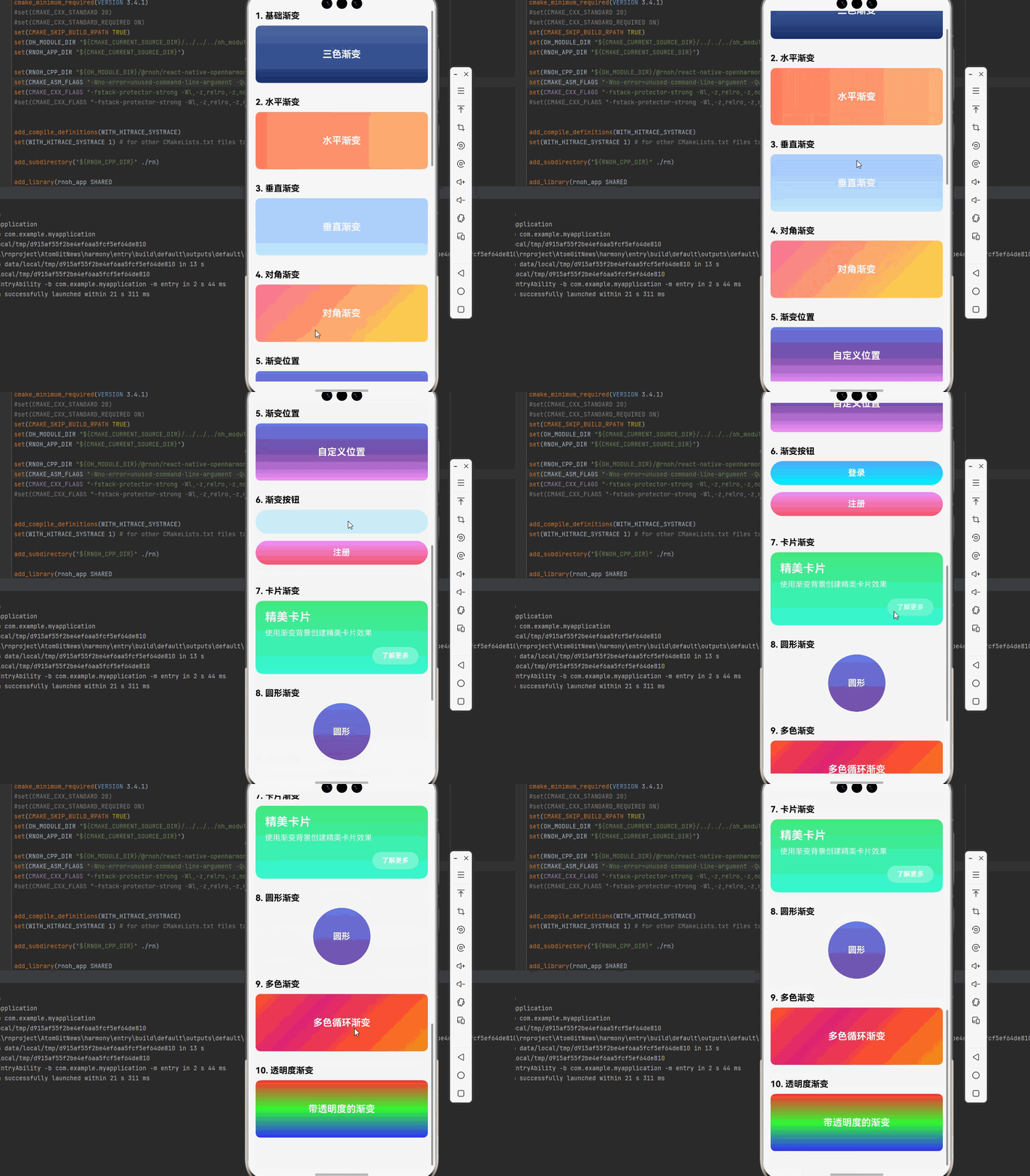
下面是一个完整的示例,展示了 react-native-linear-gradient 的各种使用场景:
import React from 'react';
import { View, Text, StyleSheet, ScrollView, TouchableOpacity, StatusBar } from 'react-native';
import LinearGradient from 'react-native-linear-gradient';

function LinearGradientDemo() {
  return (
    <ScrollView style={styles.container}>
      <StatusBar barStyle="light-content" />

      {/* 示例 1: 基础渐变 */}
      <View style={styles.section}>
        <Text style={styles.sectionTitle}>1. 基础渐变</Text>
        <LinearGradient
          colors={['#4c669f', '#3b5998', '#192f6a']}
          style={styles.gradientBox}
        >
          <Text style={styles.text}>三色渐变</Text>
        </LinearGradient>
      </View>

      {/* 示例 2: 水平渐变 */}
      <View style={styles.section}>
        <Text style={styles.sectionTitle}>2. 水平渐变</Text>
        <LinearGradient
          colors={['#ff7e5f', '#feb47b']}
          start={{ x: 0, y: 0 }}
          end={{ x: 1, y: 0 }}
          style={styles.gradientBox}
        >
          <Text style={styles.text}>水平渐变</Text>
        </LinearGradient>
      </View>

      {/* 示例 3: 垂直渐变 */}
      <View style={styles.section}>
        <Text style={styles.sectionTitle}>3. 垂直渐变</Text>
        <LinearGradient
          colors={['#a1c4fd', '#c2e9fb']}
          start={{ x: 0, y: 0 }}
          end={{ x: 0, y: 1 }}
          style={styles.gradientBox}
        >
          <Text style={styles.text}>垂直渐变</Text>
        </LinearGradient>
      </View>

      {/* 示例 4: 对角渐变 */}
      <View style={styles.section}>
        <Text style={styles.sectionTitle}>4. 对角渐变</Text>
        <LinearGradient
          colors={['#fa709a', '#fee140']}
          start={{ x: 0, y: 0 }}
          end={{ x: 1, y: 1 }}
          style={styles.gradientBox}
        >
          <Text style={styles.text}>对角渐变</Text>
        </LinearGradient>
      </View>

      {/* 示例 5: 渐变位置 */}
      <View style={styles.section}>
        <Text style={styles.sectionTitle}>5. 渐变位置</Text>
        <LinearGradient
          colors={['#667eea', '#764ba2', '#f093fb']}
          locations={[0, 0.5, 1]}
          style={styles.gradientBox}
        >
          <Text style={styles.text}>自定义位置</Text>
        </LinearGradient>
      </View>

      {/* 示例 6: 渐变按钮 */}
      <View style={styles.section}>
        <Text style={styles.sectionTitle}>6. 渐变按钮</Text>
        <TouchableOpacity style={styles.buttonContainer}>
          <LinearGradient
            colors={['#4facfe', '#00f2fe']}
            style={styles.gradientButton}
          >
            <Text style={styles.buttonText}>登录</Text>
          </LinearGradient>
        </TouchableOpacity>

        <TouchableOpacity style={styles.buttonContainer}>
          <LinearGradient
            colors={['#f093fb', '#f5576c']}
            style={styles.gradientButton}
          >
            <Text style={styles.buttonText}>注册</Text>
          </LinearGradient>
        </TouchableOpacity>
      </View>

      {/* 示例 7: 卡片渐变 */}
      <View style={styles.section}>
        <Text style={styles.sectionTitle}>7. 卡片渐变</Text>
        <LinearGradient
          colors={['#43e97b', '#38f9d7']}
          style={styles.cardGradient}
        >
          <Text style={styles.cardTitle}>精美卡片</Text>
          <Text style={styles.cardText}>使用渐变背景创建精美卡片效果</Text>
          <View style={styles.cardActions}>
            <TouchableOpacity style={styles.cardButton}>
              <Text style={styles.cardButtonText}>了解更多</Text>
            </TouchableOpacity>
          </View>
        </LinearGradient>
      </View>

      {/* 示例 8: 圆形渐变 */}
      <View style={styles.section}>
        <Text style={styles.sectionTitle}>8. 圆形渐变</Text>
        <LinearGradient
          colors={['#667eea', '#764ba2']}
          style={styles.circleGradient}
        >
          <Text style={styles.circleText}>圆形</Text>
        </LinearGradient>
      </View>

      {/* 示例 9: 多色渐变 */}
      <View style={styles.section}>
        <Text style={styles.sectionTitle}>9. 多色渐变</Text>
        <LinearGradient
          colors={['#FF512F', '#DD2476', '#FF512F', '#F09819']}
          start={{ x: 0, y: 0 }}
          end={{ x: 1, y: 1 }}
          style={styles.gradientBox}
        >
          <Text style={styles.text}>多色循环渐变</Text>
        </LinearGradient>
      </View>

      {/* 示例 10: 透明度渐变 */}
      <View style={styles.section}>
        <Text style={styles.sectionTitle}>10. 透明度渐变</Text>
        <LinearGradient
          colors={['rgba(255, 0, 0, 0.8)', 'rgba(0, 255, 0, 0.8)', 'rgba(0, 0, 255, 0.8)']}
          style={styles.gradientBox}
        >
          <Text style={styles.text}>带透明度的渐变</Text>
        </LinearGradient>
      </View>

    </ScrollView>
  );
}

const styles = StyleSheet.create({
  container: {
    flex: 1,
    backgroundColor: '#f5f5f5',
  },
  section: {
    marginBottom: 30,
  },
  sectionTitle: {
    fontSize: 18,
    fontWeight: 'bold',
    marginBottom: 10,
    marginLeft: 15,
  },
  gradientBox: {
    height: 120,
    justifyContent: 'center',
    alignItems: 'center',
    marginHorizontal: 15,
    borderRadius: 10,
  },
  text: {
    color: '#ffffff',
    fontSize: 20,
    fontWeight: 'bold',
    textShadowColor: 'rgba(0, 0, 0, 0.3)',
    textShadowOffset: { width: 0, height: 2 },
    textShadowRadius: 4,
  },
  buttonContainer: {
    marginHorizontal: 15,
    marginBottom: 15,
  },
  gradientButton: {
    height: 50,
    justifyContent: 'center',
    alignItems: 'center',
    borderRadius: 25,
  },
  buttonText: {
    color: '#ffffff',
    fontSize: 18,
    fontWeight: 'bold',
  },
  cardGradient: {
    marginHorizontal: 15,
    padding: 20,
    borderRadius: 15,
  },
  cardTitle: {
    color: '#ffffff',
    fontSize: 24,
    fontWeight: 'bold',
    marginBottom: 10,
  },
  cardText: {
    color: '#ffffff',
    fontSize: 16,
    marginBottom: 20,
    opacity: 0.9,
  },
  cardActions: {
    flexDirection: 'row',
    justifyContent: 'flex-end',
  },
  cardButton: {
    backgroundColor: 'rgba(255, 255, 255, 0.3)',
    paddingHorizontal: 20,
    paddingVertical: 10,
    borderRadius: 20,
  },
  cardButtonText: {
    color: '#ffffff',
    fontWeight: 'bold',
  },
  circleGradient: {
    width: 120,
    height: 120,
    borderRadius: 60,
    justifyContent: 'center',
    alignItems: 'center',
    alignSelf: 'center',
    marginHorizontal: 15,
  },
  circleText: {
    color: '#ffffff',
    fontSize: 18,
    fontWeight: 'bold',
  },
});

export default LinearGradientDemo;
5. 执行 npm run harmony 命令
执行 npm run harmony 命令,构建适用于鸿蒙的 bundle 文件,并拷贝到鸿蒙工程 rawfile 目录下。
🎨 实际应用场景
完整示例代码已展示了以下实际应用场景:
- 基础渐变: 使用多种颜色创建基础的线性渐变效果
- 方向控制: 通过
start和end属性控制渐变方向(水平、垂直、对角) - 位置控制: 使用
locations属性自定义颜色的渐变位置 - 渐变按钮: 创建美观的渐变按钮,提升用户体验
- 卡片渐变: 为卡片添加渐变背景,增强视觉效果
- 圆形渐变: 创建圆形的渐变效果,适合头像、图标等场景
- 多色渐变: 使用多种颜色创建复杂的渐变效果
- 透明度渐变: 支持带透明度的颜色,创造更丰富的视觉效果
⚠️ 注意事项与最佳实践
1. 颜色数量
- 至少需要 2 个颜色
- 建议不要超过 5 个颜色,以保持简洁
2. locations 的使用
// 正确:locations 长度与 colors 长度一致
<LinearGradient
  colors={['#red', '#blue', '#green']}
  locations={[0, 0.5, 1]}
  style={style}
>
3. 性能优化
- 避免在列表中使用过多的渐变
- 对于静态渐变,考虑使用图片代替
- 在 ScrollView 中避免大量复杂的渐变
4. 渐变角度
// 45度角(对角)
start={{ x: 0, y: 0 }}
end={{ x: 1, y: 1 }}

// 水平渐变
start={{ x: 0, y: 0 }}
end={{ x: 1, y: 0 }}

// 垂直渐变
start={{ x: 0, y: 0 }}
end={{ x: 0, y: 1 }}
5. HarmonyOS 兼容性
在 HarmonyOS 上,渐变渲染与原生平台保持一致。
6. 圆角处理
<LinearGradient
  colors={['#4c669f', '#3b5998']}
  style={{
    borderRadius: 10,
    overflow: 'hidden',  // 重要:确保圆角正确显示
  }}
>
7. 与其他组件配合
<SafeAreaView>
  <LinearGradient
    colors={['#4c669f', '#3b5998']}
    style={{ flex: 1 }}
  >
    {/* 内容 */}
  </LinearGradient>
</SafeAreaView>
8. 颜色格式
支持的颜色格式:
- 十六进制:‘#FF0000’
- RGBA:‘rgba(255, 0, 0, 0.8)’
- 颜色名称:‘red’, ‘blue’, ‘green’
📊 对比:静态颜色 vs 线性渐变
| 特性 | 静态颜色 | 线性渐变 |
|---|---|---|
| 视觉效果 | ⚠️ 单调 | ✅ 丰富 |
| 用户体验 | ⚠️ 普通 | ✅ 优秀 |
| 性能 | ✅ 最佳 | ⚠️ 稍有损耗 |
| 定制性 | ❌ 有限 | ✅ 灵活 |
| 适用场景 | ✅ 简单场景 | ✅ 复杂场景 |
📝 总结
通过集成 react-native-linear-gradient,我们为项目添加了强大的线性渐变功能。这个库支持多种渐变方向、颜色和位置,可以用于按钮、卡片、背景等各种场景,大大提升应用的视觉效果。
关键要点回顾
- ✅ 安装依赖: 根据 RN 版本选择对应的包名
- RN 0.72:
npm install @react-native-oh-tpl/react-native-linear-gradient - RN 0.77:
npm install @react-native-ohos/react-native-linear-gradient
- RN 0.72:
- ✅ 配置平台: 通过 har 包或直接链接源码,配置 CMakeLists.txt 和 PackageProvider.cpp
- ✅ 集成代码: 使用 LinearGradient 组件
- ✅ 支持功能: 多色渐变、自定义方向、位置控制等
- ✅ 测试验证: 确保三端表现一致
- ✅ 重要: 只需要配置 C++ 部分,不需要在 ArkTs 侧导入 ts 文件
欢迎加入开源鸿蒙跨平台社区:https://openharmonycrossplatform.csdn.net

讨论HarmonyOS开发技术,专注于API与组件、DevEco Studio、测试、元服务和应用上架分发等。
更多推荐

 14
14 0
0- 0


 已为社区贡献32条内容

所有评论(0)