HarmonyOS开发学习_ArkUI基础
·
ArkUI组件
module.json5
module.json5是用于存放应用模块的核心配置的文件
1.软件图标
module.json5的module/abilities/icon:指定了软件图标的存储路径{ "module": { "abilities": [ { "icon": "$media:logo",//表示...\main\resources\base\mediamedia/logo文件 } ] } }"...main\resources\base\element\string.json":模块描述、软件名称、功能描述{ "string": [ { "name": "module_desc", //模块描述信息 "value": "module description" }, { "name": "EntryAbility_desc", //主页面描述信息 "value": "description" }, { "name": "EntryAbility_label", //软件名称 "value": "黑马云音乐" } ] }module.json5的module/abilities/startWindowIcon:软件加载时显示的图标{ "module": { "abilities": [ { "startWindowIcon": "$media:logo", } ] } }
2.页面路由
- 使用
Navigation组件和NavDestination组件Navigation:导航容器,在主页面中配置NavDestination:可被导航的页面,在子页面中配置
- 在文件的
module中加入routerMap对象,指定路由文件{ "module": { "routerMap": "$profile:route_map", //表示...\main\resources\base\profile目录下的route_map.json文件 ...... } - 创建路由文件
\main\resources\base\profile\route_map.json并填写子页面信息
{
  "routerMap": [
    {
      "name": "Start",//页面名称
      "pageSourceFile": "src/main/ets/pages/Start.ets", //页面对应的文件
      "buildFunction": "StartBuilder",// 页面入口函数
      "data": {
        "description" : "this is Start"// 描述信息
      }
    }
  ]
}
- 进入相应页面的
.ets文件->Start.ets编写入口函数
//跳转页面入口函数
@Builder
export function StartBuilder(){
  Start()
}
- 在相应页面的
.ets文件->Start.ets中编写控制跳转的对象
@Component
struct Start{
  // 控制跳转的对象
  pathStack: NavPathStack = new NavPathStack()

  build() {
    NavDestination(){//子页内容放在这里

    }
    .title("广告页")//标题文字
    .onReady((context: NavDestinationContext) => {// 准备就绪事件:当页面准备完毕时
      this.pathStack = context.pathStack;// 将页面加入到pathStack对象中,成为可以跳转的页面
      // context.pathStack 存放了所有已打开的页面路径信息
    })
  }
}
- 在主页面的
.ets文件->index.ets中创建控制跳转的对象
pathStack : NavPathStack = new NavPathStack()
//创建控制跳转的对象(需和子页面是同一个)
- 在主页面的
.ets文件->index.ets中设置页面跳转
Navigation(this.pathStack){
}.onAppear(() => {
//页面首次渲染完成后触发
  this.pathStack.pushPathByName('Start', null, false);//跳转至广告页(route_map中的页面名)
})
.hideNavBar(true)// 隐藏导航栏,防止跳转回index页面.并且,不会把自己放在控制跳转的对象内
this.pathStack.pushPathByName("页面名",Object | null | undefined,boolean):保留当前页,跳转新页面this.pathStack.replacePathByName("页面名",Object | null | undefined,boolean):关闭当前页,跳转新页面"页面名":目标页面的注册名称(Name)Object | null | undefined:传递给目标页面的数据(路由参数)boolean:是否启用页面切换动画
3.权限声明
- 在
module.json5中添加requestPermissions参数
{
  "module": {
    "requestPermissions": [
	  {"name": "ohos.permission.INTERNET"},
	  {"name": "ohos.permission.KEEP_BACKGROUND_RUNNING"}
	],
	//ohos.permission.INTERNET:网络权限
	//ohos.permission.KEEP_BACKGROUND_RUNNING:后台运行权限
    ...
}
组件
ArKUI:方舟开发框架,构建鸿蒙应用界面的框架- 组件:界面构建与显示的最小单位
※通用属性
- 通用属性:所有组件均可用的属性
width:控制宽度(默认单位:vp)height:控制高度(默认单位:vp)- 鸿蒙横满屏尺寸:
360vp或"100%"
- 鸿蒙横满屏尺寸:
backgroundColor:背景色Color.颜色:ArkTS标准颜色
@Entry
@Component
struct Index {
  build() {
    Column(){
      Text("大锤")
        .backgroundColor(Color.Orange)
        .width(100)
        .height(50)
      Row(){}
        .width(300)
        .height(100)
        .backgroundColor("#ff6600")
  }
  }
}
1.容器组件
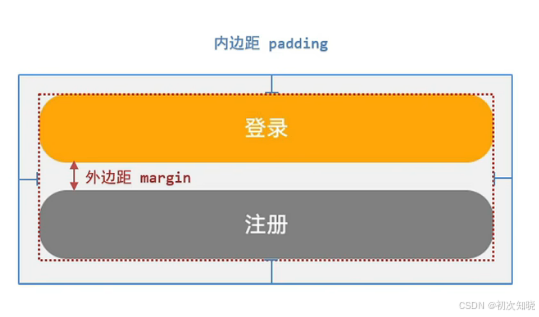
.padding(数值):内间距.margin(数值):外间距- 只填一个数表示四个方向的间距相同
{top: 数值, bottom: 数值, left: 数值, right: 数值}:四个方向间距不同的写法
@Entry
@Component
struct Index {
  build() {
    Column(){
      Button("登录")
        .width('100%')
        .margin({bottom: 20})
      Button("注册")
        .width('100%')
        .backgroundColor(Color.Gray)
    }
     .backgroundColor('#DDDDDD')
     .padding(10)
     .padding({
       left: 10,
       top: 20,
       right: 30,
       bottom: 40
     })
  }
}
滚动容器组件
- 滚动容器组件:用于实现组件滚动效果
List():滚动容器ListItem(){}:滚动列表.scrollBar():设置滚动条样式BarState.*:滚动条样式
.listDirection():设置滚动容器方向Axis.Horizontal:横向滚动显示
边框属性
- 边框属性:用于给组件添加边框
.border({}):边框属性width:粗细color:颜色style:线条样式BorderStyle.*:标准线条样式
radius:圆角效果
容器安全边界属性
- 容器安全边界属性:可以修改容器的安全边界,使其铺满整个屏幕
.expandSafeArea([SafeAreaType.SYSTEM],[SafeAreaEdge.TOP,SafeAreaEdge.BOTTOM]):设置页面铺满屏幕
2.内容组件
- 内容组件:用于显示内容的组件
Text("内容"):显示文本
文本属性
- 文本属性:用于美化文本的属性
.fontSize:控制字体大小.fontColor:控制字体颜色.fontWeight:控制字体粗细.maxLines(2):设置文本最多显示两行.textOverflow({overflow: TextOverflow.Ellipsis}):配合maxLines使用,设置多于文字显示省略号
@Entry
@Component
struct Index {
  build() {
    Column(){
      Text("大壮")
        .fontSize(30)
        .fontColor(Color.Red)
        .fontWeight(800)
  }
  }
}
3.图像组件
- 用于为画面添加图像资源
Image(图像资源路径):图像组件- 图像存放路径:
StudyArkTS\entry\src\main\resources\base\media - 图像路径:
$r('app.media.xx)(本地图像)https://...(网络图像)
4.层叠组件
- 可以使两个图片上下层叠显示
Stack()- 示例
Stack(){
  Image(item.img)
    .width(80)
    .border({radius: 8})
    .margin({right: 10})
  if(this.playIndex === index){
    Image($r('app.media.wave'))
      .width(24)
  }
}
5.按钮组件
- 通常配合
onClick点击属性触发响应Button('显示的文字')
点击属性
- 点击属性:被点击后触发操作
.onClick( () =>{}).onClick(() => { if(this.num > 1){ this.num-- }
6. 组件生命周期函数
- 当页面完全渲染完成时触发
aboutToAppear(): void {触发内容}- 一般配合
setTimeout构成广告页延迟跳转setTimeout:延时触发函数setTimeout(触发函数,延时时长(毫秒))- 示例
aboutToAppear(): void {
    setTimeout(() => {
      this.pathStack.replacePathByName("Layout", null, false)
    },3000)
    //3000毫秒 = 3秒
}
7.选项卡组件
- 选项卡组件:用于布局软件菜单
- 定义方法
Tabs({barPosition: BarPosition.End}){ //barPosition: BarPosition.End:底部对齐 TabContent(){ //内容 } .tabBar() //菜单 }- 一般配合
ForEach创建多个菜单 - 示例
- 创建菜单数据
tabData: TabClass[] = [//菜单数据 {text: '推荐', icon: $r('app.media.ic_recommend')}, {text: '发现', icon: $r('app.media.ic_find')}, {text: '动态', icon: $r('app.media.ic_moment')}, {text: '我的', icon: $r('app.media.ic_mine')} ]- 创建单个菜单的样式函数
@Builder tabBuilder(item: TabClass,index: number){ Column({space: 5}){//设置上下间距 Image(item.icon) .width(24)//设置图标大小 .fillColor(this.currentIndex === index ? '#E85A88' : '#63AAAA') Text(item.text) .fontSize(14) .fontColor(this.currentIndex === index ? '#E85A88' : '#63AAAA') } }- 通过
ForEach循环渲染,创建多个菜单
Tabs({barPosition: BarPosition.End}){//barPosition: BarPosition.End:底部对齐
  ForEach(this.tabData, (item: TabClass, index: number)=>{
    TabContent(){
      //该菜单页面显示的内容
      Text('内容')
    }
    .tabBar(this.tabBuilder(item)) //菜单
    .backgroundColor('#131215')
    .expandSafeArea([SafeAreaType.SYSTEM],[SafeAreaEdge.TOP,SafeAreaEdge.BOTTOM])//设置菜单内容铺满屏幕
  })
}
.backgroundColor('#3B3F42')
.expandSafeArea([SafeAreaType.SYSTEM],[SafeAreaEdge.TOP,SafeAreaEdge.BOTTOM])//设置页面铺满屏幕
8.输入组件
- 定义方法:
TextInput()TextInput({placeholder: "默认显示内容"})
- 该组件会默认占用一横排的区域,可以设置属性使其取消占用
.layoutWeight(1):不占用左右间距
Row(){
  Image($r('app.media.ic_search'))
    .width(22)
    .fillColor('#817D83')
  TextInput({placeholder: "只因你太美🔥"})
    .placeholderColor("#817D83")
    .padding({left: 5})
    .fontColor("#999")
    .layoutWeight(1)//不占用左右间距
  Image($r('app.media.ic_code'))
    .width(20)
    .fillColor('#817D83')
}
9.轮播图组件
- 定义方法:
Swiper(){}.autoPlay(true):轮播图自动播放- 一般使用
ForEach调用多个Image实现多图片轮播
	// 轮播图数据
swiperList: string[] = [
  "http://yjy-teach-oss.oss-cn-beijing.aliyuncs.com/HeimaCloudMusic/banner1.png",
  "http://yjy-teach-oss.oss-cn-beijing.aliyuncs.com/HeimaCloudMusic/banner2.png",
  "http://yjy-teach-oss.oss-cn-beijing.aliyuncs.com/HeimaCloudMusic/banner3.png",
  "http://yjy-teach-oss.oss-cn-beijing.aliyuncs.com/HeimaCloudMusic/banner4.png",
  "http://yjy-teach-oss.oss-cn-beijing.aliyuncs.com/HeimaCloudMusic/banner5.png"
]
Swiper(){
  ForEach(this.swiperList, (item: string) => {
    Image(item)
      .width('100%')
      .border({radius: 10})//图片圆角
  })//轮播图
}
.autoPlay(true)//自动播放
多页面跳转
- 使用
AppStoraveV2应用全局UI状态存储- 使用
connect绑定同一个key
- 在
route_map中添加播放页play,整合route_map
,{ "name": "Play", "pageSourceFile": "src/main/ets/pages/Play.ets", "buildFunction": "PlayBuilder", "data": { "description" : "this is Play" } - 使用
- 使用
AppStorageV2共享跳转对象pathStack : NavPathStack = AppStorageV2.connect(NavPathStack, 'navStack', ()=> new NavPathStack())!
- 需要导入
import{ AppStorageV2 }from'@kit.ArkUI';- 末尾的
!表示非空断言,保证该函数返回值一定不为空 AppStorageV2.connect(NavPathStack, 'navStack', ()=> new NavPathStack()):共享跳转对象NavPathStack:表示存储类型'navStack':表示唯一的Key(自定义)() => newNavPathStack():初始化操作
- 末尾的
- 设置点击事件,页面跳转
.onClick(() =>{
  this.pathStack.pushPathByName('Play', null, false)
})
音乐播放AVPlayer
- 使用
AVPlayer播放媒体资源
- 创建播放工具类
AvPlayerManager- 路径:
...utils\AvPlayerManager.ets
import { media } from '@kit.MediaKit' import { SongItemType } from '../models/music' class AvPlayerManager{ Player: media.AVPlayer | null = null //定义方法 创建播放器 + 监听播放器状态 async init(){//只能在async函数内使用await if(!this.Player){ //没有就创建 this.Player = await media.createAVPlayer()//由于createAVPlayer创建播放器需要事件,使用await等待 } this.Player.on('stateChange', (state) =>{//监听状态,state:状态 if(state === 'initialized'){//如果已经初始化 this.Player?.prepare()//表示如果Player不为空,就执行prepare方法 }else if(state === 'prepared'){//prepared:准备播放 this.Player?.play()//播放 } }) } singPlay(song: SongItemType){ this.Player!.url = song.url//如果player非空,则赋值 } } export const playerManager: AvPlayerManager = new AvPlayerManager()//常量导出工具类 - 路径:
- 初始化播放器
- 在
.../entryability/EntryAbility.ets中的onWindowStageCreate函数添加初始化方法
onWindowStageCreate(windowStage: window.WindowStage): void { // Main window is created, set main page for this ability //初始化播放器 playerManager.init() ... }- 在跳转触发时,播放音乐
.onClick(() =>{ this.pathStack.pushPathByName('Play', null, false) playerManager.singPlay(item) })- 播放工具类
AvPlayerManager可以自定义各种方法以完善功能
- 在
控制中心适配
- 创建
AvssionManager工具类并激活会话import { avSession } from '@kit.AVSessionKit' class AvsessionManager{ session: avSession.AVSession | null = null async init(content: Context){ this.session = await avSession.createAVSession(content, 'bgPlay', 'audio') } } export const sessionManager: AvsessionManager = new AvsessionManager() - 在
EntryAbility中初始化播控中心onWindowStageCreate(windowStage: window.WindowStage): void { // Main window is created, set main page for this ability //初始化播放器 playerManager.init() //初始化播控中心 sessionManager.init(this.context) ... } - 申请后台长时任务
1.申请权限,进入module.json5文件,添加权限 "module": { "requestPermissions": [ {"name": "ohos.permission.INTERNET"}, {"name": "ohos.permission.KEEP_BACKGROUND_RUNNING"} ] 2.配置长时间任务类型 "abilities": [ { "backgroundModes": ["audioPlayback"], ... }] 3.在工具类中申请长时任务 //申请尝试任务 async startBackgroundTask(){ let wantAgentInfo: wantAgent.WantAgentInfo = { wants: [ { bundleName: "com.example.studyheimacloudmusic", abilityName: "EntryAbility" } ], actionType: wantAgent.OperationType.START_ABILITY, requestCode: 0, actionFlags: [wantAgent.WantAgentFlags.UPDATE_PRESENT_FLAG], }; const want = await wantAgent.getWantAgent(wantAgentInfo) await backgroundTaskManager.startBackgroundRunning(getContext(),backgroundTaskManager.BackgroundMode.AUDIO_PLAYBACK, want) } - 在播放时申请长时任务
singPlay(song: SongItemType){
  //申请长时任务
  sessionManager.startBackgroundTask()
  ...
}
- 此时,已经实现后台播放
- 初始化元数据给播控中心
1.在播控中心工具类中设置元数据 //设置元数据 playState: GlobalMusic = AppStorageV2.connect(GlobalMusic,'SONG_KEY',()=>new GlobalMusic())! setAVMetadata(song: SongItemType){ this.session?.setAVMetadata({ assetId: song.id, title: song.name, mediaImage: song.img, artist: song.author, duration: this.playState.duration }) } 2.在播放器中设置元数据同步 //时间变化(duration发生改变,说明换歌了) this.Player.on("durationUpdate", (duration) => { this.currentSong.duration = duration; sessionManager.setAVMetadata(this.currentSong.playList[this.currentSong.playIndex]) }) - 设置播放状态
1.在播控中心工具类中编写播放状态方法 //设置播放状态 setAVPlayBackState(){ this.session?.setAVPlaybackState({ state: this.playState.isPlay ? avSession.PlaybackState.PLAYBACK_STATE_PLAY : avSession.PlaybackState.PLAYBACK_STATE_PAUSE, speed: 1,//速度 position:{//时间 elapsedTime: this.playState.time,//歌曲播放的时间 updateTime: new Date().getTime()//系统时间 }, duration: this.playState.duration }) } 2.在播放器的播放与暂停方法、时间变化方法中调用该方法 singPlay(song: SongItemType){ sessionManager.setAVPlayBackState() ... } //暂停方法 paused(){ ... sessionManager.setAVPlayBackState() } //侦听进度条时间变化 this.Player.on('timeUpdate',(time) => { this.currentSong.time = time sessionManager.setAVPlayBackState() }) - 注册控制命令并激活
1.注册命令,并在init方法中调用 async init(content: Context){ this.session = await avSession.createAVSession(content, 'bgPlay', 'audio') this.registerEvent() } //注册命令 registerEvent(){ this.session?.on('play',()=>{ playerManager.singPlay(this.playState.playList[this.[this.playState.playIndex]]) }) this.session?.on('pause', ()=>{ playerManager.paused() }) this.session?.on('playPrevious', ()=>{ playerManager.prevPlay() }) this.session?.on('playNext', ()=>{ playerManager.nextPlay() }) this.session?.on('seek', (value: number)=>{ playerManager.seekPlay(value) }) this.session?.activate()//激活命令 } - 创建注销会话(回收内存)
1.注销会话
//注销会话(软件退出触发)
async destroy(){
  await this.session?.destroy()
}

2.退出软件时释放
onWindowStageDestroy(): void {
  // Main window is destroyed, release UI related resources
  sessionManager.destroy()//释放内容
  playerManager.release()//释放播放器
  hilog.info(DOMAIN, 'testTag', '%{public}s', 'Ability onWindowStageDestroy');
}

3.播放器释放
//释放播放器 和 播放数据
async release(){
  await this.Player?.release()
}

this.Player.on('stateChange', (state) =>{//监听状态,state:状态
  if(state === 'initialized'){//如果已经初始化
    this.Player?.prepare()//表示如果Player不为空,就执行prepare方法
  }else if(state === 'prepared'){//prepared:准备播放
    this.Player?.play()//播放
    this.currentSong.isPlay = true
  }else if(state === 'completed'){
    this.nextPlay(true) //自动下一首
  }else if(state === 'released'){
    //释放数据
    this.currentSong.reset()
  }

讨论HarmonyOS开发技术,专注于API与组件、DevEco Studio、测试、元服务和应用上架分发等。
更多推荐


 15
15 0
0- 0


 已为社区贡献4条内容

所有评论(0)