【HarmonyOS6】列表滑动操作实战
前言
在移动应用开发中,列表是最常见的 UI 组件之一。而列表项的滑动操作则是提升用户体验的重要交互方式。通过左滑或右滑,用户可以快速执行删除、编辑、收藏等操作,无需进入详情页面。
本文将通过一个实际案例——饮水记录列表,带你深入理解 ArkTS 中 SwipeAction 的使用方法和交互设计技巧。
本文适合已经了解 ArkTS 基础语法的初学者阅读。通过学习本文,你将掌握:
- SwipeAction 的基本用法和参数配置
- 如何设计符合用户习惯的滑动交互
- 列表数据的动态更新与删除
- 滑动操作的视觉反馈设计
- 常见问题的解决方案
- 性能优化技巧
什么是 SwipeAction
SwipeAction(滑动操作)是一种常见的移动端交互模式。用户在列表项上左滑或右滑,会显示隐藏的操作按钮,点击按钮执行相应的操作。
常见应用场景:
- 删除操作: 微信聊天列表左滑删除对话
- 标记操作: 邮件应用左滑标记为已读/未读
- 收藏操作: 新闻应用右滑收藏文章
- 多种操作: 支付宝账单左滑显示删除、详情等多个按钮
为什么需要 SwipeAction?
- 操作便捷: 无需进入详情页,直接在列表上操作
- 节省空间: 隐藏的按钮不占用屏幕空间
- 符合习惯: 用户已经习惯这种交互方式
- 视觉清爽: 列表保持简洁,操作按钮按需显示
案例背景
我们要实现一个饮水记录列表,具备以下功能:
- 显示每条饮水记录的时间和饮水量
- 左滑显示删除按钮
- 点击删除按钮移除记录
- 删除后列表自动更新
- 提供流畅的滑动动画效果
最终效果如下图所示: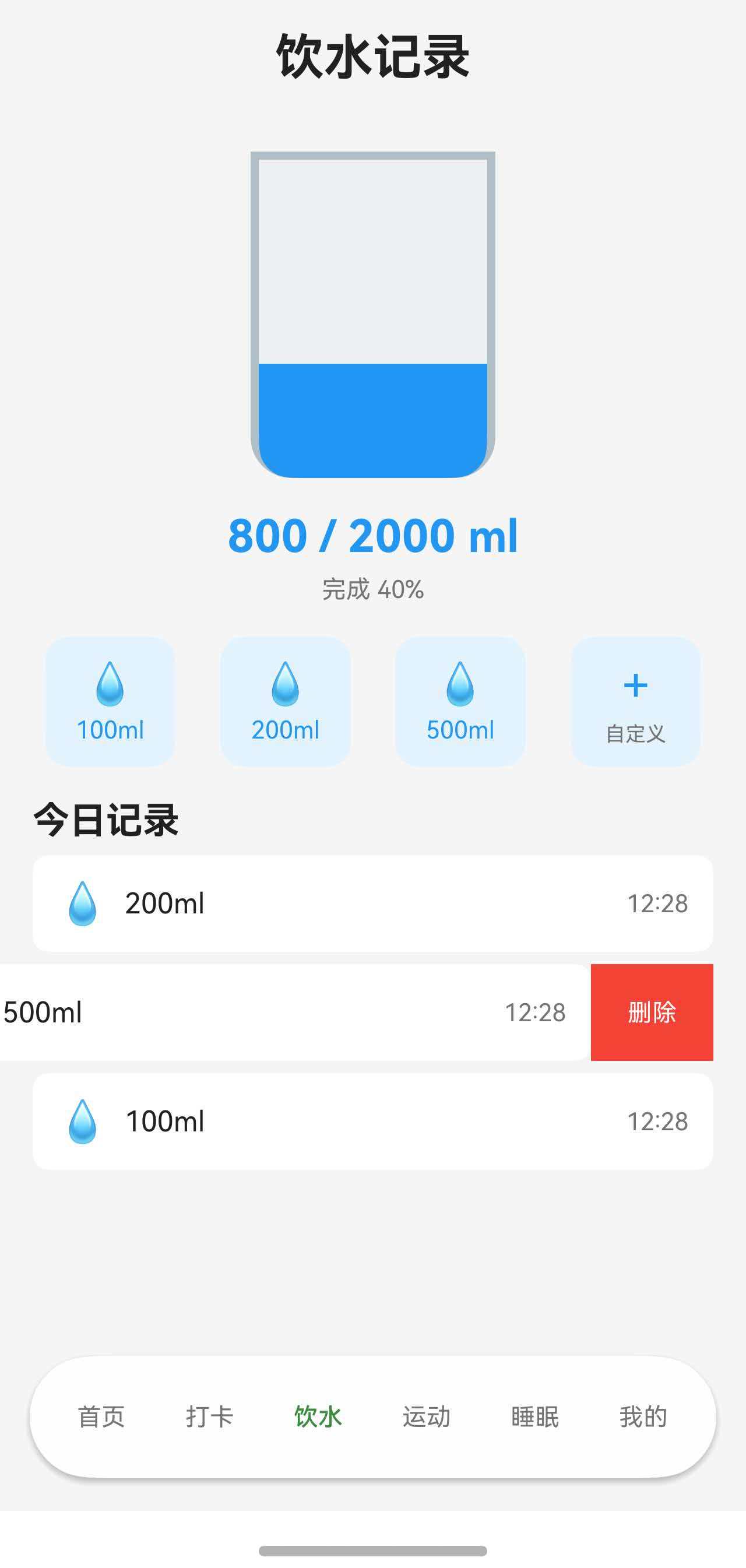
完整代码
首先,让我们看一下完整的实现代码:
import { PreferencesService, getTodayDateString } from '../service/PreferencesService';
import { WaterRecord, DailyWaterSummary } from '../model/HealthModels';
import { CommonCard } from '../components/CommonCard';
import common from '@ohos.app.ability.common';

@Entry
@Component
struct WaterPage {
  @State waterCurrent: number = 0;
  @State waterTarget: number = 2000;
  @State waterRecords: WaterRecord[] = [];

  private prefService: PreferencesService | null = null;

  aboutToAppear(): void {
    const ctx = getContext(this) as common.UIAbilityContext;
    this.prefService = PreferencesService.getInstance(ctx);
    this.loadWaterData();
  }

  async loadWaterData(): Promise<void> {
    if (!this.prefService) return;
    const today = getTodayDateString();
    const data = await this.prefService.getWaterData(today);
    this.waterCurrent = data.totalAmount;
    this.waterTarget = data.targetAmount;
    this.waterRecords = data.records;
  }

  async removeRecord(recordId: number): Promise<void> {
    if (!this.prefService) return;
    const today = getTodayDateString();
    await this.prefService.removeWaterRecord(today, recordId);
    await this.loadWaterData();
  }

  @Builder
  DeleteButton(recordId: number) {
    Row() {
      Text('删除')
        .fontSize(14)
        .fontColor(Color.White)
    }
    .width(70)
    .height('100%')
    .justifyContent(FlexAlign.Center)
    .backgroundColor($r('app.color.error_color'))
    .onClick(() => {
      this.removeRecord(recordId);
    })
  }

  build() {
    Scroll() {
      Column() {
        // 今日记录
        Column() {
          CommonCard({ title: '今日记录' }) {
            Column() {
              if (this.waterRecords.length === 0) {
                Text('暂无记录')
                  .fontSize(14)
                  .fontColor($r('app.color.text_secondary'))
                  .padding({ top: 16, bottom: 16 })
              } else {
                List() {
                  ForEach(this.waterRecords.slice().reverse(), (record: WaterRecord) => {
                    ListItem() {
                      Row() {
                        Text('💧')
                          .fontSize(18)

                        Text(`${record.amount}ml`)
                          .fontSize(16)
                          .fontColor($r('app.color.text_primary'))
                          .margin({ left: 8 })

                        Blank()

                        Text(record.time)
                          .fontSize(14)
                          .fontColor($r('app.color.text_secondary'))
                      }
                      .width('100%')
                      .padding({ top: 12, bottom: 12 })
                    }
                    .swipeAction({
                      end: this.DeleteButton(record.id)
                    })
                  })
                }
                .width('100%')
                .divider({
                  strokeWidth: 1,
                  color: $r('app.color.divider_color'),
                  startMargin: 0,
                  endMargin: 0
                })
              }
            }
          }
        }
        .margin({ left: 16, right: 16, bottom: 32 })
      }
    }
    .width('100%')
    .height('100%')
    .backgroundColor($r('app.color.background_color'))
  }
}
逐步解析
1. 数据模型定义
在开始实现 UI 之前,我们需要先了解数据结构:
// 单条饮水记录
interface WaterRecord {
  id: number;        // 唯一标识
  amount: number;    // 饮水量(毫升)
  time: string;      // 记录时间 HH:mm
  date: string;      // 记录日期 YYYY-MM-DD
}

// 每日饮水汇总
interface DailyWaterSummary {
  date: string;              // 日期
  totalAmount: number;       // 总饮水量
  targetAmount: number;      // 目标饮水量
  records: WaterRecord[];    // 饮水记录列表
}
数据结构设计要点:
- 唯一标识 id: 每条记录都有唯一的 id,用于删除操作时精确定位
- 时间分离: date 和 time 分开存储,便于按日期查询和按时间排序
- 汇总数据: DailyWaterSummary 包含统计信息和详细记录,避免重复计算
为什么需要 id?
考虑这样的场景:用户在同一时间添加了两条 200ml 的记录。如果没有 id,我们无法区分要删除哪一条:
// ❌ 没有 id,无法精确删除
records = [
  { amount: 200, time: '14:30' },
  { amount: 200, time: '14:30' }  // 完全相同!
]

// ✅ 有 id,可以精确删除
records = [
  { id: 1001, amount: 200, time: '14:30' },
  { id: 1002, amount: 200, time: '14:30' }  // id 不同
]
2. 组件状态管理
@State waterCurrent: number = 0;
@State waterTarget: number = 2000;
@State waterRecords: WaterRecord[] = [];
状态变量详解:
waterCurrent: 当前饮水总量
- 类型:
number - 用途: 显示今日已喝水量,计算完成度
- 更新时机: 添加或删除记录后重新计算
waterTarget: 目标饮水量
- 类型:
number - 用途: 显示目标值,计算完成百分比
- 更新时机: 用户修改设置时更新
waterRecords: 饮水记录列表
- 类型:
WaterRecord[] - 用途: 渲染列表,展示所有记录
- 更新时机: 加载数据、添加记录、删除记录后更新
为什么使用 @State?
@State 装饰器让变量具有响应式特性。当变量值改变时,使用该变量的 UI 会自动重新渲染:
// 删除记录后
this.waterRecords = newRecords;  // 修改 @State 变量

// ArkTS 自动执行:
// 1. 检测到 waterRecords 变化
// 2. 重新执行 build() 方法
// 3. 更新列表显示
// 4. 用户看到记录被删除
如果不使用 @State,修改变量后 UI 不会更新,用户看不到变化。
3. 数据加载
private prefService: PreferencesService | null = null;

aboutToAppear(): void {
  const ctx = getContext(this) as common.UIAbilityContext;
  this.prefService = PreferencesService.getInstance(ctx);
  this.loadWaterData();
}

async loadWaterData(): Promise<void> {
  if (!this.prefService) return;
  const today = getTodayDateString();
  const data = await this.prefService.getWaterData(today);
  this.waterCurrent = data.totalAmount;
  this.waterTarget = data.targetAmount;
  this.waterRecords = data.records;
}
生命周期方法 aboutToAppear:
aboutToAppear() 是组件的生命周期方法,在组件即将显示时调用。这是初始化数据的最佳时机。
执行流程:
1. 用户打开页面
   ↓
2. ArkTS 创建 WaterPage 组件
   ↓
3. 调用 aboutToAppear()
   ↓
4. 获取 Context 上下文
   ↓
5. 初始化 PreferencesService
   ↓
6. 调用 loadWaterData() 加载数据
   ↓
7. 从本地存储读取数据
   ↓
8. 更新 @State 变量
   ↓
9. 触发 UI 渲染
   ↓
10. 用户看到数据
为什么使用 async/await?
数据加载是异步操作(需要读取本地存储),使用 async/await 可以让代码更清晰:
// ✅ 使用 async/await: 代码清晰,易读
async loadWaterData(): Promise<void> {
  const data = await this.prefService.getWaterData(today);
  this.waterRecords = data.records;
}
空值检查的重要性:
if (!this.prefService) return;
这行代码防止 prefService 为 null 时调用方法导致崩溃。虽然正常情况下不会为 null,但防御性编程是好习惯。
4. 删除操作实现
async removeRecord(recordId: number): Promise<void> {
  if (!this.prefService) return;
  const today = getTodayDateString();
  await this.prefService.removeWaterRecord(today, recordId);
  await this.loadWaterData();
}
删除流程详解:
1. 用户左滑列表项
   ↓
2. 显示删除按钮
   ↓
3. 用户点击删除按钮
   ↓
4. 调用 removeRecord(recordId)
   ↓
5. 从本地存储删除记录
   ↓
6. 调用 loadWaterData() 重新加载数据
   ↓
7. 更新 @State waterRecords
   ↓
8. UI 自动刷新
   ↓
9. 用户看到记录消失
为什么要重新加载数据?
删除记录后,我们需要更新三个数据:
waterRecords: 记录列表waterCurrent: 当前饮水总量(需要重新计算)- 本地存储: 持久化删除操作
直接调用 loadWaterData() 可以一次性更新所有数据,保证数据一致性:
// ✅ 好的做法: 重新加载,数据一致
async removeRecord(recordId: number): Promise<void> {
  await this.prefService.removeWaterRecord(today, recordId);
  await this.loadWaterData();  // 重新加载所有数据
}

// ❌ 不好的做法: 手动更新,容易出错
async removeRecord(recordId: number): Promise<void> {
  await this.prefService.removeWaterRecord(today, recordId);

  // 手动从数组中删除
  const index = this.waterRecords.findIndex(r => r.id === recordId);
  this.waterRecords.splice(index, 1);

  // 手动重新计算总量
  this.waterCurrent = this.waterRecords.reduce((sum, r) => sum + r.amount, 0);

  // 如果逻辑复杂,容易遗漏或出错
}
异步操作的顺序:
注意 await 的使用顺序:
await this.prefService.removeWaterRecord(today, recordId);  // 先删除
await this.loadWaterData();  // 再加载
必须等删除操作完成后,再加载数据。如果不用 await,可能出现数据不一致:
// ❌ 错误示例: 不等待删除完成
this.prefService.removeWaterRecord(today, recordId);  // 开始删除(异步)
await this.loadWaterData();  // 立即加载(删除可能还没完成)
// 结果: 加载的数据中还包含刚删除的记录
5. 删除按钮的设计
@Builder
DeleteButton(recordId: number) {
  Row() {
    Text('删除')
      .fontSize(14)
      .fontColor(Color.White)
  }
  .width(70)
  .height('100%')
  .justifyContent(FlexAlign.Center)
  .backgroundColor($r('app.color.error_color'))
  .onClick(() => {
    this.removeRecord(recordId);
  })
}
使用 @Builder 的原因:
@Builder 装饰器用于封装可复用的 UI 片段。删除按钮会在每个列表项中使用,封装成 @Builder 有以下好处:
- 代码复用: 避免在每个 ListItem 中重复编写相同的代码
- 易于维护: 修改按钮样式时,只需修改一处
- 参数化: 可以传入不同的 recordId,实现不同的删除逻辑
点击事件处理:
.onClick(() => {
  this.removeRecord(recordId);
})
点击按钮时,调用 removeRecord() 方法,传入当前记录的 id。这样每个删除按钮都知道要删除哪条记录。
为什么使用箭头函数?
// ✅ 正确: 使用箭头函数
.onClick(() => {
  this.removeRecord(recordId);
})

// ❌ 错误: 直接传递方法
.onClick(this.removeRecord(recordId))  // 会立即执行!
箭头函数创建了一个新函数,只有在点击时才会执行。如果直接传递 this.removeRecord(recordId),会在渲染时立即执行,导致所有记录被删除。
6. 列表结构实现
List() {
  ForEach(this.waterRecords.slice().reverse(), (record: WaterRecord) => {
    ListItem() {
      Row() {
        Text('💧')
          .fontSize(18)

        Text(`${record.amount}ml`)
          .fontSize(16)
          .fontColor($r('app.color.text_primary'))
          .margin({ left: 8 })

        Blank()

        Text(record.time)
          .fontSize(14)
          .fontColor($r('app.color.text_secondary'))
      }
      .width('100%')
      .padding({ top: 12, bottom: 12 })
    }
    .swipeAction({
      end: this.DeleteButton(record.id)
    })
  })
}
.width('100%')
.divider({
  strokeWidth: 1,
  color: $r('app.color.divider_color'),
  startMargin: 0,
  endMargin: 0
})
List 组件:
List 是 ArkTS 提供的列表容器组件,专门用于渲染列表数据。它的特点:
- 高性能: 支持虚拟滚动,只渲染可见区域的列表项
- 丰富的功能: 支持分组、索引、滑动操作等
- 自动优化: 自动管理列表项的创建和销毁
ForEach 循环渲染:
ForEach(this.waterRecords.slice().reverse(), (record: WaterRecord) => {
  // 渲染每一项
})
为什么使用 slice().reverse()?
this.waterRecords.slice().reverse()
这行代码包含两个操作:
-
slice(): 创建数组的浅拷贝
- 原因:
reverse()会修改原数组 - 如果直接
this.waterRecords.reverse(),会改变原始数据 - 使用
slice()创建副本,保护原始数据
- 原因:
-
reverse(): 反转数组顺序
- 原因: 数据按时间正序存储(早→晚)
- 显示时需要倒序(晚→早),最新的记录在最上面
- 符合用户习惯(最新的信息最重要)
示例:
// 原始数据(按时间正序)
waterRecords = [
  { id: 1, time: '09:00', amount: 200 },
  { id: 2, time: '12:00', amount: 300 },
  { id: 3, time: '15:00', amount: 250 }
]

// 显示顺序(反转后)
显示:
15:00  250ml  ← 最新
12:00  300ml
09:00  200ml  ← 最早
ListItem 结构:
每个 ListItem 包含一个 Row,水平排列三个元素:
┌────────────────────────────┐
│ 💧  200ml          14:30  │
│ ↑    ↑              ↑     │
│图标  饮水量        时间    │
└────────────────────────────┘
如下图所示:
Blank() 组件的作用:
Row() {
  Text('💧')
  Text(`${record.amount}ml`)
  Blank()  // 占据剩余空间
  Text(record.time)
}
Blank() 是一个弹性空白组件,会占据 Row 中的所有剩余空间。效果:
不使用 Blank:
┌────────────────────────────┐
│ 💧 200ml 14:30            │  ← 元素靠左
└────────────────────────────┘

使用 Blank:
┌────────────────────────────┐
│ 💧 200ml          14:30   │  ← 时间靠右
└────────────────────────────┘
这样时间会自动靠右显示,布局更美观。
divider 分割线:
.divider({
  strokeWidth: 1,
  color: $r('app.color.divider_color'),
  startMargin: 0,
  endMargin: 0
})
divider 在列表项之间添加分割线,参数说明:
- strokeWidth: 线条粗细(1px)
- color: 线条颜色(通常是浅灰色)
- startMargin: 左侧边距(0 表示从最左边开始)
- endMargin: 右侧边距(0 表示到最右边结束)
分割线的作用:
- 视觉分隔,让列表项更清晰
- 提升可读性,避免内容混在一起
- 符合 Material Design 规范
7. SwipeAction 核心实现
ListItem() {
  Row() {
    // 列表项内容
  }
}
.swipeAction({
  end: this.DeleteButton(record.id)
})
swipeAction 参数详解:
swipeAction 是 ListItem 的一个方法,用于配置滑动操作。它接受一个对象参数:
interface SwipeActionOptions {
  start?: CustomBuilder;  // 右滑显示的内容
  end?: CustomBuilder;    // 左滑显示的内容
}
start vs end:
-
start: 从左向右滑动时显示(右滑)
- 通常用于"标记已读"、"收藏"等非破坏性操作
- 显示在列表项左侧
-
end: 从右向左滑动时显示(左滑)
- 通常用于"删除"、"移除"等破坏性操作
- 显示在列表项右侧
为什么删除操作使用 end?
这是移动端的通用设计规范:
- 用户习惯: 大多数应用(微信、邮件等)都是左滑删除
- 操作安全: 左滑需要更大的手势幅度,减少误操作
- 视觉逻辑: 删除按钮出现在右侧,符合"移除"的方向感
滑动交互流程:
1. 用户手指按住列表项
   ↓
2. 向左滑动
   ↓
3. 列表项向左移动,露出右侧的删除按钮
   ↓
4. 用户松开手指
   ↓
5. 如果滑动距离足够,按钮保持显示
   ↓
6. 如果滑动距离不够,列表项回弹
   ↓
7. 用户点击删除按钮
   ↓
8. 执行删除操作
   ↓
9. 列表项消失,其他项上移
多个操作按钮:
如果需要多个操作按钮,可以使用 Row 组合:
@Builder
MultipleActions(recordId: number) {
  Row() {
    // 编辑按钮
    Row() {
      Text('编辑')
        .fontSize(14)
        .fontColor(Color.White)
    }
    .width(70)
    .height('100%')
    .justifyContent(FlexAlign.Center)
    .backgroundColor('#FF9800')
    .onClick(() => {
      this.editRecord(recordId);
    })

    // 删除按钮
    Row() {
      Text('删除')
        .fontSize(14)
        .fontColor(Color.White)
    }
    .width(70)
    .height('100%')
    .justifyContent(FlexAlign.Center)
    .backgroundColor('#F44336')
    .onClick(() => {
      this.removeRecord(recordId);
    })
  }
}

// 使用
ListItem() {
  // ...
}
.swipeAction({
  end: this.MultipleActions(record.id)
})
效果:
左滑后:
┌────────────────────────────┐
│ 💧 200ml 14:30 │编辑│删除│
└────────────────────────────┘
8. 空状态处理
if (this.waterRecords.length === 0) {
  Text('暂无记录')
    .fontSize(14)
    .fontColor($r('app.color.text_secondary'))
    .padding({ top: 16, bottom: 16 })
} else {
  List() {
    // 列表内容
  }
}
为什么需要空状态?
当用户第一次使用应用,或删除了所有记录后,列表为空。如果不处理空状态,用户会看到一片空白,不知道发生了什么。
好的空状态设计:
// ✅ 好的设计: 提供明确的提示
if (this.waterRecords.length === 0) {
  Column() {
    Text('💧')
      .fontSize(48)
      .opacity(0.3)
    Text('暂无饮水记录')
      .fontSize(16)
      .fontColor($r('app.color.text_secondary'))
      .margin({ top: 12 })
    Text('点击下方按钮添加记录')
      .fontSize(14)
      .fontColor($r('app.color.text_tertiary'))
      .margin({ top: 4 })
  }
  .width('100%')
  .padding({ top: 40, bottom: 40 })
  .justifyContent(FlexAlign.Center)
}

// ❌ 不好的设计: 没有任何提示
if (this.waterRecords.length === 0) {
  Column() {
    // 空白
  }
}
空状态的设计原则:
- 视觉提示: 使用图标或插图,让页面不那么空
- 文字说明: 告诉用户为什么是空的
- 操作引导: 提示用户下一步可以做什么
- 情感化设计: 使用友好的语气,避免冷冰冰的提示
交互设计的最佳实践
1. 滑动方向的选择
左滑(end) vs 右滑(start):
| 操作类型 | 推荐方向 | 原因 |
|---|---|---|
| 删除 | 左滑(end) | 符合用户习惯,大多数应用都是左滑删除 |
| 编辑 | 左滑(end) | 与删除一起出现时,放在删除左侧 |
| 收藏 | 右滑(start) | 正向操作,与删除区分开 |
| 标记已读 | 右滑(start) | 非破坏性操作,使用右滑更安全 |
| 归档 | 左滑(end) | 类似删除的移除操作 |
设计建议:
- 破坏性操作用左滑: 删除、移除、取消关注等
- 正向操作用右滑: 收藏、点赞、标记等
- 不要同时使用左右滑: 容易混淆,增加学习成本
- 保持一致性: 整个应用使用统一的滑动方向
2. 按钮颜色的语义
颜色心理学在 UI 设计中的应用:
// 删除 - 红色系
.backgroundColor('#F44336')  // 警告、危险、停止

// 编辑 - 橙色系
.backgroundColor('#FF9800')  // 中性、提示、修改

// 收藏 - 黄色系
.backgroundColor('#FFC107')  // 积极、重要、标记

// 完成 - 绿色系
.backgroundColor('#4CAF50')  // 成功、确认、完成

// 详情 - 蓝色系
.backgroundColor('#2196F3')  // 信息、链接、查看

// 取消 - 灰色系
.backgroundColor('#9E9E9E')  // 中立、取消、禁用
为什么删除按钮用红色?
- 通用认知: 红色在全球范围内都代表"停止"、“危险”
- 警示作用: 红色能引起注意,提醒用户这是破坏性操作
- 行业标准: 几乎所有应用的删除按钮都是红色
- 心理影响: 红色会让用户更谨慎,减少误操作
进阶功能实现
1. 确认对话框
对于重要的删除操作,最好添加二次确认,防止误删:
@State showDeleteDialog: boolean = false;
@State pendingDeleteId: number = -1;

@Builder
DeleteButton(recordId: number) {
  Row() {
    Text('删除')
      .fontSize(14)
      .fontColor(Color.White)
  }
  .width(70)
  .height('100%')
  .justifyContent(FlexAlign.Center)
  .backgroundColor($r('app.color.error_color'))
  .onClick(() => {
    // 不直接删除,而是显示确认对话框
    this.pendingDeleteId = recordId;
    this.showDeleteDialog = true;
  })
}

build() {
  Stack() {
    // 主内容
    Scroll() {
      // ...
    }

    // 确认对话框
    if (this.showDeleteDialog) {
      Column() {
        Column() {
          Text('确认删除')
            .fontSize(18)
            .fontWeight(FontWeight.Bold)
            .margin({ bottom: 12 })

          Text('删除后无法恢复,确定要删除这条记录吗?')
            .fontSize(14)
            .fontColor($r('app.color.text_secondary'))
            .textAlign(TextAlign.Center)

          Row() {
            Button('取消')
              .layoutWeight(1)
              .backgroundColor($r('app.color.button_secondary'))
              .onClick(() => {
                this.showDeleteDialog = false;
                this.pendingDeleteId = -1;
              })

            Button('删除')
              .layoutWeight(1)
              .backgroundColor($r('app.color.error_color'))
              .margin({ left: 12 })
              .onClick(() => {
                this.removeRecord(this.pendingDeleteId);
                this.showDeleteDialog = false;
                this.pendingDeleteId = -1;
              })
          }
          .width('100%')
          .margin({ top: 20 })
        }
        .width('80%')
        .padding(24)
        .backgroundColor($r('app.color.card_background'))
        .borderRadius(16)
      }
      .width('100%')
      .height('100%')
      .backgroundColor('rgba(0, 0, 0, 0.5)')
      .justifyContent(FlexAlign.Center)
    }
  }
}
确认对话框的设计要点:
- 清晰的标题: "确认删除"明确告知用户操作
- 详细的说明: 解释删除的后果(“删除后无法恢复”)
- 明显的按钮: 取消和删除按钮颜色区分明显
- 安全的默认: 取消按钮在左侧,更容易点击
- 半透明遮罩: 背景变暗,聚焦对话框
何时需要确认对话框?
需要确认:
✅ 删除重要数据(联系人、文件等)
✅ 不可逆操作(清空购物车、注销账号等)
✅ 影响其他数据(删除分类会删除其下所有项目)

不需要确认:
❌ 删除临时数据(搜索历史、浏览记录等)
❌ 可撤销操作(有"撤销"按钮的删除)
❌ 低价值数据(单条饮水记录、单次打卡等)
对于饮水记录,是否需要确认对话框取决于产品定位:
- 如果是健康管理应用,记录很重要 → 需要确认
- 如果是简单的记录工具,记录可随时添加 → 不需要确认
常见问题与解决方案
Q1: 滑动后按钮不显示?
症状:
用户左滑列表项,但删除按钮没有出现。
可能的原因和解决方案:
原因1: swipeAction 设置在错误的组件上
// ❌ 错误示例
List() {
  ForEach(this.waterRecords, (record) => {
    ListItem() {
      Row() {
        Text(`${record.amount}ml`)
      }
    }
  })
}
.swipeAction({  // 设置在 List 上,不会生效
  end: this.DeleteButton(record.id)
})

// ✅ 正确示例
List() {
  ForEach(this.waterRecords, (record) => {
    ListItem() {
      Row() {
        Text(`${record.amount}ml`)
      }
    }
    .swipeAction({  // 设置在 ListItem 上
      end: this.DeleteButton(record.id)
    })
  })
}
原因2: @Builder 方法定义错误
// ❌ 错误示例: 没有使用 @Builder
DeleteButton(recordId: number) {  // 缺少 @Builder
  Row() {
    Text('删除')
  }
}

// ✅ 正确示例
@Builder
DeleteButton(recordId: number) {
  Row() {
    Text('删除')
  }
}
原因3: 按钮高度设置不当
// ❌ 错误示例: 按钮高度固定,可能与列表项不匹配
@Builder
DeleteButton(recordId: number) {
  Row() {
    Text('删除')
  }
  .width(70)
  .height(40)  // 固定高度,如果列表项高度是 50,会显示不全
}

// ✅ 正确示例: 使用 '100%' 自动适配
@Builder
DeleteButton(recordId: number) {
  Row() {
    Text('删除')
  }
  .width(70)
  .height('100%')  // 自动匹配列表项高度
}
Q2: 删除后列表不更新?
症状:
点击删除按钮后,记录没有从列表中消失。
可能的原因和解决方案:
原因1: 没有使用 @State
// ❌ 错误示例
waterRecords: WaterRecord[] = [];  // 没有 @State

async removeRecord(recordId: number): Promise<void> {
  // 删除操作
  await this.loadWaterData();  // 数据更新了,但 UI 不会刷新
}

// ✅ 正确示例
@State waterRecords: WaterRecord[] = [];  // 使用 @State

async removeRecord(recordId: number): Promise<void> {
  await this.loadWaterData();  // UI 会自动刷新
}
原因2: 直接修改数组元素
// ❌ 错误示例: 直接修改数组元素,不会触发更新
async removeRecord(recordId: number): Promise<void> {
  const index = this.waterRecords.findIndex(r => r.id === recordId);
  this.waterRecords.splice(index, 1);  // 修改了数组,但 ArkTS 可能检测不到
}

// ✅ 正确示例: 创建新数组,触发更新
async removeRecord(recordId: number): Promise<void> {
  this.waterRecords = this.waterRecords.filter(r => r.id !== recordId);
}

// ✅ 更好的做法: 重新加载数据
async removeRecord(recordId: number): Promise<void> {
  await this.prefService.removeWaterRecord(today, recordId);
  await this.loadWaterData();  // 重新加载,保证数据一致性
}
原因3: 异步操作没有等待
// ❌ 错误示例: 没有等待删除完成
async removeRecord(recordId: number): Promise<void> {
  this.prefService.removeWaterRecord(today, recordId);  // 没有 await
  await this.loadWaterData();  // 可能在删除完成前就加载了
}

// ✅ 正确示例: 等待删除完成
async removeRecord(recordId: number): Promise<void> {
  await this.prefService.removeWaterRecord(today, recordId);  // 等待删除
  await this.loadWaterData();  // 删除完成后再加载
}
Q3: 如何实现右滑操作?
需求:
除了左滑删除,还想实现右滑收藏。
解决方案:
@Builder
FavoriteButton(recordId: number) {
  Row() {
    Text('⭐')
      .fontSize(18)
  }
  .width(70)
  .height('100%')
  .justifyContent(FlexAlign.Center)
  .backgroundColor('#FFC107')
  .onClick(() => {
    this.toggleFavorite(recordId);
  })
}

ListItem() {
  Row() {
    // 列表项内容
  }
}
.swipeAction({
  start: this.FavoriteButton(record.id),  // 右滑显示收藏
  end: this.DeleteButton(record.id)       // 左滑显示删除
})
注意事项:
- 不要过度使用: 同时支持左滑和右滑会增加学习成本
- 操作区分: 左右滑的操作应该有明显区别(如删除 vs 收藏)
- 视觉提示: 首次使用时提供引导,告诉用户可以左右滑动
- 保持一致: 整个应用使用统一的滑动方向规则
实战练习
练习 1: 实现编辑功能
任务: 在删除按钮旁边添加编辑按钮,点击后可以修改饮水量。
提示:
- 创建
EditButton@Builder 方法 - 使用
Row组合编辑和删除按钮 - 点击编辑按钮显示对话框
- 对话框中使用
TextInput输入新的饮水量 - 保存后更新数据
参考答案:
@State showEditDialog: boolean = false;
@State editingRecordId: number = -1;
@State editingAmount: string = '';

@Builder
EditButton(recordId: number, currentAmount: number) {
  Row() {
    Text('编辑')
      .fontSize(14)
      .fontColor(Color.White)
  }
  .width(70)
  .height('100%')
  .justifyContent(FlexAlign.Center)
  .backgroundColor('#FF9800')
  .onClick(() => {
    this.editingRecordId = recordId;
    this.editingAmount = currentAmount.toString();
    this.showEditDialog = true;
  })
}

@Builder
ActionButtons(recordId: number, currentAmount: number) {
  Row() {
    this.EditButton(recordId, currentAmount)
    this.DeleteButton(recordId)
  }
}

async updateRecord(recordId: number, newAmount: number): Promise<void> {
  if (!this.prefService) return;

  // 1. 删除旧记录
  const today = getTodayDateString();
  await this.prefService.removeWaterRecord(today, recordId);

  // 2. 添加新记录
  await this.prefService.addWaterRecord(today, newAmount);

  // 3. 重新加载数据
  await this.loadWaterData();

  // 4. 关闭对话框
  this.showEditDialog = false;
}

// 在 build() 中使用
ListItem() {
  // ...
}
.swipeAction({
  end: this.ActionButtons(record.id, record.amount)
})
练习 2: 实现滑动提示
任务: 用户第一次使用时,显示提示引导用户左滑删除。
提示:
- 使用
@State记录是否已显示过提示 - 使用 Preferences 持久化这个状态
- 在列表上方显示提示卡片
- 提供"知道了"按钮关闭提示
参考答案:
@State showSwipeHint: boolean = false;

async aboutToAppear(): Promise<void> {
  // 检查是否已显示过提示
  const hasShownHint = await this.prefService.getSwipeHintShown();
  if (!hasShownHint && this.waterRecords.length > 0) {
    this.showSwipeHint = true;
  }
}

async dismissSwipeHint(): Promise<void> {
  this.showSwipeHint = false;
  await this.prefService.setSwipeHintShown(true);
}

@Builder
SwipeHintCard() {
  Row() {
    Column() {
      Text('💡 小提示')
        .fontSize(14)
        .fontWeight(FontWeight.Medium)
      Text('左滑记录可以删除哦')
        .fontSize(12)
        .fontColor($r('app.color.text_secondary'))
        .margin({ top: 4 })
    }
    .alignItems(HorizontalAlign.Start)
    .layoutWeight(1)

    Button('知道了')
      .fontSize(12)
      .height(32)
      .onClick(() => {
        this.dismissSwipeHint();
      })
  }
  .width('100%')
  .padding(12)
  .backgroundColor('#FFF9C4')
  .borderRadius(8)
  .margin({ bottom: 12 })
}

build() {
  Column() {
    if (this.showSwipeHint) {
      this.SwipeHintCard()
    }

    List() {
      // 列表内容
    }
  }
}
练习 3: 实现滑动删除动画
任务: 删除记录时添加淡出动画,让删除过程更流畅。
提示:
- 使用
@State记录正在删除的记录 ID - 为列表项添加
opacity和height动画 - 动画结束后再执行实际删除
参考答案:
@State deletingId: number = -1;

async removeRecordWithAnimation(recordId: number): Promise<void> {
  // 1. 标记为正在删除
  this.deletingId = recordId;

  // 2. 等待动画完成
  await new Promise(resolve => setTimeout(resolve, 300));

  // 3. 执行实际删除
  if (!this.prefService) return;
  const today = getTodayDateString();
  await this.prefService.removeWaterRecord(today, recordId);
  await this.loadWaterData();

  // 4. 重置状态
  this.deletingId = -1;
}

List() {
  ForEach(this.waterRecords.slice().reverse(), (record: WaterRecord) => {
    ListItem() {
      Row() {
        Text('💧')
        Text(`${record.amount}ml`)
        Blank()
        Text(record.time)
      }
      .width('100%')
      .padding({ top: 12, bottom: 12 })
      .opacity(this.deletingId === record.id ? 0 : 1)  // 淡出动画
      .animation({
        duration: 300,
        curve: Curve.EaseOut
      })
    }
    .height(this.deletingId === record.id ? 0 : 'auto')  // 高度动画
    .animation({
      duration: 300,
      curve: Curve.EaseOut
    })
    .swipeAction({
      end: this.DeleteButton(record.id)
    })
  })
}
设计规范总结
1. 滑动方向规范
| 操作类型 | 推荐方向 | 按钮颜色 | 图标建议 |
|---|---|---|---|
| 删除 | 左滑(end) | 红色 #F44336 | 🗑️ 或 “删除” |
| 编辑 | 左滑(end) | 橙色 #FF9800 | ✏️ 或 “编辑” |
| 收藏 | 右滑(start) | 黄色 #FFC107 | ⭐ 或 “收藏” |
| 标记 | 右滑(start) | 蓝色 #2196F3 | ✓ 或 “标记” |
| 归档 | 左滑(end) | 灰色 #9E9E9E | 📦 或 “归档” |
2. 按钮尺寸规范
// 单个按钮
.width(70)
.height('100%')

// 两个按钮
.width(60)  // 每个按钮
.height('100%')

// 三个按钮
.width(50)  // 每个按钮
.height('100%')

// 文字较长的按钮
.width(80-90)
.height('100%')
3. 颜色对比度规范
确保按钮文字与背景有足够的对比度:
// ✅ 符合 WCAG AA 标准(对比度 ≥ 4.5:1)
.backgroundColor('#F44336')  // 红色
.fontColor(Color.White)      // 白色

.backgroundColor('#2196F3')  // 蓝色
.fontColor(Color.White)      // 白色

// ❌ 不符合标准(对比度 < 3:1)
.backgroundColor('#FFEB3B')  // 黄色
.fontColor(Color.White)      // 白色(对比度不够)

// ✅ 修正: 使用深色文字
.backgroundColor('#FFEB3B')  // 黄色
.fontColor('#000000')        // 黑色
4. 动画时长规范
// 滑动展开/收起
.animation({
  duration: 200-300,  // 快速响应
  curve: Curve.EaseOut
})

// 删除淡出
.animation({
  duration: 300,      // 适中速度
  curve: Curve.EaseOut
})

// 高度变化
.animation({
  duration: 300,      // 与淡出同步
  curve: Curve.EaseOut
})
5. 交互反馈规范
视觉反馈:
- 按钮按下时改变颜色或透明度
- 删除时添加动画效果
- 操作完成后显示 Toast 提示
触觉反馈(如果支持):
- 滑动到阈值时震动
- 删除操作时震动
音效反馈(可选):
- 滑动展开时播放音效
- 删除成功时播放音效
总结
通过本文的学习,我们深入了解了 ArkTS 中 SwipeAction 的使用方法和交互设计技巧。
通过本文的学习和实践,相信你已经掌握了 SwipeAction 的核心技术和设计技巧。在实际开发中,记得根据具体场景灵活运用,创造出流畅、直观的用户体验!
如果你在实践中遇到问题,欢迎留言交流讨论。

讨论HarmonyOS开发技术,专注于API与组件、DevEco Studio、测试、元服务和应用上架分发等。
更多推荐



 51
51 0
0- 0


 已为社区贡献13条内容

所有评论(0)