【HarmonyOS 6】网格布局实战:Grid 组件的灵活应用
在移动应用开发中,网格布局是一种非常常见的界面设计模式。无论是商品展示、图片画廊、功能入口,还是选项卡,网格布局都能提供整齐、美观、易于浏览的用户体验。HarmonyOS 提供了强大的 Grid 组件,让开发者能够轻松实现各种网格布局。本文将通过一个实际案例——健康管理应用的运动类型选择网格,带你深入理解 Grid 组件的使用方法和设计技巧。本文适合已经了解 ArkTS 基础语法的初学者阅读。Gr
前言
在移动应用开发中,网格布局是一种非常常见的界面设计模式。无论是商品展示、图片画廊、功能入口,还是选项卡,网格布局都能提供整齐、美观、易于浏览的用户体验。HarmonyOS 提供了强大的 Grid 组件,让开发者能够轻松实现各种网格布局。
本文将通过一个实际案例——健康管理应用的运动类型选择网格,带你深入理解 Grid 组件的使用方法和设计技巧。
本文适合已经了解 ArkTS 基础语法的初学者阅读。通过学习本文,你将掌握:
- Grid 组件的基础用法和核心属性
- 响应式网格布局的实现方式
- 网格项的样式设计和交互效果
- 选中状态的视觉反馈
什么是 Grid 组件
Grid 是 HarmonyOS 提供的网格容器组件,用于按照行列方式排列子组件。它类似于 CSS 的 Grid 布局,但更加简洁易用。
核心特点:
- 灵活布局:支持固定列数或自适应列数
- 响应式设计:可以根据屏幕大小调整列数
- 间距控制:支持设置行间距和列间距
- 滚动支持:内容超出时自动滚动
常见应用场景:
- 商品展示:电商应用的商品列表
- 图片画廊:相册应用的照片网格
- 功能入口:首页的功能图标网格
- 选项卡:设置页面的选项网格
- 表情选择:聊天应用的表情包网格
案例背景
我们要实现一个运动类型选择网格,包含以下功能:
- 响应式布局:小屏 3 列、中屏 4 列、大屏 5 列
- 统一卡片样式:图标 + 文字,圆角卡片
- 选中效果:边框高亮、背景色变化
- 点击交互:点击选择运动类型
- 长按删除:长按可删除自定义类型
- 动态数据:支持添加自定义运动类型
最终效果如下图所示: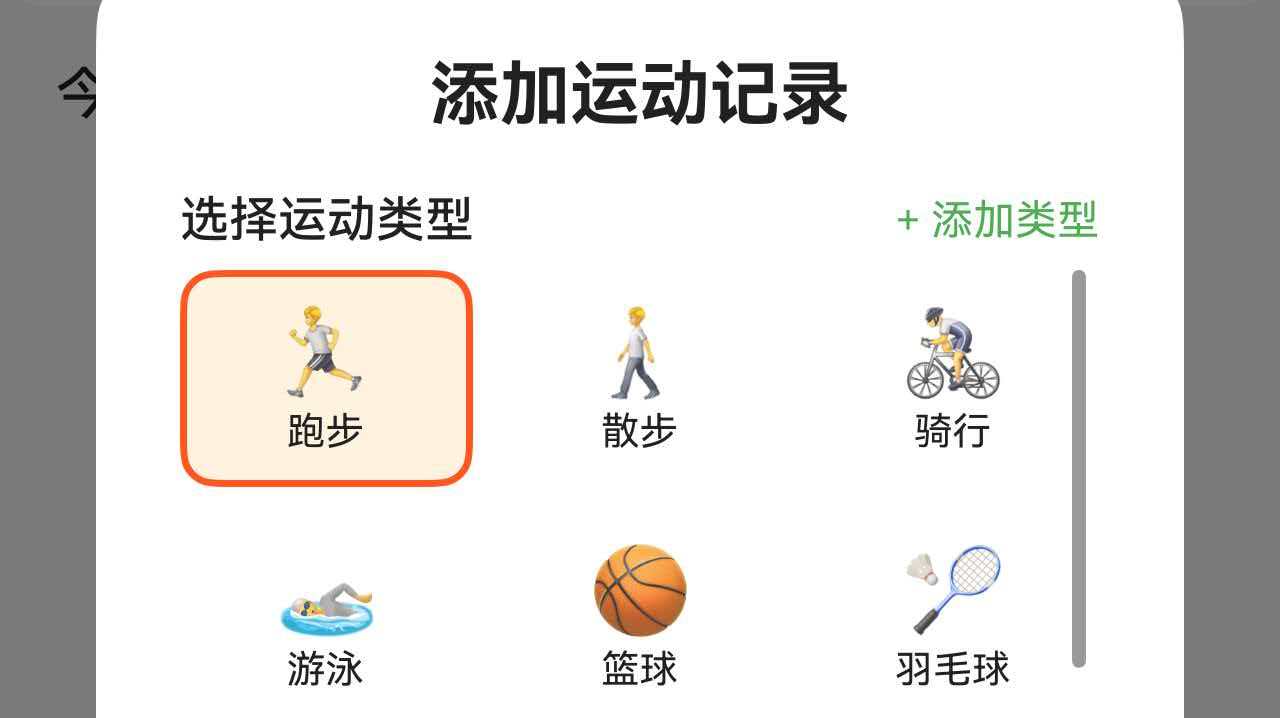
一、完整代码实现
让我们先看运动类型选择网格的完整实现代码。
@Component
export struct ExerciseTabContent {
  @State exerciseTypes: ExerciseTypeData[] = [];
  @State selectedType: number = 0;
  @State currentBreakpoint: BreakpointType = getBreakpointManager().getCurrentBreakpoint();

  // 获取网格列数模板
  private getTypeGridColumnsTemplate(): string {
    switch (this.currentBreakpoint) {
      case BreakpointType.MD:
        return '1fr 1fr 1fr 1fr';      // 中屏:4列
      case BreakpointType.LG:
        return '1fr 1fr 1fr 1fr 1fr';  // 大屏:5列
      default:
        return '1fr 1fr 1fr';          // 小屏:3列
    }
  }

  // 获取网格高度
  private getTypeGridHeight(): number {
    return getValueByBreakpoint(
      this.currentBreakpoint,
      new BreakpointValue<number>(150, 170, 190)
    );
  }

  // 获取网格项高度
  private getTypeItemHeight(): number {
    return getValueByBreakpoint(
      this.currentBreakpoint,
      new BreakpointValue<number>(62, 70, 78)
    );
  }

  // 获取图标大小
  private getTypeItemIconSize(): number {
    return getValueByBreakpoint(
      this.currentBreakpoint,
      new BreakpointValue<number>(24, 26, 28)
    );
  }

  // 获取文字大小
  private getTypeItemTextSize(): number {
    return getValueByBreakpoint(
      this.currentBreakpoint,
      new BreakpointValue<number>(11, 12, 13)
    );
  }

  // 获取圆角大小
  private getTypeItemRadius(): number {
    return getValueByBreakpoint(
      this.currentBreakpoint,
      new BreakpointValue<number>(10, 12, 14)
    );
  }

  build() {
    Column() {
      // 标题行
      Row() {
        Text('选择运动类型')
          .fontSize(16)
          .fontWeight(FontWeight.Medium)
          .fontColor($r('app.color.text_primary'))

        Blank()

        Text('+ 添加类型')
          .fontSize(13)
          .fontColor($r('app.color.primary_color'))
          .onClick(() => {
            this.showAddTypeDialog = true;
          })
      }
      .width('100%')
      .margin({ top: 20 })

      // 运动类型网格
      Grid() {
        ForEach(this.exerciseTypes, (type: ExerciseTypeData, index: number) => {
          GridItem() {
            Column() {
              // 图标
              Text(type.icon)
                .fontSize(this.getTypeItemIconSize())

              // 文字
              Text(type.name)
                .fontSize(this.getTypeItemTextSize())
                .fontColor($r('app.color.text_primary'))
                .margin({ top: 2 })
            }
            .width('100%')
            .height(this.getTypeItemHeight())
            .justifyContent(FlexAlign.Center)
            .backgroundColor(
              this.selectedType === index
                ? $r('app.color.exercise_surface')  // 选中:浅橙色
                : $r('app.color.card_background')   // 未选中:白色
            )
            .borderRadius(this.getTypeItemRadius())
            .border({
              width: this.selectedType === index ? 2 : 0,
              color: $r('app.color.exercise_orange')
            })
            .onClick(() => {
              this.selectedType = index;
              this.updateEditableCalories();
            })
            .gesture(
              LongPressGesture({ repeat: false })
                .onAction(() => {
                  this.confirmDeleteExerciseType(type.type, type.name);
                })
            )
          }
        })
      }
      .columnsTemplate(this.getTyp

## 一、完整代码实现

让我们先看运动类型选择网格的完整实现代码。

```typescript
@Component
export struct ExerciseTabContent {
  @State exerciseTypes: ExerciseTypeData[] = [];
  @State selectedType: number = 0;
  @State currentBreakpoint: BreakpointType = 'sm';

  build() {
    Column() {
      // 标题行
      Row() {
        Text('选择运动类型')
          .fontSize(16)
          .fontWeight(FontWeight.Medium)

        Blank()

        Text('+ 添加类型')
          .fontSize(13)
          .fontColor($r('app.color.primary_color'))
          .onClick(() => {
            this.showAddTypeDialog = true;
          })
      }
      .width('100%')

      // 运动类型网格
      Grid() {
        ForEach(this.exerciseTypes, (type: ExerciseTypeData, index: number) => {
          GridItem() {
            Column() {
              Text(type.icon)
                .fontSize(24)
              Text(type.name)
                .fontSize(12)
                .margin({ top: 2 })
            }
            .width('100%')
            .height(70)
            .justifyContent(FlexAlign.Center)
            .backgroundColor(
              this.selectedType === index
                ? $r('app.color.exercise_surface')
                : $r('app.color.card_background')
            )
            .borderRadius(12)
            .border({
              width: this.selectedType === index ? 2 : 0,
              color: $r('app.color.exercise_orange')
            })
            .onClick(() => {
              this.selectedType = index;
            })
            .gesture(
              LongPressGesture({ repeat: false })
                .onAction(() => {
                  this.confirmDeleteExerciseType(type.type, type.name);
                })
            )
          }
        })
      }
      .columnsTemplate('1fr 1fr 1fr')  // 3列布局
      .rowsGap(8)
      .columnsGap(8)
      .width('100%')
      .height(150)
    }
  }
}

interface ExerciseTypeData {
  type: string;
  name: string;
  icon: string;
  caloriesPerMinute: number;
}
二、Grid 组件基础知识
2.1 Grid 的基本用法
最简单的 Grid:
Grid() {
  GridItem() {
    Text('项目1')
  }
  GridItem() {
    Text('项目2')
  }
  GridItem() {
    Text('项目3')
  }
}
.columnsTemplate('1fr 1fr 1fr')  // 3列,每列等宽
核心组件:
- Grid:网格容器
- GridItem:网格项,Grid 的直接子组件
2.2 columnsTemplate 属性
columnsTemplate 定义了网格的列数和每列的宽度。
固定列数:
// 3列,每列等宽
.columnsTemplate('1fr 1fr 1fr')

// 4列,每列等宽
.columnsTemplate('1fr 1fr 1fr 1fr')

// 5列,每列等宽
.columnsTemplate('1fr 1fr 1fr 1fr 1fr')
不等宽列:
// 3列,第一列占 2 份,其他列各占 1 份
.columnsTemplate('2fr 1fr 1fr')

// 2列,第一列固定 100px,第二列占剩余空间
.columnsTemplate('100px 1fr')
fr 单位说明:
fr是 fraction(分数)的缩写1fr表示占 1 份2fr表示占 2 份- 总宽度按比例分配
示例:
// 总宽度 300px
.columnsTemplate('1fr 1fr 1fr')
// 每列宽度:100px, 100px, 100px

.columnsTemplate('2fr 1fr 1fr')
// 每列宽度:150px, 75px, 75px
2.3 rowsTemplate 属性
rowsTemplate 定义了网格的行数和每行的高度(可选)。
固定行数:
Grid() {
  // 6个项目
}
.columnsTemplate('1fr 1fr 1fr')  // 3列
.rowsTemplate('1fr 1fr')         // 2行
// 结果:3列 x 2行 = 6个格子
自动行数:
Grid() {
  // 9个项目
}
.columnsTemplate('1fr 1fr 1fr')  // 3列
// 不设置 rowsTemplate,自动计算行数
// 结果:3列 x 3行 = 9个格子
通常情况下,我们只设置 columnsTemplate,让行数自动计算。
2.4 间距属性
行间距和列间距:
Grid() {
  // 网格项
}
.columnsTemplate('1fr 1fr 1fr')
.rowsGap(8)      // 行间距 8px
.columnsGap(8)   // 列间距 8px
统一间距(不推荐):
// ArkTS 没有统一的 gap 属性,需要分别设置
.rowsGap(8)
.columnsGap(8)
2.5 滚动属性
当网格内容超出容器高度时,可以设置滚动。
固定高度 + 滚动:
Grid() {
  ForEach(this.items, (item) => {
    GridItem() {
      Text(item.name)
    }
  })
}
.columnsTemplate('1fr 1fr 1fr')
.rowsGap(8)
.columnsGap(8)
.width('100%')
.height(200)  // 固定高度
// 内容超出时自动滚动
自适应高度(不滚动):
Grid() {
  // 网格项
}
.columnsTemplate('1fr 1fr 1fr')
.width('100%')
// 不设置 height,高度自适应内容
三、响应式网格布局
3.1 为什么需要响应式列数
不同屏幕尺寸应该显示不同的列数:
- 小屏(手机):3列,避免过于拥挤
- 中屏(平板竖屏):4列,充分利用空间
- 大屏(平板横屏):5列,最大化展示
3.2 动态列数实现
方案1:使用函数返回模板字符串
private getTypeGridColumnsTemplate(): string {
  switch (this.currentBreakpoint) {
    case BreakpointType.MD:
      return '1fr 1fr 1fr 1fr';      // 4列
    case BreakpointType.LG:
      return '1fr 1fr 1fr 1fr 1fr';  // 5列
    default:
      return '1fr 1fr 1fr';          // 3列
  }
}

Grid() {
  // 网格项
}
.columnsTemplate(this.getTypeGridColumnsTemplate())
方案2:使用三元表达式
Grid() {
  // 网格项
}
.columnsTemplate(
  this.currentBreakpoint === 'lg'
    ? '1fr 1fr 1fr 1fr 1fr'
    : this.currentBreakpoint === 'md'
    ? '1fr 1fr 1fr 1fr'
    : '1fr 1fr 1fr'
)
方案3:使用辅助函数
function getColumnsTemplate(cols: number): string {
  return Array(cols).fill('1fr').join(' ');
}

Grid() {
  // 网格项
}
.columnsTemplate(getColumnsTemplate(3))  // '1fr 1fr 1fr'
3.3 断点监听
响应式布局需要监听屏幕尺寸变化。
@State currentBreakpoint: BreakpointType = 'sm';
private breakpointManager: BreakpointManager | null = null;
private breakpointListener: ((breakpoint: BreakpointType) => void) | null = null;

aboutToAppear(): void {
  this.breakpointManager = getBreakpointManager();
  this.currentBreakpoint = this.breakpointManager.getCurrentBreakpoint();

  this.breakpointListener = (breakpoint: BreakpointType) => {
    this.currentBreakpoint = breakpoint;
  };
  this.breakpointManager.onChange(this.breakpointListener);
}

aboutToDisappear(): void {
  if (this.breakpointManager && this.breakpointListener) {
    this.breakpointManager.removeCallback(this.breakpointListener);
  }
}
3.4 响应式高度
网格高度也应该根据屏幕大小调整。
private getTypeGridHeight(): number {
  return getValueByBreakpoint(
    this.currentBreakpoint,
    new BreakpointValue<number>(150, 170, 190)
  );
}

Grid() {
  // 网格项
}
.height(this.getTypeGridHeight())
为什么需要响应式高度?
- 小屏:高度 150px,显示 2 行(3列 x 2行 = 6项)
- 中屏:高度 170px,显示 2 行(4列 x 2行 = 8项)
- 大屏:高度 190px,显示 2 行(5列 x 2行 = 10项)
3.5 响应式间距
间距也可以根据屏幕大小调整。
private getItemGap(): number {
  return getValueByBreakpoint(
    this.currentBreakpoint,
    new BreakpointValue<number>(6, 8, 10)
  );
}

Grid() {
  // 网格项
}
.rowsGap(this.getItemGap())
.columnsGap(this.getItemGap())
四、网格项样式设计
4.1 统一卡片样式
每个网格项应该有统一的视觉风格。
基础卡片样式:
GridItem() {
  Column() {
    Text('🏃')
      .fontSize(24)
    Text('跑步')
      .fontSize(12)
      .margin({ top: 2 })
  }
  .width('100%')
  .height(70)
  .justifyContent(FlexAlign.Center)
  .backgroundColor($r('app.color.card_background'))
  .borderRadius(12)
}
样式要素:
- 固定高度:height(70),确保所有项目高度一致
- 居中对齐:justifyContent(FlexAlign.Center)
- 背景色:白色或浅色背景
- 圆角:borderRadius(12),柔和视觉效果
4.2 图标 + 文字布局
垂直布局(推荐):
Column() {
  Text('🏃')  // 图标在上
    .fontSize(24)
  Text('跑步')  // 文字在下
    .fontSize(12)
    .margin({ top: 2 })
}
.justifyContent(FlexAlign.Center)
水平布局(不推荐):
Row() {
  Text('🏃')
    .fontSize(20)
  Text('跑步')
    .fontSize(12)
    .margin({ left: 4 })
}
.justifyContent(FlexAlign.Center)
为什么推荐垂直布局?
- 视觉平衡:图标和文字上下排列更美观
- 空间利用:垂直方向有更多空间
- 易于识别:图标更醒目,文字更清晰
4.3 响应式尺寸
网格项的各个元素都应该响应式调整。
网格项高度:
private getTypeItemHeight(): number {
  return getValueByBreakpoint(
    this.currentBreakpoint,
    new BreakpointValue<number>(62, 70, 78)
  );
}

GridItem() {
  Column() {
    // 内容
  }
  .height(this.getTypeItemHeight())
}
图标大小:
private getTypeItemIconSize(): number {
  return getValueByBreakpoint(
    this.currentBreakpoint,
    new BreakpointValue<number>(24, 26, 28)
  );
}

Text('🏃')
  .fontSize(this.getTypeItemIconSize())
文字大小:
private getTypeItemTextSize(): number {
  return getValueByBreakpoint(
    this.currentBreakpoint,
    new BreakpointValue<number>(11, 12, 13)
  );
}

Text('跑步')
  .fontSize(this.getTypeItemTextSize())
圆角大小:
private getTypeItemRadius(): number {
  return getValueByBreakpoint(
    this.currentBreakpoint,
    new BreakpointValue<number>(10, 12, 14)
  );
}

Column() {
  // 内容
}
.borderRadius(this.getTypeItemRadius())
4.4 颜色设计
未选中状态:
.backgroundColor($r('app.color.card_background'))  // 白色
.border({ width: 0 })  // 无边框
选中状态:
.backgroundColor($r('app.color.exercise_surface'))  // 浅橙色
.border({
  width: 2,
  color: $r('app.color.exercise_orange')  // 橙色边框
})
颜色选择原则:
- 未选中:中性色(白色、浅灰),不抢眼
- 选中:主题色(浅色背景 + 深色边框),醒目
- 对比度:确保文字清晰可读
4.5 文字截断
当文字过长时,需要处理截断。
单行截断:
Text('跑步')
  .fontSize(12)
  .maxLines(1)
  .textOverflow({ overflow: TextOverflow.Ellipsis })
固定宽度:
Text('跑步')
  .fontSize(12)
  .width('80%')  // 限制宽度,避免超出卡片
  .textAlign(TextAlign.Center)
五、选中状态与交互
5.1 选中状态管理
使用 @State 管理当前选中的项目。
@State selectedType: number = 0;  // 默认选中第一项

GridItem() {
  Column() {
    // 内容
  }
  .backgroundColor(
    this.selectedType === index
      ? $r('app.color.exercise_surface')
      : $r('app.color.card_background')
  )
  .border({
    width: this.selectedType === index ? 2 : 0,
    color: $r('app.color.exercise_orange')
  })
}
5.2 点击交互
点击网格项时更新选中状态。
GridItem() {
  Column() {
    // 内容
  }
  .onClick(() => {
    this.selectedType = index;  // 更新选中索引
    this.updateEditableCalories();  // 更新相关数据
  })
}
5.3 视觉反馈
方案1:背景色 + 边框
.backgroundColor(
  this.selectedType === index
    ? $r('app.color.exercise_surface')  // 浅橙色
    : $r('app.color.card_background')   // 白色
)
.border({
  width: this.selectedType === index ? 2 : 0,
  color: $r('app.color.exercise_orange')
})
方案2:仅边框
.backgroundColor($r('app.color.card_background'))
.border({
  width: this.selectedType === index ? 2 : 1,
  color: this.selectedType === index
    ? $r('app.color.exercise_orange')
    : $r('app.color.divider_color')
})
方案3:阴影效果
.backgroundColor($r('app.color.card_background'))
.shadow({
  radius: this.selectedType === index ? 8 : 0,
  color: $r('app.color.shadow_color'),
  offsetY: this.selectedType === index ? 2 : 0
})
推荐方案:背景色 + 边框
- 视觉效果最明显
- 符合用户认知
- 易于实现
5.4 长按手势
长按网格项可以触发删除操作。
基础实现:
GridItem() {
  Column() {
    // 内容
  }
  .gesture(
    LongPressGesture({ repeat: false })
      .onAction(() => {
        this.confirmDeleteExerciseType(type.type, type.name);
      })
  )
}
LongPressGesture 参数:
| 参数 | 类型 | 说明 | 默认值 |
|---|---|---|---|
| repeat | boolean | 是否重复触发 | false |
| duration | number | 长按时长(ms) | 500 |
| fingers | number | 手指数量 | 1 |
自定义长按时长:
.gesture(
  LongPressGesture({
    repeat: false,
    duration: 800  // 800ms 触发
  })
    .onAction(() => {
      // 长按操作
    })
)
5.5 点击与长按共存
同时支持点击和长按需要注意事件冲突。
正确做法:
GridItem() {
  Column() {
    // 内容
  }
  .onClick(() => {
    // 点击:选中
    this.selectedType = index;
  })
  .gesture(
    LongPressGesture({ repeat: false })
      .onAction(() => {
        // 长按:删除
        this.confirmDeleteExerciseType(type.type, type.name);
      })
  )
}
事件触发顺序:
- 用户按下 → 开始计时
- 500ms 内松开 → 触发 onClick
- 500ms 后仍按住 → 触发 onAction(长按)
- 长按触发后松开 → 不触发 onClick
5.6 禁用状态
某些情况下需要禁用网格项。
GridItem() {
  Column() {
    Text(type.icon)
      .fontSize(24)
      .opacity(type.isDisabled ? 0.3 : 1)  // 禁用时半透明
    Text(type.name)
      .fontSize(12)
      .fontColor(
        type.isDisabled
          ? $r('app.color.text_secondary')
          : $r('app.color.text_primary')
      )
  }
  .onClick(() => {
    if (!type.isDisabled) {  // 禁用时不响应点击
      this.selectedType = index;
    }
  })
}
六、动态数据管理
6.1 数据加载
从持久化存储加载运动类型数据。
@State exerciseTypes: ExerciseTypeData[] = [];

loadExerciseTypes(): void {
  if (!this.prefService) return;

  this.prefService.getExerciseTypeSettings().then((settings) => {
    const types: ExerciseTypeData[] = [];
    for (let i = 0; i < settings.types.length; i++) {
      const t = settings.types[i];
      types.push({
        type: t.id,
        name: t.name,
        icon: t.icon,
        caloriesPerMinute: t.caloriesPerMinute
      });
    }
    this.exerciseTypes = types;
  });
}

aboutToAppear(): void {
  this.loadExerciseTypes();
}
6.2 添加新类型
用户可以添加自定义运动类型。
addCustomExerciseType(): void {
  if (!this.prefService) return;
  if (this.newTypeName.trim().length === 0) return;

  const newType: CustomExerciseType = {
    id: `custom_${Date.now()}`,
    name: this.newTypeName.trim(),
    icon: EXERCISE_ICONS[this.newTypeIconIndex],
    caloriesPerMinute: this.newTypeCalories,
    isDefault: false
  };

  this.prefService.addExerciseType(newType).then(() => {
    this.loadExerciseTypes();  // 重新加载数据
    this.showAddTypeDialog = false;
  });
}
添加后的效果:
- 新类型出现在网格末尾
- 网格自动扩展(如果需要滚动)
- 可以选择新添加的类型
6.3 删除类型
长按网格项可以删除自定义类型。
confirmDeleteExerciseType(typeId: string, typeName: string): void {
  if (!this.prefService) return;

  // 检查是否有关联记录
  this.prefService.countRecordsByExerciseType(typeId).then((count: number) => {
    this.deleteTypeId = typeId;
    this.deleteTypeName = typeName;
    this.deleteTypeRecordCount = count;
    this.showDeleteTypeDialog = true;  // 显示确认对话框
  });
}

deleteExerciseType(): void {
  if (!this.prefService) return;

  this.prefService.removeExerciseTypeWithRecords(this.deleteTypeId).then(() => {
    this.showDeleteTypeDialog = false;
    this.loadExerciseTypes();  // 重新加载数据

    // 如果删除的是当前选中项,重置选中索引
    if (this.selectedType >= this.exerciseTypes.length - 1) {
      this.selectedType = Math.max(0, this.exerciseTypes.length - 2);
    }
  });
}
6.4 ForEach 的使用
使用 ForEach 渲染网格项。
基础用法:
Grid() {
  ForEach(
    this.exerciseTypes,
    (type: ExerciseTypeData, index: number) => {
      GridItem() {
        // 网格项内容
      }
    }
  )
}
带 key 的用法(推荐):
Grid() {
  ForEach(
    this.exerciseTypes,
    (type: ExerciseTypeData, index: number) => {
      GridItem() {
        // 网格项内容
      }
    },
    (type: ExerciseTypeData): string => type.type  // 唯一 key
  )
}
为什么需要 key?
- 性能优化:避免不必要的重新渲染
- 状态保持:删除/添加项目时保持其他项目的状态
- 动画流畅:列表变化时动画更流畅
6.5 空状态处理
当没有数据时,显示空状态提示。
if (this.exerciseTypes.length === 0) {
  Column() {
    Text('🏃')
      .fontSize(48)
      .fontColor($r('app.color.text_secondary'))
    Text('还没有运动类型')
      .fontSize(14)
      .fontColor($r('app.color.text_secondary'))
      .margin({ top: 8 })
    Text('点击右上角添加')
      .fontSize(12)
      .fontColor($r('app.color.text_secondary'))
      .margin({ top: 4 })
  }
  .width('100%')
  .height(150)
  .justifyContent(FlexAlign.Center)
} else {
  Grid() {
    // 网格内容
  }
}
6.6 加载状态
数据加载时显示加载指示器。
@State isLoading: boolean = false;

loadExerciseTypes(): void {
  this.isLoading = true;

  this.prefService.getExerciseTypeSettings().then((settings) => {
    this.exerciseTypes = settings.types;
    this.isLoading = false;
  }).catch(() => {
    this.isLoading = false;
  });
}

// 渲染
if (this.isLoading) {
  LoadingProgress()
    .width(40)
    .height(40)
} else {
  Grid() {
    // 网格内容
  }
}
七、总结
通过本文的学习,我们深入了解了 Grid 组件的使用方法和设计技巧。
核心知识点回顾
1. Grid 组件的基础用法
- Grid 容器 + GridItem 子项
- columnsTemplate 定义列数和宽度
- rowsGap 和 columnsGap 设置间距
- fr 单位实现等宽布局
2. 响应式网格布局
- 根据断点返回不同的 columnsTemplate
- 小屏 3 列、中屏 4 列、大屏 5 列
- 监听断点变化自动更新
- 响应式高度、间距、圆角
3. 网格项样式设计
- 统一的卡片样式
- 图标 + 文字垂直布局
- 固定高度确保一致性
- 圆角、背景色、边框
4. 选中状态与交互
- @State 管理选中索引
- 背景色 + 边框视觉反馈
- onClick 处理点击事件
- LongPressGesture 处理长按
5. 动态数据管理
- ForEach 渲染网格项
- 提供唯一 key 优化性能
- 支持添加和删除
- 空状态和加载状态处理
结语
Grid 组件是最常用的布局组件之一。通过合理的设计和优化,可以为用户提供整齐、美观、易于浏览的界面体验。
祝你在 HarmonyOS 应用开发的道路上越走越远!

讨论HarmonyOS开发技术,专注于API与组件、DevEco Studio、测试、元服务和应用上架分发等。
更多推荐


 54
54 0
0- 0


 已为社区贡献26条内容

所有评论(0)