鸿蒙 HarmonyOS 6 | 多媒体 (03) 图像处理 Image Kit 与 PixelMap 实战
本文深入探讨了HarmonyOS 6中图像处理的底层实现技术。首先解析了PixelMap对象的内存结构,强调了1080×1920图片在RGBA_8888格式下约占用8MB内存的注意事项。接着介绍了通过ImageSource模块从沙箱读取文件并进行解码的关键流程,重点说明了RGB_565格式可降低50%内存消耗的优势。文章还详细阐述了使用OffscreenCanvas实现离屏渲染添加文字水印的技术方
文章目录
前言
在移动端业务系统开发中,图片底层的精细化处理是一项高频业务需求。无论是用户上传证件照前要求进行本地裁剪,还是在即时通讯应用中对发送的原图进行画质压缩,开发者都必须掌握对像素矩阵进行底层修改的核心能力。
仅仅依靠 UI 层的图片控件进行展示,无法满足现代商业产品对性能开销和业务定制能力的严格标准。
我将带领开发者直接深入 HarmonyOS 6 的多媒体底层架构。我们将全面剖析 Image Kit 模块的核心数据结构,从沙箱物理文件的读取开始,实现像素级的数据解析与加载。
一、 图像数据的内存结构与 PixelMap 深度解析
在进行任何图像操作之前,理解图像底层在内存中的存在形式是规避应用崩溃的前提。在鸿蒙操作系统中,所有未经编码压缩的纯像素点阵数据,均被统一封装在 PixelMap 对象内部。一张本地的 JPEG 图片完成解码后,会在运存中转化为一个庞大的原始像素矩阵。
开发者必须严格控制图像的内存占用。以一张 1080 乘以 1920 的超清图片为例,若采用默认的 RGBA_8888 颜色编码格式,每个像素点占据 4 个字节,单张图片在内存中的体积约为 8 兆字节。如果在长列表中并发加载大量此类未经降采样的高清图片,极易触发系统级的内存溢出机制导致进程终止。
针对 PixelMap 对象,开发者应当遵循严格的资源清理规范。当图像对象完成业务使命不再被引用时,必须显式调用释放接口手动交还物理内存,禁止被动依赖系统的垃圾回收机制。
// 声明一个像素矩阵对象
let currentPixelMap: image.PixelMap | null = null;

// 异步释放内存资源的规范写法
async function releasePixelMapSafely() {
  if (currentPixelMap !== null) {
    try {
      // 显式调用 release 方法释放底层物理内存
      await currentPixelMap.release();
      currentPixelMap = null;
      console.info('[ImageService] PixelMap released successfully.');
    } catch (err) {
      console.error(`[ImageService] Release failed ${(err as Error).message}`);
    }
  }
}
二、 文件读取与数据解码的底层实现
图像处理的首个关键流程是将沙箱中的二进制物理文件转换为运存中的 PixelMap 实例。系统提供了 ImageSource 模块来承担这一核心职能。
通常图片文件存储在应用独占的私有沙箱目录中。开发者需要结合底层文件系统模块,以只读模式开启目标文件获取文件描述符句柄,随后将其传递给图像源模块完成解码器实例的构建。
在构建解码配置参数时,有两个极其重要的属性需要明确。首先是期望的像素格式。对于不包含透明背景的常规相片,将其指定为 RGB_565 格式可以直接剥离透明度通道并降低色深,从而将内存消耗总额精准缩减一半。其次是可编辑属性。如果后续业务包含在图像上叠加水印等操作,必须在配置参数中明确声明要求产出可编辑格式的对象。
import { image } from '@kit.ImageKit';
import { fileIo as fs } from '@kit.CoreFileKit';

async function decodeImageFromSandbox(filePath: string): Promise<image.PixelMap | null> {
  let file: fs.File | undefined;
  try {
    // 开启底层物理通道获取句柄
    file = fs.openSync(filePath, fs.OpenMode.READ_ONLY);

    // 利用文件句柄构建底层解码源对象
    const imageSource = image.createImageSource(file.fd);

    // 构建详细的解码参数设定
    const decodingOptions: image.DecodingOptions = {
      // 关键配置 确保产出的矩阵具备可二次覆写的权限
      editable: true,
      // 强制指定为降低开销的色彩深度模式 RGB_565
      desiredPixelFormat: image.PixelMapFormat.RGB_565
    };

    // 执行解码操作装载至运存
    const pixelMap = await imageSource.createPixelMap(decodingOptions);
    return pixelMap;
  } catch (err) {
    console.error(`[ImageService] Decode failed ${(err as Error).message}`);
    return null;
  } finally {
    // 无论解码成功与否 文件句柄必须严格释放
    if (file) {
      fs.closeSync(file);
    }
  }
}
三、 离屏渲染机制与自定义文字绘制
Image Kit 模块自身不直接提供合并文字的高阶图形复合接口。要在静态图片上绘制定制化文字内容,必须跨模块调用 ArkUI 核心组件库中的离屏渲染技术框架 OffscreenCanvas。
离屏渲染技术允许程序在脱离物理屏幕显示层的情况下,在后台内存中独立开辟虚拟绘制画布。开发者需要获取源 PixelMap 的真实宽高,创建一个像素对齐的虚拟画布实例,并获取 2D 上下文操作句柄。
随后通过绘制指令将原始 PixelMap 数据平铺至画布底层。接着设置画笔的字体样式、颜色、阴影及对齐方式,通过文本填充方法将内容精准压盖至画面的特定坐标。最后从虚拟上下文中抽取出携带最新图层信息的全像素数据,重新封装为一个全新的 PixelMap 对象。
async function addTextWatermark(sourcePixelMap: image.PixelMap, text: string): Promise<image.PixelMap> {
  // 检索底层矩阵的真实物理边界尺寸
  const imageInfo = await sourcePixelMap.getImageInfo();
  const width = imageInfo.size.width;
  const height = imageInfo.size.height;

  // 开辟完全复刻原始尺寸的后台虚拟画板
  const offscreenCanvas = new OffscreenCanvas(width, height);
  const ctx = offscreenCanvas.getContext('2d');

  // 将原始数据平铺作为最底层背景
  ctx.drawImage(sourcePixelMap, 0, 0, width, height);

  // 初始化水印文字的渲染属性
  const fontSize = Math.floor(width * 0.05);
  ctx.font = `${fontSize}px sans-serif`;
  ctx.fillStyle = 'rgba(255, 255, 255, 0.9)';
  ctx.textAlign = 'right';
  ctx.textBaseline = 'bottom';

  // 附加阴影特征增强底图环境下的辨识度
  ctx.shadowColor = 'rgba(0, 0, 0, 0.8)';
  ctx.shadowBlur = 6;
  ctx.shadowOffsetX = 3;
  ctx.shadowOffsetY = 3;

  // 实施精准的边距计算并下发绘制指令
  const padding = 20;
  ctx.fillText(text, width - padding, height - padding);

  // 提取融合了印记数据的全新像素矩阵
  const newPixelMap = offscreenCanvas.getPixelMap(0, 0, width, height);
  return newPixelMap;
}
四、 数据重组与画质压缩的精准控制
历经逻辑处理的图像目前仅存在于易失性运存中。为了将其保存到本地或用于网络传输,程序必须将像素矩阵重新进行编码封包压缩。在这一逆向转换流程里,ImagePacker 模块承担了最为核心的计算负载。
编码流程首先需要指定目标输出格式。为了平衡体积与兼容性,绝大多数场景倾向于强制指定为 image/jpeg 编码规范。
在组装编码配置参数时,压缩质量参数是决定最终体积的关键。该数值接收一个介于 0 至 100 之间的整数。数值越小代表量化舍入策略越激进,物理文件体积显著缩减,但会大幅牺牲画面高频细节。通常将此参数限定在 80 附近区域,能够实现人类视觉质量感知与实际存储设备空间占用之间的平衡。
底层编码执行完毕后,系统会返回一个包含压缩数据流的 ArrayBuffer 对象。开发者需再次引入沙箱文件操作模块,将其安全写入底层文件系统。
async function compressAndSaveImage(pixelMap: image.PixelMap, outputPath: string, quality: number): Promise<number> {
  let file: fs.File | undefined;
  try {
    // 构建核心压缩器实例模块
    const imagePacker = image.createImagePacker();

    // 封装关键指令 指定格式规范与质量衰减阈值
    const packOpts: image.PackingOption = {
      format: 'image/jpeg',
      quality: quality
    };

    // 启动矩阵转换流程产出字节流
    const imageBuffer = await imagePacker.packing(pixelMap, packOpts);

    // 执行安全覆写写入过程
    file = fs.openSync(outputPath, fs.OpenMode.CREATE | fs.OpenMode.TRUNC | fs.OpenMode.READ_WRITE);
    fs.writeSync(file.fd, imageBuffer);

    // 计算实际落盘的物理体积并返回千字节数值
    const sizeKB = imageBuffer.byteLength / 1024;
    return sizeKB;
  } catch (err) {
    console.error(`[ImageService] Pack and save failed ${(err as Error).message}`);
    return 0;
  } finally {
    if (file) {
      fs.closeSync(file);
    }
  }
}
五、 综合实战 图像编辑与水印压缩工具完整代码
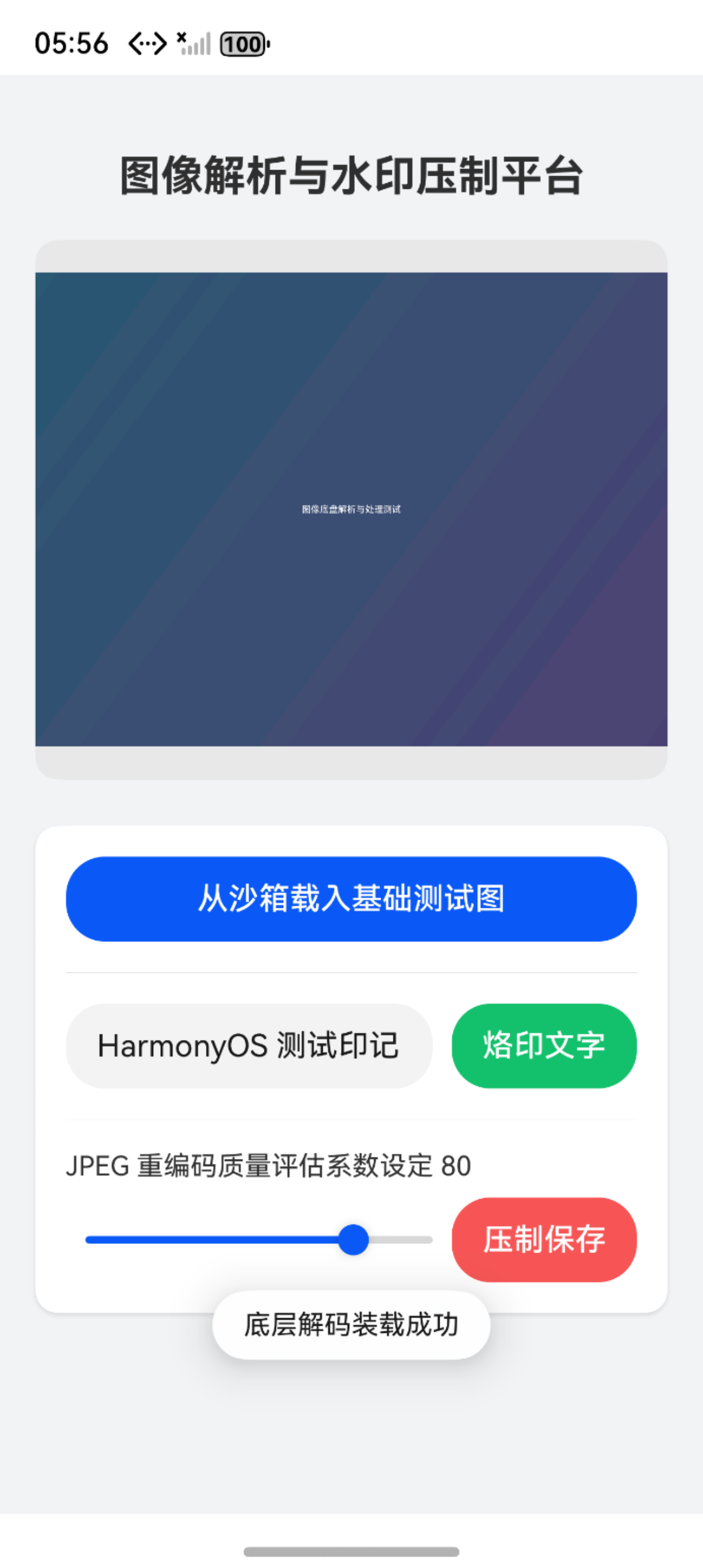
基于上文构建的知识体系与核心代码片段,我们将整合出一个完整的实战工程文件。该代码集合涵盖了一个简洁直观的前端交互面板。
为保证该案例可以实现零依赖直接运行,我们在组件的初始化阶段内置了一套离屏绘制生成原生底图文件的自举逻辑,免除了手动向模拟器推送图片素材的预备工作。用户能够实时键入自定义水印信息,调控期望输出的图片品质系数,并实时查看最终占用的实际存储开销。
import { image } from '@kit.ImageKit';
import { fileIo as fs } from '@kit.CoreFileKit';
import { common } from '@kit.AbilityKit';
import { promptAction } from '@kit.ArkUI';

// 构建统筹全局逻辑的图像处理服务类
class ImageProcessService {
  private static instance: ImageProcessService;
  private currentPixelMap: image.PixelMap | null = null;
  private context: common.UIAbilityContext | null = null;

  public static getInstance(): ImageProcessService {
    if (!ImageProcessService.instance) {
      ImageProcessService.instance = new ImageProcessService();
    }
    return ImageProcessService.instance;
  }

  public init(context: common.UIAbilityContext) {
    this.context = context;
  }

  // 服务前置准备 构建一张初始测试图片并推入沙箱
  public async prepareDummyImageIfNeed(): Promise<void> {
    if (!this.context) return;
    const originalPath = this.context.filesDir + '/original_test.jpg';

    if (fs.accessSync(originalPath)) {
      return;
    }

    try {
      const canvasWidth: number = 800;
      const canvasHeight: number = 600;
      const offscreenCanvas = new OffscreenCanvas(canvasWidth, canvasHeight);

      // 【修复点一】显式声明并断言上下文类型,消除 any 报错
      const ctx = offscreenCanvas.getContext('2d') as OffscreenCanvasRenderingContext2D;

      const gradient = ctx.createLinearGradient(0, 0, canvasWidth, canvasHeight);
      gradient.addColorStop(0, '#2b5876');
      gradient.addColorStop(1, '#4e4376');
      ctx.fillStyle = gradient;
      ctx.fillRect(0, 0, canvasWidth, canvasHeight);

      ctx.fillStyle = '#ffffff';
      ctx.font = '40px sans-serif';
      ctx.textAlign = 'center';
      ctx.textBaseline = 'middle';
      ctx.fillText('图像底盘解析与处理测试', canvasWidth / 2, canvasHeight / 2);

      // 【修复点二】从 ctx 上下文对象中调用 getPixelMap,而不是 offscreenCanvas
      const dummyPixelMap = ctx.getPixelMap(0, 0, canvasWidth, canvasHeight);

      const imagePacker = image.createImagePacker();
      const packOpts: image.PackingOption = { format: 'image/jpeg', quality: 100 };
      const imageBuffer = await imagePacker.packing(dummyPixelMap, packOpts);

      const file = fs.openSync(originalPath, fs.OpenMode.CREATE | fs.OpenMode.READ_WRITE);
      fs.writeSync(file.fd, imageBuffer);
      fs.closeSync(file);

      await dummyPixelMap.release();
    } catch (err) {
      console.error(`[ImageService] Create dummy image failed ${(err as Error).message}`);
    }
  }

  // 执行沙箱本地文件加载与数据解码逻辑
  public async loadOriginalImage(): Promise<image.PixelMap | null> {
    if (!this.context) return null;
    const originalPath = this.context.filesDir + '/original_test.jpg';
    let file: fs.File | undefined;

    try {
      file = fs.openSync(originalPath, fs.OpenMode.READ_ONLY);
      const imageSource = image.createImageSource(file.fd);
      const decodingOptions: image.DecodingOptions = {
        editable: true,
        desiredPixelFormat: image.PixelMapFormat.RGB_565
      };

      if (this.currentPixelMap) {
        await this.currentPixelMap.release();
      }

      this.currentPixelMap = await imageSource.createPixelMap(decodingOptions);
      return this.currentPixelMap;

    } catch (err) {
      console.error(`[ImageService] Load image failed ${(err as Error).message}`);
      return null;
    } finally {
      if (file) {
        fs.closeSync(file);
      }
    }
  }

  // 利用离屏操作挂载定制文本印记
  public async addWatermark(text: string): Promise<image.PixelMap | null> {
    if (!this.currentPixelMap) {
      promptAction.showToast({ message: '请优先执行原图载入动作' });
      return null;
    }

    try {
      const imageInfo = await this.currentPixelMap.getImageInfo();
      const width = imageInfo.size.width;
      const height = imageInfo.size.height;

      const offscreenCanvas = new OffscreenCanvas(width, height);

      // 【修复点一】显式声明并断言上下文类型
      const ctx = offscreenCanvas.getContext('2d') as OffscreenCanvasRenderingContext2D;

      ctx.drawImage(this.currentPixelMap, 0, 0, width, height);

      const fontSize: number = Math.floor(width * 0.05);
      ctx.font = `${fontSize}px sans-serif`;
      ctx.fillStyle = 'rgba(255, 255, 255, 0.8)';
      ctx.textAlign = 'right';
      ctx.textBaseline = 'bottom';
      ctx.shadowColor = 'rgba(0, 0, 0, 0.6)';
      ctx.shadowBlur = 4;
      ctx.shadowOffsetX = 2;
      ctx.shadowOffsetY = 2;

      const padding: number = 20;
      ctx.fillText(text, width - padding, height - padding);

      // 【修复点二】从 ctx 上下文对象中提取像素矩阵
      const newPixelMap = ctx.getPixelMap(0, 0, width, height);

      await this.currentPixelMap.release();
      this.currentPixelMap = newPixelMap;

      return this.currentPixelMap;
    } catch (err) {
      console.error(`[ImageService] Add watermark failed ${(err as Error).message}`);
      return this.currentPixelMap;
    }
  }

  // 控制参数重编码并执行物理落盘
  public async compressAndSave(quality: number): Promise<string> {
    if (!this.currentPixelMap || !this.context) {
      promptAction.showToast({ message: '底层数据空缺无法执行保存' });
      return '';
    }

    const outputPath = this.context.filesDir + '/processed_output.jpg';
    let file: fs.File | undefined;

    try {
      const imagePacker = image.createImagePacker();
      const packOpts: image.PackingOption = {
        format: 'image/jpeg',
        quality: quality
      };

      const imageBuffer = await imagePacker.packing(this.currentPixelMap, packOpts);

      file = fs.openSync(outputPath, fs.OpenMode.CREATE | fs.OpenMode.TRUNC | fs.OpenMode.READ_WRITE);
      fs.writeSync(file.fd, imageBuffer);

      const sizeKB = (imageBuffer.byteLength / 1024).toFixed(2);
      return sizeKB;

    } catch (err) {
      console.error(`[ImageService] Compress and save failed ${(err as Error).message}`);
      return '';
    } finally {
      if (file) {
        fs.closeSync(file);
      }
    }
  }

  public async releaseResources() {
    if (this.currentPixelMap) {
      await this.currentPixelMap.release();
      this.currentPixelMap = null;
    }
  }
}

const imageService = ImageProcessService.getInstance();


@Entry
@Component
struct ImageProcessingPage {
  @State displayPixelMap: image.PixelMap | undefined = undefined;
  @State watermarkText: string = 'HarmonyOS 测试印记';
  @State compressQuality: number = 80;
  @State isProcessing: boolean = false;

  async aboutToAppear() {
    const context = getContext(this) as common.UIAbilityContext;
    imageService.init(context);
    await imageService.prepareDummyImageIfNeed();
  }

  aboutToDisappear() {
    imageService.releaseResources();
  }

  build() {
    Column() {
      Text('图像解析与水印压制平台')
        .fontSize(22)
        .fontWeight(FontWeight.Bold)
        .margin({ top: 40, bottom: 20 })

      Column() {
        if (this.displayPixelMap) {
          Image(this.displayPixelMap)
            .objectFit(ImageFit.Contain)
            .width('100%')
            .height('100%')
        } else {
          Text('暂无待处理图像 请点击下方载入')
            .fontColor('#999999')
            .fontSize(14)
        }
      }
      .width('90%')
      .height(280)
      .backgroundColor('#E8E8E8')
      .borderRadius(12)
      .margin({ bottom: 24 })
      .justifyContent(FlexAlign.Center)

      Column({ space: 16 }) {

        Button(this.isProcessing ? '处理中...' : '从沙箱载入基础测试图')
          .width('100%')
          .height(44)
          .backgroundColor('#0A59F7')
          .enabled(!this.isProcessing)
          .onClick(async () => {
            this.isProcessing = true;
            const pm = await imageService.loadOriginalImage();
            if (pm) {
              this.displayPixelMap = pm;
              promptAction.showToast({ message: '底层解码装载成功' });
            }
            this.isProcessing = false;
          })

        Divider().color('#E0E0E0')

        Row({ space: 10 }) {
          TextInput({ text: this.watermarkText, placeholder: '在此键入期望的印记文字' })
            .layoutWeight(1)
            .height(44)
            .onChange((value: string) => {
              this.watermarkText = value;
            })

          Button('烙印文字')
            .height(44)
            .backgroundColor('#10C16C')
            .enabled(!this.isProcessing)
            .onClick(async () => {
              if (!this.displayPixelMap) return;
              this.isProcessing = true;
              const pm = await imageService.addWatermark(this.watermarkText);
              if (pm) {
                this.displayPixelMap = pm;
                promptAction.showToast({ message: '离屏渲染合并完成' });
              }
              this.isProcessing = false;
            })
        }

        Divider().color('#E0E0E0')

        Column() {
          Text(`JPEG 重编码质量评估系数设定 ${this.compressQuality.toFixed(0)}`)
            .fontSize(14)
            .fontColor('#333333')
            .width('100%')
            .margin({ bottom: 8 })

          Row() {
            Slider({
              value: this.compressQuality,
              min: 10,
              max: 100,
              step: 5,
              style: SliderStyle.OutSet
            })
              .layoutWeight(1)
              .blockColor('#0A59F7')
              .trackColor('#D8D8D8')
              .selectedColor('#0A59F7')
              .onChange((value: number) => {
                this.compressQuality = value;
              })

            Button('压制保存')
              .height(44)
              .backgroundColor('#F75555')
              .enabled(!this.isProcessing)
              .onClick(async () => {
                this.isProcessing = true;
                const size = await imageService.compressAndSave(this.compressQuality);
                if (size) {
                  promptAction.showDialog({
                    title: '落盘业务完毕',
                    message: `图像已完成封包并安全写入沙箱物理磁盘\n实际产生体积核算为 ${size} KB`
                  });
                }
                this.isProcessing = false;
              })
          }
        }
      }
      .width('90%')
      .padding(16)
      .backgroundColor('#FFFFFF')
      .borderRadius(12)
      .shadow({ radius: 8, color: '#1A000000', offsetY: 4 })
    }
    .width('100%')
    .height('100%')
    .backgroundColor('#F2F3F5')
  }
}
总结
在 HarmonyOS 6 的多媒体底层体系框架内,Image Kit 为应用开发者赋予了深度的像素操控接口。
我们明确了防范运存崩溃必须高度重视 PixelMap 生命周期的管控机制,并通过单独的代码片段演示了内存的安全释放流程。
我们详细拆解了底层解码源实例对文件数据的加载配置,并借助系统的离屏虚拟画板机制完美达成了自定义排版的水印合并操作。最终,利用图像封装器实现了控制变量级的画质调整与沙箱安全写入。
熟练把控这套由解析、修改到封装的流程,是开发者处理复杂图像业务场景的基石。在下一篇多媒体实战连载中,我们将攻克包含隐私隔离特性的图库素材安全交互体系,深入探讨 MediaLibrary 模块的高级特性与最佳实践规范。

讨论HarmonyOS开发技术,专注于API与组件、DevEco Studio、测试、元服务和应用上架分发等。
更多推荐
 28
28 0
0- 0



 已为社区贡献38条内容

所有评论(0)