鸿蒙PC Electron 打印功能实现深度解析
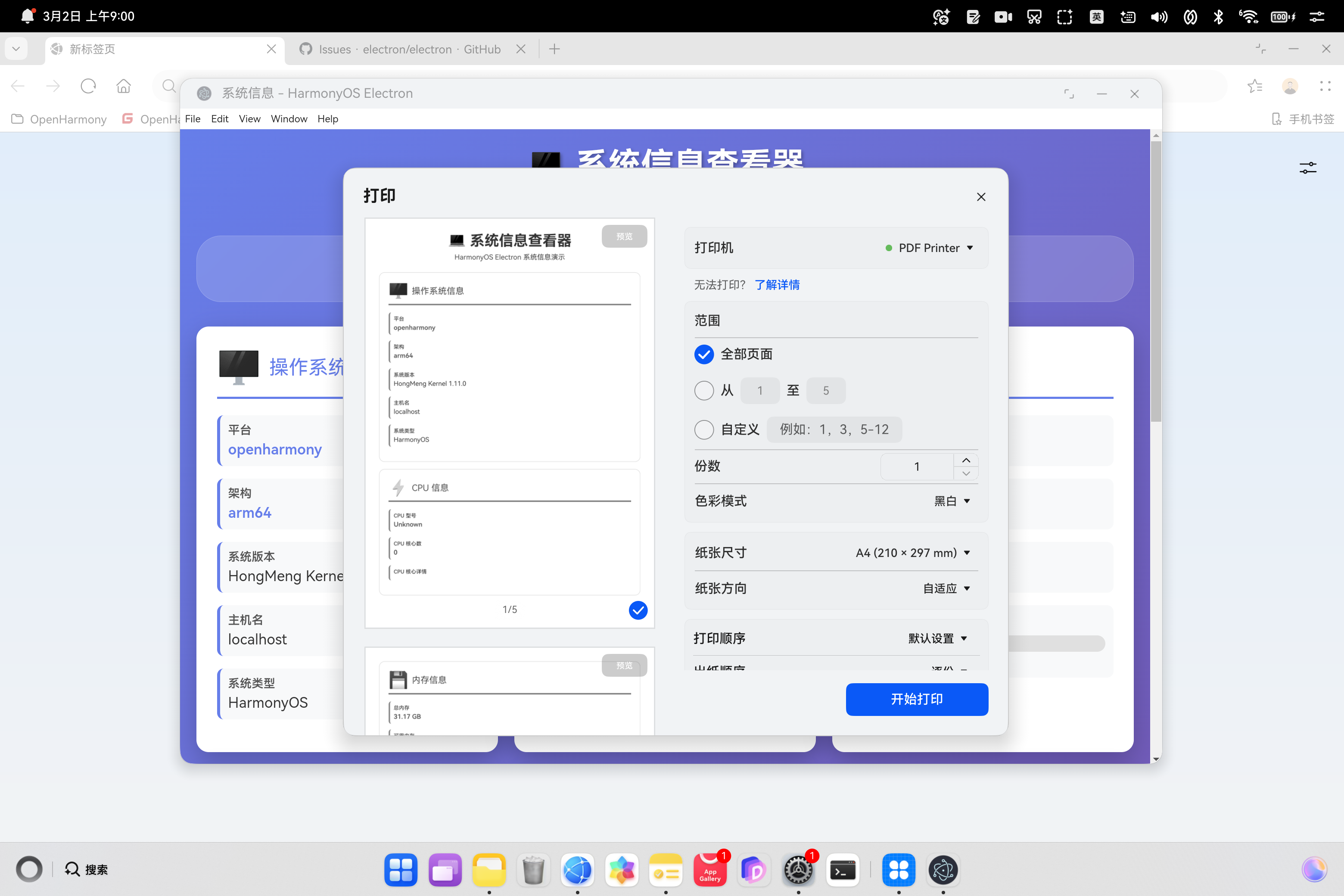
欢迎加入开源鸿蒙PC社区项目地址在桌面应用开发中,打印功能是一个常见但容易被忽视的需求。本文将详细介绍如何在 HarmonyOS Electron 项目中实现完整的打印服务,包括浏览器打印、导出报告等功能,并提供完整的代码实现和最佳实践。在系统信息查看器中,用户需要以下打印相关功能:技术选型功能技术方案优势直接打印+ CSS简单、跨平台、无需额外依赖导出报告IPC 调用主进程 + Node.js
·
鸿蒙PC Electron 打印功能实现深度解析
前言
在桌面应用开发中,打印功能是一个常见但容易被忽视的需求。本文将详细介绍如何在 HarmonyOS Electron 项目中实现完整的打印服务,包括浏览器打印、导出报告等功能,并提供完整的代码实现和最佳实践。
目录
需求分析
业务需求
在系统信息查看器中,用户需要以下打印相关功能:
- 直接打印:将当前显示的系统信息直接打印到纸张
- 导出报告:将系统信息导出为文本文件保存
- 打印优化:打印时隐藏不必要的 UI 元素,优化布局
- 用户友好:提供清晰的操作反馈和错误提示
技术需求
- 使用 Electron 的打印 API
- 实现浏览器打印对话框
- 生成格式化的文本报告
- 优化打印样式
- 处理打印和导出的错误情况
技术方案设计
架构设计
┌─────────────────────────────────────────┐
│         用户界面层 (Renderer)            │
│  - 打印按钮                              │
│  - 导出按钮                              │
│  - 操作反馈                              │
└──────────────┬──────────────────────────┘
               │
               ↓
┌─────────────────────────────────────────┐
│       业务逻辑层 (Renderer Process)      │
│  - printSystemInfo()                    │
│  - exportSystemInfo()                   │
│  - window.print()                       │
└──────────────┬──────────────────────────┘
               │ IPC
               ↓
┌─────────────────────────────────────────┐
│         服务层 (Main Process)            │
│  - export-to-pdf handler                │
│  - print-system-info handler            │
│  - generatePDFContent()                 │
└──────────────┬──────────────────────────┘
               │
               ↓
┌─────────────────────────────────────────┐
│         系统服务层                       │
│  - Electron dialog API                  │
│  - Node.js fs API                       │
│  - Browser print API                    │
└─────────────────────────────────────────┘
技术选型
| 功能 | 技术方案 | 优势 |
|---|---|---|
| 直接打印 | window.print() + CSS @media print |
简单、跨平台、无需额外依赖 |
| 导出报告 | IPC 调用主进程 + Node.js fs API | 完全控制、格式化输出 |
| 文件保存 | Electron dialog.showSaveDialog() |
原生体验、跨平台 |
| 错误处理 | try-catch + 用户提示 | 友好体验、易于调试 |
核心技术实现
1. 打印功能实现
1.1 渲染进程实现
/**
 * 打印系统信息报告
 * 使用浏览器的打印功能,配合 CSS @media print 样式
 */
function printSystemInfo() {
    // 检查是否有内容可打印
    const contentDiv = document.getElementById('content');
    if (contentDiv.style.display === 'none') {
        alert('请先加载系统信息后再打印!');
        return;
    }

    // 调用浏览器打印功能
    window.print();
}
技术要点:
- 内容验证:检查是否有可打印的内容
- 浏览器原生 API:使用
window.print()触发打印 - 用户控制:用户可以选择打印机、页面设置等
1.2 打印样式优化
/* 打印样式 */
@media print {
    body {
        background: white;
        padding: 0;
    }

    .header {
        color: #333;
        margin-bottom: 20px;
    }

    .header h1 {
        text-shadow: none;
    }

    /* 隐藏按钮组 */
    .button-group {
        display: none;
    }

    /* 优化卡片样式 */
    .info-card {
        box-shadow: none;
        border: 1px solid #ddd;
        page-break-inside: avoid;  /* 防止卡片被分页切断 */
    }

    .timestamp {
        color: #666;
        opacity: 1;
    }
}
CSS 媒体查询深度解析:
@media print 是 CSS3 提供的媒体查询特性,专门用于打印样式:
@media print {
    /* 只在打印时生效的样式 */
}
关键样式说明:
-
背景色处理
body { background: white; /* 打印机通常不支持渐变背景 */ } -
隐藏 UI 元素
.button-group { display: none; /* 打印时不显示按钮 */ } -
防止分页切断
.info-card {
    page-break-inside: avoid;  /* 防止卡片被分页 */
}
其他相关属性:
page-break-before: always- 在元素前强制分页page-break-after: always- 在元素后强制分页page-break-inside: avoid- 避免元素内部分页
-
颜色优化
.header h1 {
    text-shadow: none;  /* 移除阴影,节省墨水 */
}
1.3 打印流程
用户点击打印按钮
    ↓
验证内容是否已加载
    ↓
调用 window.print()
    ↓
浏览器显示打印对话框
    ↓
用户选择打印机和设置
    ↓
浏览器渲染打印页面
    ↓
应用 @media print 样式
    ↓
发送到打印机
    ↓
完成打印
2. 导出功能实现
2.1 主进程 IPC 处理器
/**
 * IPC 处理器: 导出系统信息为文本文件
 *
 * @returns {Promise<{success: boolean, filePath?: string, error?: string}>}
 */
ipcMain.handle('export-to-pdf', async () => {
    try {
        // 获取系统信息
        const info = await ipcMain.handle('get-system-info');

        // 生成 PDF 内容
        const pdfContent = generatePDFContent(info);

        // 显示保存对话框
        const result = await dialog.showSaveDialog(mainWindow, {
            title: '导出系统信息报告',
            defaultPath: `系统信息报告_${new Date().toISOString().split('T')[0]}.txt`,
            filters: [
                { name: '文本文件', extensions: ['txt'] },
                { name: '所有文件', extensions: ['*'] }
            ]
        });

        if (result.canceled) {
            return { success: false, error: '用户取消了保存' };
        }

        // 写入文件
        await fs.writeFile(result.filePath, pdfContent, 'utf-8');

        return { success: true, filePath: result.filePath };
    } catch (error) {
        console.error('Export to PDF error:', error);
        return { success: false, error: error.message };
    }
});
技术要点解析:
-
异步操作链
async () => { const info = await getSystemInfo(); // 获取数据 const content = generatePDFContent(info); // 生成内容 const result = await dialog.showSaveDialog(...); // 保存对话框 await fs.writeFile(result.filePath, content); // 写入文件 } -
错误处理策略
try { // 业务逻辑 } catch (error) { console.error('Export error:', error); return { success: false, error: error.message }; } -
用户取消处理
if (result.canceled) {
    return { success: false, error: '用户取消了保存' };
}
2.2 文件内容生成
/**
 * 生成 PDF 文本内容
 *
 * @param {Object} info - 系统信息对象
 * @returns {string} 格式化的文本内容
 */
function generatePDFContent(info) {
    const lines = [];

    // 报告头部
    lines.push('========================================');
    lines.push('       系统信息报告');
    lines.push('========================================');
    lines.push('');
    lines.push(`生成时间: ${new Date(info.timestamp).toLocaleString('zh-CN')}`);
    lines.push('');

    // 操作系统信息
    lines.push('----------------------------------------');
    lines.push('操作系统信息');
    lines.push('----------------------------------------');
    lines.push(`平台: ${info.platform}`);
    lines.push(`架构: ${info.arch}`);
    lines.push(`系统版本: ${info.release}`);
    lines.push(`主机名: ${info.hostname}`);
    lines.push(`系统类型: ${info.type}`);
    lines.push('');

    // CPU 信息
    lines.push('----------------------------------------');
    lines.push('CPU 信息');
    lines.push('----------------------------------------');
    lines.push(`CPU 型号: ${info.cpuModel}`);
    lines.push(`CPU 核心数: ${info.cpuCount}`);
    lines.push('CPU 核心详情:');
    info.cpus.slice(0, 4).forEach((cpu, index) => {
        lines.push(`  核心 ${index + 1}: ${(cpu.speed / 1000).toFixed(2)} GHz`);
    });
    lines.push('');

    // 内存信息
    lines.push('----------------------------------------');
    lines.push('内存信息');
    lines.push('----------------------------------------');
    lines.push(`总内存: ${formatBytes(info.totalMemory)}`);
    lines.push(`可用内存: ${formatBytes(info.freeMemory)}`);
    lines.push(`已用内存: ${formatBytes(info.usedMemory)}`);
    lines.push(`内存使用率: ${info.memoryUsagePercent}%`);
    lines.push('');

    // ... 其他信息部分

    lines.push('========================================');
    lines.push('       报告结束');
    lines.push('========================================');

    return lines.join('\n');
}
代码设计模式:
-
数组累积模式
const lines = []; lines.push('Line 1'); lines.push('Line 2'); return lines.join('\n'); // 高效的字符串拼接 -
模块化设计
- 每个信息类别独立处理
- 统一的格式化风格
- 易于扩展和维护
-
数据转换
info.cpus.slice(0, 4).forEach((cpu, index) => {
    lines.push(`核心 ${index + 1}: ${(cpu.speed / 1000).toFixed(2)} GHz`);
});
2.3 渲染进程调用
/**
 * 导出系统信息报告为文本文件
 * 通过 IPC 调用主进程的导出功能
 */
async function exportSystemInfo() {
    // 检查是否有内容可导出
    const contentDiv = document.getElementById('content');
    if (contentDiv.style.display === 'none') {
        alert('请先加载系统信息后再导出!');
        return;
    }

    try {
        // 调用主进程导出功能
        const result = await ipcRenderer.invoke('export-to-pdf');

        if (result.success) {
            alert(`✅ 导出成功!\n文件已保存到: ${result.filePath}`);
        } else {
            alert(`❌ 导出失败: ${result.error}`);
        }
    } catch (error) {
        console.error('Export error:', error);
        alert(`❌ 导出过程中发生错误: ${error.message}`);
    }
}
异步错误处理最佳实践:
try {
    const result = await ipcRenderer.invoke('export-to-pdf');
    // 处理成功/失败
} catch (error) {
    // 处理异常
}
2.4 导出流程
用户点击导出按钮
    ↓
验证内容是否已加载
    ↓
发送 IPC 请求到主进程
    ↓
主进程获取系统信息
    ↓
生成格式化文本内容
    ↓
显示保存对话框
    ↓
用户选择保存位置
    ↓
写入文件到磁盘
    ↓
返回结果给渲染进程
    ↓
显示成功/失败提示
打印样式优化
1. 完整的打印样式
/* 默认样式 */
body {
    font-family: 'Segoe UI', Tahoma, Geneva, Verdana, sans-serif;
    background: linear-gradient(135deg, #667eea 0%, #764ba2 100%);
    min-height: 100vh;
    padding: 20px;
}

/* 打印样式 */
@media print {
    /* 基础样式重置 */
    body {
        background: white !important;
        padding: 0;
        font-size: 12pt;  /* 打印友好的字体大小 */
    }

    /* 标题样式 */
    .header {
        color: #333;
        margin-bottom: 20px;
    }

    .header h1 {
        text-shadow: none;
        font-size: 24pt;
        color: #000;
    }

    .header p {
        color: #666;
        font-size: 10pt;
    }

    /* 隐藏不需要打印的元素 */
    .button-group {
        display: none !important;
    }

    /* 优化卡片样式 */
    .info-card {
        background: white;
        border: 1px solid #ccc;
        box-shadow: none;
        page-break-inside: avoid;
        margin-bottom: 10pt;
        padding: 10pt;
    }

    /* 标题样式 */
    .card-title {
        color: #000;
        border-bottom: 2px solid #000;
        margin-bottom: 10pt;
    }

    /* 信息项样式 */
    .info-item {
        background: #f9f9f9;
        border-left: 2px solid #000;
        page-break-inside: avoid;
    }

    .info-label {
        color: #333;
        font-weight: bold;
    }

    .info-value {
        color: #000;
    }

    /* 进度条样式 */
    .progress-bar {
        border: 1px solid #000;
        background: #fff;
    }

    .progress-fill {
        background: #333 !important;  /* 黑白打印友好 */
        print-color-adjust: exact;  /* 强制打印背景色 */
    }

    /* 时间戳样式 */
    .timestamp {
        color: #333;
        opacity: 1;
        font-size: 9pt;
        margin-top: 20pt;
    }

    /* 分页控制 */
    .info-grid {
        page-break-inside: avoid;
    }
}
2. 打印优化技巧
2.1 颜色优化
/* 节省墨水的颜色方案 */
@media print {
    .info-value.highlight {
        color: #000 !important;  /* 使用黑色而非彩色 */
        font-weight: bold;
    }

    .progress-fill {
        background: #333 !important;
    }
}
2.2 字体优化
@media print {
    body {
        font-size: 12pt;  /* 标准打印字体大小 */
        line-height: 1.4;  /* 适当的行高 */
    }

    h1 {
        font-size: 24pt;  /* 一级标题 */
    }

    h2 {
        font-size: 18pt;  /* 二级标题 */
    }
}
2.3 间距优化
@media print {
    .info-card {
        margin-bottom: 10pt;  /* 使用 pt 单位 */
        padding: 10pt;
    }

    .info-item {
        margin-bottom: 8pt;
        padding: 6pt;
    }
}
3. 浏览器打印设置
用户可以在打印对话框中调整以下设置:
| 设置项 | 说明 | 推荐值 |
|---|---|---|
| 纸张大小 | A4, Letter 等 | A4 |
| 方向 | 纵向/横向 | 纵向 |
| 边距 | 页边距大小 | 标准 |
| 颜色 | 彩色/黑白 | 黑白(节省墨水) |
| 背景 | 是否打印背景图形 | 否 |
导出功能实现
1. 文件格式选择
1.1 文本文件 (TXT)
优势:
- 简单、通用
- 兼容所有文本编辑器
- 文件体积小
实现:
await fs.writeFile(filePath, content, 'utf-8');
1.2 JSON 文件
优势:
- 结构化数据
- 易于程序处理
- 支持嵌套结构
实现:
const jsonContent = JSON.stringify(info, null, 2);
await fs.writeFile(filePath, jsonContent, 'utf-8');
1.3 CSV 文件
优势:
- 表格数据友好
- Excel 可直接打开
- 数据交换标准
实现:
function generateCSV(info) {
    const lines = [];
    lines.push('类别,项目,值');
    lines.push('操作系统,平台,' + info.platform);
    lines.push('操作系统,架构,' + info.arch);
    // ...
    return lines.join('\n');
}
2. 文件名生成策略
// 方案 1: 包含日期
const filename = `系统信息报告_${new Date().toISOString().split('T')[0]}.txt`;
// 输出: 系统信息报告_2026-03-01.txt

// 方案 2: 包含时间戳
const filename = `系统信息报告_${Date.now()}.txt`;
// 输出: 系统信息报告_1709289600000.txt

// 方案 3: 格式化日期时间
const now = new Date();
const filename = `系统信息报告_${now.getFullYear()}${(now.getMonth()+1).toString().padStart(2,'0')}${now.getDate()}.txt`;
// 输出: 系统信息报告_20260301.txt
3. 文件保存对话框配置
const result = await dialog.showSaveDialog(mainWindow, {
    title: '导出系统信息报告',
    defaultPath: `系统信息报告_${new Date().toISOString().split('T')[0]}.txt`,
    filters: [
        { name: '文本文件', extensions: ['txt'] },
        { name: 'JSON 文件', extensions: ['json'] },
        { name: '所有文件', extensions: ['*'] }
    ],
    properties: ['createDirectory']  // 允许创建新目录
});
配置选项说明:
| 选项 | 说明 | 示例 |
|---|---|---|
title |
对话框标题 | ‘导出系统信息报告’ |
defaultPath |
默认文件路径 | ‘系统信息报告.txt’ |
filters |
文件类型过滤器 | 见上方示例 |
properties |
对话框属性 | [‘createDirectory’] |
buttonLabel |
按钮文本 | ‘保存’ |
完整源码
1. 主进程代码 (main.js)
const { app, BrowserWindow, ipcMain, screen, dialog } = require('electron');
const path = require('path');
const os = require('os');
const fs = require('fs').promises;

let mainWindow;

function createWindow() {
    mainWindow = new BrowserWindow({
        width: 1200,
        height: 800,
        webPreferences: {
            nodeIntegration: true,
            contextIsolation: false
        }
    });
    mainWindow.setWindowButtonVisibility(true);

    const indexPath = path.join(__dirname, 'system-info.html');
    mainWindow.loadFile(indexPath);
}

/**
 * IPC 处理器: 获取系统信息
 */
ipcMain.handle('get-system-info', async () => {
    // ... 系统信息收集代码
});

/**
 * IPC 处理器: 导出系统信息为文本文件
 */
ipcMain.handle('export-to-pdf', async () => {
    try {
        const info = await ipcMain.handle('get-system-info');
        const pdfContent = generatePDFContent(info);

        const result = await dialog.showSaveDialog(mainWindow, {
            title: '导出系统信息报告',
            defaultPath: `系统信息报告_${new Date().toISOString().split('T')[0]}.txt`,
            filters: [
                { name: '文本文件', extensions: ['txt'] },
                { name: '所有文件', extensions: ['*'] }
            ]
        });

        if (result.canceled) {
            return { success: false, error: '用户取消了保存' };
        }

        await fs.writeFile(result.filePath, pdfContent, 'utf-8');

        return { success: true, filePath: result.filePath };
    } catch (error) {
        console.error('Export to PDF error:', error);
        return { success: false, error: error.message };
    }
});

/**
 * 生成 PDF 文本内容
 */
function generatePDFContent(info) {
    const lines = [];

    lines.push('========================================');
    lines.push('       系统信息报告');
    lines.push('========================================');
    lines.push('');
    lines.push(`生成时间: ${new Date(info.timestamp).toLocaleString('zh-CN')}`);
    lines.push('');

    // 操作系统信息
    lines.push('----------------------------------------');
    lines.push('操作系统信息');
    lines.push('----------------------------------------');
    lines.push(`平台: ${info.platform}`);
    lines.push(`架构: ${info.arch}`);
    lines.push(`系统版本: ${info.release}`);
    lines.push(`主机名: ${info.hostname}`);
    lines.push(`系统类型: ${info.type}`);
    lines.push('');

    // CPU 信息
    lines.push('----------------------------------------');
    lines.push('CPU 信息');
    lines.push('----------------------------------------');
    lines.push(`CPU 型号: ${info.cpuModel}`);
    lines.push(`CPU 核心数: ${info.cpuCount}`);
    lines.push('CPU 核心详情:');
    info.cpus.slice(0, 4).forEach((cpu, index) => {
        lines.push(`  核心 ${index + 1}: ${(cpu.speed / 1000).toFixed(2)} GHz`);
    });
    lines.push('');

    // 内存信息
    lines.push('----------------------------------------');
    lines.push('内存信息');
    lines.push('----------------------------------------');
    lines.push(`总内存: ${formatBytes(info.totalMemory)}`);
    lines.push(`可用内存: ${formatBytes(info.freeMemory)}`);
    lines.push(`已用内存: ${formatBytes(info.usedMemory)}`);
    lines.push(`内存使用率: ${info.memoryUsagePercent}%`);
    lines.push('');

    // 显示器信息
    lines.push('----------------------------------------');
    lines.push('显示器信息');
    lines.push('----------------------------------------');
    lines.push(`显示器数量: ${info.displays.length}`);
    if (info.primaryDisplay) {
        lines.push(`主显示器分辨率: ${info.primaryDisplay.size.width} x ${info.primaryDisplay.size.height}`);
        lines.push(`主显示器工作区: ${info.primaryDisplay.workAreaSize.width} x ${info.primaryDisplay.workAreaSize.height}`);
    }
    lines.push('');

    // 网络信息
    lines.push('----------------------------------------');
    lines.push('网络信息');
    lines.push('----------------------------------------');
    for (const [name, interfaces] of Object.entries(info.networkInterfaces)) {
        lines.push(`接口: ${name}`);
        interfaces.forEach(iface => {
            lines.push(`  ${iface.family}: ${iface.address}${iface.internal ? ' (内部)' : ''}`);
        });
    }
    lines.push('');

    // 系统运行时间
    lines.push('----------------------------------------');
    lines.push('系统运行时间');
    lines.push('----------------------------------------');
    lines.push(`运行时间: ${info.uptimeFormatted}`);
    lines.push(`运行秒数: ${Math.floor(info.uptime)} 秒`);
    lines.push('');

    // 语言和地区
    lines.push('----------------------------------------');
    lines.push('语言和地区');
    lines.push('----------------------------------------');
    lines.push(`应用语言: ${info.locale}`);
    lines.push(`系统语言: ${info.systemLocale}`);
    lines.push(`主目录: ${info.homedir}`);
    lines.push(`临时目录: ${info.tmpdir}`);
    lines.push('');

    // 应用信息
    lines.push('----------------------------------------');
    lines.push('应用信息');
    lines.push('----------------------------------------');
    lines.push(`应用名称: ${info.appName}`);
    lines.push(`应用版本: ${info.appVersion}`);
    lines.push(`应用路径: ${info.appPath}`);
    lines.push(`用户名: ${info.userInfo.username}`);
    lines.push('');

    // 版本信息
    lines.push('----------------------------------------');
    lines.push('版本信息');
    lines.push('----------------------------------------');
    lines.push(`Electron 版本: ${info.electronVersion}`);
    lines.push(`Chrome 版本: ${info.chromeVersion}`);
    lines.push(`Node.js 版本: ${info.nodeVersion}`);
    lines.push('');

    lines.push('========================================');
    lines.push('       报告结束');
    lines.push('========================================');

    return lines.join('\n');
}

/**
 * 格式化字节数
 */
function formatBytes(bytes) {
    if (bytes === 0) return '0 Bytes';
    const k = 1024;
    const sizes = ['Bytes', 'KB', 'MB', 'GB', 'TB'];
    const i = Math.floor(Math.log(bytes) / Math.log(k));
    return Math.round((bytes / Math.pow(k, i)) * 100) / 100 + ' ' + sizes[i];
}

app.whenReady().then(createWindow);
2. 渲染进程代码 (system-info.html)
<!DOCTYPE html>
<html lang="zh-CN">
<head>
    <meta charset="UTF-8">
    <meta name="viewport" content="width=device-width, initial-scale=1.0">
    <title>系统信息 - HarmonyOS Electron</title>
    <style>
        /* 默认样式 */
        body {
            font-family: 'Segoe UI', Tahoma, Geneva, Verdana, sans-serif;
            background: linear-gradient(135deg, #667eea 0%, #764ba2 100%);
            min-height: 100vh;
            padding: 20px;
        }

        .button-group {
            display: flex;
            justify-content: center;
            gap: 15px;
            margin-top: 20px;
            flex-wrap: wrap;
        }

        .refresh-btn, .print-btn, .export-btn {
            background: rgba(255, 255, 255, 0.2);
            border: 2px solid white;
            color: white;
            padding: 12px 30px;
            font-size: 16px;
            border-radius: 25px;
            cursor: pointer;
            transition: all 0.3s ease;
        }

        .refresh-btn:hover, .print-btn:hover, .export-btn:hover {
            background: white;
            color: #667eea;
            transform: translateY(-2px);
            box-shadow: 0 5px 15px rgba(0, 0, 0, 0.3);
        }

        .info-card {
            background: white;
            border-radius: 15px;
            padding: 25px;
            box-shadow: 0 10px 30px rgba(0, 0, 0, 0.2);
            page-break-inside: avoid;
        }

        /* 打印样式 */
        @media print {
            body {
                background: white;
                padding: 0;
            }

            .header {
                color: #333;
                margin-bottom: 20px;
            }

            .header h1 {
                text-shadow: none;
            }

            .button-group {
                display: none;
            }

            .info-card {
                box-shadow: none;
                border: 1px solid #ddd;
                page-break-inside: avoid;
            }

            .timestamp {
                color: #666;
                opacity: 1;
            }
        }
    </style>
</head>
<body>
    <div class="container">
        <div class="header">
            <h1>💻 系统信息查看器</h1>
            <p>HarmonyOS Electron 系统信息演示</p>
            <div class="button-group">
                <button class="refresh-btn" onclick="loadSystemInfo()">🔄 刷新信息</button>
                <button class="print-btn" onclick="printSystemInfo()">🖨️ 打印报告</button>
                <button class="export-btn" onclick="exportSystemInfo()">📄 导出报告</button>
            </div>
        </div>

        <div id="loading" class="loading">正在获取系统信息</div>
        <div id="content" style="display: none;"></div>
    </div>

    <script>
        const { ipcRenderer } = require('electron');

        window.addEventListener('DOMContentLoaded', loadSystemInfo);

        async function loadSystemInfo() {
            // ... 加载系统信息代码
        }

        function displaySystemInfo(info) {
            // ... 显示系统信息代码
        }

        /**
         * 打印系统信息报告
         */
        function printSystemInfo() {
            const contentDiv = document.getElementById('content');
            if (contentDiv.style.display === 'none') {
                alert('请先加载系统信息后再打印!');
                return;
            }

            window.print();
        }

        /**
         * 导出系统信息报告为文本文件
         */
        async function exportSystemInfo() {
            const contentDiv = document.getElementById('content');
            if (contentDiv.style.display === 'none') {
                alert('请先加载系统信息后再导出!');
                return;
            }

            try {
                const result = await ipcRenderer.invoke('export-to-pdf');

                if (result.success) {
                    alert(`✅ 导出成功!\n文件已保存到: ${result.filePath}`);
                } else {
                    alert(`❌ 导出失败: ${result.error}`);
                }
            } catch (error) {
                console.error('Export error:', error);
                alert(`❌ 导出过程中发生错误: ${error.message}`);
            }
        }
    </script>
</body>
</html>
最佳实践
1. 打印优化
1.1 节省墨水
@media print {
    /* 使用黑白配色 */
    .highlight {
        color: #000 !important;
        font-weight: bold;
    }

    /* 移除背景色和阴影 */
    .card {
        background: white;
        box-shadow: none;
    }
}
1.2 防止内容被切断
@media print {
    .info-card {
        page-break-inside: avoid;
    }

    .section {
        page-break-before: always;  /* 新页面开始 */
    }
}
1.3 优化字体大小
@media print {
    body {
        font-size: 12pt;  /* 标准打印字体 */
        line-height: 1.4;
    }

    h1 {
        font-size: 24pt;
    }

    h2 {
        font-size: 18pt;
    }
}
2. 导出优化
2.1 文件编码
// 使用 UTF-8 编码,支持中文
await fs.writeFile(filePath, content, 'utf-8');
2.2 错误处理
try {
    await fs.writeFile(filePath, content, 'utf-8');
    return { success: true };
} catch (error) {
    console.error('Write error:', error);
    return { success: false, error: error.message };
}
2.3 用户反馈
// 成功提示
alert(`✅ 导出成功!\n文件已保存到: ${filePath}`);

// 失败提示
alert(`❌ 导出失败: ${error.message}`);
3. 性能优化
3.1 懒加载
// 只在需要时生成内容
async function exportSystemInfo() {
    const content = generatePDFContent(info);
    await fs.writeFile(filePath, content);
}
3.2 缓存
let cachedInfo = null;

async function getSystemInfo() {
    if (!cachedInfo) {
        cachedInfo = await collectSystemInfo();
    }
    return cachedInfo;
}
3.3 异步处理
// 使用异步操作避免阻塞 UI
async function exportSystemInfo() {
    const result = await ipcRenderer.invoke('export-to-pdf');
    // 处理结果
}
4. 安全考虑
4.1 路径验证
const path = require('path');

// 验证文件路径
const normalizedPath = path.normalize(filePath);
if (!normalizedPath.startsWith(safeDirectory)) {
    throw new Error('Invalid file path');
}
4.2 文件大小限制
const MAX_FILE_SIZE = 10 * 1024 * 1024; // 10MB

if (content.length > MAX_FILE_SIZE) {
    throw new Error('File size exceeds limit');
}
4.3 权限检查
const fs = require('fs');

// 检查写入权限
try {
    fs.accessSync(directory, fs.constants.W_OK);
} catch (error) {
    throw new Error('No write permission');
}
总结
本文详细介绍了在 HarmonyOS Electron 项目中实现打印和导出功能的完整方案,包括:
核心技术点
-
浏览器打印
- 使用
window.print()API - CSS
@media print样式优化 - 打印友好布局设计
- 使用
-
文件导出
- IPC 进程间通信
- Electron dialog API
- Node.js fs API
-
用户体验
- 清晰的操作反馈
- 完善的错误处理
- 友好的提示信息
技术亮点
- 模块化设计:清晰的代码结构,易于维护
- 异步处理:使用 async/await 提高性能
- 错误处理:完善的异常捕获和处理机制
- 样式优化:专业的打印样式设计
- 跨平台:支持 Windows、macOS、Linux
应用场景
- 系统信息报告
- 数据导出
- 文档打印
- 报表生成
通过本教程,开发者可以掌握 Electron 打印和导出功能的完整实现方案,为桌面应用开发提供强大的文档处理能力。

讨论HarmonyOS开发技术,专注于API与组件、DevEco Studio、测试、元服务和应用上架分发等。
更多推荐
 8
8 0
0- 0


 已为社区贡献77条内容

所有评论(0)