HarmonyOS App开发——鸿蒙ArkTS基于首选项引导页的集成和应用
首选项引导
鸿蒙 ArkTS 中的首选项(Preferences) 模块,这是鸿蒙系统为应用提供的轻量级本地数据持久化存储方案,核心用于保存应用的配置信息(如用户设置、界面偏好、登录状态等),是 ArkTS 开发中最常用的本地存储方式之一。
一、首选项(Preferences)核心定位
首选项模块(归属@kit.ArkData)是鸿蒙提供的键值对(Key-Value) 型本地存储工具,特点是:
- 轻量级:适合存储少量、简单的配置数据(如布尔值、字符串、数字),不适合存储大量 / 复杂数据(如大文件、结构化列表);
- 持久化:数据存储在设备本地,应用重启 / 设备关机后不会丢失;
- 线程安全:内置多线程访问保护,无需手动处理并发问题;
- 跨设备同步(可选):结合鸿蒙分布式能力,可实现手机 / PC 等多端首选项数据同步。
二、核心特性
- 支持的数据类型:仅支持基础数据类型,包括:
- 布尔值(boolean)
- 整数(number,仅支持 32 位整型)
- 浮点数(number)
- 字符串(string)
- 字节数组(Uint8Array)
- 存储限制:单条数据大小建议不超过 4KB,单个首选项文件大小建议不超过 1MB;
- 操作特性:支持同步 / 异步读写、数据监听、批量提交、事务回滚;
- 权限:数据存储在应用沙箱内,仅当前应用可访问,无需申请系统权限。
三、核心 API 与使用步骤(完整示例)
1. 前置准备:模块导入
typescript
运行
import preferences from '@ohos.data.preferences';
import { BusinessError } from '@ohos.base';
import fs from '@ohos.file.fs'; // 可选,用于获取应用沙箱路径
2. 核心步骤:初始化→读写→监听→销毁
(1)初始化首选项实例(关键)
首先需获取首选项管理器,再打开指定名称的首选项文件(如app_config):
typescript
运行
// 定义全局首选项实例
let prefInstance: preferences.Preferences | null = null;
// 初始化首选项(建议在应用启动时调用,如EntryAbility的onCreate)
async function initPreferences() {
try {
// 1. 获取应用沙箱的首选项存储路径(鸿蒙API 9+)
const context = getContext(this) as any; // 获取应用上下文
const prefManager = preferences.getPreferencesManager(context);
// 2. 打开名为"app_config"的首选项文件(不存在则自动创建)
prefInstance = await prefManager.openPreferences('app_config');
console.log('首选项初始化成功');
} catch (err) {
const error = err as BusinessError;
console.error(`首选项初始化失败:错误码${error.code},信息${error.message}`);
}
}
(2)写入数据(同步 / 异步)
支持put(异步)和putSync(同步)两种方式,建议优先使用异步避免阻塞 UI:
typescript
运行
// 异步写入(推荐)
async function writePreferences() {
if (!prefInstance) return;
try {
// 写入用户配置:主题(字符串)、是否自动登录(布尔)、字体大小(数字)
await prefInstance.put('theme', 'dark'); // 深色主题
await prefInstance.put('auto_login', true); // 自动登录
await prefInstance.put('font_size', 18); // 字体大小
// 提交修改(必须调用,否则数据不会持久化)
await prefInstance.flush();
console.log('首选项数据写入成功');
} catch (err) {
const error = err as BusinessError;
console.error(`写入失败:${error.message}`);
}
}
// 同步写入(适合简单场景)
function writePreferencesSync() {
if (!prefInstance) return;
try {
prefInstance.putSync('language', 'zh-CN'); // 同步写入
prefInstance.flushSync(); // 同步提交
} catch (err) {
const error = err as BusinessError;
console.error(`同步写入失败:${error.message}`);
}
}
(3)读取数据(同步 / 异步)
读取时可指定默认值(若键不存在则返回默认值):
typescript
运行
// 异步读取(推荐)
async function readPreferences() {
if (!prefInstance) return;
try {
// 读取数据,第二个参数为默认值
const theme = await prefInstance.get('theme', 'light'); // 默认浅色主题
const autoLogin = await prefInstance.get('auto_login', false); // 默认不自动登录
const fontSize = await prefInstance.get('font_size', 16); // 默认字体16
console.log(`读取到:主题=${theme},自动登录=${autoLogin},字体大小=${fontSize}`);
// 应用到界面:比如根据theme设置深色/浅色模式
updateAppTheme(theme);
} catch (err) {
const error = err as BusinessError;
console.error(`读取失败:${error.message}`);
}
}
// 同步读取
function readPreferencesSync() {
if (!prefInstance) return;
try {
const language = prefInstance.getSync('language', 'en'); // 默认英文
console.log(`同步读取:语言=${language}`);
} catch (err) {
const error = err as BusinessError;
console.error(`同步读取失败:${error.message}`);
}
}
(4)监听数据变化
可监听指定键的变化,数据更新时自动触发回调(适合多页面同步配置):
typescript
运行
// 监听主题变化
function watchPreferences() {
if (!prefInstance) return;
try {
// 监听"theme"键的变化
prefInstance.on('change', (key: string) => {
if (key === 'theme') {
// 重新读取最新值并更新界面
prefInstance?.get('theme', 'light').then((newTheme) => {
console.log(`主题已变更为:${newTheme}`);
updateAppTheme(newTheme);
});
}
});
} catch (err) {
const error = err as BusinessError;
console.error(`监听失败:${error.message}`);
}
}
// 取消监听(页面销毁时调用)
function unwatchPreferences() {
if (!prefInstance) return;
prefInstance.off('change');
}
// 示例:更新应用主题
function updateAppTheme(theme: string) {
if (theme === 'dark') {
console.log('切换为深色主题');
// 此处添加主题切换逻辑
} else {
console.log('切换为浅色主题');
}
}
(5)删除数据与清空
typescript
运行
// 删除指定键
async function deletePreferenceKey() {
if (!prefInstance) return;
try {
await prefInstance.delete('auto_login'); // 删除自动登录配置
await prefInstance.flush(); // 提交修改
console.log('删除键成功');
} catch (err) {
const error = err as BusinessError;
console.error(`删除失败:${error.message}`);
}
}
// 清空所有数据
async function clearAllPreferences() {
if (!prefInstance) return;
try {
await prefInstance.clear(); // 清空所有键值对
await prefInstance.flush();
console.log('清空首选项成功');
} catch (err) {
const error = err as BusinessError;
console.error(`清空失败:${error.message}`);
}
}
(6)销毁实例(应用退出时)
typescript
运行
// 关闭首选项实例,释放资源
function closePreferences() {
if (!prefInstance) return;
try {
preferences.closePreferences(prefInstance);
prefInstance = null;
console.log('首选项实例已销毁');
} catch (err) {
const error = err as BusinessError;
console.error(`销毁失败:${error.message}`);
}
}
四、典型应用场景
1. 保存用户设置(最常用)
typescript
运行
// 保存用户的界面设置
async function saveUserSettings() {
await prefInstance?.put('sound', true); // 开启音效
await prefInstance?.put('notification', true); // 开启通知
await prefInstance?.put('brightness', 80); // 亮度80%
await prefInstance?.flush();
}
// 应用启动时加载设置
async function loadUserSettings() {
const sound = await prefInstance?.get('sound', true);
const notification = await prefInstance?.get('notification', true);
const brightness = await prefInstance?.get('brightness', 50);
// 应用设置到系统/界面
console.log(`加载设置:音效=${sound},通知=${notification},亮度=${brightness}`);
}
2. 保存登录状态
typescript
运行
// 登录成功后保存token
async function saveLoginState(token: string, userId: string) {
await prefInstance?.put('login_token', token);
await prefInstance?.put('user_id', userId);
await prefInstance?.put('is_login', true);
await prefInstance?.flush();
}
// 检查登录状态
async function checkLoginState() {
const isLogin = await prefInstance?.get('is_login', false);
if (isLogin) {
const token = await prefInstance?.get('login_token', '');
const userId = await prefInstance?.get('user_id', '');
console.log(`用户已登录:ID=${userId},Token=${token}`);
return true;
} else {
console.log('用户未登录');
return false;
}
}
// 退出登录时清除状态
async function logout() {
await prefInstance?.delete('login_token');
await prefInstance?.delete('user_id');
await prefInstance?.put('is_login', false);
await prefInstance?.flush();
}
3. 多终端同步配置(鸿蒙特色)
结合鸿蒙分布式能力,实现手机 / PC 端首选项同步:
typescript
运行
import distributedData from '@ohos.data.distributedData';
// 开启首选项分布式同步
async function enableDistributedSync() {
if (!prefInstance) return;
try {
// 配置分布式同步规则:同步"theme"和"font_size"键
const syncRule = {
syncKeys: ['theme', 'font_size'],
syncMode: distributedData.SyncMode.REALTIME // 实时同步
};
await prefInstance.enableDistributedSync(syncRule);
console.log('开启分布式同步成功');
} catch (err) {
const error = err as BusinessError;
console.error(`同步开启失败:${error.message}`);
}
}
五、关键注意事项
- 数据类型限制:仅支持基础类型,复杂数据(如对象、数组)需先序列化为 JSON 字符串存储:typescript运行
// 存储对象(需序列化)
const userInfo = { name: '张三', age: 20 };
await prefInstance?.put('user_info', JSON.stringify(userInfo));
// 读取对象(需反序列化)
const userInfoStr = await prefInstance?.get('user_info', '{}');
const userInfoObj = JSON.parse(userInfoStr);
- 性能建议:
- 避免频繁写入 / 提交,可批量操作后一次flush;
- 大量数据(如列表、文件)建议使用数据库(RelationalStore)而非首选项;
- 版本兼容:首选项模块在鸿蒙 API 9 + 完全支持,API 8 及以下需使用旧版 API(@ohos.data.preferences兼容);
- 数据安全:敏感数据(如密码、token)建议加密后存储(如使用鸿蒙加密模块),避免明文存储。
总结
- 鸿蒙 ArkTS 首选项是轻量级键值对本地存储,核心用于保存应用配置、状态等简单数据,支持同步 / 异步操作和数据监听;
- 核心使用流程:初始化实例→put 写入→get 读取→flush 提交→销毁实例,必须调用flush才能持久化数据;
- 典型场景包括保存用户设置、登录状态,结合分布式能力可实现多端数据同步,敏感数据需加密存储。
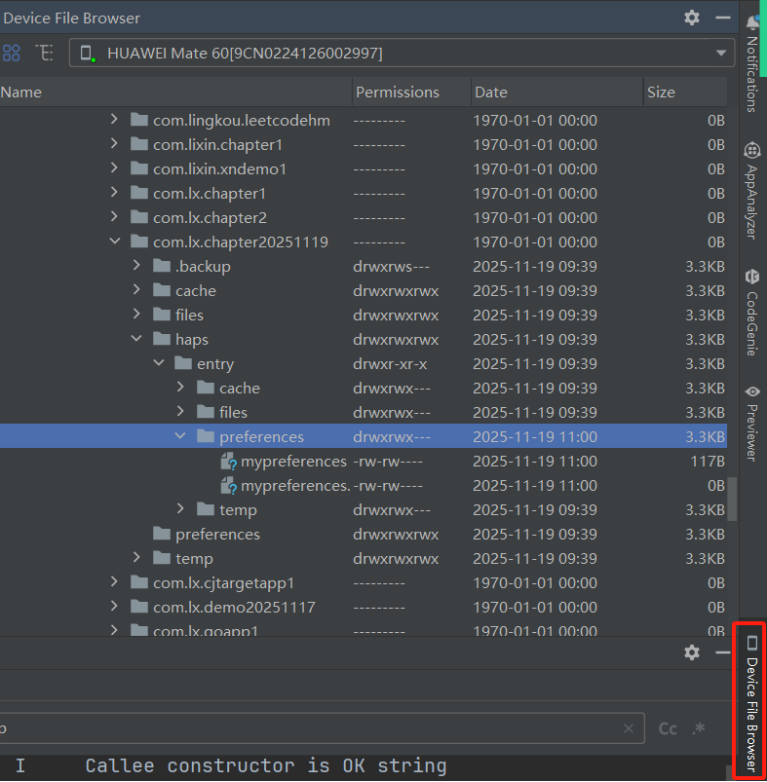
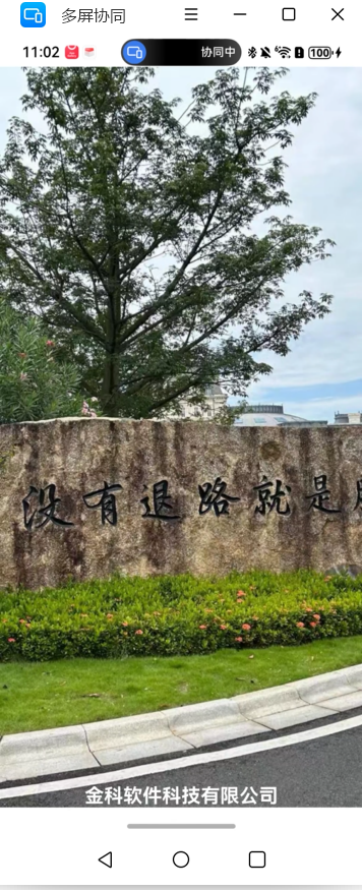
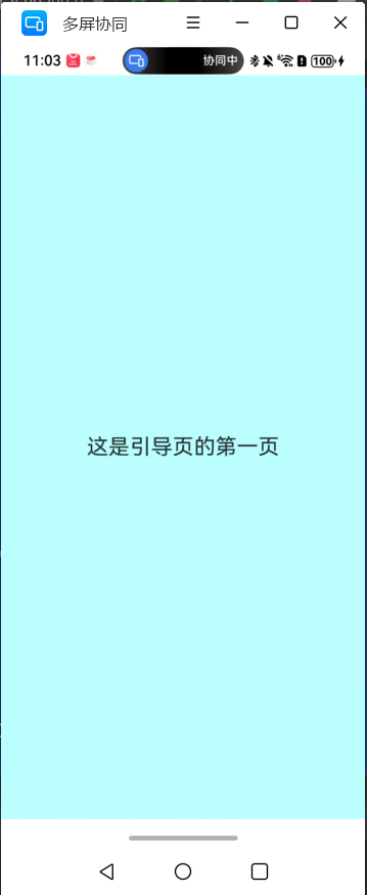

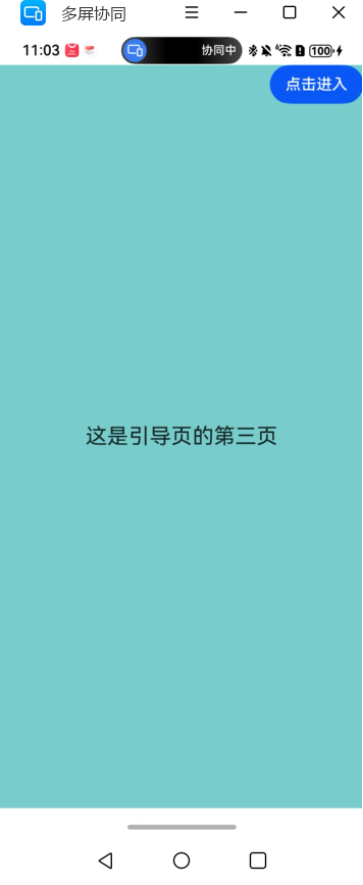
六.具体代码实现如下:
import { preferences } from "@kit.ArkData"
import { AbilityConstant, ConfigurationConstant, UIAbility, Want, common } from '@kit.AbilityKit';
import {router} from "@kit.ArkUI"
@Entry
@Component
struct FirstPage {
context = this.getUIContext().getHostContext() as common.UIAbilityContext
flag : boolean = true
aboutToAppear(): void {
setTimeout(()=>{
//第一次加载,首先加载引导页
//后面的加载,不在加载引导页,直接到达主界面
preferences.getPreferences(this.context,"mypreferences",(error,proferences)=>{
proferences.get("flag","true",(error,value)=>{
if(error)
{
console.log("获取proferences中的key的flag值失败")
return
}
this.flag = Boolean(value)
console.log("获取的flag的值为:"+this.flag)
if(this.flag)
{
//走引导页
router.pushUrl({url:"pages/WelComePage"})
}
else {
//走主界面
router.pushUrl({url:"pages/Index"})
}
})
})
},4000)
}
build() {
Stack({alignContent:Alignment.Bottom})
{
Image($r("app.media.a108")).width("100%").height("100%")
Text("金科软件科技有限公司").fontSize(20).fontWeight(FontWeight.Bold).fontColor(Color.White)
}.width("100%").height("100%").backgroundColor("#aabbcc")
}
}
import { router } from "@kit.ArkUI"
import { preferences } from "@kit.ArkData"
import { AbilityConstant, ConfigurationConstant, UIAbility, Want, common } from '@kit.AbilityKit';
@Entry
@Component
struct WelComePage {
@State flag: boolean = false
context = this.getUIContext().getHostContext() as common.UIAbilityContext
build() {
Column() {
Stack({ alignContent: Alignment.TopEnd }) {
Swiper() {
Row() {
Text("这是引导页的第一页").fontSize(22)
}.width("100%").height("100%").justifyContent(FlexAlign.Center).backgroundColor("#BBFFFF")
Row() {
Text("这是引导页的第二页").fontSize(22)
}.width("100%").height("100%").justifyContent(FlexAlign.Center).backgroundColor("#96CDCD")
Row() {
Text("这是引导页的第三页").fontSize(22)
}.width("100%").height("100%").justifyContent(FlexAlign.Center).backgroundColor("#79CDCD")
}.onChange((index: number) => {
if (index == 2) {
this.flag = true
} else {
this.flag = false
}
}).autoPlay(false).indicator(false)
if (this.flag) {
Button("点击进入").onClick(() => {
//1.写入数据到proference
preferences.getPreferences(this.context, "mypreferences", (error, proferences) => {
proferences.has("flag", (error, value) => {
proferences.put("flag", false, (error) => {
if (error) {
return;
}
console.log("写入数据成功,值为:" + proferences.get("flag", true))
proferences.flush()
})
})
})
//2.跳转路由
router.pushUrl({ url: "pages/Index" })
})
}
}
}.width("100%").height("100%").justifyContent(FlexAlign.Center)
}
}
import { preferences } from "@kit.ArkData"
import { AbilityConstant, ConfigurationConstant, UIAbility, Want, common } from '@kit.AbilityKit';
import { util } from "@kit.ArkTS";
@Entry
@Component
struct Index {
//声明一下dataPreferences:key:value
dataPreferences: preferences.Preferences | null = null
//声明一下上下文对象
context = this.getUIContext().getHostContext() as common.UIAbilityContext
//声明一个消息对象
@State message :string = ""
async aboutToAppear() {
this.dataPreferences = await preferences.getPreferences(this.context, { name: "mydatas" })
}
async writeData() {
//写入数据到缓存,自动持久化保存
await this.dataPreferences?.put("key1", 'hello' + Math.floor(Math.random() * 1000))
let arrays = new util.TextEncoder().encodeInto('你好:' + Math.floor(Math.random() * 1000))
await this.dataPreferences?.put("key2", arrays)
//立即写入
await this.dataPreferences?.flush()
this.message ="写入数据成功"
}
async readData()
{
this.dataPreferences?.getAllSync()
if(!await this.dataPreferences?.has("key1"))
{
this.message = "没有发现键为key1的值"
}
else{
let value = await this.dataPreferences?.get("key1","default")
this.message += value
}
if(!await this.dataPreferences?.has("key2"))
{
this.message = "没有发现键为key2的值"
}
else{
let value = await this.dataPreferences?.get("key2",new Uint8Array(0))
let text = util.TextDecoder.create("UTF-8")
let result = text.decodeToString(value as Uint8Array)
this.message += result
}
}
async deleteData()
{
await this.dataPreferences?.delete("key1")
await this.dataPreferences?.delete("key2")
this.message = "删除成功"
await preferences.deletePreferences(this.context,"mydatas")
this.message = "删除数据文件成功"
}
build() {
Column({ space: 20 }) {
Button("写入数据").width("100%").onClick(() => {
this.writeData()
})
Button("读取数据").width("100%").onClick(() => {
this.readData()
})
Button("删除数据").width("100%").onClick(() => {
this.deleteData()
})
Text(this.message).width("100%").fontSize(30)
}.width("100%").height("100%").justifyContent(FlexAlign.Center)
}
}
首选项是引导页 “是否展示” 的核心判断依据,实现 “仅首次启动展示” 的核心需求 , 这套集成方案是鸿蒙 ArkTS 应用实现引导页的标准实践,既利用了首选项的轻量存储特性,又保证了引导页的核心交互逻辑,适合各类鸿蒙应用的首次启动引导场景

讨论HarmonyOS开发技术,专注于API与组件、DevEco Studio、测试、元服务和应用上架分发等。
更多推荐


 14
14 0
0- 0


 已为社区贡献51条内容

所有评论(0)