HarmonyOS 手把手教你用ArkTS实现一个便签应用
你有没有想过,自己动手写一个便签应用?这个看似简单的小工具,其实涵盖了移动开发的方方面面:列表渲染、表单输入、数据存储、动画效果……今天,我们就用鸿蒙的ArkTS语言,一步步实现一个功能完备的便签应用。学完这篇文章,你将掌握:准备好了吗?让我们开始吧!如果你熟悉TypeScript,那学习ArkTS简直是"零门槛"。ArkTS是华为基于TypeScript扩展的声明式开发语言,专门为鸿蒙应用设计。
前言
你有没有想过,自己动手写一个便签应用?这个看似简单的小工具,其实涵盖了移动开发的方方面面:列表渲染、表单输入、数据存储、动画效果……今天,我们就用鸿蒙的ArkTS语言,一步步实现一个功能完备的便签应用。
学完这篇文章,你将掌握:
- ✅ ArkTS组件化开发的核心思想
- ✅ 状态管理与数据绑定
- ✅ 本地数据持久化(PersistentStorage)
- ✅ 列表渲染与交互
- ✅ 动画与手势处理
准备好了吗?让我们开始吧!
一、认识ArkTS:鸿蒙开发的新选择
1.1 ArkTS是什么?
如果你熟悉TypeScript,那学习ArkTS简直是"零门槛"。ArkTS是华为基于TypeScript扩展的声明式开发语言,专门为鸿蒙应用设计。
简单来说,它有三大特点:
TypeScript的语法基础 + 声明式UI范式 + 鸿蒙系统能力 = ArkTS
声明式UI是什么意思?看个对比就懂了:
传统命令式写法(像Android):
TextView title = findViewById(R.id.title);
title.setText("Hello");
title.setTextColor(Color.RED);
ArkTS声明式写法:
Text("Hello")
  .fontColor(Color.Red)
看出区别了吗?声明式UI只需要描述"UI长什么样",系统会自动处理更新。当数据变化时,UI自动刷新,再也不用手动操作DOM了!
1.2 核心概念速览
在动手写代码之前,先快速了解几个核心概念:
| 概念 | 说明 | 类比 |
|---|---|---|
@Component |
标记一个UI组件 | React的组件 |
@Entry |
标记页面入口 | Vue的根组件 |
@State |
响应式状态变量 | Vue的ref/reactive |
@Prop |
父组件传入的属性 | React的props |
@Builder |
UI构建函数 | Vue的render函数 |
build() |
组件的UI描述 | React的return |
是不是觉得似曾相识?没错,如果你用过React或Vue,这些概念对你来说一点都不陌生!
1.3 项目结构一览
打开DevEco Studio创建的项目,你会看到这样的目录结构:
entry/
├── src/main/
│   ├── ets/                    # ArkTS代码目录
│   │   ├── pages/              # 页面组件
│   │   │   └── Index.ets       # 主页面
│   │   └── entryability/       # 应用入口
│   ├── resources/              # 资源文件
│   │   ├── base/
│   │   │   ├── element/        # 颜色、字符串
│   │   │   └── media/          # 图片资源
│   │   └── rawfile/            # 原始文件
│   └── module.json5            # 模块配置
└── build-profile.json5         # 构建配置
我们的便签应用,主要代码都会写在 ets/pages/ 目录下。
二、需求分析:我们要做什么?
在写代码之前,先想清楚要做什么功能。一个便签应用,最核心的功能有哪些?
2.1 功能清单
我画了一张思维导图:
便签应用
├── 便签管理
│   ├── 创建便签 ✓
│   ├── 编辑便签 ✓
│   ├── 删除便签 ✓
│   └── 查看列表 ✓
├── 分类管理
│   ├── 默认分类 ✓
│   ├── 自定义分类 ✓
│   └── 分类筛选 ✓
├── 搜索功能
│   └── 关键词搜索 ✓
└── 数据持久化
    └── 本地存储 ✓
三、从数据模型开始
3.1 定义便签数据结构
首先,我们需要定义便签的数据结构。在ArkTS中,使用 interface来定义:
interface Note {
  id: string           // 唯一标识
  title: string        // 标题
  content: string      // 内容
  categoryId: string   // 所属分类ID
  createTime: number   // 创建时间戳
  updateTime: number   // 更新时间戳
  color: string        // 卡片背景色
}
💡 小贴士:时间戳用
number类型存储毫秒数,方便计算和比较。
3.2 定义分类数据结构
interface Category {
  id: string      // 分类ID
  name: string    // 分类名称
  color: string   // 标签颜色
}
数据结构很简单对吧?保持简单,是我们的设计原则。
四、数据管理:NoteManager类
有了数据结构,接下来需要一个管理数据的类。这个类负责:
- 加载和保存数据
- 增删改查操作
- 搜索和筛选
4.1 类的基本结构
下面是NoteManager类的基本框架,我们使用 PersistentStorage来实现数据持久化:
class NoteManager {
  private notes: Note[] = []
  private categories: Category[] = []

  constructor() {
    this.loadData()
  }
}
⚠️ 重要:
PersistentStorage是鸿蒙提供的持久化存储API,数据会保存到本地磁盘,应用退出后数据不会丢失!
4.2 数据加载与保存
加载数据:
这里使用 PersistentStorage和 AppStorage配合使用。PersistentStorage.persistProp()用于注册需要持久化的键,然后通过 AppStorage.get()读取数据:
private loadData(): void {
  // 注册持久化键(只需调用一次)
  PersistentStorage.persistProp('notes', '[]')
  PersistentStorage.persistProp('categories', '[]')

  // 从AppStorage读取数据
  let notesData: string = AppStorage.get<string>('notes') || '[]'
  let categoriesData: string = AppStorage.get<string>('categories') || '[]'

  try {
    this.notes = JSON.parse(notesData) as Note[]
    this.categories = JSON.parse(categoriesData) as Category[]
  } catch (e) {
    // 解析失败,使用空数组
    this.notes = []
    this.categories = []
  }

  // 如果没有分类,创建默认分类
  if (this.categories.length === 0) {
    this.categories = [
      { id: '1', name: '全部', color: '#3498db' },
      { id: '2', name: '工作', color: '#e74c3c' },
      { id: '3', name: '生活', color: '#2ecc71' },
      { id: '4', name: '学习', color: '#f39c12' }
    ]
    this.saveCategories()
  }
}
⚠️ 注意:JSON解析可能失败,一定要用try-catch包裹,否则应用会崩溃!
保存数据:
使用 AppStorage.set()保存数据,数据会自动持久化到磁盘:
private saveNotes(): void {
  AppStorage.set<string>('notes', JSON.stringify(this.notes))
}

private saveCategories(): void {
  AppStorage.set<string>('categories', JSON.stringify(this.categories))
}
4.3 添加便签
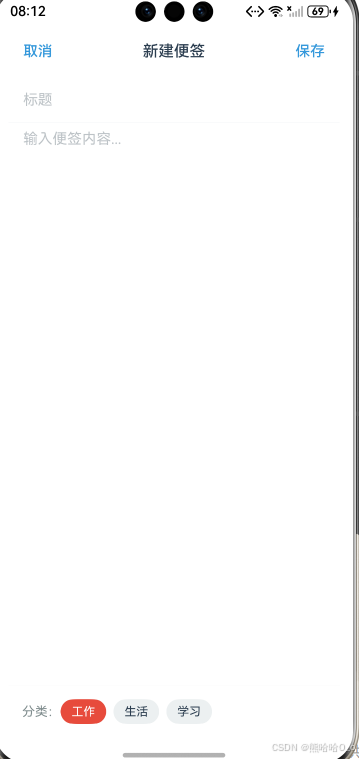
添加便签时,我们需要创建一个新的Note对象。注意ArkTS不支持对象展开运算符 ...,需要逐个属性赋值:
addNote(title: string, content: string, categoryId: string, color: string): Note {
  const newNote: Note = {
    id: Date.now().toString(),    // 用时间戳作为ID
    title: title,
    content: content,
    categoryId: categoryId,
    createTime: Date.now(),
    updateTime: Date.now(),
    color: color
  }
  this.notes.unshift(newNote)     // 添加到数组开头
  this.saveNotes()
  return newNote
}
⚠️ 注意:ArkTS不支持对象展开运算符
...,需要逐个属性赋值!
4.4 更新便签
更新便签时,需要保留原有的创建时间和ID,只更新必要字段:
updateNote(id: string, title: string, content: string, categoryId: string): Note | null {
  const index = this.notes.findIndex((n: Note): boolean => n.id === id)
  if (index === -1) {
    return null
  }

  // 获取原有便签
  const oldNote = this.notes[index]

  // 创建更新后的便签(不能使用展开运算符)
  const updatedNote: Note = {
    id: oldNote.id,
    title: title,
    content: content,
    categoryId: categoryId,
    createTime: oldNote.createTime,
    updateTime: Date.now(),
    color: oldNote.color
  }

  this.notes[index] = updatedNote
  this.saveNotes()
  return updatedNote
}
⚠️ 注意:ArkTS中箭头函数需要明确指定返回类型,如
(n: Note): boolean =>!
4.5 删除便签
deleteNote(id: string): boolean {
  const index = this.notes.findIndex((n: Note): boolean => n.id === id)
  if (index === -1) {
    return false
  }
  this.notes.splice(index, 1)
  this.saveNotes()
  return true
}
4.6 搜索便签
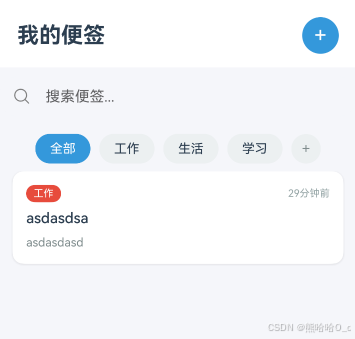
搜索逻辑:将关键词和便签内容都转为小写,进行模糊匹配:
searchNotes(keyword: string): Note[] {
  if (keyword.trim() === '') {
    return this.notes.slice()  // 返回数组副本
  }

  const lowerKeyword = keyword.toLowerCase()
  return this.notes.filter((n: Note): boolean => {
    return n.title.toLowerCase().includes(lowerKeyword) ||
           n.content.toLowerCase().includes(lowerKeyword)
  })
}
⚠️ 注意:ArkTS不支持
[...array]展开语法,应使用array.slice()创建副本!
4.7 按分类筛选
getNotesByCategory(categoryId: string): Note[] {
  if (categoryId === '1') {
    return this.notes.slice()  // "全部"分类,返回副本
  }
  return this.notes.filter((n: Note): boolean => n.categoryId === categoryId)
}
4.8 添加分类
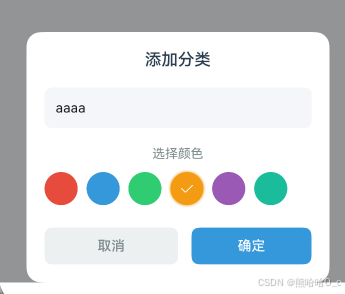
addCategory(name: string, color: string): Category {
  const newCategory: Category = {
    id: Date.now().toString(),
    name: name,
    color: color
  }
  this.categories.push(newCategory)
  this.saveCategories()
  return newCategory
}
五、构建主页面
数据管理类写好了,现在开始构建UI!
5.1 页面组件的基本结构
这是最基础的页面结构。@Entry表示这是页面入口,@Component表示这是一个UI组件,build()方法描述UI结构:
@Entry
@Component
struct NoteApp {
  build() {
    Column() {
      // 页面内容
    }
    .width('100%')
    .height('100%')
  }
}
5.2 定义状态变量
状态变量是驱动UI更新的核心。我们需要定义数据状态和交互状态:
@Entry
@Component
struct NoteApp {
  // 数据状态
  @State notes: Note[] = []
  @State categories: Category[] = []

  // 交互状态
  @State currentCategoryId: string = '1'
  @State searchKeyword: string = ''
  @State isSearching: boolean = false
  @State showEditPage: boolean = false
  @State editingNoteId: string = ''
  @State editingTitle: string = ''
  @State editingContent: string = ''
  @State editingCategoryId: string = '2'
  @State showAddCategory: boolean = false
  @State newCategoryName: string = ''
  @State newCategoryColor: string = '#3498db'

  // 数据管理器
  private noteManager: NoteManager | null = null
}
💡 理解@State:当@State变量的值变化时,依赖它的UI会自动重新渲染。这就是响应式编程的魅力!
5.3 生命周期方法
aboutToAppear()在页面即将显示时调用,适合做初始化工作:
aboutToAppear(): void {
  this.noteManager = new NoteManager()
  this.loadData()
}

private loadData(): void {
  if (this.noteManager !== null) {
    this.notes = this.noteManager.getNotes()
    this.categories = this.noteManager.getCategories()
  }
}

private refreshNotes(): void {
  if (this.noteManager === null) {
    return
  }
  if (this.isSearching && this.searchKeyword.length > 0) {
    this.notes = this.noteManager.searchNotes(this.searchKeyword)
  } else {
    this.notes = this.noteManager.getNotesByCategory(this.currentCategoryId)
  }
}
5.4 构建标题栏
使用 @Builder装饰器定义UI片段。标题栏包含左侧标题和右侧添加按钮:
@Builder
HeaderBuilder() {
  Row() {
    Text('我的便签')
      .fontSize(24)
      .fontWeight(FontWeight.Bold)
      .fontColor('#2c3e50')

    Blank()  // 填充剩余空间

    Button() {
      Text('+')
        .fontSize(24)
        .fontColor('#ffffff')
    }
    .width(40)
    .height(40)
    .borderRadius(20)
    .backgroundColor('#3498db')
    .onClick(() => {
      this.startNewNote()
    })
  }
  .width('100%')
  .padding({ left: 20, right: 20, top: 15, bottom: 15 })
  .backgroundColor('#ffffff')
}
布局解析:
Row(水平排列)
├── Text("我的便签")    ← 左侧标题
├── Blank()            ← 弹性空白,把后面的内容推到右边
└── Button(+)          ← 右侧添加按钮
Blank()是个很实用的组件,它会自动填充剩余空间,实现两端对齐的效果。
5.5 构建搜索栏
搜索栏包含搜索图标、输入框和清除按钮:
@Builder
SearchBarBuilder() {
  Row() {
    // 搜索图标(使用SymbolGlyph显示系统图标)
    SymbolGlyph($r('sys.symbol.magnifyingglass'))
      .fontSize(20)
      .fontColor([Color.Gray])

    // 输入框(使用$$实现双向绑定)
    TextInput({ placeholder: '搜索便签...', text: $$this.searchKeyword })
      .layoutWeight(1)
      .height(36)
      .backgroundColor('transparent')
      .fontSize(14)
      .onChange((value: string) => {
        this.isSearching = value.length > 0
        this.refreshNotes()
      })

    // 清除按钮(有关键词时显示)
    if (this.searchKeyword.length > 0) {
      SymbolGlyph($r('sys.symbol.xmark_circle_fill'))
        .fontSize(18)
        .fontColor([Color.Gray])
        .onClick(() => {
          this.searchKeyword = ''
          this.isSearching = false
          this.refreshNotes()
        })
    }
  }
  .width('100%')
  .height(44)
  .padding({ left: 15, right: 15 })
  .margin({ left: 15, right: 15, top: 10, bottom: 10 })
  .borderRadius(22)
  .backgroundColor('#f5f6fa')
}
💡 SymbolGlyph组件:
sys.symbol.xxx资源需要使用SymbolGlyph组件显示,而不是Image组件。SymbolGlyph使用fontSize设置大小,fontColor设置颜色(参数为数组类型)。
💡 双向绑定:
$$this.searchKeyword实现双向绑定,输入框内容变化会自动更新状态变量。
关键点:
SymbolGlyph用于显示sys.symbol.xxx系统图标资源$$语法实现双向绑定,简化状态同步- 条件渲染
if (this.searchKeyword.length > 0)控制清除按钮的显示
5.6 构建分类标签栏
分类标签栏使用水平滚动容器,支持左右滑动:
@Builder
CategoryTabsBuilder() {
  Scroll() {
    Row() {
      ForEach(this.categories, (category: Category) => {
        Text(category.name)
          .fontSize(14)
          .fontColor(this.currentCategoryId === category.id ? '#ffffff' : '#2c3e50')
          .padding({ left: 16, right: 16, top: 8, bottom: 8 })
          .borderRadius(16)
          .backgroundColor(this.currentCategoryId === category.id ? category.color : '#ecf0f1')
          .margin({ right: 10 })
          .onClick(() => {
            this.currentCategoryId = category.id
            this.isSearching = false
            this.searchKeyword = ''
            this.refreshNotes()
          })
      })

      // 添加分类按钮
      Text('+')
        .fontSize(16)
        .fontColor('#7f8c8d')
        .width(32)
        .height(32)
        .textAlign(TextAlign.Center)
        .borderRadius(16)
        .backgroundColor('#ecf0f1')
        .onClick(() => {
          this.showAddCategory = true
        })
    }
    .padding({ left: 15, right: 15 })
  }
  .scrollable(ScrollDirection.Horizontal)
  .scrollBar(BarState.Off)
  .width('100%')
  .height(50)
}
布局解析:
Scroll(水平滚动容器)
└── Row
    ├── Text("全部")     ← 分类标签
    ├── Text("工作")
    ├── Text("生活")
    ├── Text("学习")
    └── Text("+")        ← 添加分类按钮
关键点:
ForEach遍历数组渲染列表项Scroll+scrollable(ScrollDirection.Horizontal)实现水平滚动scrollBar(BarState.Off)隐藏滚动条,更美观
5.7 构建便签卡片
便签卡片展示标题、内容预览、分类标签和时间信息:
@Builder
NoteCardBuilder(note: Note) {
  Column() {
    // 顶部:分类标签 + 时间
    Row() {
      Text(this.getCategoryById(note.categoryId)?.name || '未分类')
        .fontSize(11)
        .fontColor('#ffffff')
        .padding({ left: 8, right: 8, top: 3, bottom: 3 })
        .borderRadius(10)
        .backgroundColor(this.getCategoryById(note.categoryId)?.color || '#95a5a6')

      Blank()

      Text(this.formatDate(note.updateTime))
        .fontSize(11)
        .fontColor('#95a5a6')
    }
    .width('100%')
    .margin({ bottom: 8 })

    // 标题
    Text(note.title.length > 0 ? note.title : '无标题')
      .fontSize(16)
      .fontWeight(FontWeight.Medium)
      .fontColor('#2c3e50')
      .maxLines(1)
      .textOverflow({ overflow: TextOverflow.Ellipsis })
      .width('100%')
      .margin({ bottom: 6 })

    // 内容预览
    Text(note.content.length > 0 ? note.content : '无内容')
      .fontSize(13)
      .fontColor('#7f8c8d')
      .maxLines(3)
      .textOverflow({ overflow: TextOverflow.Ellipsis })
      .width('100%')
      .lineHeight(20)
  }
  .width('100%')
  .padding(15)
  .borderRadius(12)
  .backgroundColor(note.color.length > 0 ? note.color : '#ffffff')
  .shadow({
    radius: 8,
    color: '#1a000000',
    offsetX: 0,
    offsetY: 2
  })
  .margin({ bottom: 12 })
  .onClick(() => {
    this.startEditNote(note)
  })
  .gesture(
    LongPressGesture()
      .onAction(() => {
        // 长按弹出删除确认
        AlertDialog.show({
          title: '删除便签',
          message: '确定要删除这条便签吗?',
          primaryButton: {
            value: '取消',
            action: () => {}
          },
          secondaryButton: {
            value: '删除',
            fontColor: '#e74c3c',
            action: () => {
              if (this.noteManager !== null) {
                this.noteManager.deleteNote(note.id)
                this.loadData()
                this.refreshNotes()
              }
            }
          }
        })
      })
  )
}
卡片结构:
Column(垂直排列)
├── Row
│   ├── Text("工作")     ← 分类标签
│   ├── Blank()
│   └── Text("2小时前")  ← 时间戳
├── Text("标题...")      ← 标题(单行)
└── Text("内容预览...")  ← 内容(最多3行)
关键点:
maxLines(1)+textOverflow({ overflow: TextOverflow.Ellipsis })实现单行省略shadow()添加阴影效果,增强层次感gesture(LongPressGesture())添加长按手势,触发删除操作
5.8 时间格式化
让时间显示更人性化:
private formatDate(timestamp: number): string {
  const date = new Date(timestamp)
  const now = new Date()
  const diff = now.getTime() - date.getTime()
  const days = Math.floor(diff / (1000 * 60 * 60 * 24))

  if (days === 0) {
    const hours = Math.floor(diff / (1000 * 60 * 60))
    if (hours === 0) {
      const minutes = Math.floor(diff / (1000 * 60))
      if (minutes <= 1) {
        return '刚刚'
      }
      return `${minutes}分钟前`
    }
    return `${hours}小时前`
  } else if (days === 1) {
    return '昨天'
  } else if (days < 7) {
    return `${days}天前`
  } else {
    return `${date.getMonth() + 1}月${date.getDate()}日`
  }
}
效果:
| 时间差 | 显示 |
|---|---|
| 1分钟内 | 刚刚 |
| 1小时内 | 5分钟前 |
| 今天 | 3小时前 |
| 昨天 | 昨天 |
| 7天内 | 3天前 |
| 更早 | 3月15日 |
5.9 辅助方法
获取分类信息的辅助方法:
private getCategoryById(id: string): Category | undefined {
  for (let i = 0; i < this.categories.length; i++) {
    if (this.categories[i].id === id) {
      return this.categories[i]
    }
  }
  return undefined
}
开始编辑便签的方法:
private startEditNote(note: Note): void {
  this.editingNoteId = note.id
  this.editingTitle = note.title
  this.editingContent = note.content
  this.editingCategoryId = note.categoryId
  this.showEditPage = true
}

private startNewNote(): void {
  this.editingNoteId = ''
  this.editingTitle = ''
  this.editingContent = ''
  if (this.currentCategoryId === '1') {
    this.editingCategoryId = '2'
  } else {
    this.editingCategoryId = this.currentCategoryId
  }
  this.showEditPage = true
}
5.10 构建便签列表
便签列表处理空状态和正常列表两种情况:
@Builder
NotesListBuilder() {
  if (this.notes.length === 0) {
    // 空状态
    Column() {
      SymbolGlyph($r('sys.symbol.folder'))
        .fontSize(80)
        .fontColor([Color.Gray])
        .margin({ bottom: 20 })

      Text(this.isSearching ? '没有找到相关便签' : '暂无便签')
        .fontSize(16)
        .fontColor('#95a5a6')

      if (!this.isSearching) {
        Text('点击右上角 + 添加便签')
          .fontSize(13)
          .fontColor('#bdc3c7')
          .margin({ top: 8 })
      }
    }
    .width('100%')
    .height('100%')
    .justifyContent(FlexAlign.Center)
  } else {
    // 便签列表
    List() {
      ForEach(this.notes, (note: Note) => {
        ListItem() {
          this.NoteCardBuilder(note)
        }
        .padding({ left: 15, right: 15 })
      })
    }
    .width('100%')
    .layoutWeight(1)
    .scrollBar(BarState.Off)
    .edgeEffect(EdgeEffect.Spring)
  }
}
关键点:
- 条件渲染处理空状态,提升用户体验
List组件实现列表渲染,内置懒加载优化edgeEffect(EdgeEffect.Spring)启用弹性滚动效果
5.11 组装主页面
使用 Stack层叠容器组装所有组件:
build() {
  Stack() {
    Column() {
      this.HeaderBuilder()
      this.SearchBarBuilder()
      this.CategoryTabsBuilder()
      this.NotesListBuilder()
    }
    .width('100%')
    .height('100%')
    .backgroundColor('#f5f6fa')

    // 编辑页面(覆盖层)
    if (this.showEditPage) {
      Column() {
        this.EditPageBuilder()
      }
      .width('100%')
      .height('100%')
      .transition(TransitionEffect.OPACITY.animation({ duration: 250 }))
    }

    // 添加分类弹窗
    if (this.showAddCategory) {
      Column() {
        Blank()
        this.AddCategoryDialogBuilder()
      }
      .width('100%')
      .height('100%')
      .padding({ left: 30, right: 30 })
      .backgroundColor('rgba(0,0,0,0.4)')
      .onClick(() => {
        this.showAddCategory = false
      })
    }
  }
  .width('100%')
  .height('100%')
}
布局层级:
Stack(层叠容器)
├── Column              ← 主页面
│   ├── HeaderBuilder
│   ├── SearchBarBuilder
│   ├── CategoryTabsBuilder
│   └── NotesListBuilder
├── EditPageBuilder     ← 编辑页面(条件渲染)
└── AddCategoryDialog   ← 弹窗(条件渲染)
六、构建编辑页面
6.1 编辑页面结构
编辑页面包含导航栏、标题输入、内容输入和分类选择:
@Builder
EditPageBuilder() {
  Column() {
    // 导航栏
    Row() {
      Button('取消')
        .fontSize(16)
        .fontColor('#3498db')
        .backgroundColor('transparent')
        .onClick(() => {
          this.showEditPage = false
        })

      Text(this.editingNoteId.length > 0 ? '编辑便签' : '新建便签')
        .fontSize(17)
        .fontWeight(FontWeight.Medium)
        .fontColor('#2c3e50')

      Button('保存')
        .fontSize(16)
        .fontColor('#3498db')
        .backgroundColor('transparent')
        .onClick(() => {
          this.saveCurrentNote()
        })
    }
    .width('100%')
    .height(56)
    .padding({ left: 15, right: 15 })
    .justifyContent(FlexAlign.SpaceBetween)
    .backgroundColor('#ffffff')

    // 内容区域
    Column() {
      // 标题输入(使用$$双向绑定)
      TextInput({ placeholder: '标题', text: $$this.editingTitle })
        .fontSize(18)
        .fontWeight(FontWeight.Medium)
        .fontColor('#2c3e50')
        .placeholderColor('#bdc3c7')
        .backgroundColor('transparent')
        .width('100%')
        .height(50)

      Divider().color('#ecf0f1')

      // 内容输入(使用$$双向绑定)
      TextArea({ placeholder: '输入便签内容...', text: $$this.editingContent })
        .fontSize(15)
        .fontColor('#2c3e50')
        .placeholderColor('#bdc3c7')
        .backgroundColor('transparent')
        .width('100%')
        .layoutWeight(1)

      Divider().color('#ecf0f1')

      // 分类选择
      Row() {
        Text('分类:')
          .fontSize(14)
          .fontColor('#7f8c8d')

        // 过滤掉"全部"分类
        ForEach(this.categories.filter((c: Category): boolean => c.id !== '1'), (category: Category) => {
          Text(category.name)
            .fontSize(13)
            .fontColor(this.editingCategoryId === category.id ? '#ffffff' : '#2c3e50')
            .padding({ left: 12, right: 12, top: 6, bottom: 6 })
            .borderRadius(14)
            .backgroundColor(this.editingCategoryId === category.id ? category.color : '#ecf0f1')
            .margin({ right: 8 })
            .onClick(() => {
              this.editingCategoryId = category.id
            })
        })
      }
      .width('100%')
      .padding(15)
      .backgroundColor('#ffffff')
    }
    .layoutWeight(1)
    .padding({ left: 15, right: 15 })
    .backgroundColor('#ffffff')
  }
  .width('100%')
  .height('100%')
  .backgroundColor('#f5f6fa')
}
💡 双向绑定:
TextInput({ text: $$this.editingTitle })中的$$语法实现双向绑定,输入内容会自动同步到状态变量。
6.2 保存便签逻辑
private saveCurrentNote(): void {
  // 空内容不保存
  if (this.editingTitle.trim() === '' && this.editingContent.trim() === '') {
    this.showEditPage = false
    return
  }

  if (this.noteManager !== null) {
    if (this.editingNoteId.length > 0) {
      // 更新已有便签
      this.noteManager.updateNote(
        this.editingNoteId,
        this.editingTitle,
        this.editingContent,
        this.editingCategoryId
      )
    } else {
      // 创建新便签
      this.noteManager.addNote(
        this.editingTitle,
        this.editingContent,
        this.editingCategoryId,
        '#ffffff'
      )
    }
    this.loadData()
    this.refreshNotes()
  }

  this.showEditPage = false
}
七、添加分类弹窗
7.1 颜色选择器
颜色选择器需要显示选中状态。我们使用 @Builder方法配合 visibility属性来实现:
@Builder
ColorItemBuilder(color: string) {
  Column() {
    SymbolGlyph($r('sys.symbol.checkmark'))
      .fontSize(16)
      .fontColor([Color.White])
      .visibility(this.newCategoryColor === color ? Visibility.Visible : Visibility.Hidden)
  }
  .width(36)
  .height(36)
  .borderRadius(18)
  .backgroundColor(color)
  .shadow(this.newCategoryColor === color ? {
    radius: 12,
    color: color,
    offsetX: 0,
    offsetY: 0
  } : {
    radius: 0,
    color: Color.Transparent,
    offsetX: 0,
    offsetY: 0
  })
  .justifyContent(FlexAlign.Center)
  .margin({ right: 10 })
  .onClick(() => {
    this.newCategoryColor = color
  })
}
💡 选中效果:使用
visibility控制勾选图标显示,使用shadow添加发光效果,让选中状态更明显。
7.2 弹窗组件
@Builder
AddCategoryDialogBuilder() {
  Column() {
    Text('添加分类')
      .fontSize(18)
      .fontWeight(FontWeight.Medium)
      .fontColor('#2c3e50')
      .margin({ bottom: 20 })

    // 分类名称输入(使用$$双向绑定)
    TextInput({ placeholder: '分类名称', text: $$this.newCategoryName })
      .fontSize(15)
      .width('100%')
      .height(44)
      .borderRadius(8)
      .backgroundColor('#f5f6fa')
      .padding({ left: 12, right: 12 })

    Text('选择颜色')
      .fontSize(14)
      .fontColor('#7f8c8d')
      .margin({ top: 20, bottom: 12 })

    // 颜色选择
    Row() {
      this.ColorItemBuilder('#e74c3c')
      this.ColorItemBuilder('#3498db')
      this.ColorItemBuilder('#2ecc71')
      this.ColorItemBuilder('#f39c12')
      this.ColorItemBuilder('#9b59b6')
      this.ColorItemBuilder('#1abc9c')
    }
    .width('100%')

    // 操作按钮
    Row() {
      Button('取消')
        .fontSize(15)
        .fontColor('#7f8c8d')
        .backgroundColor('#ecf0f1')
        .borderRadius(8)
        .layoutWeight(1)
        .onClick(() => {
          this.showAddCategory = false
          this.newCategoryName = ''
          this.newCategoryColor = '#3498db'
        })

      Button('确定')
        .fontSize(15)
        .fontColor('#ffffff')
        .backgroundColor('#3498db')
        .borderRadius(8)
        .layoutWeight(1)
        .margin({ left: 15 })
        .onClick(() => {
          if (this.newCategoryName.trim().length > 0 && this.noteManager !== null) {
            this.noteManager.addCategory(this.newCategoryName.trim(), this.newCategoryColor)
            this.loadData()
            this.showAddCategory = false
            this.newCategoryName = ''
            this.newCategoryColor = '#3498db'
          }
        })
    }
    .width('100%')
    .margin({ top: 25 })
  }
  .width('100%')
  .padding(20)
  .backgroundColor('#ffffff')
  .borderRadius(16)
}
八、完整代码
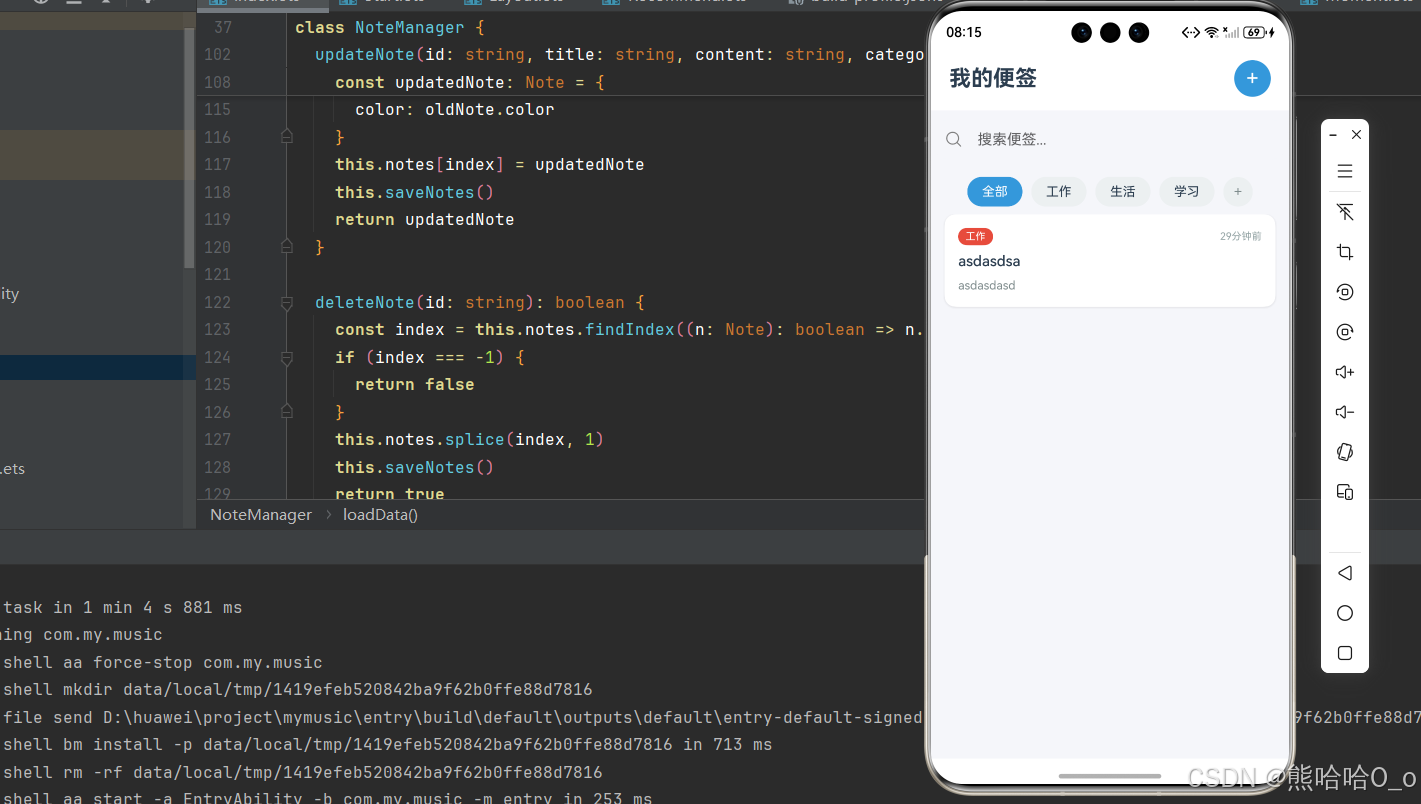
下面是完整的可运行代码,你可以直接复制使用:
interface Note {
  id: string
  title: string
  content: string
  categoryId: string
  createTime: number
  updateTime: number
  color: string
}

interface Category {
  id: string
  name: string
  color: string
}

class NoteManager {
  private notes: Note[] = []
  private categories: Category[] = []

  constructor() {
    this.loadData()
  }

  private loadData(): void {
    PersistentStorage.persistProp('notes', '[]')
    PersistentStorage.persistProp('categories', '[]')

    let notesData: string = AppStorage.get<string>('notes') || '[]'
    let categoriesData: string = AppStorage.get<string>('categories') || '[]'

    try {
      this.notes = JSON.parse(notesData) as Note[]
      this.categories = JSON.parse(categoriesData) as Category[]
    } catch (e) {
      this.notes = []
      this.categories = []
    }

    if (this.categories.length === 0) {
      this.categories = [
        { id: '1', name: '全部', color: '#3498db' },
        { id: '2', name: '工作', color: '#e74c3c' },
        { id: '3', name: '生活', color: '#2ecc71' },
        { id: '4', name: '学习', color: '#f39c12' }
      ]
      this.saveCategories()
    }
  }

  private saveNotes(): void {
    AppStorage.set<string>('notes', JSON.stringify(this.notes))
  }

  private saveCategories(): void {
    AppStorage.set<string>('categories', JSON.stringify(this.categories))
  }

  getNotes(): Note[] {
    return this.notes.slice()
  }

  getCategories(): Category[] {
    return this.categories.slice()
  }

  addNote(title: string, content: string, categoryId: string, color: string): Note {
    const newNote: Note = {
      id: Date.now().toString(),
      title: title,
      content: content,
      categoryId: categoryId,
      createTime: Date.now(),
      updateTime: Date.now(),
      color: color
    }
    this.notes.unshift(newNote)
    this.saveNotes()
    return newNote
  }

  updateNote(id: string, title: string, content: string, categoryId: string): Note | null {
    const index = this.notes.findIndex((n: Note): boolean => n.id === id)
    if (index === -1) {
      return null
    }
    const oldNote = this.notes[index]
    const updatedNote: Note = {
      id: oldNote.id,
      title: title,
      content: content,
      categoryId: categoryId,
      createTime: oldNote.createTime,
      updateTime: Date.now(),
      color: oldNote.color
    }
    this.notes[index] = updatedNote
    this.saveNotes()
    return updatedNote
  }

  deleteNote(id: string): boolean {
    const index = this.notes.findIndex((n: Note): boolean => n.id === id)
    if (index === -1) {
      return false
    }
    this.notes.splice(index, 1)
    this.saveNotes()
    return true
  }

  searchNotes(keyword: string): Note[] {
    if (keyword.trim() === '') {
      return this.notes.slice()
    }
    const lowerKeyword = keyword.toLowerCase()
    return this.notes.filter((n: Note): boolean => {
      return n.title.toLowerCase().includes(lowerKeyword) ||
             n.content.toLowerCase().includes(lowerKeyword)
    })
  }

  getNotesByCategory(categoryId: string): Note[] {
    if (categoryId === '1') {
      return this.notes.slice()
    }
    return this.notes.filter((n: Note): boolean => n.categoryId === categoryId)
  }

  addCategory(name: string, color: string): Category {
    const newCategory: Category = {
      id: Date.now().toString(),
      name: name,
      color: color
    }
    this.categories.push(newCategory)
    this.saveCategories()
    return newCategory
  }
}

@Entry
@Component
struct NoteApp {
  @State notes: Note[] = []
  @State categories: Category[] = []
  @State currentCategoryId: string = '1'
  @State searchKeyword: string = ''
  @State isSearching: boolean = false
  @State showEditPage: boolean = false
  @State editingNoteId: string = ''
  @State editingTitle: string = ''
  @State editingContent: string = ''
  @State editingCategoryId: string = '2'
  @State showAddCategory: boolean = false
  @State newCategoryName: string = ''
  @State newCategoryColor: string = '#3498db'

  private noteManager: NoteManager | null = null

  aboutToAppear(): void {
    this.noteManager = new NoteManager()
    this.loadData()
  }

  private loadData(): void {
    if (this.noteManager !== null) {
      this.notes = this.noteManager.getNotes()
      this.categories = this.noteManager.getCategories()
    }
  }

  private refreshNotes(): void {
    if (this.noteManager === null) {
      return
    }
    if (this.isSearching && this.searchKeyword.length > 0) {
      this.notes = this.noteManager.searchNotes(this.searchKeyword)
    } else {
      this.notes = this.noteManager.getNotesByCategory(this.currentCategoryId)
    }
  }

  private formatDate(timestamp: number): string {
    const date = new Date(timestamp)
    const now = new Date()
    const diff = now.getTime() - date.getTime()
    const days = Math.floor(diff / (1000 * 60 * 60 * 24))

    if (days === 0) {
      const hours = Math.floor(diff / (1000 * 60 * 60))
      if (hours === 0) {
        const minutes = Math.floor(diff / (1000 * 60))
        if (minutes <= 1) {
          return '刚刚'
        }
        return `${minutes}分钟前`
      }
      return `${hours}小时前`
    } else if (days === 1) {
      return '昨天'
    } else if (days < 7) {
      return `${days}天前`
    } else {
      return `${date.getMonth() + 1}月${date.getDate()}日`
    }
  }

  private getCategoryById(id: string): Category | undefined {
    for (let i = 0; i < this.categories.length; i++) {
      if (this.categories[i].id === id) {
        return this.categories[i]
      }
    }
    return undefined
  }

  private startEditNote(note: Note): void {
    this.editingNoteId = note.id
    this.editingTitle = note.title
    this.editingContent = note.content
    this.editingCategoryId = note.categoryId
    this.showEditPage = true
  }

  private startNewNote(): void {
    this.editingNoteId = ''
    this.editingTitle = ''
    this.editingContent = ''
    if (this.currentCategoryId === '1') {
      this.editingCategoryId = '2'
    } else {
      this.editingCategoryId = this.currentCategoryId
    }
    this.showEditPage = true
  }

  private saveCurrentNote(): void {
    if (this.editingTitle.trim() === '' && this.editingContent.trim() === '') {
      this.showEditPage = false
      return
    }

    if (this.noteManager !== null) {
      if (this.editingNoteId.length > 0) {
        this.noteManager.updateNote(
          this.editingNoteId,
          this.editingTitle,
          this.editingContent,
          this.editingCategoryId
        )
      } else {
        this.noteManager.addNote(
          this.editingTitle,
          this.editingContent,
          this.editingCategoryId,
          '#ffffff'
        )
      }
      this.loadData()
      this.refreshNotes()
    }

    this.showEditPage = false
  }

  @Builder
  HeaderBuilder() {
    Row() {
      Text('我的便签')
        .fontSize(24)
        .fontWeight(FontWeight.Bold)
        .fontColor('#2c3e50')

      Blank()

      Button() {
        Text('+')
          .fontSize(24)
          .fontColor('#ffffff')
      }
      .width(40)
      .height(40)
      .borderRadius(20)
      .backgroundColor('#3498db')
      .onClick(() => {
        this.startNewNote()
      })
    }
    .width('100%')
    .padding({ left: 20, right: 20, top: 15, bottom: 15 })
    .backgroundColor('#ffffff')
  }

  @Builder
  SearchBarBuilder() {
    Row() {
      SymbolGlyph($r('sys.symbol.magnifyingglass'))
        .fontSize(20)
        .fontColor([Color.Gray])

      TextInput({ placeholder: '搜索便签...', text: $$this.searchKeyword })
        .layoutWeight(1)
        .height(36)
        .backgroundColor('transparent')
        .fontSize(14)
        .onChange((value: string) => {
          this.isSearching = value.length > 0
          this.refreshNotes()
        })

      if (this.searchKeyword.length > 0) {
        SymbolGlyph($r('sys.symbol.xmark_circle_fill'))
          .fontSize(18)
          .fontColor([Color.Gray])
          .onClick(() => {
            this.searchKeyword = ''
            this.isSearching = false
            this.refreshNotes()
          })
      }
    }
    .width('100%')
    .height(44)
    .padding({ left: 15, right: 15 })
    .margin({ left: 15, right: 15, top: 10, bottom: 10 })
    .borderRadius(22)
    .backgroundColor('#f5f6fa')
  }

  @Builder
  CategoryTabsBuilder() {
    Scroll() {
      Row() {
        ForEach(this.categories, (category: Category) => {
          Text(category.name)
            .fontSize(14)
            .fontColor(this.currentCategoryId === category.id ? '#ffffff' : '#2c3e50')
            .padding({ left: 16, right: 16, top: 8, bottom: 8 })
            .borderRadius(16)
            .backgroundColor(this.currentCategoryId === category.id ? category.color : '#ecf0f1')
            .margin({ right: 10 })
            .onClick(() => {
              this.currentCategoryId = category.id
              this.isSearching = false
              this.searchKeyword = ''
              this.refreshNotes()
            })
        })

        Text('+')
          .fontSize(16)
          .fontColor('#7f8c8d')
          .width(32)
          .height(32)
          .textAlign(TextAlign.Center)
          .borderRadius(16)
          .backgroundColor('#ecf0f1')
          .onClick(() => {
            this.showAddCategory = true
          })
      }
      .padding({ left: 15, right: 15 })
    }
    .scrollable(ScrollDirection.Horizontal)
    .scrollBar(BarState.Off)
    .width('100%')
    .height(50)
  }

  @Builder
  NoteCardBuilder(note: Note) {
    Column() {
      Row() {
        Text(this.getCategoryById(note.categoryId)?.name || '未分类')
          .fontSize(11)
          .fontColor('#ffffff')
          .padding({ left: 8, right: 8, top: 3, bottom: 3 })
          .borderRadius(10)
          .backgroundColor(this.getCategoryById(note.categoryId)?.color || '#95a5a6')

        Blank()

        Text(this.formatDate(note.updateTime))
          .fontSize(11)
          .fontColor('#95a5a6')
      }
      .width('100%')
      .margin({ bottom: 8 })

      Text(note.title.length > 0 ? note.title : '无标题')
        .fontSize(16)
        .fontWeight(FontWeight.Medium)
        .fontColor('#2c3e50')
        .maxLines(1)
        .textOverflow({ overflow: TextOverflow.Ellipsis })
        .width('100%')
        .margin({ bottom: 6 })

      Text(note.content.length > 0 ? note.content : '无内容')
        .fontSize(13)
        .fontColor('#7f8c8d')
        .maxLines(3)
        .textOverflow({ overflow: TextOverflow.Ellipsis })
        .width('100%')
        .lineHeight(20)
    }
    .width('100%')
    .padding(15)
    .borderRadius(12)
    .backgroundColor(note.color.length > 0 ? note.color : '#ffffff')
    .shadow({
      radius: 8,
      color: '#1a000000',
      offsetX: 0,
      offsetY: 2
    })
    .margin({ bottom: 12 })
    .onClick(() => {
      this.startEditNote(note)
    })
    .gesture(
      LongPressGesture()
        .onAction(() => {
          AlertDialog.show({
            title: '删除便签',
            message: '确定要删除这条便签吗?',
            primaryButton: {
              value: '取消',
              action: () => {}
            },
            secondaryButton: {
              value: '删除',
              fontColor: '#e74c3c',
              action: () => {
                if (this.noteManager !== null) {
                  this.noteManager.deleteNote(note.id)
                  this.loadData()
                  this.refreshNotes()
                }
              }
            }
          })
        })
    )
  }

  @Builder
  NotesListBuilder() {
    if (this.notes.length === 0) {
      Column() {
        SymbolGlyph($r('sys.symbol.folder'))
          .fontSize(80)
          .fontColor([Color.Gray])
          .margin({ bottom: 20 })

        Text(this.isSearching ? '没有找到相关便签' : '暂无便签')
          .fontSize(16)
          .fontColor('#95a5a6')

        if (!this.isSearching) {
          Text('点击右上角 + 添加便签')
            .fontSize(13)
            .fontColor('#bdc3c7')
            .margin({ top: 8 })
        }
      }
      .width('100%')
      .height('100%')
      .justifyContent(FlexAlign.Center)
    } else {
      List() {
        ForEach(this.notes, (note: Note) => {
          ListItem() {
            this.NoteCardBuilder(note)
          }
          .padding({ left: 15, right: 15 })
        })
      }
      .width('100%')
      .layoutWeight(1)
      .scrollBar(BarState.Off)
      .edgeEffect(EdgeEffect.Spring)
    }
  }

  @Builder
  EditPageBuilder() {
    Column() {
      Row() {
        Button('取消')
          .fontSize(16)
          .fontColor('#3498db')
          .backgroundColor('transparent')
          .onClick(() => {
            this.showEditPage = false
          })

        Text(this.editingNoteId.length > 0 ? '编辑便签' : '新建便签')
          .fontSize(17)
          .fontWeight(FontWeight.Medium)
          .fontColor('#2c3e50')

        Button('保存')
          .fontSize(16)
          .fontColor('#3498db')
          .backgroundColor('transparent')
          .onClick(() => {
            this.saveCurrentNote()
          })
      }
      .width('100%')
      .height(56)
      .padding({ left: 15, right: 15 })
      .justifyContent(FlexAlign.SpaceBetween)
      .backgroundColor('#ffffff')

      Column() {
        TextInput({ placeholder: '标题', text: $$this.editingTitle })
          .fontSize(18)
          .fontWeight(FontWeight.Medium)
          .fontColor('#2c3e50')
          .placeholderColor('#bdc3c7')
          .backgroundColor('transparent')
          .width('100%')
          .height(50)

        Divider().color('#ecf0f1')

        TextArea({ placeholder: '输入便签内容...', text: $$this.editingContent })
          .fontSize(15)
          .fontColor('#2c3e50')
          .placeholderColor('#bdc3c7')
          .backgroundColor('transparent')
          .width('100%')
          .layoutWeight(1)

        Divider().color('#ecf0f1')

        Row() {
          Text('分类:')
            .fontSize(14)
            .fontColor('#7f8c8d')

          ForEach(this.categories.filter((c: Category): boolean => c.id !== '1'), (category: Category) => {
            Text(category.name)
              .fontSize(13)
              .fontColor(this.editingCategoryId === category.id ? '#ffffff' : '#2c3e50')
              .padding({ left: 12, right: 12, top: 6, bottom: 6 })
              .borderRadius(14)
              .backgroundColor(this.editingCategoryId === category.id ? category.color : '#ecf0f1')
              .margin({ right: 8 })
              .onClick(() => {
                this.editingCategoryId = category.id
              })
          })
        }
        .width('100%')
        .padding(15)
        .backgroundColor('#ffffff')
      }
      .layoutWeight(1)
      .padding({ left: 15, right: 15 })
      .backgroundColor('#ffffff')
    }
    .width('100%')
    .height('100%')
    .backgroundColor('#f5f6fa')
  }

  @Builder
  ColorItemBuilder(color: string) {
    Column() {
      SymbolGlyph($r('sys.symbol.checkmark'))
        .fontSize(16)
        .fontColor([Color.White])
        .visibility(this.newCategoryColor === color ? Visibility.Visible : Visibility.Hidden)
    }
    .width(36)
    .height(36)
    .borderRadius(18)
    .backgroundColor(color)
    .shadow(this.newCategoryColor === color ? {
      radius: 12,
      color: color,
      offsetX: 0,
      offsetY: 0
    } : {
      radius: 0,
      color: Color.Transparent,
      offsetX: 0,
      offsetY: 0
    })
    .justifyContent(FlexAlign.Center)
    .margin({ right: 10 })
    .onClick(() => {
      this.newCategoryColor = color
    })
  }

  @Builder
  AddCategoryDialogBuilder() {
    Column() {
      Text('添加分类')
        .fontSize(18)
        .fontWeight(FontWeight.Medium)
        .fontColor('#2c3e50')
        .margin({ bottom: 20 })

      TextInput({ placeholder: '分类名称', text: $$this.newCategoryName })
        .fontSize(15)
        .width('100%')
        .height(44)
        .borderRadius(8)
        .backgroundColor('#f5f6fa')
        .padding({ left: 12, right: 12 })

      Text('选择颜色')
        .fontSize(14)
        .fontColor('#7f8c8d')
        .margin({ top: 20, bottom: 12 })

      Row() {
        this.ColorItemBuilder('#e74c3c')
        this.ColorItemBuilder('#3498db')
        this.ColorItemBuilder('#2ecc71')
        this.ColorItemBuilder('#f39c12')
        this.ColorItemBuilder('#9b59b6')
        this.ColorItemBuilder('#1abc9c')
      }
      .width('100%')

      Row() {
        Button('取消')
          .fontSize(15)
          .fontColor('#7f8c8d')
          .backgroundColor('#ecf0f1')
          .borderRadius(8)
          .layoutWeight(1)
          .onClick(() => {
            this.showAddCategory = false
            this.newCategoryName = ''
            this.newCategoryColor = '#3498db'
          })

        Button('确定')
          .fontSize(15)
          .fontColor('#ffffff')
          .backgroundColor('#3498db')
          .borderRadius(8)
          .layoutWeight(1)
          .margin({ left: 15 })
          .onClick(() => {
            if (this.newCategoryName.trim().length > 0 && this.noteManager !== null) {
              this.noteManager.addCategory(this.newCategoryName.trim(), this.newCategoryColor)
              this.loadData()
              this.showAddCategory = false
              this.newCategoryName = ''
              this.newCategoryColor = '#3498db'
            }
          })
      }
      .width('100%')
      .margin({ top: 25 })
    }
    .width('100%')
    .padding(20)
    .backgroundColor('#ffffff')
    .borderRadius(16)
  }

  build() {
    Stack() {
      Column() {
        this.HeaderBuilder()
        this.SearchBarBuilder()
        this.CategoryTabsBuilder()
        this.NotesListBuilder()
      }
      .width('100%')
      .height('100%')
      .backgroundColor('#f5f6fa')

      if (this.showEditPage) {
        Column() {
          this.EditPageBuilder()
        }
        .width('100%')
        .height('100%')
        .transition(TransitionEffect.OPACITY.animation({ duration: 250 }))
      }

      if (this.showAddCategory) {
        Column() {
          Blank()
          this.AddCategoryDialogBuilder()
        }
        .width('100%')
        .height('100%')
        .padding({ left: 30, right: 30 })
        .backgroundColor('rgba(0,0,0,0.4)')
        .onClick(() => {
          this.showAddCategory = false
        })
      }
    }
    .width('100%')
    .height('100%')
  }
}
九、知识点总结
9.1 核心装饰器
| 装饰器 | 用途 | 示例 |
|---|---|---|
@Entry |
标记页面入口 | @Entry @Component struct Page {} |
@Component |
定义UI组件 | @Component struct Card {} |
@State |
响应式状态 | @State count: number = 0 |
@Prop |
父组件传入属性 | @Prop title: string |
@Builder |
UI构建函数 | @Builder CardBuilder() {} |
9.2 常用布局组件
| 组件 | 用途 | 特点 |
|---|---|---|
Column |
垂直布局 | 子元素从上到下排列 |
Row |
水平布局 | 子元素从左到右排列 |
List |
列表容器 | 内置懒加载优化 |
Scroll |
滚动容器 | 支持水平/垂直滚动 |
Stack |
层叠布局 | 子元素可以重叠 |
Blank |
弹性空白 | 填充剩余空间 |
9.3 常用UI组件
| 组件 | 用途 |
|---|---|
Text |
文本显示 |
TextInput |
单行输入 |
TextArea |
多行输入 |
Button |
按钮 |
Image |
图片 |
Divider |
分割线 |
9.4 数据持久化
| API | 用途 |
|---|---|
PersistentStorage.persistProp() |
注册持久化键 |
AppStorage.get() |
读取数据 |
AppStorage.set() |
保存数据 |
9.5 双向绑定
// 使用$$语法实现双向绑定
TextInput({ text: $$this.searchKeyword })
TextArea({ text: $$this.editingContent })
9.6 手势处理
// 点击
.onClick(() => {})

// 长按
.gesture(LongPressGesture().onAction(() => {}))

// 滑动
.gesture(PanGesture().onAction(() => {}))
9.7 动画效果
// 转场动画
.transition(TransitionEffect.OPACITY.animation({ duration: 250 }))

// 属性动画
.animation({ duration: 200, curve: Curve.EaseInOut })

// 显式动画
animateTo({ duration: 300 }, () => {})
十、常见问题与解决方案
10.1 数据持久化问题
问题:应用退出后数据丢失
解决方案:使用 PersistentStorage配合 AppStorage:
// 注册持久化键
PersistentStorage.persistProp('notes', '[]')

// 读取数据
let data = AppStorage.get<string>('notes') || '[]'

// 保存数据
AppStorage.set<string>('notes', JSON.stringify(data))
10.2 双向绑定问题
问题:输入框内容变化但状态变量不更新
解决方案:使用 $$语法:
// 错误写法
TextInput({ text: this.searchKeyword })
  .onChange((value) => { this.searchKeyword = value })

// 正确写法
TextInput({ text: $$this.searchKeyword })
10.3 ForEach渲染问题
问题:ForEach中使用条件判断导致渲染异常
解决方案:在ForEach外部过滤数据:
// 错误写法
ForEach(this.categories, (c: Category) => {
  if (c.id !== '1') {
    Text(c.name)
  }
})

// 正确写法
ForEach(this.categories.filter((c: Category): boolean => c.id !== '1'), (c: Category) => {
  Text(c.name)
})
10.4 SymbolGlyph图标不显示问题
问题:使用 Image组件加载 sys.symbol.xxx图标不显示
解决方案:sys.symbol.xxx资源需要使用 SymbolGlyph组件:
// 错误写法
Image($r('sys.symbol.magnifyingglass'))
  .width(20)
  .height(20)
  .fillColor('#95a5a6')

// 正确写法
SymbolGlyph($r('sys.symbol.magnifyingglass'))
  .fontSize(20)
  .fontColor([Color.Gray])
⚠️ 注意:
Image组件用于sys.media.xxx或app.media.xxx图片资源SymbolGlyph组件用于sys.symbol.xxx系统图标资源SymbolGlyph使用fontSize设置大小,fontColor设置颜色(参数为数组类型)
10.5 对象展开运算符问题
问题:使用 ...展开对象报错
解决方案:逐个属性赋值:
// 错误写法
const updated = { ...oldNote, title: newTitle }

// 正确写法
const updated: Note = {
  id: oldNote.id,
  title: newTitle,
  content: oldNote.content,
  // ...其他属性
}
十一、扩展建议
这个便签应用还可以继续扩展,以下是一些建议:
11.1 功能扩展
| 功能 | 实现思路 |
|---|---|
| 图片附件 | 使用 PhotoPicker选择图片,存储路径到便签数据 |
| 语音输入 | 使用 speechRecognizerAPI实现语音转文字 |
| 云端同步 | 使用华为云存储或自建后端API |
| 提醒功能 | 使用 reminderAgentManager设置定时提醒 |
| 富文本 | 使用 RichText组件或自定义编辑器 |
11.2 性能优化
// 1. 列表缓存
List() {
  // ...
}
.cachedCount(5)  // 预加载5个屏幕外的列表项

// 2. 组件拆分
// 将列表项拆分为独立组件,减少重绘范围
@Component
struct NoteCard {
  @Prop note: Note
  build() { /* ... */ }
}

// 3. 懒加载
// 对于大量数据,实现分页加载
private loadMore() {
  const newNotes = this.noteManager.getNotes(this.page * 20, 20)
  this.notes = [...this.notes, ...newNotes]
  this.page++
}
十二、写在最后
恭喜你完成了这个便签应用!🎉
通过这个项目,你应该已经掌握了:
- ✅ ArkTS的基本语法和组件化开发
- ✅ 状态管理和数据绑定(包括$$双向绑定)
- ✅ 列表渲染和交互
- ✅ 本地数据持久化(PersistentStorage + AppStorage)
- ✅ 动画和手势处理
- ✅ 常见问题的解决方案
有问题欢迎留言讨论,祝你学习愉快!

讨论HarmonyOS开发技术,专注于API与组件、DevEco Studio、测试、元服务和应用上架分发等。
更多推荐

 54
54 0
0- 0


 已为社区贡献2条内容

所有评论(0)