HarmonyOS 弹窗组件封装:自定义弹窗工具类实战
).padding({})获取 UIContext:在 EntryAbility 中通过设置全局 UIContext获取 PromptAction:通过获取 promptAction 对象创建 ComponentContent:定义自定义弹窗的内容打开弹窗:使用打开弹窗关闭弹窗:使用关闭弹窗封装工具类。
一、开场白
今天聊聊 HarmonyOS 里一个贼实用的功能——弹窗组件封装。
这玩意儿啥场景用?你随便打开几个 APP 看看:确认对话框、提示弹窗、选择器…到处都是自定义弹窗的身影。
在应用开发中,通常会遇到自定义弹窗的场景,这些业务场景可能需要实现自定义弹窗的结构和样式。这时提供方可以封装一个传入自定义构建函数的工具类,将类对外导出。使用方可以引入该类,将自定义弹窗结构的@Builder 函数作为参数传给封装好的静态类函数中,实现自定义弹窗。
今天就把弹窗组件封装的门道给你讲明白,帮你解决这些常见问题:
- 使用 UIContext 获取 PromptAction 对象
- 创建 ComponentContent 定义弹窗内容
- 封装弹窗工具类(打开/关闭)
- 使用方调用工具类实现自定义弹窗
二、实现原理
通过使用 UIContext 中获取到的 PromptAction 对象来实现自定义弹窗工具类的封装。
核心流程:
- 首先通过 UIContext 实例中的
getPromptAction函数获取到 promptAction 对象 - 然后通过创建 ComponentContent 定义自定义弹窗的内容
- 将自定义弹窗内容作为参数传入 promptAction 对象的
openCustomDialog函数中 - 使用方通过 PromptAction 对象封装的工具类接口打开弹窗就会显示自定义弹窗的内容,从而实现自定义的弹窗结构与样式
三、开发步骤
以使用方点击按钮后展示自定义弹窗场景为例,若需实现下图效果,基于 promptAction 封装弹窗工具类和使用步骤如下:
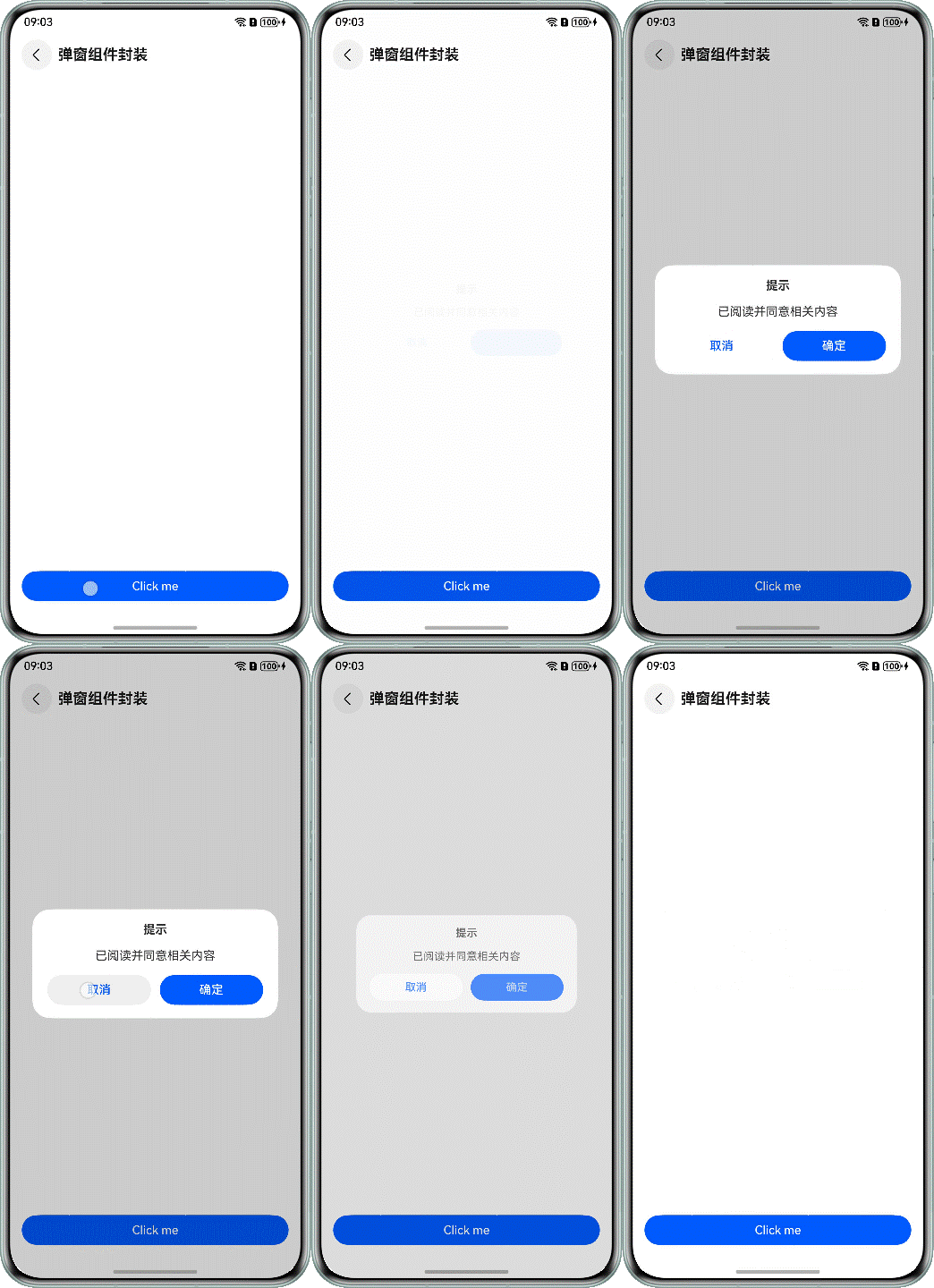
第一步:使用方通过全局@Builder 封装弹窗结构
@Builder
export function buildText(_obj: Object) {
  Column({ space: 16 }) {
    Text($r('app.string.tips'))
      .fontSize($r('app.float.font_size_l'))
      .fontWeight(FontWeight.Bold)
    Text($r('app.string.content'))
      .fontSize($r('app.float.font_size_l'))
    Row() {
      Button($r('app.string.cancel'))
        .fontColor($r('app.color.blue'))
        .backgroundColor(Color.White)
        .margin({ right: $r('app.float.margin_right') })
        .width('42%')
        .onClick(() => {
          PopViewUtils.closePopView();
        })
      Button($r('app.string.confirm'))
        .width('42%')
        .onClick(() => {
          PopViewUtils.closePopView();
        })
    }
    .justifyContent(FlexAlign.Center)
    .width($r('app.float.dialog_width'))
  }
  .width($r('app.float.dialog_width'))
  .padding($r('app.float.padding_l'))
  .justifyContent(FlexAlign.Center)
  .alignItems(HorizontalAlign.Center)
  .backgroundColor(Color.White)
  .borderRadius($r('app.float.border_radius'))
}
第二步:提供方通过 promptAction 对象封装弹窗工具类
1. 在 EntryAbility 的 onWindowStageCreate() 方法中,通过 AppStorage.setOrCreate() 设置全局 UIContext 对象
onWindowStageCreate(windowStage: window.WindowStage): void {
  windowStage.loadContent('pages/Index', (err) => {
    try {
      AppStorage.setOrCreate('uiContext', windowStage.getMainWindowSync().getUIContext());
    } catch (err) {
      let error = err as BusinessError;
      hilog.error(0x0000, 'testTag', `aboutToAppear err, code: ${error.code}, message: ${error.message}`);
    }
  });
}
2. 通过 openCustomDialog 创建打开弹窗的 showDialog 函数
import { ComponentContent, promptAction } from '@kit.ArkUI';
import { hilog } from '@kit.PerformanceAnalysisKit';
import { BusinessError } from '@kit.BasicServicesKit';

export enum PopViewShowType {
  OPEN
}

interface PopViewModel {
  com: ComponentContent<object>;
  popType: PopViewShowType;
}

export class PopViewUtils {
  private static popShare: PopViewUtils;
  private infoList: PopViewModel[] = new Array<PopViewModel>();

  static shareInstance(): PopViewUtils {
    if (!PopViewUtils.popShare) {
      PopViewUtils.popShare = new PopViewUtils();
    }
    return PopViewUtils.popShare;
  }

  static showDialog<T extends object>(type: PopViewShowType, contentView: WrappedBuilder<[T]>, args: T,
    options?: promptAction.BaseDialogOptions): void {
    let uiContext = AppStorage.get<UIContext>('uiContext');
    if (uiContext) {
      // 获取 promptAction 对象
      let prompt = uiContext.getPromptAction();
      let componentContent = new ComponentContent(uiContext, contentView, args);
      let customOptions: promptAction.BaseDialogOptions = {
        alignment: options?.alignment || DialogAlignment.Bottom
      };
      // 使用 openCustomDialog 打开弹窗
      prompt.openCustomDialog(componentContent, customOptions).catch((err: BusinessError) => {
        hilog.error(0x0000, 'PopViewUtils', `openCustomDialog failed. code=${err.code}, message=${err.message}`);
      });
      let infoList = PopViewUtils.shareInstance().infoList;
      let info: PopViewModel = {
        com: componentContent,
        popType: type
      };
      infoList[0] = info;
    }
  }
}
3. 通过 closeCustomDialog 创建关闭弹窗的 closeDialog 函数
static closeDialog(type: PopViewShowType): void {
  let uiContext = AppStorage.get<UIContext>('uiContext');
  if (uiContext) {
    // 获取 promptAction 对象
    let prompt = uiContext.getPromptAction();
    let sameTypeList = PopViewUtils.shareInstance().infoList.filter((model) => {
      return model.popType === type;
    })
    let info = sameTypeList[sameTypeList.length - 1];
    if (info && info.com) {
      PopViewUtils.shareInstance().infoList = PopViewUtils.shareInstance().infoList.filter((model) => {
        return model.com !== info.com;
      })
      // 使用 closeCustomDialog 关闭弹窗
      prompt.closeCustomDialog(info.com).catch((err: BusinessError) => {
        hilog.error(0x0000, 'PopViewUtils', `closeCustomDialog failed. code=${err.code}, message=${err.message}`);
      });
    }
  }
}
4. 封装对外的打开和关闭弹窗接口函数
static showPopView<T extends object>(contentView: WrappedBuilder<[T]>, args: T,
  options?: promptAction.BaseDialogOptions): void {
  PopViewUtils.showDialog(PopViewShowType.OPEN, contentView, args, options);
}

static closePopView(): void {
  PopViewUtils.closeDialog(PopViewShowType.OPEN);
}
第三步:使用方调用弹窗工具类传入封装好的弹窗结构实现自定义弹窗
import { PopViewUtils } from '../model/PopViewUtils';

@Entry
@Component
struct DialogComponent {
  build() {
    NavDestination() {
      Column() {
        Button('Click me')
          .width('100%')
          .onClick(() => {
            PopViewUtils.showPopView<Object>(wrapBuilder(buildText), new Object(), {
              alignment: DialogAlignment.Center
            });
          })
      }
      .justifyContent(FlexAlign.End)
      .padding({
        left: $r('app.float.padding'),
        right: $r('app.float.padding'),
        bottom: $r('app.float.padding')
      })
      .width('100%')
      .height('100%')
    }
    .title(getResourceString($r('app.string.dialog'), this))
  }
}
四、总结一下
弹窗组件封装就这几个核心:
- 获取 UIContext:在 EntryAbility 中通过
AppStorage.setOrCreate()设置全局 UIContext - 获取 PromptAction:通过
uiContext.getPromptAction()获取 promptAction 对象 - 创建 ComponentContent:定义自定义弹窗的内容
- 打开弹窗:使用
prompt.openCustomDialog()打开弹窗 - 关闭弹窗:使用
prompt.closeCustomDialog()关闭弹窗 - 封装工具类:创建单例模式的工具类,提供统一的打开/关闭接口
- 使用方调用:传入@Builder 函数和参数,实现自定义弹窗
记住啊,UIContext 要全局存储,不然弹窗工具类拿不到!

讨论HarmonyOS开发技术,专注于API与组件、DevEco Studio、测试、元服务和应用上架分发等。
更多推荐



 7
7 0
0- 0


 已为社区贡献82条内容

所有评论(0)