摸鱼新高度:在 HarmonyOS 手表上搓一个“腕上贪吃蛇”,开会也能偷偷玩
开会的时候,你有没有过这种冲动——眼睛盯着领导,手在桌子底下悄悄划拉着什么?手机太显眼,电脑屏幕会反光,但手腕上的那块小屏幕,谁也注意不到你在干嘛。没错,今天我们要在 HarmonyOS 手表上写一个贪吃蛇游戏。这事儿听起来挺酷的,做起来其实也不难——你只需要了解 Canvas 绘图、定时器、方向控制这几样东西,一两个小时就能搞定。写完之后你就会发现,手表开发没想象中那么玄乎,那些用来水文章的时间
前言
开会的时候,你有没有过这种冲动——眼睛盯着领导,手在桌子底下悄悄划拉着什么?手机太显眼,电脑屏幕会反光,但手腕上的那块小屏幕,谁也注意不到你在干嘛。没错,今天我们要在 HarmonyOS 手表上写一个贪吃蛇游戏。这事儿听起来挺酷的,做起来其实也不难——你只需要了解 Canvas 绘图、定时器、方向控制这几样东西,一两个小时就能搞定。写完之后你就会发现,手表开发没想象中那么玄乎,那些用来水文章的时间,不如用来水个游戏。
一、为什么要写一个手表贪吃蛇?
这问题挺好回答的。首先,贪吃蛇是游戏开发里的“Hello World”——界面简单,逻辑清晰,但又包含了状态管理、碰撞检测、定时循环这些几乎所有游戏都离不开的基础模块。做完一个贪吃蛇,你就基本摸清了用 HarmonyOS 开发小游戏的门路。
其次,手表这个场景很有意思。HarmonyOS 支持了智能穿戴设备的开发,ArkUI 针对圆形表盘新增了一系列适配能力,比如旋转表冠事件、弧形列表组件等等。这些新特性平时不太有机会碰,但写一个游戏刚好能全部用上。
第三嘛,实用价值也不低。有了腕上贪吃蛇,以后开那种又长又无聊的会议,你就能在袖子里悄悄玩一把——屏幕小、隐蔽性好,比掏手机安全多了。
二、动手之前,先把家当备齐
开始写代码之前,有几点准备工作要先说清楚,省得后面踩坑。
开发工具。 我们需要 DevEco Studio,版本建议 5.1.0 及以上。创建项目的时候注意选择 Wearable 设备类型。这点很重要——如果你选了默认的手机模板,后面在手表模拟器上跑起来布局会非常别扭。
技术栈。 全部用 ArkTS 写。这是 HarmonyOS 主推的声明式开发语言,语法和 TypeScript 几乎一样,写起来很顺手。核心用到的 API 就四样:Canvas 画布负责渲染、setInterval 定时器负责游戏循环、手势事件处理滑动控制方向、还有表冠事件用来旋转控制。
三、第一步,把画布铺好——Canvas 在手表上的用法
贪吃蛇的本质是什么?就是一个不断刷新的网格。蛇在网格上移动,食物随机出现,Canvas 把这一切画出来。所以我们先来搞定画布。
HarmonyOS 的 Canvas 组件是通过 Canvas 标签在 ArkUI 中声明的,底层基于轻量级图形引擎,特别适合手表这种资源受限的设备。和手机开发不太一样的是,手表屏幕是圆的,画布尺寸需要根据圆形区域来定,不能直接用满整个屏幕。
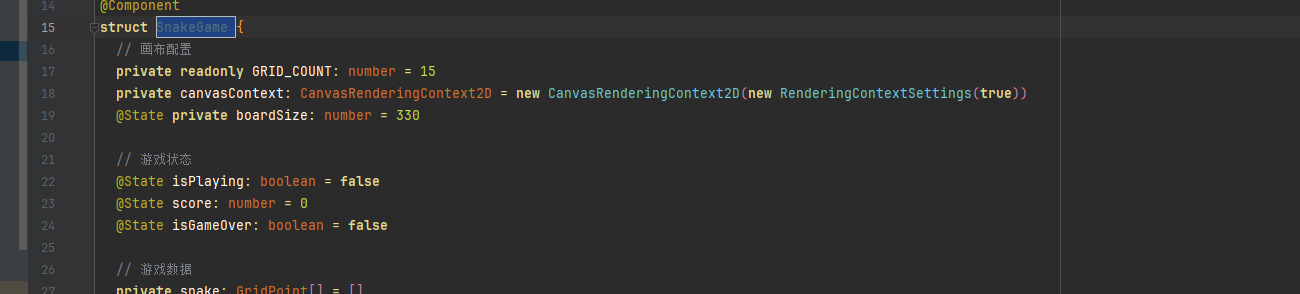
创建一个新的 Index.ets,先搭出最基础的框架:
@Entry
@Component
struct SnakeGame {
  // 画布引用,后面通过它获取绘图上下文
  private canvasContext: CanvasRenderingContext2D | null = null

  build() {
    Column() {
      Canvas(this.canvasContext)
        .width('100%')
        .height('100%')
        .backgroundColor('#1a1a2e')
        .onReady(() => {
          // 画布准备好之后,在这里初始化游戏
          this.initGame()
        })
    }
    .width('100%')
    .height('100%')
    .backgroundColor('#0f0f1a')
  }

  initGame() {
    // 后面会填充
  }
}这里有几个值得注意的地方。onReady 是 Canvas 组件特有的生命周期回调,画布渲染完成之后会自动触发,我们在里面做初始化和第一次绘制。画布尺寸设成了 100% 撑满整个 Column,背景色用深色调,后面蛇身和食物会更醒目。
四、贪吃蛇的核心——用数据驱动画面
声明式 UI 的核心思想是:界面长什么样,完全由数据决定。数据变了,界面自动刷新。但在贪吃蛇里,画面是每帧实时绘制的,不能靠 @State 自动触发刷新——那性能太差了。所以我们需要一个“手动刷新”的方案:用 @State 存游戏状态,用 Canvas 的绘图上下文手动画每一帧。
先定义数据模型:
// 网格配置
private readonly GRID_SIZE: number = 20      // 每个格子20像素
private readonly GRID_COUNT: number = 15      // 15x15的网格,手表圆屏刚好够用

// 游戏状态
@State isPlaying: boolean = false
@State score: number = 0
@State isGameOver: boolean = false

// 蛇的数据
private snake: Array<{ x: number, y: number }> = []
private food: { x: number, y: number } = { x: 7, y: 7 }
private direction: string = 'right'
private nextDirection: string = 'right'
这里把网格尺寸定义成了 15×15,每个格子 20 像素。15×15 意味着画布实际尺寸是 300×300 像素,在手表圆屏上显示刚刚好——既不会太小看不清,也不会太大超出屏幕边缘。
蛇用数组表示,每个元素是一个坐标对象。食物也是一个坐标。direction 是当前移动方向,nextDirection 存放下一步的方向——这样设计是为了防止用户在一帧之内连续按多个方向导致蛇“反向自杀”。
五、初始化游戏,让蛇动起来
游戏开始前需要初始化:蛇放在画布中央,长度设为 3,食物随机生成。初始化函数长这样:
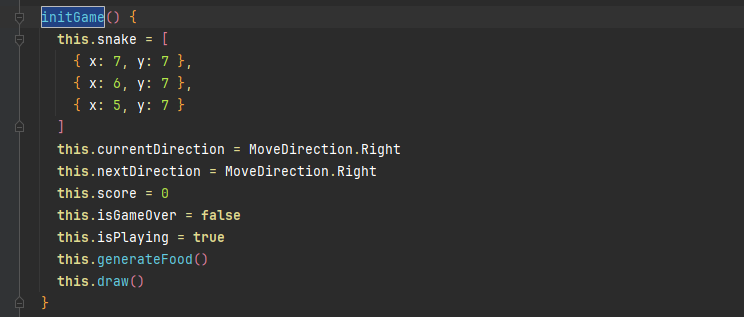
initGame() {
  // 重置蛇——初始长度3,放在中间位置
  this.snake = [
    { x: 7, y: 7 },
    { x: 6, y: 7 },
    { x: 5, y: 7 }
  ]

  // 重置方向
  this.direction = 'right'
  this.nextDirection = 'right'

  // 重置分数和状态
  this.score = 0
  this.isGameOver = false
  this.isPlaying = true

  // 生成第一个食物
  this.generateFood()

  // 绘制第一帧
  this.draw()
}
生成食物的逻辑需要避开蛇身:
generateFood() {
  const freeCells: Array<{ x: number, y: number }> = []

  // 遍历所有格子,找出没有被蛇占用的
  for (let i = 0; i < this.GRID_COUNT; i++) {
    for (let j = 0; j < this.GRID_COUNT; j++) {
      if (!this.snake.some(segment => segment.x === i && segment.y === j)) {
        freeCells.push({ x: i, y: j })
      }
    }
  }

  if (freeCells.length > 0) {
    const randomIndex = Math.floor(Math.random() * freeCells.length)
    this.food = freeCells[randomIndex]
  }
}
六、绘图逻辑——把数据变成画面
draw 方法是整个游戏里最核心的渲染函数。它负责把蛇、食物、网格、分数全部画到 Canvas 上:
draw() {
  if (!this.canvasContext) return

  const ctx = this.canvasContext
  const gridSize = this.GRID_SIZE
  const gridCount = this.GRID_COUNT

  // 1. 清空画布
  ctx.clearRect(0, 0, gridSize * gridCount, gridSize * gridCount)

  // 2. 画网格线(半透明,增加一点科技感)
  ctx.strokeStyle = '#2a2a4a'
  ctx.lineWidth = 0.5
  for (let i = 0; i <= gridCount; i++) {
    ctx.beginPath()
    ctx.moveTo(i * gridSize, 0)
    ctx.lineTo(i * gridSize, gridSize * gridCount)
    ctx.stroke()

    ctx.beginPath()
    ctx.moveTo(0, i * gridSize)
    ctx.lineTo(gridSize * gridCount, i * gridSize)
    ctx.stroke()
  }

  // 3. 画食物——一个带光晕的小圆点
  ctx.shadowColor = '#ff6b6b'
  ctx.shadowBlur = 8
  ctx.fillStyle = '#ff4757'
  ctx.beginPath()
  ctx.arc(
    this.food.x * gridSize + gridSize / 2,
    this.food.y * gridSize + gridSize / 2,
    gridSize / 2 - 2,
    0,
    2 * Math.PI
  )
  ctx.fill()
  ctx.shadowBlur = 0  // 关掉光晕,避免影响蛇的绘制

  // 4. 画蛇——身体用渐变绿色,头部用亮绿色
  this.snake.forEach((segment, index) => {
    const isHead = index === 0
    const x = segment.x * gridSize
    const y = segment.y * gridSize

    if (isHead) {
      ctx.fillStyle = '#2ed573'
    } else {
      // 身体越靠近尾巴颜色越深
      const opacity = 1 - (index / this.snake.length) * 0.3
      ctx.fillStyle = `rgba(46, 213, 115, ${opacity})`
    }

    ctx.fillRect(x + 2, y + 2, gridSize - 4, gridSize - 4)
  })

  // 5. 画分数
  ctx.font = 'bold 16px sans-serif'
  ctx.fillStyle = '#ffffff'
  ctx.textAlign = 'center'
  ctx.fillText(`分数: ${this.score}`, (gridSize * gridCount) / 2, 24)

  // 6. 如果游戏结束,画遮罩和提示
  if (this.isGameOver) {
    ctx.fillStyle = 'rgba(0, 0, 0, 0.6)'
    ctx.fillRect(0, 0, gridSize * gridCount, gridSize * gridCount)

    ctx.font = 'bold 18px sans-serif'
    ctx.fillStyle = '#ff6b6b'
    ctx.fillText('游戏结束', (gridSize * gridCount) / 2, (gridSize * gridCount) / 2)
    ctx.font = '14px sans-serif'
    ctx.fillStyle = '#aaaaaa'
    ctx.fillText('点击屏幕重新开始', (gridSize * gridCount) / 2, (gridSize * gridCount) / 2 + 30)
  }
}
这个 draw 函数做了几件有意思的事:
- 网格线用半透明的细线画出来,不会喧宾夺主但能让玩家看清格子边界。
- 食物用
arc画成圆点,还加了shadowBlur制造一点光晕效果,看起来像一颗发光的能量球。 - 蛇身用带透明度的渐变,头最亮,越往尾巴越暗,层次感就出来了。
- 游戏结束遮罩是半透明黑色层加文字提示,直接告诉玩家发生了什么。
七、游戏循环——用 setInterval 让蛇持续移动
蛇不会自己动,需要用一个定时器每隔固定时间调用一次移动逻辑。HarmonyOS 提供了标准的 setInterval API,用法和浏览器里一模一样:
private gameTimer: number = -1

startGame() {
  if (this.gameTimer !== -1) {
    clearInterval(this.gameTimer)
  }

  this.gameTimer = setInterval(() => {
    if (this.isPlaying && !this.isGameOver) {
      this.moveSnake()
      this.draw()
    }
  }, 200)  // 200ms一帧,手表上这个速度刚好
}

moveSnake() {
  // 1. 更新方向(不能反向)
  if ((this.direction === 'up' && this.nextDirection !== 'down') ||
      (this.direction === 'down' && this.nextDirection !== 'up') ||
      (this.direction === 'left' && this.nextDirection !== 'right') ||
      (this.direction === 'right' && this.nextDirection !== 'left')) {
    this.direction = this.nextDirection
  }

  // 2. 计算新头部位置
  const head = this.snake[0]
  let newHead = { x: head.x, y: head.y }

  switch (this.direction) {
    case 'up':    newHead.y -= 1; break
    case 'down':  newHead.y += 1; break
    case 'left':  newHead.x -= 1; break
    case 'right': newHead.x += 1; break
  }

  // 3. 碰撞检测——撞墙
  if (newHead.x < 0 || newHead.x >= this.GRID_COUNT ||
      newHead.y < 0 || newHead.y >= this.GRID_COUNT) {
    this.gameOver()
    return
  }

  // 4. 检查是否吃到食物
  const isEating = (newHead.x === this.food.x && newHead.y === this.food.y)

  // 5. 移动蛇
  this.snake.unshift(newHead)  // 头部插入新坐标

  if (isEating) {
    this.score += 10
    this.generateFood()
    // 吃到了就不删尾部,长度+1
  } else {
    this.snake.pop()  // 没吃到就删尾部,保持长度不变
  }

  // 6. 碰撞检测——撞自己(新头部不能和身体其他部分重合)
  const headCollision = this.snake.slice(1).some(segment =>
    segment.x === newHead.x && segment.y === newHead.y
  )
  if (headCollision) {
    this.gameOver()
  }
}
定时器的清理也很重要——组件销毁时必须停掉定时器,不然会内存泄漏:
aboutToDisappear() {
  if (this.gameTimer !== -1) {
    clearInterval(this.gameTimer)
    this.gameTimer = -1
  }
}
八、控制方向——滑动 + 表冠双管齐下
手表上没有键盘,怎么控制方向?两种方式:滑动屏幕和旋转表冠。
滑动控制 用 PanGesture 手势识别:
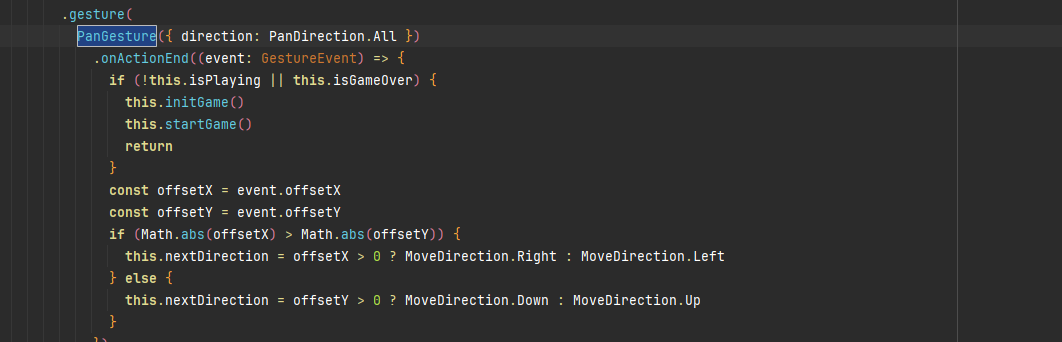
.gesture(
  PanGesture({ direction: PanDirection.All })
    .onActionEnd((event: GestureEvent) => {
      if (!this.isPlaying || this.isGameOver) {
        this.initGame()
        this.startGame()
        return
      }

      const offsetX = event.offsetX
      const offsetY = event.offsetY

      // 判断水平还是垂直滑动(哪个方向的偏移量大)
      if (Math.abs(offsetX) > Math.abs(offsetY)) {
        this.nextDirection = offsetX > 0 ? 'right' : 'left'
      } else {
        this.nextDirection = offsetY > 0 ? 'down' : 'up'
      }
    })
)
旋转表冠控制 是 HarmonyOS 手表开发特有的能力。从 API 18 开始,系统支持通过 onDigitalCrown 接口感知表冠旋转事件。表冠旋转会触发一个 CrownEvent 对象,里面包含旋转角度 degree:
.onDigitalCrown((event: CrownEvent) => {
  if (!this.isPlaying || this.isGameOver) return

  // 根据旋转方向切换方向(顺时针向右,逆时针向左)
  if (event.degree > 0) {
    // 顺时针旋转,方向循环切换:上→右→下→左→上
    const dirs = ['up', 'right', 'down', 'left']
    const currentIndex = dirs.indexOf(this.nextDirection)
    this.nextDirection = dirs[(currentIndex + 1) % 4]
  } else {
    const dirs = ['up', 'left', 'down', 'right']
    const currentIndex = dirs.indexOf(this.nextDirection)
    this.nextDirection = dirs[(currentIndex + 1) % 4]
  }
})注意:表冠事件分发依赖于组件焦点,接收事件的组件必须设置 focusable(true),可以在 Canvas 上加上这个属性。
九、完整代码——一个文件搞定
把所有模块拼起来,就是完整可运行的手表贪吃蛇。下面给出 Index.ets 的完整代码,直接在 DevEco Studio 里替换即可:
import { promptAction } from '@kit.ArkUI'

@Entry
@Component
struct SnakeGame {
  // 画布配置
  private readonly GRID_SIZE: number = 20
  private readonly GRID_COUNT: number = 15
  private canvasContext: CanvasRenderingContext2D | null = null

  // 游戏状态
  @State isPlaying: boolean = false
  @State score: number = 0
  @State isGameOver: boolean = false

  // 游戏数据
  private snake: Array<{ x: number, y: number }> = []
  private food: { x: number, y: number } = { x: 7, y: 7 }
  private direction: string = 'right'
  private nextDirection: string = 'right'
  private gameTimer: number = -1

  aboutToDisappear() {
    if (this.gameTimer !== -1) {
      clearInterval(this.gameTimer)
      this.gameTimer = -1
    }
  }

  initGame() {
    this.snake = [
      { x: 7, y: 7 },
      { x: 6, y: 7 },
      { x: 5, y: 7 }
    ]
    this.direction = 'right'
    this.nextDirection = 'right'
    this.score = 0
    this.isGameOver = false
    this.isPlaying = true
    this.generateFood()
    this.draw()
  }

  generateFood() {
    const freeCells: Array<{ x: number, y: number }> = []
    for (let i = 0; i < this.GRID_COUNT; i++) {
      for (let j = 0; j < this.GRID_COUNT; j++) {
        if (!this.snake.some(segment => segment.x === i && segment.y === j)) {
          freeCells.push({ x: i, y: j })
        }
      }
    }
    if (freeCells.length > 0) {
      const randomIndex = Math.floor(Math.random() * freeCells.length)
      this.food = freeCells[randomIndex]
    }
  }

  startGame() {
    if (this.gameTimer !== -1) {
      clearInterval(this.gameTimer)
    }
    this.gameTimer = setInterval(() => {
      if (this.isPlaying && !this.isGameOver) {
        this.moveSnake()
        this.draw()
      }
    }, 200)
  }

  moveSnake() {
    if ((this.direction === 'up' && this.nextDirection !== 'down') ||
        (this.direction === 'down' && this.nextDirection !== 'up') ||
        (this.direction === 'left' && this.nextDirection !== 'right') ||
        (this.direction === 'right' && this.nextDirection !== 'left')) {
      this.direction = this.nextDirection
    }

    const head = this.snake[0]
    let newHead = { x: head.x, y: head.y }

    switch (this.direction) {
      case 'up':    newHead.y -= 1; break
      case 'down':  newHead.y += 1; break
      case 'left':  newHead.x -= 1; break
      case 'right': newHead.x += 1; break
    }

    if (newHead.x < 0 || newHead.x >= this.GRID_COUNT ||
        newHead.y < 0 || newHead.y >= this.GRID_COUNT) {
      this.gameOver()
      return
    }

    const isEating = (newHead.x === this.food.x && newHead.y === this.food.y)
    this.snake.unshift(newHead)

    if (isEating) {
      this.score += 10
      this.generateFood()
    } else {
      this.snake.pop()
    }

    const headCollision = this.snake.slice(1).some(segment =>
      segment.x === newHead.x && segment.y === newHead.y
    )
    if (headCollision) {
      this.gameOver()
    }
  }

  gameOver() {
    this.isGameOver = true
    this.isPlaying = false
    this.draw()
  }

  draw() {
    if (!this.canvasContext) return

    const ctx = this.canvasContext
    const gridSize = this.GRID_SIZE
    const gridCount = this.GRID_COUNT
    const canvasSize = gridSize * gridCount

    ctx.clearRect(0, 0, canvasSize, canvasSize)

    // 网格线
    ctx.strokeStyle = '#2a2a4a'
    ctx.lineWidth = 0.5
    for (let i = 0; i <= gridCount; i++) {
      ctx.beginPath()
      ctx.moveTo(i * gridSize, 0)
      ctx.lineTo(i * gridSize, canvasSize)
      ctx.stroke()
      ctx.beginPath()
      ctx.moveTo(0, i * gridSize)
      ctx.lineTo(canvasSize, i * gridSize)
      ctx.stroke()
    }

    // 食物
    ctx.shadowColor = '#ff6b6b'
    ctx.shadowBlur = 8
    ctx.fillStyle = '#ff4757'
    ctx.beginPath()
    ctx.arc(
      this.food.x * gridSize + gridSize / 2,
      this.food.y * gridSize + gridSize / 2,
      gridSize / 2 - 2,
      0,
      2 * Math.PI
    )
    ctx.fill()
    ctx.shadowBlur = 0

    // 蛇
    this.snake.forEach((segment, index) => {
      const isHead = index === 0
      const x = segment.x * gridSize
      const y = segment.y * gridSize
      if (isHead) {
        ctx.fillStyle = '#2ed573'
      } else {
        const opacity = 1 - (index / this.snake.length) * 0.3
        ctx.fillStyle = `rgba(46, 213, 115, ${opacity})`
      }
      ctx.fillRect(x + 2, y + 2, gridSize - 4, gridSize - 4)
    })

    // 分数
    ctx.font = 'bold 16px sans-serif'
    ctx.fillStyle = '#ffffff'
    ctx.textAlign = 'center'
    ctx.fillText(`分数: ${this.score}`, canvasSize / 2, 24)

    // 游戏结束遮罩
    if (this.isGameOver) {
      ctx.fillStyle = 'rgba(0, 0, 0, 0.6)'
      ctx.fillRect(0, 0, canvasSize, canvasSize)
      ctx.font = 'bold 18px sans-serif'
      ctx.fillStyle = '#ff6b6b'
      ctx.fillText('游戏结束', canvasSize / 2, canvasSize / 2)
      ctx.font = '14px sans-serif'
      ctx.fillStyle = '#aaaaaa'
      ctx.fillText('点击屏幕重新开始', canvasSize / 2, canvasSize / 2 + 30)
    }
  }

  build() {
    Column() {
      Canvas(this.canvasContext)
        .width(`${this.GRID_SIZE * this.GRID_COUNT}px`)
        .height(`${this.GRID_SIZE * this.GRID_COUNT}px`)
        .backgroundColor('#1a1a2e')
        .focusable(true)
        .onReady(() => {
          this.initGame()
          this.startGame()
        })
        .gesture(
          PanGesture({ direction: PanDirection.All })
            .onActionEnd((event: GestureEvent) => {
              if (!this.isPlaying || this.isGameOver) {
                this.initGame()
                this.startGame()
                return
              }
              const offsetX = event.offsetX
              const offsetY = event.offsetY
              if (Math.abs(offsetX) > Math.abs(offsetY)) {
                this.nextDirection = offsetX > 0 ? 'right' : 'left'
              } else {
                this.nextDirection = offsetY > 0 ? 'down' : 'up'
              }
            })
        )
        .onDigitalCrown((event: CrownEvent) => {
          if (!this.isPlaying || this.isGameOver) return
          if (event.degree > 0) {
            const dirs = ['up', 'right', 'down', 'left']
            const currentIndex = dirs.indexOf(this.nextDirection)
            this.nextDirection = dirs[(currentIndex + 1) % 4]
          } else {
            const dirs = ['up', 'left', 'down', 'right']
            const currentIndex = dirs.indexOf(this.nextDirection)
            this.nextDirection = dirs[(currentIndex + 1) % 4]
          }
        })

      Row({ space: 20 }) {
        Text(`得分: ${this.score}`)
          .fontSize(16)
          .fontColor('#ffffff')

        Button('重来')
          .fontSize(14)
          .height(36)
          .backgroundColor('#2ed573')
          .onClick(() => {
            this.initGame()
            this.startGame()
          })
      }
      .width('100%')
      .padding(12)
      .justifyContent(FlexAlign.SpaceBetween)
    }
    .width('100%')
    .height('100%')
    .backgroundColor('#0f0f1a')
    .justifyContent(FlexAlign.Center)
  }
}
十、运行
在 DevEco Studio 里创建项目时,注意 Device Type 选择 Wearable。然后在 Device Manager 中启动“Huawei Lite Wearable Simulator”模拟器,点击运行按钮即可。
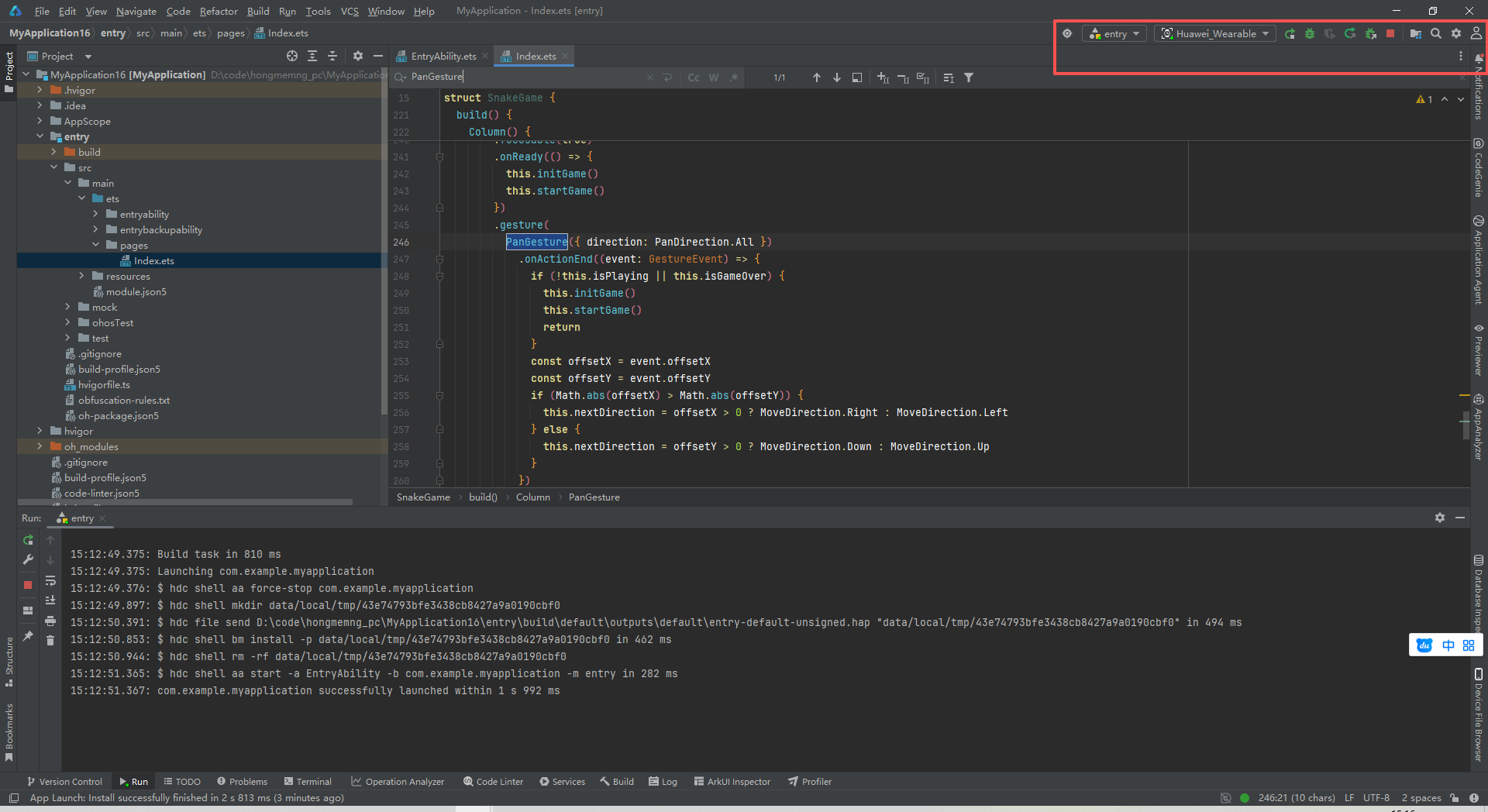
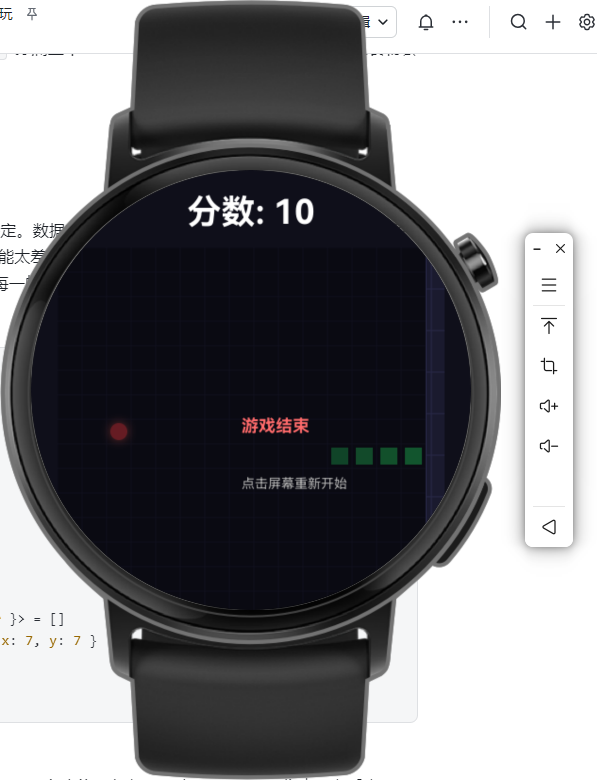
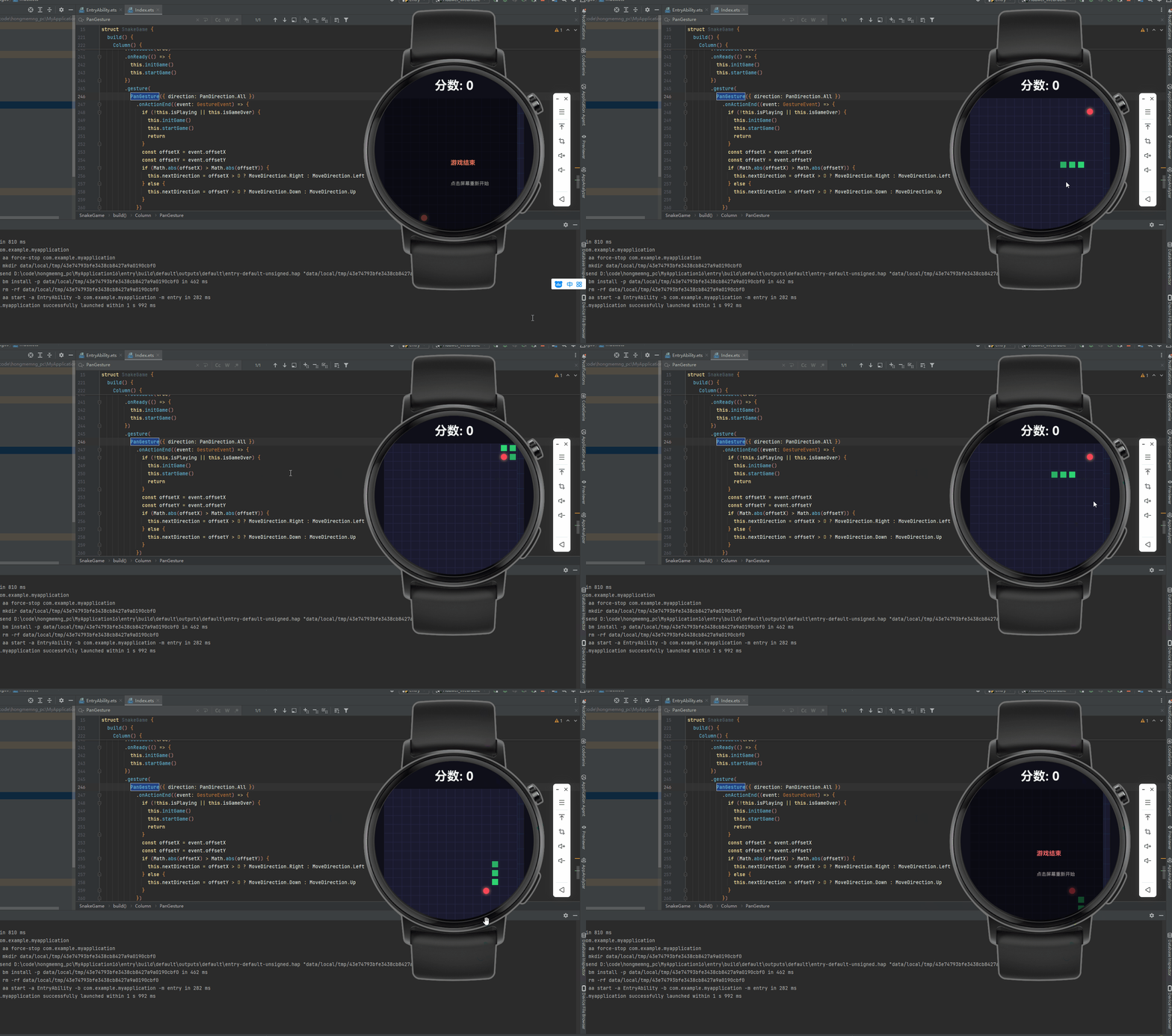
模拟器启动后,你会看到手表屏幕上出现一个深色背景的贪吃蛇游戏。15×15 的网格正好填满圆形屏幕的中央区域,不会超出边缘。手指在屏幕上滑动可以控制蛇的移动方向(上下左右),旋转表冠也能切换方向——顺时针是“上→右→下→左”循环,逆时针则反过来。屏幕下方显示当前分数和一个“重来”按钮。蛇吃到红色食物后身体变长、分数加 10,撞墙或撞到自己则游戏结束,屏幕变暗并提示“游戏结束”。
总结
做完这个腕上贪吃蛇,你应该已经对 HarmonyOS 手表开发有了一个比较具体的认知。Canvas 负责把所有游戏元素画出来,setInterval 驱动游戏循环,滑动手势和表冠事件处理玩家输入——这几样东西组合起来,就能搭出一个完整的小游戏。
更重要的是,你发现了手表开发和手机开发其实思路一样,只是屏幕更小、交互方式更丰富(多了表冠这个维度)。HarmonyOS 5.1.0 对穿戴设备的支持相当到位,Canvas 组件在手表上跑起来很流畅,官方文档里那个“轻量级智能穿戴开发实践”也值得翻一翻,里面有不少现成的案例可以套用。
下次开会无聊的时候,手腕一转,领导还以为是你在看时间——完美。

讨论HarmonyOS开发技术,专注于API与组件、DevEco Studio、测试、元服务和应用上架分发等。
更多推荐
 6
6 0
0- 0


 已为社区贡献16条内容

所有评论(0)