Flutter鸿蒙实战-音乐播放器开发教程
·
Flutter 三方库 cached_network_image 的鸿蒙化适配与实战指南
欢迎加入开源鸿蒙跨平台社区:https://openharmonycrossplatform.csdn.net
前言
音乐播放器是移动应用开发中的经典案例,涵盖了UI设计、状态管理、动画效果、音频处理等多个技术要点。本文将带你使用Flutter和鸿蒙ArkTS两种技术栈,从零开始构建一个功能完善的音乐播放器应用。
一、项目概述
1.1 功能特性
| 功能模块 | 具体功能 |
|---|---|
| 播放控制 | 播放/暂停、上一首/下一首、进度拖动 |
| 播放模式 | 顺序播放、单曲循环、随机播放 |
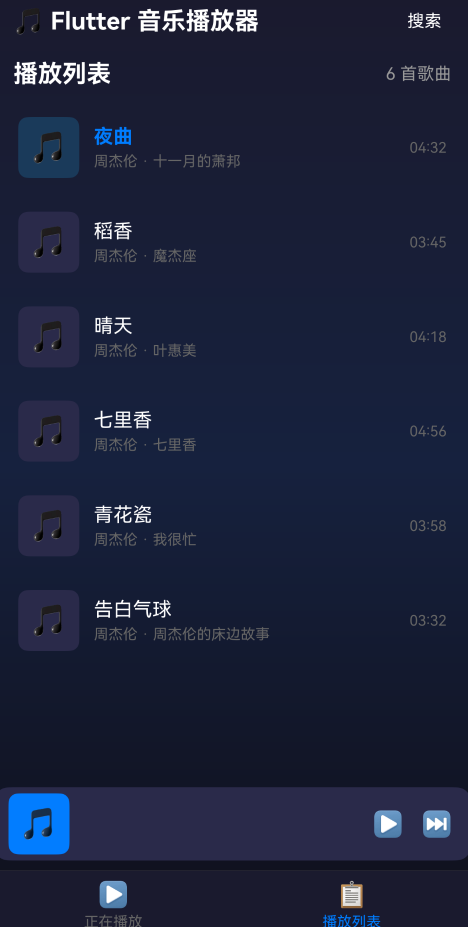
| 播放列表 | 歌曲列表展示、点击切换播放 |
| 迷你播放器 | 底部迷你控制栏、快速操作 |
| UI动效 | 封面旋转动画、渐变背景 |
1.2 技术架构
┌─────────────────────────────────────────────────────────┐
│                      View Layer                          │
│  ┌─────────────────────────────────────────────────┐   │
│  │  MusicPlayerPage - 播放界面、列表、迷你播放器    │   │
│  └─────────────────────────────────────────────────┘   │
└─────────────────────────────────────────────────────────┘
                          │
                          │ 状态订阅/通知
                          ▼
┌─────────────────────────────────────────────────────────┐
│                    Service Layer                         │
│  ┌─────────────────────────────────────────────────┐   │
│  │  MusicPlayerService - 播放逻辑、状态管理         │   │
│  └─────────────────────────────────────────────────┘   │
└─────────────────────────────────────────────────────────┘
                          │
                          │ 数据操作
                          ▼
┌─────────────────────────────────────────────────────────┐
│                     Model Layer                          │
│  ┌─────────────────────────────────────────────────┐   │
│  │  SongModel - 歌曲数据模型、播放列表              │   │
│  └─────────────────────────────────────────────────┘   │
└─────────────────────────────────────────────────────────┘
二、Flutter版本实现
2.1 项目结构
flutter_music_player/
├── lib/
│   ├── main.dart                    # 应用入口
│   ├── models/
│   │   └── song_model.dart          # 歌曲数据模型
│   ├── services/
│   │   └── music_player_service.dart # 播放服务
│   ├── pages/
│   │   └── music_player_page.dart   # 主页面
│   ├── widgets/
│   │   ├── album_cover.dart         # 封面组件
│   │   ├── player_controls.dart     # 控制按钮
│   │   ├── progress_slider.dart     # 进度条
│   │   └── song_list_item.dart      # 列表项
│   └── data/
│       └── sample_songs.dart        # 示例数据
└── pubspec.yaml
2.2 数据模型定义
enum RepeatMode {
  none,   // 不循环
  one,    // 单曲循环
  all,    // 列表循环
}

class SongModel {
  final String id;
  final String title;
  final String artist;
  final String album;
  final String coverUrl;
  final String audioUrl;
  final Duration duration;

  const SongModel({
    required this.id,
    required this.title,
    required this.artist,
    required this.album,
    required this.coverUrl,
    required this.audioUrl,
    required this.duration,
  });
}
2.3 播放服务实现
使用 ChangeNotifier 实现状态管理:
class MusicPlayerService extends ChangeNotifier {
  List<SongModel> _playlist = [];
  int _currentIndex = -1;
  PlayerState _state = PlayerState.stopped;
  Duration _position = Duration.zero;
  Duration _duration = Duration.zero;
  RepeatMode _repeatMode = RepeatMode.none;
  bool _shuffleMode = false;
  Timer? _positionTimer;

  // 获取当前歌曲
  SongModel? get currentSong =>
      _currentIndex >= 0 && _currentIndex < _playlist.length
          ? _playlist[_currentIndex]
          : null;

  // 播放控制
  Future<void> play() async {
    _state = PlayerState.playing;
    _startPositionTimer();
    notifyListeners();
  }

  Future<void> pause() async {
    _state = PlayerState.paused;
    _stopPositionTimer();
    notifyListeners();
  }

  // 下一首
  Future<void> playNext() async {
    if (_shuffleMode) {
      _currentIndex = Random().nextInt(_playlist.length);
    } else if (_currentIndex < _playlist.length - 1) {
      _currentIndex++;
    } else if (_repeatMode == RepeatMode.all) {
      _currentIndex = 0;
    }
    _position = Duration.zero;
    notifyListeners();
  }

  // 进度定时器
  void _startPositionTimer() {
    _positionTimer = Timer.periodic(Duration(milliseconds: 100), (timer) {
      if (_position < _duration) {
        _position += Duration(milliseconds: 100);
        notifyListeners();
      } else {
        playNext();
      }
    });
  }
}
2.4 封面旋转动画
class AlbumCover extends StatefulWidget {
final String coverUrl;
final bool isPlaying;
final double size;
State<AlbumCover> createState() => _AlbumCoverState();
}
class _AlbumCoverState extends State<AlbumCover>
with SingleTickerProviderStateMixin {
late AnimationController _controller;
void initState() {
super.initState();
_controller = AnimationController(
duration: const Duration(seconds: 20),
vsync: this,
);
if (widget.isPlaying) {
_controller.repeat();
}
}
Widget build(BuildContext context) {
return AnimatedBuilder(
animation: _controller,
builder: (context, child) {
return Transform.rotate(
angle: _controller.value * 2 * pi,
child: child,
);
},
child: Container(
// 封面样式...
),
);
}
}
2.5 播放控制组件
class PlayerControls extends StatelessWidget {
final bool isPlaying;
final RepeatMode repeatMode;
final bool shuffleMode;
final VoidCallback onPlayPause;
final VoidCallback onNext;
final VoidCallback onPrevious;
Widget build(BuildContext context) {
return Row(
mainAxisAlignment: MainAxisAlignment.spaceEvenly,
children: [
// 循环模式按钮
IconButton(
icon: Icon(
repeatMode == RepeatMode.one ? Icons.repeat_one : Icons.repeat,
color: repeatMode == RepeatMode.none
? Colors.white54
: Color(0xFF007DFF),
),
onPressed: onRepeat,
),
// 上一首
IconButton(
icon: Icon(Icons.skip_previous, color: Colors.white),
onPressed: onPrevious,
),
// 播放/暂停
GestureDetector(
onTap: onPlayPause,
child: Container(
width: 70,
height: 70,
decoration: BoxDecoration(
shape: BoxShape.circle,
gradient: LinearGradient(
colors: [Color(0xFF007DFF), Color(0xFF0055CC)],
),
),
child: Icon(
isPlaying ? Icons.pause : Icons.play_arrow,
color: Colors.white,
size: 40,
),
),
),
// 下一首
IconButton(
icon: Icon(Icons.skip_next, color: Colors.white),
onPressed: onNext,
),
// 随机播放
IconButton(
icon: Icon(
Icons.shuffle,
color: shuffleMode ? Color(0xFF007DFF) : Colors.white54,
),
onPressed: onShuffle,
),
],
);
}
}
三、鸿蒙原生版本实现
3.1 数据模型
export interface SongModel {
  id: string;
  title: string;
  artist: string;
  album: string;
  coverUrl: string;
  audioUrl: string;
  duration: number;  // 毫秒
}

export enum RepeatMode {
  none,
  one,
  all
}

export enum PlayState {
  stopped,
  playing,
  paused
}
3.2 播放服务
export class MusicPlayerService {
  private _playlist: SongModel[] = [];
  private _currentIndex: number = -1;
  private _state: PlayState = PlayState.stopped;
  private _position: number = 0;
  private _repeatMode: RepeatMode = RepeatMode.none;
  private _shuffleMode: boolean = false;
  private listeners: Set<() => void> = new Set();
  private positionTimer: number = -1;

  get currentSong(): SongModel | null {
    if (this._currentIndex >= 0 && this._currentIndex < this._playlist.length) {
      return this._playlist[this._currentIndex];
    }
    return null;
  }

  subscribe(listener: () => void): void {
    this.listeners.add(listener);
  }

  private notifyListeners(): void {
    this.listeners.forEach((listener: () => void) => listener());
  }

  play(): void {
    this._state = PlayState.playing;
    this.startPositionTimer();
    this.notifyListeners();
  }

  private startPositionTimer(): void {
    this.stopPositionTimer();
    this.positionTimer = setInterval((): void => {
      if (this._position < this.duration) {
        this._position += 100;
        this.notifyListeners();
      } else {
        this.playNext();
      }
    }, 100);
  }
}
3.3 主页面实现
@Entry
@Component
struct MusicPlayerPage {
  @State playlist: SongModel[] = [];
  @State currentIndex: number = -1;
  @State state: PlayState = PlayState.stopped;
  @State position: number = 0;
  @State duration: number = 0;
  @State repeatMode: RepeatMode = RepeatMode.none;
  @State shuffleMode: boolean = false;
  @State currentTab: number = 0;

  private player: MusicPlayerService = musicPlayerService;

  aboutToAppear(): void {
    this.player.subscribe((): void => this.updateState());
    this.player.loadPlaylist();
  }

  updateState(): void {
    this.playlist = this.player.playlist;
    this.currentIndex = this.player.currentIndex;
    this.state = this.player.state;
    this.position = this.player.position;
    this.duration = this.player.duration;
  }

  build() {
    Column() {
      this.buildHeader()

      if (this.currentTab === 0) {
        this.buildNowPlaying()
      } else {
        this.buildPlaylist()
      }

      this.buildMiniPlayer()
      this.buildBottomNav()
    }
    .width('100%')
    .height('100%')
    .linearGradient({
      angle: 180,
      colors: [['#1a1a2e', 0], ['#16213e', 0.5], ['#0f0f1a', 1]]
    })
  }
}
3.4 播放控制按钮
@Builder
buildPlayButton(): void {
  Button() {
    Image(this.isPlaying
        ? $r('sys.media.ohos_ic_public_pause')
        : $r('sys.media.ohos_ic_public_play'))
      .width(32)
      .height(32)
      .fillColor(Color.White)
  }
  .width(70)
  .height(70)
  .borderRadius(35)
  .linearGradient({
    angle: 135,
    colors: [['#007DFF', 0], ['#0055CC', 1]]
  })
  .shadow({
    radius: 15,
    color: '#337DFF',
    offsetX: 0,
    offsetY: 4
  })
  .onClick((): void => { this.player.togglePlayPause() })
}
3.5 进度条实现
Slider({
  value: this.progress,
  min: 0,
  max: 1,
  step: 0.01,
  style: SliderStyle.OutSet
})
  .blockColor(Color.White)
  .trackColor('#333333')
  .selectedColor('#007DFF')
  .trackThickness(4)
  .blockSize({ width: 14, height: 14 })
  .onChange((value: number): void => {
    this.player.seekToProgress(value);
  })
四、核心功能详解
4.1 状态管理模式
Flutter使用 Provider + ChangeNotifier:
// 注册Provider
ChangeNotifierProvider(
  create: (_) => MusicPlayerService(),
  child: MaterialApp(...),
)

// 消费状态
Consumer<MusicPlayerService>(
  builder: (context, player, child) {
    return Text(player.currentSong?.title ?? '');
  },
)
鸿蒙使用观察者模式:
// 订阅状态
this.player.subscribe((): void => this.updateState());

// 通知更新
private notifyListeners(): void {
  this.listeners.forEach((listener: () => void) => listener());
}
4.2 播放模式切换
toggleRepeatMode(): void {
  switch (this._repeatMode) {
    case RepeatMode.none:
      this._repeatMode = RepeatMode.all;    // 列表循环
      break;
    case RepeatMode.all:
      this._repeatMode = RepeatMode.one;    // 单曲循环
      break;
    case RepeatMode.one:
      this._repeatMode = RepeatMode.none;   // 不循环
      break;
  }
  this.notifyListeners();
}
4.3 时间格式化
export function formatDuration(ms: number): string {
  const totalSeconds = Math.floor(ms / 1000);
  const minutes = Math.floor(totalSeconds / 60);
  const seconds = totalSeconds % 60;
  return `${minutes.toString().padStart(2, '0')}:${seconds.toString().padStart(2, '0')}`;
}
五、UI设计亮点
5.1 渐变背景
.linearGradient({
  angle: 180,
  colors: [['#1a1a2e', 0], ['#16213e', 0.5], ['#0f0f1a', 1]]
})
5.2 播放按钮阴影
.shadow({
  radius: 15,
  color: '#337DFF',
  offsetX: 0,
  offsetY: 4
})
5.3 迷你播放器
@Builder
buildMiniPlayer(): void {
  Row() {
    // 封面图标
    Column() {
      Text('🎵')
        .fontSize(24)
    }
    .width(50)
    .height(50)
    .borderRadius(8)
    .backgroundColor('#007DFF')

    // 歌曲信息
    Column() {
      Text(this.currentSong.title)
      Text(this.currentSong.artist)
    }

    // 控制按钮
    Button() { /* 播放/暂停 */ }
    Button() { /* 下一首 */ }
  }
  .backgroundColor('#2a2a4a')
  .borderRadius(12)
}
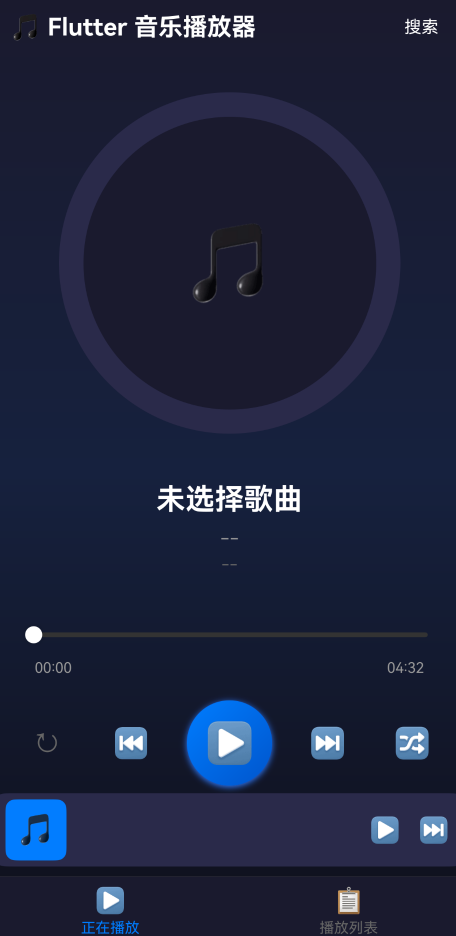
六、应用界面预览
┌────────────────────────────────────┐
│  🎵 Flutter 音乐播放器      [搜索] │
├────────────────────────────────────┤
│                                    │
│         ┌──────────────┐           │
│         │              │           │
│         │    🎵        │  ← 旋转封面
│         │              │           │
│         └──────────────┘           │
│                                    │
│           夜曲                      │
│         周杰伦                      │
│       十一月的萧邦                  │
│                                    │
│  ────────●───────────              │
│  01:23              04:32          │
│                                    │
│    ⟲   ⏮   ▶   ⏭   🔀            │
│                                    │
│   喜欢   添加   分享   下载         │
│                                    │
├────────────────────────────────────┤
│  🎵 夜曲 - 周杰伦        ⏸   ⏭    │  ← 迷你播放器
├────────────────────────────────────┤
│  🎵 正在播放    📋 播放列表        │  ← 底部导航
└────────────────────────────────────┘
七、总结
通过本实战项目,我们学习了:
- Flutter状态管理:使用Provider进行全局状态管理
- 动画效果:封面旋转动画的实现
- 鸿蒙原生开发:ArkTS语言特性和组件使用
- 观察者模式:状态订阅和通知机制
- UI设计:渐变背景、阴影效果、迷你播放器
这个音乐播放器应用展示了移动应用开发的核心技术,从数据模型设计到UI实现,涵盖了音乐播放器的完整功能。希望本文能帮助你更好地理解Flutter和鸿蒙原生开发。
作者简介:专注于Flutter跨平台开发和鸿蒙原生技术,致力于分享移动开发最佳实践。
版权声明:本文为原创文章,转载请注明出处。

讨论HarmonyOS开发技术,专注于API与组件、DevEco Studio、测试、元服务和应用上架分发等。
更多推荐


 7
7 0
0- 0


 已为社区贡献2条内容

所有评论(0)