【鸿蒙入门】零基础也能做:猜数字小游戏教程(附完整代码)
·
【鸿蒙入门】零基础也能做:猜数字小游戏教程(附完整代码)
还在愁鸿蒙开发怎么入门?来,跟着这篇教程,手把手带你做一个猜数字游戏,包教包会!
写在前面
HarmonyOS NEXT 是华为的新系统,ArkTS 是它的开发语言。今天我们用最简单的方式,带你完成第一个小游戏。
先看我们要做什么:
- 系统随机出个 1-100 的数字
- 你猜,系统告诉你是大了还是小了
- 猜中显示次数,可以再来一局
很简单吧?开始!
一、创建项目
1.1 用 DevEco Studio 创建
- 打开 DevEco Studio
- 选择 “Empty Ability”
- 项目名填 “MyApplication”
- 一路 Next
1.2 项目结构
MyApplication/
└── entry/src/main/ets/pages/
    └── Index.ets    # 主界面,我们就改这个
二、什么是状态管理?
鸿蒙的 UI 是「响应式」的,意思就是:
数据变了,界面自动更新。
看这段代码:
@State displayTime: string = '25:00'

Text(this.displayTime)  // 显示 25:00
当我们改变 displayTime 的值,界面上的文字会自动变化,不需要手动刷新。
记住:用 @State 包着的变量,变了 UI 就会跟着变。
三、开始写代码
3.1 定义状态变量
@Entry
@Component
struct Index {
  @State targetNumber: number = 0      // 答案(1-100)
  @State userInput: string = ''        // 输入框内容
  @State attempts: number = 0          // 猜了几次
  @State hintText: string = '输入 1-100 之间的数字'
  @State hintColor: string = '#888888'
  @State isGameOver: boolean = false   // 游戏结束没
  @State guessHistory: GuessRecord[] = []  // 猜测历史
  @State showCelebration: boolean = false  // 显示庆祝动画
}
解释一下:
targetNumber:系统随机生成的答案,玩家看不到userInput:绑定输入框,玩家输入什么就是什么attempts:猜了几次,每次提交加 1isGameOver:猜中后变成 true,禁用输入
3.2 定义历史记录类型
interface GuessRecord {
  guess: number        // 猜的数
  result: string       // 结果(正确/大了/小了)
  resultColor: string  // 颜色
}
放在文件开头,struct Index 之前。
四、核心逻辑
4.1 新游戏
newGame(): void {
  // 随机生成 1-100 的数
  this.targetNumber = Math.floor(Math.random() * 100) + 1

  // 重置所有状态
  this.userInput = ''
  this.attempts = 0
  this.hintText = '输入 1-100 之间的数字'
  this.hintColor = '#888888'
  this.isGameOver = false
  this.guessHistory = []
  this.showCelebration = false
}
怎么随机?
Math.random()生成 0-1 的小数Math.random() * 100得到 0-99 的小数Math.floor()向下取整,得到 0-99 的整数+1后变成 1-100
4.2 提交猜测
submitGuess(): void {
  const guess = parseInt(this.userInput)

  // 先检查输入对不对
  if (isNaN(guess) || guess < 1 || guess > 100) {
    this.hintText = '⚠️ 请输入 1-100 的整数'
    this.hintColor = '#E67E22'
    return  // 不继续往下走了
  }

  this.attempts++  // 次数加一

  // 判断大小
  if (guess === this.targetNumber) {
    // 猜中了!
    this.hintText = `🎉 恭喜!就是 ${this.targetNumber}!用了 ${this.attempts} 次!`
    this.hintColor = '#27AE60'  // 绿色
    this.isGameOver = true
    this.showCelebration = true
  } else if (guess < this.targetNumber) {
    // 小了
    this.hintText = `👆 ${guess} 小了`
    this.hintColor = '#E74C3C'  // 红色
  } else {
    // 大了
    this.hintText = `👇 ${guess} 大了`
    this.hintColor = '#E74C3C'  // 红色
  }

  // 记录到历史(新的在前面)
  this.guessHistory = [
    {
      guess: guess,
      result: guess === this.targetNumber ? '✅ 正确' :
             (guess < this.targetNumber ? '⬆ 小了' : '⬇ 大了'),
      resultColor: guess === this.targetNumber ? '#27AE60' : '#E74C3C'
    },
    ...this.guessHistory  // 把原来的历史展开
  ]

  this.userInput = ''  // 清空输入框
}
流程:
- 把输入转成数字
- 检查是不是 1-100 的整数
- 判断大小
- 更新提示文字和颜色
- 记录到历史
- 清空输入框
五、界面搭建
5.1 整体布局
build() {
  Column() {
    Scroll() {
      Column({ space: 12 }) {
        // 标题
        Text('🎯 猜数字')
          .fontSize(28)
          .fontWeight(FontWeight.Bold)

        Text('猜一个 1 ~ 100 之间的数字')
          .fontSize(14)
          .fontColor('#999999')

        // 这里放输入卡片、快捷按钮、历史记录...
      }
      .width('100%')
      .alignItems(HorizontalAlign.Center)  // 居中
    }
  }
  .width('100%')
  .height('100%')
  .backgroundColor('#F0F2F5')  // 浅灰背景
}
布局结构:
- 最外层
Column:占满全屏 Scroll:可以滚动,防止小屏幕显示不下- 内部
Column:垂直排列,居中对齐
5.2 输入卡片
Column({ space: 16 }) {
  // 提示文字
  Text(this.hintText)
    .fontSize(18)
    .fontColor(this.hintColor)
    .textAlign(TextAlign.Center)
    .width('100%')

  // 已猜次数
  if (this.attempts > 0) {
    Text(`已猜 ${this.attempts} 次`)
      .fontSize(13)
      .fontColor('#AAAAAA')
  }

  // 输入框 + 按钮
  Row({ space: 10 }) {
    TextInput({ text: this.userInput, placeholder: '输入数字...' })
      .type(InputType.Number)    // 弹数字键盘
      .maxLength(3)              // 最多3位
      .fontSize(20)
      .height(50)
      .layoutWeight(1)           // 占剩余空间
      .backgroundColor('#F5F5F5')
      .borderRadius(12)
      .onChange((val: string) => {
        this.userInput = val     // 输入时更新
      })
      .onSubmit(() => {
        if (!this.isGameOver) {
          this.submitGuess()     // 回车提交
        }
      })
      .enabled(!this.isGameOver) // 结束后禁用

    // 提交/重开按钮
    Button(this.isGameOver ? '🔄' : '↵')
      .width(50)
      .height(50)
      .backgroundColor(this.isGameOver ? '#3498DB' : '#2D3436')
      .borderRadius(12)
      .fontColor('#FFFFFF')
      .onClick(() => {
        if (this.isGameOver) {
          this.newGame()
        } else {
          this.submitGuess()
        }
      })
  }
  .width('100%')

  // 猜中后的庆祝动画
  if (this.showCelebration) {
    Text('✨ 🌟 ⭐ 🌟 ✨')
      .fontSize(24)
      .textAlign(TextAlign.Center)
      .width('100%')
  }
}
.width('85%')
.padding(20)
.backgroundColor('#FFFFFF')
.borderRadius(16)
.shadow({ radius: 6, color: '#1A000000', offsetY: 3 })
要点:
InputType.Number:弹数字键盘,方便输入maxLength(3):最多 3 位,100 也是 3 位enabled(!this.isGameOver):游戏结束后禁用输入框
5.3 快捷按钮
不想输数字?点击快捷按钮!
@Builder
quickButton(value: number): void {
  Button(`${value}`)
    .width(58)
    .height(36)
    .backgroundColor('#EEEEEE')
    .borderRadius(8)
    .fontSize(14)
    .fontColor('#555555')
    .onClick(() => {
      if (!this.isGameOver) {
        this.userInput = value.toString()
      }
    })
}
使用:
Row({ space: 8 }) {
  this.quickButton(10)
  this.quickButton(25)
  this.quickButton(50)
  this.quickButton(75)
  this.quickButton(90)
}
5.4 历史记录
if (this.guessHistory.length > 0) {
  Column({ space: 8 }) {
    Text('📋 猜测记录')
      .fontSize(16)
      .fontColor('#666666')

    Column({ space: 4 }) {
      ForEach(this.guessHistory, (item: GuessRecord) => {
        Row() {
          // 序号
          Text(`#${this.guessHistory.length - this.guessHistory.indexOf(item)}`)
            .fontSize(14)
            .fontColor('#AAAAAA')
            .width(36)

          // 猜的数字
          Text(`${item.guess}`)
            .fontSize(18)
            .fontWeight(FontWeight.Bold)
            .width(60)

          // 结果
          Text(item.result)
            .fontSize(15)
            .fontColor(item.resultColor)
        }
        .width('100%')
        .padding(8)
        .backgroundColor('#FAFAFA')
        .borderRadius(10)
      })
    }
  }
  .width('85%')
}
序号怎么算?
- 新记录在数组开头,索引是 0
- 所以序号 = 数组长度 - 索引
六、初始化游戏
aboutToAppear(): void {
  this.newGame()  // 组件加载时开始新游戏
}
七、常见问题
Q1:输入框清不掉?
A:确保 onChange 里更新了 userInput:
.onChange((val: string) => {
  this.userInput = val
})
Q2:历史记录序号反了?
A:用 数组长度 - 索引:
this.guessHistory.length - this.guessHistory.indexOf(item)
Q3:庆祝动画不显示?
A:要用 if 包着:
if (this.showCelebration) {
  Text('✨ 🌟 ⭐ 🌟 ✨')
}
Q4:结束后还能猜?
A:禁用输入框:
.enabled(!this.isGameOver)
八、运行效果
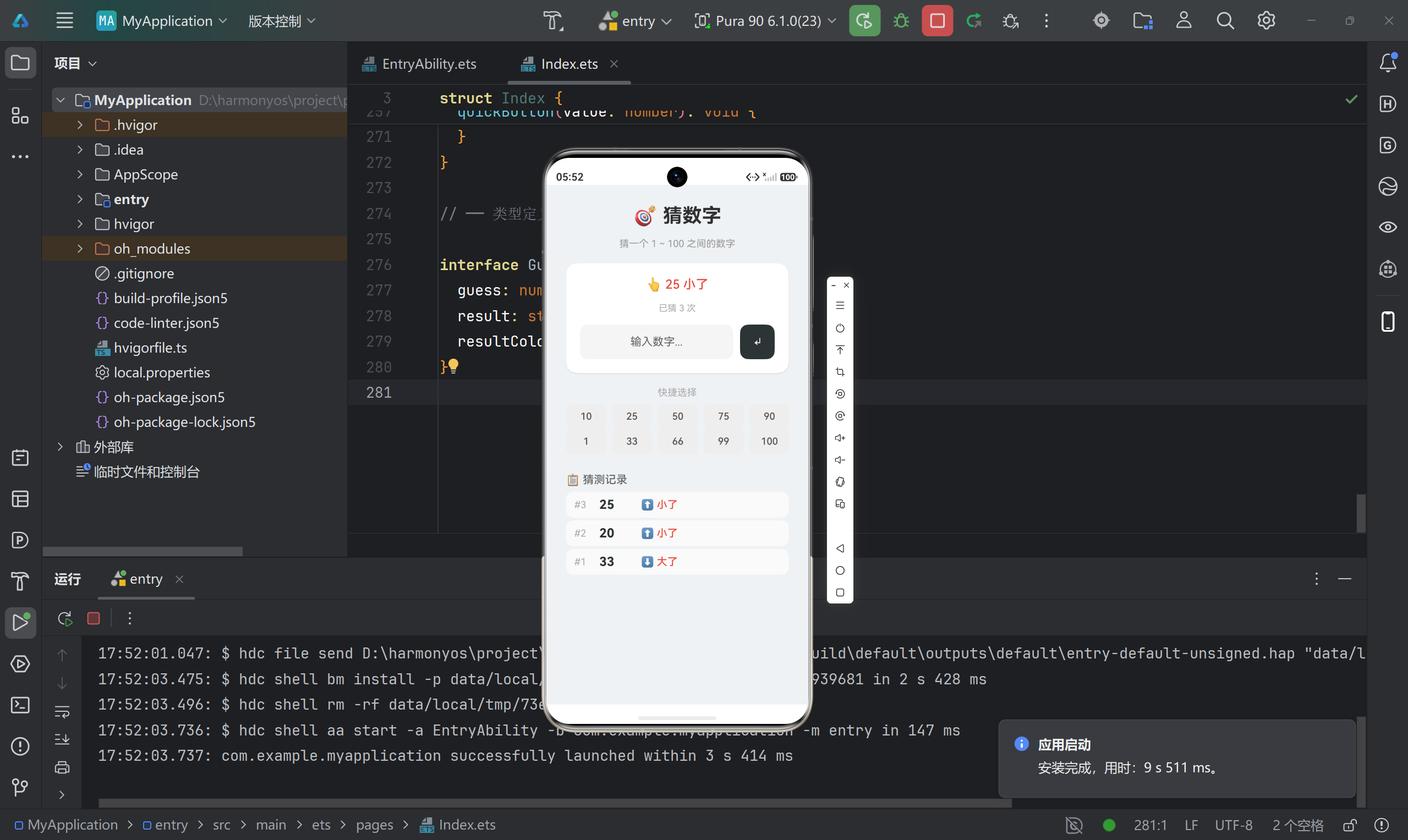
九、学到了什么?
- 状态管理:
@State让数据变化自动更新界面 - 条件渲染:根据状态显示/隐藏组件
- 列表渲染:
ForEach遍历数组显示列表 - 输入处理:数字键盘、验证、清空
- 组件封装:
@Builder复用按钮组件
十、还能加什么?
- 难度选择:简单(1-50)、困难(1-500)
- 计时功能:记录猜了多久
- 最佳记录:保存最少次数
- 提示功能:猜太多次给点帮助
有问题欢迎评论区留言!

讨论HarmonyOS开发技术,专注于API与组件、DevEco Studio、测试、元服务和应用上架分发等。
更多推荐



 5
5 0
0- 0


 已为社区贡献45条内容

所有评论(0)