使用鸿蒙HarmonyOS6.0进行mqtt开发
·
1.安装@ohos/mqtt
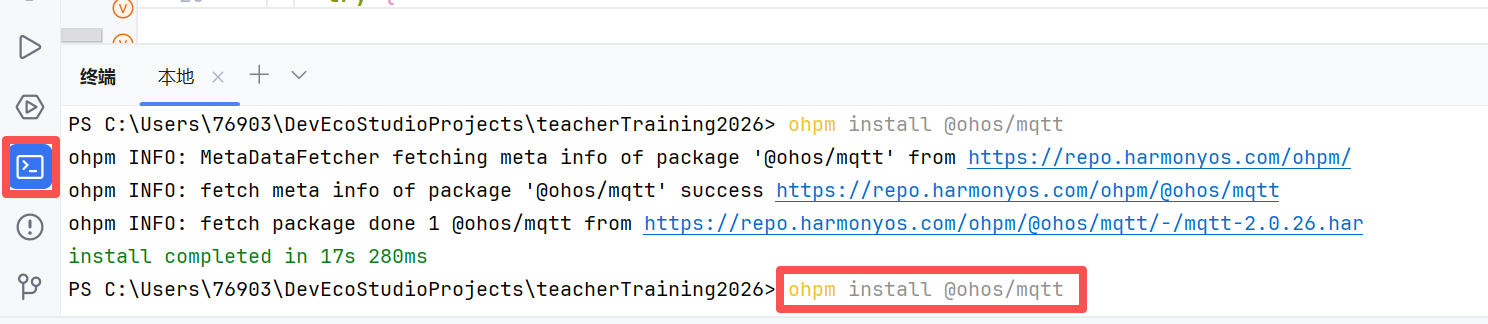
在DevEcho Stuido下方的终端点击后,在终端中输入ohpm install @ohos/mqtt。
2 .配置网络权限
在module.json5中配置网络权限:
"requestPermissions":[
   {
      "name" : "ohos.permission.INTERNET",
   }
],
3.编写代码
import { MqttAsync, MqttConnectOptions, MqttMessage } from '@ohos/mqtt';

const MQTT_URL = '*.*.*.*:1883'  // 自己的mqtt的访问地址(支持MQTT 3.1.1)
const CLIENT_ID = 'HarmonyOS001' // 客户端ID(需唯一)
const TOPIC = 'testtopic/1'      // 订阅/发布需要的主题
const QOS = 1                   // 服务质量等级(0/1/2)
const USERNAME='***'             // 自己登录mqtt时要用的用户名//用户名
const PASSWORD='***'  // 自己登录mqtt时要用的密码
@Entry
@Component
struct Index {
  @State msg: string = ""
  client = MqttAsync.createMqtt({   //创建异步客户端
    url: MQTT_URL,
    clientId: CLIENT_ID,
    persistenceType: 1  // 客户端持久化类型(0=文件系统,1=内存,2=自定义)
  })
  async mqttCommunication() { //异步连接客户端函数
    try {
      await this.client.connect({//异步访问mqtt地址
        cleanSession: true, // 清除会话(断开后不保留订阅和消息)
        connectTimeout: 30, // 连接超时时间(秒)
        keepAliveInterval: 60, // 心跳间隔(秒),维持长连接
        // 认证信息(若Broker需要)
        userName:USERNAME , // 自己登录mqtt时要用的用户名
        password: PASSWORD, // 自己登录mqtt时要用的密码
      });
      this.msg = 'mqtt: 连接成功'
      await this.client.subscribe({// 订阅主题
        topic: TOPIC,
        qos: QOS
      });
      this.msg += `已订阅主题:${TOPIC}(QoS: ${QOS})`
    } catch (err) {
      this.msg += '\n操作失败:' + err.message
    }
    this.client.messageArrived((TOPIC,message:MqttMessage)=>{//消息到达监听器
      // 更新UI显示
      this.msg += `\n${message.topic}\n`;
      this.msg += `[接收消息] 内容:${message.payload}\n`;
    });
  }
  async sendMessage(message:string){//发送消息
    await this.client.publish({
      topic: TOPIC,
      payload: message,
      qos: QOS,
      retained: false, // 是否保留消息(Broker存储最后一条消息)
    });
  }
  sendmsg:string=""
  build() {
    Column() {
      Button("连接mqtt").onClick(() => {
        this.mqttCommunication();
      })
      //Text(this.msg).fontSize(26)
      TextArea({ text: this.msg }).fontSize(26).width("100%").height(550);
      Row() {
        Button("断开连接mqtt").onClick(() => {
          this.client.disconnect();
          this.msg = ""
        })
        Button("清屏").onClick(()=>{
          this.msg=""
        })
      }
      Text("请输入发送信息:").fontSize(26)
      TextInput().fontSize(26)
        .onChange((value:string)=>{
          this.sendmsg=value
        })
      Button("发送").onClick(()=>{
          this.sendMessage("***发送:"+this.sendmsg)
      })
    }
    .height('100%')
    .width('100%')
  }
}
3.在虚拟器中运行
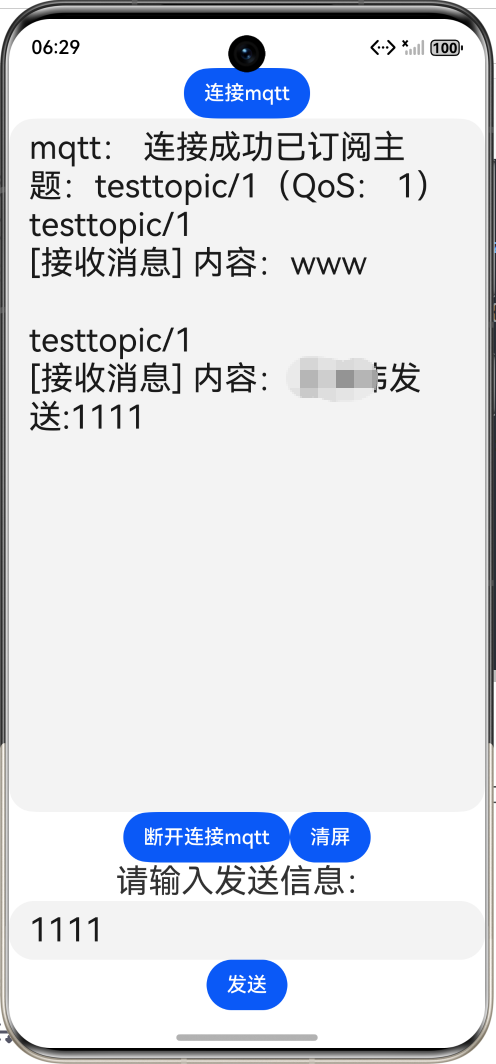
mqtt无法在预览器中运行,可以在模拟器和真机中运行。
模拟器中运行如下:

讨论HarmonyOS开发技术,专注于API与组件、DevEco Studio、测试、元服务和应用上架分发等。
更多推荐
 0
0 0
0- 0


 已为社区贡献6条内容

所有评论(0)