HarmonyOS-实战-02
第二章: 常用布局的概述
在HarmonyOS的应用中,所有的用户交互操作在Ability的应用中,主要是用来显示所有被查看和交互的内容的。
应用中所有的用户界面元素都是由Component和ComponentContainer对象构成。Component是绘制在屏幕上的一个对象,用户能与之交互。ComponentContainer是一个用于容纳其他Component和ComponentContainer对象的容器。
Java UI框架提供了一部分Component和ComponentContainer的具体子类,即创建用户界面(UI)的各类组件,包括一些常用的组件(比如:文本、按钮、图片、列表等)和常用的布局(比如:DirectionalLayout和DependentLayout)。用户可通过组件进行交互操作,并获得响应。
这里需要强调的是,所有的UI操作都是在主线程中运行的。
组件和布局
用户界面元素统称为组件,组件根据一定的层级结构进行组合形成布局。组件在未被添加到布局中时,既无法显示也无法交互,因此一个用户界面至少包含一个布局。在UI框架中,具体的布局类通常以XXLayout命名,完整的用户界面是一个布局,用户界面中的一部分也可以是一个布局。布局中容纳Component与ComponentContainer对象。
Component和ComponentContainer
- Component:提供内容显示,是界面中所有组件的基类,开发者可以给Component设置事件处理回调来创建一个可交互的组件。Java UI框架提供了一些常用的界面元素,也可称之为组件,组件一般直接继承Component或它的子类,如Text、Image等。
- ComponentContainer:作为容器容纳Component或ComponentContainer对象,并对它们进行布局。Java UI框架提供了一些标准布局功能的容器,它们继承自ComponentContainer,一般以“Layout”结尾,如DirectionalLayout、DependentLayout等。
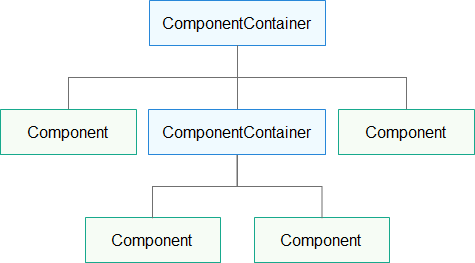
LayoutConfig配置
每种布局都根据自身特点提供LayoutConfig和Component设定布局参数和属性,通过指定布局属性可以对子Component在布局中显示效果进行约束,例如:“width”、“height”是最基本的布局属性,它们指定了组件的大小。
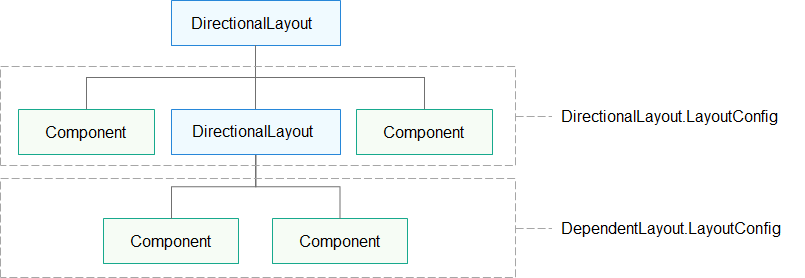
HarmonyOS提供了Ability和AbilitySlice两个基础类,一个有界面的Ability可以由一个或多个AbilitySlice构成,AbilitySlice主要用于承载单个页面的具体逻辑实现和界面UI,是应用显示、运行和跳转的最小单元。AbilitySlice通过setUIContent为界面设置布局。
AbilitySlice的UI接口
| 接口声明 | 接口描述 |
|---|---|
| setUIContent(ComponentContainer root) | 设置界面入口,root为界面组件树根节点。 |
组件需要进行组合,并添加到界面的布局中。在Java UI框架中,提供了两种编写布局的方式:
- 在代码中创建布局:用代码创建Component和ComponentContainer对象,为这些对象设置合适的布局参数和属性值,并将Component添加到ComponentContainer中,从而创建出完整界面。
- 在XML中声明UI布局:按层级结构来描述Component和ComponentContainer的关系,给组件节点设定合适的布局参数和属性值,代码中可直接加载生成此布局。
组件分类
根据组件的功能,可以将组件分为布局类、显示类、交互类等三类组件:
组件分类
| 组件类别 | 组件名称 | 功能描述 |
|---|---|---|
| 布局类 | PositionLayout、DirectionalLayout、StackLayout、DependentLayout、TableLayout、AdaptiveBoxLayout | 提供了不同布局规范的组件容器,例如以单一方向排列的DirectionalLayout、以相对位置排列的DependentLayout、以确切位置排列的PositionLayout等。 |
| 显示类 | Text、Image、Clock、TickTimer、ProgressBar | 提供了单纯的内容显示,例如用于文本显示的Text,用于图像显示的Image等。 |
| 交互类 | TextField、Button、Checkbox、RadioButton/RadioContainer、Switch、ToggleButton、Slider、Rating、ScrollView、TabList、ListContainer、PageSlider、PageFlipper、PageSliderIndicator、Picker、TimePicker、DatePicker、SurfaceProvider、ComponentProvider | 提供了具体场景下与用户交互响应的功能,例如Button提供了点击响应功能,Slider提供了进度选择功能等。 |
2.1、Component布局基本属性
Component 是所有组件的基类,也就是说所有的组件都是基于这个类来继承的, Component支持的xml属性如下表:
Component支持的XML属性如下表:
基础属性
| 属性名称 | 描述 | 取值 | 取值说明 | 使用案例 |
|---|---|---|---|---|
| id | 控件identity,用以识别不同控件对象,每个控件唯一 | integer类型 | 仅可用于配置控件的id。 | ohos:id=“$+id:component_id” |
| width | 宽度,必填项 | float类型、match_parent、match_content | 可以是浮点数值,其默认单位为px;也可以是带px/vp/fp单位的浮点数值;也可以引用float资源。 | ohos:width=“20” ohos:width=“10vp” ohos:width=“$float:size_value” |
| height | 宽度,必填项 | float类型、match_parent、match_content | 可以是浮点数值,其默认单位为px;也可以是带px/vp/fp单位的浮点数值;也可以引用float资源。 | ohos:width=“20” ohos:width=“10vp” ohos:width=“$float:size_value” |
| background_element | 背景图片 | Element类型 | 可直接配置色值,也可引用color资源或引用media/graphic下的图片资源。 | ohos:background_element= “#FF000000” ohos:background_element= “color:black"<br/>ohos:backgroundelement=<br/>"color:black"<br/>ohos:background_element=<br/>"color:black"<br/>ohos:backgroundelement=<br/>"media:media_src” ohos:background_element= “$graphic:graphic_src” |
布局间距
| 属性名称 | 描述 | 取值 | 取值说明 | 使用案例 |
|---|---|---|---|---|
| padding | 内间距 | float类型 | 表示间距尺寸的float类型。 可以是浮点数值,其默认单位为px; 也可以是带px/vp/fp单位的浮点数值;也可以引用float资源。 | ohos:padding=“20” ohos:padding=“20vp” ohos:padding=“$float:padding_value” |
| left_padding | 左间距 | float类型 | 表示间距尺寸的float类型。 可以是浮点数值,其默认单位为px; 也可以是带px/vp/fp单位的浮点数值;也可以引用float资源。 | ohos:left_padding=“20” ohos:left_padding=“20vp” ohos:left_padding=“$float:padding_value” |
| right_padding | 右内间距 | float类型 | 表示间距尺寸的float类型。 可以是浮点数值,其默认单位为px; 也可以是带px/vp/fp单位的浮点数值;也可以引用float资源。 | ohos:right_padding=“20” ohos:right_padding=“20vp” ohos:right_padding=“$float:padding_value” |
| top_padding | 上内边距 | float类型 | 表示间距尺寸的float类型。 可以是浮点数值,其默认单位为px; 也可以是带px/vp/fp单位的浮点数值;也可以引用float资源。 | ohos:top_padding=“20” ohos:top_padding=“20vp” ohos:top_padding=“$float:padding_value” |
| bottom_padding | 下内间距 | float类型 | 表示间距尺寸的float类型。 可以是浮点数值,其默认单位为px; 也可以是带px/vp/fp单位的浮点数值;也可以引用float资源。 | ohos:bottom_padding=“20” ohos:bottom_padding=“20vp” ohos:bottom_padding=“$float:padding_value” |
| margin | 外边距 | float类型 | 表示间距尺寸的float类型。 可以是浮点数值,其默认单位为px; 也可以是带px/vp/fp单位的浮点数值;也可以引用float资源。 | ohos:margin=“20” ohos:margin=“20vp” ohos:margin=“$float:margin_value” |
| left_margin | 左外边距 | float类型 | 表示间距尺寸的float类型。 可以是浮点数值,其默认单位为px; 也可以是带px/vp/fp单位的浮点数值;也可以引用float资源。 | ohos:left_margin=“20” ohos:left_margin=“20vp” ohos:left_margin=“$float:margin_value” |
| right_margin | 右外边距 | float类型 | 表示间距尺寸的float类型。 可以是浮点数值,其默认单位为px; 也可以是带px/vp/fp单位的浮点数值;也可以引用float资源。 | ohos:right_margin=“20” ohos:right_margin=“20vp” ohos:right_margin=“$float:margin_value” |
| top_margin | 上外边距 | float类型 | 表示间距尺寸的float类型。 可以是浮点数值,其默认单位为px; 也可以是带px/vp/fp单位的浮点数值;也可以引用float资源。 | ohos:top_margin=“20” ohos:top_margin=“20vp” ohos:top_margin=“$float:margin_value” |
| bottom_margin | 下外边距 | float类型 | 表示间距尺寸的float类型。 可以是浮点数值,其默认单位为px; 也可以是带px/vp/fp单位的浮点数值;也可以引用float资源。 | ohos:bottom_margin=“20” ohos:bottom_margin=“20vp” ohos:bottom_margin=“$float:margin_value” |
2.2、DirectionalLayout线性布局
DirectionalLayout布局
DirectionalLayout是Java UI中的重要布局,主要是用于将一组组件(Component)按照水平或者垂直方向排布,能够很方便的对其布局内的所有组件,同时也可以和其他布局进行组合,实现更加丰富的布局方式。
DirectionalLayout的所有共有属性是继承自:Component基础组件
DirectionalLayout示意图
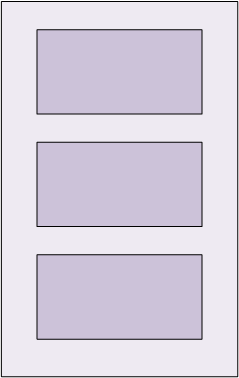
DirectionalLayout自有的布局属性如下:
alignment属性
表示在自有的XML属性,其中包括对齐方式,有左对齐、右对齐、水平居中对齐、垂直居中对齐等方式horizontal_center、垂直居中对齐vertical_center等方式。可以设置取值项如表中所列,也可以使用“|”进行多项组合。ohos:alignment=“top|left” 或者ohos:alignment=“left”
orientation属性
是表示子布局的排列方向,其中有两个重要的属性,一个是水平方向 horizontal,一个是垂直方向vertical。示例如下:
水平方向:ohos:orientation=“horizontal” 垂直方向:ohos:orientation=“vertical”
total_weight权重
所有子视图的权重之和,可以直接设置浮点数值,也可以引用float浮点数资源。ohos:total_weight=“2.5”
ohos:total_weight=“$float:total_weight”
layout_alignment对齐方式
表示DirectionalLayout所包含的可支持的XML属性。其中对其方式有左对齐、顶部对齐、水平居中对齐、垂直居中对齐等。
可以设置取值项如表中所列,也可以使用“|”进行多项组合。ohos:layout_alignment=“top” ohos:layout_alignment=“top|left”
weight权重
权重(weight)就是按比例来分配组件占用父组件的大小,在水平布局下计算公式为:
父布局可分配宽度=父布局宽度-所有子组件width之和;
组件宽度=组件weight/所有组件weight之和*父布局可分配宽度;
实际使用过程中,建议使用width=0来按比例分配父布局的宽度,1:1:1效果如下:

案例一:排列方向
DirectionalLayout的排列方向(orientation)分为水平(horizontal)或者垂直(vertical)方向。使用orientation设置布局内组件的排列方式,默认为垂直排列。
布局文件xml
<?xml version="1.0" encoding="utf-8"?>
<DirectionalLayout
    xmlns:ohos="http://schemas.huawei.com/res/ohos"
    ohos:width="match_parent"
    ohos:height="match_content"
    ohos:orientation="vertical">
    <Button
        ohos:width="33vp"
        ohos:height="20vp"
        ohos:bottom_margin="3vp"
        ohos:left_margin="13vp"
        ohos:background_element="$graphic:color_cyan_element"
        ohos:text="Button 1"/>
    <Button
        ohos:width="33vp"
        ohos:height="20vp"
        ohos:bottom_margin="3vp"
        ohos:left_margin="13vp"
        ohos:background_element="$graphic:color_cyan_element"
        ohos:text="Button 2"/>
    <Button
        ohos:width="33vp"
        ohos:height="20vp"
        ohos:bottom_margin="3vp"
        ohos:left_margin="13vp"
        ohos:background_element="$graphic:color_cyan_element"
        ohos:text="Button 3"/>
</DirectionalLayout>
color_cyan_element.xml:
<?xml version="1.0" encoding="utf-8"?>
<shape xmlns:ohos="http://schemas.huawei.com/res/ohos"
    ohos:shape="rectangle">
    <solid
        ohos:color="#00FFFD"/>
</shape>
案例二:权重
权重(weight)就是按比例来分配组件占用父组件的大小,在水平布局下计算公式为:
父布局可分配宽度=父布局宽度-所有子组件width之和;
组件宽度=组件weight/所有组件weight之和*父布局可分配宽度;
实际使用过程中,建议使用width=0来按比例分配父布局的宽度,1:1:1效果如下:
<?xml version="1.0" encoding="utf-8"?>
<DirectionalLayout
    xmlns:ohos="http://schemas.huawei.com/res/ohos"
    ohos:width="match_parent"
    ohos:height="match_content"
    ohos:orientation="horizontal">
    <Button
        ohos:width="0vp"
        ohos:height="20vp"
        ohos:weight="1"
        ohos:background_element="$graphic:color_cyan_element"
        ohos:text="Button 1"/>
    <Button
        ohos:width="0vp"
        ohos:height="20vp"
        ohos:weight="1"
        ohos:background_element="$graphic:color_gray_element"
        ohos:text="Button 2"/>
    <Button
        ohos:width="0vp"
        ohos:height="20vp"
        ohos:weight="1"
        ohos:background_element="$graphic:color_cyan_element"
        ohos:text="Button 3"/>
</DirectionalLayout>
color_cyan_element.xml:
<?xml version="1.0" encoding="utf-8"?>
<shape xmlns:ohos="http://schemas.huawei.com/res/ohos"
    ohos:shape="rectangle">
    <solid
        ohos:color="#00FFFD"/>
</shape>
color_gray_element.xml:
<?xml version="1.0" encoding="utf-8"?>
<shape xmlns:ohos="http://schemas.huawei.com/res/ohos"
    ohos:shape="rectangle">
    <solid
        ohos:color="#878787"/>
</shape>
案例三:用户登录界面
<?xml version="1.0" encoding="utf-8"?>
<DirectionalLayout
    xmlns:ohos="http://schemas.huawei.com/res/ohos"
    ohos:height="match_parent"
    ohos:width="match_parent"
    ohos:alignment="center"
    ohos:orientation="vertical"
    ohos:background_element="#FFDDDDDD"
    >

    <DirectionalLayout
        ohos:height="match_content"
        ohos:width="match_parent"
        ohos:left_margin="10vp"
        ohos:right_margin="10vp"
        ohos:background_element="#FFDDCCDD"
        ohos:orientation="horizontal">
        <Text

            ohos:height="match_content"
            ohos:width="match_content"
            ohos:text="账号:"
            ohos:text_size="25vp"
            />
        <TextField
            ohos:id="$+id:username"
            ohos:height="match_content"
            ohos:width="match_content"
            ohos:text_size="20vp"
            ohos:hint="请输入账号"
            />
    </DirectionalLayout>
    <Component
        ohos:height="10vp"
        ohos:width="match_parent"/>

    <DirectionalLayout
        ohos:height="match_content"
        ohos:width="match_parent"
        ohos:left_margin="10vp"
        ohos:right_margin="10vp"
        ohos:background_element="#FFDDCCDD"
        ohos:orientation="horizontal">
        <Text

            ohos:height="match_content"
            ohos:width="match_content"
            ohos:text="密碼:"
            ohos:text_size="25vp"
            />

        <TextField
            ohos:id="$+id:pswd"
            ohos:height="match_content"
            ohos:width="match_content"
            ohos:text_size="20vp"
            ohos:hint="请输入密碼"
            />
    </DirectionalLayout>
    <Component
        ohos:height="10vp"
        ohos:width="match_parent"/>
    <DirectionalLayout
        ohos:height="match_content"
        ohos:width="match_parent"
        ohos:left_margin="10vp"
        ohos:right_margin="10vp"
        ohos:alignment="vertical_center"
        ohos:orientation="horizontal">

        <Button
            ohos:id="$+id:login"
            ohos:text="Login"
            ohos:text_size="20vp"
            ohos:background_element="gray"
            ohos:height="match_content"
            ohos:weight="1"
            ohos:width="40vp"/>

        <Button
            ohos:id="$+id:reset"
            ohos:text="Cancel"
            ohos:text_size="20vp"
            ohos:left_margin="45vp"
            ohos:weight="1"
            ohos:background_element="gray"
            ohos:height="match_content"
            ohos:width="40vp"/>
    </DirectionalLayout>


</DirectionalLayout>
2.3、DependentLayout相对布局
DependentLayout是Java UI系统里的一种常见布局。与DirectionalLayout相比,拥有更多的排布方式,每个组件可以指定相对于其他同级元素的位置,或者指定相对于父组件的位置。关于DependentLayout的示意图如下:
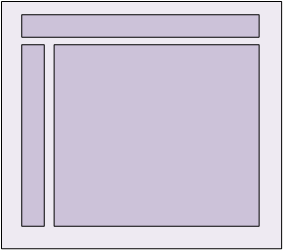
DependentLayout自有的布局属性有以下这些:
alignment属性
alignment属性是表示对齐方式,可以表示左对齐、顶部对齐、右对齐、水平居中对齐、垂直居中对齐等方式,
可以设置取值项如表中所列,也可以使用“|”进行多项组合。ohos:alignment="top|left"或者ohos:alignment=“left”
DependentLayout所包含组件可支持的XML属性:
DependentLayout的排列方式是相对于其他同级组件或者父组件的位置进行布局。
-
相对于同级组件
end_of:
<?xml version="1.0" encoding="utf-8"?>
<DependentLayout
    xmlns:ohos="http://schemas.huawei.com/res/ohos"
    ohos:width="match_content"
    ohos:height="match_content"
    ohos:background_element="$graphic:color_light_gray_element">
    <Text
        ohos:id="$+id:text1"
        ohos:width="match_content"
        ohos:height="match_content"
        ohos:left_margin="15vp"
        ohos:top_margin="15vp"
        ohos:bottom_margin="15vp"
        ohos:text="text1"
        ohos:text_size="20fp"
        ohos:background_element="$graphic:color_cyan_element"/>
    <Text
        ohos:id="$+id:text2"
        ohos:width="match_content"
        ohos:height="match_content"
        ohos:left_margin="15vp"
        ohos:top_margin="15vp"
        ohos:right_margin="15vp"
        ohos:bottom_margin="15vp"
        ohos:text="end_of text1"
        ohos:text_size="20fp"
        ohos:background_element="$graphic:color_cyan_element"
        ohos:end_of="$id:text1"/>
</DependentLayout>
color_light_gray_element.xml:
<?xml version="1.0" encoding="utf-8"?>
<shape xmlns:ohos="http://schemas.huawei.com/res/ohos"
    ohos:shape="rectangle">
    <solid
        ohos:color="#EDEDED"/>
</shape>
color_cyan_element.xml:
<?xml version="1.0" encoding="utf-8"?>
<shape xmlns:ohos="http://schemas.huawei.com/res/ohos"
    ohos:shape="rectangle">
    <solid
        ohos:color="#00FFFD"/>
</shape>
below:位于某一个控件的下面
<?xml version="1.0" encoding="utf-8"?>
<DependentLayout
    xmlns:ohos="http://schemas.huawei.com/res/ohos"
    ohos:width="match_content"
    ohos:height="match_content"
    ohos:background_element="$graphic:color_light_gray_element">
    <Text
        ohos:id="$+id:text1"
        ohos:width="match_content"
        ohos:height="match_content"
        ohos:left_margin="15vp"
        ohos:top_margin="15vp"
        ohos:right_margin="40vp"
        ohos:text="text1"
        ohos:text_size="20fp"
        ohos:background_element="$graphic:color_cyan_element"/>
    <Text
        ohos:id="$+id:text2"
        ohos:width="match_content"
        ohos:height="match_content"
        ohos:left_margin="15vp"
        ohos:top_margin="15vp"
        ohos:right_margin="40vp"
        ohos:bottom_margin="15vp"
        ohos:text="below text1"
        ohos:text_size="20fp"
        ohos:background_element="$graphic:color_cyan_element"
        ohos:below="$id:text1"/>
</DependentLayout>
color_light_gray_element.xml:
<?xml version="1.0" encoding="utf-8"?>
<shape xmlns:ohos="http://schemas.huawei.com/res/ohos"
    ohos:shape="rectangle">
    <solid
        ohos:color="#EDEDED"/>
</shape>
color_cyan_element.xml:
<?xml version="1.0" encoding="utf-8"?>
<shape xmlns:ohos="http://schemas.huawei.com/res/ohos"
    ohos:shape="rectangle">
    <solid
        ohos:color="#00FFFD"/>
</shape>
其他的above、start_of、left_of、right_of等参数可分别实现类似的布局。
- 相对于父组件
以上位置布局可以组合,形成处于左上角、左下角、右上角、右下角的布局。
<?xml version="1.0" encoding="utf-8"?>
<DependentLayout
    xmlns:ohos="http://schemas.huawei.com/res/ohos"
    ohos:width="300vp"
    ohos:height="100vp"
    ohos:background_element="$graphic:color_background_gray_element">
    <Text
        ohos:id="$+id:text6"
        ohos:width="match_content"
        ohos:height="match_content"
        ohos:text="align_parent_right"
        ohos:text_size="12fp"
        ohos:background_element="$graphic:color_cyan_element"
        ohos:align_parent_right="true"
        ohos:center_in_parent="true"/>
    <Text
        ohos:id="$+id:text7"
        ohos:width="match_content"
        ohos:height="match_content"
        ohos:text="align_parent_bottom"
        ohos:text_size="12fp"
        ohos:background_element="$graphic:color_cyan_element"
        ohos:align_parent_bottom="true"
        ohos:center_in_parent="true"/>
    <Text
        ohos:id="$+id:text8"
        ohos:width="match_content"
        ohos:height="match_content"
        ohos:text="center_in_parent"
        ohos:text_size="12fp"
        ohos:background_element="$graphic:color_cyan_element"
        ohos:center_in_parent="true"/>
    <Text
        ohos:id="$+id:text9"
        ohos:width="match_content"
        ohos:height="match_content"
        ohos:text="align_parent_left_top"
        ohos:text_size="12fp"
        ohos:background_element="$graphic:color_cyan_element"
        ohos:align_parent_left="true"
        ohos:align_parent_top="true"/>
</DependentLayout>
color_background_gray_element.xml:
<?xml version="1.0" encoding="utf-8"?>
<shape xmlns:ohos="http://schemas.huawei.com/res/ohos"
    ohos:shape="rectangle">
    <solid
        ohos:color="#ffbbbbbb"/>
</shape>
color_cyan_element.xml:
<?xml version="1.0" encoding="utf-8"?>
<shape xmlns:ohos="http://schemas.huawei.com/res/ohos"
    ohos:shape="rectangle">
    <solid
        ohos:color="#00FFFD"/>
</shape>
综合案例
<?xml version="1.0" encoding="utf-8"?>
<DependentLayout
    xmlns:ohos="http://schemas.huawei.com/res/ohos"
    ohos:width="match_parent"
    ohos:height="match_content"
    ohos:background_element="$graphic:color_background_gray_element">
    <Text
        ohos:id="$+id:text1"
        ohos:width="match_parent"
        ohos:height="match_content"
        ohos:text_size="25fp"
        ohos:top_margin="15vp"
        ohos:left_margin="15vp"
        ohos:right_margin="15vp"
        ohos:background_element="$graphic:color_gray_element"
        ohos:text="Title"
        ohos:text_weight="1000"
        ohos:text_alignment="horizontal_center"
    />
    <Text
        ohos:id="$+id:text2"
        ohos:width="match_content"
        ohos:height="120vp"
        ohos:text_size="10fp"
        ohos:background_element="$graphic:color_gray_element"
        ohos:text="Catalog"
        ohos:top_margin="15vp"
        ohos:left_margin="15vp"
        ohos:right_margin="15vp"
        ohos:bottom_margin="15vp"
        ohos:align_parent_left="true"
        ohos:text_alignment="center"
        ohos:multiple_lines="true"
        ohos:below="$id:text1"
        ohos:text_font="serif"/>
    <Text
        ohos:id="$+id:text3"
        ohos:width="match_parent"
        ohos:height="120vp"
        ohos:text_size="25fp"
        ohos:background_element="$graphic:color_gray_element"
        ohos:text="Content"
        ohos:top_margin="15vp"
        ohos:right_margin="15vp"
        ohos:bottom_margin="15vp"
        ohos:text_alignment="center"
        ohos:below="$id:text1"
        ohos:end_of="$id:text2"
        ohos:text_font="serif"/>
    <Button
        ohos:id="$+id:button1"
        ohos:width="70vp"
        ohos:height="match_content"
        ohos:text_size="15fp"
        ohos:background_element="$graphic:color_gray_element"
        ohos:text="Previous"
        ohos:right_margin="15vp"
        ohos:bottom_margin="15vp"
        ohos:below="$id:text3"
        ohos:left_of="$id:button2"
        ohos:italic="false"
        ohos:text_weight="5"
        ohos:text_font="serif"/>
    <Button
        ohos:id="$+id:button2"
        ohos:width="70vp"
        ohos:height="match_content"
        ohos:text_size="15fp"
        ohos:background_element="$graphic:color_gray_element"
        ohos:text="Next"
        ohos:right_margin="15vp"
        ohos:bottom_margin="15vp"
        ohos:align_parent_end="true"
        ohos:below="$id:text3"
        ohos:italic="false"
        ohos:text_weight="5"
        ohos:text_font="serif"/>
</DependentLayout>
color_background_gray_element.xml:
<?xml version="1.0" encoding="utf-8"?>
<shape xmlns:ohos="http://schemas.huawei.com/res/ohos"
    ohos:shape="rectangle">
    <solid
        ohos:color="#ffbbbbbb"/>
</shape>
color_gray_element.xml:
<?xml version="1.0" encoding="utf-8"?>
<shape xmlns:ohos="http://schemas.huawei.com/res/ohos"
    ohos:shape="rectangle">
    <solid
        ohos:color="#878787"/>
</shape>
2.4、StackLayout帧布局
StackLayout帧布局直接在屏幕上开辟出一块空白的区域,添加到这个布局中的视图都是以层叠的方式显示,而它会把这些视图默认放到这块区域的左上角,第一个添加到布局中视图显示在最底层,最后一个被放在最顶层。上一层的视图会覆盖下一层的视图。
StackLayout示意效果图:
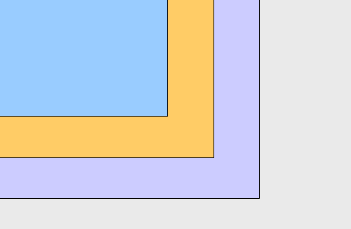
StackLayout无自有的XML属性,共有XML属性继承自:Component的基础组件
StackLayout所包含组件可支持的XML属性如下:
layout_alignment属性
layout_alignment表示对齐方式,其中包括左对齐、右对齐、底部对齐、水平居中对齐、垂直居中对齐、居中对齐。
可以设置取值项如表中所列,也可以使用“|”进行多项组合。
ohos:layout_alignment=“top”
ohos:layout_alignment=“top|left”
创建StackLayout
<?xml version="1.0" encoding="utf-8"?>
<StackLayout
    xmlns:ohos="http://schemas.huawei.com/res/ohos"
    ohos:height="match_parent"
    ohos:width="match_parent">
</StackLayout>
使用默认布局添加组件
StackLayout中组件的布局默认在区域的左上角,并且以后创建的组件会在上层。
xml布局:
<?xml version="1.0" encoding="utf-8"?>
<StackLayout
    xmlns:ohos="http://schemas.huawei.com/res/ohos"
    ohos:id="$+id:stack_layout"
    ohos:height="match_parent"
    ohos:width="match_parent">

    <Text
        ohos:id="$+id:text_blue"
        ohos:text_alignment="bottom|horizontal_center"
        ohos:text_size="24fp"
        ohos:text="Layer 1"
        ohos:height="400vp"
        ohos:width="400vp"
        ohos:background_element="#3F56EA" />

    <Text
        ohos:id="$+id:text_light_purple"
        ohos:text_alignment="bottom|horizontal_center"
        ohos:text_size="24fp"
        ohos:text="Layer 2"
        ohos:height="300vp"
        ohos:width="300vp"
        ohos:background_element="#00AAEE" />

    <Text
        ohos:id="$+id:text_orange"
        ohos:text_alignment="center"
        ohos:text_size="24fp"
        ohos:text="Layer 3"
        ohos:height="80vp"
        ohos:width="80vp"
        ohos:background_element="#00BFC9" />

</StackLayout>
2.5、TableLayout表格布局
TableLayout是表格布局,主要是用来划分子组件的。
TableLayout的共有XML属性继承自:Component
TableLayout的自有XML属性见下表:
| 属性名称 | 中文描述 | 取值 | 取值说明 | 使用案例 |
|---|---|---|---|---|
| alignment_type | 对齐方式 | align_edges | 表示TableLayout内的组件按边界对齐。 | ohos:alignment_type=“align_edges” |
| align_contents | 表示TableLayout内的组件按边距对齐。 | ohos:alignment_type=“align_contents” | ||
| column_count | 列数 | integer类型 | 可以直接设置整型数值,也可以引用integer资源。 | ohos:column_count=“3"ohos:column_count=”$integer:count" |
| row_count | 行数 | integer类型 | 可以直接设置整型数值,也可以引用integer资源。 | ohos:row_count=“2"ohos:row_count=”$integer:count" |
| orientation | 排列方向 | horizontal | 表示水平方向布局。 | ohos:orientation=“horizontal” |
| vertical | 表示垂直方向布局。 | ohos:orientation=“vertical” |
- 在xml文件中创建TableLayout
<?xml version="1.0" encoding="utf-8"?>
<TableLayout
    xmlns:ohos="http://schemas.huawei.com/res/ohos"
    ohos:height="match_parent"
    ohos:width="match_parent"
    ohos:background_element="#87CEEB"
    ohos:layout_alignment="horizontal_center"
    ohos:padding="8vp">
</TableLayout>
- 在xml创建Text背景table_text_bg_element.xml
<?xml version="1.0" encoding="utf-8"?>
<shape xmlns:ohos="http://schemas.huawei.com/res/ohos"
       ohos:shape="rectangle">
    <corners
        ohos:radius="5vp"/>
    <stroke
        ohos:width="1vp"
        ohos:color="gray"/>
    <solid
        ohos:color="#00BFFF"/>
</shape>
- 在TableLayout布局中添加组件
<?xml version="1.0" encoding="utf-8"?>
<TableLayout
    xmlns:ohos="http://schemas.huawei.com/res/ohos"
    ohos:height="match_parent"
    ohos:width="match_parent"
    ohos:background_element="#87CEEB"
    ohos:layout_alignment="horizontal_center"
    ohos:padding="8vp">
    <Text
        ohos:height="60vp"
        ohos:width="60vp"
        ohos:background_element="$graphic:table_text_bg_element"
        ohos:margin="8vp"
        ohos:text="1"
        ohos:text_alignment="center"
        ohos:text_size="20fp"/>

    <Text
        ohos:height="60vp"
        ohos:width="60vp"
        ohos:background_element="$graphic:table_text_bg_element"
        ohos:margin="8vp"
        ohos:text="2"
        ohos:text_alignment="center"
        ohos:text_size="20fp"/>

    <Text
        ohos:height="60vp"
        ohos:width="60vp"
        ohos:background_element="$graphic:table_text_bg_element"
        ohos:margin="8vp"
        ohos:text="3"
        ohos:text_alignment="center"
        ohos:text_size="20fp"/>

    <Text
        ohos:height="60vp"
        ohos:width="60vp"
        ohos:background_element="$graphic:table_text_bg_element"
        ohos:margin="8vp"
        ohos:text="4"
        ohos:text_alignment="center"
        ohos:text_size="20fp"/>
</TableLayout>
- 设置行数和列数
<TableLayout
    ...
    ohos:row_count="2"
    ohos:column_count="2">
- 设置对齐方式
TableLayout提供两种对齐方式,边距对齐“align_contents”、边界对齐“align_edges”,默认为边距对齐。
图4 边距对齐效果
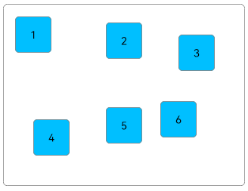
代码如下:
<?xml version="1.0" encoding="utf-8"?>
<TableLayout
    xmlns:ohos="http://schemas.huawei.com/res/ohos"
    ohos:height="match_content"
    ohos:width="match_content"
    ohos:alignment_type="align_contents"
    ohos:background_element="$graphic:layout_borderline"
    ohos:column_count="3"
    ohos:padding="8vp">

    <Text
        ohos:id="$+id:text_one"
        ohos:height="48vp"
        ohos:width="48vp"
        ohos:background_element="$graphic:table_text_bg_element"
        ohos:margin="8vp"
        ohos:padding="8vp"
        ohos:text="1"
        ohos:text_alignment="center"
        ohos:text_size="14fp"/>

    <Text
        ohos:height="48vp"
        ohos:width="48vp"
        ohos:background_element="$graphic:table_text_bg_element"
        ohos:margin="16vp"
        ohos:padding="8vp"
        ohos:text="2"
        ohos:text_alignment="center"
        ohos:text_size="14fp"/>

    <Text
        ohos:height="48vp"
        ohos:width="48vp"
        ohos:background_element="$graphic:table_text_bg_element"
        ohos:margin="32vp"
        ohos:padding="8vp"
        ohos:text="3"
        ohos:text_alignment="center"
        ohos:text_size="14fp"/>

    <Text
        ohos:height="48vp"
        ohos:width="48vp"
        ohos:background_element="$graphic:table_text_bg_element"
        ohos:margin="32vp"
        ohos:padding="8vp"
        ohos:text="4"
        ohos:text_alignment="center"
        ohos:text_size="14fp"/>

    <Text
        ohos:height="48vp"
        ohos:width="48vp"
        ohos:background_element="$graphic:table_text_bg_element"
        ohos:margin="16vp"
        ohos:padding="8vp"
        ohos:text="5"
        ohos:text_alignment="center"
        ohos:text_size="14fp"/>

    <Text
        ohos:height="48vp"
        ohos:width="48vp"
        ohos:background_element="$graphic:table_text_bg_element"
        ohos:margin="8vp"
        ohos:padding="8vp"
        ohos:text="6"
        ohos:text_alignment="center"
        ohos:text_size="14fp"/>
</TableLayout>
2.6、PositionLayout布局
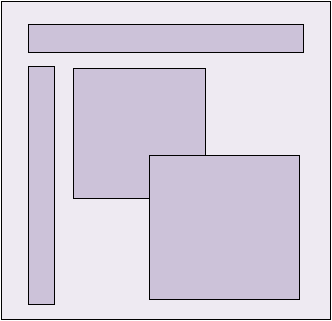
在PositionLayout中,子组件通过指定准确的x/y坐标值在屏幕上显示。(0, 0)为左上角;当向下或向右移动时,坐标值变大;允许组件之间互相重叠。
PositionLayout示意图
布局方式
PositionLayout以坐标的形式控制组件的显示位置,允许组件相互重叠。
-
在layout目录下的XML文件中创建PositionLayout并添加多个组件,并通过Java代码setContentPosition设置子组件的坐标。
使用PositionLayout的布局效果图如下:
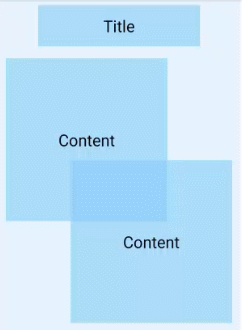
示例代码
<?xml version="1.0" encoding="utf-8"?>
<PositionLayout
    xmlns:ohos="http://schemas.huawei.com/res/ohos"
    ohos:id="$+id:position"
    ohos:height="match_parent"
    ohos:width="300vp"
    ohos:background_element="#3387CEFA">

    <Text
        ohos:id="$+id:position_text_1"
        ohos:height="50vp"
        ohos:width="200vp"
        ohos:background_element="#9987CEFA"
        ohos:position_x="50vp"
        ohos:position_y="8vp"
        ohos:text="Title"
        ohos:text_alignment="center"
        ohos:text_size="20fp"/>

    <Text
        ohos:id="$+id:position_text_2"
        ohos:height="200vp"
        ohos:width="200vp"
        ohos:background_element="#9987CEFA"
        ohos:position_x="8vp"
        ohos:position_y="64vp"
        ohos:text="Content"
        ohos:text_alignment="center"
        ohos:text_size="20fp"/>

    <Text
        ohos:id="$+id:position_text_3"
        ohos:height="200vp"
        ohos:width="200vp"
        ohos:background_element="#9987CEFA"
        ohos:position_x="92vp"
        ohos:position_y="188vp"
        ohos:text="Content"
        ohos:text_alignment="center"
        ohos:text_size="20fp"/>
</PositionLayout>
2.7、AdaptiveBoxLayout自适应布局
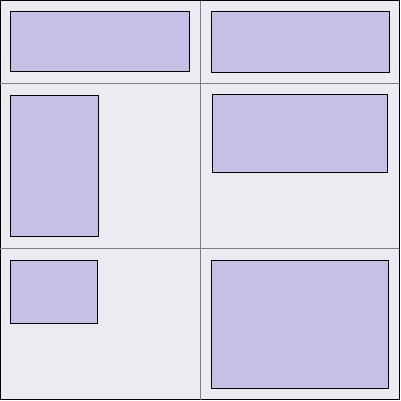
AdaptiveBoxLayout是自适应盒子布局,该布局提供了在不同屏幕尺寸设备上的自适应布局能力,主要用于相同级别的多个组件需要在不同屏幕尺寸设备上自动调整列数的场景。
- 该布局中的每个子组件都用一个单独的“盒子”装起来,子组件设置的布局参数都是以盒子作为父布局生效,不以整个自适应布局为生效范围。
- 该布局中每个盒子的宽度固定为布局总宽度除以自适应得到的列数,高度为match_content,每一行中的所有盒子按高度最高的进行对齐。
- 该布局水平方向是自动分块,因此水平方向不支持match_content,布局水平宽度仅支持match_parent或固定宽度。
- 自适应仅在水平方向进行了自动分块,纵向没有做限制,因此如果某个子组件的高设置为match_parent类型,可能导致后续行无法显示。
如图所示:
常用方法
AdaptiveBoxLayout布局常用方法如下。
| 方法 | 功能 |
|---|---|
| addAdaptiveRule(int minWidth, int maxWidth, int columns) | 添加一个自适应盒子布局规则。 |
| removeAdaptiveRule(int minWidth, int maxWidth, int columns) | 移除一个自适应盒子布局规则。 |
| clearAdaptiveRules() | 移除所有自适应盒子布局规则。 |
场景示例
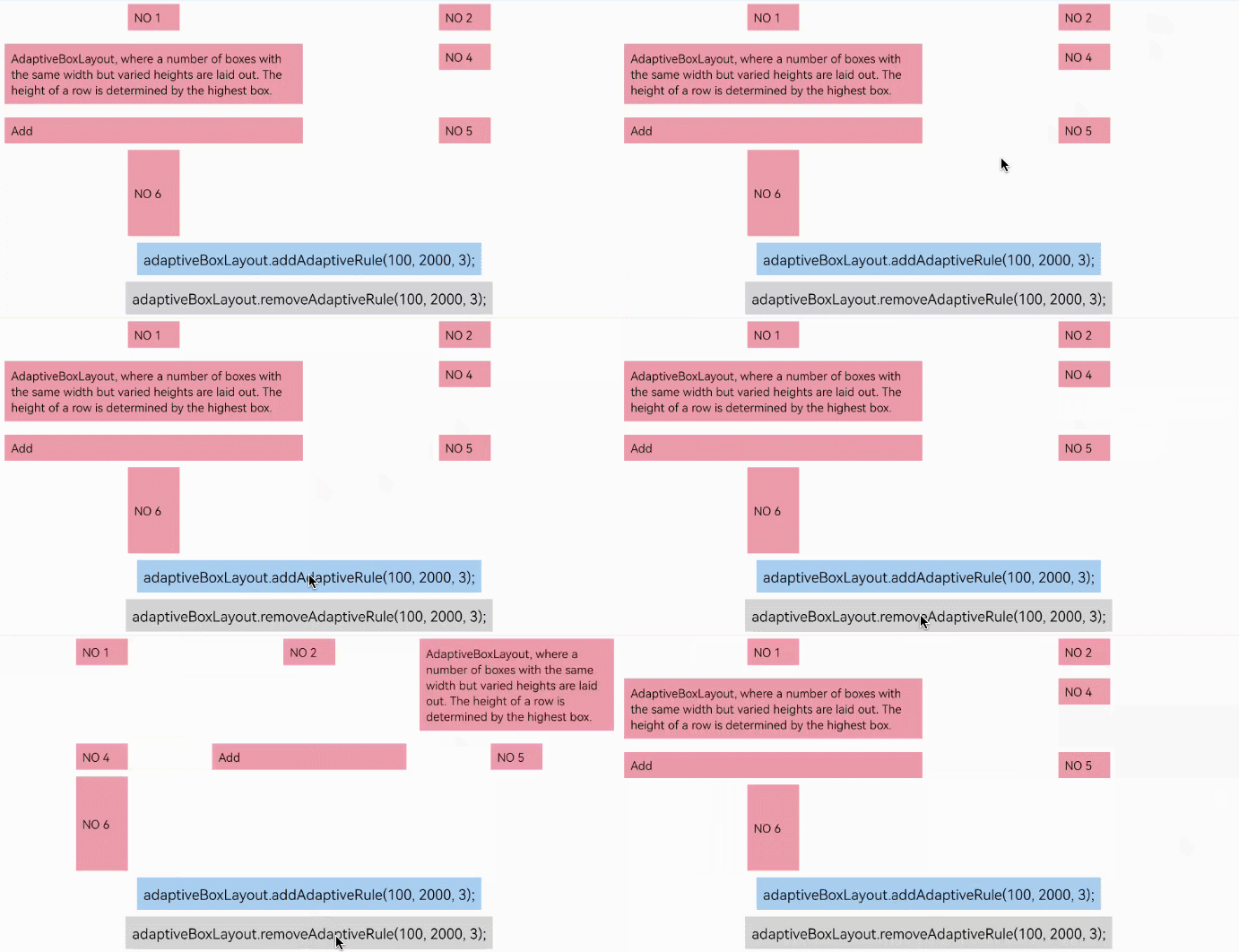
在AdaptiveBoxLayout中添加和删除自适应盒子布局规则的效果对比如下。
添加和删除一个规则的效果对比
xml代码布局示例演示:
<?xml version="1.0" encoding="utf-8"?>

<DirectionalLayout
    xmlns:ohos="http://schemas.huawei.com/res/ohos"
    ohos:height="match_parent"
    ohos:width="match_parent"
    ohos:orientation="vertical">

    <AdaptiveBoxLayout
        xmlns:ohos="http://schemas.huawei.com/res/ohos"
        ohos:height="0vp"
        ohos:width="match_parent"
        ohos:weight="1"
        ohos:id="$+id:adaptive_box_layout">

        <Text
            ohos:height="40vp"
            ohos:width="80vp"
            ohos:background_element="#EC9DAA"
            ohos:margin="10vp"
            ohos:padding="10vp"
            ohos:text="NO 1"
            ohos:text_size="18fp" />

        <Text
            ohos:height="40vp"
            ohos:width="80vp"
            ohos:background_element="#EC9DAA"
            ohos:margin="10vp"
            ohos:padding="10vp"
            ohos:text="NO 2"
            ohos:text_size="18fp" />

        <Text
            ohos:height="match_content"
            ohos:width="match_content"
            ohos:background_element="#EC9DAA"
            ohos:margin="10vp"
            ohos:padding="10vp"
            ohos:multiple_lines="true"
            ohos:text="AdaptiveBoxLayout, where a number of boxes with the same width but varied heights are laid out. The height of a row is determined by the highest box."
            ohos:text_size="18fp" />

        <Text
            ohos:height="40vp"
            ohos:width="80vp"
            ohos:background_element="#EC9DAA"
            ohos:margin="10vp"
            ohos:padding="10vp"
            ohos:text="NO 4"
            ohos:text_size="18fp" />

        <Text
            ohos:height="40vp"
            ohos:width="match_parent"
            ohos:background_element="#EC9DAA"
            ohos:margin="10vp"
            ohos:padding="10vp"
            ohos:text="Add"
            ohos:text_size="18fp" />


        <Text
            ohos:height="40vp"
            ohos:width="80vp"
            ohos:background_element="#EC9DAA"
            ohos:margin="10vp"
            ohos:padding="10vp"
            ohos:text="NO 5"
            ohos:text_size="18fp" />

        <Text
            ohos:height="160vp"
            ohos:width="80vp"
            ohos:background_element="#EC9DAA"
            ohos:margin="10vp"
            ohos:padding="10vp"
            ohos:text="NO 6"
            ohos:text_size="18fp" />
    </AdaptiveBoxLayout>

    <Button
        ohos:id="$+id:add_rule_btn"
        ohos:layout_alignment="horizontal_center"
        ohos:top_margin="10vp"
        ohos:padding="10vp"
        ohos:background_element="#A9CFF0"
        ohos:height="match_content"
        ohos:width="match_content"
        ohos:text_size="22fp"
        ohos:text="adaptiveBoxLayout.addAdaptiveRule(100, 2000, 3);"/>

    <Button
        ohos:id="$+id:remove_rule_btn"
        ohos:padding="10vp"
        ohos:top_margin="10vp"
        ohos:layout_alignment="horizontal_center"
        ohos:bottom_margin="10vp"
        ohos:background_element="#D5D5D5"
        ohos:height="match_content"
        ohos:width="match_content"
        ohos:text_size="22fp"
        ohos:text="adaptiveBoxLayout.removeAdaptiveRule(100, 2000, 3);"/>

</DirectionalLayout>
核心Java代码:
AdaptiveBoxLayout adaptiveBoxLayout = (AdaptiveBoxLayout)findComponentById(ResourceTable.Id_adaptive_box_layout);

findComponentById(ResourceTable.Id_add_rule_btn).setClickedListener((component-> {
    // 添加规则
    adaptiveBoxLayout.addAdaptiveRule(100, 2000, 3);
    // 更新布局
    adaptiveBoxLayout.postLayout();
}));

findComponentById(ResourceTable.Id_remove_rule_btn).setClickedListener((component-> {
    // 移除规则
    adaptiveBoxLayout.removeAdaptiveRule(100, 2000, 3);
    // 更新布局
    adaptiveBoxLayout.postLayout();
}));
idth=“match_content”
ohos:text_size=“22fp”
ohos:text=“adaptiveBoxLayout.addAdaptiveRule(100, 2000, 3);”/>
<Button
    ohos:id="$+id:remove_rule_btn"
    ohos:padding="10vp"
    ohos:top_margin="10vp"
    ohos:layout_alignment="horizontal_center"
    ohos:bottom_margin="10vp"
    ohos:background_element="#D5D5D5"
    ohos:height="match_content"
    ohos:width="match_content"
    ohos:text_size="22fp"
    ohos:text="adaptiveBoxLayout.removeAdaptiveRule(100, 2000, 3);"/>
核心Java代码:
AdaptiveBoxLayout adaptiveBoxLayout = (AdaptiveBoxLayout)findComponentById(ResourceTable.Id_adaptive_box_layout);

findComponentById(ResourceTable.Id_add_rule_btn).setClickedListener((component-> {
    // 添加规则
    adaptiveBoxLayout.addAdaptiveRule(100, 2000, 3);
    // 更新布局
    adaptiveBoxLayout.postLayout();
}));

findComponentById(ResourceTable.Id_remove_rule_btn).setClickedListener((component-> {
    // 移除规则
    adaptiveBoxLayout.removeAdaptiveRule(100, 2000, 3);
    // 更新布局
    adaptiveBoxLayout.postLayout();
}));

讨论HarmonyOS开发技术,专注于API与组件、DevEco Studio、测试、元服务和应用上架分发等。
更多推荐


 21
21 0
0- 0


 已为社区贡献7条内容

所有评论(0)