2024年Android最全HarmonyOS APP开发入门3——组件(三 Image组件)(1),2024年最新面试几个月还没找到工作正常吗
最后
写到这里也结束了,在文章最后放上一个小小的福利,以下为小编自己在学习过程中整理出的一个学习思路及方向,从事互联网开发,最主要的是要学好技术,而学习技术是一条慢长而艰苦的道路,不能靠一时激情,也不是熬几天几夜就能学好的,必须养成平时努力学习的习惯,更加需要准确的学习方向达到有效的学习效果。

网上学习资料一大堆,但如果学到的知识不成体系,遇到问题时只是浅尝辄止,不再深入研究,那么很难做到真正的技术提升。
一个人可以走的很快,但一群人才能走的更远!不论你是正从事IT行业的老鸟或是对IT行业感兴趣的新人,都欢迎加入我们的的圈子(技术交流、学习资源、职场吐槽、大厂内推、面试辅导),让我们一起学习成长!
##### 相关方法
| **方法名** | **功能说明** |
| --- | --- |
| setClipGravity | 设置剪切对齐模式 |
| setScaleMode | 当图像和组件的大小不同时,此方法可以缩放或者剪切图像 |
##### 创建Image
在Project窗口,打开“entry > src > main > resources > base > media”,拖动所需图片文件添加至media文件夹下,以“plant.JPG”为例。
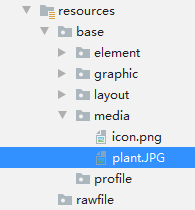
我们既可以在XML中创建Image,也可以在代码中创建Image。
##### 使用XML方式创建Image
<Image
ohos:id=“
+
i
d
:
i
m
a
g
e
C
o
m
p
o
n
e
n
t
"
o
h
o
s
:
h
e
i
g
h
t
=
"
200
v
p
"
o
h
o
s
:
w
i
d
t
h
=
"
200
v
p
"
o
h
o
s
:
i
m
a
g
e
_
s
r
c
=
"
+id:imageComponent" ohos:height="200vp" ohos:width="200vp" ohos:image\_src="
+id:imageComponent"ohos:height="200vp"ohos:width="200vp"ohos:image_src="media:plant”
/>
MainAbilitySlice.java的示例代码如下:
import ohos.aafwk.ability.AbilitySlice;
import ohos.aafwk.content.Intent;
import ohos.agp.components.Component;
import ohos.agp.components.Image;
public class MainAbilitySlice extends AbilitySlice {
@Override
public void onStart(Intent intent) {
super.onStart(intent);
super.setUIContent(ResourceTable.Layout_ability_main);
Component component = findComponentById(ResourceTable.Id_imageComponent);
if (component instanceof Image) {
Image image = (Image) component;
}
}
}
##### 使用代码创建Image


MainAbilitySlice.java的示例代码如下:
import ohos.aafwk.ability.AbilitySlice;
import ohos.aafwk.content.Intent;
import ohos.agp.components.DirectionalLayout;
import ohos.agp.components.Image;
public class MainAbilitySlice extends AbilitySlice {
@Override
public void onStart(Intent intent) {
super.onStart(intent);
//创建一个Image组件
Image image = new Image(getContext());
image.setPixelMap(ResourceTable.Media_plant);
//创建一个布局
DirectionalLayout layout = new DirectionalLayout(getContext());
//Image组件添加到DirectionalLayout布局中
layout.addComponent(image);
super.setUIContent(layout);
}
}
##### 使用Image


设置透明度
<Image
ohos:id=“
+
i
d
:
i
m
a
g
e
"
o
h
o
s
:
w
i
d
t
h
=
"
m
a
t
c
h
_
c
o
n
t
e
n
t
"
o
h
o
s
:
h
e
i
g
h
t
=
"
m
a
t
c
h
_
c
o
n
t
e
n
t
"
o
h
o
s
:
l
a
y
o
u
t
_
a
l
i
g
n
m
e
n
t
=
"
c
e
n
t
e
r
"
o
h
o
s
:
i
m
a
g
e
_
s
r
c
=
"
+id:image" ohos:width="match\_content" ohos:height="match\_content" ohos:layout\_alignment="center" ohos:image\_src="
+id:image"ohos:width="match_content"ohos:height="match_content"ohos:layout_alignment="center"ohos:image_src="media:plant”
ohos:alpha=“0.5”/>
设置缩放系数
<Image
ohos:id=“
+
i
d
:
i
m
a
g
e
"
o
h
o
s
:
w
i
d
t
h
=
"
m
a
t
c
h
_
c
o
n
t
e
n
t
"
o
h
o
s
:
h
e
i
g
h
t
=
"
m
a
t
c
h
_
c
o
n
t
e
n
t
"
o
h
o
s
:
l
a
y
o
u
t
_
a
l
i
g
n
m
e
n
t
=
"
c
e
n
t
e
r
"
o
h
o
s
:
i
m
a
g
e
_
s
r
c
=
"
+id:image" ohos:width="match\_content" ohos:height="match\_content" ohos:layout\_alignment="center" ohos:image\_src="
+id:image"ohos:width="match_content"ohos:height="match_content"ohos:layout_alignment="center"ohos:image_src="media:plant”
ohos:scale_x=“0.5”
ohos:scale_y=“0.5”/>
设置缩放方式
<Image
ohos:id=“$+id:image”


网上学习资料一大堆,但如果学到的知识不成体系,遇到问题时只是浅尝辄止,不再深入研究,那么很难做到真正的技术提升。
一个人可以走的很快,但一群人才能走的更远!不论你是正从事IT行业的老鸟或是对IT行业感兴趣的新人,都欢迎加入我们的的圈子(技术交流、学习资源、职场吐槽、大厂内推、面试辅导),让我们一起学习成长!
一个人可以走的很快,但一群人才能走的更远!不论你是正从事IT行业的老鸟或是对IT行业感兴趣的新人,都欢迎加入我们的的圈子(技术交流、学习资源、职场吐槽、大厂内推、面试辅导),让我们一起学习成长!

讨论HarmonyOS开发技术,专注于API与组件、DevEco Studio、测试、元服务和应用上架分发等。
更多推荐
 10
10 0
0- 0


 已为社区贡献1条内容

所有评论(0)