HarmonyOS NEXT-CoreVision Kit-TextRecognition如何实现选择图片、识别文字功能
·
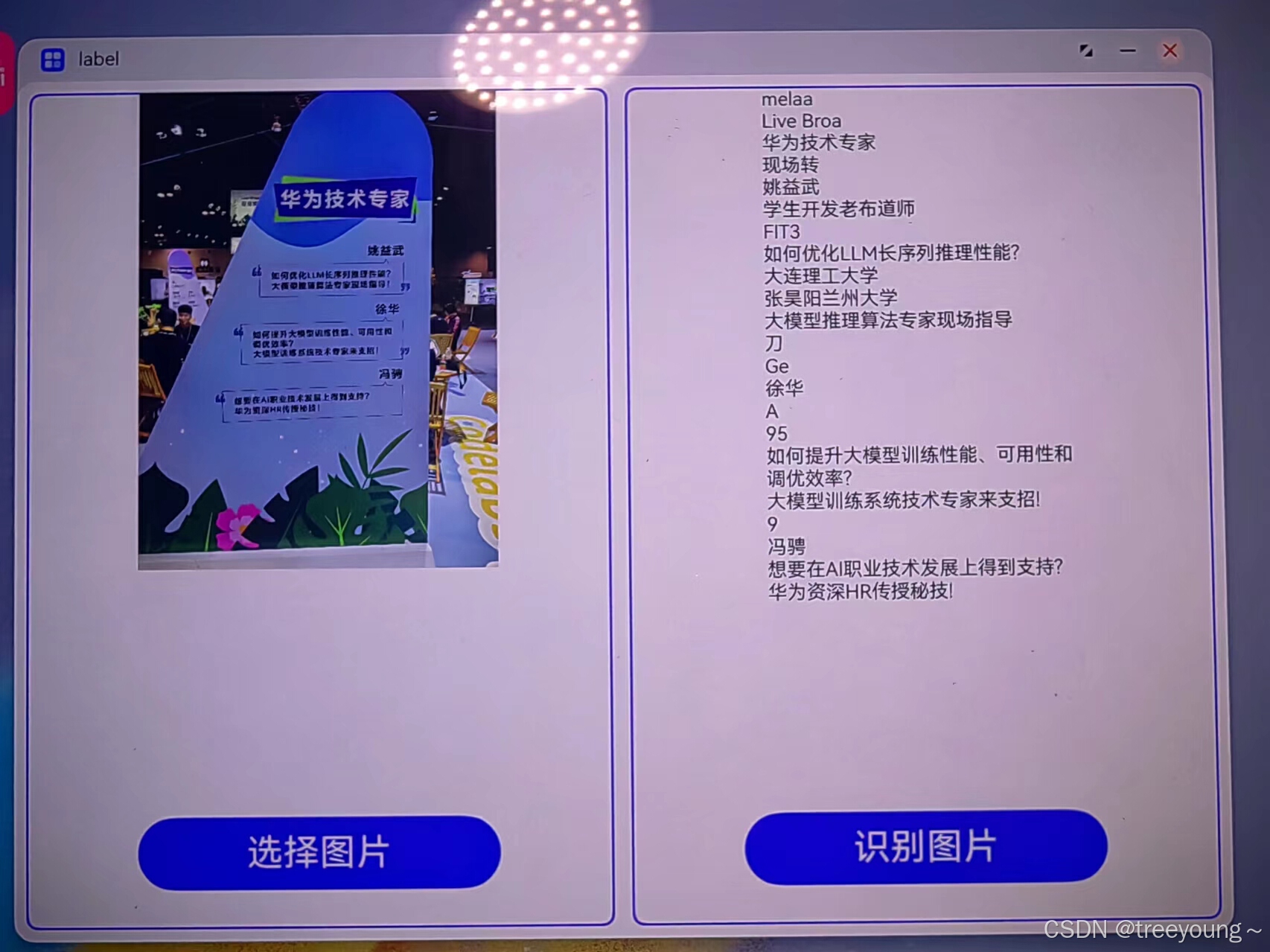
思路很简单:拿到照片的uri(picker.PhotoViewPicker)=> 将照片处理成pixelMap类型(Image.creatImageSource => creatPixelMapSync)
CoreVision Kit 的 TextRecognition只能识别pixelMap里面的文字
我们调用的相册选择器只能拿到照片的uri,然后我们使用fileIo通过uri打开文件,拿到文件的fd,就能通过fd拿到Image.imageSource,最后通过前者拿到pixelMap
注意:这个小Demo只有在真机的情况下才能测成功,在模拟的情况下我们的pixelMap会是undefined的,不知道后面会不会支持
import { picker } from '@kit.CoreFileKit';
import { BusinessError } from '@kit.BasicServicesKit';
import { hilog } from '@kit.PerformanceAnalysisKit';
// 照片选择类
export class PhotoPicker {
  // 异步选择图片方法
  async getImageUri() {
    let uri = await this.openPhoto()[0]; // 调用打开图片的方法,获取图片的URI
    if (uri === undefined) { // 如果获取不到图片的URI,则输出错误日志并返回
      hilog.error(0x0000, 'StoreRead', "Failed to get uri.");
      return;
    }
    return uri
  }

  // 打开图片的方法
这直接通过return Promise的方法来拿到,一个字——————省心
这样能跳过层级拿到结果,确实挺不错的
  openPhoto(): Promise<string> {
    return new Promise<string>((resolve) => {
      let photoPicker = new picker.PhotoViewPicker(); // 创建图片选择器对象
      photoPicker.select({
        // 设置选择图片的条件
        MIMEType: picker.PhotoViewMIMETypes.IMAGE_TYPE, // 只允许选择图片类型
        maxSelectNumber: 1 // 最多选择一个图片
      }).then((res: picker.PhotoSelectResult) => { // 成功选择图片后的回调函数
        resolve(res.photoUris); // 返回选中的图片的URI
      }).catch((err: BusinessError) => { // 选择图片失败后的回调函数
        hilog.error(0x0000, 'OCRDemo',
          `Failed to get photo image uri. Code:${err.code},message:${err.message}`); // 输出错误日志
        resolve(''); // 返回空字符串
      })
    })
  }
}
import { textRecognition } from '@kit.CoreVisionKit'
import { promptAction } from '@kit.ArkUI'
import { fileIo } from '@kit.CoreFileKit'
import { image } from '@kit.ImageKit'
import { BusinessError } from '@kit.BasicServicesKit'
// 文本识别类
export class TxtRegClass {
  // 需要识别的图片的uri
  static regImageUri: string;

  static imageSource: image.ImageSource | undefined = undefined;

  static pixelMap: image.PixelMap | undefined = undefined;

  // 创建像素映射
  static createPixelMapByUri(uri: string): Promise<image.PixelMap | undefined> {
    return new Promise((resolve, reject) => {
      try {
        const file = fileIo.openSync(uri, fileIo.OpenMode.READ_ONLY);
        const imageSource = image.createImageSource(file.fd);
        const pixelMap = imageSource.createPixelMapSync();
        resolve(pixelMap);
      } catch (error) {
        console.error('Error creating pixel map:', error);
        promptAction.showToast({ message: 'Error loading image' });
        reject(error);
      }
    });
  }

  // 识别像素映射中的文本
  static recognizeTextFromPixelMap(pixelMap: image.PixelMap): Promise<string> {
    const visionInfo: textRecognition.VisionInfo = {
      pixelMap: pixelMap
    };
    const txtRegConfig: textRecognition.TextRecognitionConfiguration = {
      isDirectionDetectionSupported: true
    };

    return new Promise((resolve, reject) => {
      textRecognition.recognizeText(visionInfo, txtRegConfig).then((res: textRecognition.TextRecognitionResult) => {
        if (res.value) {
          resolve(res.value);
        } else {
          promptAction.showToast({ message: 'No text recognized' });
          resolve('');
        }
      }).catch((err: BusinessError) => {
        console.error('Error recognizing text:', err);
        promptAction.showToast({ message: 'Error' });
        reject(err);
      });
    });
  }
}
将里面选择照片,识别照片分到两个工具类里面方便应用能够方便调用功能
import { TxtRegClass } from '../utils/TextRecognitionClass';
import { promptAction } from '@kit.ArkUI';
import { PhotoPicker } from '../utils/PhotoPicker';

@Entry
@Component
struct Index {
  @State currentUri: string = ""
  @State dataValue: string = ""
  @State photoPicker: PhotoPicker = new PhotoPicker()

  build() {
    Row({ space: 15 }) {
      // 选择图片部分
      Column() {
        if (this.currentUri) {
          Image(this.currentUri)
            .width(400)
            .aspectRatio(1)
            .objectFit(ImageFit.Contain)
        }
        Button("选择图片")
          .margin({ bottom: 30 })
          .fontSize(30)
          .width(100)
          .height(60)
          .onClick(async () => {
            try {
              let res = await this.photoPicker.getImageUri()
              if (res) {
                this.currentUri = res
              }
            } catch (err) {
              promptAction.showToast({
                message: `出错了__${err.message}`
              })
            }
          })
      }
      .justifyContent(FlexAlign.SpaceBetween)
      .height('100%')
      .layoutWeight(1)
      .border({ width: 2, color: Color.Blue })
      .borderRadius(10)

      // 识别图片部分
      Column() {
        Text(this.dataValue ? this.dataValue : "")
        Button("识别图片")
          .margin({ bottom: 30 })
          .fontSize(30)
          .width(100)
          .height(60)
          .onClick(async () => {
            try {
              let pixelMap = await TxtRegClass.createPixelMapByUri(this.currentUri)
              if (pixelMap) {
                this.dataValue = await TxtRegClass.recognizeTextFromPixelMap(pixelMap)
              }
            } catch (err) {
              promptAction.showToast({
                message: `识别错误____ ${err.message}`
              })
            }
          })
      }
      .justifyContent(FlexAlign.SpaceBetween)
      .height('100%')
      .layoutWeight(1)
      .border({ width: 2, color: Color.Blue })
      .borderRadius(10)
    }
    .padding(10)
    .height('100%')
    .width('100%')
  }
}

讨论HarmonyOS开发技术,专注于API与组件、DevEco Studio、测试、元服务和应用上架分发等。
更多推荐



 10
10 0
0- 0


 已为社区贡献6条内容

所有评论(0)