一文彻底拿下HarmonyOS NEXT的计算器实现
本文深入探讨基于HarmonyOS NEXT平台的计算器应用开发全流程,从基础功能实现到高级交互优化,系统性地剖析了现代计算器开发的核心技术。文章通过声明式UI框架构建交互界面,利用状态管理机制实现加减乘除、取余运算和连续累计计算功能,并创新性地解决了输入逻辑校验、运算符优先级处理及动态界面更新等关键技术难点。
·
程序员Feri一名12年+的程序员,做过开发带过团队创过业,擅长嵌入式、鸿蒙、人工智能、Java等,专注于程序员成长那点儿事,希望在成长的路上有我相伴!君志所向,一往无前!
为什么写计算器
在移动应用开发领域,计算器作为基础工具类应用,是我们学习新平台的首选实践项目。本文将以HarmonyOS NEXT为开发平台,详细介绍如何构建支持基础运算(加减乘除)、取余运算及累计运算功能的智能计算器应用。通过本案例,我们不仅能掌握HarmonyOS应用开发的核心技术,还能深入理解其声明式UI框架和状态管理机制。
开发环境
安装DevEco Studio 开发工具
创建HarmonyOS应用工程(API Version 16)
配置项目基本信息:
开发语言:ArkTS
验证开发环境运行状态
设备模拟器准备
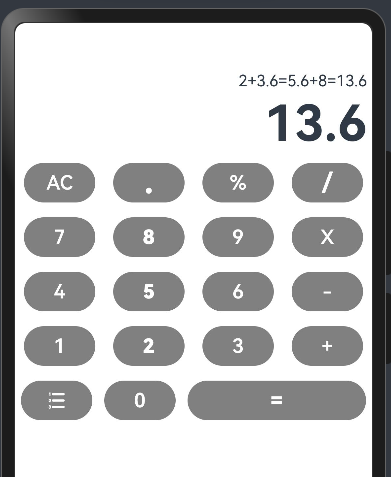
关键显示
显示屏区域:Text组件显示当前输入和计算结果
功能按钮:AC(清除)、取余(%)
操作符按钮:+、-、×、÷
数字按钮:0-9及小数点
编码实现
@Entry
@Component
struct Demo2Page {

  //记录计算表达式
  @State str:string="";
  //记录计算结果
  @State result:number=0
  //记录 第一个操作数(允许小数)
  num1:string="";
  //记录 第二个操作数(允许小数)
  num2:string="";
  //记录 操作符 +-*/%
  op:string="";

  build() {
    Column(){
      //1.展示结果
      Column({space:5}){
        Text(this.str)
          .textAlign(TextAlign.End)
          .padding({right:5})
          .maxLines(3)
          .width("100%")

        Text(this.result+"")
          .fontSize(50)
          .fontWeight(700)
          .textAlign(TextAlign.End)
          .padding({right:5})
          .width("100%")
      }
      .width("100%")
      .margin({top:10,bottom:5})

      //2.按钮组

      Column({space:10}){
        //第一行
        Row({space:30}){
          Button("AC")
            .fontSize(20)
            .fontWeight(600)
            .backgroundColor(Color.Grey)
            .width("20%")
            .onClick(()=>{
              this.getOp("AC");
            })
          Button(".")
            .fontSize(30)
            .fontWeight(900)
            .backgroundColor(Color.Grey)
            .width("20%")
            .onClick(()=>{
              this.getNum(".");
            })
          Button("%")
            .fontSize(20)
            .fontWeight(600)
            .backgroundColor(Color.Grey)
            .width("20%")
            .onClick(()=>{
            this.getOp("%");
          })
          Button("/")
            .fontSize(30)
            .fontWeight(600)
            .backgroundColor(Color.Grey)
            .width("20%")
            .onClick(()=>{
              this.getOp("/");
            })
        }
        .width("100%")
        .justifyContent(FlexAlign.SpaceAround)
        .margin({top:5})
        //第二行
        Row({space:30}){
          Button("7")
            .fontSize(20)
            .fontWeight(600)
            .backgroundColor(Color.Grey)
            .width("20%")
            .onClick(()=>{
              this.getNum("7");
            })
          Button("8")
            .fontSize(20)
            .fontWeight(900)
            .backgroundColor(Color.Grey)
            .width("20%")
            .onClick(()=>{
              this.getNum("8");
            })
          Button("9")
            .fontSize(20)
            .fontWeight(600)
            .backgroundColor(Color.Grey)
            .width("20%")
            .onClick(()=>{
              this.getNum("9");
            })
          Button("X")
            .fontSize(20)
            .fontWeight(600)
            .backgroundColor(Color.Grey)
            .width("20%")
            .onClick(()=>{
              this.getOp("*");
            })
        }
        .width("100%")
        .justifyContent(FlexAlign.SpaceAround)
        .margin({top:5})

        //第三行
        Row({space:30}){
          Button("4")
            .fontSize(20)
            .fontWeight(600)
            .backgroundColor(Color.Grey)
            .width("20%")
            .onClick(()=>{
              this.getNum("4");
            })
          Button("5")
            .fontSize(20)
            .fontWeight(900)
            .backgroundColor(Color.Grey)
            .width("20%")
            .onClick(()=>{
              this.getNum("5");
            })
          Button("6")
            .fontSize(20)
            .fontWeight(600)
            .backgroundColor(Color.Grey)
            .width("20%")
            .onClick(()=>{
              this.getNum("6");
            })
          Button("-")
            .fontSize(20)
            .fontWeight(600)
            .backgroundColor(Color.Grey)
            .width("20%")
            .onClick(()=>{
              this.getOp("-");
            })
        }
        .width("100%")
        .justifyContent(FlexAlign.SpaceAround)
        .margin({top:5})
        //第四行
        Row({space:30}){
          Button("1")
            .fontSize(20)
            .fontWeight(600)
            .backgroundColor(Color.Grey)
            .width("20%")
            .onClick(()=>{
              this.getNum("1");
            })
          Button("2")
            .fontSize(20)
            .fontWeight(900)
            .backgroundColor(Color.Grey)
            .width("20%")
            .onClick(()=>{
              this.getNum("2");
            })
          Button("3")
            .fontSize(20)
            .fontWeight(600)
            .backgroundColor(Color.Grey)
            .width("20%")
            .onClick(()=>{
              this.getNum("3");
            })
          Button("+")
            .fontSize(20)
            .fontWeight(600)
            .backgroundColor(Color.Grey)
            .width("20%")
            .onClick(()=>{
              this.getOp("+");
            })
        }
        .width("100%")
        .justifyContent(FlexAlign.SpaceAround)
        .margin({top:5})
        //第五行
        Row({space:30}){
          Button() {
            SymbolGlyph($r("sys.symbol.list_number"))
              .fontColor([Color.White])
              .fontWeight(800)
              .fontSize(20)
              .padding({top:10,bottom:10})

          }.backgroundColor(Color.Grey)
          .width("20%")
          Button("0")
            .fontSize(20)
            .fontWeight(600)
            .backgroundColor(Color.Grey)
            .width("20%")
            .onClick(()=>{
              this.getNum("0");
            })
          Button("=")
            .fontSize(20)
            .fontWeight(900)
            .backgroundColor(Color.Grey)
            .width("50%")
            .onClick(()=>{
              this.getOp("=");
            })
        }
        .width("100%")
        .justifyContent(FlexAlign.SpaceAround)
        .margin({top:5})
      }
    }
    .height('100%')
    .width('100%')
  }
  //封装 定义函数
  //函数  接收数字和小数点 实现操作数的拼接
  getNum(n:string){
    //判断 当前是否给第一个操作数
    if(this.op===""){
      //操作符为空,说明当前输入的是第一个操作数
      this.num1+=n;
    }else {
      this.num2+=n;
    }
    this.str+=n;
  }
  //函数 接收操作符
  getOp(o:string){
    if(o==="="){
      //计算结果
      this.getResult();
    }else if(o==="AC"){
      //清空
      this.str="";
      this.result=0;
      this.op="";
      this.num1="";
      this.num2="";
      //如果需要本次结果进行记录的

    }else {
      //操作符 +-*/%
      //判断之前是不是有操作符
      if(this.op!==""){
        //有过操作符,本次又有一个操作符,先把之前的进行运算,再完成本次的操作
        //计算结果
        this.getResult();
      }
      this.op=o;
      this.str+=o;
    }
  }
  //函数 计数表达式的结果
  getResult(){
    console.log(this.num1+"---"+this.num2);
    //获取对应的操作数
    let n1:number=Number(this.num1);
    let n2:number=Number(this.num2);
    switch (this.op){
      case "+":this.result=n1+n2;break;
      case "-":this.result=n1-n2;break;
      case "*":this.result=n1*n2;break;
      case "/":this.result=n1/n2;break;
      case "%":this.result=n1%n2;break;
    }
    this.str+="="+this.result;
    //累计运算 把结果赋值给第一个操作数
    this.num1=this.result+"";
    this.op="=";
    //初始化num2
    this.num2="";
  }
}
关键技术
声明式UI优势
-
数据驱动界面更新
-
状态自动绑定机制
-
高性能渲染优化
状态管理机制
-
@State装饰器的响应式原理
-
状态变更触发的UI更新流程
-
多状态协同工作机制
好啦,本篇就到这里啦!加油!

讨论HarmonyOS开发技术,专注于API与组件、DevEco Studio、测试、元服务和应用上架分发等。
更多推荐



 16
16 0
0- 0


 已为社区贡献59条内容

所有评论(0)