

1.鸿蒙开发实战:深度解析网络管理技巧与实战应用 2.鸿蒙开发实战:灵活定制编译选项,打造高效应用 3.鸿蒙开发实战:轻松配置多环境目录,实现高效应用部署 4.鸿蒙开发实战:揭秘页面与项目生命周期,实现精准监控 5.鸿蒙实战开发:网络层的艺术——优雅封装与搭建指南(上) 6.鸿蒙实战开发:网络层的艺术——优雅封装与搭建指南(中) 7.鸿蒙实战开发:网络层的艺术——优雅封装与搭建指南(下) 8.鸿蒙OS创新实践:动态声控话筒开发指南 9.鸿蒙OS高级技巧:打造个性化动态Swiper效果 10.鸿蒙OS模块化开发实战:独立路由与解耦策略 11.鸿蒙OS开发秘籍:打造优雅的登录状态管理系统 12.HarmonyOS NEXT开发实战:打造高效上拉刷新与下拉加载组件(一)空页面的设计与实现 13.HarmonyOS NEXT开发实战:实现高效下拉刷新与上拉加载组件(二)刷新核心逻辑与空页面集成 14.HarmonyOS运动开发:如何监听用户运动步数数据 15.HarmonyOS运动开发:如何集成百度地图SDK、运动跟随与运动公里数记录 16.HarmonyOS运动开发:户外运动中计算卡路里 17.鸿蒙运动开发:计算户外运动步频与步幅,与地图路线绘制 18.HarmonyOS运动开发:如何绘制运动速度轨迹
19. 鸿蒙运动开发实战:打造 Keep 式轨迹播放效果
20.HarmonyOS运动开发:精准估算室内运动的距离、速度与步幅 21.HarmonyOS运动开发:如何用mpchart绘制运动配速图表 22.HarmonyOS运动语音开发:如何让运动开始时的语音播报更温暖 23.HarmonyOS运动开发:打造你的专属运动节拍器 24.HarmonyOS运动开发:如何选择并上传运动记录 25.HarmonyOS运动开发:打造便捷的静态快捷菜单 26.HarmonyOS运动开发:深度解析文件预览的正确姿势
前言
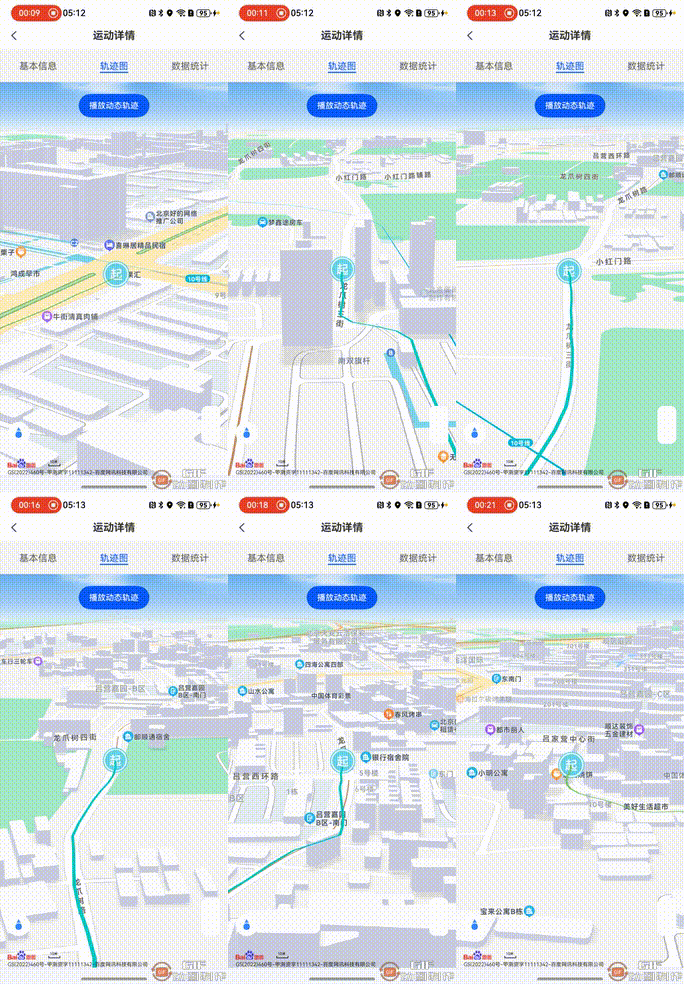
在运动类应用中,轨迹播放效果是提升用户体验的关键功能之一。它不仅能直观展示用户的运动路线,还能通过动态效果增强运动的趣味性。Keep 作为一款知名的运动健身应用,其轨迹播放效果深受用户喜爱。那么,如何在鸿蒙系统中开发出类似 Keep 的轨迹播放效果呢?本文将通过实际代码案例,深入解析实现这一功能的关键步骤和技术要点。
效果:
一、核心功能拆解
要实现类似 Keep 的轨迹播放效果,我们需要完成以下几个核心功能:
• 动态轨迹播放:通过定时器和动画效果,实现轨迹的动态播放,模拟用户运动过程。
• 地图交互:在地图上绘制轨迹,并根据播放进度更新地图中心点和旋转角度。
二、动态轨迹播放
1.播放逻辑
通过定时器和动画效果实现轨迹的动态播放。以下是播放轨迹的核心代码:
private playTrack() {
  // 如果已经在播放,则停止
  if (this.playTimer) {
    this.mapController?.removeOverlay(this.polyline);
    clearInterval(this.playTimer);
    this.playTimer = undefined;
    if (this.animationTimer) {
      clearInterval(this.animationTimer);
    }
    if (this.movingMarker) {
      this.mapController?.removeOverlay(this.movingMarker);
      this.movingMarker = undefined;
    }
    this.currentPointIndex = 0;
    return;
  }

  // 创建动态位置标记
  this.movingMarker = new Marker({
    position: this.trackPoints[0],
    icon: new ImageEntity("rawfile://images/ic_run_detail_start.png"),
    isJoinCollision: SysEnum.CollisionBehavior.NOT_COLLIDE,
    located: SysEnum.Located.CENTER
  });
  this.mapController?.addOverlay(this.movingMarker);

  // 开始播放
  this.playTimer = setInterval(() => {
    this.currentPointIndex++;
    if (this.currentPointIndex >= this.trackPoints.length) {
      clearInterval(this.playTimer);
      this.playTimer = undefined;
      this.currentPointIndex = 0;
      if (this.movingMarker) {
        this.mapController?.removeOverlay(this.movingMarker);
        this.movingMarker = undefined;
      }
      return;
    }

    // 更新动态位置标记位置,使用setInterval实现平滑移动
    if (this.movingMarker && this.currentPointIndex < this.trackPoints.length - 1) {
      const currentPoint = this.trackPoints[this.currentPointIndex];
      const nextPoint = this.trackPoints[this.currentPointIndex + 1];
      let animationProgress = 0;

      // 清除之前的动画定时器
      if (this.animationTimer) {
        clearInterval(this.animationTimer);
      }

      // 创建新的动画定时器,每10ms更新一次位置
      this.animationTimer = setInterval(() => {
        animationProgress += 0.1; // 每次增加0.1的进度

        if (animationProgress >= 1) {
          clearInterval(this.animationTimer);
          this.animationTimer = undefined;
          this.movingMarker?.setPosition(new LatLng(nextPoint.lat, nextPoint.lng));
        } else {
          const interpolatedLat = currentPoint.lat + (nextPoint.lat - currentPoint.lat) * animationProgress;
          const interpolatedLng = currentPoint.lng + (nextPoint.lng - currentPoint.lng) * animationProgress;
          this.movingMarker?.setPosition(new LatLng(interpolatedLat, interpolatedLng));
        }
      }, 10); // 每10ms执行一次
    }

    // 绘制当前轨迹线段
    const currentPoints = this.trackPoints.slice(0, this.currentPointIndex + 1);
    const currentColors = PathGradientTool.getPathColors(this.record!.points.slice(0, this.currentPointIndex + 1), 100);

    if (this.polyline) {
      this.mapController?.removeOverlay(this.polyline);
      this.polyline.remove();
      this.polyline.destroy();
    }

    this.polyline = new Polyline({
      points: currentPoints,
      width: 5,
      join: SysEnum.LineJoinType.ROUND,
      cap: SysEnum.LineCapType.ROUND,
      isGradient: true,
      colorList: currentColors!
    });
    this.mapController?.addOverlay(this.polyline);

    // 更新地图中心点和旋转角度
    let bearing = 0;
    if (this.currentPointIndex < this.trackPoints.length - 1) {
      const currentPoint = this.trackPoints[this.currentPointIndex];
      const nextPoint = this.trackPoints[this.currentPointIndex + 1];
      bearing = Math.atan2(
        nextPoint.lat - currentPoint.lat,
        nextPoint.lng - currentPoint.lng
      ) * 180 / Math.PI;
      bearing = (bearing + 360) % 360;
      bearing = (360 - bearing + 90) % 360;
    }

    this.mapController?.mapStatus.setRotate(bearing).setOverlooking(90).setCenterPoint(new LatLng(this.trackPoints[this.currentPointIndex].lat, this.trackPoints[this.currentPointIndex].lng)).refresh();
  }, 100); // 每100ms移动一次
}
2.动画效果
通过定时器和线性插值实现动态轨迹的平滑移动效果。以下是动画效果的核心代码:
if (this.movingMarker && this.currentPointIndex < this.trackPoints.length - 1) {
  const currentPoint = this.trackPoints[this.currentPointIndex];
  const nextPoint = this.trackPoints[this.currentPointIndex + 1];
  let animationProgress = 0;

  // 清除之前的动画定时器
  if (this.animationTimer) {
    clearInterval(this.animationTimer);
  }

  // 创建新的动画定时器,每10ms更新一次位置
  this.animationTimer = setInterval(() => {
    animationProgress += 0.1; // 每次增加0.1的进度

    if (animationProgress >= 1) {
      clearInterval(this.animationTimer);
      this.animationTimer = undefined;
      this.movingMarker?.setPosition(new LatLng(nextPoint.lat, nextPoint.lng));
    } else {
      const interpolatedLat = currentPoint.lat + (nextPoint.lat - currentPoint.lat) * animationProgress;
      const interpolatedLng = currentPoint.lng + (nextPoint.lng - currentPoint.lng) * animationProgress;
      this.movingMarker?.setPosition(new LatLng(interpolatedLat, interpolatedLng));
    }
  }, 10); // 每10ms执行一次
}
三、地图交互
1.地图中心点和旋转角度更新
在播放轨迹的过程中,动态更新地图的中心点和旋转角度,以确保用户始终能看到当前播放的位置。以下是更新地图中心点和旋转角度的代码:
let bearing = 0;
if (this.currentPointIndex < this.trackPoints.length - 1) {
  const currentPoint = this.trackPoints[this.currentPointIndex];
  const nextPoint = this.trackPoints[this.currentPointIndex + 1];
  bearing = Math.atan2(
    nextPoint.lat - currentPoint.lat,
    nextPoint.lng - currentPoint.lng
  ) * 180 / Math.PI;
  bearing = (bearing + 360) % 360;
  bearing = (360 - bearing + 90) % 360;
}

this.mapController?.mapStatus.setRotate(bearing).setOverlooking(90).setCenterPoint(new LatLng(this.trackPoints[this.currentPointIndex].lat, this.trackPoints[this.currentPointIndex].lng)).refresh();
四、总结
通过上述步骤,我们成功实现了类似 Keep 的轨迹播放效果。不仅提升了用户体验,还为运动数据的可视化提供了有力支持。
原创作者: wangerdan115 转载于: https://www.cnblogs.com/wangerdan115/p/18899774


 已为社区贡献1条内容

所有评论(0)