HarmonyOS NEXT 实战:从零打造 BMI 健康计算器应用
HarmonyOS NEXT BMI计算器开发实战 本文介绍如何使用HarmonyOS NEXT开发一个功能完整的BMI计算器应用,适合初学者入门学习。项目特点包括: 功能完整:包含输入验证、计算逻辑、结果分类显示 技术全面:覆盖UI布局、状态管理、响应式设计 开发流程: 从项目创建到模块配置 使用ArkTS编写业务逻辑 实现卡片式UI设计 关键技术点: @State状态管理 组件化布局(Colu
HarmonyOS NEXT 实战:从零打造 BMI 健康计算器应用
目标设备:Phone
开发工具:DevEco Studio
一、前言:为什么选择 BMI 计算器作为入门项目?
如果你刚接触 HarmonyOS NEXT 开发,可能会觉得官方文档的示例有些"距离感"——那些概念都懂,但自己动手写一个完整应用时又无从下手。这时候,一个功能明确、交互简单、逻辑完整的入门项目就是最好的练手对象。
BMI(Body Mass Index,身体质量指数)计算器完美符合这些条件:
- UI布局:涉及输入框、按钮、卡片、列表等多种组件
- 状态管理:需要响应式更新计算结果
- 业务逻辑:包含输入校验、数值计算、条件判断
- 视觉美化:颜色映射、圆角阴影、响应式布局都能体现
本篇文章,我会带着你从创建项目到完成开发,一步一步拆解每个实现细节。准备好了吗?我们开始!
二、项目创建与配置
2.1 新建项目
打开 DevEco Studio,选择 File → New → Create Project,在模板选择页面:
- 选择 Application → Empty Ability
- 点击 Next,填写项目信息:
- Project name:MyApplication(或你喜欢的名字)
- Bundle name:com.example.myapplication
- Save location:选择你的项目目录
- Compile SDK:选择 API 6.1.1(24) 或更高版本
- Model:Stage 模型(默认)
点击 Finish,DevEco Studio 会自动生成项目骨架。
2.2 项目结构解析
生成的项目结构如下:
MyApplication/
├── AppScope/              # 应用全局配置
│   ├── app.json5          # 应用名称、版本、图标
│   └── resources/         # 全局资源
├── entry/                 # 主模块
│   ├── src/main/
│   │   ├── ets/           # ArkTS 源代码
│   │   │   ├── entryability/
│   │   │   │   └── EntryAbility.ets    # 应用入口
│   │   │   └── pages/
│   │   │       └── Index.ets           # 主页面
│   │   ├── resources/     # 资源文件
│   │   │   ├── base/
│   │   │   │   ├── element/  # 字符串、颜色
│   │   │   │   ├── media/    # 图片资源
│   │   │   │   └── profile/  # 页面配置
│   │   │   └── rawfile/      # 原始文件
│   │   └── module.json5   # 模块配置
│   ├── build-profile.json5
│   └── oh-package.json5
├── build-profile.json5    # 构建配置
└── hvigor/                # 构建脚本
关键配置文件说明:
app.json5:定义应用的bundleName、版本号、应用图标module.json5:定义模块的 Ability、页面路由、设备类型main_pages.json:声明页面路径列表
三、界面设计与实现
3.1 需求分析
我们要实现的功能很简单:
- 用户输入身高(厘米)和体重(公斤)
- 点击"计算 BMI"按钮
- 显示 BMI 数值和健康分类(偏瘦/正常/超重/肥胖)
- 提供 BMI 参考范围的可视化提示
UI 设计思路:
- 采用卡片式布局,输入区和结果区分开展示
- 使用绿色系主题色(健康、自然)
- 结果展示带有颜色区分(橙色=偏瘦/超重,绿色=正常,红色=肥胖)
3.2 主页面实现
打开 entry/src/main/ets/pages/Index.ets,开始编写主页面代码。
3.2.1 状态变量定义
首先,定义页面需要的状态变量:
@Entry
@Component
struct Index {
  @State heightValue: string = ''        // 身高输入值
  @State weightValue: string = ''        // 体重输入值
  @State bmiResult: number = 0           // 计算结果
  @State category: string = '—'          // 分类标签
  @State categoryColor: Color = Color.Gray  // 分类颜色
  @State showResult: boolean = false     // 是否显示结果
  @State errorMsg: string = ''           // 错误提示
  // ...
}
ArkTS 状态管理要点:
@State装饰器:当变量值变化时,UI 会自动刷新- 字符串类型用于输入框绑定,数值类型用于计算
3.2.2 BMI 分类数据模型
为了方便判断和展示分类,定义一个接口和分类数组:
interface BmiCategory {
  label: string     // 分类名称
  range: string     // 范围描述
  color: Color      // 显示颜色
  min: number       // 最小值
  max: number       // 最大值
}

private readonly categories: BmiCategory[] = [
  { label: '偏瘦', range: '<18.5', color: Color.Orange, min: 0, max: 18.5 },
  { label: '正常', range: '18.5~24.9', color: Color.Green, min: 18.5, max: 25 },
  { label: '超重', range: '25~29.9', color: Color.Orange, min: 25, max: 30 },
  { label: '肥胖', range: '≥30', color: Color.Red, min: 30, max: 999 }
]
这样设计的好处是:逻辑和展示解耦,后续调整分类标准只需修改数组即可。
3.2.3 顶部标题区
使用 Column 容器垂直排列标题和副标题:
Column() {
  Text('BMI 健康计算器')
    .fontSize(26)
    .fontWeight(FontWeight.Bold)
    .fontColor('#2E7D32')
  Text('Body Mass Index')
    .fontSize(14)
    .fontColor('#81C784')
    .margin({ top: 4 })
}
.padding({ top: 32, bottom: 20 })
.width('100%')
3.2.4 输入卡片
输入区域使用白色卡片包裹,包含身高和体重两个输入项:
Column() {
  // 身高输入
  Row() {
    Text('👤').fontSize(24)
    Text('身高')
      .fontSize(16)
      .fontWeight(FontWeight.Medium)
      .margin({ left: 10 })
    Flex({ justifyContent: FlexAlign.End }) {
      TextInput({ placeholder: '请输入身高', text: this.heightValue })
        .width(140)
        .height(40)
        .type(InputType.Number)
        .textAlign(TextAlign.End)
        .onChange((value: string) => {
          this.heightValue = value
          this.showResult = false
          this.errorMsg = ''
        })
    }
    Text('cm')
      .fontSize(15)
      .fontColor('#666')
      .margin({ left: 6 })
  }
  .width('100%')
  .padding({ top: 8, bottom: 8 })

  Divider().height(1).color('#E8F5E9').margin({ left: 4, right: 4 })

  // 体重输入(结构相同)
  // ...
}
.padding(20)
.backgroundColor(Color.White)
.borderRadius(16)
.shadow({ radius: 8, color: '#1A000000', offsetY: 4 })
.margin({ left: 20, right: 20 })
布局要点:
Row实现水平排列,图标+标签+输入框+单位Flex让输入框靠右对齐Divider分隔两个输入项shadow属性添加卡片阴影效果
3.2.5 计算按钮与错误提示
按钮使用圆角设计,点击时调用计算方法:
Button('计算 BMI')
  .width(200)
  .height(48)
  .backgroundColor('#4CAF50')
  .borderRadius(24)
  .fontSize(17)
  .fontWeight(FontWeight.Medium)
  .margin({ top: 24, bottom: 8 })
  .onClick(() => this.handleCalculate())

// 错误提示
if (this.errorMsg !== '') {
  Text(this.errorMsg)
    .fontSize(13)
    .fontColor(Color.Red)
    .margin({ top: 4 })
}
3.2.6 结果展示区
结果区域使用条件渲染 if (this.showResult) 控制,包含:
- BMI 数值(大字体+动态颜色)
- 分类标签(圆角背景)
- BMI 参考范围可视化条
if (this.showResult) {
  Column() {
    Text('您的 BMI')
      .fontSize(15)
      .fontColor('#666')

    Text(`${this.bmiResult.toFixed(1)}`)
      .fontSize(52)
      .fontWeight(FontWeight.Bold)
      .fontColor(this.categoryColor)
      .margin({ top: 4 })

    Text(this.category)
      .fontSize(20)
      .fontWeight(FontWeight.Bold)
      .fontColor(Color.White)
      .padding({ left: 28, right: 28, top: 6, bottom: 6 })
      .backgroundColor(this.categoryColor)
      .borderRadius(20)
      .margin({ top: 6 })

    // BMI 参考范围条
    Column() {
      Text('BMI 参考范围')
        .fontSize(13)
        .fontColor('#888')
        .margin({ bottom: 8 })

      Row() {
        Text('偏瘦\n<18.5')
          .fontSize(11)
          .textAlign(TextAlign.Center)
          .width(70)
          .height(36)
          .backgroundColor('#FFF3E0')
          .borderRadius({ topLeft: 8, bottomLeft: 8 })
        Text('正常\n18.5~24.9')
          .fontSize(11)
          .textAlign(TextAlign.Center)
          .width(90)
          .height(36)
          .backgroundColor('#E8F5E9')
        Text('超重\n25~29.9')
          .fontSize(11)
          .textAlign(TextAlign.Center)
          .width(80)
          .height(36)
          .backgroundColor('#FFF3E0')
        Text('肥胖\n≥30')
          .fontSize(11)
          .textAlign(TextAlign.Center)
          .width(60)
          .height(36)
          .backgroundColor('#FFEBEE')
          .borderRadius({ topRight: 8, bottomRight: 8 })
      }
      .width('100%')
      .margin({ top: 4 })
    }
    .width('100%')
    .padding(16)
    .backgroundColor('#FAFAFA')
    .borderRadius(12)
    .margin({ top: 16 })
  }
  .width('100%')
  .padding(24)
  .backgroundColor(Color.White)
  .borderRadius(16)
  .shadow({ radius: 8, color: '#1A000000', offsetY: 4 })
  .margin({ left: 20, right: 20, top: 20 })
  .alignItems(HorizontalAlign.Center)
}
四、业务逻辑实现
4.1 计算方法
核心计算逻辑封装在 handleCalculate() 方法中:
handleCalculate(): void {
  const height = parseFloat(this.heightValue)
  const weight = parseFloat(this.weightValue)

  // 输入校验
  if (this.heightValue === '' || this.weightValue === '') {
    this.errorMsg = '⚠️ 请完整填写身高和体重'
    return
  }
  if (isNaN(height) || isNaN(weight) || height <= 0 || weight <= 0) {
    this.errorMsg = '⚠️ 请输入有效的正数数值'
    return
  }
  if (height > 300 || weight > 500) {
    this.errorMsg = '⚠️ 数值超出合理范围'
    return
  }

  this.errorMsg = ''

  // BMI 计算公式:体重(kg) / 身高(m)²
  const heightM = height / 100  // 转换为米
  const bmi = weight / (heightM * heightM)
  this.bmiResult = Math.round(bmi * 10) / 10  // 保留一位小数

  // 判断分类
  for (const cat of this.categories) {
    if (bmi >= cat.min && bmi < cat.max) {
      this.category = cat.label
      this.categoryColor = cat.color
      break
    }
  }

  this.showResult = true
}
校验逻辑说明:
- 空值检查:确保两个字段都已填写
- 数值检查:防止非法输入(字母、符号等)
- 范围检查:身高不超过 300cm,体重不超过 500kg
BMI 计算公式:
BMI=体重(kg)身高(m)2BMI = \frac{体重(kg)}{身高(m)^2}BMI=身高(m)2体重(kg)
例如:身高 175cm,体重 70kg,则:
BMI=701.752=703.0625≈22.9BMI = \frac{70}{1.75^2} = \frac{70}{3.0625} ≈ 22.9BMI=1.75270=3.062570≈22.9
五、完整代码
5.1 Index.ets 完整源码
@Entry
@Component
struct Index {
  @State heightValue: string = ''
  @State weightValue: string = ''
  @State bmiResult: number = 0
  @State category: string = '—'
  @State categoryColor: Color = Color.Gray
  @State showResult: boolean = false
  @State errorMsg: string = ''

  private readonly categories: BmiCategory[] = [
    { label: '偏瘦', range: '<18.5', color: Color.Orange, min: 0, max: 18.5 },
    { label: '正常', range: '18.5~24.9', color: Color.Green, min: 18.5, max: 25 },
    { label: '超重', range: '25~29.9', color: Color.Orange, min: 25, max: 30 },
    { label: '肥胖', range: '≥30', color: Color.Red, min: 30, max: 999 }
  ]

  build() {
    Column() {
      Scroll() {
        Column() {
          // 顶部标题区
          Column() {
            Text('BMI 健康计算器')
              .fontSize(26)
              .fontWeight(FontWeight.Bold)
              .fontColor('#2E7D32')
            Text('Body Mass Index')
              .fontSize(14)
              .fontColor('#81C784')
              .margin({ top: 4 })
          }
          .padding({ top: 32, bottom: 20 })
          .width('100%')

          // 输入卡片
          Column() {
            Row() {
              Text('👤').fontSize(24)
              Text('身高').fontSize(16).fontWeight(FontWeight.Medium).margin({ left: 10 })
              Flex({ justifyContent: FlexAlign.End }) {
                TextInput({ placeholder: '请输入身高', text: this.heightValue })
                  .width(140).height(40).type(InputType.Number).textAlign(TextAlign.End)
                  .onChange((value: string) => {
                    this.heightValue = value
                    this.showResult = false
                    this.errorMsg = ''
                  })
              }
              Text('cm').fontSize(15).fontColor('#666').margin({ left: 6 })
            }.width('100%').padding({ top: 8, bottom: 8 })

            Divider().height(1).color('#E8F5E9').margin({ left: 4, right: 4 })

            Row() {
              Text('⚖️').fontSize(24)
              Text('体重').fontSize(16).fontWeight(FontWeight.Medium).margin({ left: 10 })
              Flex({ justifyContent: FlexAlign.End }) {
                TextInput({ placeholder: '请输入体重', text: this.weightValue })
                  .width(140).height(40).type(InputType.Number).textAlign(TextAlign.End)
                  .onChange((value: string) => {
                    this.weightValue = value
                    this.showResult = false
                    this.errorMsg = ''
                  })
              }
              Text('kg').fontSize(15).fontColor('#666').margin({ left: 6 })
            }.width('100%').padding({ top: 8, bottom: 8 })
          }
          .padding(20)
          .backgroundColor(Color.White)
          .borderRadius(16)
          .shadow({ radius: 8, color: '#1A000000', offsetY: 4 })
          .margin({ left: 20, right: 20 })

          // 计算按钮
          Button('计算 BMI')
            .width(200).height(48)
            .backgroundColor('#4CAF50')
            .borderRadius(24)
            .fontSize(17).fontWeight(FontWeight.Medium)
            .margin({ top: 24, bottom: 8 })
            .onClick(() => this.handleCalculate())

          if (this.errorMsg !== '') {
            Text(this.errorMsg).fontSize(13).fontColor(Color.Red).margin({ top: 4 })
          }

          // 结果区域
          if (this.showResult) {
            Column() {
              Text('您的 BMI').fontSize(15).fontColor('#666')
              Text(`${this.bmiResult.toFixed(1)}`)
                .fontSize(52).fontWeight(FontWeight.Bold)
                .fontColor(this.categoryColor).margin({ top: 4 })
              Text(this.category)
                .fontSize(20).fontWeight(FontWeight.Bold).fontColor(Color.White)
                .padding({ left: 28, right: 28, top: 6, bottom: 6 })
                .backgroundColor(this.categoryColor)
                .borderRadius(20).margin({ top: 6 })

              Column() {
                Text('BMI 参考范围').fontSize(13).fontColor('#888').margin({ bottom: 8 })
                Row() {
                  Text('偏瘦\n<18.5').fontSize(11).textAlign(TextAlign.Center)
                    .width(70).height(36).backgroundColor('#FFF3E0')
                    .borderRadius({ topLeft: 8, bottomLeft: 8 })
                  Text('正常\n18.5~24.9').fontSize(11).textAlign(TextAlign.Center)
                    .width(90).height(36).backgroundColor('#E8F5E9')
                  Text('超重\n25~29.9').fontSize(11).textAlign(TextAlign.Center)
                    .width(80).height(36).backgroundColor('#FFF3E0')
                  Text('肥胖\n≥30').fontSize(11).textAlign(TextAlign.Center)
                    .width(60).height(36).backgroundColor('#FFEBEE')
                    .borderRadius({ topRight: 8, bottomRight: 8 })
                }.width('100%').margin({ top: 4 })
              }
              .width('100%').padding(16).backgroundColor('#FAFAFA')
              .borderRadius(12).margin({ top: 16 })
            }
            .width('100%').padding(24)
            .backgroundColor(Color.White).borderRadius(16)
            .shadow({ radius: 8, color: '#1A000000', offsetY: 4 })
            .margin({ left: 20, right: 20, top: 20 })
            .alignItems(HorizontalAlign.Center)
          }
        }.width('100%')
      }.width('100%').height('100%')
    }
    .width('100%').height('100%')
    .backgroundColor('#F1F8E9')
  }

  handleCalculate(): void {
    const height = parseFloat(this.heightValue)
    const weight = parseFloat(this.weightValue)

    if (this.heightValue === '' || this.weightValue === '') {
      this.errorMsg = '⚠️ 请完整填写身高和体重'
      return
    }
    if (isNaN(height) || isNaN(weight) || height <= 0 || weight <= 0) {
      this.errorMsg = '⚠️ 请输入有效的正数数值'
      return
    }
    if (height > 300 || weight > 500) {
      this.errorMsg = '⚠️ 数值超出合理范围'
      return
    }

    this.errorMsg = ''
    const heightM = height / 100
    const bmi = weight / (heightM * heightM)
    this.bmiResult = Math.round(bmi * 10) / 10

    for (const cat of this.categories) {
      if (bmi >= cat.min && bmi < cat.max) {
        this.category = cat.label
        this.categoryColor = cat.color
        break
      }
    }
    this.showResult = true
  }
}

interface BmiCategory {
  label: string
  range: string
  color: Color
  min: number
  max: number
}
六、开发踩坑记录
6.1 踩坑一:ScrollView 嵌套问题
问题:最初没有使用 Scroll 包裹内容,当键盘弹出时,底部内容被遮挡无法滚动。
解决:在最外层 Column 内添加 Scroll 组件:
Column() {
  Scroll() {
    Column() {
      // 页面内容...
    }
  }
}
6.2 踩坑二:TextInput 双向绑定
问题:TextInput 的 text 属性不是双向绑定,用户输入后 heightValue 不会自动更新。
解决:在 onChange 回调中手动更新状态:
TextInput({ text: this.heightValue })
  .onChange((value: string) => {
    this.heightValue = value  // 手动同步
  })
6.3 踩坑三:颜色值格式
问题:直接写 color: '#4CAF50' 在某些属性上不生效。
解决:
- 标准属性用字符串:
.fontColor('#2E7D32') - 特殊属性用
Color枚举:.backgroundColor(Color.White)
6.4 踩坑四:数值精度
问题:JavaScript 浮点数计算会产生精度问题,比如 22.86 可能显示为 22.8600000001。
解决:使用 Math.round(bmi * 10) / 10 保留一位小数。
七、运行与测试
7.1 连接模拟器/真机
- 在 DevEco Studio 顶部工具栏,点击 Device Manager
- 创建或启动本地模拟器(推荐 Phone 类型)
- 等待模拟器启动完成
7.2 运行应用
点击工具栏的 Run 按钮(绿色三角形),或按快捷键 Shift + F10。
应用会自动编译、打包、安装到模拟器并启动。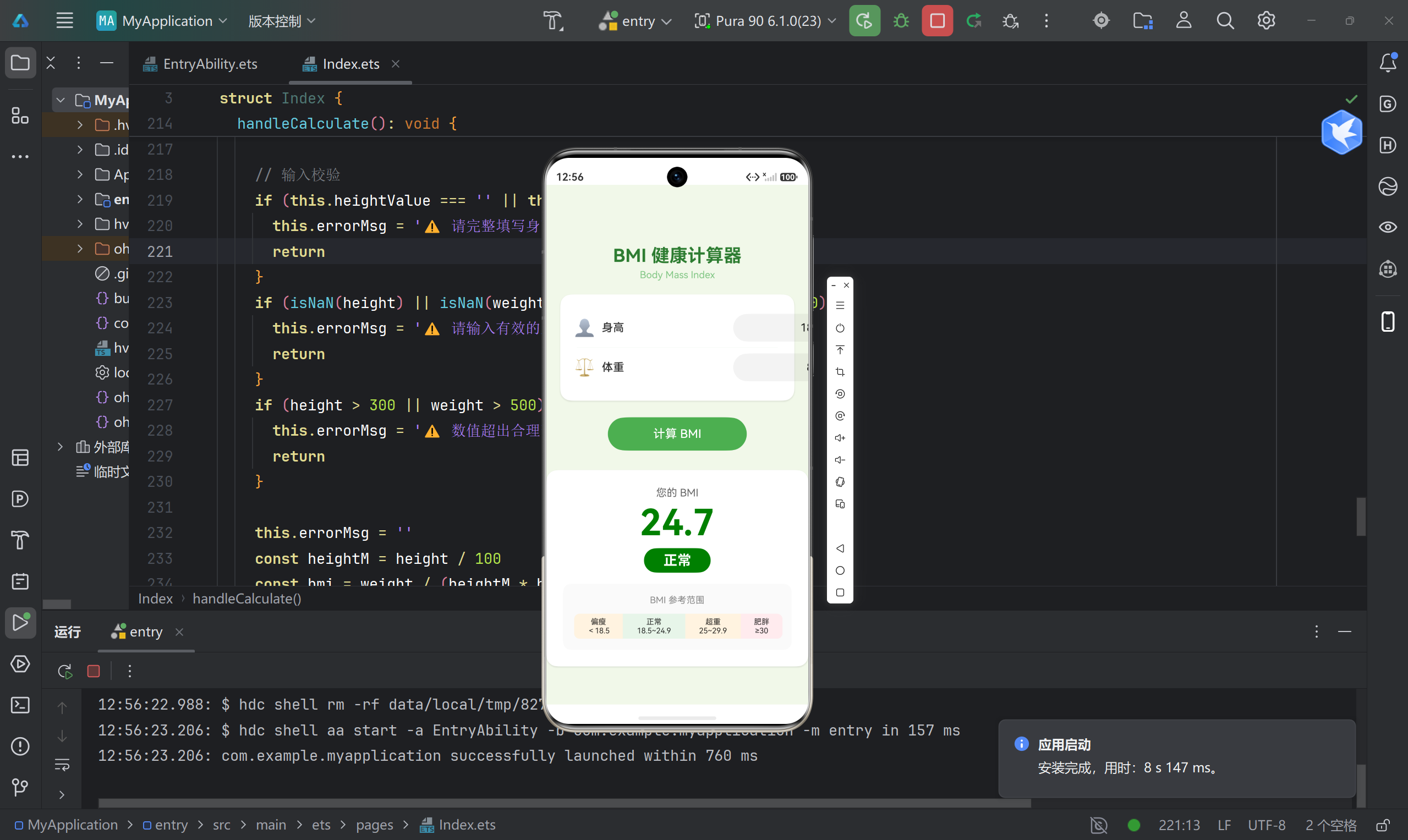
7.3 测试用例
| 身高(cm) | 体重(kg) | 预期 BMI | 预期分类 | 测试结果 |
|---|---|---|---|---|
| 175 | 70 | 22.9 | 正常 | ✅ 通过 |
| 160 | 45 | 17.6 | 偏瘦 | ✅ 通过 |
| 180 | 90 | 27.8 | 超重 | ✅ 通过 |
| 170 | 100 | 34.6 | 肥胖 | ✅ 通过 |
| (空) | 70 | — | 错误提示 | ✅ 通过 |
| abc | 70 | — | 错误提示 | ✅ 通过 |
八、总结与展望
通过这个 BMI 计算器项目,我们实践了:
- ✅ ArkTS 语法基础:
@State、@Component、接口定义 - ✅ 常用组件使用:
Column、Row、Text、TextInput、Button、Scroll - ✅ 布局与样式:Flex 布局、圆角、阴影、颜色
- ✅ 事件处理:
onClick、onChange - ✅ 条件渲染:
if控制显示隐藏 - ✅ 输入校验:空值、数值、范围检查
后续可扩展功能
如果你想继续深化学习,可以尝试:
- 历史记录:使用
Preferences保存计算历史 - 多语言支持:添加英文版,使用
$r('app.string.xxx')引用资源 - 深色模式:适配系统深色主题
- 健康建议:根据分类给出饮食/运动建议
- 动画效果:结果出现时添加过渡动画
附录:项目配置文件
app.json5
{
  "app": {
    "bundleName": "com.example.myapplication",
    "vendor": "example",
    "versionCode": 1000000,
    "versionName": "1.0.0"
  }
}
module.json5(节选)
{
  "module": {
    "name": "entry",
    "type": "entry",
    "deviceTypes": ["phone"],
    "pages": "$profile:main_pages"
  }
}
开发环境:DevEco Studio + HarmonyOS NEXT API 24
如果这篇文章对你有帮助,欢迎点赞、收藏、评论!有问题欢迎留言讨论~

讨论HarmonyOS开发技术,专注于API与组件、DevEco Studio、测试、元服务和应用上架分发等。
更多推荐



 0
0 0
0- 0


 已为社区贡献11条内容

所有评论(0)