【HarmonyOS实战】 地图动画:镜头移动与Marker缩放动画详解
一个好的地图体验,动画是关键。用户点击加油站标记,地图镜头"滑"过去,同时标记"跳"起来放大——这种流畅的交互让应用有了生命感。镜头移动动画)和Marker 缩放动画这篇文章把两种动画都讲透,顺带讲讲 HarmonyOS 地图的"相机"系统是怎么理解的。项目预览镜头移动动画创建(目标位置+缩放)用生成调用执行带过渡的移动Marker 缩放动画创建设置时长(100ms)和 FillMode(FORW
文章目录
前言
一个好的地图体验,动画是关键。用户点击加油站标记,地图镜头"滑"过去,同时标记"跳"起来放大——这种流畅的交互让应用有了生命感。
项目里有两种动画:镜头移动动画(animateCamera)和 Marker 缩放动画(ScaleAnimation)。这篇文章把两种动画都讲透,顺带讲讲 HarmonyOS 地图的"相机"系统是怎么理解的。
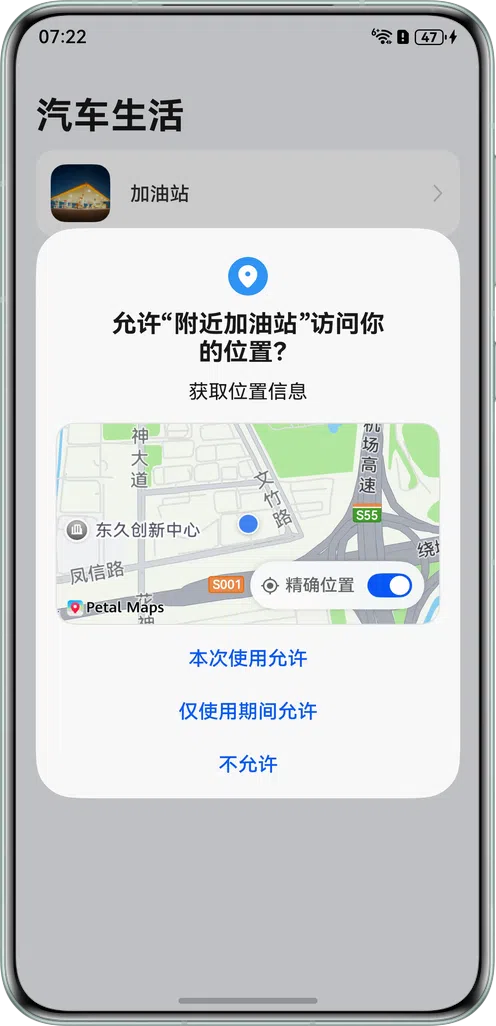
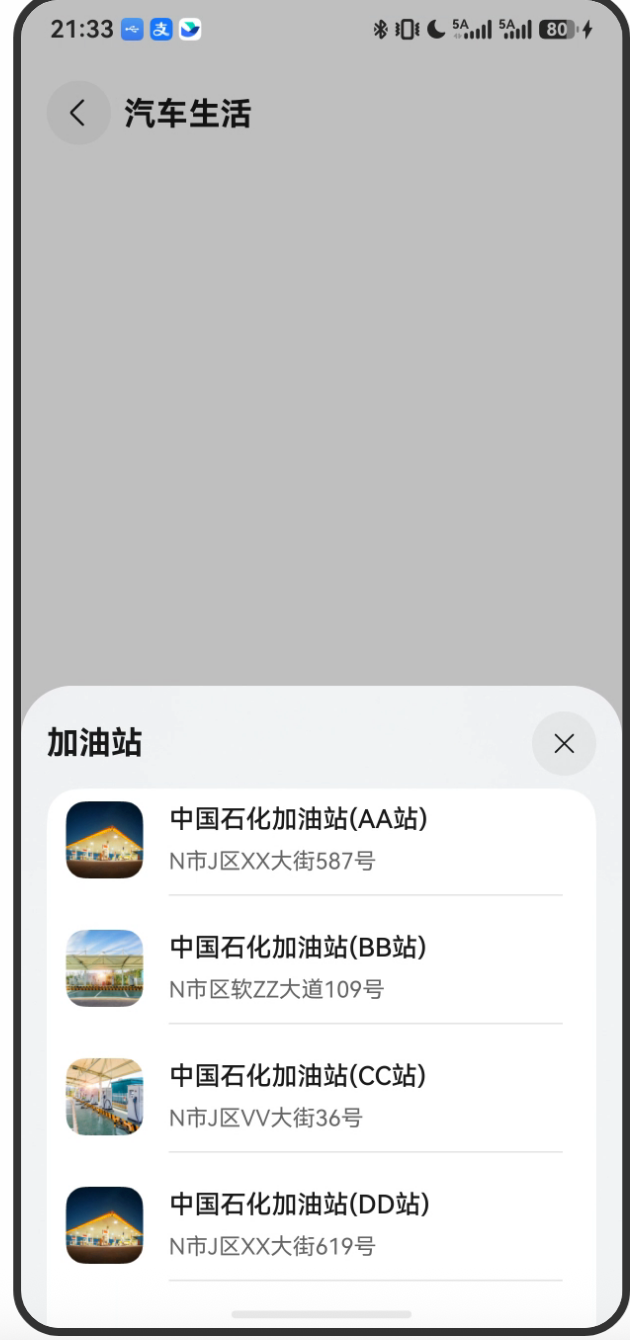
项目预览
一、理解"地图相机"
地图的视角可以理解成一个"空中相机":
🎥 相机(Camera)
   ↑
   │ 相机高度(对应 zoom 值)
   │
地图平面(Map Plane)
  ↙   ↘
中心点(center)  倾斜角(tilt)  旋转角(bearing)
操作地图视角 = 移动相机的位置和角度。
CameraPosition 描述相机的状态:
interface CameraPosition {
  target: LatLng;   // 相机看向的中心点
  zoom: number;     // 缩放级别(高度)
  tilt?: number;    // 俯仰角(地图倾斜,0=垂直俯视)
  bearing?: number; // 旋转角(地图旋转,0=正北向上)
}
二、镜头移动动画:animateCamera
2.1 moveToCurrentPosition 方法
// MapUtil.ets
public moveToCurrentPosition(latitude: number, longitude: number,
  mapController: map.MapComponentController): void {

  // 第一步:创建目标相机状态
  let cameraPosition: mapCommon.CameraPosition = {
    target: {
      latitude: latitude,
      longitude: longitude,
    },
    zoom: 15.9   // 街道级别缩放
  };

  // 第二步:创建 CameraUpdate 对象(描述如何更新相机)
  let cameraUpdate: map.CameraUpdate = map.newCameraPosition(cameraPosition);

  // 第三步:执行带动画的相机移动(500ms 动画时长)
  mapController?.animateCamera(cameraUpdate, 500);
}
2.2 CameraUpdate 的创建方式
CameraUpdate 描述"相机要怎么变",有多种创建方式:
// 移动到指定位置(最常用)
let update1 = map.newCameraPosition({ target: { latitude: 31.93, longitude: 118.86 }, zoom: 16 });

// 缩放到指定级别(保持中心不变)
let update2 = map.zoomTo(16);

// 相对缩放(当前基础上放大/缩小)
let update3 = map.zoomBy(1);   // 放大1级
let update4 = map.zoomBy(-1);  // 缩小1级

// 移动到包含多个点的视野(自适应边界)
let bounds = mapCommon.LatLngBounds;
let update5 = map.newLatLngBounds(bounds, padding);
2.3 animateCamera vs moveCamera
// 带动画(有过渡效果,duration单位ms)
mapController.animateCamera(cameraUpdate, 500);

// 无动画(立即跳转,感觉突兀)
mapController.moveCamera(cameraUpdate);
用户体验上,始终优先用 animateCamera,过渡动画让用户明白地图发生了什么变化。
三、Marker 缩放动画:ScaleAnimation
3.1 imageAnimation 方法
// MapUtil.ets
async imageAnimation(marker: map.Marker, imageScale: number): Promise<void> {
  // 创建缩放动画
  let animation = new map.ScaleAnimation(
    Constants.ONE,    // X轴起始比例(1 = 原始大小)
    imageScale,       // X轴结束比例(1.5 = 放大到1.5倍)
    Constants.ONE,    // Y轴起始比例
    imageScale        // Y轴结束比例
  );

  // 设置动画持续时间(毫秒)
  animation.setDuration(100);

  // 设置动画结束后的保持状态
  animation.setFillMode(map.AnimationFillMode.FORWARDS);

  // 把动画设置到 Marker
  marker.setAnimation(animation);

  // 启动动画
  marker.startAnimation();
}
3.2 ScaleAnimation 参数解析
new map.ScaleAnimation(fromX, toX, fromY, toY)
| 参数 | 含义 | 项目中的值 |
|---|---|---|
fromX |
X轴起始缩放比例 | 1(原始大小) |
toX |
X轴结束缩放比例 | 1.5(放大1.5倍) / 1(恢复原始) |
fromY |
Y轴起始缩放比例 | 1 |
toY |
Y轴结束缩放比例 | 1.5 / 1 |
等比缩放时 X 和 Y 值相同,达到均匀放大效果。
3.3 AnimationFillMode.FORWARDS
animation.setFillMode(map.AnimationFillMode.FORWARDS);
动画完成后的状态保持:
| FillMode | 说明 |
|---|---|
FORWARDS |
动画结束后保持最终状态 |
BACKWARDS |
动画结束后回到初始状态 |
BOTH |
开始前保持初始状态,结束后保持最终状态 |
NONE |
动画结束后回到动画前的状态 |
项目里用 FORWARDS,确保 Marker 放大后一直保持放大状态,直到下次动画(缩小)。
四、动画的完整交互流程
4.1 点击 Marker → 放大动画
// GasStationPage.ets - markerClick 事件
this.mapController.on('markerClick', (marker) => {
  this.isShow = true;
  marker.setInfoWindowVisible(true);
  this.curMarker = marker;
  this.imageScale = 1.5;  // ← 设置放大目标比例
  mapUtil.imageAnimation(marker, this.imageScale);  // ← 播放放大动画
  mapUtil.moveToCurrentPosition(
    marker.getPosition().latitude,
    marker.getPosition().longitude,
    mapController
  );
});
4.2 关闭底部弹窗 → 缩小动画
// bindSheet 的 onWillDismiss 回调
onWillDismiss: ((dismissSheetAction: DismissSheetAction) => {
  if (this.curMarker) {
    this.imageScale = 1;  // ← 恢复原始比例
    mapUtil.imageAnimation(this.curMarker, this.imageScale);  // ← 播放缩小动画
  }
  dismissSheetAction.dismiss();
})
完整动画状态机:
标记状态(scale=1)
  ↓ 用户点击标记
放大动画(1 → 1.5,100ms)
  ↓ 动画完成,保持 scale=1.5
标记放大状态(scale=1.5)
  ↓ 用户关闭底部弹窗
缩小动画(1.5 → 1,100ms,但实际是 1 → 1)
  ↓
标记状态(scale=1)
注意:
imageAnimation的fromX始终是Constants.ONE(1),这意味着无论当前标记多大,动画都从"1倍大小"开始。所以"缩小动画"实际上是:从1倍→1倍(无变化),标记会瞬间从1.5变回1,然后动画"看起来"没有。这是一个小瑕疵——更完善的实现应该记录当前 scale 作为 fromX。
五、镜头移动到我的位置
// MapUtil.ets
async moveToMyLocation(mapController: map.MapComponentController): Promise<void> {
  let location: geoLocationManager.Location = await this.getMyLocation();
  mapController?.setMyLocation(location);   // 设置地图上的"我的位置"蓝点
  let gcj02Position = await this.convertToGCJ02(location.latitude, location.longitude);
  this.moveToCurrentPosition(gcj02Position.latitude, gcj02Position.longitude, mapController);
}
这个方法做了三件事:
- 获取当前 GPS 位置(WGS84)
- 更新地图上显示的蓝点位置(
setMyLocation) - 转换坐标到 GCJ02,移动镜头到当前位置(带 500ms 动画)
六、其他 MapKit 动画类型
MapKit 还支持其他 Marker 动画:
// 旋转动画
let rotateAnim = new map.RotateAnimation(fromDeg, toDeg);
rotateAnim.setDuration(200);

// 透明度动画
let alphaAnim = new map.AlphaAnimation(fromAlpha, toAlpha);
alphaAnim.setDuration(300);

// 位移动画
let translateAnim = new map.TranslateAnimation(fromLat, fromLng, toLat, toLng);
translateAnim.setDuration(500);

// 组合动画(同时执行多个)
let set = new map.AnimationSet(true); // true=同时执行,false=顺序执行
set.addAnimation(scaleAnim);
set.addAnimation(alphaAnim);
marker.setAnimation(set);
marker.startAnimation();
总结
项目里的两种动画:
镜头移动动画:
- 创建
CameraPosition(目标位置+缩放) - 用
map.newCameraPosition生成CameraUpdate - 调用
animateCamera(update, duration)执行带过渡的移动
Marker 缩放动画:
- 创建
map.ScaleAnimation(fromX, toX, fromY, toY) - 设置时长(100ms)和 FillMode(FORWARDS 保持最终状态)
marker.setAnimation()+marker.startAnimation()执行
地图动画的核心原则:让用户知道"发生了什么"。点击标记后镜头移动,用户立刻明白这是从哪到哪;标记放大,用户知道"这个被选中了"。动画不是装饰,是信息传递的工具。
下一篇讲 MapUtil 工具类的整体设计——为什么要封装这个工具类,它解决了什么问题。

讨论HarmonyOS开发技术,专注于API与组件、DevEco Studio、测试、元服务和应用上架分发等。
更多推荐
 1
1 0
0- 0


 已为社区贡献108条内容

所有评论(0)