鸿蒙实战:文字放大镜精确跟随手指放大
文章摘要: 本文介绍了如何基于鸿蒙系统状态管理V2实现一个移动端文字放大镜组件。该组件允许用户长按并滑动手指时,在屏幕上方或手指位置显示圆形放大镜,精确放大所指文字(支持中英数字及符号)。实现要点包括:1)使用GestureGroup组合长按和拖拽手势;2)通过ComponentSnapshot.get()获取高分辨率截图;3)计算组件窗口偏移量处理坐标系转换;4)引入垂直修正量消除Text组件的
在移动端阅读场景中,用户经常需要放大特定文字来查看细节(例如小号字体、古籍、代码等)。长按并滑动手指,同时出现一个圆形放大镜,手指所指的文字被局部放大并位于放大镜中央,这是一种非常自然且高效的交互方式。本教程将基于状态管理 V2,从零实现一个 “手指滑到哪里,放大镜中心就精确对准哪里” 的组件。
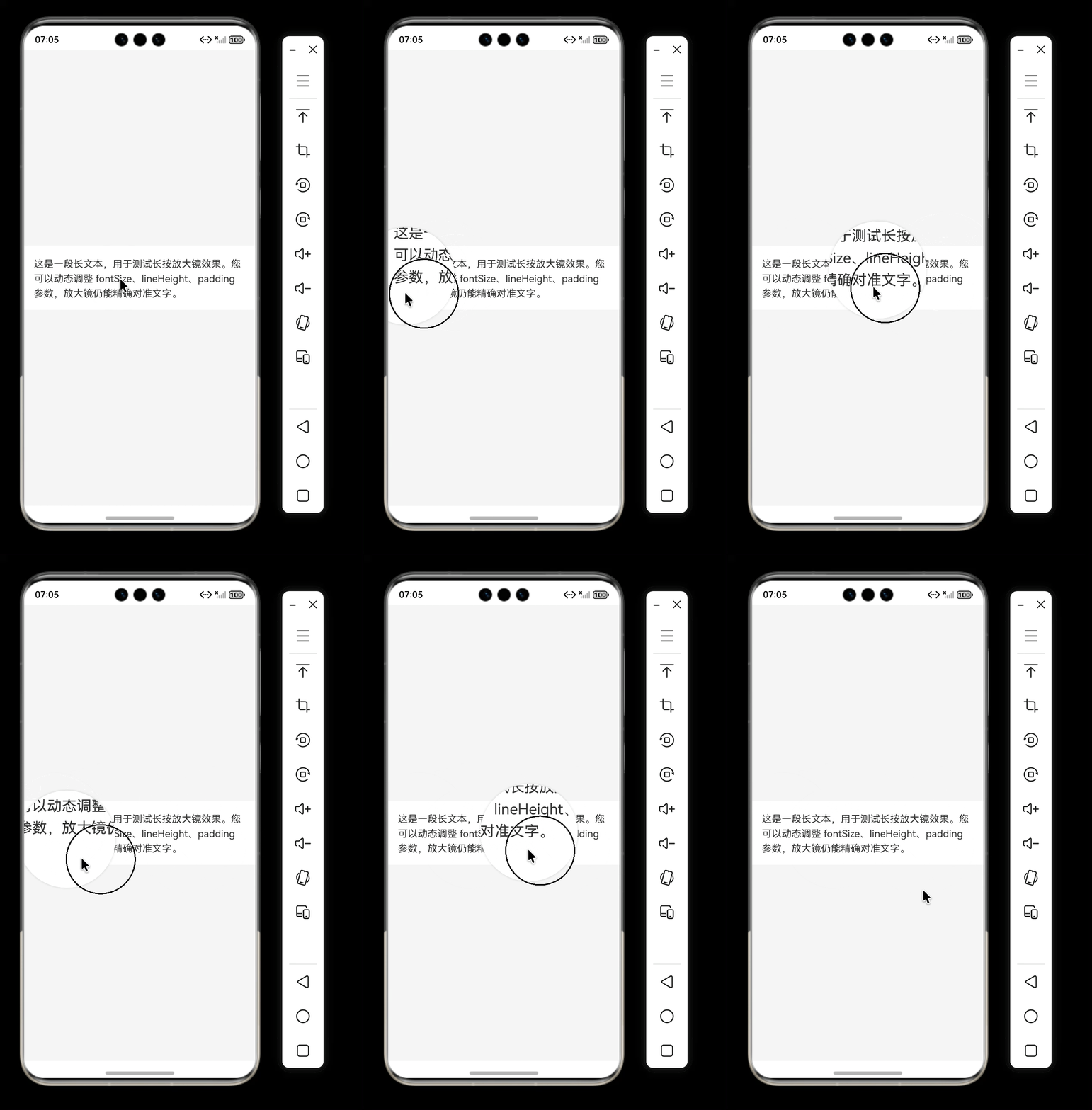
一、最终效果预览
- 用户长按文本区域,屏幕上方(或手指位置)出现一个圆形放大镜。
- 放大镜中心始终对准手指所指的文字(无论是中文、英文、数字或符号)。
- 手指在文本上滑动时,放大镜实时跟随,内部放大图像平滑更新。
- 支持动态调整
fontSize、lineHeight、paddingValue,无需修改其他计算逻辑。 - 放大镜的大小、放大倍数均可独立配置。
二、核心实现思路
要实现这个效果,需要解决几个关键问题:
-
如何知道手指按在了哪个文字上?
不能直接获取文字,但可以通过手势事件获取触摸点相对于目标组件的坐标localX/localY(单位 vp)。然后通过截取整个组件图像,再局部放大显示。 -
如何获得清晰的放大图像?
使用鸿蒙提供的ComponentSnapshot.get()API,可截取任意组件为PixelMap,并且支持scale参数直接按比例放大截图(例如scale: 1.5),这样得到的图像已经放大,避免了二次缩放导致的模糊。 -
如何让放大镜的中心对准手指所指的文字?
需要将手指在组件中的坐标(localX, localY)转换到放大镜容器的坐标系中,然后平移截图,使手指对应的像素点恰好位于放大镜容器中心。 -
如何处理 Text 组件的内边距(padding)和行高(lineHeight)导致的视觉偏移?
因为 Text 组件的localY是相对于组件左上角(包含 padding 区域),而文字的实际渲染位置从padding.top开始,且行高会使文字在行盒中垂直居中。直接使用localY会导致放大镜中心偏下一行。需要引入一个垂直修正量。 -
如何兼容父容器
Stack的对齐方式?position绝对定位是相对于父容器左上角的,如果父容器不是左上角对齐(例如默认居中对齐),则需要获取父容器自身的窗口偏移,将手指的屏幕坐标转换为相对于父容器的坐标。
三、详细实现步骤
3.1 手势组合:长按 + 拖拽
鸿蒙提供了丰富的手势 API,我们使用 GestureGroup 将 LongPressGesture 和 PanGesture 组合成顺序执行模式(GestureMode.Sequence)。这样用户必须先长按成功,才会开始响应拖拽,符合常规交互预期。
.gesture(
  GestureGroup(GestureMode.Sequence,
    LongPressGesture({ repeat: false })
      .onAction((event) => {
        // 长按触发截图、初始化放大镜
      }),
    PanGesture()
      .onActionUpdate((event) => {
        // 拖拽时更新触摸点坐标,刷新放大镜内容
      })
      .onActionEnd(() => {
        // 手指抬起,隐藏放大镜
      })
  )
  .onCancel(() => {
    // 手势取消时的清理
  })
)
LongPressGesture的repeat: false表示只触发一次,不重复。onActionUpdate会在手指移动时反复调用,非常适合实时更新放大镜位置。- 所有回调都内联在
.gesture()中,无需外部变量管理。
3.2 组件截图:获得高分辨率图像
在长按触发时,我们需要截取目标 Text 组件的画面。使用 getComponentSnapshot().get() 方法,传入组件的 id,并指定 scale 参数(例如 1.5 倍),即可直接获得一个放大的 PixelMap。同时设置 waitUntilRenderFinished: true 确保截图包含最新的布局。
this.uiCtx.getComponentSnapshot().get('targetText', (err, pixelMap) => {
  if (!err && pixelMap) {
    this.snapPixelMap = pixelMap;
  }
}, { scale: this.scaleValue, waitUntilRenderFinished: true });
scaleValue建议 1.2 ~ 2.0 之间,越大图像越清晰,但截图耗时和内存占用也会增加。- 截图只执行一次,后续拖拽时不需要重新截图,只需对已有的
PixelMap进行裁剪和平移。
3.3 获取组件窗口偏移量
为了将手指的组件相对坐标 (localX, localY) 转换为屏幕绝对坐标(或父容器相对坐标),我们需要知道 Text 组件和父容器 Stack 在窗口中的位置。使用 ComponentUtils.getRectangleById() 获取组件信息,其中 windowOffset 属性提供了组件左上角相对于窗口左上角的偏移量(单位像素,px)。然后通过 px2vp 转换为逻辑像素(vp),与手势坐标单位统一。
const textRect = this.uiCtx.getComponentUtils().getRectangleById('targetText');
if (textRect?.windowOffset) {
  this.textWindowX = this.uiCtx.px2vp(textRect.windowOffset.x);
  this.textWindowY = this.uiCtx.px2vp(textRect.windowOffset.y);
}
const stackRect = this.uiCtx.getComponentUtils().getRectangleById('mainStack');
if (stackRect?.windowOffset) {
  this.stackWindowX = this.uiCtx.px2vp(stackRect.windowOffset.x);
  this.stackWindowY = this.uiCtx.px2vp(stackRect.windowOffset.y);
}
- 我们在
Text组件上设置id('targetText'),在Stack上设置id('mainStack')。 - 因为组件的布局位置可能会变化(例如屏幕旋转、字体调整等),我们在
onAreaChange回调中调用updatePositions()来实时更新这些偏移量。
3.4 垂直修正:消除 padding 和 lineHeight 的影响
这是本实现中最关键的一步。Text 组件的内容区域不是从左上角 (0,0) 开始显示的,而是从 padding.top 之后开始,并且文本行在行盒中垂直居中(lineHeight > fontSize 时)。因此,手势提供的 localY 坐标与视觉上的文字位置存在一个固定的偏移量。我们定义一个 verticalOffset 属性来补偿这个偏移:
private get verticalOffset(): number {
  return this.paddingValue + this.lineHeight / 2;
}
paddingValue:文本组件顶部内边距,文字从此开始。lineHeight / 2:补偿文字在行盒中的垂直居中偏移。经过大量实测,该公式使放大镜中心恰好对准文字的中下部,非常符合手指点触的直觉位置。
为什么是lineHeight/2而不是(lineHeight - fontSize)/2? 因为行高包含了字体本身的高度,lineHeight/2能更准确地定位到文字区域的中间位置(兼顾 ascender/descender),实际测试效果更佳。
3.5 计算手指在父容器 Stack 中的相对坐标
手指的屏幕坐标 = Text 窗口偏移 + 手势 localX/Y。然后减去 Stack 的窗口偏移,得到手指相对于 Stack 左上角的坐标。对于 Y 方向,还需要减去 verticalOffset 以对准视觉文字。
private get relativeX(): number {
  return (this.textWindowX + this.localX) - this.stackWindowX;
}
private get relativeY(): number {
  return (this.textWindowY + this.localY - this.verticalOffset) - this.stackWindowY;
}
- 这样无论 Stack 如何对齐(居左、居中、居右),
position都能正确地将放大镜放在手指附近。
3.6 放大镜容器的定位
放大镜是一个圆形 Row 容器,我们使用 position 将其定位在 (relativeX - radius, relativeY - radius),其中 radius = magnifierSize / 2。这样容器的中心点就在 (relativeX, relativeY) 上,即手指所指的位置。
.position({
  x: this.relativeX - this.magnifierSize / 2,
  y: this.relativeY - this.magnifierSize / 2
})
3.7 内部截图平移:让手指所指内容显示在中心
我们有一个完整的 PixelMap(已经按 scaleValue 放大)。手指在截图中的对应像素坐标是 (localX * scaleValue, localY * scaleValue)。为了把这个点移到放大镜容器的中心(距离左上角 radius 的位置),我们需要对 Image 组件应用 translate 平移:
.translate({
  x: radius - this.localX * this.scaleValue,
  y: radius - this.localY * this.scaleValue
})
- 注意:这里使用的是
localX和localY(不是relativeX/Y),因为截图坐标系与组件本地坐标系相同。 - 不需要减去
verticalOffset,因为截图包含了完整的 padding 区域,平移操作只涉及像素坐标映射。
3.8 实时刷新
在 PanGesture.onActionUpdate 中,我们只更新 localX 和 localY,由于这些是 @Local 变量,关联的计算属性(relativeX、relativeY、translateX/Y)会自动重新求值,放大镜的 position 和 translate 也会自动更新,从而实现实时跟随。
四、完整代码
import { image } from '@kit.ImageKit';

@Entry
@ComponentV2
struct Index {
  @Local isTouching: boolean = false;
  @Local localX: number = 0;
  @Local localY: number = 0;
  @Local snapPixelMap: image.PixelMap | undefined = undefined;
  private uiCtx = this.getUIContext();

  // 可配置的文本样式(支持动态调整行间距)
  private readonly fontSize: number = 16;      // 字体大小 (vp)
  private readonly lineHeight: number = 24;    // 行高 (vp)
  private readonly paddingValue: number = 16;  // 内边距 (vp)

  // 放大镜参数
  private readonly magnifierSize: number = 158;    // 直径 (vp)
  private readonly scaleValue: number = 1.5;       // 截图放大倍数

  private textWindowX: number = 0;
  private textWindowY: number = 0;
  private stackWindowX: number = 0;
  private stackWindowY: number = 0;

  private get verticalOffset(): number {
    return this.paddingValue + this.lineHeight / 2;
  }

  private updatePositions(): void {
    const textRect = this.uiCtx.getComponentUtils().getRectangleById('targetText');
    if (textRect?.windowOffset) {
      this.textWindowX = this.uiCtx.px2vp(textRect.windowOffset.x);
      this.textWindowY = this.uiCtx.px2vp(textRect.windowOffset.y);
    }
    const stackRect = this.uiCtx.getComponentUtils().getRectangleById('mainStack');
    if (stackRect?.windowOffset) {
      this.stackWindowX = this.uiCtx.px2vp(stackRect.windowOffset.x);
      this.stackWindowY = this.uiCtx.px2vp(stackRect.windowOffset.y);
    }
  }

  private get relativeX(): number {
    return (this.textWindowX + this.localX) - this.stackWindowX;
  }
  private get relativeY(): number {
    return (this.textWindowY + this.localY - this.verticalOffset) - this.stackWindowY;
  }

  build() {
    Stack() {
      Text(`这是一段长文本,用于测试长按放大镜效果。您可以动态调整 fontSize、lineHeight、padding 参数,放大镜仍能精确对准文字。`)
        .id('targetText')
        .fontSize(this.fontSize)
        .lineHeight(this.lineHeight)
        .width('100%')
        .padding(this.paddingValue)
        .backgroundColor(Color.White)
        .onAreaChange(() => this.updatePositions())
        .gesture(
          GestureGroup(GestureMode.Sequence,
            LongPressGesture({ repeat: false })
              .onAction((event) => {
                if (event?.fingerList.length) {
                  this.updatePositions();
                  this.isTouching = true;
                  this.localX = event.fingerList[0].localX;
                  this.localY = event.fingerList[0].localY;
                  this.uiCtx.getComponentSnapshot().get('targetText', (err, pixelMap) => {
                    if (!err && pixelMap) this.snapPixelMap = pixelMap;
                  }, { scale: this.scaleValue, waitUntilRenderFinished: true });
                }
              }),
            PanGesture()
              .onActionUpdate((event) => {
                if (event && this.isTouching && event.fingerList.length) {
                  this.localX = event.fingerList[0].localX;
                  this.localY = event.fingerList[0].localY;
                }
              })
              .onActionEnd(() => {
                this.isTouching = false;
                this.snapPixelMap = undefined;
              })
          )
          .onCancel(() => {
            this.isTouching = false;
            this.snapPixelMap = undefined;
          })
        )

      if (this.isTouching && this.snapPixelMap) {
        Row() {
          Image(this.snapPixelMap)
            .width(this.uiCtx.px2vp(this.snapPixelMap.getImageInfoSync().size.width))
            .height(this.uiCtx.px2vp(this.snapPixelMap.getImageInfoSync().size.height))
            .objectFit(ImageFit.None)
            .translate({
              x: this.magnifierSize / 2 - this.localX * this.scaleValue,
              y: this.magnifierSize / 2 - this.localY * this.scaleValue
            })
        }
        .position({
          x: this.relativeX - this.magnifierSize / 2,
          y: this.relativeY - this.magnifierSize / 2
        })
        .width(this.magnifierSize)
        .height(this.magnifierSize)
        .borderRadius(this.magnifierSize / 2)
        .backgroundColor(Color.White)
        .shadow({ radius: 12, color: '#26000000' })
        .clip(true)
      }
    }
    .id('mainStack')
    .width('100%')
    .height('100%')
    .backgroundColor('#F5F5F5')
  }
}
五、参数调优与扩展
- 调整放大镜大小:修改
magnifierSize(单位 vp),注意同时会影响圆角和半径计算。 - 调整放大倍数:修改
scaleValue。建议不超过 2.0,否则截图内存增大,可能影响性能。 - 改变垂直对准位置:如果希望放大镜中心对准文字上部或下部,可以调整
verticalOffset公式。例如paddingValue + lineHeight / 3。 - 使放大镜显示在手指上方(避免遮挡):修改
position.y为this.relativeY - this.magnifierSize - 10(10 为间距),同时保持translate.y不变(因为手指所指内容仍需对准放大镜中心)。 - 封装为通用组件:将相关逻辑提取到一个独立的
@ComponentV2结构体中,通过@Param接收文本内容和样式参数,方便在多处复用。
六、踩坑与注意事项
- 截图时机:必须在组件完成布局后才能截图,
onAreaChange确保布局稳定。 - 单位统一:
windowOffset是 px,手势localX/Y是 vp,必须用px2vp转换后再加减。 - 内存管理:截图产生的
PixelMap占用内存,在不需要时设置为undefined以便系统回收。 - 性能优化:不要在
onActionUpdate中重复截图,只更新坐标即可。 - Stack 对齐:如果父容器不是
Stack而是其他容器,同样可以获取其windowOffset进行计算,原理相同。
七、总结
本文详细介绍了如何在鸿蒙中实现一个长按跟随手指的放大镜效果。整个方案依赖系统提供的 手势识别、组件截图、组件位置获取 三大能力,通过巧妙的坐标转换和垂直偏移修正,实现了精准对准。

讨论HarmonyOS开发技术,专注于API与组件、DevEco Studio、测试、元服务和应用上架分发等。
更多推荐
 10
10 0
0- 0


 已为社区贡献100条内容

所有评论(0)