【鸿蒙原生应用开发实战】第四篇:收藏功能与个人中心——数据持久化与全局状态管理
【鸿蒙原生应用开发实战】第四篇:收藏功能与个人中心——数据持久化与全局状态管理
一、前言
前三篇我们完成了首页、列表页、详情页的开发。这一篇将集中开发收藏管理(FavPage) 和个人中心(ProfilePage),并深入讲解鸿蒙应用中的全局状态管理机制。
这是应用的最后两个主要页面,完成后整个 App 的5个页面就全部开发完毕了!
本篇将涵盖:
AppStorage与@StorageLink深入使用- 收藏列表的增删管理
- 优雅的空状态设计
- 个人中心统计面板
- 功能菜单列表的实现
二、鸿蒙全局状态管理机制
在开始开发前,我们需要深入理解鸿蒙的全局状态管理。HarmonyOS 提供了三种状态管理方式:
| 方式 | 作用域 | 适用场景 |
|---|---|---|
@State |
组件内部 | 组件私有状态 |
@Link / @Prop |
父子组件 | 组件间通信 |
AppStorage / @StorageLink |
全局 | 跨页面共享数据 |
LocalStorage / @LocalStorageLink |
页面级 | 页面及其子组件 |
2.1 AppStorage 的工作原理
AppStorage 是一个全局的单例键值存储,所有页面都可以读写。它的工作流程:
Index.ets                    FavPage.ets
┌─────────────────┐          ┌─────────────────┐
│ @StorageLink     │          │ @StorageLink     │
│ favoriteIds      │ ←━━━━━━ →│ favoriteIds      │
│                  │  自动同步 │                  │
│ toggleFavorite() │          │ removeFavorite() │
└─────────────────┘          └─────────────────┘
        │                           │
        └───────── AppStorage ──────┘
                  │
           PersistentStorage
           (数据持久化到磁盘)
2.2 初始化与使用
在任意页面中初始化 AppStorage:
// 在 aboutToAppear 中初始化
aboutToAppear(): void {
  if (!AppStorage.has('favoriteIds')) {
    AppStorage.set<number[]>('favoriteIds', []);
  }
}
在组件中绑定:
@StorageLink('favoriteIds') favoriteIds: number[] = [];
@StorageLink vs @StorageProp:
@StorageLink:双向绑定,组件修改会同步回 AppStorage@StorageProp:单向绑定,组件只能读取不能修改
三、收藏页面(FavPage)
3.1 页面功能
收藏页的核心功能:
- 展示收藏列表 — 从 AppStorage 读取收藏ID,匹配书籍数据
- 取消收藏 — 点击 ✕ 按钮移除收藏
- 跳转详情 — 点击卡片查看书籍详情
- 空状态 — 无收藏时显示友好引导
3.2 状态与数据加载
@Entry
@Component
struct FavPage {
  @StorageLink('favoriteIds') favoriteIds: number[] = [];
  @State favoriteBooks: Book[] = [];

  // 每次页面显示时刷新列表
  aboutToAppear(): void {
    this.loadFavorites();
  }

  loadFavorites(): void {
    this.favoriteBooks = BOOKS.filter(
      book => this.favoriteIds.indexOf(book.id) >= 0
    );
  }

  removeFavorite(bookId: number): void {
    const idx = this.favoriteIds.indexOf(bookId);
    if (idx >= 0) {
      this.favoriteIds.splice(idx, 1);
    }
    // 手动触发同步——这一步很重要!
    AppStorage.set<number[]>('favoriteIds', this.favoriteIds);
    this.loadFavorites();  // 刷新列表
  }
}
3.3 收藏列表卡片
每张卡片布局与列表页类似,但增加了 ✕ 按钮用于取消收藏:
ListItem() {
  Row() {
    // 封面色块
    Column() { Text(book.title.substring(0, 1)).fontSize(24).fontColor('#FFFFFF') }
      .width(70).height(90).backgroundColor(book.color).borderRadius(10)
      .justifyContent(FlexAlign.Center)

    // 书籍信息
    Column() {
      Text(book.title).fontSize(16).fontWeight(FontWeight.Bold).fontColor('#2C1810')
      Text(book.author).fontSize(13).fontColor('#8B7355').margin({ top: 4 })
      Row() {
        Text(getStarString(book.rating)).fontSize(12).fontColor('#F39C12')
        Text('| ' + book.category).fontSize(12).fontColor('#8B7355').margin({ left: 8 })
      }.margin({ top: 6 })
    }
    .layoutWeight(1).padding({ left: 12 })

    // 取消收藏按钮
    Column() {
      Text('✕').fontSize(16).fontColor('#E74C3C').padding(8)
    }
    .onClick(() => { this.removeFavorite(book.id) })
  }
  .width('100%').padding(12)
  .backgroundColor('#FFFFFF').borderRadius(14)
  .shadow({ radius: 4, color: '#0A000000', offsetY: 2 })
  .onClick(() => {
    router.pushUrl({ url: 'pages/BookDetailPage', params: { bookId: book.id } });
  })
}
3.4 优雅的空状态设计
当收藏列表为空时,展示引导用户去发现书籍的画面:
if (this.favoriteBooks.length > 0) {
  // 展示列表...
} else {
  Column() {
    Text('📚').fontSize(80)           // 大号 emoji
    Text('还没有收藏的书籍')
      .fontSize(18).fontColor('#8B7355').margin({ top: 20 })
    Text('去首页发现好书吧')
      .fontSize(14).fontColor('#C4956A').margin({ top: 12 })

    Button('去逛逛')
      .backgroundColor('#C4956A').fontColor('#FFFFFF')
      .borderRadius(20).width(140).height(42).margin({ top: 20 })
      .onClick(() => { router.pushUrl({ url: 'pages/Index' }); })
  }
  .layoutWeight(1)
  .justifyContent(FlexAlign.Center)
  .alignItems(HorizontalAlign.Center)
}
空状态设计的三个要素:
- 视觉符号 — 大号 emoji 引起注意
- 提示文字 — 说明当前状态
- 行动引导 — 按钮引导用户去相应页面
3.5 关于 @StorageLink 的数组修改陷阱
这是一个非常重要的知识点!
当使用 @StorageLink 绑定的数组时,直接调用 splice 修改数组不会自动同步到 AppStorage。必须手动调用 AppStorage.set():
// ❌ 这样修改不会触发其他页面的刷新
this.favoriteIds.splice(idx, 1);

// ✅ 必须手动同步
this.favoriteIds.splice(idx, 1);
AppStorage.set<number[]>('favoriteIds', this.favoriteIds);
这是因为 @StorageLink 的响应式追踪依赖于 set() 操作,而数组的变异方法(splice、push等)不会自动触发。
四、个人中心页面(ProfilePage)
4.1 页面功能
个人中心是用户信息的聚合页面,包含:
- 用户头像与信息 — 展示头像、昵称和签名
- 阅读统计面板 — 总藏书、已收藏、分类数
- 功能菜单 — 收藏入口、记录、成就等
- 关于与设置 — 版本信息、评分、设置
4.2 用户信息头部
@Builder
userHeader() {
  Column() {
    // 圆形头像
    Column() {
      Text('阅').fontSize(36).fontColor('#FFFFFF').fontWeight(FontWeight.Bold)
    }
    .width(80).height(80).backgroundColor('#C4956A').borderRadius(40)
    .justifyContent(FlexAlign.Center)

    Text(this.userName).fontSize(20).fontWeight(FontWeight.Bold).fontColor('#2C1810')
      .margin({ top: 12 })
    Text('读万卷书,行万里路').fontSize(13).fontColor('#8B7355').margin({ top: 6 })
  }
  .width('100%').alignItems(HorizontalAlign.Center)
  .padding({ top: 30, bottom: 24 })
}
4.3 统计面板
统计面板采用三列等宽布局,分别显示总藏书、已收藏、分类数:
@Builder
statsSection() {
  Row() {
    this.statItem('📚', '总藏书', BOOKS.length.toString())
    this.statItem('❤️', '已收藏', this.getFavoriteCount().toString())
    this.statItem('🏷️', '分类', '6')
  }
  .width('90%').padding(20)
  .backgroundColor('#FFFFFF').borderRadius(16)
  .shadow({ radius: 4, color: '#0A000000', offsetY: 2 })
  .justifyContent(FlexAlign.SpaceEvenly)
}

@Builder
statItem(icon: string, label: string, value: string) {
  Column() {
    Text(icon).fontSize(28)
    Text(value).fontSize(20).fontWeight(FontWeight.Bold).fontColor('#2C1810')
      .margin({ top: 6 })
    Text(label).fontSize(12).fontColor('#8B7355').margin({ top: 2 })
  }
  .alignItems(HorizontalAlign.Center)
}
说明:getFavoriteCount() 直接从 @StorageLink('favoriteIds') 读取长度,数据与收藏页实时同步。
4.4 功能菜单列表
菜单列表采用 Column + Row 组合实现,每个菜单项包含图标、标签、描述和箭头:
@Builder
menuItem(icon: string, label: string, desc: string, action: () => void) {
  Row() {
    Text(icon).fontSize(22)
    Text(label).fontSize(15).fontColor('#2C1810').margin({ left: 12 })
    Blank()
    Text(desc).fontSize(12).fontColor('#8B7355')
    Text('›').fontSize(20).fontColor('#C4956A').margin({ left: 8 })
  }
  .width('100%').padding({ left: 16, right: 16, top: 14, bottom: 14 })
  .onClick(() => { action(); })
}
菜单项之间使用 Divider 分隔:
@Builder
menuDivider() {
  Divider().width('88%').color('#F0E8E0').height(1)
}
4.5 完整的菜单结构
@Builder
menuSection() {
  Column() {
    // 标题
    Row() {
      Text('功能菜单').fontSize(17).fontWeight(FontWeight.Bold)
      Blank()
    }
    .width('100%').padding({ left: 20, right: 20, top: 28, bottom: 12 })

    // 菜单列表
    Column() {
      this.menuItem('❤️', '我的收藏', this.getFavoriteCount().toString() + '本', () => {
        router.pushUrl({ url: 'pages/FavPage' });
      })
      this.menuDivider()
      this.menuItem('📖', '阅读记录', '暂无记录', () => { /* 占位 */ })
      this.menuDivider()
      this.menuItem('🏆', '阅读成就', '达成0项', () => { /* 占位 */ })
      this.menuDivider()
      this.menuItem('📊', '阅读统计', '查看报告', () => { /* 占位 */ })
    }
    .width('90%').backgroundColor('#FFFFFF').borderRadius(16)
    .shadow({ radius: 4, color: '#0A000000', offsetY: 2 })
  }
}
4.6 关于与设置区域
@Builder
aboutSection() {
  Column() {
    Row() {
      Text('关于').fontSize(17).fontWeight(FontWeight.Bold)
      Blank()
    }
    .width('100%').padding({ left: 20, right: 20, top: 28, bottom: 12 })

    Column() {
      this.menuItem('ℹ️', '关于阅迹', 'v1.0.0', () => {})
      this.menuDivider()
      this.menuItem('⭐', '给应用评分', '支持我们', () => {})
      this.menuDivider()
      this.menuItem('⚙️', '设置', '主题·字体', () => {})
    }
    .width('90%').backgroundColor('#FFFFFF').borderRadius(16)
    .shadow({ radius: 4, color: '#0A000000', offsetY: 2 })
  }
}
五、页面间完整交互流程
现在5个页面的交互闭环如下:
首页 Index
  │
  ├──→ 分类入口 ──→ 列表页(带分类参数)
  ├──→ 推荐卡片 ──→ 详情页(带bookId)
  ├──→ 热门榜单 ──→ 详情页(带bookId)
  └──→ 底部导航 ──→ 列表页/收藏页/个人中心

列表页 BookListPage
  ├──→ 分类标签 ──→ 本地筛选
  └──→ 点击卡片 ──→ 详情页

详情页 BookDetailPage
  ├──→ 收藏按钮 ──→ AppStorage 同步
  └──→ 同类推荐 ──→ 其他详情页

收藏页 FavPage
  ├──→ 取消收藏 ──→ AppStorage 同步
  └──→ 点击卡片 ──→ 详情页

个人中心 ProfilePage
  └──→ 我的收藏 ──→ 收藏页
所有收藏数据通过 AppStorage 全局共享,任何页面的收藏操作都会实时反映到其他页面。
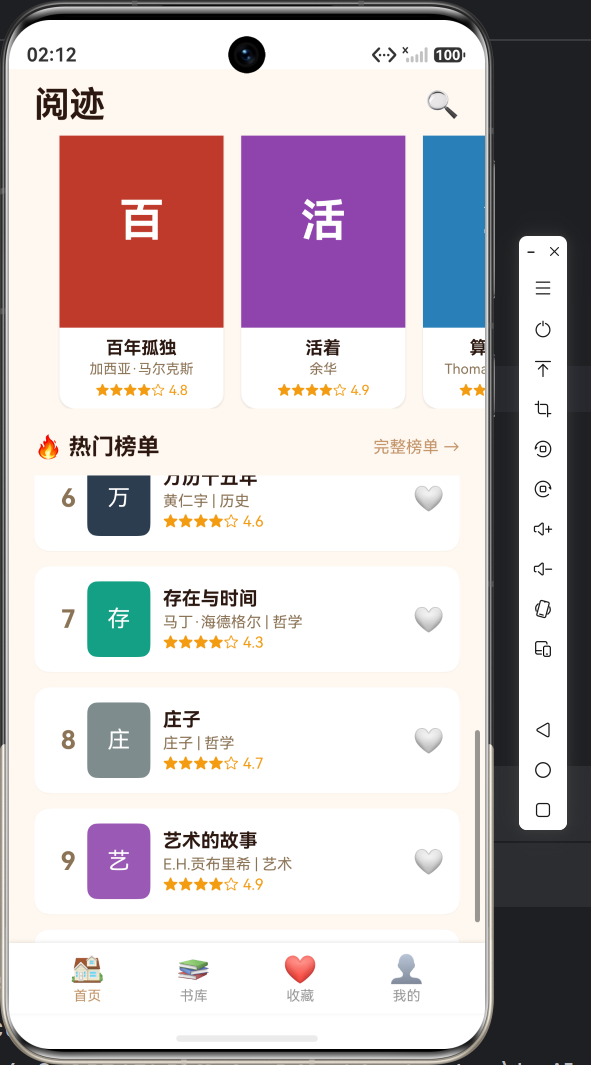
六、效果预览(请插入截图位置)
七、小结
本篇完成了:
✅ 收藏页的列表展示与取消收藏
✅ 空状态的优雅设计
✅ 个人中心的用户信息与统计面板
✅ 功能菜单与关于设置
✅ AppStorage 全局状态管理的深入理解
重点回顾:
AppStorage是跨页面状态管理的核心- 数组修改后必须调用
AppStorage.set()手动同步 - 空状态设计三要素:视觉符号 + 提示文字 + 行动引导
@Builder+@State实现菜单列表的灵活渲染
至此,应用的全部5个页面开发完毕!下一篇我们将进行构建优化与发布准备,讲解如何排查构建错误、性能优化、代码混淆以及真机部署,敬请期待!
#鸿蒙开发 #ArkTS #状态管理 #AppStorage #全局状态

讨论HarmonyOS开发技术,专注于API与组件、DevEco Studio、测试、元服务和应用上架分发等。
更多推荐
 15
15 0
0- 0


 已为社区贡献24条内容

所有评论(0)