鸿蒙原生应用实战(十)ArkUI 涂鸦画板:Canvas 绘图 + 颜色选择 + 笔画管理 + 导出
·
🎨 鸿蒙原生应用实战(十)ArkUI 涂鸦画板:Canvas 绘图 + 颜色选择 + 笔画管理 + 导出
博主说: 从儿童涂鸦到专业绘图,画板应用覆盖了各种用户群体。今天我们用 ArkUI 的 Canvas 2D API,从零实现一个支持自由手绘、颜色切换、笔画粗细、撤销重做、导出图片的完整涂鸦画板。读完你将掌握 ArkUI Canvas 2D 的全部核心绘图能力。
📱 应用场景
| 场景 | 说明 |
|---|---|
| ✏️ 随手涂鸦 | 用手指在屏幕上画画 |
| 📝 课堂笔记 | 用手写笔做批注 |
| 🖼️ 图片标注 | 截图后标记重点 |
| 🧒 儿童绘画 | 彩色画笔自由创作 |
| 🎨 设计草图 | UI 设计师快速画原型 |
⚙️ 运行环境要求
| 项目 | 版本要求 |
|---|---|
| DevEco Studio | 5.0.3.800 及以上 |
| HarmonyOS SDK | API 12 |
| 核心 API | Canvas 2D (CanvasRenderingContext2D) + @ohos.multimedia.image |
| 权限 | 无特殊权限 |
🛠️ 实战:从零搭建涂鸦画板
Step 1:理解 Canvas 2D 坐标系统
┌──────────────────────────────────┐
│  (0,0)        x →                │
│                                  │
│  y       Canvas 绘图区域          │
│  ↓                                │
│                                  │
│                    (width,height) │
└──────────────────────────────────┘
Canvas 的坐标系原点在左上角,x 向右递增,y 向下递增。所有绘图操作都是在这个坐标系中进行的。
Step 2:画板核心架构
触摸事件 (PanGesture) → 记录轨迹点 (Point[])
                              ↓
每段路径 = StrokeData { points, color, width, opacity }
                              ↓
strokes: StrokeData[]  ← 所有已完成的笔画
undoneStrokes: StrokeData[] ← 被撤销的笔画(用于重做)
                              ↓
撤销: stroke → undoneStrokes (pop + push)
重做: undoneStrokes → stroke (pop + push)
清除: 全部 → undoneStrokes
                              ↓
重绘: 遍历 strokes 在 Canvas 上逐条绘制
Step 3:数据结构
// 一个坐标点
interface Point {
  x: number;
  y: number;
}

// 一条笔画的数据
interface StrokeData {
  points: Point[];      // 轨迹点列表
  color: string;         // 颜色
  width: number;         // 粗细
  opacity: number;       // 透明度
  type: 'pen' | 'marker' | 'eraser'; // 画笔类型
}

// 画笔颜色预设
const COLORS: string[] = [
  '#FF3B30', '#FF9500', '#FFCC00', '#34C759', '#007AFF',
  '#5856D6', '#AF52DE', '#000000', '#888888', '#FFFFFF'
];

// 画笔粗细预设
const WIDTHS: number[] = [2, 4, 8, 12, 20];
Step 4:完整代码
// pages/Index.ets — 涂鸦画板
import image from '@ohos.multimedia.image';
import fileIo from '@ohos.file.fs';

interface Point { x: number; y: number; }

interface StrokeData {
  points: Point[];
  color: string;
  width: number;
  opacity: number;
  type: 'pen' | 'marker' | 'eraser';
}

@Entry
@Component
struct DoodlePad {
  // ======== 核心状态 ========
  @State strokes: StrokeData[] = [];
  @State undoneStrokes: StrokeData[] = [];
  @State currentColor: string = '#007AFF';
  @State currentWidth: number = 4;
  @State currentOpacity: number = 1;
  @State currentType: 'pen' | 'marker' | 'eraser' = 'pen';
  @State isDrawing: boolean = false;
  @State currentPoints: Point[] = [];
  @State canvasWidth: number = 360;
  @State canvasHeight: number = 480;

  private ctx!: CanvasRenderingContext2D;

  // 颜色和粗细预设
  private readonly colors = ['#FF3B30','#FF9500','#FFCC00','#34C759','#007AFF','#5856D6','#AF52DE','#000','#888','#FFF'];
  private readonly widths = [2, 4, 8, 12, 20];

  // ======== 开始绘制 ========
  onDrawStart(event: GestureEvent) {
    this.isDrawing = true;
    const x = event.fingerInfo[0]?.x || 0;
    const y = event.fingerInfo[0]?.y || 0;
    this.currentPoints = [{ x, y }];

    // 画起点圆点
    this.ctx.beginPath();
    this.ctx.arc(x, y, this.currentWidth / 2, 0, Math.PI * 2);
    this.ctx.fillStyle = this.getDrawColor();
    this.ctx.fill();
  }

  // ======== 绘制中(实时轨迹) ========
  onDrawMove(event: GestureEvent) {
    if (!this.isDrawing) return;
    const x = event.fingerInfo[0]?.x || 0;
    const y = event.fingerInfo[0]?.y || 0;
    this.currentPoints.push({ x, y });

    const prev = this.currentPoints[this.currentPoints.length - 2];
    if (!prev) return;

    // 从前一个点画线到当前点
    this.ctx.beginPath();
    this.ctx.moveTo(prev.x, prev.y);
    this.ctx.lineTo(x, y);
    this.ctx.strokeStyle = this.getDrawColor();
    this.ctx.lineWidth = this.currentWidth;
    this.ctx.lineCap = 'round';
    this.ctx.lineJoin = 'round';
    this.ctx.globalAlpha = this.currentOpacity;
    this.ctx.stroke();
    this.ctx.globalAlpha = 1;
  }

  // ======== 结束绘制 ========
  onDrawEnd() {
    if (this.currentPoints.length < 2) return;

    // 保存笔画
    this.strokes.push({
      points: [...this.currentPoints],
      color: this.getDrawColor(),
      width: this.currentWidth,
      opacity: this.currentOpacity,
      type: this.currentType
    });

    this.currentPoints = [];
    this.isDrawing = false;
    // 新笔画产生时清空重做栈
    this.undoneStrokes = [];
  }

  // 获取实际绘制颜色(橡皮擦用白色)
  getDrawColor(): string {
    return this.currentType === 'eraser' ? '#FFFFFF' : this.currentColor;
  }

  // ======== 撤销 ========
  undo() {
    if (this.strokes.length === 0) return;
    const last = this.strokes.pop()!;
    this.undoneStrokes.push(last);
    this.redrawAll();
  }

  // ======== 重做 ========
  redo() {
    if (this.undoneStrokes.length === 0) return;
    const stroke = this.undoneStrokes.pop()!;
    this.strokes.push(stroke);
    this.redrawAll();
  }

  // ======== 清除全部 ========
  clearAll() {
    if (this.strokes.length === 0) return;
    this.undoneStrokes.push(...this.strokes);
    this.strokes = [];
    this.ctx.clearRect(0, 0, this.canvasWidth, this.canvasHeight);
  }

  // ======== 重绘所有笔画 ========
  redrawAll() {
    this.ctx.clearRect(0, 0, this.canvasWidth, this.canvasHeight);

    for (const stroke of this.strokes) {
      if (stroke.points.length < 2) continue;

      this.ctx.beginPath();
      this.ctx.moveTo(stroke.points[0].x, stroke.points[0].y);

      for (let i = 1; i < stroke.points.length; i++) {
        this.ctx.lineTo(stroke.points[i].x, stroke.points[i].y);
      }

      this.ctx.strokeStyle = stroke.color;
      this.ctx.lineWidth = stroke.width;
      this.ctx.lineCap = 'round';
      this.ctx.lineJoin = 'round';
      this.ctx.globalAlpha = stroke.opacity;
      this.ctx.stroke();
      this.ctx.globalAlpha = 1;
    }
  }

  // ======== 导出图片到相册 ========
  async exportToAlbum() {
    try {
      // 当前笔画也画上去
      AlertDialog.show({ title: '导出中...', message: '正在生成图片' });

      // 从 Canvas 获取像素数据
      const pixelMap = await this.ctx.getPixelMap(
        0, 0, this.canvasWidth, this.canvasHeight
      );

      // 编码为 PNG
      const packer = image.createImagePacker();
      const packedData = await packer.packing(pixelMap, {
        format: 'image/png',
        quality: 100
      });

      // 写入文件
      const fileName = `doodle_${Date.now()}.png`;
      const filePath = getContext(this).filesDir + '/' + fileName;
      const file = fileIo.openSync(filePath,
        fileIo.OpenMode.CREATE | fileIo.OpenMode.READ_WRITE);
      fileIo.writeSync(file.fd, packedData.data);
      fileIo.closeSync(file);

      AlertDialog.show({
        title: '✅ 导出成功',
        message: `已保存: ${fileName}\n路径: ${filePath}`
      });
    } catch (err) {
      AlertDialog.show({ message: '导出失败: ' + JSON.stringify(err) });
    }
  }

  // ======== UI 构建 ========
  build() {
    Column() {
      // ---- 顶部工具栏 ----
      Row() {
        // 撤销/重做/清除
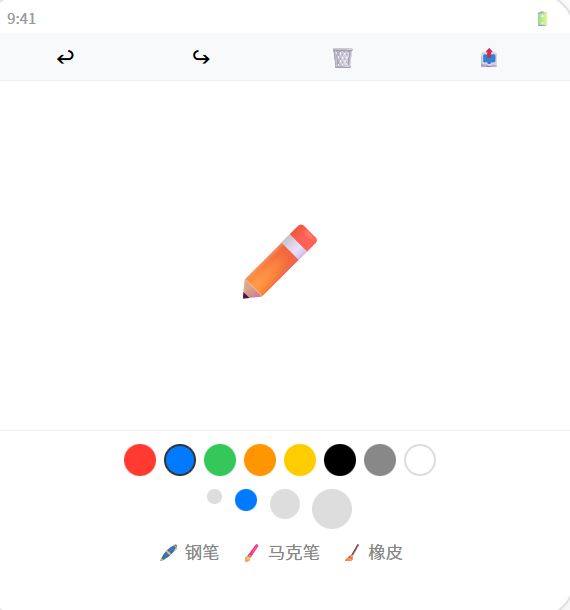
        this.ToolBtn('↩', () => { this.undo(); })
        this.ToolBtn('↪', () => { this.redo(); })
        this.ToolBtn('🗑️', () => { this.clearAll(); })

        Text('🎨 涂鸦').fontSize(18).fontWeight(FontWeight.Bold).layoutWeight(1).textAlign(TextAlign.Center)

        // 导出
        this.ToolBtn('📤', () => { this.exportToAlbum(); })
      }
      .width('100%').padding({ left: 8, right: 8, top: 4, bottom: 4 })
      .backgroundColor('#F8F9FA')

      // ---- 画布 ----
      Canvas(this.ctx)
        .width(this.canvasWidth)
        .height(this.canvasHeight)
        .backgroundColor('#FFFFFF')
        .border({ width: 1, color: '#E0E0E0' })
        .gesture(
          GestureGroup(GestureMode.Exclusive,
            PanGesture({ distance: 1 })
              .onActionStart((e) => { this.onDrawStart(e); })
              .onActionUpdate((e) => { this.onDrawMove(e); })
              .onActionEnd(() => { this.onDrawEnd(); })
          )
        )

      // ---- 画笔类型切换 ----
      Row() {
        this.TypeButton('🖊️', 'pen', '钢笔')
        this.TypeButton('🖌️', 'marker', '马克笔')
        this.TypeButton('🧹', 'eraser', '橡皮擦')
      }
      .width('100%').justifyContent(FlexAlign.Center).gap(12).padding({ top: 6, bottom: 4 })

      // ---- 颜色选择器 ----
      Row() {
        ForEach(this.colors, (color: string) => {
          Circle()
            .width(28).height(28)
            .fill(color)
            .stroke(this.currentColor === color ? '#333' :
                   color === '#FFF' ? '#ddd' : 'transparent')
            .strokeWidth(3)
            .onClick(() => {
              this.currentColor = color;
              if (this.currentType === 'eraser') this.currentType = 'pen';
            })
        })
      }
      .width('100%').justifyContent(FlexAlign.Center).gap(4).padding({ top: 4, bottom: 4 })

      // ---- 粗细选择器 ----
      Row() {
        ForEach(this.widths, (w: number) => {
          Circle()
            .width(Math.max(16, w * 2 + 4)).height(Math.max(16, w * 2 + 4))
            .fill(this.currentWidth === w ? this.currentColor : '#E0E0E0')
            .onClick(() => { this.currentWidth = w; })
        })
      }
      .width('100%').justifyContent(FlexAlign.Center).gap(6).padding({ top: 4, bottom: 8 })

      // ---- 状态信息 ----
      Text(`笔画: ${this.strokes.length} · ${this.currentType === 'eraser' ? '橡皮擦' : this.currentColor} · ${this.currentWidth}px`)
        .fontSize(12).fontColor('#999').padding({ bottom: 4 })
    }
    .width('100%').height('100%').backgroundColor('#fff')
  }

  @Builder
  ToolBtn(label: string, action: () => void) {
    Button(label)
      .fontSize(16).backgroundColor('transparent')
      .fontColor('#333').width(40).height(36)
      .onClick(() => { action(); })
  }

  @Builder
  TypeButton(icon: string, type: 'pen' | 'marker' | 'eraser', label: string) {
    Button(icon + ' ' + label)
      .fontSize(13).height(32)
      .backgroundColor(this.currentType === type ? '#007AFF' : '#F0F0F0')
      .fontColor(this.currentType === type ? '#fff' : '#333')
      .borderRadius(16)
      .onClick(() => { this.currentType = type; })
  }
}
运行结果示意图:
📚 核心知识点深度解析
1. Canvas 2D 核心方法速查表
| 方法 | 作用 | 使用场景 |
|---|---|---|
beginPath() |
开始新路径 | 每条笔画前调用 |
moveTo(x, y) |
移动到起点 | 笔画开始 |
lineTo(x, y) |
画线到指定点 | 笔画轨迹 |
stroke() |
描边路径 | 绘制线段 |
fill() |
填充路径 | 绘制实心图形 |
arc(x, y, r, start, end) |
画圆弧 | 圆点、擦除痕 |
clearRect(x, y, w, h) |
清空矩形区域 | 清空画布 |
getPixelMap(x, y, w, h) |
导出为像素图 | 导出图片 |
globalAlpha |
全局透明度 | 透明度控制 |
2. 撤回/重做原理
strokes = [A, B, C]       → 三笔画
undo() → C → undone        → strokes=[A,B], undone=[C]
undo() → B → undone        → strokes=[A], undone=[C,B]
redo() → B ← from undone   → strokes=[A,B], undone=[C]
redo() → C ← from undone   → strokes=[A,B,C], undone=[]
3. 导出流程
Canvas.getPixelMap() → PixelMap → ImagePacker.packing() → Buffer → fileIo.write() → 文件
⚠️ 避坑指南
| 坑 | 原因 | 正确做法 |
|---|---|---|
| 画线不连续 | moveTo/lineTo 逻辑不对 | 每条线段用前一个点和当前点 |
| 撤销后画布空白 | 忘了调 redrawAll() | 每次 strokes 变化后重绘 |
| 导出图片空白 | 忘了等 Canvas 渲染完成 | 在 onDrawEnd 后导出 |
| 笔画首尾有断点 | 起点只画了点没画线 | onDrawStart 画圆点 + 第一段线 |
| 颜色选择后不变 | 没更新 strokeStyle | 每次绘制前设 ctx.strokeStyle |
| 橡皮擦留下残影 | 透明度没设为 1 | 橡皮擦用白色 + strokeWidth=20 |
🔥 最佳实践
- 批量重绘优化:不每帧重绘,只在 undo/redo/clear 时触发 redrawAll()
- 撤销栈限制:最多保存 50 步,防止内存溢出
- 防抖处理:onDrawMove 被高频触发,用 requestAnimationFrame 节流
- Canvas 尺寸适配:根据屏幕密度调整 canvas 宽高
- 颜色对比度:白色画布上用深色,深色画布上用亮色
- 性能监控:笔画超过 500 条时提示保存清理
🚀 扩展挑战
- 插入图片:在画布上粘贴相册图片作为底图
- 文本工具:点击输入文字并渲染到画布上
- 形状工具:矩形/圆形/直线/箭头等几何形状
- 图层管理:多图层独立编辑
- 滤镜效果:对画布整体应用黑白/怀旧滤镜
官方文档: HarmonyOS 应用开发文档
- 开发者社区: 华为开发者论坛
- 欢迎加入开源鸿蒙跨平台社区: https://openharmonycrossplatform.csdn.net/

讨论HarmonyOS开发技术,专注于API与组件、DevEco Studio、测试、元服务和应用上架分发等。
更多推荐
 4
4 0
0- 0


 已为社区贡献53条内容

所有评论(0)