HarmonyOS NEXT 实战:零基础实现屏幕使用时间追踪器(ScreenTimeTracker)
一、前言
你是否好奇自己每天在手机上花了多少时间?哪些 App 占据了你最多的注意力?
今天我们就用 HarmonyOS NEXT(API20) 手把手实现一个「屏幕使用时间追踪器」。通过这个实战项目,你将掌握:
✅ HarmonyOS NEXT 页面布局与组件使用
✅ Scroll 滚动容器 + ForEach 列表渲染
✅ 状态管理 @State 与数据驱动 UI 刷新
✅ 综合 UI 设计:卡片、进度条、图标
✅ API20 完全兼容,无弃用 API
项目名称:ScreenTimeTracker
SDK 版本:HarmonyOS 4.x / API 20
开发工具:DevEco Studio
项目模板:Empty Ability
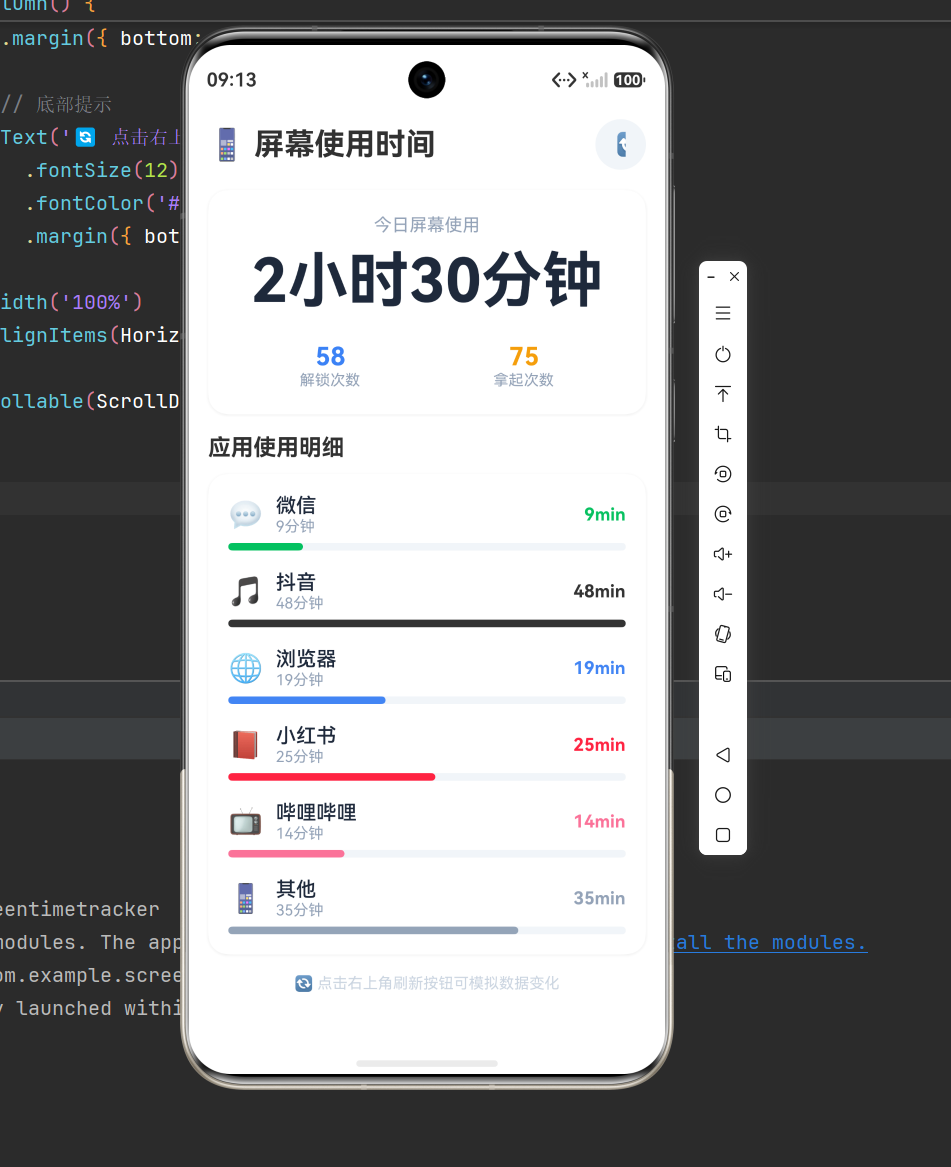
二、项目效果展示
2.1 界面总览
应用分为三个核心区域:
区域 内容
🏆 顶部标题栏 应用名称 + 右侧刷新按钮
📊 统计卡片 今日总使用时长(大字体展示)+ 解锁次数 + 拿起次数
📋 App 明细列表 各应用使用时长 + 彩色进度条
2.2 交互功能
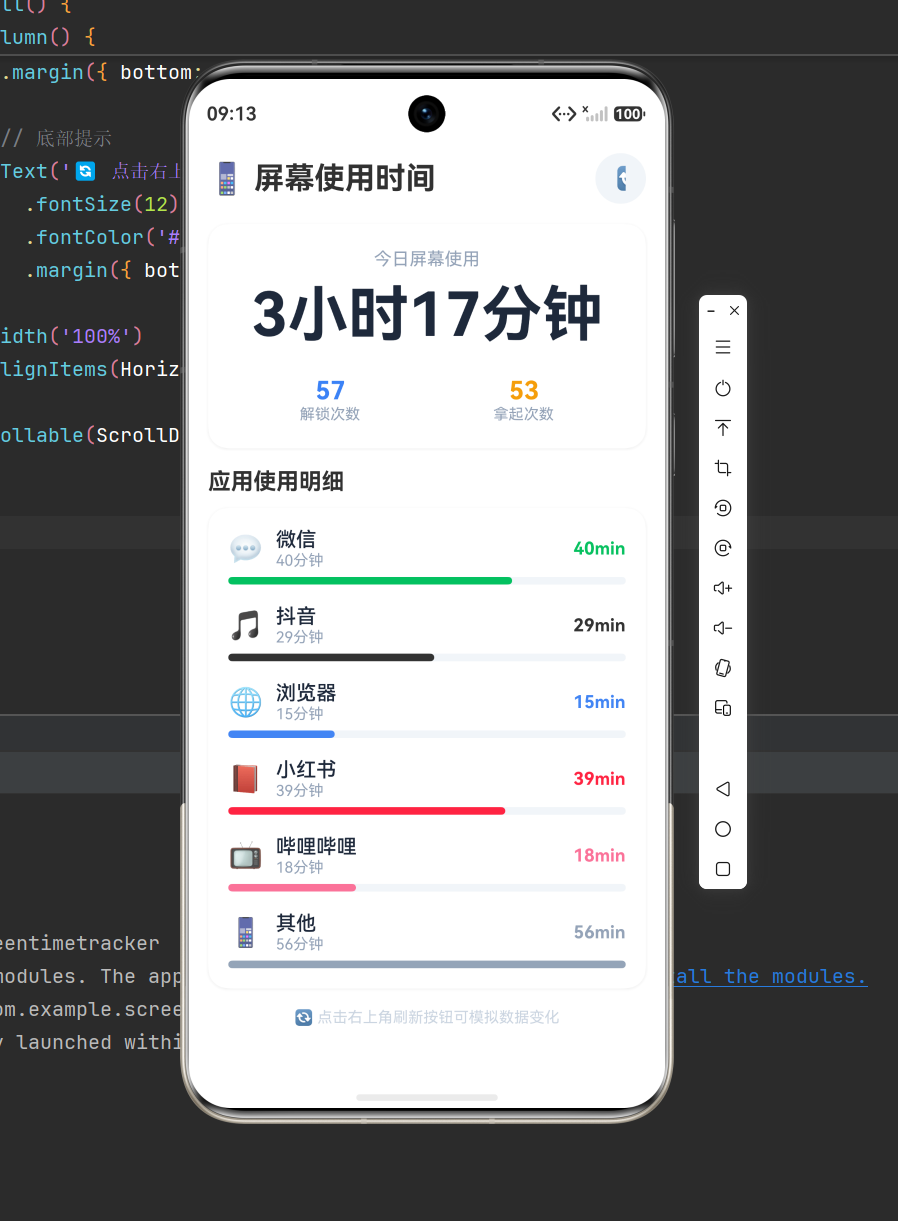
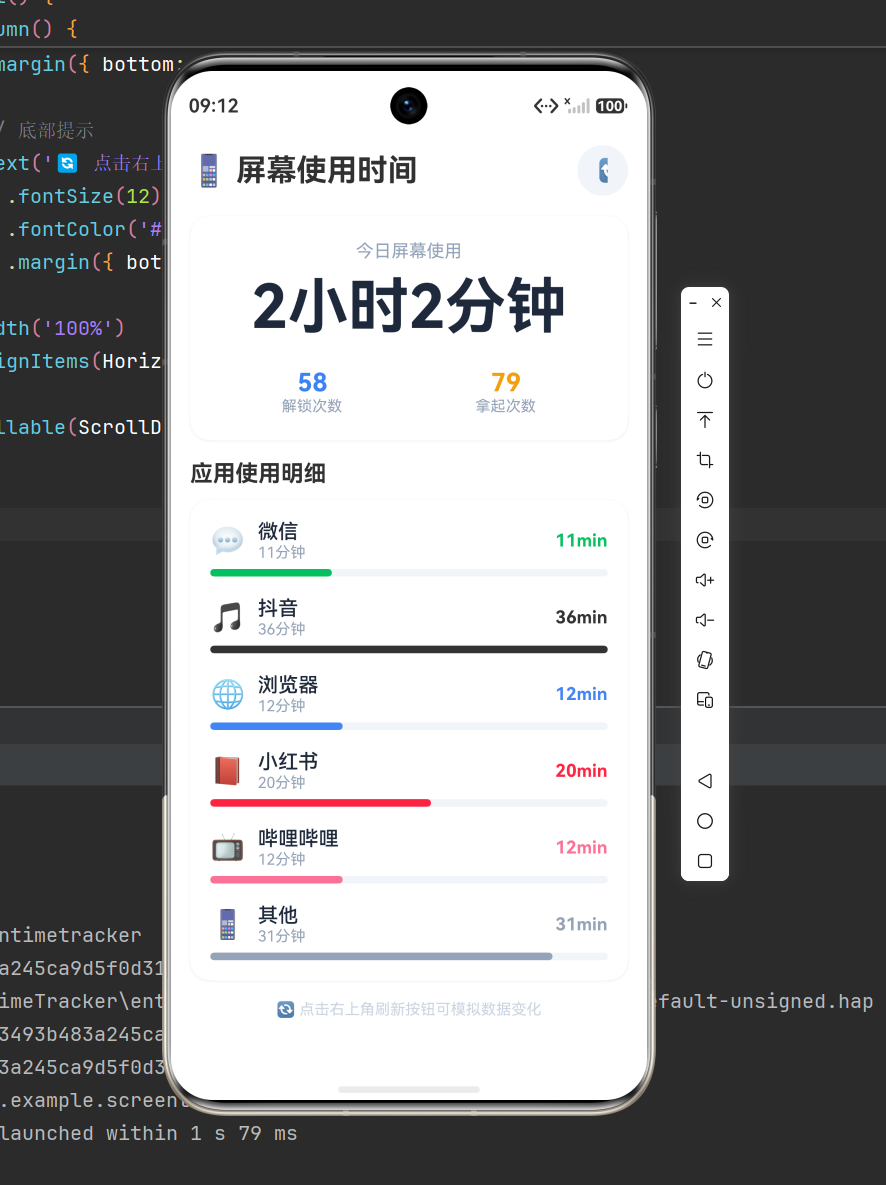
🔄 点击刷新按钮:随机生成新数据模拟不同场景
📱 应用列表:每个 App 显示图标 + 名称 + 时长 + 进度条
📊 进度条颜色:每个 App 使用品牌色,视觉区分度高
三、完整代码(可直接运行)
将以下代码复制到 entry/src/main/ets/pages/Index.ets 中,点击运行即可。
typescript
interface AppUsageItem {
  appName: string;
  icon: string;
  minutes: number;
  color: string;
}

@Entry
@Component
struct ScreenTimeTracker {
  @State totalMinutes: number = 187;
  @State unlockCount: number = 46;
  @State pickups: number = 62;
  @State appList: AppUsageItem[] = [
    { appName: '微信', icon: '💬', minutes: 52, color: '#07C160' },
    { appName: '抖音', icon: '🎵', minutes: 38, color: '#333333' },
    { appName: '浏览器', icon: '🌐', minutes: 27, color: '#4285F4' },
    { appName: '小红书', icon: '📕', minutes: 22, color: '#FF2442' },
    { appName: '哔哩哔哩', icon: '📺', minutes: 18, color: '#FB7299' },
    { appName: '其他', icon: '📱', minutes: 30, color: '#94A3B8' }
  ];

  // ========== 工具方法 ==========

  /** 将总分钟数格式化为"X小时Y分钟" */
  getTotalHours(): string {
    const h = Math.floor(this.totalMinutes / 60);
    const m = this.totalMinutes % 60;
    return h + '小时' + m + '分钟';
  }

  /** 获取最大分钟数(用于进度条100%基准) */
  getMaxMinutes(): number {
    let max = 0;
    for (let i = 0; i < this.appList.length; i++) {
      if (this.appList[i].minutes > max) {
        max = this.appList[i].minutes;
      }
    }
    return max;
  }

  /** 计算进度条宽度百分比 */
  getBarWidth(percent: number): string {
    if (percent > 100) {
      percent = 100;
    }
    return '' + percent + '%';
  }

  /** 模拟刷新数据 */
  refreshData(): void {
    this.totalMinutes = 120 + Math.floor(Math.random() * 150);
    this.unlockCount = 20 + Math.floor(Math.random() * 50);
    this.pickups = 30 + Math.floor(Math.random() * 60);

    const names: string[] = ['微信', '抖音', '浏览器', '小红书', '哔哩哔哩', '其他'];
    const icons: string[] = ['💬', '🎵', '🌐', '📕', '📺', '📱'];
    const colors: string[] = ['#07C160', '#333333', '#4285F4', '#FF2442', '#FB7299', '#94A3B8'];
    const newList: AppUsageItem[] = [];
    let remaining: number = this.totalMinutes;

    for (let i = 0; i < 5; i++) {
      const m = Math.min(remaining - 5,
        5 + Math.floor(Math.random() * (remaining - 5) / 3));
      newList.push({ appName: names[i], icon: icons[i],
        minutes: m, color: colors[i] });
      remaining = remaining - m;
    }
    newList.push({ appName: names[5], icon: icons[5],
      minutes: remaining, color: colors[5] });
    this.appList = newList;
  }

  // ========== UI 构建 ==========

  build() {
    Scroll() {
      Column() {
        // ====== 标题栏 ======
        Row() {
          Text('📱 屏幕使用时间')
            .fontSize(24)
            .fontWeight(FontWeight.Bold)

          Blank()

          Button('🔄')
            .width(40).height(40).borderRadius(20)
            .backgroundColor('#F1F5F9')
            .fontSize(18).fontColor('#333')
            .onClick(() => this.refreshData())
        }
        .width('92%')
        .margin({ top: 20, bottom: 16 })

        // ====== 总时长卡片 ======
        Column() {
          Text('今日屏幕使用')
            .fontSize(14).fontColor('#94A3B8')

          Text(this.getTotalHours())
            .fontSize(48).fontWeight(FontWeight.Bold)
            .fontColor('#1E293B')
            .margin({ top: 8, bottom: 8 })

          Row() {
            Column() {
              Text('' + this.unlockCount)
                .fontSize(20).fontWeight(FontWeight.Bold)
                .fontColor('#3B82F6')
              Text('解锁次数')
                .fontSize(12).fontColor('#94A3B8')
            }
            .layoutWeight(1)

            Column() {
              Text('' + this.pickups)
                .fontSize(20).fontWeight(FontWeight.Bold)
                .fontColor('#F59E0B')
              Text('拿起次数')
                .fontSize(12).fontColor('#94A3B8')
            }
            .layoutWeight(1)
          }
          .padding({ top: 12 })
        }
        .width('92%').padding(20)
        .backgroundColor('#FFFFFF').borderRadius(16)
        .shadow({ radius: 8, color: '#10000000', offsetY: 2 })
        .margin({ bottom: 16 }).alignItems(HorizontalAlign.Center)

        // ====== App 明细标题 ======
        Row() {
          Text('应用使用明细')
            .fontSize(18).fontWeight(FontWeight.Bold)
        }
        .width('92%').margin({ bottom: 10 })

        // ====== App 列表 ======
        Column() {
          ForEach(this.appList, (item: AppUsageItem) => {
            Column() {
              Row() {
                Text(item.icon).fontSize(22).margin({ right: 10 })

                Column() {
                  Text(item.appName)
                    .fontSize(16).fontWeight(FontWeight.Medium)
                    .fontColor('#1E293B')
                  Text(item.minutes + '分钟')
                    .fontSize(12).fontColor('#94A3B8')
                }
                .layoutWeight(1).alignItems(HorizontalAlign.Start)

                Text(item.minutes + 'min')
                  .fontSize(14).fontWeight(FontWeight.Bold)
                  .fontColor(item.color)
              }
              .width('100%').margin({ bottom: 6 })

              Row() {
                Row()
                  .width(this.getBarWidth(
                    item.minutes / this.getMaxMinutes() * 100))
                  .height(6).backgroundColor(item.color)
                  .borderRadius(3)
              }
              .width('100%')
              .backgroundColor('#F1F5F9')
              .borderRadius(3)
            }
            .width('100%').padding({ top: 8, bottom: 8 })
          })
        }
        .width('92%')
        .padding({ left: 16, right: 16, top: 8, bottom: 8 })
        .backgroundColor('#FFFFFF').borderRadius(16)
        .shadow({ radius: 8, color: '#10000000', offsetY: 2 })
        .margin({ bottom: 16 })

        // ====== 底部提示 ======
        Text('🔄 点击右上角刷新按钮可模拟数据变化')
          .fontSize(12).fontColor('#CBD5E1')
          .margin({ bottom: 20 })
      }
      .width('100%').alignItems(HorizontalAlign.Center)
    }
    .scrollable(ScrollDirection.Vertical)
  }
}
四、核心代码详解
4.1 数据模型:AppUsageItem
typescript
interface AppUsageItem {
  appName: string;  // 应用名称
  icon: string;     // 图标 Emoji
  minutes: number;  // 使用时长(分钟)
  color: string;    // 进度条颜色(品牌色)
}
每个 App 对应一个 AppUsageItem 对象,通过 @State appList 管理列表数据。ArkTS 要求接口定义必须放在文件最顶部,否则会报 Cannot find name 错误。
4.2 状态管理:@State
typescript
@State totalMinutes: number = 187;
@State unlockCount: number = 46;
@State pickups: number = 62;
@State appList: AppUsageItem[] = [...]
@State 装饰的变量变更时会自动触发 UI 重绘。注意:数组更新必须赋值新数组对象而非直接 push(),否则 UI 不会刷新。
4.3 滚动容器:Scroll
typescript
Scroll() {
  Column() { ... }
}
.scrollable(ScrollDirection.Vertical)
这是 API20 中实现滚动的标准写法。❌ 错误写法是直接在 Column 上调用 .scrollable(),API20 不支持。
4.4 百分比进度条实现
typescript
Row() {
  Row()  // 彩色部分
    .width('65%')    // 动态百分比
    .height(6)
    .backgroundColor(item.color)
    .borderRadius(3)
}
.width('100%')
.backgroundColor('#F1F5F9')  // 灰色背景
.borderRadius(3)
使用嵌套 Row 实现进度条:外层 Row 作为灰色背景轨道,内层 Row 作为彩色填充部分,宽度由 getBarWidth() 根据占比计算。
五、踩坑记录 & 避坑指南
❌ 坑1:.scrollable() 不存在
typescript
// ❌ 错误 — API20 不支持
Column() { … }.scrollable(ScrollDirection.Vertical)
// ✅ 正确 — 用 Scroll 包裹
Scroll() { Column() { … } }.scrollable(ScrollDirection.Vertical)
❌ 坑2:数组 push 后 UI 不刷新
typescript
// ❌ 错误 — 引用没变,UI 不会刷新
this.appList.push(newItem)
// ✅ 正确 — 创建新数组赋值给 @State
this.appList = this.appList.concat([newItem])
❌ 坑3:接口定义位置
typescript
// ✅ 必须放在文件最顶部,@Entry 之前
interface AppUsageItem { … }
@Entry @Component struct MyApp { … }
❌ 坑4:Canvas 回调(此项目未使用,但如果要用)
typescript
// ❌ 错误 — API20 不支持回调构造
Canvas((ctx) => { ctx.fillRect(…) })
// ✅ 正确 — 传 CanvasRenderingContext2D 对象
Canvas(this.canvasCtx)
六、运行效果预览
在 DevEco Studio 中运行项目后,你将看到:
启动画面:顶部标题栏显示"📱 屏幕使用时间",右侧有刷新按钮
统计卡片:大字体显示"3小时7分钟",下方有解锁次数和拿起次数
App 列表:微信、抖音等应用按时间排序,附图标和彩色进度条
点击刷新:所有数据随机变化,模拟不同天的使用情况
💡 小提示:你可以修改 totalMinutes 范围为 60 + Math.random() * 300 来模拟不同的使用强度,或者替换 App 数据源为用户手机上真实的 App 名称。
七、项目扩展思路
如果你想让这个 Demo 更加完善,可以尝试以下方向:
方向 实现思路
📈 周趋势图 用 Canvas 绘制折线图展示一周使用趋势
⏰ 自定义目标 增加每日限额设置功能,超时弹窗提醒
📂 真实数据 通过 HarmonyOS 系统 API 读取真实屏幕使用数据
🎨 主题切换 增加深色模式支持
八、总结
通过本文,我们实现了:
✅ 界面搭建:卡片式 UI + 进度条 + 列表渲染
✅ 状态管理:@State 驱动数据与 UI 同步
✅ 滚动容器:Scroll 组件的正确用法
✅ API20 兼容:不依赖新版本 API,避开常见的踩坑点
这个项目麻雀虽小五脏俱全,涵盖了 HarmonyOS NEXT 开发中的核心知识点。运行在真机或模拟器上效果都非常棒!
如果你在开发过程中遇到问题,欢迎在评论区留言交流 🚀

讨论HarmonyOS开发技术,专注于API与组件、DevEco Studio、测试、元服务和应用上架分发等。
更多推荐



 9
9 0
0- 0


 已为社区贡献17条内容

所有评论(0)