出国汇率换算小应用 - HarmonyOS ArkUI 开发实战-Select下拉与TextInput应用-PC版本
一、应用背景与市场需求
随着国际旅行、跨境购物和海外投资的普及,汇率换算成为人们日常生活中的常见需求。无论是出国旅游时计算消费金额,还是网购海外商品时比较价格,都需要快速准确的汇率换算工具。本篇文章将详细介绍如何在HarmonyOS平台上开发一个汇率换算小应用。
1.1 汇率基础知识
汇率是指两种货币之间的兑换比率,反映了一种货币相对于另一种货币的价值。汇率受多种因素影响,包括:
| 影响因素 | 说明 |
|---|---|
| 经济状况 | 国家经济实力影响货币价值 |
| 利率水平 | 高利率吸引外资,推高汇率 |
| 通货膨胀 | 高通胀降低货币购买力 |
| 政治稳定 | 政治风险影响投资者信心 |
| 市场供需 | 外汇市场供需决定汇率波动 |
1.2 常见货币介绍
本应用支持四种常见货币的换算:
| 货币代码 | 货币名称 | 使用地区 |
|---|---|---|
| CNY | 人民币 | 中国大陆 |
| USD | 美元 | 美国 |
| EUR | 欧元 | 欧盟国家 |
| JPY | 日元 | 日本 |
1.3 应用定位
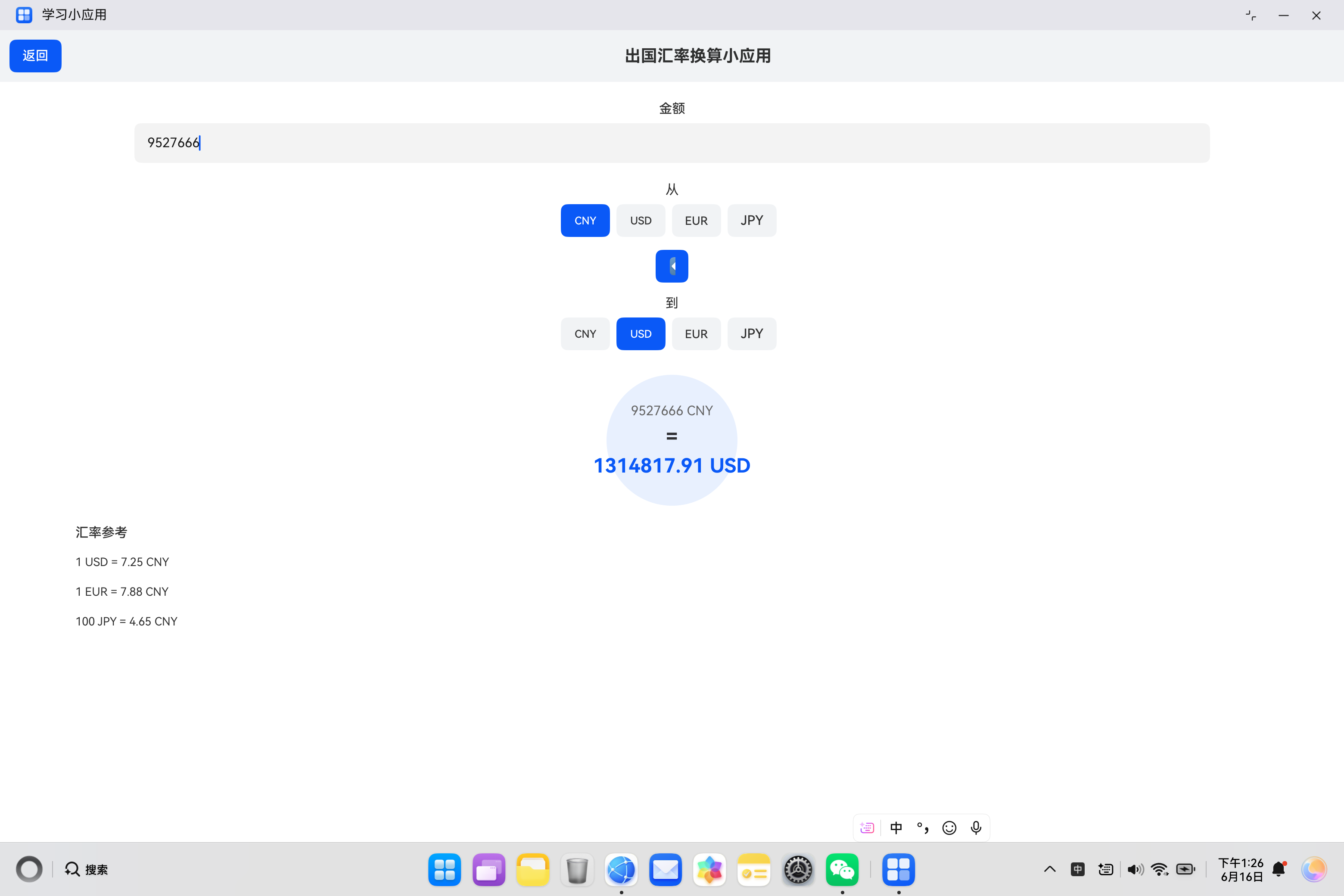
本应用定位为一个便捷的汇率换算工具,核心功能包括:
- 金额输入与实时换算
- 多种货币选择
- 源货币与目标货币切换
- 汇率参考信息展示
- 简洁直观的操作界面
1.4 技术选型
本项目采用以下技术栈:
| 技术 | 用途 |
|---|---|
| ArkTS | 开发语言 |
| ArkUI | 声明式UI框架 |
| @State | 状态管理装饰器 |
| TextInput | 金额输入组件 |
| Button | 货币选择按钮 |
| Stack/Circle | 结果展示容器 |
| Record | 汇率数据存储 |
二、项目结构与架构设计
2.1 文件结构
entry/src/main/ets/pages/miniApps/
└── CurrencyConverterApp.ets    # 汇率换算应用主文件
2.2 架构设计
应用的架构设计遵循清晰的分层原则:
2.3 数据模型定义
应用定义了RateItem_1类用于封装汇率参考信息:
class RateItem_1 {
  rate_1: string = '';

  constructor(rate_1: string) {
    this.rate_1 = rate_1;
  }
}
三、汇率数据管理
3.1 汇率数据结构
本应用使用Record类型存储汇率映射表:
rates_1: Record<string, number> = {
  'CNY-USD': 0.138,
  'CNY-EUR': 0.127,
  'CNY-JPY': 21.5,
  'USD-CNY': 7.25,
  'USD-EUR': 0.92,
  'USD-JPY': 155.8,
  'EUR-CNY': 7.88,
  'EUR-USD': 1.09,
  'EUR-JPY': 169.4,
  'JPY-CNY': 0.0465,
  'JPY-USD': 0.0064,
  'JPY-EUR': 0.0059
};
3.2 Record类型说明
Record是TypeScript的内置工具类型,用于定义键值对映射:
Record<K, V>
// K: 键的类型
// V: 值的类型
本应用中的Record用法:
| 键格式 | 值类型 | 示例 |
|---|---|---|
| ‘源货币-目标货币’ | number | ‘CNY-USD’: 0.138 |
3.3 汇率数据特点
汇率数据具有以下特点:
| 特点 | 说明 |
|---|---|
| 双向性 | 每对货币有双向汇率 |
| 实时性 | 实际汇率实时波动 |
| 精度要求 | 需要保留足够小数位 |
| 数据量大 | 全球货币种类繁多 |
3.4 汇率数据存储方式对比
| 存储方式 | 优点 | 缺点 |
|---|---|---|
| Record映射 | 查找效率O(1) | 需预定义所有组合 |
| 数组遍历 | 灵活扩展 | 查找效率O(n) |
| API获取 | 实时准确 | 需网络请求 |
四、状态管理与响应机制
4.1 状态变量定义
本应用定义了四个核心状态变量:
@State amount_1: number = 100;
@State fromCurrency_1: string = 'CNY';
@State toCurrency_1: string = 'USD';
@State result_1: number = 0;
状态变量详解:
| 变量名 | 类型 | 默认值 | 用途 |
|---|---|---|---|
| amount_1 | number | 100 | 输入金额 |
| fromCurrency_1 | string | ‘CNY’ | 源货币代码 |
| toCurrency_1 | string | ‘USD’ | 目标货币代码 |
| result_1 | number | 0 | 换算结果 |
4.2 状态响应流程
当用户输入金额或切换货币时,数据流向如下:
4.3 响应式设计优势
采用@State装饰器的响应式设计具有以下优势:
- 自动联动:状态变化自动触发换算计算
- 即时反馈:用户操作立即看到结果
- 代码简洁:无需手动绑定事件监听
- 数据一致:UI与数据始终保持同步
五、汇率换算逻辑详解
5.1 换算方法实现
核心的汇率换算方法如下:
convert_1() {
  let key_1: string = this.fromCurrency_1 + '-' + this.toCurrency_1;
  let rate_1: number = this.rates_1[key_1] || 1;
  this.result_1 = Math.round(this.amount_1 * rate_1 * 100) / 100;
}
5.2 换算步骤解析
rates_1[key_1]] C --> D -----------------------^ Expecting 'SQE', 'DOUBLECIRCLEEND', 'PE', '-)', 'STADIUMEND', 'SUBROUTINEEND', 'PIPE', 'CYLINDEREND', 'DIAMOND_STOP', 'TAGEND', 'TRAPEND', 'INVTRAPEND', 'UNICODE_TEXT', 'TEXT', 'TAGSTART', got 'SQS'
5.3 汇率键构建逻辑
汇率键的构建采用字符串拼接:
let key_1: string = this.fromCurrency_1 + '-' + this.toCurrency_1;
// 示例: 'CNY' + '-' + 'USD' = 'CNY-USD'
5.4 结果精度处理
换算结果保留两位小数:
this.result_1 = Math.round(this.amount_1 * rate_1 * 100) / 100;
// 示例: 100 * 0.138 = 13.8
// Math.round(13.8 * 100) / 100 = 13.8
5.5 换算计算示例
| 源货币 | 目标货币 | 金额 | 汇率 | 结果 |
|---|---|---|---|---|
| CNY | USD | 100 | 0.138 | 13.8 |
| USD | CNY | 100 | 7.25 | 725 |
| EUR | JPY | 100 | 169.4 | 16940 |
| JPY | CNY | 1000 | 0.0465 | 46.5 |
六、UI界面构建详解
6.1 整体布局结构
应用采用Column垂直布局作为根容器:
Column() {
  // 标题栏
  Row() {
    Button('返回')
      .onClick(() => router.back())
    Text('出国汇率换算小应用')
      .fontSize(20)
      .fontWeight(FontWeight.Bold)
      .layoutWeight(1)
      .textAlign(TextAlign.Center)
  }
  .width('100%')
  .padding(12)
  .backgroundColor('#F1F3F5')

  // 内容区域
  Column() {
    // 金额输入区
    // 源货币选择区
    // 交换按钮
    // 目标货币选择区
    // 结果展示区
    // 汇率参考列表
  }
  .width('100%')
  .layoutWeight(1)
}
.width('100%')
.height('100%')
.backgroundColor('#FFFFFF')
6.2 金额输入区域
金额输入采用TextInput组件,支持数字类型:
Text('金额')
  .fontSize(16)
  .fontWeight(FontWeight.Medium)
  .margin({ top: 24 })

TextInput({ placeholder: '输入金额' })
  .width('80%')
  .height(48)
  .margin({ top: 8 })
  .type(InputType.Number)
  .onChange((value_1: string) => {
    this.amount_1 = parseFloat(value_1) || 0;
    this.convert_1();
  })
金额输入组件说明:
| 属性 | 值 | 说明 |
|---|---|---|
| placeholder | ‘输入金额’ | 占位提示 |
| type | InputType.Number | 数字输入类型 |
| onChange | 回调函数 | 输入变化触发换算 |
6.3 源货币选择区域
源货币选择采用Button按钮组:
Text('从')
  .fontSize(16)
  .margin({ top: 24 })

Row() {
  ForEach(['CNY', 'USD', 'EUR', 'JPY'], (currency_1: string) => {
    Button(currency_1)
      .width(60)
      .height(40)
      .backgroundColor(this.fromCurrency_1 === currency_1 ? '#0A59F7' : '#F1F3F5')
      .fontColor(this.fromCurrency_1 === currency_1 ? '#FFFFFF' : '#333333')
      .margin({ right: 8 })
      .onClick(() => {
        this.fromCurrency_1 = currency_1;
        this.convert_1();
      })
  })
}
.margin({ top: 8 })
货币按钮样式说明:
| 状态 | 背景色 | 字体色 |
|---|---|---|
| 选中 | #0A59F7(蓝色) | #FFFFFF(白色) |
| 未选中 | #F1F3F5(浅灰) | #333333(深灰) |
6.4 交换按钮实现
交换按钮用于快速切换源货币和目标货币:
Button('↔')
  .width(40)
  .height(40)
  .fontSize(20)
  .margin({ top: 16 })
  .onClick(() => {
    let temp_1: string = this.fromCurrency_1;
    this.fromCurrency_1 = this.toCurrency_1;
    this.toCurrency_1 = temp_1;
    this.convert_1();
  })
交换逻辑说明:
6.5 目标货币选择区域
目标货币选择同样采用Button按钮组:
Text('到')
  .fontSize(16)
  .margin({ top: 16 })

Row() {
  ForEach(['CNY', 'USD', 'EUR', 'JPY'], (currency_1: string) => {
    Button(currency_1)
      .width(60)
      .height(40)
      .backgroundColor(this.toCurrency_1 === currency_1 ? '#0A59F7' : '#F1F3F5')
      .fontColor(this.toCurrency_1 === currency_1 ? '#FFFFFF' : '#333333')
      .margin({ right: 8 })
      .onClick(() => {
        this.toCurrency_1 = currency_1;
        this.convert_1();
      })
  })
}
.margin({ top: 8 })
6.6 结果展示区域
结果展示采用Stack和Circle组合实现圆形背景效果:
Stack() {
  Circle()
    .width(160)
    .height(160)
    .fill('#E8F0FE')
  Column() {
    Text(String(this.amount_1) + ' ' + this.fromCurrency_1)
      .fontSize(16)
      .fontColor('#666666')
    Text('=')
      .fontSize(24)
      .fontWeight(FontWeight.Bold)
      .margin({ top: 8 })
    Text(String(this.result_1) + ' ' + this.toCurrency_1)
      .fontSize(24)
      .fontWeight(FontWeight.Bold)
      .fontColor('#0A59F7')
      .margin({ top: 8 })
  }
}
.margin({ top: 30 })
结果展示组件结构:
6.7 汇率参考列表
使用List和ForEach展示汇率参考信息:
Text('汇率参考')
  .fontSize(16)
  .fontWeight(FontWeight.Medium)
  .margin({ top: 24, left: 20 })
  .width('90%')

List() {
  ForEach([
    new RateItem_1('1 USD = 7.25 CNY'),
    new RateItem_1('1 EUR = 7.88 CNY'),
    new RateItem_1('100 JPY = 4.65 CNY')
  ], (item_1: RateItem_1) => {
    ListItem() {
      Text(item_1.rate_1)
        .fontSize(14)
        .padding(10)
        .width('100%')
    }
  })
}
.width('90%')
.height(150)
.margin({ top: 8 })
七、ForEach循环渲染详解
7.1 货币按钮的ForEach用法
货币选择按钮使用ForEach循环渲染:
ForEach(['CNY', 'USD', 'EUR', 'JPY'], (currency_1: string) => {
  Button(currency_1)
    .width(60)
    .height(40)
    .backgroundColor(this.fromCurrency_1 === currency_1 ? '#0A59F7' : '#F1F3F5')
    .fontColor(this.fromCurrency_1 === currency_1 ? '#FFFFFF' : '#333333')
    .margin({ right: 8 })
    .onClick(() => {
      this.fromCurrency_1 = currency_1;
      this.convert_1();
    })
})
7.2 ForEach渲染流程
7.3 条件样式设置
按钮样式根据选中状态动态设置:
.backgroundColor(this.fromCurrency_1 === currency_1 ? '#0A59F7' : '#F1F3F5')
.fontColor(this.fromCurrency_1 === currency_1 ? '#FFFFFF' : '#333333')
条件表达式说明:
| 条件 | 结果 | 样式效果 |
|---|---|---|
| fromCurrency === currency | true | 蓝色背景白色文字 |
| fromCurrency !== currency | false | 浅灰背景深灰文字 |
八、TextInput组件详解
8.1 TextInput基本用法
TextInput是文本输入组件,支持多种输入类型:
TextInput({
  placeholder: string,    // 占位提示文字
  text: string           // 初始文本(可选)
})
8.2 InputType类型说明
本应用使用Number类型限制数字输入:
.type(InputType.Number)
InputType枚举值:
| 类型 | 说明 |
|---|---|
| Normal | 普通文本输入 |
| Password | 密码输入(隐藏显示) |
| 邮箱输入 | |
| Number | 数字输入 |
| PhoneNumber | 电话号码输入 |
8.3 onChange回调处理
onChange回调处理输入变化:
.onChange((value_1: string) => {
  this.amount_1 = parseFloat(value_1) || 0;
  this.convert_1();
})
处理逻辑说明:
- parseFloat转换:将字符串转换为浮点数
- 默认值处理:转换失败时使用0
- 触发换算:更新金额后立即计算
8.4 输入验证考虑
实际应用中应考虑以下验证:
| 验证项 | 说明 |
|---|---|
| 非空验证 | 确保输入不为空 |
| 数值范围 | 限制合理金额范围 |
| 格式验证 | 确保为有效数字格式 |
九、Stack与Circle组件详解
9.1 Stack堆叠布局
Stack是堆叠布局容器,子组件按声明顺序从下到上堆叠:
Stack() {
  // 底层:圆形背景
  Circle()...

  // 上层:内容文字
  Column()...
}
9.2 Circle圆形组件
Circle用于绘制圆形图形:
Circle()
  .width(160)
  .height(160)
  .fill('#E8F0FE')
Circle属性说明:
| 属性 | 值 | 说明 |
|---|---|---|
| width | 160 | 圆形宽度 |
| height | 160 | 圆形高度 |
| fill | ‘#E8F0FE’ | 浅蓝色填充 |
9.3 结果展示设计思路
采用圆形背景展示换算结果的设计考量:
- 视觉聚焦:圆形区域吸引用户注意力
- 信息完整:源金额、等号、结果金额完整展示
- 颜色区分:源金额灰色,结果金额蓝色
- 美观简洁:符合现代UI设计趋势
十、完整代码实现
以下是汇率换算小应用的完整代码:
import { router } from '@kit.ArkUI';

class RateItem_1 {
  rate_1: string = '';

  constructor(rate_1: string) {
    this.rate_1 = rate_1;
  }
}

@Entry
@Component
struct CurrencyConverterApp {
  @State amount_1: number = 100;
  @State fromCurrency_1: string = 'CNY';
  @State toCurrency_1: string = 'USD';
  @State result_1: number = 0;

  rates_1: Record<string, number> = {
    'CNY-USD': 0.138,
    'CNY-EUR': 0.127,
    'CNY-JPY': 21.5,
    'USD-CNY': 7.25,
    'USD-EUR': 0.92,
    'USD-JPY': 155.8,
    'EUR-CNY': 7.88,
    'EUR-USD': 1.09,
    'EUR-JPY': 169.4,
    'JPY-CNY': 0.0465,
    'JPY-USD': 0.0064,
    'JPY-EUR': 0.0059
  };

  convert_1() {
    let key_1: string = this.fromCurrency_1 + '-' + this.toCurrency_1;
    let rate_1: number = this.rates_1[key_1] || 1;
    this.result_1 = Math.round(this.amount_1 * rate_1 * 100) / 100;
  }

  build() {
    Column() {
      // 标题栏
      Row() {
        Button('返回')
          .onClick(() => router.back())
        Text('出国汇率换算小应用')
          .fontSize(20)
          .fontWeight(FontWeight.Bold)
          .layoutWeight(1)
          .textAlign(TextAlign.Center)
      }
      .width('100%')
      .padding(12)
      .backgroundColor('#F1F3F5')

      // 内容区域
      Column() {
        // 金额输入
        Text('金额')
          .fontSize(16)
          .fontWeight(FontWeight.Medium)
          .margin({ top: 24 })

        TextInput({ placeholder: '输入金额' })
          .width('80%')
          .height(48)
          .margin({ top: 8 })
          .type(InputType.Number)
          .onChange((value_1: string) => {
            this.amount_1 = parseFloat(value_1) || 0;
            this.convert_1();
          })

        // 源货币选择
        Text('从')
          .fontSize(16)
          .margin({ top: 24 })

        Row() {
          ForEach(['CNY', 'USD', 'EUR', 'JPY'], (currency_1: string) => {
            Button(currency_1)
              .width(60)
              .height(40)
              .backgroundColor(this.fromCurrency_1 === currency_1 ? '#0A59F7' : '#F1F3F5')
              .fontColor(this.fromCurrency_1 === currency_1 ? '#FFFFFF' : '#333333')
              .margin({ right: 8 })
              .onClick(() => {
                this.fromCurrency_1 = currency_1;
                this.convert_1();
              })
          })
        }
        .margin({ top: 8 })

        // 交换按钮
        Button('↔')
          .width(40)
          .height(40)
          .fontSize(20)
          .margin({ top: 16 })
          .onClick(() => {
            let temp_1: string = this.fromCurrency_1;
            this.fromCurrency_1 = this.toCurrency_1;
            this.toCurrency_1 = temp_1;
            this.convert_1();
          })

        // 目标货币选择
        Text('到')
          .fontSize(16)
          .margin({ top: 16 })

        Row() {
          ForEach(['CNY', 'USD', 'EUR', 'JPY'], (currency_1: string) => {
            Button(currency_1)
              .width(60)
              .height(40)
              .backgroundColor(this.toCurrency_1 === currency_1 ? '#0A59F7' : '#F1F3F5')
              .fontColor(this.toCurrency_1 === currency_1 ? '#FFFFFF' : '#333333')
              .margin({ right: 8 })
              .onClick(() => {
                this.toCurrency_1 = currency_1;
                this.convert_1();
              })
          })
        }
        .margin({ top: 8 })

        // 结果展示
        Stack() {
          Circle()
            .width(160)
            .height(160)
            .fill('#E8F0FE')
          Column() {
            Text(String(this.amount_1) + ' ' + this.fromCurrency_1)
              .fontSize(16)
              .fontColor('#666666')
            Text('=')
              .fontSize(24)
              .fontWeight(FontWeight.Bold)
              .margin({ top: 8 })
            Text(String(this.result_1) + ' ' + this.toCurrency_1)
              .fontSize(24)
              .fontWeight(FontWeight.Bold)
              .fontColor('#0A59F7')
              .margin({ top: 8 })
          }
        }
        .margin({ top: 30 })

        // 汇率参考
        Text('汇率参考')
          .fontSize(16)
          .fontWeight(FontWeight.Medium)
          .margin({ top: 24, left: 20 })
          .width('90%')

        List() {
          ForEach([
            new RateItem_1('1 USD = 7.25 CNY'),
            new RateItem_1('1 EUR = 7.88 CNY'),
            new RateItem_1('100 JPY = 4.65 CNY')
          ], (item_1: RateItem_1) => {
            ListItem() {
              Text(item_1.rate_1)
                .fontSize(14)
                .padding(10)
                .width('100%')
            }
          })
        }
        .width('90%')
        .height(150)
        .margin({ top: 8 })
      }
      .width('100%')
      .layoutWeight(1)
    }
    .width('100%')
    .height('100%')
    .backgroundColor('#FFFFFF')
  }
}
十一、开发调试指南
11.1 开发环境配置
| 环境项 | 版本要求 |
|---|---|
| DevEco Studio | 4.0及以上 |
| HarmonyOS SDK | API 10及以上 |
| Node.js | 14.19.1及以上 |
11.2 运行调试步骤
- 在DevEco Studio中打开项目
- 连接HarmonyOS设备或启动模拟器
- 定位到CurrencyConverterApp.ets文件
- 点击运行按钮启动应用
- 测试各项功能
11.3 功能测试清单
| 测试项 | 测试方法 | 预期结果 |
|---|---|---|
| 金额输入 | 输入数字 | 实时换算结果 |
| 货币选择 | 点击按钮 | 切换货币类型 |
| 交换功能 | 点击↔按钮 | 源目标货币互换 |
| 结果显示 | 查看圆形区域 | 显示换算结果 |
| 汇率参考 | 查看列表 | 显示参考汇率 |
11.4 常见问题排查
| 问题 | 可能原因 | 解决方案 |
|---|---|---|
| 结果不更新 | convert未触发 | 检查onChange调用 |
| 汇率错误 | 键格式不匹配 | 验证键拼接逻辑 |
| 输入无效 | parseFloat失败 | 添加输入验证 |
十二、扩展功能设计
12.1 实时汇率获取
接入汇率API获取实时数据:
import { http } from '@kit.NetworkKit';

async fetchRates_1() {
  let response = await http.request('https://api.exchangerate-api.com/v4/latest/CNY');
  let data = JSON.parse(response.result);
  this.rates_1 = data.rates;
}
12.2 更多货币支持
扩展支持更多货币类型:
currencies_1: string[] = ['CNY', 'USD', 'EUR', 'JPY', 'GBP', 'HKD', 'AUD', 'CAD'];

// 添加对应汇率数据
rates_1['CNY-GBP'] = 0.11;
rates_1['GBP-CNY'] = 9.17;
12.3 汇率历史查询
查询汇率历史变化:
@State rateHistory_1: RateHistory[] = [];

interface RateHistory {
  date: string;
  rate: number;
}

async fetchHistory_1(from: string, to: string) {
  // 调用历史汇率API
}
12.4 汇率趋势图表
展示汇率变化趋势:
// 使用DataPanel或自定义图表
DataPanel({ values: this.rateHistoryValues })
  .width(300)
  .height(200)
12.5 多语言支持
支持货币名称本地化:
// 使用资源文件
currencyNames: Record<string, string> = {
  'CNY': $r('app.string.currency_cny'),
  'USD': $r('app.string.currency_usd'),
  // ...
};
12.6 计算器历史记录
记录换算历史:
@State history_1: ConversionRecord[] = [];

interface ConversionRecord {
  timestamp: string;
  fromAmount: number;
  fromCurrency: string;
  toAmount: number;
  toCurrency: string;
}

saveHistory_1() {
  let record: ConversionRecord = {
    timestamp: new Date().toISOString(),
    fromAmount: this.amount_1,
    fromCurrency: this.fromCurrency_1,
    toAmount: this.result_1,
    toCurrency: this.toCurrency_1
  };
  this.history_1.unshift(record);
}
十三、性能优化考虑
13.1 汇率数据优化
汇率数据存储可以优化:
| 优化点 | 当前实现 | 建议 |
|---|---|---|
| 数据结构 | Record全量存储 | 可按需加载 |
| 更新频率 | 静态数据 | 定时更新 |
| 缓存策略 | 无缓存 | 添加本地缓存 |
13.2 计算优化
换算计算可以优化:
// 添加防抖避免频繁计算
private debounceTimer: number = 0;

debouncedConvert_1() {
  clearTimeout(this.debounceTimer);
  this.debounceTimer = setTimeout(() => {
    this.convert_1();
  }, 300);
}
13.3 渲染优化
货币按钮渲染优化:
// 使用@Prop减少不必要的更新
@Component
struct CurrencyButton {
  @Prop currency: string;
  @Prop isSelected: boolean;
  @Link selectedCurrency: string;

  build() {
    Button(this.currency)
      .backgroundColor(this.isSelected ? '#0A59F7' : '#F1F3F5')
      // ...
  }
}
十四、技术要点总结
14.1 核心技术点
通过本应用的开发,我们掌握了以下技术:
| 技术点 | 应用场景 |
|---|---|
| @State状态管理 | 金额、货币、结果数据响应 |
| Record类型 | 汇率映射表存储 |
| TextInput组件 | 金额数字输入 |
| InputType.Number | 数字输入类型限制 |
| ForEach循环渲染 | 货币按钮组渲染 |
| 条件样式 | 选中按钮样式切换 |
| Stack布局 | 结果展示容器 |
| Circle组件 | 圆形背景绘制 |
| List组件 | 汇率参考列表 |
| parseFloat转换 | 字符串转数字处理 |
14.2 设计亮点
本应用的设计亮点:
- 实时换算:输入变化即时计算结果
- 快速切换:交换按钮一键互换货币
- 圆形展示:结果区域设计美观
- 参考信息:提供常用汇率参考
14.3 最佳实践
- 数据结构设计:使用Record存储映射关系
- 响应式联动:状态变化自动触发计算
- 条件样式:动态设置选中状态样式
- 精度处理:保留两位小数显示结果
14.4 扩展方向
未来可以从以下方向扩展:
- 实时汇率:接入汇率API获取实时数据
- 更多货币:支持全球主要货币
- 历史记录:保存换算历史方便查询
- 趋势图表:展示汇率变化趋势
- 离线缓存:支持离线使用最近汇率
通过本篇文章的学习,读者已经掌握了汇率换算小应用的开发要点。这个应用涵盖了HarmonyOS ArkUI开发的核心技术,包括状态管理、Record数据结构、数字输入、循环渲染、条件样式等多个方面。在实际项目中,可以根据需求接入实时汇率API、支持更多货币类型、添加历史记录等功能,打造更完善的汇率换算工具。

讨论HarmonyOS开发技术,专注于API与组件、DevEco Studio、测试、元服务和应用上架分发等。
更多推荐

 5
5 0
0- 0


 已为社区贡献5条内容

所有评论(0)