HarmonyOS ArkUI训练营入门-组件掌握系列-Divider 分割线组件详解-PC版本
·
概述
分割线是移动应用中常用的视觉元素,用于分隔不同的内容区域,提升界面的层次感和可读性。HarmonyOS ArkUI 提供的 Divider 组件功能简洁,支持自定义线宽、颜色和边距等属性。本文将从组件基础、样式设置、实际应用等多个维度,深入讲解 Divider 组件的使用方法。
一、Divider 组件基础
1.1 组件定义与作用
Divider 组件用于绘制一条水平分割线,常用于列表项之间、设置项之间等场景。
@Entry
@Component
struct DividerBasic {
  build() {
    Column() {
      Text('项目 1')
        .fontSize(16)
        .padding(16)
      Divider()
      Text('项目 2')
        .fontSize(16)
        .padding(16)
      Divider()
      Text('项目 3')
        .fontSize(16)
        .padding(16)
    }
    .width('100%')
    .backgroundColor('#FFFFFF')
  }
}
1.2 基础属性
| 属性 | 类型 | 说明 | 默认值 |
|---|---|---|---|
strokeWidth |
number |
分割线宽度 | 1 |
color |
string |
分割线颜色 | #E5E5E5 |
startMargin |
number |
起点边距 | 0 |
endMargin |
number |
终点边距 | 0 |
vertical |
boolean |
是否垂直 | false |
二、样式设置详解
2.1 线宽设置
通过 strokeWidth 属性设置分割线的宽度:
@Entry
@Component
struct StrokeWidthDemo {
  build() {
    Column() {
      Text('线宽 1px')
        .fontSize(14)
        .padding(12)
      Divider()
        .strokeWidth(1)

      Text('线宽 2px')
        .fontSize(14)
        .padding(12)
      Divider()
        .strokeWidth(2)

      Text('线宽 4px')
        .fontSize(14)
        .padding(12)
      Divider()
        .strokeWidth(4)

      Text('线宽 8px')
        .fontSize(14)
        .padding(12)
      Divider()
        .strokeWidth(8)
    }
    .width('100%')
    .backgroundColor('#FFFFFF')
  }
}
2.2 颜色设置
通过 color 属性设置分割线的颜色:
@Entry
@Component
struct ColorDemo {
  build() {
    Column() {
      Text('默认颜色')
        .fontSize(14)
        .padding(12)
      Divider()

      Text('蓝色分割线')
        .fontSize(14)
        .padding(12)
      Divider()
        .color('#0A59F7')

      Text('红色分割线')
        .fontSize(14)
        .padding(12)
      Divider()
        .color('#FF3B30')

      Text('绿色分割线')
        .fontSize(14)
        .padding(12)
      Divider()
        .color('#34C759')
    }
    .width('100%')
    .backgroundColor('#FFFFFF')
  }
}
2.3 边距设置
通过 startMargin 和 endMargin 属性设置分割线的边距:
@Entry
@Component
struct MarginDemo {
  build() {
    Column() {
      Text('无边距')
        .fontSize(14)
        .padding(12)
      Divider()

      Text('左边距 20px')
        .fontSize(14)
        .padding(12)
      Divider()
        .startMargin(20)

      Text('右边距 20px')
        .fontSize(14)
        .padding(12)
      Divider()
        .endMargin(20)

      Text('双边距 20px')
        .fontSize(14)
        .padding(12)
      Divider()
        .startMargin(20)
        .endMargin(20)
    }
    .width('100%')
    .backgroundColor('#FFFFFF')
  }
}
三、实际应用场景
3.1 列表项分隔
最常见的应用场景是分隔列表项:
@Entry
@Component
struct ListItemDivider {
  build() {
    Column() {
      Row() {
        Text('设置')
          .fontSize(16)
          .layoutWeight(1)
        Text('>')
          .fontSize(16)
          .fontColor('#CCCCCC')
      }
      .padding(16)
      Divider()
        .color('#F0F0F0')

      Row() {
        Text('关于')
          .fontSize(16)
          .layoutWeight(1)
        Text('>')
          .fontSize(16)
          .fontColor('#CCCCCC')
      }
      .padding(16)
      Divider()
        .color('#F0F0F0')

      Row() {
        Text('帮助')
          .fontSize(16)
          .layoutWeight(1)
        Text('>')
          .fontSize(16)
          .fontColor('#CCCCCC')
      }
      .padding(16)
    }
    .width('100%')
    .backgroundColor('#FFFFFF')
    .borderRadius(8)
  }
}
3.2 分组分隔
用于分隔不同分组的内容:
@Entry
@Component
struct GroupDivider {
  build() {
    Column() {
      Text('基本信息')
        .fontSize(14)
        .fontColor('#999999')
        .padding({ top: 16, bottom: 8 })

      Row() {
        Text('姓名')
          .fontSize(16)
          .layoutWeight(1)
        Text('张三')
          .fontSize(16)
          .fontColor('#666666')
      }
      .padding(12)
      Divider()

      Row() {
        Text('年龄')
          .fontSize(16)
          .layoutWeight(1)
        Text('25')
          .fontSize(16)
          .fontColor('#666666')
      }
      .padding(12)

      Divider()
        .strokeWidth(8)
        .color('#F5F5F5')

      Text('联系方式')
        .fontSize(14)
        .fontColor('#999999')
        .padding({ top: 16, bottom: 8 })

      Row() {
        Text('电话')
          .fontSize(16)
          .layoutWeight(1)
        Text('13800138000')
          .fontSize(16)
          .fontColor('#666666')
      }
      .padding(12)
      Divider()

      Row() {
        Text('邮箱')
          .fontSize(16)
          .layoutWeight(1)
        Text('test@example.com')
          .fontSize(16)
          .fontColor('#666666')
      }
      .padding(12)
    }
    .width('100%')
    .backgroundColor('#FFFFFF')
  }
}
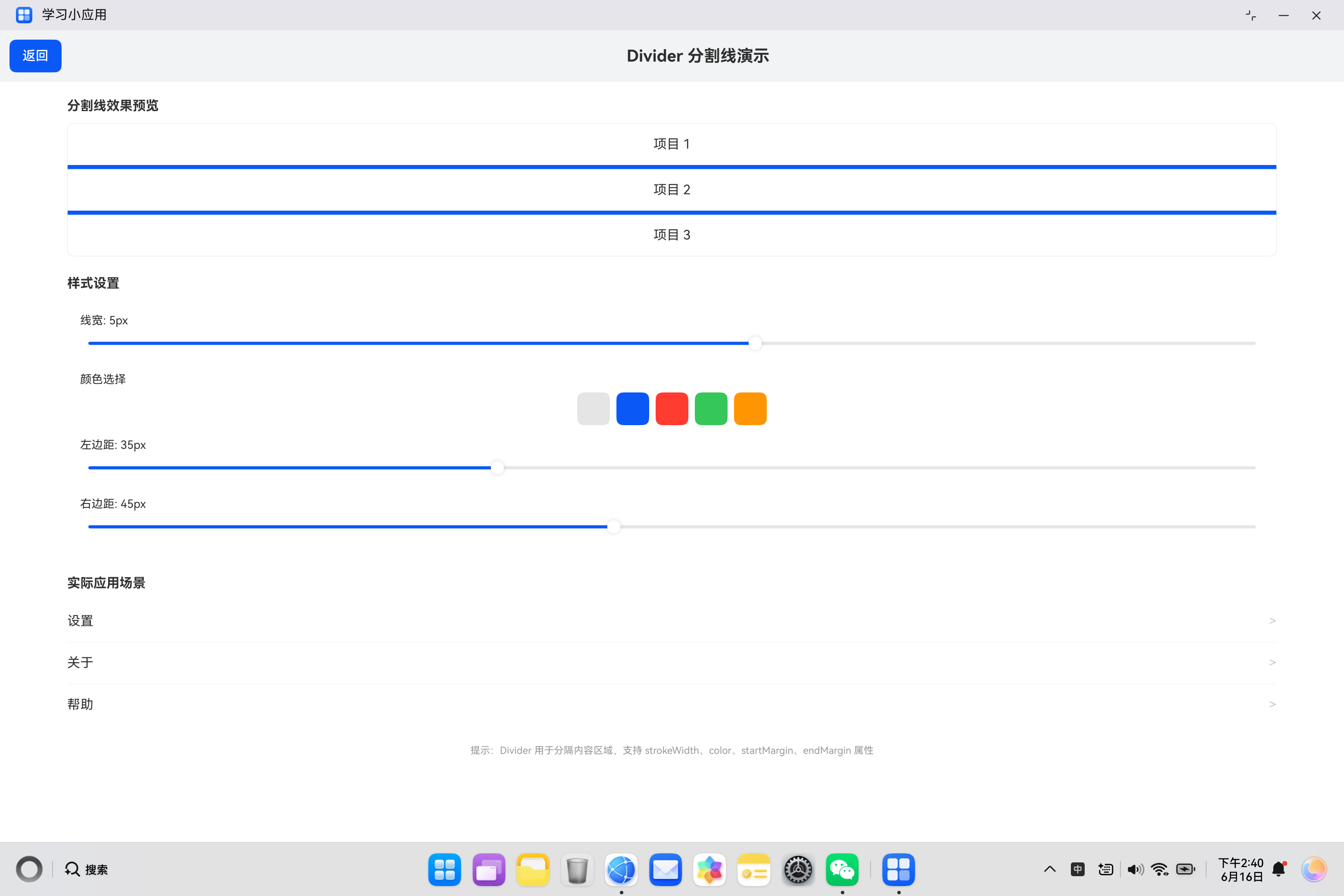
四、实际案例:分割线演示
4.1 需求分析
构建一个分割线演示页面,包含:
- 分割线效果预览
- 线宽调节
- 颜色选择
- 边距调节
- 实际应用场景展示
4.2 代码实现
import { router } from '@kit.ArkUI';

@Entry
@Component
struct DividerDemo {
  @State strokeWidth: number = 1;
  @State color: string = '#E5E5E5';
  @State startMargin: number = 0;
  @State endMargin: number = 0;

  build() {
    Column() {
      Row() {
        Button('返回')
          .onClick(() => {
            router.back();
          })
        Text('Divider 分割线演示')
          .fontSize(20)
          .fontWeight(FontWeight.Bold)
          .layoutWeight(1)
          .textAlign(TextAlign.Center)
      }
      .width('100%')
      .padding(12)
      .backgroundColor('#F1F3F5')

      Column() {
        Text('分割线效果预览')
          .fontSize(16)
          .fontWeight(FontWeight.Bold)
          .margin({ top: 20, bottom: 12 })
          .width('90%')

        Column() {
          Text('项目 1')
            .fontSize(16)
            .fontColor('#333333')
            .padding({ top: 16, bottom: 16 })
          Divider()
            .strokeWidth(this.strokeWidth)
            .color(this.color)
            .startMargin(this.startMargin)
            .endMargin(this.endMargin)
          Text('项目 2')
            .fontSize(16)
            .fontColor('#333333')
            .padding({ top: 16, bottom: 16 })
          Divider()
            .strokeWidth(this.strokeWidth)
            .color(this.color)
            .startMargin(this.startMargin)
            .endMargin(this.endMargin)
          Text('项目 3')
            .fontSize(16)
            .fontColor('#333333')
            .padding({ top: 16, bottom: 16 })
        }
        .width('90%')
        .backgroundColor('#FFFFFF')
        .borderRadius(8)
        .borderWidth(1)
        .borderColor('#E5E5E5')

        Text('样式设置')
          .fontSize(16)
          .fontWeight(FontWeight.Bold)
          .margin({ top: 24, bottom: 12 })
          .width('90%')

        Column() {
          Row() {
            Text('线宽: ' + this.strokeWidth + 'px')
              .fontSize(14)
              .layoutWeight(1)
          }
          Slider({
            value: this.strokeWidth,
            min: 1,
            max: 8,
            step: 1,
            style: SliderStyle.OutSet
          })
            .width('100%')
            .onChange((value: number) => {
              this.strokeWidth = value;
            })

          Row() {
            Text('颜色选择')
              .fontSize(14)
              .layoutWeight(1)
              .margin({ top: 16 })
          }
          Row() {
            Button('')
              .width(40)
              .height(40)
              .backgroundColor('#E5E5E5')
              .onClick(() => {
                this.color = '#E5E5E5';
              })
            Button('')
              .width(40)
              .height(40)
              .backgroundColor('#0A59F7')
              .margin({ left: 8 })
              .onClick(() => {
                this.color = '#0A59F7';
              })
            Button('')
              .width(40)
              .height(40)
              .backgroundColor('#FF3B30')
              .margin({ left: 8 })
              .onClick(() => {
                this.color = '#FF3B30';
              })
            Button('')
              .width(40)
              .height(40)
              .backgroundColor('#34C759')
              .margin({ left: 8 })
              .onClick(() => {
                this.color = '#34C759';
              })
            Button('')
              .width(40)
              .height(40)
              .backgroundColor('#FF9500')
              .margin({ left: 8 })
              .onClick(() => {
                this.color = '#FF9500';
              })
          }
          .justifyContent(FlexAlign.SpaceBetween)
          .margin({ top: 8 })

          Row() {
            Text('左边距: ' + this.startMargin + 'px')
              .fontSize(14)
              .layoutWeight(1)
              .margin({ top: 16 })
          }
          Slider({
            value: this.startMargin,
            min: 0,
            max: 100,
            step: 5,
            style: SliderStyle.OutSet
          })
            .width('100%')
            .onChange((value: number) => {
              this.startMargin = value;
            })

          Row() {
            Text('右边距: ' + this.endMargin + 'px')
              .fontSize(14)
              .layoutWeight(1)
              .margin({ top: 16 })
          }
          Slider({
            value: this.endMargin,
            min: 0,
            max: 100,
            step: 5,
            style: SliderStyle.OutSet
          })
            .width('100%')
            .onChange((value: number) => {
              this.endMargin = value;
            })
        }
        .width('90%')
        .backgroundColor('#FFFFFF')
        .padding(16)
        .borderRadius(8)

        Text('实际应用场景')
          .fontSize(16)
          .fontWeight(FontWeight.Bold)
          .margin({ top: 24, bottom: 12 })
          .width('90%')

        Column() {
          Row() {
            Text('设置')
              .fontSize(16)
              .fontColor('#333333')
              .layoutWeight(1)
            Text('>')
              .fontSize(16)
              .fontColor('#CCCCCC')
          }
          .padding({ top: 16, bottom: 16 })
          Divider()
            .color('#F0F0F0')
          Row() {
            Text('关于')
              .fontSize(16)
              .fontColor('#333333')
              .layoutWeight(1)
            Text('>')
              .fontSize(16)
              .fontColor('#CCCCCC')
          }
          .padding({ top: 16, bottom: 16 })
          Divider()
            .color('#F0F0F0')
          Row() {
            Text('帮助')
              .fontSize(16)
              .fontColor('#333333')
              .layoutWeight(1)
            Text('>')
              .fontSize(16)
              .fontColor('#CCCCCC')
          }
          .padding({ top: 16, bottom: 16 })
        }
        .width('90%')
        .backgroundColor('#FFFFFF')
        .borderRadius(8)

        Text('提示:Divider 用于分隔内容区域,支持 strokeWidth、color、startMargin、endMargin 属性')
          .fontSize(12)
          .fontColor('#999999')
          .margin({ top: 24 })
          .width('90%')
          .textAlign(TextAlign.Center)
      }
      .width('100%')
      .layoutWeight(1)
    }
    .width('100%')
    .height('100%')
    .backgroundColor('#FFFFFF')
  }
}
五、Divider 使用场景总结
5.1 常见应用场景
| 场景 | 说明 |
|---|---|
| 列表项分隔 | 分隔相邻的列表项 |
| 分组分隔 | 分隔不同的内容分组 |
| 表单项分隔 | 分隔表单中的不同字段 |
| 设置项分隔 | 分隔设置页面的选项 |
5.2 样式建议
| 场景 | 建议样式 |
|---|---|
| 列表分隔 | strokeWidth: 1, color: #F0F0F0 |
| 分组分隔 | strokeWidth: 8, color: #F5F5F5 |
| 强调分隔 | strokeWidth: 2, color: #0A59F7 |
六、最佳实践
6.1 使用建议
| 建议 | 说明 |
|---|---|
| 保持一致性 | 同一页面使用相同样式 |
| 合理设置边距 | 根据内容调整边距 |
| 避免过度使用 | 不要滥用分割线 |
6.2 常见问题
| 问题 | 解决方案 |
|---|---|
| 分割线不显示 | 检查 strokeWidth 和 color |
| 边距不生效 | 确认 startMargin/endMargin 设置 |
| 颜色不明显 | 使用更深的颜色值 |
七、总结
Divider 组件是界面设计中常用的分隔元素,掌握其使用方法对于提升界面层次感至关重要。
核心要点:
- 使用
strokeWidth设置分割线宽度 - 使用
color设置分割线颜色 - 使用
startMargin和endMargin设置边距 - 常用于列表项和分组分隔
- 保持样式一致性提升用户体验
希望本文能帮助你更好地理解和使用 Divider 组件,构建出优秀的 HarmonyOS 应用。
参考资料:

讨论HarmonyOS开发技术,专注于API与组件、DevEco Studio、测试、元服务和应用上架分发等。
更多推荐

 2
2 0
0- 0


 已为社区贡献20条内容

所有评论(0)