【HarmonyOS 6】人情APP——“首页“页面的UI布局拆解
从最外层容器到每一张卡片,我们把布局一层层拆开看。
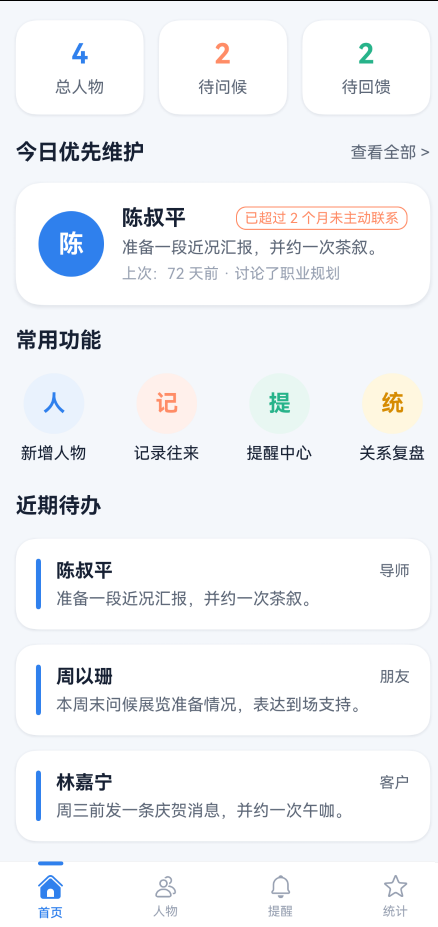
一、先看全貌
"首页"的整体结构是两个大区块纵向排列
if (this.currentTab === 0) {
  this.buildHeroCard()
  this.buildDashboard()
}
就这么简单。两个 @Builder 方法,一个负责"我现在该关注谁",一个负责"我还能做什么"。
二、最外层:Scroll + Column
Scroll() {
  Column({ space: 18 }) {
    if (this.currentTab === 0) {
      this.buildHeroCard()
      this.buildDashboard()
    } else if (this.currentTab === 1) {
      ContactListView({ ... })
    } else if (this.currentTab === 2) {
      this.buildReminderView()
    } else {
      this.buildStatsView()
    }
  }
  .padding({ left: 18, right: 18, top: this.currentTab === 0 ? 20 : 18, bottom: this.currentTab === 1 ? 100 : 80 })
  .width('100%')
}
.align(Alignment.Top)
.scrollBar(BarState.Off)
.layoutWeight(1)
2.1 Column 的 space: 18
Column({ space: 18 })
HeroCard 和 Dashboard 之间自动有 18vp 的间距,不需要手动写 margin。这比在每个区块底部写 margin({ bottom: 18 }) 更干净——第一个区块顶部不需要间距,最后一个底部也不需要,space 自动处理了这个逻辑。
2.2 padding 统一管理
.padding({ left: 18, right: 18, top: this.currentTab === 0 ? 20 : 18, bottom: this.currentTab === 1 ? 100 : 80 })
左右 18vp 的内边距加在 Column 上,所有子组件自动继承相同的左右边距,不会出现对不齐的问题。
注意 top 值做了条件判断:首页给了 20vp,其他 Tab 给 18vp。因为首页顶部没有独立的标题行,需要多一点呼吸空间。
底部留白也做了区分:人物 Tab(currentTab === 1)给了 100vp,因为那个 Tab 有一个悬浮的 FAB 按钮;其他 Tab 给 80vp 就够了。
2.3 隐藏滚动条
.scrollBar(BarState.Off)
内容型页面,滚动条显得多余。关掉之后视觉更干净。
三、HeroCard:页面的视觉焦点
buildHeroCard() 是首页最核心的区块,包含两部分:三指标行和优先人物卡片。
@Builder
private buildHeroCard() {
  Column({ space: 20 }) {
    // 三指标行
    Row({ space: 12 }) {
      this.buildTopStat('总人物', this.totalContacts.toString(), Theme.primary)
      this.buildTopStat('待问候', this.pendingCareCount.toString(), Theme.accent)
      this.buildTopStat('待回馈', this.needReturnCount.toString(), Theme.success)
    }
    .width('100%')

    // 今日优先维护
    Column({ space: 14 }) {
      Row() {
        Text('今日优先维护')
        Blank()
        Text('查看全部 >')
      }
      .width('100%')

      // 优先人物卡片
      Row({ space: 14 }) { ... }
      .width('100%')
      .padding(18)
      .backgroundColor(Theme.getSurface(this.currentMode))
      .borderRadius(20)
      .shadow({ radius: 12, color: Theme.getShadow(this.currentMode), offsetX: 0, offsetY: 4 })
    }
    .width('100%')
  }
  .width('100%')
}
外层 Column({ space: 20 }),指标行和优先人物之间 20vp 间距。内层 Column({ space: 14 }),标题和卡片之间 14vp 间距。两个层级,两种间距,层次分明。
四、三指标行:等宽卡片 + 语义配色
Row({ space: 12 }) {
  this.buildTopStat('总人物', this.totalContacts.toString(), Theme.primary)
  this.buildTopStat('待问候', this.pendingCareCount.toString(), Theme.accent)
  this.buildTopStat('待回馈', this.needReturnCount.toString(), Theme.success)
}
.width('100%')
4.1 buildTopStat 组件
@Builder
private buildTopStat(label: string, value: string, valueColor: string) {
  Column({ space: 6 }) {
    Text(value)
      .fontSize(22)
      .fontWeight(FontWeight.Bold)
      .fontColor(valueColor)
    Text(label)
      .fontSize(13)
      .fontColor(Theme.getTextSecondary(this.currentMode))
  }
  .layoutWeight(1)
  .padding({ top: 14, bottom: 14 })
  .backgroundColor(Theme.getSurface(this.currentMode))
  .borderRadius(16)
  .shadow({ radius: 8, color: Theme.getShadow(this.currentMode), offsetX: 0, offsetY: 2 })
}
4.2 layoutWeight(1) 等宽
.layoutWeight(1)
三个指标都用 layoutWeight(1),各占 1/3 宽度。这是最简单的等宽三列布局——不需要算百分比,也不需要写固定宽度。
4.3 数值在上、标签在下
Column({ space: 6 }) {
  Text(value)    // 22 号加粗,彩色
  Text(label)    // 13 号常规,灰色
}
数值是视觉焦点,22 号字 + 语义色,一眼就能看到。标签是辅助信息,13 号字 + textSecondary 灰色,退到第二层。6vp 的间距让两个文字既不挤在一起,也不会显得太散。
4.4 上下 padding 不等
.padding({ top: 14, bottom: 14 })
只设了上下 padding,没有设左右。因为三个卡片之间已经有 Row({ space: 12 }) 的间距,左右 padding 会让卡片内部文字偏左,和卡片边缘距离不一致。
4.5 轻阴影
.shadow({ radius: 8, color: Theme.getShadow(this.currentMode), offsetX: 0, offsetY: 2 })
radius: 8 是整页最轻的阴影。指标卡片面积小、信息少,不需要太重的阴影。offsetX: 0 让阴影只在下方,模拟自然光从正上方照射的效果。
五、“今日优先维护”:区块标题 + 卡片
5.1 区块标题行
Row() {
  Text('今日优先维护')
    .fontSize(17)
    .fontWeight(FontWeight.Bold)
    .fontColor(Theme.getTextPrimary(this.currentMode))
  Blank()
  Text('查看全部 >')
    .fontSize(13)
    .fontColor(Theme.getTextSecondary(this.currentMode))
    .onClick(() => { this.currentTab = 1; })
}
.width('100%')
经典的布局:Row + Blank()。
左侧"今日优先维护"是 17 号加粗,右侧"查看全部"是 13 号常规灰色。Blank() 把右侧文字推到最右边,无论左侧标题多长,"查看全部"始终右对齐。
5.2 点击跳转
.onClick(() => { this.currentTab = 1; })
“查看全部"点击后切换到"人物"Tab。这种跨 Tab 跳转的设计,让首页成为一个"入口汇总”——用户在首页就能触达其他页面的核心功能。
六、优先人物卡片:左图右文 + 里程碑标签
这是首页信息密度最高的区域
Row({ space: 14 }) {
  // 头像
  Column() {
    Text(this.priorityContact.name.substring(0, 1))
      .fontSize(20)
      .fontWeight(FontWeight.Bold)
      .fontColor('#FFFFFF')
  }
  .width(52)
  .height(52)
  .backgroundColor(Theme.primary)
  .borderRadius(26)
  .justifyContent(FlexAlign.Center)

  // 右侧信息
  Column({ space: 6 }) {
    Row({ space: 8 }) {
      Text(this.priorityContact.name)
        .fontSize(17)
        .fontWeight(FontWeight.Bold)
        .fontColor(Theme.getTextPrimary(this.currentMode))
        .layoutWeight(1)
        .maxLines(1)
        .textOverflow({ overflow: TextOverflow.Ellipsis })

      Text(this.priorityContact.milestone)
        .fontSize(11)
        .fontColor(Theme.accent)
        .padding({ left: 6, right: 6, top: 2, bottom: 2 })
        .border({ width: 1, color: Theme.accent })
        .borderRadius(8)
    }
    .width('100%')

    Text(this.priorityContact.nextAction)
      .fontSize(13)
      .fontColor(Theme.getTextSecondary(this.currentMode))
      .maxLines(1)
      .textOverflow({ overflow: TextOverflow.Ellipsis })
      .width('100%')

    Text('上次:' + this.priorityContact.lastContactText)
      .fontSize(12)
      .fontColor(Theme.getTextMuted(this.currentMode))
      .maxLines(1)
      .textOverflow({ overflow: TextOverflow.Ellipsis })
      .width('100%')
  }
  .layoutWeight(1)
  .alignItems(HorizontalAlign.Start)
}
.width('100%')
.padding(18)
.backgroundColor(Theme.getSurface(this.currentMode))
.borderRadius(20)
.shadow({ radius: 12, color: Theme.getShadow(this.currentMode), offsetX: 0, offsetY: 4 })
6.1 头像:52×52 正圆
.width(52)
.height(52)
.borderRadius(26)
52vp 的宽高,borderRadius 设为宽度的一半(26),形成正圆。头像内容取姓名首字:
Text(this.priorityContact.name.substring(0, 1))
这是最简单的"文字头像"方案——不需要图片资源,一个 substring(0, 1) 就能生成。
6.2 里程碑标签
Text(this.priorityContact.milestone)
  .fontSize(11)
  .fontColor(Theme.accent)
  .padding({ left: 6, right: 6, top: 2, bottom: 2 })
  .border({ width: 1, color: Theme.accent })
  .borderRadius(8)
文字和边框都是 Theme.accent(#FF8C66),背景是透明的。
6.3 三行文字,三种灰度
Theme.getTextPrimary(this.currentMode)   // 亮色模式: #162033
Theme.getTextSecondary(this.currentMode)  // 亮色模式: #5E6878
Theme.getTextMuted(this.currentMode)      // 亮色模式: #98A1B2
三级灰度,用户扫一眼就能区分"这个人是谁"、“我该做什么”、“上次聊了什么”。
6.4 maxLines + textOverflow
.maxLines(1)
.textOverflow({ overflow: TextOverflow.Ellipsis })
三行文字都限制了单行显示,超出部分用省略号。因为这张卡片是"快速扫描"用的,不需要展示完整信息——用户想知道细节,可以点进人物详情页。
6.5 姓名用 layoutWeight(1)
Text(this.priorityContact.name)
  .layoutWeight(1)
姓名占据剩余宽度,里程碑标签靠右。如果姓名很长,会被截断而不是把标签挤出去。
七、Dashboard:常用功能 + 近期待办
@Builder
private buildDashboard() {
  Column({ space: 24 }) {
    // 常用功能
    Column({ space: 16 }) { ... }
    .width('100%')

    // 近期待办
    Column({ space: 16 }) { ... }
    .width('100%')
  }
  .width('100%')
}
外层 Column({ space: 24 }),两个区块之间 24vp 间距。比 HeroCard 内部的 20vp 稍大,因为 Dashboard 两个区块的功能完全不同,需要更明显的视觉分隔。
八、常用功能:4 个快捷入口
Column({ space: 16 }) {
  Text('常用功能')
    .fontSize(17)
    .fontWeight(FontWeight.Bold)
    .fontColor(Theme.getTextPrimary(this.currentMode))
    .width('100%')

  Row() {
    this.buildQuickActionItem('人', '新增人物', Theme.getPrimarySoft(this.currentMode), Theme.primary, () => { this.showCreatePanel = true; })
    this.buildQuickActionItem('记', '记录往来', Theme.getAccentSoft(this.currentMode), Theme.accent, () => {})
    this.buildQuickActionItem('提', '提醒中心', Theme.getSuccessSoft(this.currentMode), Theme.success, () => { this.currentTab = 2; })
    this.buildQuickActionItem('统', '关系复盘', Theme.getWarningSoft(this.currentMode), '#D68B00', () => { this.currentTab = 3; })
  }
  .width('100%')
  .justifyContent(FlexAlign.SpaceBetween)
  .padding({ left: 4, right: 4 })
}
.width('100%')
8.1 SpaceBetween 四等分
.justifyContent(FlexAlign.SpaceBetween)
4 个入口水平排列,SpaceBetween 让它们均匀分布。配合左右各 4vp 的微调 padding,让最左和最右的入口不会紧贴屏幕边缘。
8.2 buildQuickActionItem 组件
@Builder
private buildQuickActionItem(iconText: string, title: string, bgColor: string, accentColor: string, action: () => void) {
  Column({ space: 8 }) {
    Row() {
      Text(iconText)
        .fontSize(18)
        .fontWeight(FontWeight.Bold)
        .fontColor(accentColor)
    }
    .width(48)
    .height(48)
    .justifyContent(FlexAlign.Center)
    .backgroundColor(bgColor)
    .borderRadius(24)

    Text(title)
      .fontSize(13)
      .fontColor(Theme.getTextPrimary(this.currentMode))
  }
  .onClick(() => { action(); })
}
8.3 图标区:48×48 圆形 + 浅底深字
.width(48)
.height(48)
.borderRadius(24)
8.4 文字图标 vs SymbolGlyph
Text(iconText) // '人'、'记'、'提'、'统'
快捷入口用的是单字文字图标,而不是 SymbolGlyph 系统图标。原因很简单:这四个功能是应用特有的,系统图标库里没有完全对应的符号。用单字图标反而更直观——"人"就是新增人物,"记"就是记录往来,不需要用户去猜图标的含义。
九、近期待办:左侧色条 + 右侧信息
Column({ space: 16 }) {
  Text('近期待办')
    .fontSize(17)
    .fontWeight(FontWeight.Bold)
    .fontColor(Theme.getTextPrimary(this.currentMode))
    .width('100%')

  Column({ space: 12 }) {
    ForEach(this.upcomingContacts, (item: ContactProfile) => {
      Row({ space: 12 }) {
        Column()
          .width(4)
          .height(40)
          .backgroundColor(Theme.primary)
          .borderRadius(2)

        Column({ space: 6 }) {
          Row() {
            Text(item.name)
              .fontSize(15)
              .fontWeight(FontWeight.Bold)
              .fontColor(Theme.getTextPrimary(this.currentMode))
            Blank()
            Text(item.relation)
              .fontSize(12)
              .fontColor(Theme.getTextSecondary(this.currentMode))
          }
          .width('100%')

          Text(item.nextAction)
            .fontSize(13)
            .fontColor(Theme.getTextSecondary(this.currentMode))
            .maxLines(1)
            .textOverflow({ overflow: TextOverflow.Ellipsis })
            .width('100%')
        }
        .layoutWeight(1)
      }
      .width('100%')
      .padding(16)
      .backgroundColor(Theme.getSurface(this.currentMode))
      .borderRadius(16)
      .shadow({ radius: 8, color: Theme.getShadow(this.currentMode), offsetX: 0, offsetY: 2 })
    }, (item: ContactProfile) => item.id + '_' + item.name + '_' + item.relation + '_' + item.nextAction)
  }
  .width('100%')
}
.width('100%')
9.1 左侧色条:4×40 的竖线
Column()
  .width(4)
  .height(40)
  .backgroundColor(Theme.primary)
  .borderRadius(2)
这是整页最有设计感的一个细节。4vp 宽、40vp 高的蓝色竖条,borderRadius(2) 让两端微微圆角。
色条的作用是视觉锚点——当列表有多条待办时,用户的视线会自然沿着左侧色条从上往下扫,快速识别每条待办。
9.2 为什么不用 Divider 分隔
待办列表用的是 Column({ space: 12 }),卡片之间靠 12vp 的间距分隔,没有用 Divider。
因为每张卡片都有独立的白色背景和阴影,卡片之间已经有足够的视觉分隔。再加 Divider 反而会显得累赘。
9.3 ForEach 的 key 生成
(item: ContactProfile) => item.id + '_' + item.name + '_' + item.relation + '_' + item.nextAction
key 由多个字段拼接而成,确保列表更新时能正确复用组件。如果只用 item.id,当同一个人的关系或待办发生变化时,组件可能不会重新渲染。
9.4 卡片外壳
.padding(16)
.borderRadius(16)
.shadow({ radius: 8, color: Theme.getShadow(this.currentMode), offsetX: 0, offsetY: 2 })
待办卡片比优先人物卡片更轻:padding(16) vs padding(18),borderRadius(16) vs borderRadius(20),shadow radius: 8 vs shadow radius: 12。
因为待办列表通常有 3 条,卡片太重会让页面显得拥挤。轻一点的卡片让列表更透气。
十、深色模式适配
整个首页没有一处硬编码颜色,全部通过 Theme 工具类获取:
Theme.getBackground(this.currentMode)    // 亮: #F5F7FB  暗: #0F1218
Theme.getSurface(this.currentMode)       // 亮: #FFFFFF  暗: #1A1D24
Theme.getTextPrimary(this.currentMode)   // 亮: #162033  暗: #E5EAF5
Theme.getTextSecondary(this.currentMode) // 亮: #5E6878  暗: #98A1B2
Theme.getTextMuted(this.currentMode)     // 亮: #98A1B2  暗: #748094
Theme.getPrimarySoft(this.currentMode)   // 亮: #EAF2FD  暗: #1B2742
Theme.getShadow(this.currentMode)        // 亮: #1E24304C  暗: #66000000
currentMode 来自:
@StorageProp('currentColorMode') currentMode: number = ConfigurationConstant.ColorMode.COLOR_MODE_LIGHT;
@StorageProp 让组件自动监听系统主题变化。用户切换暗色模式时,所有颜色自动更新,不需要手动刷新。

讨论HarmonyOS开发技术,专注于API与组件、DevEco Studio、测试、元服务和应用上架分发等。
更多推荐
 50
50 0
0- 0


 已为社区贡献8条内容

所有评论(0)