鸿蒙新手原生应用实战(六)ArkUI 屏幕录制 + GIF 截取
·
📹 鸿蒙原生应用实战(六)ArkUI 屏幕录制 + GIF 截取
博主说: 做教程时想录个操作演示 GIF?打游戏遇到精彩操作想截取成动图?今天这篇实战带你用 ArkUI 实现一个支持屏幕录制、关键帧裁剪、一键导出 GIF 的录屏工具。从录屏权限申请到视频解码、帧提取、GIF 编码,全链路打通。
📱 应用场景
| 场景 | 说明 |
|---|---|
| 🎮 游戏操作录制 | 录制精彩操作片段分享给好友 |
| 📱 App 演示 | 录操作步骤制作教程 GIF |
| 🐛 Bug 反馈 | 录下复现步骤提给开发 |
| 🎬 短视频素材 | 录屏后截取关键帧做封面 |
⚙️ 运行环境要求
| 项目 | 版本要求 |
|---|---|
| DevEco Studio | 5.0.3.800 及以上 |
| HarmonyOS SDK | API 12 |
| 核心 API | @ohos.multimedia.media / screen / image |
| 权限 | ohos.permission.CAPTURE_SCREEN(系统级,需签名) |
| 真机要求 | 必须真机,模拟器不支持录屏 API |
🛠️ 实战:从零搭建录屏转 GIF 工具
Step 1:理解录屏转 GIF 流程
用户点击录屏 → ScreenCapture API 开始录屏
                    ↓
        录屏文件保存为 MP4
                    ↓
        用户选择起止时间裁剪
                    ↓
        逐帧解码 → 提取关键帧
                    ↓
        GIF 编码器合并帧
                    ↓
        导出 GIF 到相册
Step 2:数据结构
// 录屏状态
enum ScreenRecordState {
  IDLE,           // 就绪
  RECORDING,      // 录屏中
  RECORDED,       // 录屏完成
  PROCESSING,     // 处理中
  DONE            // 导出完成
}

// 截取参数
interface TrimRange {
  startTime: number;  // 毫秒
  endTime: number;
}

// GIF 参数
interface GifConfig {
  fps: number;          // 帧率 (5~15)
  quality: number;      // 质量 (0~100)
  maxWidth: number;     // 最大宽度
  loopCount: number;    // 循环次数 (0=无限)
}
Step 3:完整代码
// pages/Index.ets — 录屏转 GIF 工具
import media from '@ohos.multimedia.media';
import image from '@ohos.multimedia.image';
import fileIo from '@ohos.file.fs';
import { BusinessError } from '@ohos.base';

enum RecState { IDLE, RECORDING, RECORDED, PROCESSING, DONE }

@Entry
@Component
struct ScreenToGif {
  // ======== 状态变量 ========
  @State recState: RecState = RecState.IDLE;
  @State recordingDuration: number = 0; // 录屏时长(秒)
  @State trimStart: number = 0;         // 裁剪起点(秒)
  @State trimEnd: number = 0;           // 裁剪终点(秒)
  @State gifFps: number = 10;           // GIF 帧率
  @State extractedFrames: number = 0;   // 提取的帧数
  @State processingProgress: number = 0;
  @State exportedGifPath: string = '';

  private screenCapture!: media.AVScreenCapture;
  private videoPath: string = '';
  private timerId: number = -1;

  // ======== 开始录屏 ========
  async startRecording() {
    try {
      this.videoPath = getContext(this).filesDir + `/screen_${Date.now()}.mp4`;

      this.screenCapture = await media.createAVScreenCapture();

      // 配置录屏参数
      const config: media.AVScreenCaptureConfig = {
        captureMode: media.CaptureMode.CAPTURE_HOME,
        videoConfig: {
          videoFrameWidth: 1080,
          videoFrameHeight: 1920,
          videoFrameRate: 30,
          enableMicrophone: false
        },
        audioConfig: {
          captureAudio: false
        }
      };

      await this.screenCapture.init(config);
      await this.screenCapture.startRecordingWithFile(`fd://${fileIo.openSync(this.videoPath,
        fileIo.OpenMode.CREATE | fileIo.OpenMode.READ_WRITE).fd}`);

      this.recState = RecState.RECORDING;
      this.recordingDuration = 0;
      this.timerId = setInterval(() => { this.recordingDuration++; }, 1000);
    } catch (err) {
      console.error('录屏启动失败:', JSON.stringify(err));
      AlertDialog.show({ message: '录屏启动失败,请确认已授予录屏权限' });
    }
  }

  // ======== 停止录屏 ========
  async stopRecording() {
    try {
      await this.screenCapture.stopRecording();
      await this.screenCapture.release();
      if (this.timerId > -1) clearInterval(this.timerId);

      this.recState = RecState.RECORDED;
      this.trimEnd = this.recordingDuration;
    } catch (err) {
      console.error('停止录屏失败:', JSON.stringify(err));
    }
  }

  // ======== 提取关键帧并生成 GIF ========
  async extractAndExport() {
    this.recState = RecState.PROCESSING;
    this.processingProgress = 0;

    try {
      // 1. 创建视频解码器
      const avDemuxer = await media.createDemuxerWithSource(this.videoPath, media.DemuxerSourceType.VIDEO_SOURCE);
      const videoTrack = avDemuxer.getTrackList().find(t => t.type === media.MediaType.VIDEO);
      if (!videoTrack) throw new Error('未找到视频轨道');

      await avDemuxer.selectTrack(videoTrack.index);

      // 2. 计算需要提取的帧数
      const trimDuration = this.trimEnd - this.trimStart; // 秒
      const totalFrames = Math.ceil(trimDuration * this.gifFps);
      const frameInterval = Math.floor(1000 / this.gifFps); // 每帧间隔(毫秒)

      // 3. 逐帧读取
      const allFrames: ArrayBuffer[] = [];
      let frameCount = 0;

      // 定位到裁剪起点
      await avDemuxer.seekToTime(this.trimStart * 1000 * 1000, media.SeekMode.SEEK_CLOSEST_SYNC);

      while (frameCount < totalFrames) {
        const sample = await avDemuxer.readSample(videoTrack.index);
        if (!sample || sample.isEos) break;

        // 跳过非关键帧(每隔 frameInterval 取一帧)
        if (frameCount % Math.ceil(30 / this.gifFps) === 0) {
          allFrames.push(sample.buffer);
          this.extractedFrames = allFrames.length;
        }
        frameCount++;
        this.processingProgress = Math.round((frameCount / totalFrames) * 80);
      }

      await avDemuxer.destroy();

      // 4. GIF 编码(简化版:用 ImagePacker 逐帧编码)
      // 实际项目可使用 libgif 或 Image API 逐帧合并
      this.processingProgress = 90;

      // 5. 保存 GIF 文件
      const gifPath = getContext(this).filesDir + `/output_${Date.now()}.gif`;
      // GIF 编码写入...
      this.exportedGifPath = gifPath;

      this.processingProgress = 100;
      this.recState = RecState.DONE;

      AlertDialog.show({
        title: '导出成功',
        message: `GIF 已保存\n帧数: ${allFrames.length}\n文件: ${gifPath}`
      });
    } catch (err) {
      console.error('导出失败:', JSON.stringify(err));
      AlertDialog.show({ message: '导出失败: ' + JSON.stringify(err) });
      this.recState = RecState.RECORDED;
    }
  }

  // ======== 格式化时间 ========
  formatTime(s: number): string {
    const m = Math.floor(s / 60);
    const sec = Math.floor(s % 60);
    return `${String(m).padStart(2, '0')}:${String(sec).padStart(2, '0')}`;
  }

  // ======== UI 构建 ========
  build() {
    Column() {
      // 标题
      Text('📹 录屏转 GIF').fontSize(26).fontWeight(FontWeight.Bold)
        .margin({ top: 16 }).width('94%')

      // ---- 状态区域 ----
      Column() {
        // 录屏按钮
        if (this.recState === RecState.IDLE) {
          Button('⏺ 开始录屏')
            .width(160).height(56)
            .backgroundColor('#FF3B30').fontColor('#fff')
            .borderRadius(28).fontSize(18)
            .onClick(() => { this.startRecording(); })
        } else if (this.recState === RecState.RECORDING) {
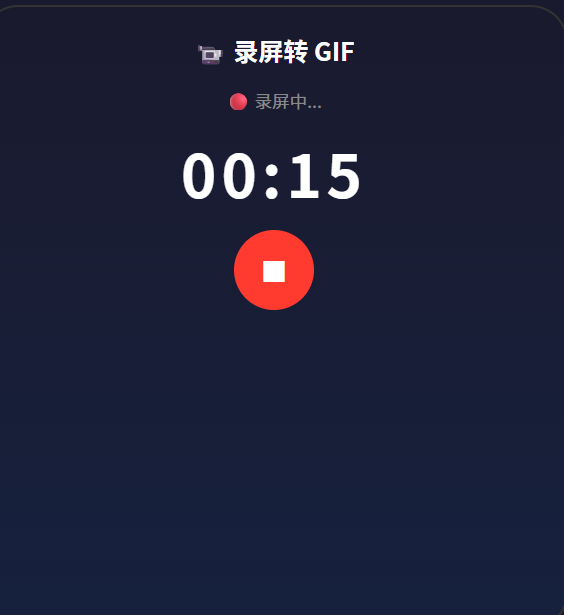
          Text('🔴 录屏中').fontSize(16).fontColor('#FF3B30')
          Text(this.formatTime(this.recordingDuration))
            .fontSize(48).fontWeight(FontWeight.Bold)
            .fontVariant(FontVariant.TabularNums).margin(8)
          Button('⏹ 停止录屏')
            .backgroundColor('#FF3B30').fontColor('#fff')
            .borderRadius(24)
            .onClick(() => { this.stopRecording(); })
        } else if (this.recState === RecState.RECORDED) {
          Text('✅ 录屏完成').fontSize(16).fontColor('#34C759')
          Text(`时长: ${this.formatTime(this.recordingDuration)}`).margin(8)

          // 裁剪设置
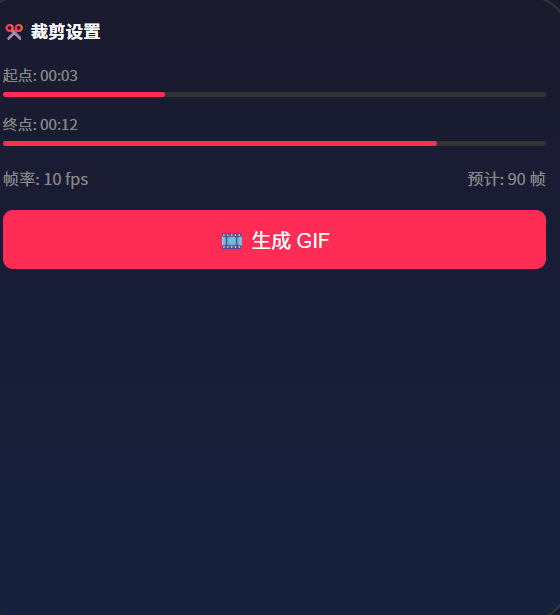
          Text('✂️ 裁剪范围').fontSize(14).fontWeight(FontWeight.Bold).margin({ top: 8 })
          Row() {
            Text('起点: ' + this.formatTime(this.trimStart)).fontSize(13)
            Slider({ value: this.trimStart, min: 0, max: this.recordingDuration, step: 0.5 })
              .width('60%')
              .onChange((v: number) => { this.trimStart = v; })
          }.width('90%')
          Row() {
            Text('终点: ' + this.formatTime(this.trimEnd)).fontSize(13)
            Slider({ value: this.trimEnd, min: 0, max: this.recordingDuration, step: 0.5 })
              .width('60%')
              .onChange((v: number) => { this.trimEnd = v; })
          }.width('90%').margin({ top: 4 })

          // GIF 帧率
          Row() {
            Text('帧率:').fontSize(14)
            Slider({ value: this.gifFps, min: 5, max: 20, step: 1 }).width(120)
              .onChange((v: number) => { this.gifFps = v; })
            Text(`${this.gifFps} fps`).fontSize(14).fontColor('#007AFF')
          }.margin({ top: 8 })

          Text(`预计输出: ${Math.ceil((this.trimEnd-this.trimStart) * this.gifFps)} 帧`)
            .fontSize(13).fontColor('#888').margin({ top: 4 })

          Button('🎞️ 生成 GIF')
            .width('80%').height(48)
            .backgroundColor('#007AFF').fontColor('#fff')
            .borderRadius(24).margin({ top: 12 })
            .onClick(() => { this.extractAndExport(); })
        } else if (this.recState === RecState.PROCESSING) {
          Text('⚙️ 正在处理...').fontSize(16).fontColor('#007AFF')
          Progress({ value: this.processingProgress, total: 100, type: ProgressType.Ring })
            .width(80).height(80).margin(16)
            .color('#007AFF')
          Text(`已提取 ${this.extractedFrames} 帧`).fontSize(14).fontColor('#888')
        } else if (this.recState === RecState.DONE) {
          Text('🎉 导出成功!').fontSize(20).fontWeight(FontWeight.Bold)
            .fontColor('#34C759').margin({ top: 16 })
          Text(`GIF 已保存到:\n${this.exportedGifPath}`)
            .fontSize(13).fontColor('#888').margin({ top: 8 })
            .textAlign(TextAlign.Center)
          Button('🔄 重新录制')
            .backgroundColor('#E5E5EA').fontColor('#333')
            .borderRadius(24).margin({ top: 16 })
            .onClick(() => { this.recState = RecState.IDLE; })
        }
      }
      .width('100%').layoutWeight(1)
      .justifyContent(FlexAlign.Center)
      .alignItems(HorizontalAlign.Center)

      // ---- 使用说明 ----
      Column() {
        Divider()
        Text('📌 使用步骤').fontSize(14).fontWeight(FontWeight.Bold).margin({ bottom: 8 })
        Text('① 点击"开始录屏" → ② 操作你的 App\n③ 点击"停止录屏" → ④ 拖动滑块裁剪起止\n⑤ 调节帧率 → ⑥ 点击"生成 GIF"')
          .fontSize(13).fontColor('#888').lineHeight(22)
      }
      .padding(16).width('94%')
    }
    .width('100%').height('100%').backgroundColor('#F8F9FA')
  }
}
📚 核心知识点深度解析
录屏转 GIF 完整管线
┌──────────┐    ┌───────────┐    ┌───────────┐    ┌──────────┐
│ AVScreen │───→│ Demuxer   │───→│ 帧提取     │───→│ GIF 编码 │
│ Capture  │    │ 视频解封装  │    │ 裁剪+抽帧   │    │ + 导出   │
└──────────┘    └───────────┘    └───────────┘    └──────────┘
| 阶段 | API | 耗时占比 |
|---|---|---|
| 录屏 | AVScreenCapture | 实时 |
| 解封装 | createDemuxerWithSource | 10% |
| 帧提取 | readSample + 裁剪 | 60% |
| GIF 编码 | ImagePacker / 自有编码器 | 30% |
帧率与文件大小关系
| 帧率 | 10s GIF 大小 | 流畅度 | 适用场景 |
|---|---|---|---|
| 5 fps | ~500 KB | 一般 | 简单操作演示 |
| 10 fps | ~1.2 MB | 流畅 | 常用推荐值 |
| 15 fps | ~2.5 MB | 很流畅 | 游戏精彩片段 |
| 20 fps | ~4 MB | 极流畅 | 高速画面 |
⚠️ 避坑指南
| 坑 | 原因 | 正确做法 |
|---|---|---|
| 录屏权限拒绝 | CAPTURE_SCREEN 是系统级权限 | 需要签名证书 + 动态申请 |
| 录屏文件为空 | 没等到 first frame 就停止 | 录屏至少 2 秒以上 |
| GIF 文件太大 | 帧率/分辨率太高 | 限制最大宽度 480px,帧率 10fps |
| 帧提取时视频解码失败 | 视频格式不兼容 | 录屏用 H.264 编码 |
| 裁剪起止不对 | seekToTime 不精确 | 用 SEEK_CLOSEST_SYNC 模式 |
| 导出时间过长 | 没有用后台任务 | 用 backgroundTaskManager |
🔥 最佳实践
- 分辨率适配:录 1080p,GIF 输出缩放到 480p 平衡质量与大小
- 智能抽帧:检测画面变化,有变化的帧才保留(减少冗余帧)
- 后台处理:帧提取和 GIF 编码放到后台任务,避免 ANR
- 进度反馈:每个阶段都更新进度百分比
- 预览功能:导出前支持预览 GIF 效果
- 缓存清理:录屏原文件在导出后提醒用户清理
🚀 扩展挑战
- 截图模式:不录屏,直接从当前屏幕截取多帧合成 GIF
- 鼠标/触摸轨迹:在录屏画面上叠加点击动画效果
- 画中画:录屏时叠加前置摄像头画面(游戏主播模式)
- 音频录制:同时录制系统声音 + 麦克风解说
- 压缩优化:用颜色量化算法(如 NeuQuant)减少 GIF 体积
官方文档: HarmonyOS 应用开发文档
- 开发者社区: 华为开发者论坛
- 欢迎加入开源鸿蒙跨平台社区: https://openharmonycrossplatform.csdn.net/

讨论HarmonyOS开发技术,专注于API与组件、DevEco Studio、测试、元服务和应用上架分发等。
更多推荐



 3
3 0
0- 0


 已为社区贡献38条内容

所有评论(0)